

Running Tracker Service
A running tracker service records the distance, time, pace, and route of each run from your phone on the spot, and shows each signed-in person only their own records. When a run is finished, today's record is added to the list, and one person's records are not visible to another. You see the same records in the phone app and on the web alike.
This example shows one thing. Two screens, a phone app and a web page, share a single WEEGLOO backend. So this page first looks at the backend the app and web share, and then splits toward whichever side interests you, the app or the web. Whichever you pick, the backend is the same. That is the point.
What we build
Instead of a clothing shop or a blog, this example is a personal running tracker service. Two screens, a phone app and a web page, show the same records. We set the app up with three screens.
- Sign-in screen: you sign in with Google.
- Record list: a signed-in person sees the running records they have logged so far, most recent first.
- Add a record: you log the distance, time, pace, route, and date of a run.
The heart of it is "each person sees only their own records." A signed-in person is delivered only the records they logged, and other people's records are not visible. This condition is what makes both member login and permissions necessary later on.
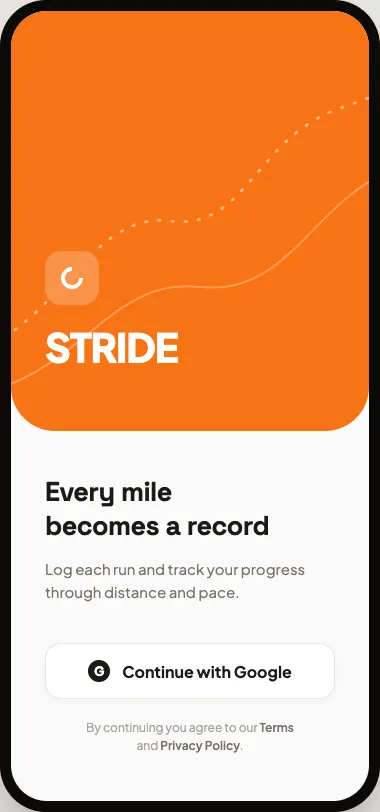
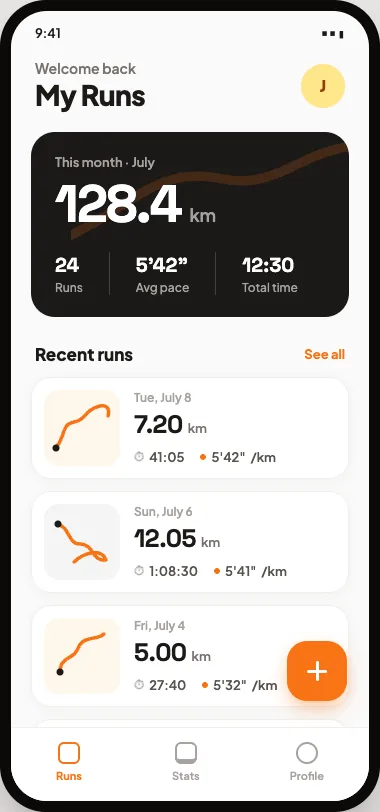
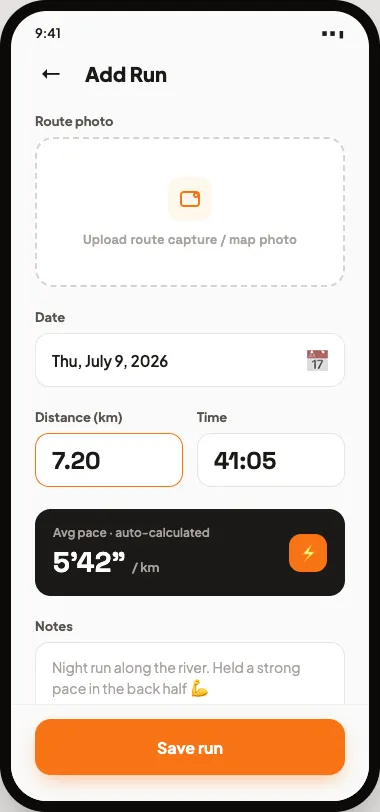
You can jump straight to whichever side interests you. To build the phone app, go to Building with the app; to build the web page, go to Building with the web. That said, the "backend behind the screens" below is common to the app and the web, so skimming it first ties the two branches together well.
The backend behind the screens (app and web)
Once you have built the screens and connected an agent, say "Integrate this with WEEGLOO" (Connect it, Integrate in one sentence), and the agent looks at the screens and puts in place what is needed behind them. A data structure to hold running records (Content Type), Google login (ServiceLogin), the "only your own" permission (ServiceUserRole), and delivery that, following that permission, sends each member only their own records. This backend is the same whether you start from the app screens or the web screens, and the app and web share it as is. How to handle each piece on its own is covered one at a time in Add sign-up and login, Divide up permissions, and Store your data and pull it back out.
Below are the resources actually created in this example's Stride Space. This is not a walkthrough of setting each one up; it is a look at what appeared as the result of "integrate this."
The structure that holds running records
The first is the structure that holds running records (Content Type), "Run." The values that go into a single run are split into per-item slots.
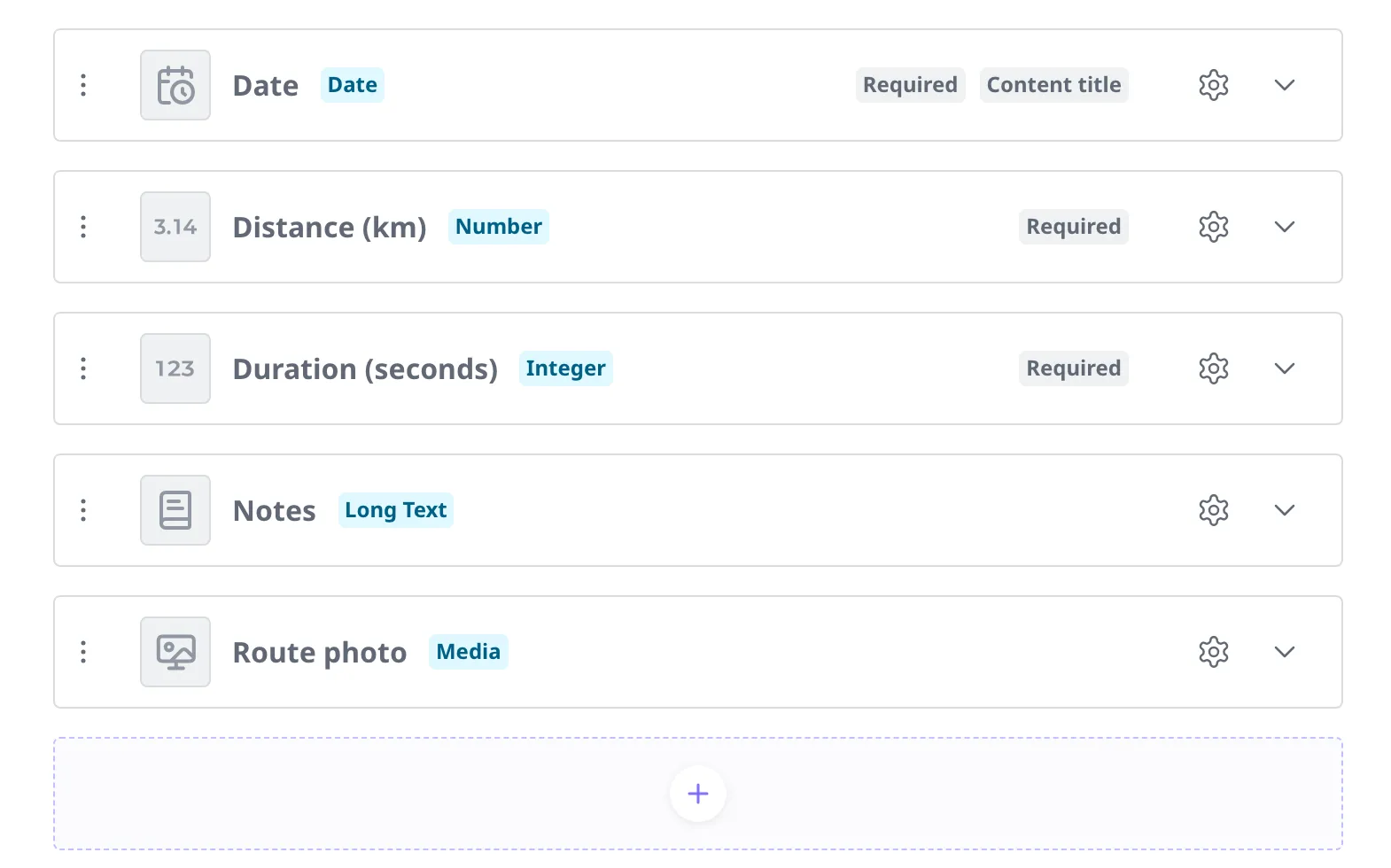
| Item | Slot type | Required | Value it holds |
|---|---|---|---|
Date | Date | Required | The date of the run. Also used as the title that identifies the record in the list. |
Distance (km) | Number | Required | The distance run (in kilometers). It takes decimals. |
Duration (seconds) | Integer | Required | The time it took (in seconds). On screen it is shown as minutes and seconds, like 41:05. |
Notes | Long Text | Optional | A note for that day's run. |
Route photo | Media | Optional | One route map or photo file. |
There is no separate slot that stores average pace. It is a value you get from distance and time alone, so the app calculates and shows it on the spot (the "auto-calculated" on the add-a-record screen).
Google login
The second is the channel members use to log in with Google (ServiceLogin). In this example the name is set to "Stride," and Google is the only login method turned on. A newly signed-in person gets the "Runner" permission below by default. When login finishes, the result comes back to the screen, and how it comes back differs a little between the app and the web. That difference is covered in Building with the app and Building with the web respectively.
The "only your own records" permission
The third is the permission that members receive (ServiceUserRole), "Runner." The rules are as follows.
| What can be done | Scope it applies to |
|---|---|
| Create a record | Any signed-in member |
| Read a record | Only the ones you created |
| Edit a record | Only the ones you created |
| Delete a record | Only the ones you created |
Because "read" is bound to "only the ones you created," the list shows each person only their own records. Since the records each member can read are only their own, that is precisely the list delivered to that person. This rule applies the same way on the app and on the web.
Records and photos
The fourth is each individual running record (Content) and the route photo (Media). These two are not created ahead of time; each one is created under a member's name when they log a run. Below is one record that was actually logged. The "Run" structure above is filled with values, and a route photo is attached alongside it.
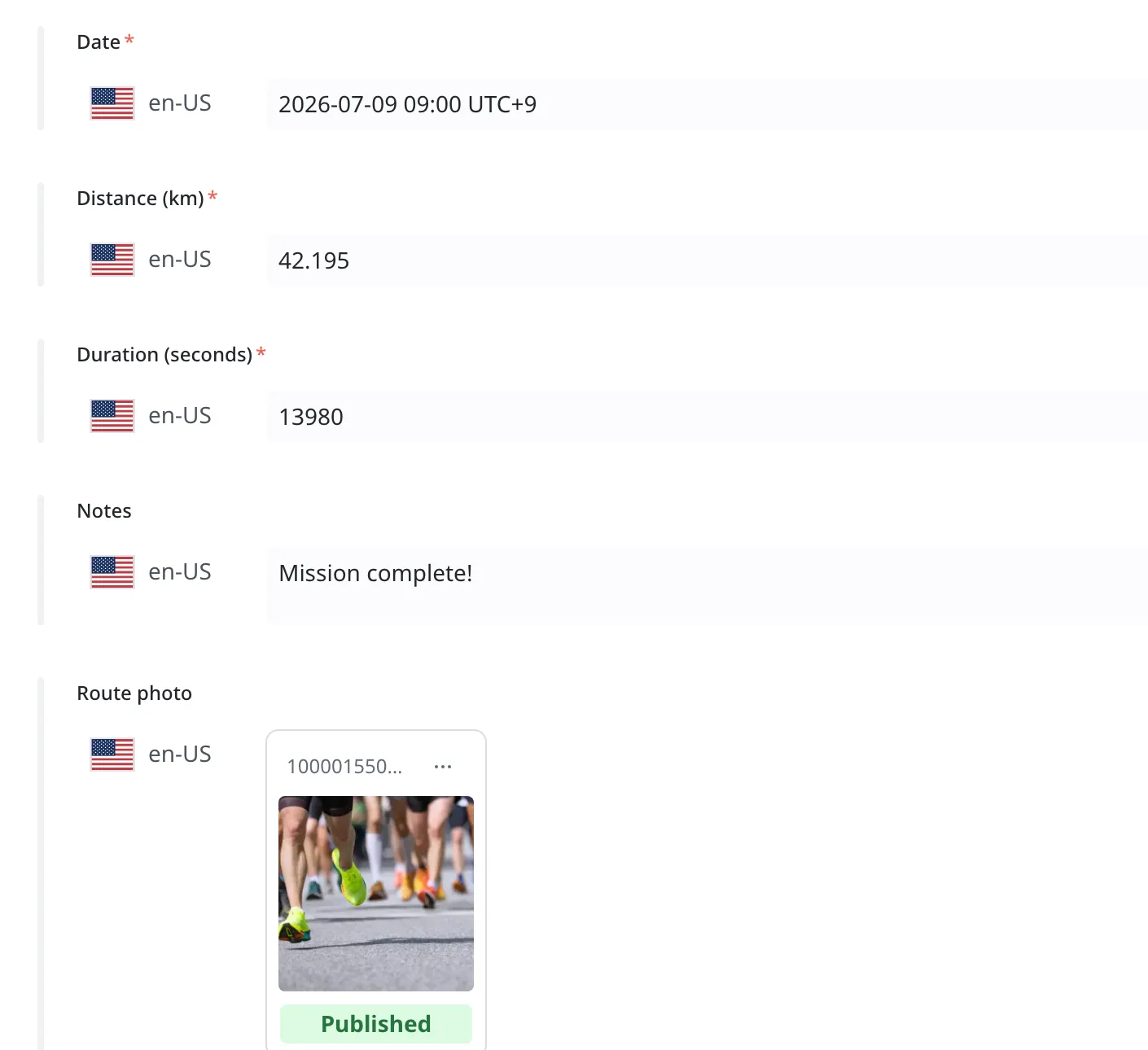
The distance 42.195 is a full marathon. The time is held in seconds (here, a 3 hour 53 minute record) and shown in the app as 3:53:00. The route photo is stored separately as a file (Media), and the record holds only a link pointing to that file.
Building with the app
First, the phone app. You make the app screens, then fill in the work behind them with the backend behind the screens above.
Build the app screens and integrate
1. Create the screen designs. The three screens in "What we build" above were produced by giving an LLM a prompt like the one below. You give it one line on what kind of app you are making, the list of screens and what each screen holds, and a design direction.
Design the screens for a running tracker app. It is a vertical mobile app.
Screens:
- Sign-in: one line introducing the app and a "Continue with Google" button.
- Record list (home): a summary of total distance and number of runs, a list of running record cards (date, distance, time, pace, route thumbnail), and an add-a-record button.
- Add a record: inputs for date, distance, time, pace, notes, and a route photo, plus save.
Make it clean and active, so figures like distance and pace read at a glance. Follow mobile UI conventions.
The screens that come out this way still have no data and no login: they are just the screens.
2. Integrate it with WEEGLOO. Connect the agent to WEEGLOO and say "Integrate this with WEEGLOO," and the agent looks at these screens and puts in place the backend behind the screens above.
Two things to handle because it is an app
The backend is exactly the same as when you build it for the web. There are two things to handle because it is an app.
- Deployment: getting a finished mobile app into people's hands (listing it in an app market) happens outside WEEGLOO. What WEEGLOO takes on is the data, members, and permissions behind the app screens. (The web has no app market. That is covered in Building with the web.)
- Login callback: the connection that brings the result back into the app after login finishes differs from the web. The login result can only come back to a web address, so one extra step is needed: a page that acts as an intermediate bridge and passes that result into the app. This technical step is covered in Auth API.
Seeing that it really is only your own records
The core condition, "each person sees only their own records," really holds in the app. Below are the home screens of the same app opened with two different accounts. It is the same app, but the total distance, the number of runs, and the records shown in the list all differ.
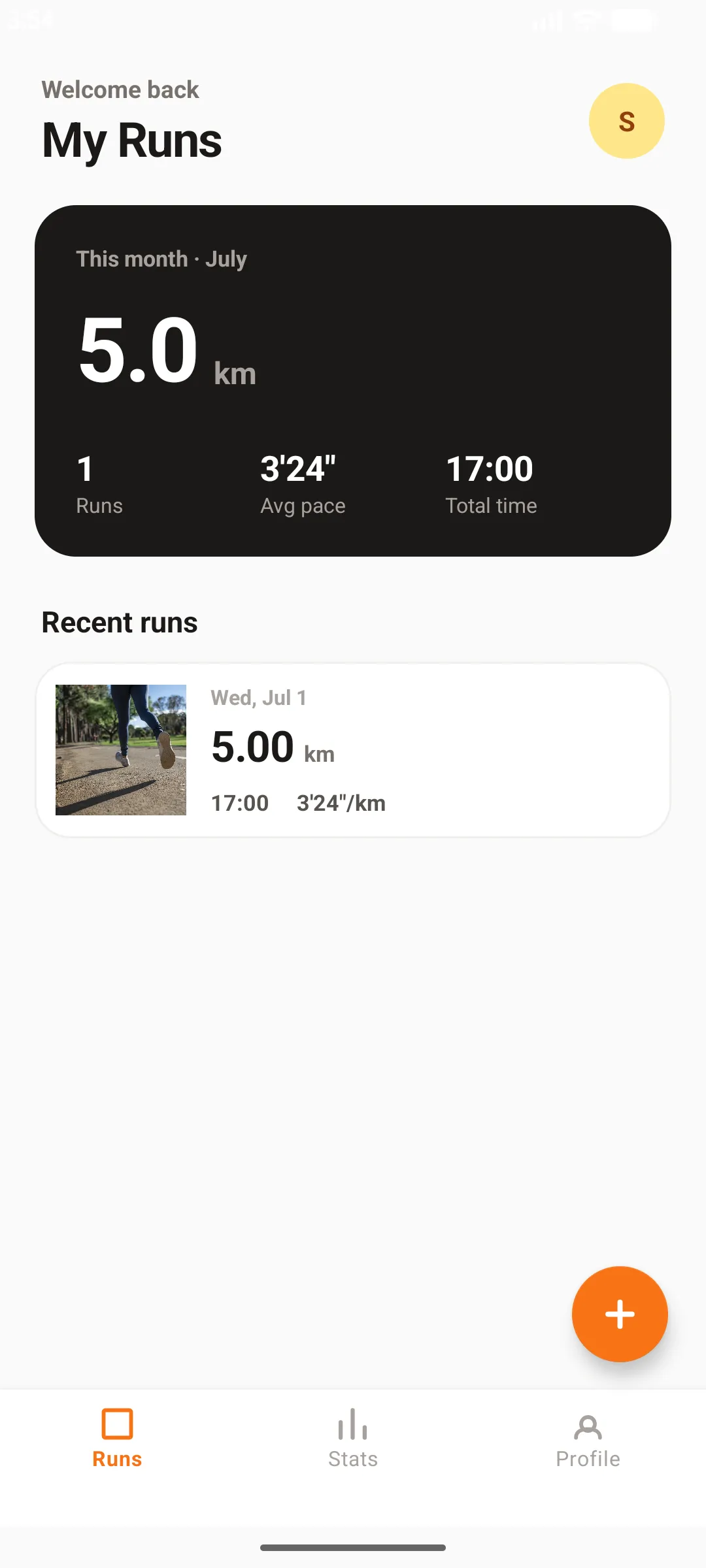
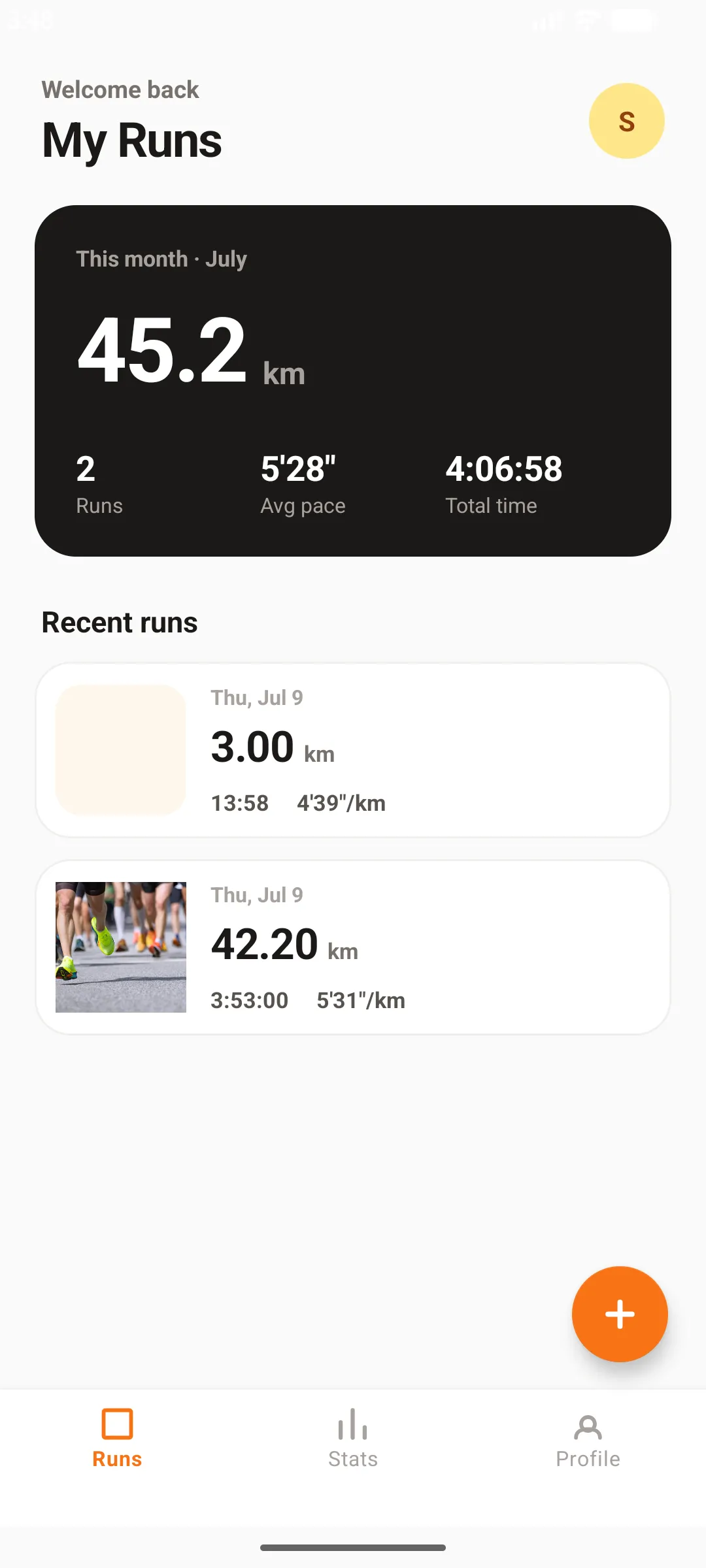
One account shows only a single 5km run, and the other shows only two runs, a marathon and a 3km. Their records are not visible to each other. Stride holds all three of these records, but each member is delivered only the records they logged. This is the result of binding read to "only the ones you created" in The "only your own records" permission above.
Building with the web
The web uses the very same backend as the app. The web reads the backend behind the screens above and shows the same records.
Build the web screens and integrate
The web takes the same two steps as the app.
1. Create the web screen designs. As with the app, you give an LLM a prompt like the one below to produce the web screens. What they hold is the same as the app; you switch it to a web layout fit for a wide screen.
Design the screens for a running tracker web app. It is a desktop web app.
Screens:
- Sign-in: one line introducing the service and a "Continue with Google" button.
- Record list (dashboard): a summary of total distance, number of runs, and average pace, a list of running records (date, distance, time, pace, route thumbnail), and an add-a-record button.
- Add a record: inputs for date, distance, time, pace, notes, and a route photo, plus save.
Use a layout that makes the most of the wide screen, so figures like distance and pace read at a glance. Follow web UI conventions.
2. Integrate it with WEEGLOO. Tell the connected agent "Integrate this web app with WEEGLOO too." If you have already built the app, the agent does not stand up the backend behind the screens above again; it connects to it as is. No new WEEGLOO resources are created. The only new thing on the web is the web screens. (If you started from the web without going through the app, this is when that backend is first created, and adding the app later works the same way, sharing it as is. Either way, the backend is the same.)
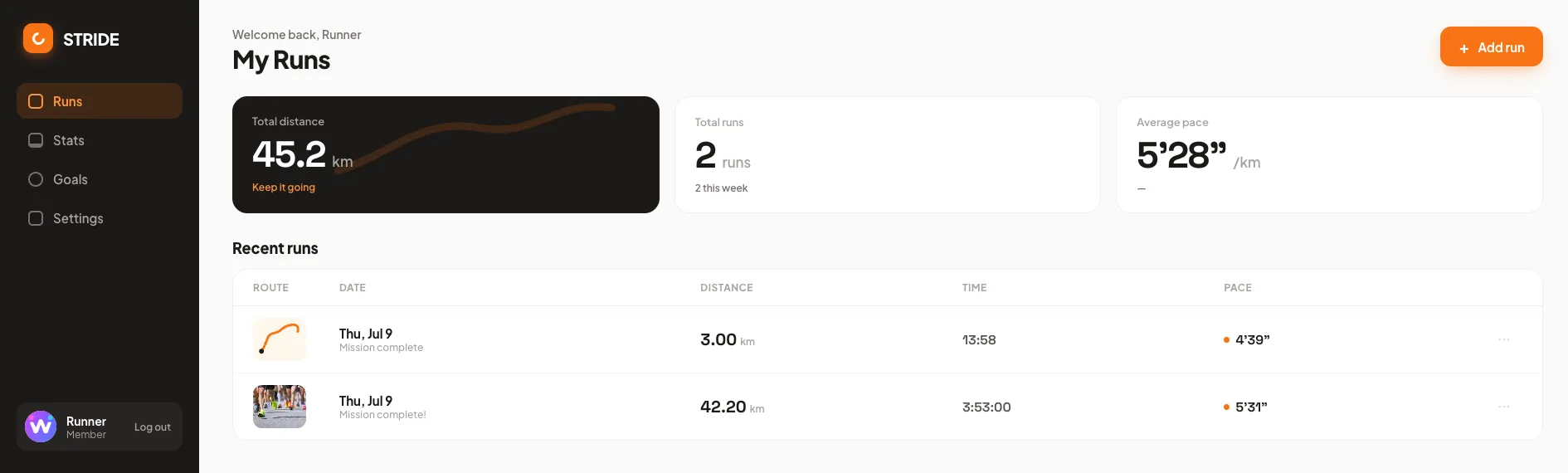
This web screen is the account from Seeing that it really is only your own records (45.2km this month, a 42.20km marathon and a 3km) opened on the web. The total distance, number of runs, and records match the app home exactly. Because there is a single backend, the web shows on a desktop screen the very data the app showed.
Two things that are different because it is web
The web also has two points that differ from the app, but the direction is the opposite of the app, so this time there is even less to handle.
- Deployment: the web needs no app market. You put the web files you built straight onto the internet with Web Hosting (Put your site on the internet).
- Login callback: on the web, the login result comes straight back to a web address. The intermediate bridge page the app needed is not required on the web.
Permissions stay the same, so on the web too each member sees only their own records. The The "only your own records" permission above applies to the web just the same.
What to do next
- Add sign-up and login: covers how to add a login that takes your own members separately.
- Auth API: covers the technical step of bringing the login result back into the app.
- Divide up permissions: covers how to set permissions so that members handle only their own things.
- Store your data and pull it back out: covers how to create a data structure and fill it with content.
- Put your site on the internet: covers how to deploy a web page with Web Hosting.