

Scheduler
Imagine you run an online clothing store. When a customer buys the last one, that product's stock drops to 0. To sell it again, you have to place an order with your supplier. Say your supplier keeps an order desk open on the internet, so that calling a set address places the order. And say you have already built a Script that finds the products whose stock is 0 and calls that desk. Even so, one problem remains. You still need someone to press that Script once a day.
Scheduler takes the place of that person. Once you set the instruction "run this Script at the same time every day" a single time, WEEGLOO runs it on its own whenever that time arrives. No one has to open a screen.
You can think of it like setting an alarm clock. Once you decide what time it rings, from then on it rings by itself at that time every day. This page looks at what you set on a Scheduler, how you write the time, and whose authority it runs under, using the clothing store's "Restock order" example.
Three things you set
There is not much to set on a single Scheduler.
- Name: so you can recognize it later in the list. Example:
Restock order. - The Script to run: you pick one Script to run when that time comes. One Scheduler runs only one Script.
- When it runs: covered below in How to write the time.
There is also one more switch, for turning it on and off. When it is off, what you saved stays as is and only the running stops. When you need to pause for a while, like a period when the supplier is closed, you do not have to delete it.
The Script to run cannot be changed later. To run a different Script, create a new Scheduler. The name, the time, and the on/off switch can be changed at any time.
How to write the time
You write the time in five slots. From the left they are minute, hour, day, month, weekday, and * means "all".
minute  hour  day  month  weekday
0       9     *    *       *        → every day at 09:00
Common patterns look like this.
| Value you write | When it runs |
|---|---|
0 0 * * * | Every day at 00 |
30 9 * * * | Every day at 09 |
0 * * * * | Every hour on the hour |
*/10 * * * * | Every 10 minutes |
0 0 * * 1 | Every Monday at 00 |
0 0 1 * * | The 1st of every month at 00 |
The time is read in UTC (Coordinated Universal Time). Since it is not local time, decide what hour you want it to run in local time, then work out that difference and write it down. In a place 9 hours ahead of UTC, 9 in the morning there is 0 0 * * *. Restock order runs on this value, that is, at midnight UTC.
For a time that includes a day of the month or a weekday, this calculation can shift the date as well, so check it once more.
A value that would never run is not saved. For example, 0 0 30 2 * points to February 30, and since that day never comes, trying to save it returns a response asking you to check the value again.
Whose authority it runs under
When a Scheduler runs a Script, that run is treated as having been performed by the Scheduler's creator. When the Restock order Script reads products and calls the supplier, that too happens with the creator's authority.
So to create or edit one, you need two permissions together.
- The role (SpaceRole) must have permission to set up Schedulers.
- You must also have permission to run the Script that the Scheduler will run.
The second is checked not only when you create it but also when you edit it. This is because changing the run time decides when that Script runs, and turning on one that was off starts its execution.
If the creator later loses that permission, the Scheduler turns off. If the person in charge leaves the team or their role is narrowed, WEEGLOO checks this at the next run time and, without running it, turns the switch off. Even if the permission comes back, the switch does not turn itself on, so you have to turn it on again yourself.
Checking the execution history
Every time a Scheduler runs, one record is left behind. Whether that run succeeded or failed is what is left here. You use this record to check whether last night's order actually went out.
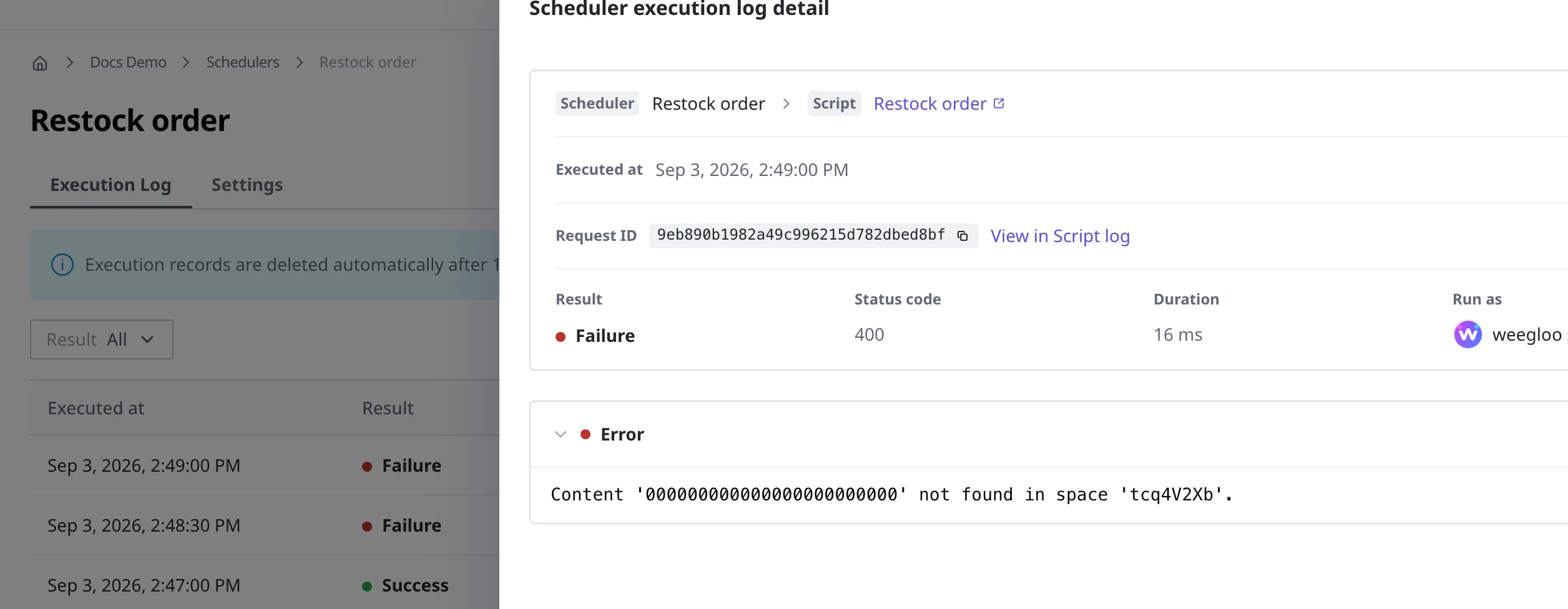
The list shows the time each run was executed and its result. When you click a run that failed while running, you can read the reason for it as-is in the error area of the detail screen. It appears together with how long the run took, so you can tell from that text whether the supplier's desk failed to respond or something else went wrong.
The record of a successful run disappears after one hour, and the record of a failed run after three days. Failures are kept longer because those are the records you end up looking into later. For values you need to keep longer than that, like an order history, save them as Content from inside the Script.
A failure does not stop the Scheduler. If a run failed because the supplier's desk did not respond for a moment, only that run is recorded as failed, and it runs again at the next time.
How it differs from Webhook
Both run a Script without anyone pressing a button. What sets them apart is what triggers the run.
- A Webhook runs when something happens. When a product is registered, when content is published.
- A Scheduler runs when a set time arrives. Every day at that time, even when nothing has happened.
At first glance, Restock order looks like a job for a Webhook. After all, you could place the order the moment stock hits 0. But if the same product's stock drops to 0, comes back through a return, and drops to 0 again within a single day, an order goes out each time. If you sweep through once a day and gather them, one product means one order. Work that should be "gathered into a single run" rather than done "every time it happens" is where a Scheduler belongs.
Conversely, filling in a description the moment a product is registered has no reason to wait, so it is a job for a Webhook.
Things to know
- There is a limit on the count. The number of Schedulers a single Organization can have is set per plan (Free 1, Basic 5, Pro 30, Enterprise unlimited). When you reach the limit, you cannot create a new one, and deleting one you are not using frees a slot again.
- Run counts are shared with Script. Since what a Scheduler does is run a Script, each run uses one of your plan's Script run counts. There is no separate limit for Schedulers alone. When you use up that count, any Scheduler that comes due afterward does not run and turns off. In this case, why it could not start is left in the execution history. It does not turn back on automatically when the next month starts, so you have to turn it on again yourself.
- Missed runs are not made up. If it skipped a day due to maintenance or the like, it does not run twice the next day. It runs again from the next scheduled time.
- A Script that a Scheduler uses cannot be deleted. That holds even when the Scheduler is switched off. Delete that Scheduler first, then delete the Script.
Managing in the content studio
You create and manage Schedulers on the Scheduler screen in the content studio. The list shows each Scheduler you have created on its own row, along with its name, the name of the Script it runs, the cron expression, Next run, the status, the time it was last edited, and who edited it.

The screen also tells you which clock each of those two columns is on. The header of the column holding the cron expression carries UTC, and the header of the Next run column carries the viewer's own time zone, written like UTC±N. So you can see the saved value and what time that is for you on the same row. In a time zone behind UTC, Next run can appear as the day before.
You create a new Scheduler with the Create button at the top right of the list.
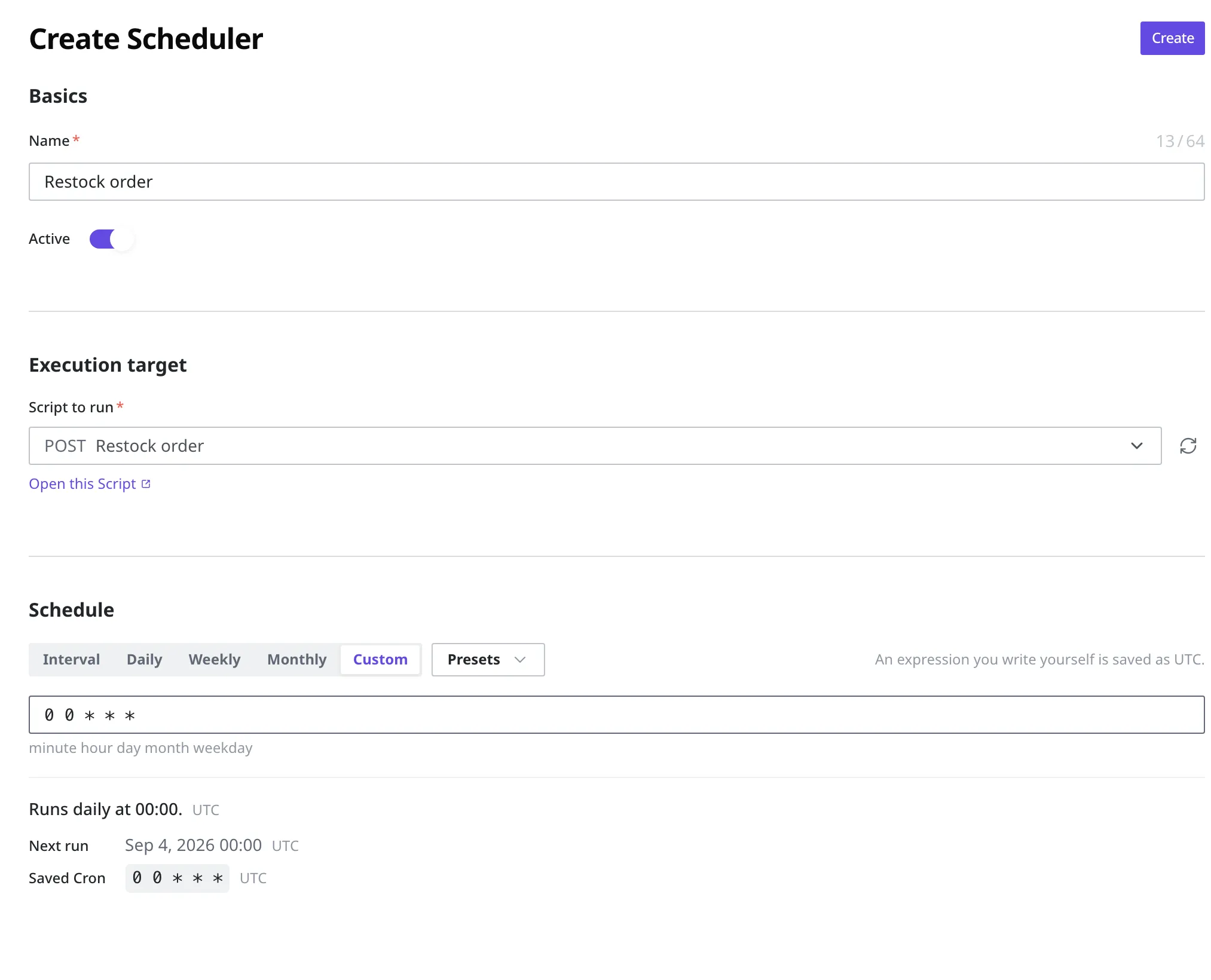
- Click the Create button at the top right of the list.
- Enter
Restock orderin the name field. - Leave Active turned on. If you leave it off, it is saved but does not run.
- In Script to run, pick the Restock order Script.
- In Schedule, choose Custom.
- Enter
0 0 * * *in the five slots. - Click the Create button at the top right to save.
The screen also shows you right away when the expression you entered actually runs. Along with a notice that an expression you enter yourself is saved in UTC, a preview of the cron value that will be saved and of the next run time appears.
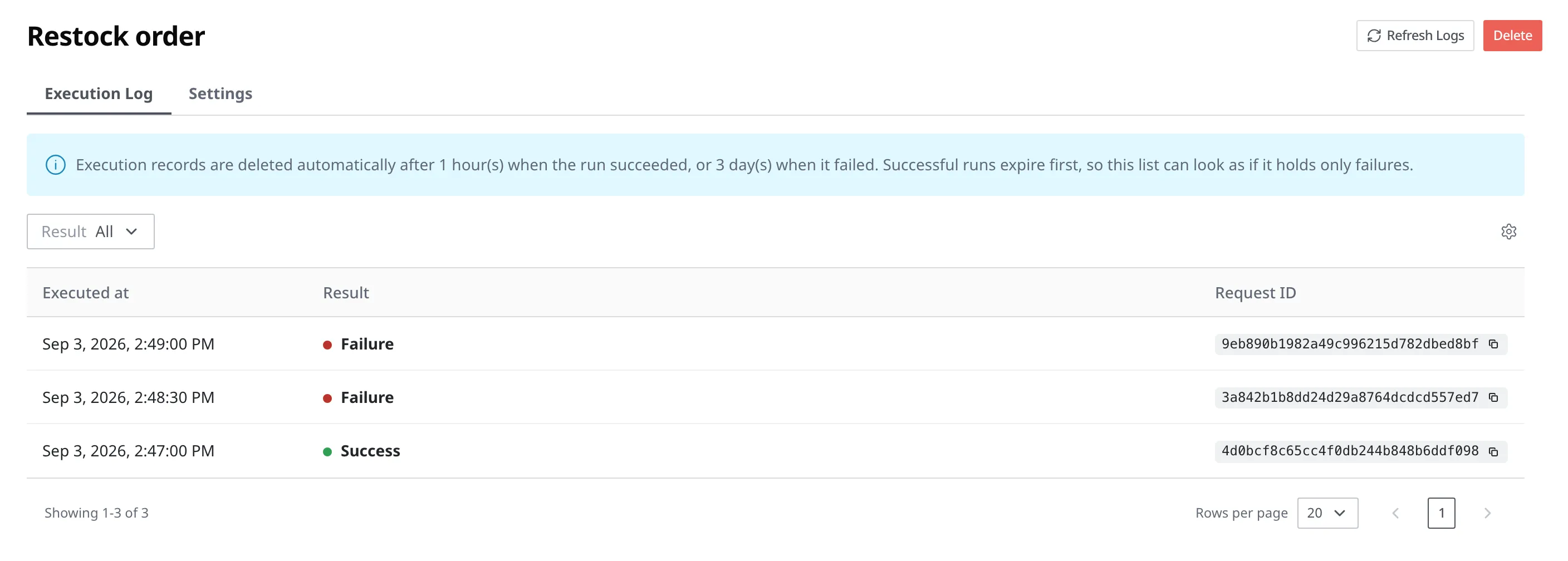
Clicking one Scheduler in the list opens that Scheduler's detail screen. The detail screen is split into two tabs, Execution Log and Settings, and Execution Log is what you see when you first open it. The Execution Log tab lists every run so far, one per row, and each row shows the Executed at time, the Result, and the Request ID that points to that run. With the Result dropdown you can filter down to successful runs or failed runs only, and clicking Refresh Logs reads the list again, including the run that finished moments ago.
Clicking a run opens the details for that run. Here you see the Result together with the Status code, how long the run took (Duration), and whose identity the run went out under (Run as), and for a run that failed, the reason appears as-is in the Error area. At the top there are badges telling you which Scheduler this run belongs to and which Script it ran, along with a link to that Script and a View in Script log link that shows the same run in the Script's own records.
What to do next
- Script: Covers how to create the Script that a Scheduler runs, and how to build in an action that calls an outside service, like the supplier's desk.
- Webhook: Covers how to make things run when a change you have decided on happens, rather than at a set time.
- Roles and Permissions: Covers how to put the Scheduler configuration permission and the Script run permission into a role.