

Getting Gmail ready to send
This page is where you get the value to put in the App password field in Sending email.
The value you put in that field is not the Google account password you use to sign in to Gmail. It is a 16-character value that Google issues separately, and it is called an app password.
Two-step verification has to be on
App passwords are available only on an account that has two-step verification turned on. If the account you will send from does not have two-step verification on, turn it on first. Google's help page explains how to turn it on: https://support.google.com/accounts/answer/185839?hl=en (opens in a new tab).
If you have set up two-step verification but the option to create an app password is still not visible, one of the following may apply.
- Two-step verification is set up on the Google account with security keys only
- You are signed in to a work, school, or other organization account
- Advanced protection is set up on the Google account
If the option is not visible, you cannot create an app password with that account. Get one from a different Google account that you will use for sending.
Getting the app password from Google
While signed in with the Google account you will send from, work through the two steps below in order.
Creating the app password
-
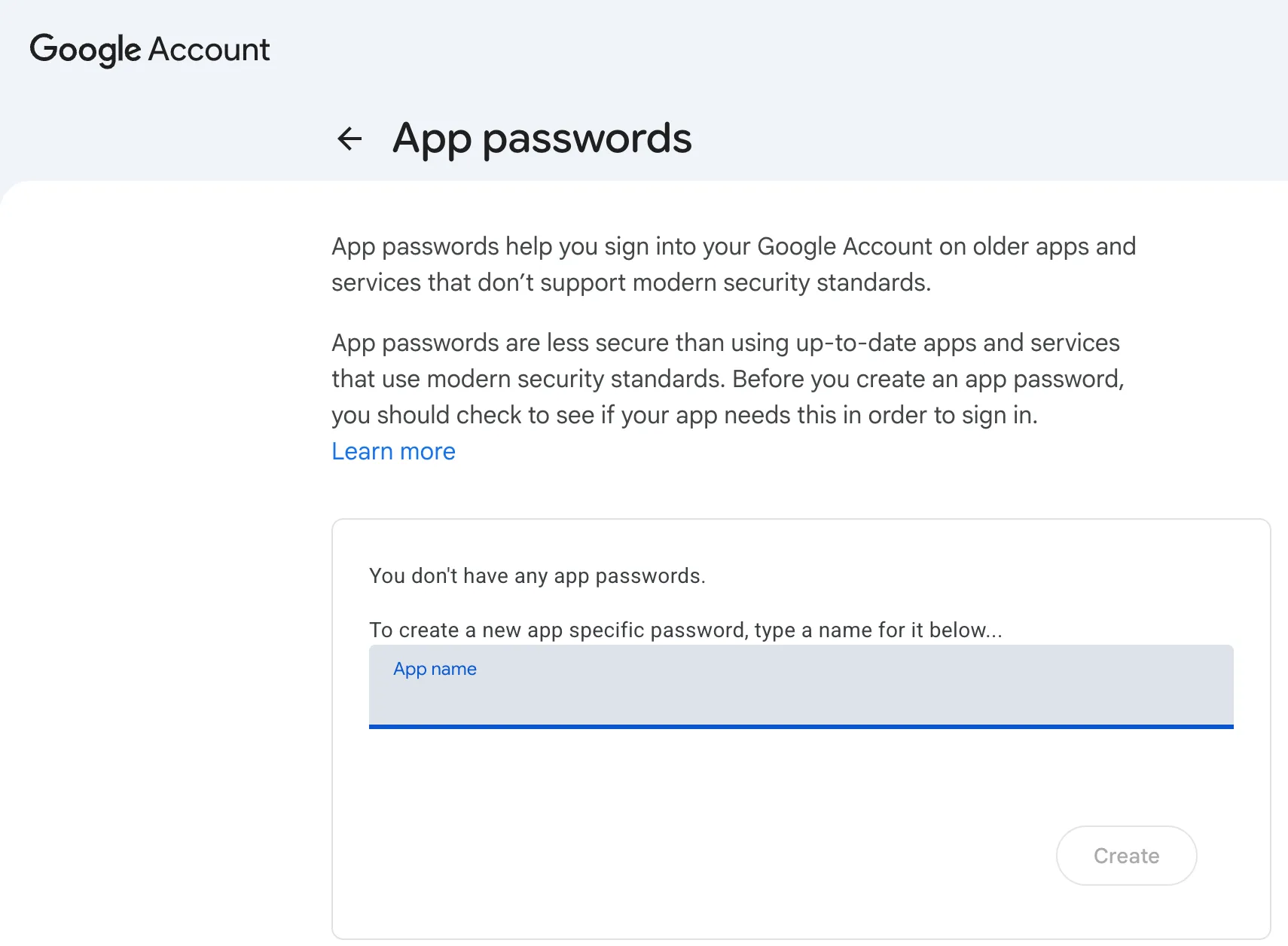
Open the app passwords screen (https://myaccount.google.com/apppasswords (opens in a new tab)). If a screen asking you to sign in appears, sign in with the account you will send from.
-
In the App name field, enter a name you will recognize later (for example,
WEEGLOO order notice sender). -
Press Create.
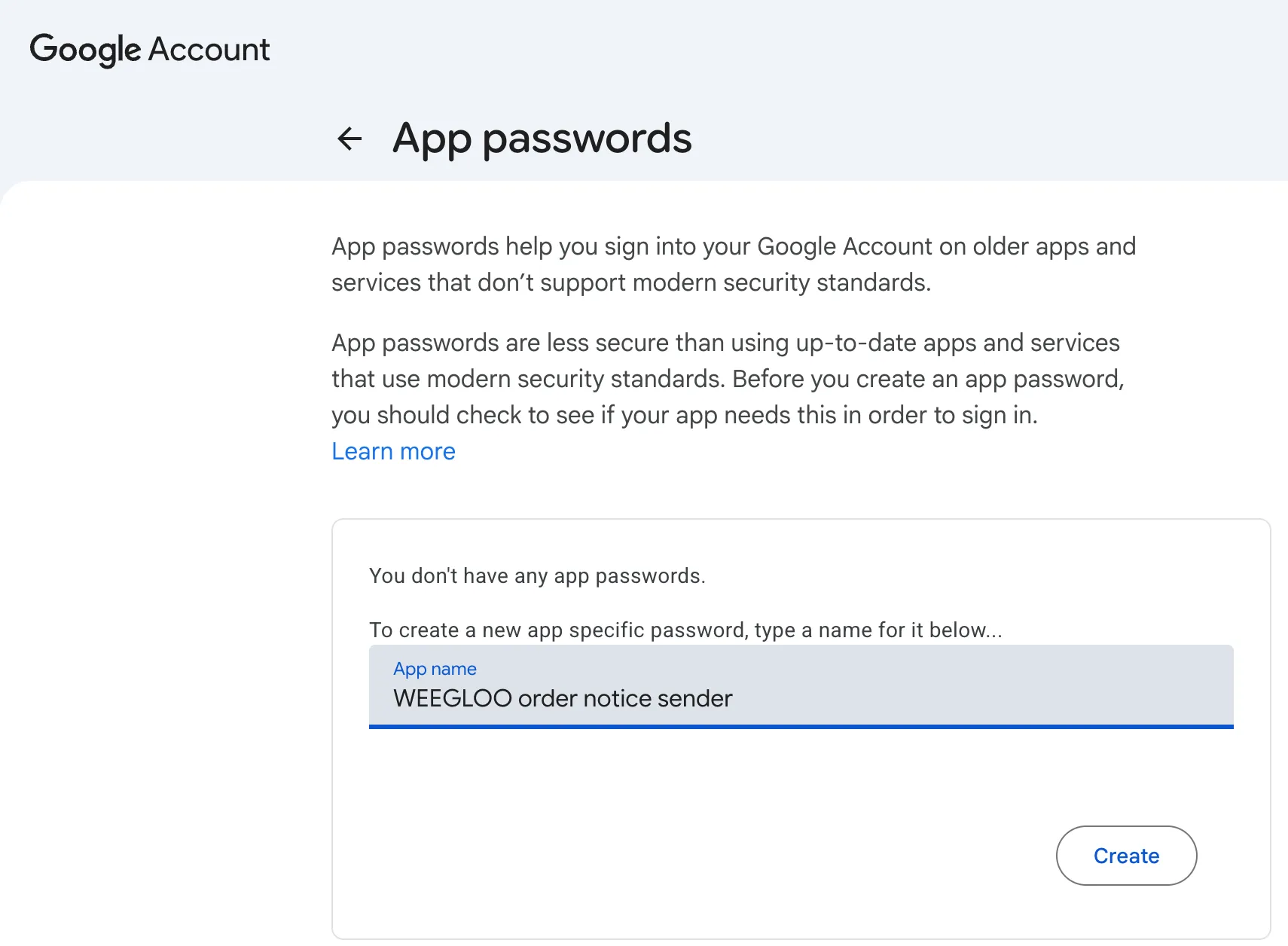
App name is the name that distinguishes the value on the Google account side. It is not shown to customers, and it does not have to match the name of the Email Account you register in WEEGLOO.
Copying down the 16-character value
When you press Create, the Generated app password window opens. The value written under Your app password for your device is the value to put in the App password field in the content studio.
-
Copy down the 16-character value under Your app password for your device, leaving out the spaces.
-
Once you have moved the value somewhere, press Done.
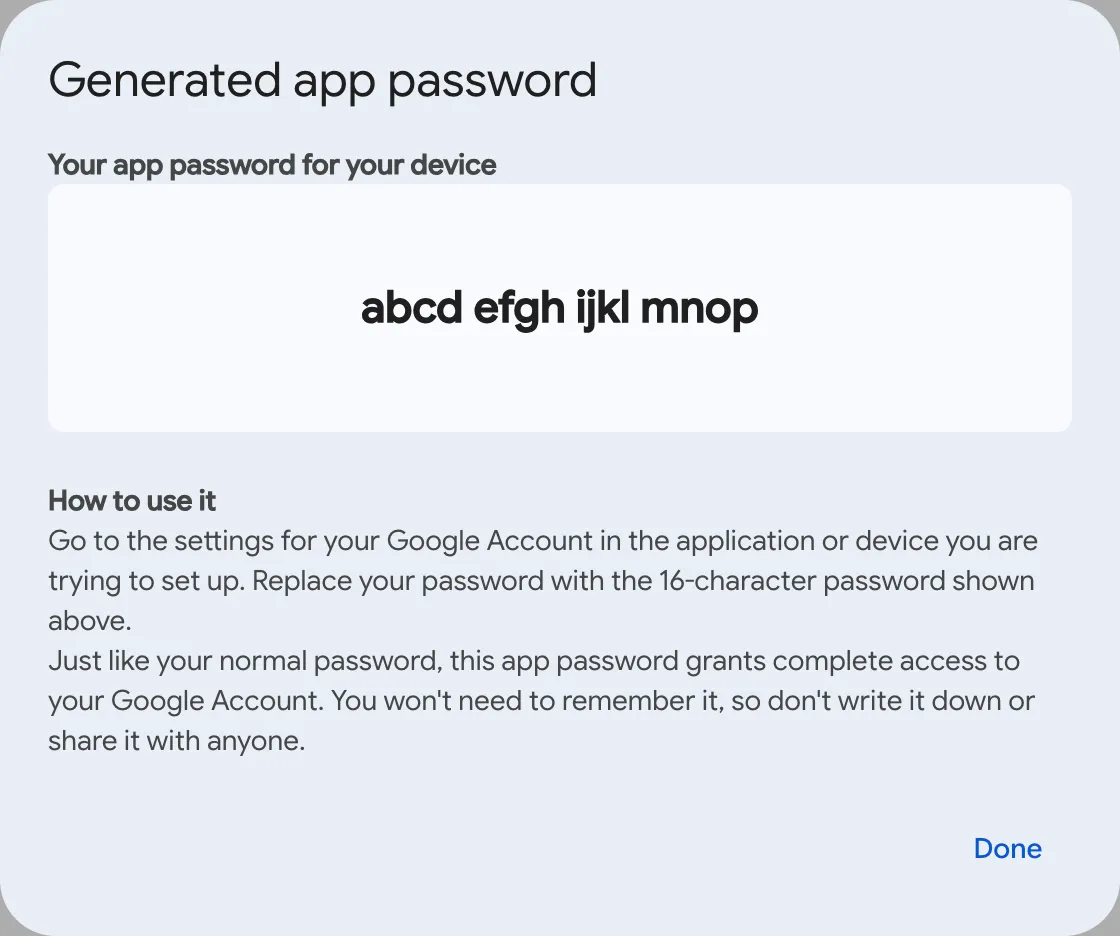
The value is shown as four groups of four characters, like abcd efgh ijkl mnop. The password is 16 characters and the screen breaks it up every four characters, so when you move it, leave out the spaces and move only the 16 characters.
Once you press Done, the value is not shown again
Before you close the window, check that you have moved the value somewhere. If you lose the value, get a new app password issued. This value grants full access to your Google account. Treat it with the same weight as your account password, and do not leave it pasted in a chat or in a document that is out in the open.
Entering the app password into WEEGLOO
If you were setting this up yourself in the content studio, go back to the registration steps in Sending email. Put the 16-character app password you just received in the App password field, fill in the remaining fields, and press Save.
If you left the integration to an AI agent and it told you to go get the app password, paste the 16-character app password you received straight into the chat window and carry on with what you were doing. The agent handles the rest of the setup from there.
What to do next
- Sending email: Covers registering a sender with the app password you received, and what you register in an Email Account.
- Script: Covers how to build the task that actually sends mail to customers with the sender you registered.
- Email Account: Covers the request and response formats and field specifications used to register and manage a sender directly from a program.