

Script
Imagine you run an online clothing store. Writing an appealing detailed description by hand every time you add a product is a chore. So you want an AI to write the description for you when you just give it a product name and a few keywords. But to call that AI writing service, you need a secret key (an access token, the key an outside service uses to check that you really are a paying user). If you put this key into the website the customer sees (the browser), anyone can dig it out, so it leaks. With a leaked key, someone else could use the service as they please and run up charges on you.
So you need something that keeps the key hidden where the customer cannot reach it, calls the AI in place of the website, and fills the result into the product. That something is a Script. A Script is a set of tasks written out in order, like "call the AI with this key, then fill the returned text into this product's detailed description." You write it not in code but in a fixed format (JSON, a way of writing data as items and values inside curly braces). The website only has to call this Script over the internet, and the key stays hidden inside the Script, out of the customer's sight.
You can think of it like a recipe you write out ahead of time and post in the kitchen. When a customer orders that dish (when the website calls the Script), the kitchen (WEEGLOO) makes it in the order written on the recipe and serves the finished dish. The owner only wrote out the recipe and posted it; they do not cook it themselves each time an order comes in. This page first looks at what a Script is, what it looks like, and what it returns when you call it, then uses the clothing store's "Fill Product Description" Script as an example to show its shape. At the end, it also shows how to wire this Script so that it runs on its own when a product is registered.
What a Script does for you
Even the single job of filling in one product description involves several things to do behind the scenes. It checks whether the caller has permission, checks that the values sent are valid, calls the outside AI service with the hidden key, puts the result into the spot you want (the product's detailed description), and returns a response. In the past, you had to build the in-between program that does this yourself, put it on a server, and maintain it. The goal of a Script is to write all of this down in one place, without code, and have it done for you.
- One Script is one call point. One call point that a website can reach over the internet is one Script. The method (
method) used to call it decides which Script runs. - The actions are laid out from top to bottom. Inside a Script, you write the actions to run in order. They run one after another from the top, and each action picks up the result of the one before it.
- You pick and combine predefined actions. You do not drop in arbitrary code; you pick from ready-made actions (creating, reading, editing, and deleting resources; calling outside services; storing values; checking conditions; looping; and so on) and lay them out.
The definition that spells out what to do
A single Script is made up of a "definition" that sets three things.
- The calling method (
method): the method used when calling this Script. It is one ofGet,Post,Put,Patch, orDelete, and this value identifies which Script is meant when it is called. - What to do (
statements): the list of actions to run from top to bottom. There must be at least one. - Input checking (
payloadSchema, optional): the format for checking the input sent with the call before it runs. If you set it, input that does not match the format is rejected before it runs.
Consider the clothing store's "Fill Product Description" Script as an example. What this Script handles is a single product that holds a product name and keywords. The input passed from the website (in the automatic run you will see later, the registered product is passed along as is) looks like this.
{
  "sys": { "id": "3trmXRMKq7bd0Prbef1... (product number)" },
  "fields": {
    "productName": { "en-US": "Stainless Tumbler 500ml" },
    "keywords":    { "en-US": "insulated, lightweight, camping" }
  }
}
This is the definition of a Script that takes this product, generates a detailed description with an outside AI, and fills in that product's detailed description (body).
{
  "method": "Post",
  "statements": [
    { "type": "Http", "method": "POST",
      "url": "https://api.ai-writer.example.com/v1/generate",
      "headers": [
        { "key": "Authorization", "value": "Bearer <secret access token>", "secret": true }
      ],
      "body": {
        "product":  "{ /payload/fields/productName/en-US }",
        "keywords": "{ /payload/fields/keywords/en-US }"
      },
      "name": "gen" },

    { "type": "ResourcePatch", "resource": "Content",
      "target": { "sys": { "id": "{ /payload/sys/id }" } },
      "fields": { "body": { "en-US": "{ /gen/body/text }" } },
      "publish": true },

    { "type": "Return", "value": { "id": "{ /payload/sys/id }" }, "statusCode": 200 }
  ]
}- The first action (
Http) calls the outside AI service with the hidden key. When you addsecret: trueto the header that holds the key, that value is not shown to the customer and is unlocked only just before the call. The result is stored under the namegen. - The second action (
ResourcePatch) fills only that product's detailed description (body) with the text received earlier ({ /gen/body/text }). It does not touch the product's other values. - It uses the placeholder
{ /… }, which passes a value along to the next step.{ /payload/fields/productName/en-US }points to the name of the product passed in,{ /payload/sys/id }points to that product's number, and{ /gen/body/text }points to the text the AI returned. - The last action (
Return) returns the number of the product whose description was filled in. - Why a Content's values are written per language, like
{ "en-US": … }; the full range of actions you can put instatements; and the syntax for placeholders, conditions, and calculations are covered in Value Expressions and the Statement Catalog.
What it returns when you call it
At the very end, a Script returns the value of its Return action to the caller. The response it returns contains the following.
requestId: an identifying number for this run.durationMs: how long the run took, in milliseconds.statusCode: the status code of theReturnthat was reached (200 if you do not set one).returnorerror: the value thatReturngave back. It usually goes inreturn; if you mark that value as an error, it goes inerrorinstead. The two never appear together.
"Fill Product Description" also runs right where you call it, and the response above comes straight back. It does contain an action that calls an outside AI, though, so the response can take a few seconds to arrive. The time a single run may use is covered in How much time a run gets below. The response that comes back looks like this.
{
  "requestId": "3trmXRMZ8kqLb2Prdf1eYc0axWnKv",
  "durationMs": 1840,
  "statusCode": 200,
  "return": { "id": "3trmXRMKq7bd0Prbef1... (product number)" }
}
Using the id in this return, the website can point to the product whose description was just filled in and show the customer the new detailed description.
If a Script ends without reaching a Return, it comes back with neither return nor error, only a statusCode of 200. The detailed rules for setting the response body and status code with Return are covered in Return in the Statement Catalog.
How much time a run gets
A Script runs right where it is called. The caller receives the result of that run in the response right away. There is no flow where you fetch the result later by asking for it again.
There is a budget on the time a single run may use. The default is 30 seconds. If it contains an action that calls an outside service, the budget grows by the waiting time set for that action. Even with that increase, it goes up to 180 seconds at most.
An action that repeats something eats a lot of the budget. That is because it is counted as the waiting time set on the actions inside the loop multiplied by the number of repetitions. If you set a large number of repetitions, the budget is calculated that much larger.
If a run goes past the time it was given, it stops right there. "Fill Product Description" calls the outside AI once, so this Script's budget is the default 30 seconds plus that one waiting time.
How much budget each action takes, and the other limits that apply to a run, are covered in Execution Semantics, Limits, and Security.
Who makes a Script
Rather than a person writing out complex actions one by one, a Script is designed to be created by an AI agent or a program. When you ask an AI agent in plain words, "Make a call point that fills in product descriptions," the agent builds a definition like the one above for you. In effect, a single request in plain words creates one call point to work behind your website.
The detailed flow for creating a Script with an AI agent is covered in Build a Backend with a Single Request.
A created Script is viewed and managed by a person in the management screen (the content studio). You check its name and definition and, if needed, edit or delete it. The side that actually calls a Script is the website or app the customer sees (the frontend). With the identity of a member who signed up for the product (a ServiceUser), you can only run a Script; you cannot create or edit one.
How it differs from Webhook
Script and Webhook are both devices that connect to the outside, but the direction of the call is opposite.
- Webhook reacts on its own when a change you have decided on happens (like a product being registered). It moves by itself when the event occurs, even if no one calls it. But it does not return a result to any caller.
- Script is a call point that the website calls directly when it needs to. It runs only when called, and the result of that run comes straight back.
"When the owner presses 'fill in the description,' the AI is called and the returned detailed description is filled in" is a job where the caller waits for the result, so a Script fits it; "when a product is registered, something happens automatically" is a job that reacts to an event, so a Webhook fits it. And the two can be used together, as you will see next.
Auto-filling the description when a product is registered
So far, the owner has called the Script directly by clicking a "fill in the description" button. Going one step further, you can make the Script run on its own the moment a product is registered, without anyone clicking a button. This is because a Webhook catches that event and calls our Script for you.
The flow is as follows.
- The owner registers a product. They fill in only the product name and keywords, and leave the detailed description empty.
- A Webhook notices the event of a product being newly registered.
- The Webhook passes the just-registered product as is to our "Fill Product Description" Script and runs it.
- The Script generates the detailed description with the outside AI and fills in that product's detailed description (
body). - A little later, the product's detailed description has filled in on its own.
Here the Script is the very same one as before. The only thing that changes is what triggers the call. Instead of a button, it is triggered by the event "a product was registered." Because the registered product becomes the Script's input as is, the Script picks out that product with { /payload/sys/id } and fills in the description.
There are three things to set on the Webhook side: which event to react to (when a product is newly registered), which products to react to only (limited by product type), and what to do (call our Script instead of notifying an outside address).
You might worry that the detailed description the Script filled in would in turn raise a "the product changed" event and repeat endlessly. It does not. Unless you turn it on separately, a Script's writes do not raise new events, and the platform also prevents endless repetition.
Some Scripts can be set to run only through a Webhook this way, blocking direct calls by address from the outside. Then that Script reacts only to the events you have decided on, and a direct call is rejected. How to set this up is covered in Script resource and endpoints.
The detailed setup for wiring it this way is covered in Webhook.
When a Script is especially useful
If all you need to do is tell the outside that "this has happened," a Webhook on its own is enough. But when you have to call an outside service and then, based on its result, go on to decide and handle what comes next, you need a Script that ties the whole flow together in one place.
Consider a feature that generates AI images for a fee. When a customer requests an image, the following has to happen in order.
- Check whether the customer has enough credit. If not, stop here and tell them "You do not have enough credit."
- If they do, first deduct credit equal to the cost.
- Call the outside AI service to generate the image.
- Save the generated image as a Content.
- If something goes wrong in step 3 or 4, refund the credit you just deducted.
A Webhook can tell the outside that "a request has come in," but it cannot look at the result this way and deduct credit or roll back on failure. Chaining several steps together by condition, and rolling back the earlier steps when one fails, is what a Script takes on. The cases where a Script especially proves its worth are the following.
- When you have to act on a result before continuing: based on the response the outside service returned, it decides on the spot whether to save, deduct, or roll back.
- When concurrent requests must not clash: even if the same customer makes two requests in quick succession, the credit must not be deducted twice. After it reads the value, and just before it saves, a Script uses the version to check whether "another request changed this value in the meantime," and stops if they clash.
- When a permission the caller does not have is required: a customer has no permission to change their own credit balance directly. The deduction still happens safely because a Script runs with the permissions of its creator delegated to it. The caller only needs to be given permission to run the Script. This delegation is covered in detail below in Permissions to run and manage.
How to write this example out as an actual Script definition is covered in the Cookbook, in the example that checks, deducts, and refunds credit.
Permissions to run and manage
To run or manage a Script, the role (SpaceRole) must have the matching permission.
- Running: to call a Script, the role must have the Script run permission (Execute). Without it, the run is blocked.
- Managing: to create, edit, and delete a Script, you need the create, edit, and delete permissions respectively.
When a Script runs, only one thing is checked: whether the caller has the run permission (Execute). The individual actions laid out inside the Script are not checked for permission separately at the moment they run. It is like calling a program you are allowed to run: the system looks only at your permission to run that program, and does not ask for approval for each and every thing it does inside.
Instead, the permissions for the individual actions are checked ahead of time, not when it runs, but when you save it. It saves only if the creator actually holds the Content and Media permissions used by the actions inside that Script. For example, the "Fill Product Description" Script edits the detailed description of a product Content, so if the creator does not have permission to edit the product, the save is rejected. A Script that contains an action the creator has no permission for is not saved in the first place.
Seen this way, running a Script is like carrying out the work in place of its creator, with the creator's permissions delegated to it. Even an operation the caller could not perform on their own still happens through the Script, as long as the creator can perform it. So when you create a Script, you have to think carefully about which actions you put inside it. The creator's permissions become the exact scope of what that Script can do.
How to put permissions into a role is covered in Roles and Permissions.
Things to know
- There is no publishing. A Script is not the kind of resource you publish to deliver to visitors; it is a call point you create in the management screen and that the website calls to use. So, unlike Content and Media, it has no publish or unpublish state, and you can use it as soon as you create it. Each time you edit it, only its version goes up by one, and when you delete it, it is removed right away, with no prior step like unpublishing.
- There is a limit on the count. A Script is a billable item, so the number a single Organization can have is set per plan (Free 10, Basic 30, Pro 100, Enterprise unlimited). When you reach the limit, you cannot create a new Script, and deleting a Script you are not using frees a slot again.
Managing in the content studio
You view and manage a created Script on the Script screen of the content studio. When you click Scripts in the left menu, the Scripts you have made so far appear as a list. Each row shows the name, the Endpoint (the calling method and the address are shown together), whether Anonymous is allowed, the time it was edited, and who edited it.
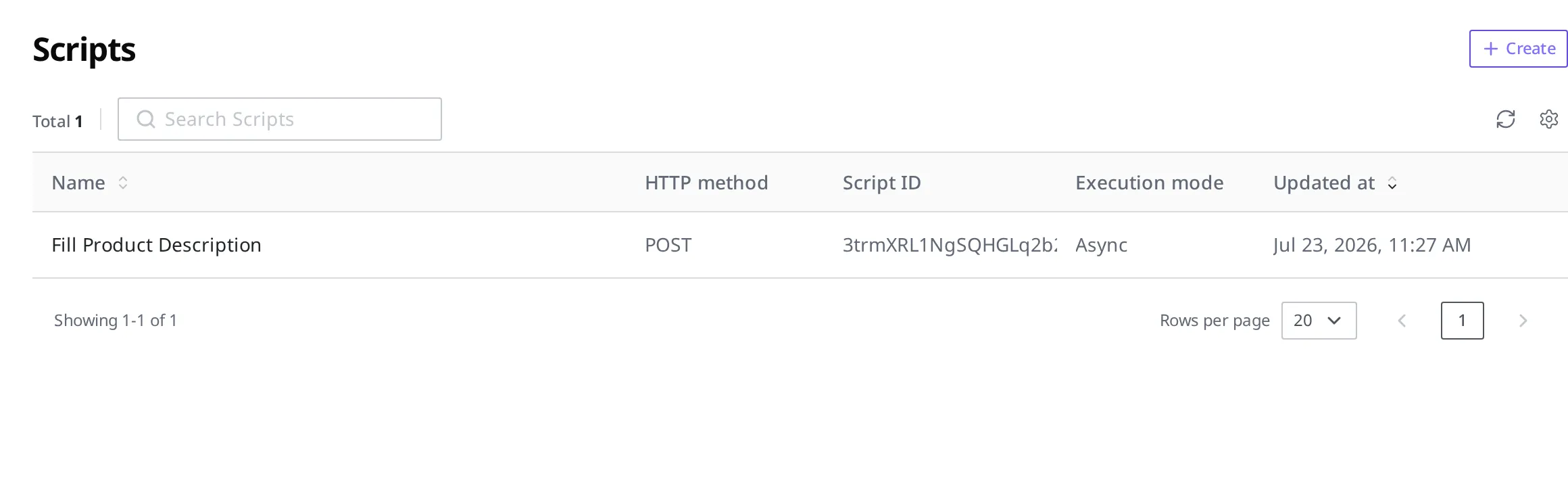
The definition is usually built for you by an AI agent, but you can also create one directly on this screen. You make a new Script with the Create button at the top right of the list.
- Click the Create button at the top right of the list.
- In the Name field, enter
Fill Product Description. - For the HTTP method, choose the method used to call this Script (here,
POST). - In the Statement field, enter the definition that spells out what to do. You can enter the definition from the "Fill Product Description" example above as is.
Besides these, the creation screen has Allow direct call (when it is off, the Script cannot be called through its call URL and runs only through a Webhook or a Scheduler; on by default), Allow anonymous call (when it is on, an anonymous call address is created along with it, which a third party can call without logging in to Weegloo; off by default), and Call URL (two lines, Standard and Anonymous, which are empty for now because they are settled only once you save) fields.
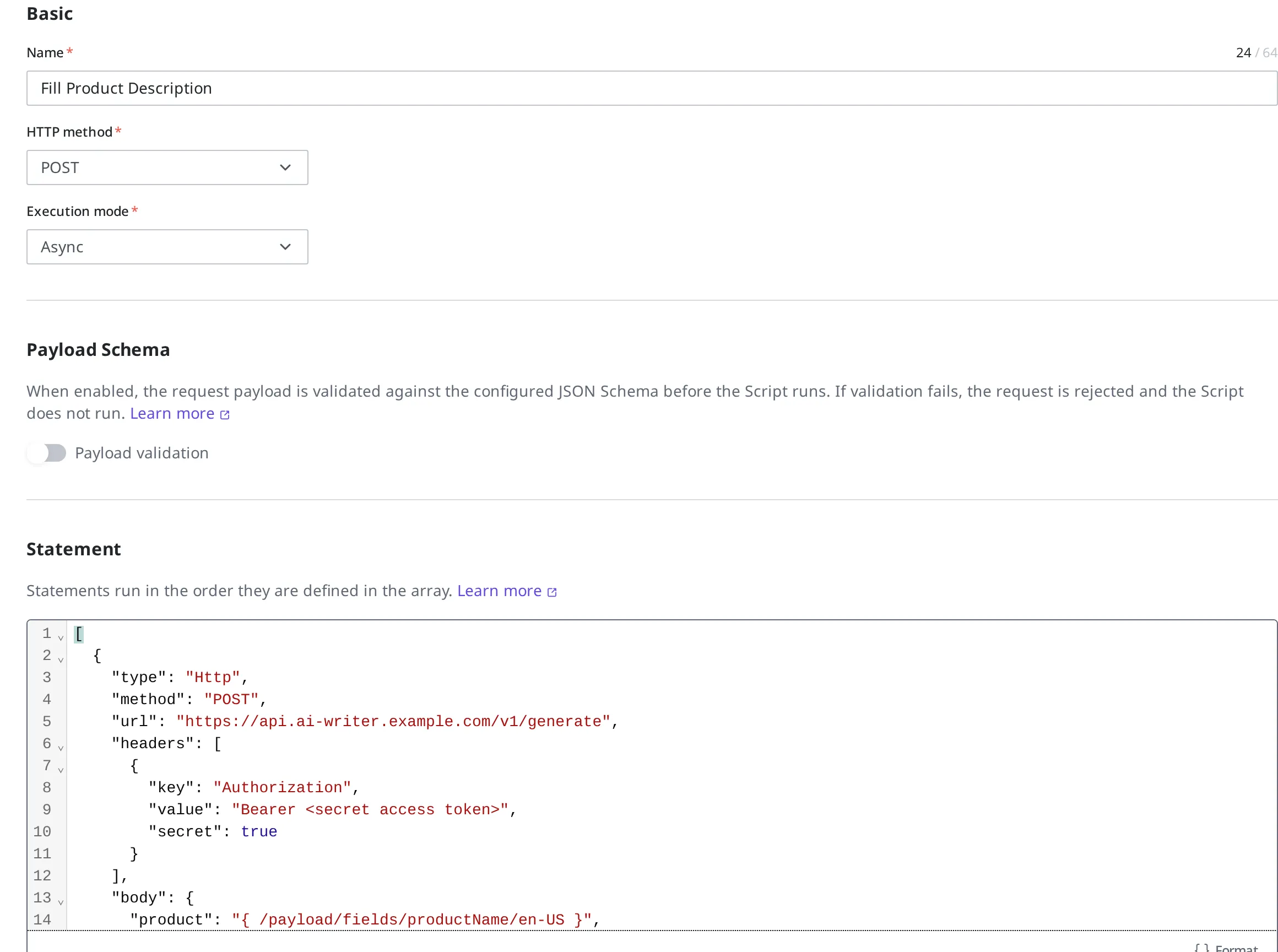
If you want to check the input sent with the call before it runs, turn on Payload validation under Payload Schema and write out the format to check against. Once you have filled everything in, click the Create button at the top right.
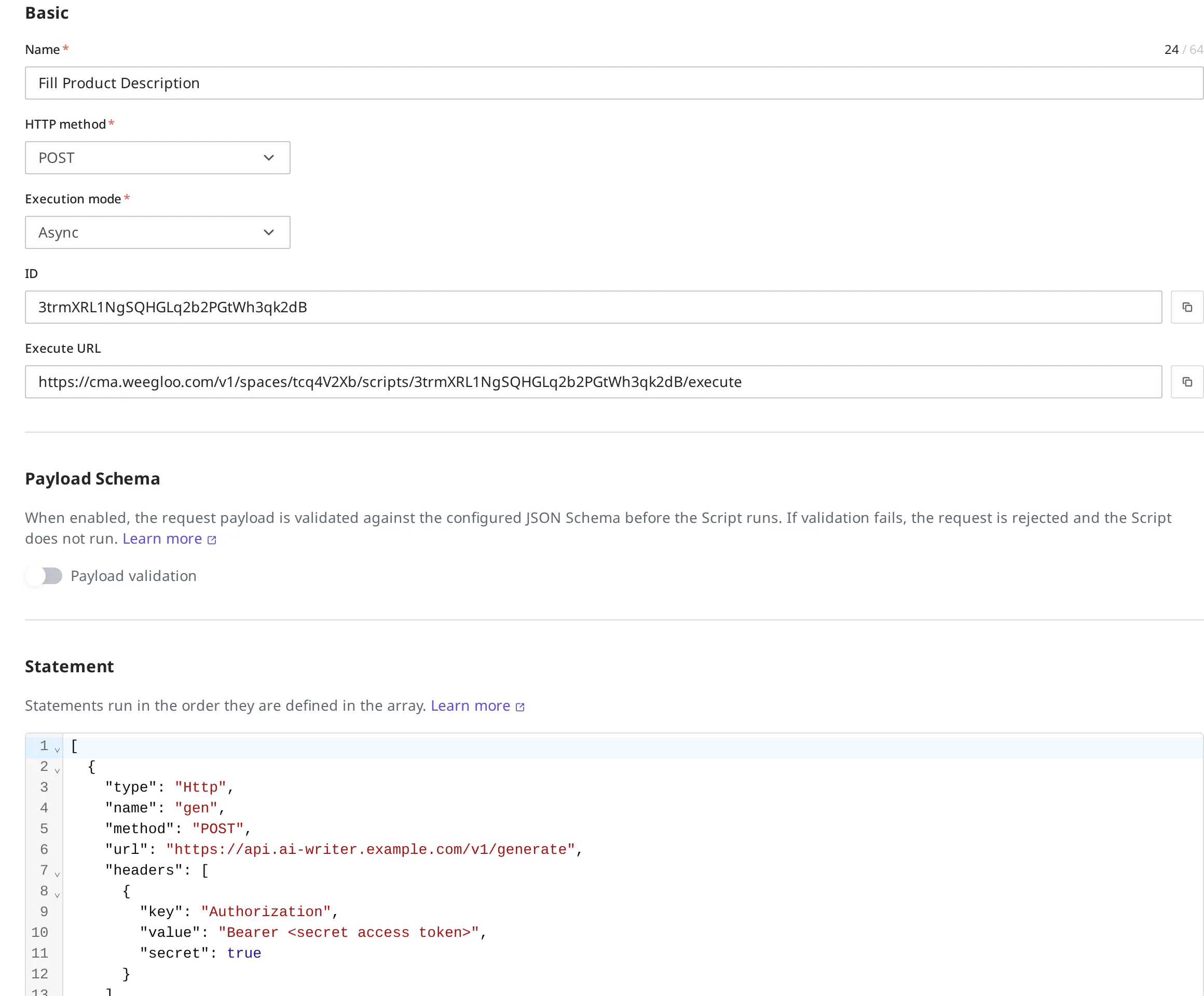
When you click a Script in the list, its detail screen opens. The detail screen is split into two tabs, Execution Log and Settings, and Execution Log is what you see when it first opens. On the Settings tab you check the name and the definition, and on the right you see this Script's number (ID) together with its Version and Changes (created time, creator, updated time, editor). After you edit the definition and Save, its version goes up by one. You remove a Script you no longer use with Delete.
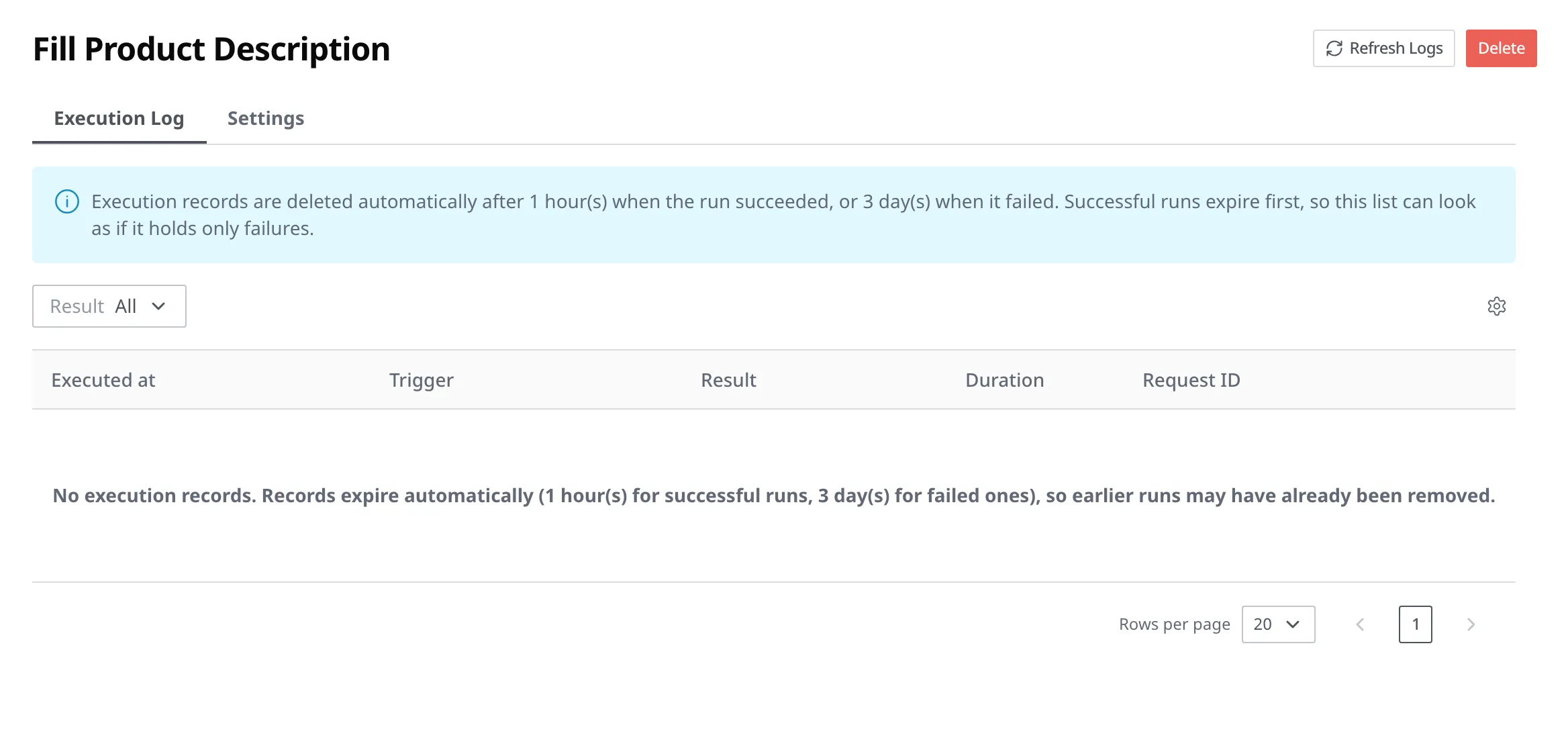
The Execution Log tab collects one row for every run of this Script. Each row shows the Executed at time, what started that run (Trigger), the Result, the Duration, and the Request ID that points to that run. The Result box above lets you look at only the successful runs or only the failed ones, and Refresh Logs reads the list again so a run that just finished shows up.
Records do not stay for long. A successful run is removed after one hour, and a failed run after three days. Successful runs go first, so there are times when only failures are left in the list.
What to do next
- Script Overview: Covers the top-level structure of the definition that makes up a Script, its execution rules, and the set of syntax documents.
- Statement Catalog: Covers the kinds and fields of the actions you can put in
statements(creating, reading, editing, and deleting resources; calling outside services; conditions; loops; and so on). - Webhook: Covers how to make things react automatically when a change you have decided on happens, like wiring a Script to run on its own when a product is registered.