

ServiceUser management rules
This page covers everything about each member (ServiceUser) who signed up for your service: settings, rules, limits, permissions, and tasks. If you're new to members and how they differ from staff, start with Service member login. For how an account deletion goes from a request in the app to processing in Content Studio, see Member account deletion.
The examples use the "Online Store" Space, which runs the online clothing store "Cozy Closet". The customers Emma (emma@example.com), Doyun (doyun@example.com), and Nari (nari@example.com) have signed up with social accounts. The Default Role of the member login settings (ServiceLogin) is the member role (ServiceUserRole) "Regular Member". The member roles "Premium Member" and "Review Moderator" have also been created. Members leave product reviews with the Content Type "Review".
Settings
Staff set two values for each member: Role and the active status. The active status means whether this member can log in and use the service as a member. The rest of the information, such as name and email, is set at sign-up, and staff can't change it. You change the two values from the ⋮ menu at the far right of a member's row in the Users list. The menu has Change Role, Deactivate (Activate for a member who's already deactivated), and Remove User.
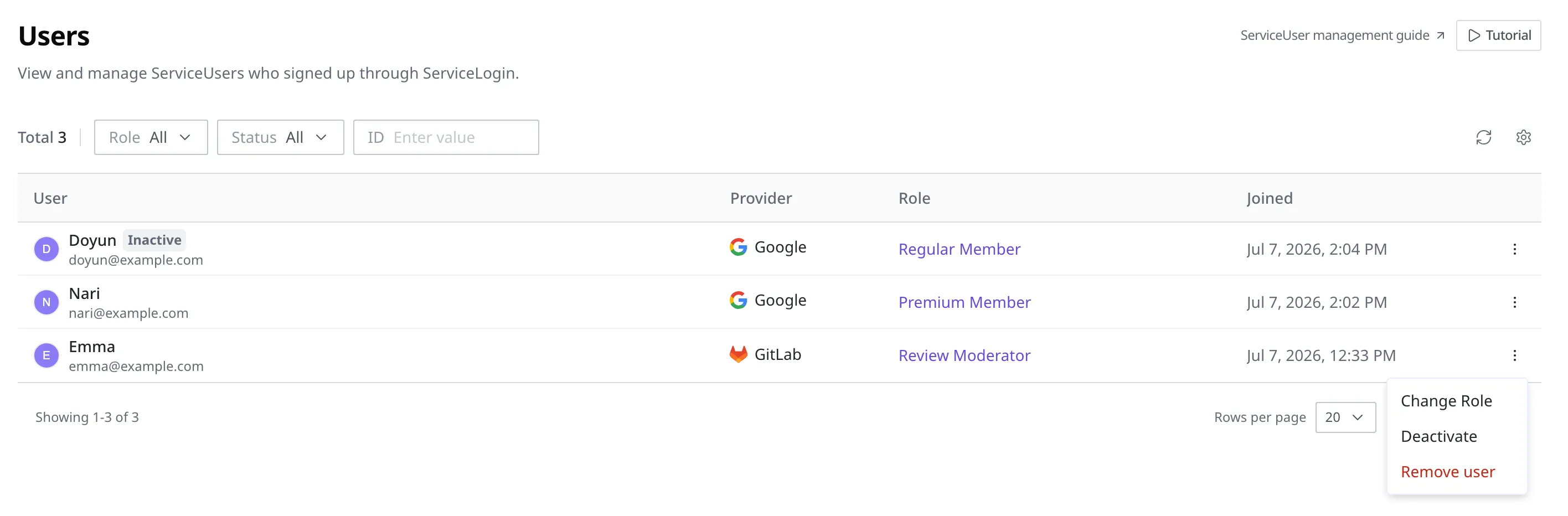
Values staff set
| Setting | Description | Default | Constraints |
|---|---|---|---|
| Role | The member role applied to this member. You select it in the window that opens when you click Change Role in the ⋮ menu, and then click Save. If you select Follow Default at the top, the member follows the Default Role of ServiceLogin. If you select another role, that role takes precedence over the Default Role | Follow Default | You can select only member roles created in this Space. You assign only one role to a member |
| Active status | Whether this member can log in and use the service as a member. Clicking Deactivate or Activate in the ⋮ menu changes it right away, without a confirmation window | Active. But if ServiceLogin's Sign-up approval was selected when the member signed up, they sign up inactive | Can't be changed while the member's removal is in progress (When you also delete the member's Content and Media) |
For what each value changes, see The role applied to a member and When you deactivate a member.
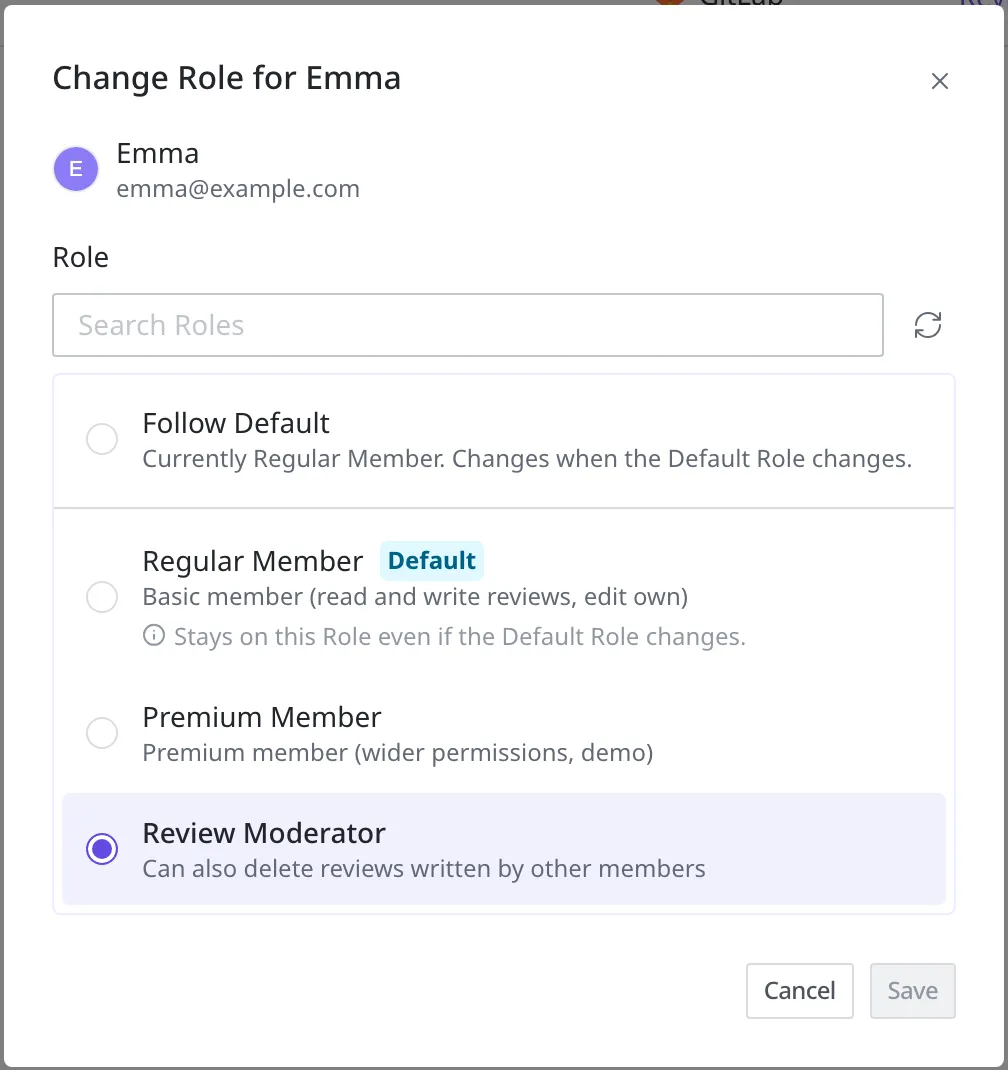
If you directly select the current Default Role in the Change Role window, it's treated as a separately assigned role. That's why the notice "Stays on this Role even if the Default Role changes." appears (The role applied to a member). While the item that's assigned now is selected, you can't click Save.
Information set at sign-up
| Information | Description | Who can change it |
|---|---|---|
| Name | The first 16 characters of the name registered on the social account they signed up with | The member can change it in the app. Staff can't change it |
| The email address received from the social account they signed up with | No one can change it | |
| Profile photo | The address of the social account's profile photo. Empty if there isn't one | The member can change it or clear it in the app |
| Provider | The social login they used to sign up (Google, GitLab, and so on) | No one can change it |
| Sign-up time | The date and time the member was created | No one can change it |
| ID | A unique value given to each member. This member is recorded as the creator of the Content and Media they create | No one can change it |
If a member changes the name, email, or profile photo on their social account after signing up, the member information doesn't change along with it. How members change their own information is covered in What members can do with their own information.
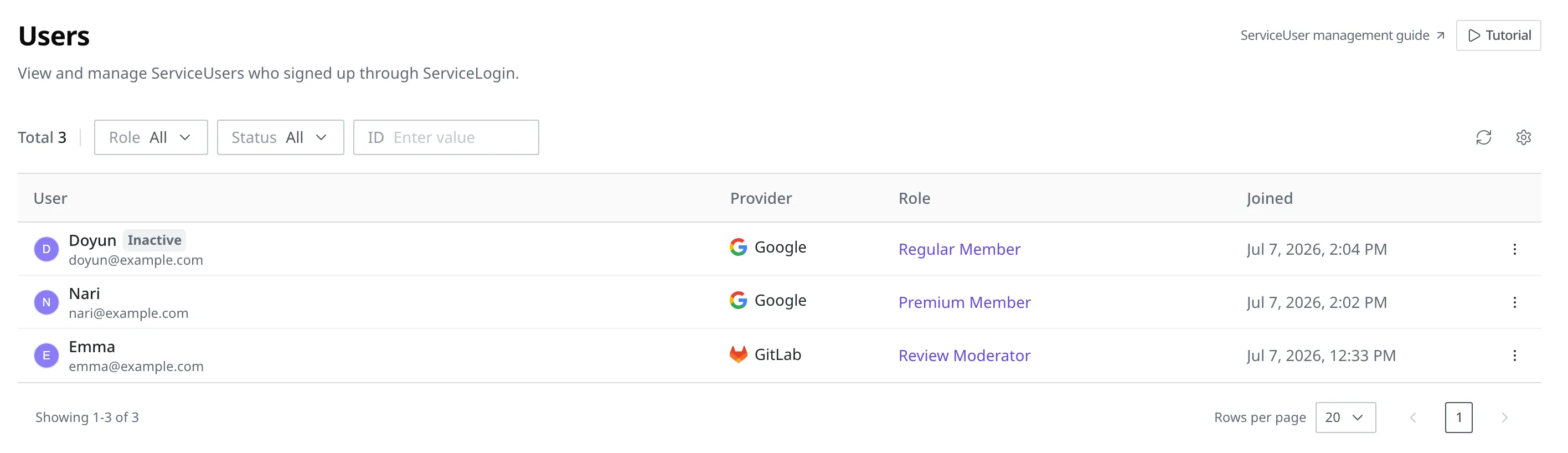
The Users list shows one member per row.
| Column | What it shows |
|---|---|
| User | Name and email. A deactivated member has an Inactive badge next to their name. A member whose removal is in progress has one of Removing, Removal delayed, or Removal failed (When you also delete the member's Content and Media) |
| Provider | The social login they used to sign up |
| Role | The role currently applied to this member. If a role is separately assigned, it shows that role. Otherwise, it shows the Default Role |
| Joined | The date and time they signed up |
The ID column is hidden at first, and you can turn it on to show it. Click Column Settings (the gear icon) at the top right of the list and click ID under "Available Columns", and the ID column appears on the right of the table. Click Reset to default to hide it again.
Rules
A member is created on first login
When a customer first logs in with a social login that's turned on in this Space's ServiceLogin, one member is created. Staff can't add members directly in Content Studio. Scripts can't create members either. For what happens when someone logs in again with the same account, see How customers sign up and log in.
- Even for the same person, signing up for another Space's service creates a separate member in that Space (What each Space keeps to itself).
- If ServiceLogin's Sign-up approval is on, members are created inactive (Sign-up approval applies only to new sign-ups).
- Cases where no member is created and sign-up is blocked are listed in When sign-up or login is blocked. Of those, the member limit is covered in Limits on this page.
The role applied to a member
For which role applies to a member, see One role applies to each member. This section covers the rules for separately assigning a role in the Change Role window.
- If you select a role name in the Change Role window and click Save, that role is separately assigned to this member. If you select "Premium Member" for Nari, "Premium Member" applies to Nari, even though the Default Role is "Regular Member".
- If you select Follow Default and click Save, the separately assigned role is cleared. This member follows the Default Role again.
- Even if the role you select is the same as the current Default Role, it's treated as separately assigned. If you select "Regular Member" for Doyun, "Regular Member" keeps applying to Doyun even if you later change the Default Role to another role.
When you change Role, the change applies to that member right away. A member who's already logged in doesn't need to log in again.
For the rules that go into a member role, see Member role rules. A role that's separately assigned to any member can't be deleted (Deleting items such as Locale, Tag, and Script).
When you deactivate a member
When you click Deactivate in the ⋮ menu, the following applies right away. No confirmation window appears.
- That member can't log in.
- Even if the member is already logged in, they can't do anything as a member from that moment. Reading and writing content and reading their own information are all blocked.
- The member's information and the Content and Media they created stay as they are.
- An Inactive badge appears next to the member's name in the Users list. Hovering over the badge shows which menu item makes the member able to use the service again.
If you click Activate in the same menu, the member can log in as before. Their information and assigned role are still there too. So to block a member for a while and let them log in again later, use Deactivate instead of removing them.
Members waiting for approval and members whose login you blocked are in the same state. Both are inactive. Content Studio doesn't show the two cases differently either.
Members are removed only in Content Studio
Only staff logged in to Content Studio can remove a member from the member list.
- There's no feature for members to delete their own accounts in the app. Members can read their own information and change only their name and profile photo. So members never disappear from the list on their own.
- You can't remove members with a Personal Access Token (a key that acts on behalf of your account) (What tokens can't do).
- Scripts can't delete members either.
For how to let customers request account deletion in the app, see Taking deletion requests in the app.
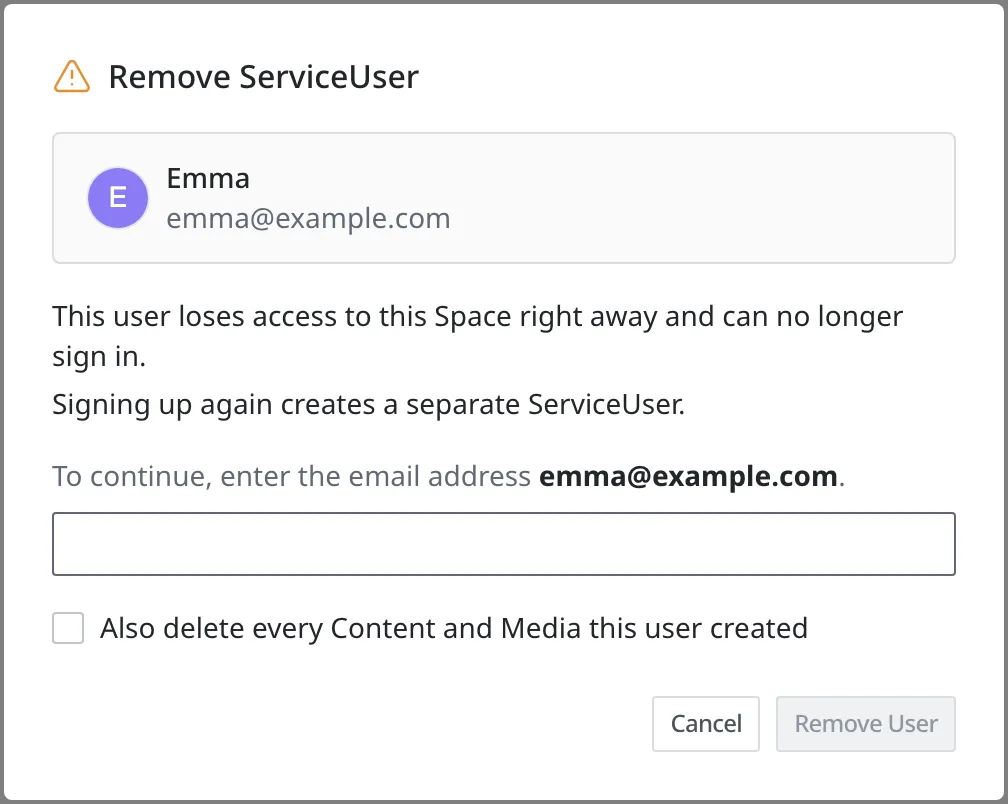
In the removal window, you can click the Remove User button only after you enter that member's email address. This check isn't a step for getting the member's consent. It's a safeguard that makes staff double-check that the selected row really is that member. Blank spaces before or after the address you enter are ignored, and uppercase and lowercase letters are treated the same.
What happens when you remove a member
When you remove a member, the following applies right away, whether or not you select Also delete every Content and Media this user created.
- The member can't access this Space and can't log in again. The same goes for a member who's already logged in.
- This can't be undone.
When the member disappears from the Users list depends on whether you select the checkbox.
- If you don't select it, the member is deleted right away and disappears from the list at once.
- If you select it, the member is deleted after all the Content and Media they created are deleted, and that's when they disappear from the list. Until then, the member stays on the list.
If someone later signs up again with the same social account, they're registered as a separate member with a new ID. The old member's information and assigned role don't carry over. Reviews the old member left still list the old member as their creator. So if the new member's role allows editing only what they wrote, they can't edit those reviews.
this user created
3 reviews, 2 photos, 1 deletion request
Their creator remains the deleted member
this user created
while the cleanup runs
the member is deleted
Nothing. The deletion request is deleted too
When you also delete the member's Content and Media
Also delete every Content and Media this user created in the removal window isn't selected by default. Removing a member and deleting what that member created are separate things. So each time you remove a member, you decide whether to delete what they created too.
If you don't select it, the Content and Media the member created stay in the Space as they are. Their creator remains the deleted member. Staff can work with that Content in Content Studio like any other Content (Content created by service members).
If you select it, things are deleted as follows.
- What's deleted is every Content and Media whose creator is that member. Emma's reviews and photos are deleted, and so is the deletion request Emma left. Even items that staff edited later are deleted if their creator is that member. On the other hand, Content created by someone else isn't deleted, even if the member edited it.
- They're deleted regardless of status. Items that are Published or Changed are unpublished and then deleted, and Archived items are deleted too. You don't need to Unpublish them first, as you would when deleting them one at a time in Content Studio.
- Deleted along with them are the Comments left on those items and the files uploaded to the Media.
- They're deleted even if other Content links to this member's reviews or photos. The linking side keeps a link that points to the deleted item (When you delete a linked item).
- What's deleted can't be restored. If you need to keep a history of who requested deletion and when, record it separately somewhere the member isn't the creator. One way is to add another Content Type as a processing log that staff fill in themselves.
After you request the removal, the Content and Media are deleted one after another. If there are many, it can take a while. The cleanup keeps going even if you close the removal window or the browser. Whatever is deleted no longer counts toward the Organization's Content and Media counts.
While the cleanup is in progress, the following applies to that member.
- They stay on the Users list, with a Removing badge next to their name. If the cleanup hasn't finished an hour after it started, the badge changes to Removal delayed.
- They can't log in and can't do anything as a member.
- You can't change their Role or active status. The ⋮ button on that member's row is grayed out, and hovering over it shows "You can't change this user until the removal finishes."
- They can't sign up again with the same social account. They can sign up as a new member after the cleanup finishes and the member is deleted.
- If a Script tries to send that member an email, sending fails.
When the cleanup finishes, the member is deleted and disappears from the Users list.
When the cleanup stops
If some of what the member created can't be deleted, the cleanup stops. The member then isn't deleted and stays on the Users list, and the badge next to their name changes to Removal failed. The member can't log in, and staff can't change the member's Role or active status either.
For a member whose badge is Removal failed or Removal delayed, the ⋮ menu of that row shows only Retry removal. When you click it and confirm, the Content and Media the member created are deleted again from the start, and then the member is deleted. When you retry, there's no option to keep what the member created. The steps are in Restart a stopped cleanup.
While the badge is Removing, you can't retry. Once the badge changes to Removal delayed an hour after the cleanup started, you can retry.
What members can do with their own information
Logged-in members can read their own information, such as their name, email, and profile photo, in the app. The app can use this information to show the logged-in member's name and photo on screen.
- Members can change only their name and profile photo. A name must be 4 to 16 characters. A profile photo can be changed to an address starting with
https://, or cleared. - Members can't change their email, Role, or active status.
- Deactivated members and members whose removal is in progress can't even read their own information.
For the request format a program uses to read and change a member's own information, see the API reference.
Working with members in a Script
A Script can find members by ID or email and change a member's Role and active status. It can't create or delete members.
- A Script with actions that find or change members can be saved only if the role of the person saving it has Manage ServiceLogin (Script run permission and delegation).
- A Script can send email to members. It can't send to members whose removal is in progress.
For how to write these actions in a Script, see the API reference.
With ServiceLogin off, there's no member list
You can view the member list only while ServiceLogin is on. When it's off, the Users screen shows only a notice that ServiceLogin is disabled.
Turning off ServiceLogin deletes every signed-up member (Deleting items such as Locale, Tag, and Script).
Limits
| Item | Limit |
|---|---|
| Number of members | Varies by plan. It's in the ServiceUser row of Pricing. Members who signed up in every Space of the same Organization are counted together |
| Roles separately assigned to one member | 1 |
| Name a member changes to | 4 to 16 characters |
| Profile photo address | An address starting with https://, up to 2,048 characters. If the social account's photo address is longer than this at sign-up, the member signs up without a profile photo |
| Time until you can restart a cleanup in progress | 1 hour after the cleanup starts |
- The member count includes members waiting for approval, members whose login is blocked, and members whose removal is in progress.
- Once the member count reaches the limit, new customers can't sign up. Logins by members who have already signed up aren't affected.
- To free up room, remove members who no longer use the service, or switch to a higher plan (When you exceed a count limit).
Required permissions
Whether you can work with members is decided by Manage ServiceLogin on the Settings tab of the role (SpaceRole) you have in that Space (Settings permissions on the Settings tab). Without this item, you can't view the Users list.
| What you want to do | Required permission |
|---|---|
| View the Users list | Manage ServiceLogin |
| Change Role, deactivate, and activate | Manage ServiceLogin |
| Remove a member | Manage ServiceLogin. You must be logged in to Content Studio |
| Save a Script that finds or changes members | Manage ServiceLogin in the saver's role |
| Read their own information, and change their name and profile photo | The member themselves. They must be active |
Manage ServiceLogin takes effect only when a person works with their own account. You can't work with members using a Space Access Token or a Delivery Access Token, even one bound to the same role (Settings permissions work only for people).
Tasks in Content Studio
The following steps for opening the member list and changing each member's values are in Operations.
- Where to check the member list: Open the Users list.
- Approving new sign-ups: Activate a member waiting for approval.
- Blocking a problem member's login: Deactivate the member.
- Giving a specific member different permissions: Select a different member role in the Change Role window.
This page covers filtering members by role or status and finding a member by ID, plus Process an account deletion and Restart a stopped cleanup.
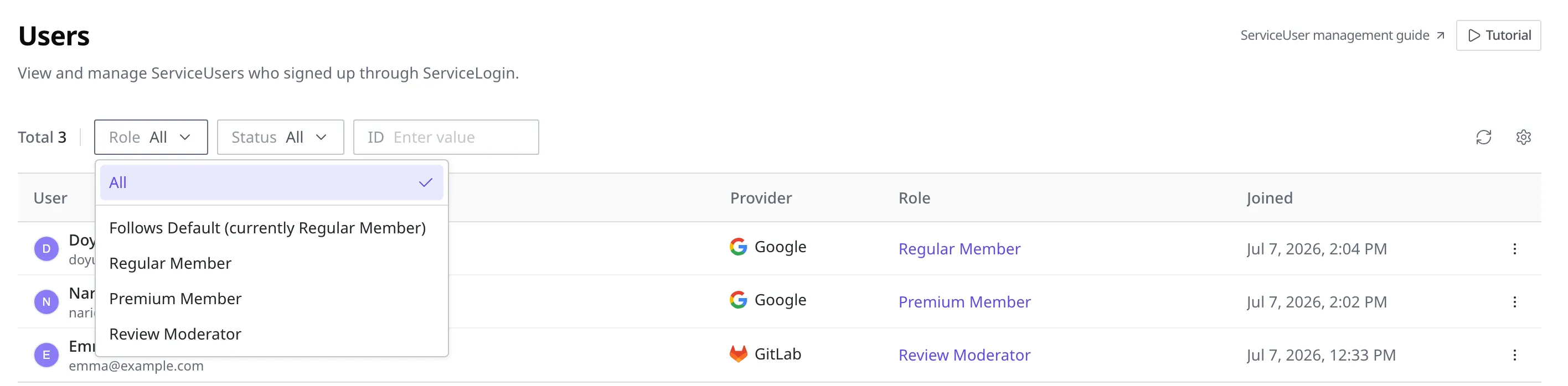
Filter members by role or status
These steps narrow the list to members who get "Regular Member" as the Default Role.
- Open the Users list by following Where to check the member list.
- Click the Role filter above the list.
- Select the Follows Default (currently Regular Member) item.
If you select a role name in the Role filter, only members who were separately assigned that role remain. Members who get that role through the Default Role don't remain. So to see every member "Regular Member" applies to, select "Regular Member" and then the Follows Default (currently Regular Member) item, and check each result.
To narrow the list to members whose login is blocked or who are waiting for approval, select Inactive in the Status filter. If you select Active, only active members remain.
Find a member by ID
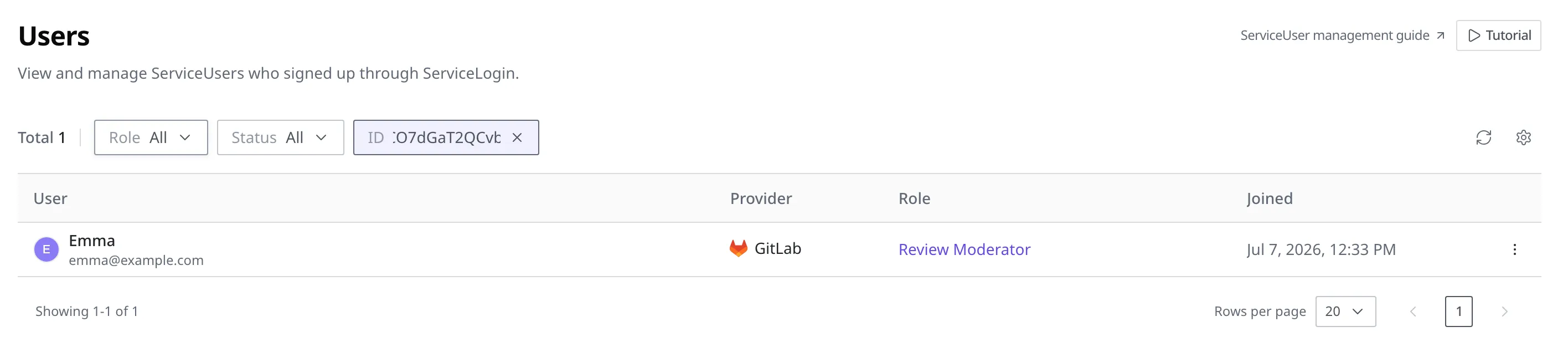
When you know a member's ID, these steps narrow the list down to that one member.
- Open the Users list by following Where to check the member list.
- Click the ID filter above the list.
- Enter the member ID in the input field. The list is filtered as you type, without pressing Enter.
Only the member with that ID remains in the list. The whole ID has to match. If you enter only part of it, "No ServiceUsers yet." appears. You can see member IDs in the list by turning on the ID column.
Process an account deletion
These steps review the deletion request Emma left in the app and remove Emma. Assume Emma's request is stored as Content of the "Account Deletion Request" Content Type. For how to set up the Content Type and the member role for taking requests, see Taking deletion requests in the app.
You can open Emma's request in Content Studio like any other Content. Once you've reviewed the request, remove Emma.
- Open the Users list by following Where to check the member list.
- Click the ⋮ button at the far right of Emma's row.
- In the menu, click Remove User. The "Remove ServiceUser" window opens.
- In the input field, enter Emma's email address (
emma@example.com), shown in the card at the top of the window. You can click the Remove User button only when the address matches. - To also delete the reviews Emma wrote and the photos Emma uploaded, select Also delete every Content and Media this user created. To keep them, leave it unselected.
- Click Remove User.
You can see what the ⋮ menu looks like in Settings, and what the removal window looks like in Members are removed only in Content Studio.
When Emma can no longer log in and when Emma disappears from the Users list after the removal are covered in What happens when you remove a member. For what's deleted when you select the checkbox and how long it takes, see When you also delete the member's Content and Media.
If you didn't select the checkbox and Emma's deletion request is still there, change the request's Status to Done once you're finished.
Restart a stopped cleanup
Use these steps when you removed Emma with Also delete every Content and Media this user created selected, and the badge next to Emma's name has changed to Removal failed or Removal delayed (When the cleanup stops).
- Open the Users list by following Where to check the member list.
- Click the ⋮ button at the far right of Emma's row.
- In the menu, click Retry removal. The "Retry removing ServiceUser" window opens.
- Click Retry removal in the window.
The window shows "Deletes the Content and Media this user created again from the start, then removes the user. Deleted Content and Media cannot be restored." You don't need to enter the email, and there's nothing to choose, because the email check already happened when you first removed the member.
While the badge is Removing, you can't click the ⋮ button. Wait until the badge changes to Removal delayed, an hour after the cleanup started. The list shows the changed badge only after you click the refresh icon at the top right.
Troubleshooting
| Problem | Cause | What to do |
|---|---|---|
| A customer says they can't sign up | The member count has reached the limit, or it's one of the cases in When sign-up or login is blocked | If the member count has reached the limit, remove members who no longer use the service to free up room (Limits). For the other cases, find the fix in the troubleshooting section of ServiceLogin settings and rules |
| A customer who signed up says they can't log in | That member is inactive. They're either waiting for approval (Sign-up approval applies only to new sign-ups) or a member whose login you blocked | If you want to let the member log in, click Activate in the ⋮ menu of that row |
| You changed the Default Role, but it doesn't apply to some members | Those members have a separately assigned role | Click Change Role in the ⋮ menu of that member's row, select Follow Default, and click Save |
| You selected a role in the Role filter, but not every member with that role appears | Filtering by a role name leaves only members who were separately assigned that role | Also check with the item that starts with Follows Default |
| You can't click the Remove User button | The email you entered doesn't match the member's email | Enter the email shown in the card at the top of the window exactly as is |
| You removed a member, but they're still on the list | You selected Also delete every Content and Media this user created, so the cleanup is in progress | If the badge next to their name is Removing, they disappear when the cleanup finishes. If it's Removal delayed or Removal failed, follow Restart a stopped cleanup |
| You can't click the ⋮ button on a member's row | That member's removal is in progress (badge Removing) | When the cleanup finishes, the member is deleted. If it hasn't finished after an hour, the badge changes to Removal delayed, and then you can follow Restart a stopped cleanup |
| A member's ⋮ menu has only Retry removal | That member's cleanup stopped or hasn't finished for more than an hour | Follow Restart a stopped cleanup |
| A customer you removed can't sign up again with the same account | The cleanup that deletes what the member created hasn't finished yet | Let them know to sign up again after the cleanup finishes |
| A customer who signed up again says they can't edit reviews they wrote before | A member who signs up again is a new member, so they aren't the creator of the old reviews | Have staff make any needed edits in Content Studio |
| The Users screen shows only a notice that ServiceLogin is disabled | This Space's ServiceLogin is off | Turn it on by following Turn on ServiceLogin |
| You can't view the Users list | Your role doesn't have Manage ServiceLogin | Ask an Administrator of that Space for a role with Manage ServiceLogin |
| You can't delete a member with a Personal Access Token | Members can be removed only while logged in to Content Studio | Log in to Content Studio and remove the member |
Related docs
- Service member login: Covers, with diagrams, what member login is and the flow up to accepting your first members. The steps for turning it on for the first time are in Turn on ServiceLogin.
- Member account deletion: Covers, with diagrams, the flow from getting ready to take deletion requests in the app to receiving a request and removing the member.
- Managing service members: Covers operating steps such as approving new sign-ups, blocking logins, and giving a member a different ServiceUserRole.
- ServiceLogin settings and rules: Covers ServiceLogin's settings and rules.
- Member role rules: Covers the rules that go into the ServiceUserRole you give members.
- Deletion rules: Covers when member roles and ServiceLogin can't be deleted, and what goes away when you delete them.
- API reference: Covers the technical specifications, such as request formats, that you need to look up members or change their role and active status from a program.