

Preparing Gmail for sending
This page walks you through getting the value for the App password field in Register an Email Account when you use Gmail as your sending server.
The value for this field isn't the Google account password you use to sign in to Gmail. It's a separate 16-character value that Google issues, called an app password.
2-Step Verification must be on
App passwords work only on accounts that have 2-Step Verification turned on. If the account you'll send from doesn't have it on, turn it on first. To learn how, see Google's help article (https://support.google.com/accounts/answer/185839?hl=en (opens in a new tab)).
If you've set up 2-Step Verification but don't see the option to create an app password, one of these may be the reason.
- 2-Step Verification on your Google account is set up with security keys only
- You're signed in with a work, school, or other organization account
- Advanced Protection is turned on for your Google account
If the option doesn't appear, you can't create an app password with that account. Get one from a different Google account that you'll use for sending.
Get an app password from Google
Sign in with the Google account you'll send from, then work through the two steps below in order.
Create an app password
-
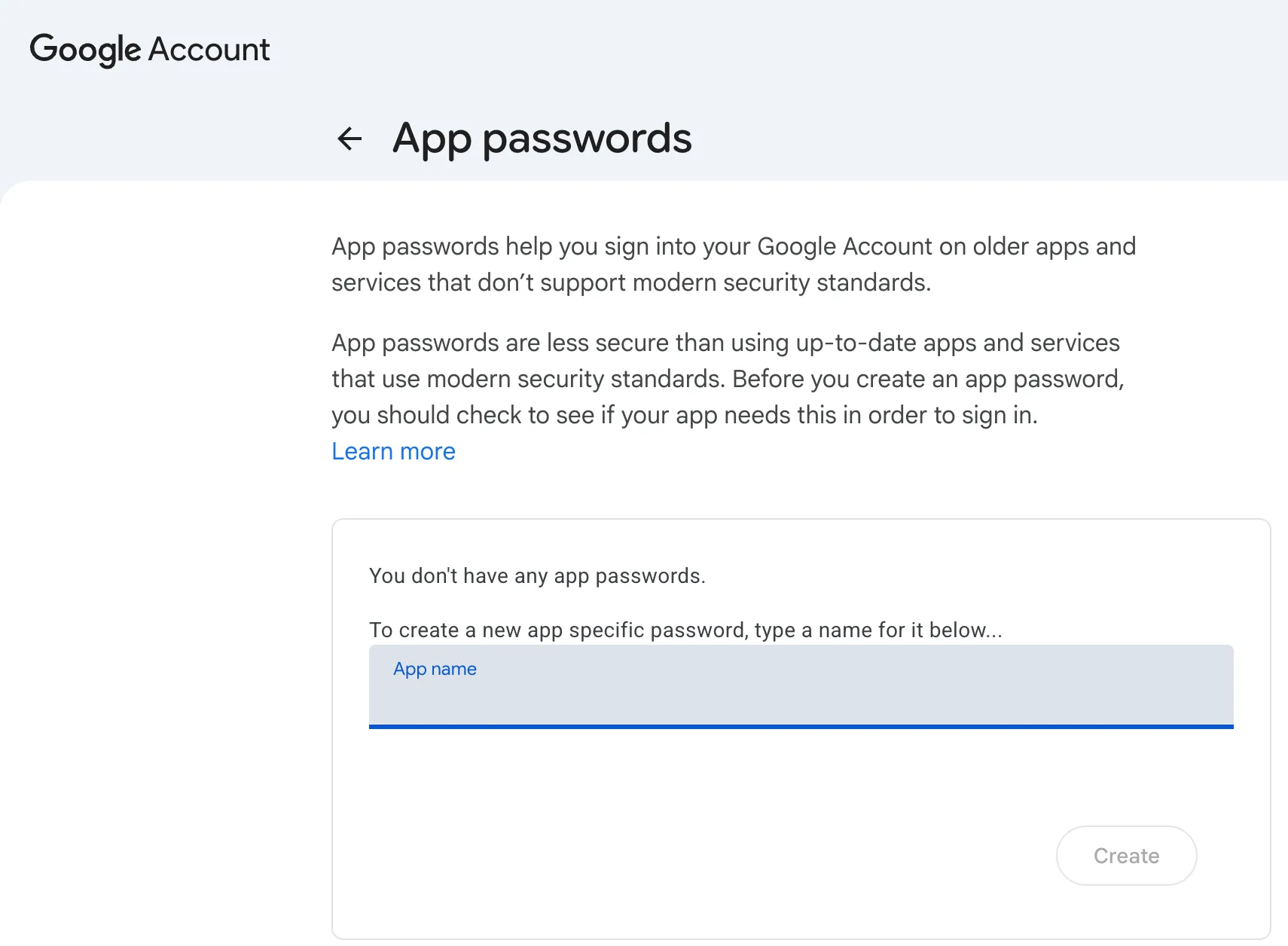
Open the App passwords screen (https://myaccount.google.com/apppasswords (opens in a new tab)). If a sign-in screen appears, sign in with the account you'll send from.
-
In the App name field, enter a name you'll recognize later (for example,
WEEGLOO Order Notifications). -
Click Create.
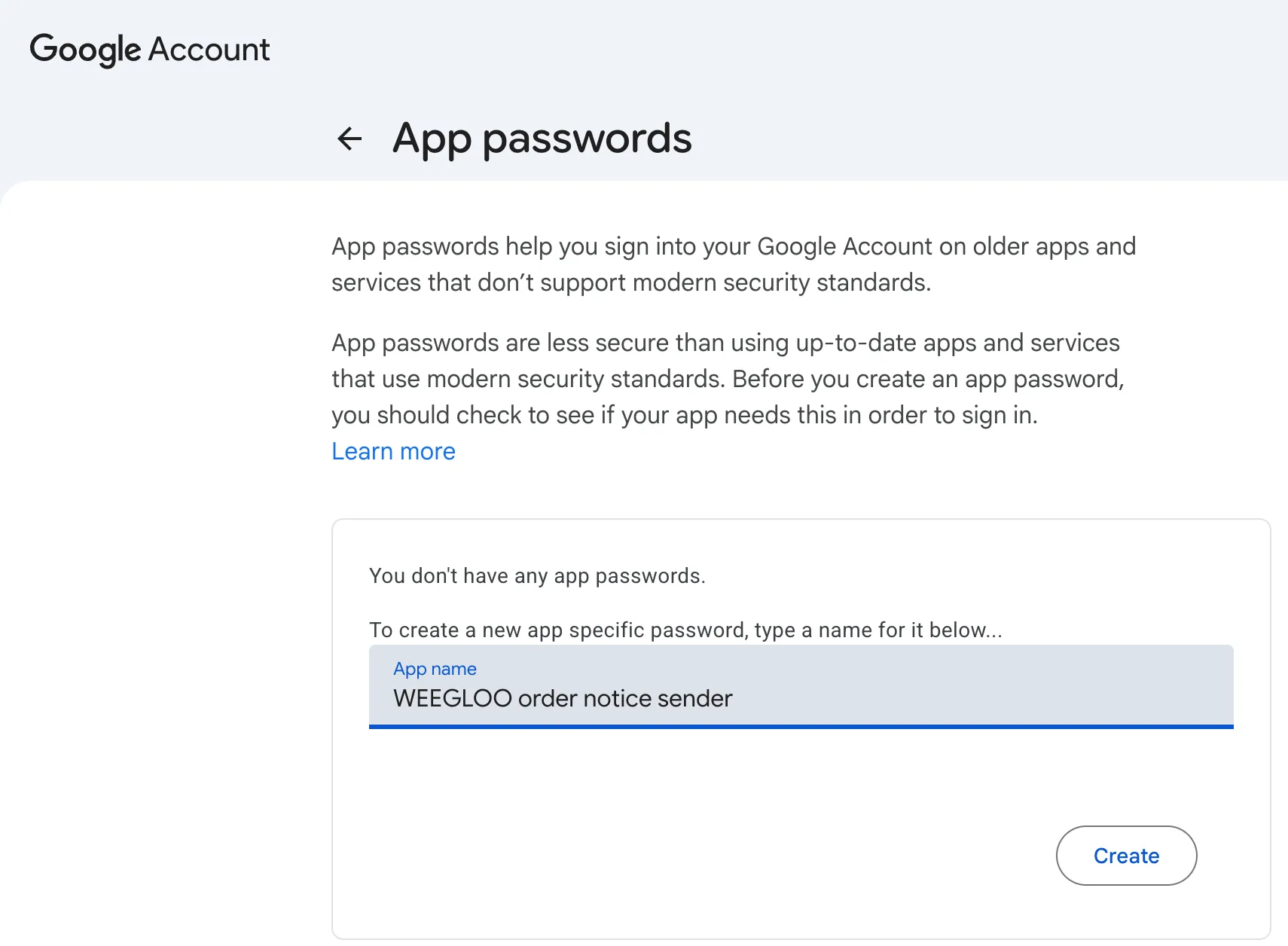
App name is the name that tells your app passwords apart in your Google account. Customers never see it. It doesn't have to match the name of the Email Account you register in WEEGLOO.
Copy the 16-character value
When you click Create, the Generated app password window appears. The value under Your app password for your device is what you enter in the App password field in Content Studio.
-
Copy the 16-character value under Your app password for your device, without the spaces, and keep it for later.
-
Once you've saved the value, click Done.
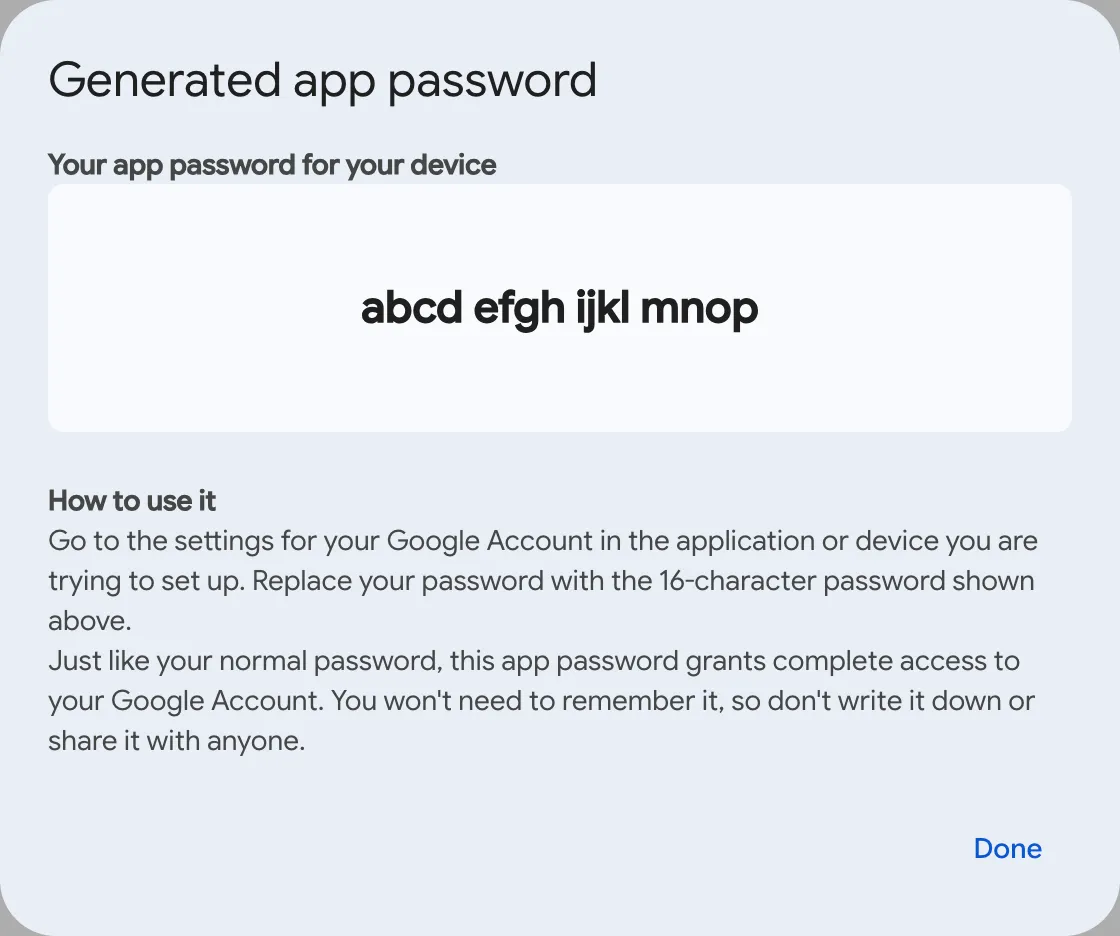
The value appears as four groups of four characters, like abcd efgh ijkl mnop. The password is 16 characters long, and the screen adds a space after every four characters. When you copy it somewhere, leave out the spaces and keep only the 16 characters.
Once you click Done, the value isn't shown again
Before you close the window, make sure you've saved the value somewhere. If you lose it, get a new app password. This value gives full access to your Google account. Treat it as carefully as your account password. Don't paste it into messaging apps or public documents.
Enter the app password in WEEGLOO
If you were setting things up yourself in Content Studio, go back to Register an Email Account. Enter your new 16-character app password in the App password field, fill in the remaining fields, and click Save.
If you asked an AI agent to handle the integration and it told you to get an app password, paste the 16-character app password into the chat as is and pick up where you left off. The agent takes care of the rest of the setup.
What to do next
- Register an Email Account: Covers the steps for registering a sender with the app password you got.
- Sending email: Covers, with diagrams, what you register in an Email Account and how mail goes out from the sender you registered.
- Script: Covers how to build the task that actually sends mail to customers from the sender you registered.
- Email Account: Covers the request and response formats and field specs for registering and managing a sender directly from a program.