

Status and version rules
This page gathers every rule about the status and versions of Content, Media, and Content Types. It covers how each action changes the status, when the version number goes up and when a published version is kept, what's checked when you save and when you publish, and which permissions you need to change the status.
If you're new to status and publishing, start with Status and publishing. That page explains the two places (Content Studio and public delivery), what the four statuses mean, and what's delivered publicly when you publish. The steps for publishing in Content Studio are in Change the status with the status badge on this page. This page uses the same example as that page: the product "Stainless Tumbler 500ml" in an online clothing store.
Rules
What has the four statuses
The four statuses Draft, Published, Changed, and Archived apply to Content, Media, and Content Types. These three are delivered publicly only after they're published. However, a Content Type can't be moved to the Archived status.
Other items don't have these four statuses. Even an item without a status can have a version number. For example, Scripts and Tags have no publishing step, and only their version number goes up by one each time you save. After you save a Script, its next run uses the changed definition. When you rename a Tag, the new name takes effect right away.
| Item | Four statuses | Version number | Published versions |
|---|---|---|---|
| Content | Yes | Yes | Kept each time you publish |
| Content Type | Yes (except Archived) | Yes | Kept each time you publish |
| Media | Yes | Yes | Not kept |
| Script | No | Yes | None |
| Tag | No | Yes | None |
For what version numbers and published versions are, see The version number goes up with every change and A published version is kept each time you publish.
The status right after creation
The status right after you create something depends on what you created and where.
| What you created | Status right after creation | How it reaches public delivery |
|---|---|---|
| Content created in Content Studio | Draft | Goes public only when you Publish it yourself |
| Media | Draft | Becomes Published on its own once file processing finishes |
| Content Type | Published | Published as soon as it's created |
| Content a signed-up member (ServiceUser) created in your service | Published | Published as soon as it's created |
You can create a Content only from a Content Type that's published. A Content Type created in Content Studio is published as soon as it's created, so you can use it right away.
How each action changes the status
The status of Content and Media changes only in set ways, depending on the action. The table below shows the result of each action for each current status.
| What you do | When Draft | When Published | When Changed | When Archived |
|---|---|---|---|---|
| Edit and save | Stays Draft | Becomes Changed | Stays Changed | Not possible |
| Publish | Becomes Published | Not in the list | Becomes Published | Not possible |
| Unpublish | Not possible | Becomes Draft | Becomes Draft | Not possible |
| Archive | Becomes Archived | Needs an unpublish first | Needs an unpublish first | Not possible |
| Unarchive | Not possible | Not possible | Not possible | Becomes Draft |
| Delete | Deleted | Not possible | Not possible | Deleted |
A few things to note about the table:
- Publish doesn't appear in the status list of a Published item, because there are no edits to publish again.
- You can Archive only an item that's Draft. Even so, Archive also appears in the status list of a Published or Changed item (see Steps Content Studio handles for you).
- When you Unpublish a Changed item, the last published content is removed from public delivery. Your edits stay, and the status becomes Draft.
- An Archived item can't be edited or published. When you Unarchive it, it returns to Draft, and the content you saved is still there.
- For Media, the result of editing and saving differs from this table, because a Media whose file processing has finished is published again as soon as you save it (see Media publishes itself once processing finishes).
- Content Types don't follow this table. For details, see A Content Type is published as soon as you save it.
Steps Content Studio handles for you
For some actions, Content Studio takes care of the steps they need along the way, or asks you to confirm before going ahead.
When you archive an item that's published. You can archive only an item that's Draft. Even so, Archive also appears in the status list of a Published or Changed item. If you choose Archive there, Content Studio unpublishes the item first and then archives it. If the unpublish succeeds but the archive fails, the item stays Draft and has already been taken down from public delivery. In that case, choose Archive from the status badge again.
When you have unsaved edits. What gets published is always the saved content. If you were in the middle of editing, save first and then change the status. If you've changed even one box in a Content or Media and haven't saved, the status badge is dimmed and can't be clicked. In that case, finish editing with Save or Cancel, then change the status. If you only opened the editing screen and didn't change any box, the badge isn't dimmed.
When linked items are involved. Content Studio shows a confirmation window when you publish a Content whose linked items aren't published yet, and when you take down or delete an item that another Content links to. These confirmation windows are explained in Unpublished items don't come along and When you delete a linked item. For how a broken link looks publicly, see Reference rules.
Unpublishing and deleting are different
Unpublish takes an item down from public delivery. The item stays in Content Studio as Draft, and you can publish it again later. The published versions kept so far aren't erased either. However, a Media's file still opens from its file address even after you unpublish the Media (How long a file can be opened from its address).
Deleting removes the item itself, and it can't be undone. Once an item is deleted, you can no longer see its Published History either.
You can delete only an item that's Draft or Archived. For an item that's Published or Changed, Unpublish it first and then delete it. The detailed rules on deleting are in Deletion rules. That page also explains cases where a deletion is blocked because other items remain.
The version number goes up with every change
This page talks about two kinds of versions. One is the version number, which goes up by 1 each time an item changes. The other is the published version (snapshot), a record kept each time you publish. The version number is used to sort out who saved first when several people edit together. Published versions are used to compare and restore past content.
A newly created Content has version number 1. After that, it goes up by 1 with every action that changes the item, such as saving, Publish, Unpublish, Archive, and Unarchive. Here's how it goes for the tumbler product.
| What you did | Status | Version number | Published versions kept |
|---|---|---|---|
| Create and save the tumbler product at a price of 18,000 won | Draft | 1 | None |
| Publish | Published | 2 | 1 (18,000 won) |
| Change the price to 16,000 won and save | Changed | 3 | 1 |
| Publish | Published | 4 | 2 (18,000 won, 16,000 won) |
The version number goes up even when you only save, but a published version is kept only when you publish. That's why the two numbers differ.
For a Content Type, saving and publishing happen together every time you save. For a Media, they happen together when you save after its file processing has finished. So in these cases, a single save raises the version number by 2.
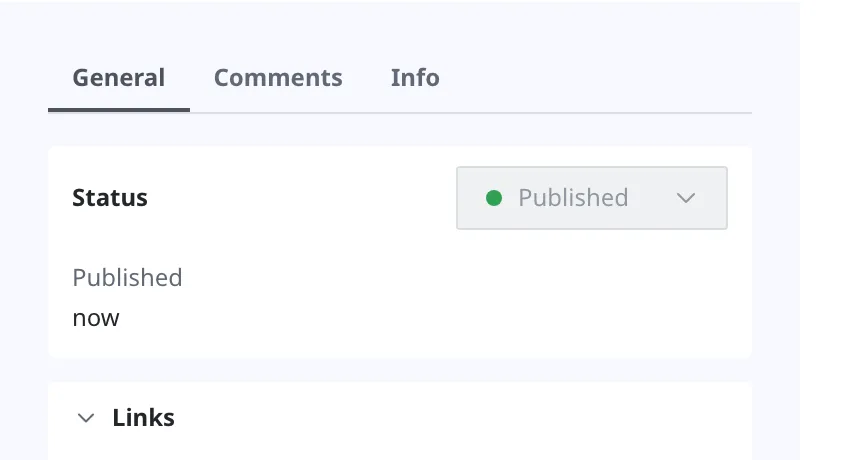
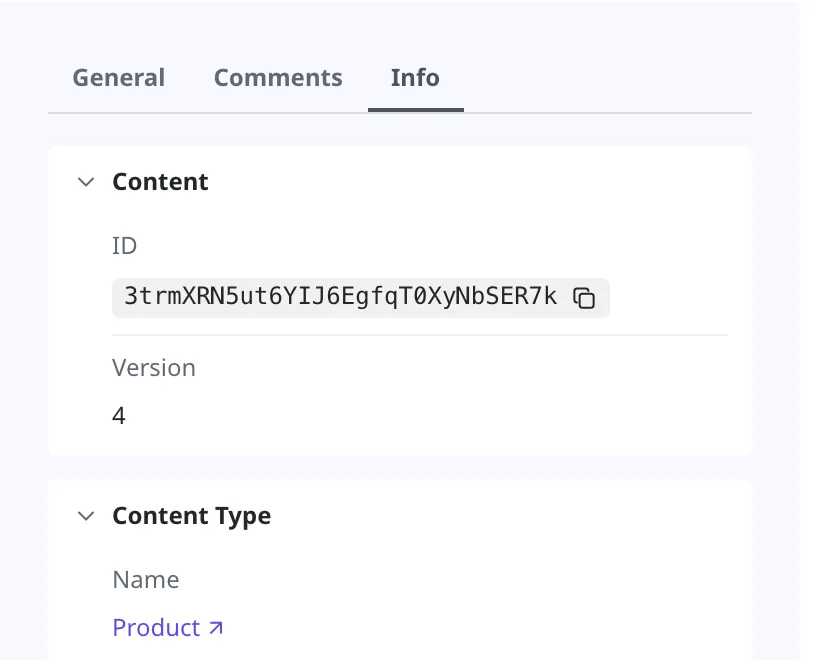
You can check the current version number in Version, in the top area of the Info tab in Content Studio's right sidebar.
When several people edit at once, the person who saves later chooses whether to overwrite
When you save, the version number from when you started editing is compared with the current version number. If a colleague saved the same item first in the meantime, the version number has already gone up, so the person who clicks Save later sees the "Version Conflict" window. Thanks to this rule, a value your colleague edited a moment ago is never overwritten by the older value on your screen without your knowing.
The window shows the messages "Someone else has modified this item since you started editing." and "Your changes may overwrite their work.", along with the Cancel, Discard My Changes & Reload, and Overwrite with My Changes buttons. If you click Overwrite with My Changes, your values are saved and overwrite the values of the person who saved first. The later save isn't refused; instead, the person who saves later chooses whether to overwrite. For the steps that keep both people's edits, see Editing together.
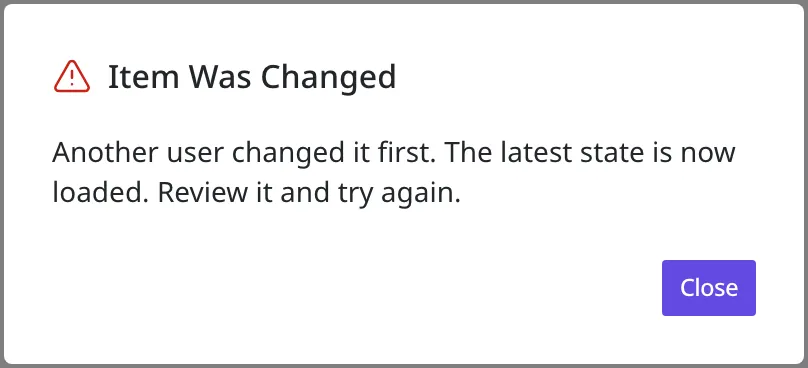
The version number is also compared when you change the status with Publish, Unpublish, Archive, or Unarchive. What gets published is always the content saved at that moment. So if you publish after a colleague has saved, what your colleague saved is published too. However, if a colleague saved the same item after you opened the screen, the status change isn't carried out and the "Item Was Changed" window appears. At that point, Content Studio reloads the screen with the latest content. Click Close, check what changed, and if it's fine to publish as is, select the action again from the status badge.
This check isn't done when deleting. A colleague can delete an item even while you're editing it. If you then click Save, the "Item Was Deleted" window appears with the Go Back to List and Save as New buttons. If you click Save as New, a new Content is created as a Draft with what you were editing. The deleted item doesn't come back, so the new Content has a different ID from the old one. If you click Go Back to List, what you were editing isn't saved.
A published version is kept each time you publish
The moment you Publish, everything saved at that point is kept as one published version. Published versions pile up as you keep publishing, and they're listed in Published History in Content Studio.
- A published version is kept only when you publish. Content you only saved and never published isn't kept, so you can't get it back later.
- Published versions are kept for Content and Content Types. A Media keeps no published version, even when you publish it.
- A Content Type is published every time you save it, so a published version is also kept every time you save.
- Unpublish and Archive don't erase the published versions kept so far.
- A Content that has never been published has an empty Published History.
How to view and restore past published versions is covered in View and compare past published versions and Restore values from a past published version.
Checks on save and on publish
The moment you save or publish a Content, it's checked against the rules set on its Content Type. If it doesn't pass, the save or publish is blocked and an error message is shown. Most rules are checked both when you save and when you publish, but some are checked only when you publish.
| What's checked | On save | On publish |
|---|---|---|
| Whether a Required Field has a value (for a multilingual Field, in each required language) | Checked | Checked |
| Whether a value fits its Field type and stays within that type's size limit | Checked | Checked |
| Limit character count, Match a specific pattern, Prohibit a specific pattern, Accept only specified values, Accept only specified number range, Accept only a date range, Array size, Limit number of properties | Checked | Checked |
| Unique Field | Not checked | Checked |
Things to note in this table:
- A Content with an empty Required Field, or with more characters than Limit character count allows, can't be saved even as a Draft.
- Unique Field is checked only when you publish. If the value matches that of another Content of the same Content Type that's already published, the publish is blocked. For a multilingual Field, each language is compared separately. Drafts that aren't published can be saved even when their values match. For example, if you turn this setting on for a product code Field and publish the tumbler product with the product code
TB-500, another product with the same code can be saved as a Draft but can't be published. - The rules set on link fields (Fields whose type is Content or Media), and whether linked items still exist, are also checked when you publish. When and how link fields are checked is all laid out in Reference rules.
- Whether linked items are published isn't checked (see Unpublished items don't come along).
- Checks happen only at the moment you save or publish. So even if you make a Content Type's rules stricter later, Content that's already saved or published stays as it is. That Content is checked against the changed rules the next time it's saved or published.
For the conditions you can set and how to turn them on, see Validations.
Media publishes itself once processing finishes
When you upload a Media, its status starts as Draft, and the system processes the file. Processing means organizing the file's information. For an image, for example, it reads the width and height. If you uploaded a separate file for each language, each file is processed separately. Once all the files have been processed, the Media becomes Published even if you don't click Publish.
- While a file is being processed, you can't edit and save that Media or delete it. Wait until processing finishes.
- If even one file hasn't finished processing, you can't Publish the Media yourself either. Nor can you publish a Media that has no file at all.
- If any file failed to process, the Media doesn't publish itself. In that case, upload that file again. A re-uploaded file is processed again from the start.
- A Media is published again as soon as you edit and save it. If you edit and save the title or description of a Media whose files have all finished processing, it's published along with the save and becomes Published. The same goes for a Media you unpublished and left as Draft. This also happens when you save in Content Studio, so you don't need to click Publish separately after editing.
- If you replace the file of a published Media and save, it becomes Published again after the new file finishes processing. In the meantime, the file from before the change is delivered publicly. If processing the new file fails, the Media stays Changed, and the file from before the change keeps being delivered publicly.
- To keep an edited Media from going public, Unpublish it again after saving. Remember that it's published again the moment you save.
- When you upload or edit directly from a program, you can turn off this automatic publishing. For how, see the Media API reference.
A Media that isn't published isn't delivered publicly. Say you link the tumbler's main photo tumbler.png to the product while that Media is still processing. When the photo starts coming along in public delivery is explained in Reference rules.
A Content Type is published as soon as you save it
A Content Type is published at the same moment it's saved, both when you create it and when you edit and save it. So a Content Type never stays Changed. When you edit and save a Content Type, the changed template and rules apply from that moment on whenever Content is saved or published.
- You can't Archive a Content Type.
- You can Unpublish a Content Type only when no Content made from it exists. Content that's Draft or Archived counts as remaining too.
- You can't create new Content from an unpublished Content Type.
- An unpublished Content Type is published again when you edit and save it.
- Deleting a Content Type also requires that no Content made from it exists. The steps for deleting are in Deletion rules.
Publishing Content created by signed-up members
When a signed-up member (ServiceUser) creates, edits, or deletes a Content in your service, the publishing step is handled along with it. Take, for example, a customer who signed up for the online clothing store and writes a review of the tumbler product.
| What the member did | Result |
|---|---|
| Wrote a new review | It's published along with the save and becomes Published |
| Edited their own review | It's published again along with the save |
| Deleted their own review | It's unpublished first and then deleted |
- If a new review doesn't pass the publish-time checks, writing the review is canceled altogether. The review isn't left in Content Studio either.
- If an edited review doesn't pass the publish-time checks, the edits are saved but not published. In Content Studio, the review shows as Changed, and the last published content keeps being delivered publicly.
- Even a review that staff unpublished in Content Studio is published again if the member edits and saves it in your service. To keep the member from editing it, Archive it. Members can't edit Content that's Archived. However, a member with permission to delete can delete an Archived review too.
- When a member edits in your service, the version number isn't checked. So even if the member edits without knowing that someone else saved first in the meantime, the edit isn't refused and overwrites what was there.
- A member role (ServiceUserRole) has no Publish, Unpublish, Archive, or Unarchive actions. Staff take down or archive members' reviews in Content Studio. A review that staff edit in Content Studio follows the same rules as any other Content.
- A Media a member uploads also publishes itself once file processing finishes, and when it's deleted, it's unpublished first and then deleted.
Required permissions
Each action that changes the status is allowed separately in a SpaceRole. On the role screen, action names appear in English. For how to create a role and allow actions, see Role and permission rules.
| What you want to do | Action the role needs |
|---|---|
| Create a Content | Create |
| View and compare Published History | Read |
| Edit and save, or restore values from a past published version | Edit |
| Publish | Publish |
| Unpublish | Unpublish |
| Archive an item that's Draft | Archive |
| Archive an item that's Published or Changed | Unpublish, Archive |
| Unarchive | Unarchive |
| Delete | Delete |
- Even if you allow Publish, you have to allow Unpublish separately. For the rule that actions don't include one another, and for All actions, see Actions you can choose on each tab.
- To archive an item that's Published or Changed, it has to be unpublished first, so you need Unpublish too.
- A Content Type is published automatically when you save it, and a Media when its file processing finishes. So even with a role that lacks Publish, uploading (Create) or editing (Edit) a Media changes what's delivered publicly. The same goes for creating or editing a Content Type. If you want to strictly control who can make things public, take this into account when you set up roles.
Tasks in Content Studio
Change the status with the status badge
You Publish, Unpublish, Archive, and Unarchive by clicking the status badge in the Status area on the right of the Content detail screen. Media works the same way. Below are the steps for publishing the Draft product "Stainless Tumbler 500ml" to make it public. You choose the other actions the same way, from the list that opens.
- Open the "Stainless Tumbler 500ml" Content you want to publish.
- In the Status area on the right, click the status badge that shows the current status (Draft).
- Click Publish in the list that opens. (To only archive an item you won't use anymore, choose Archive.)
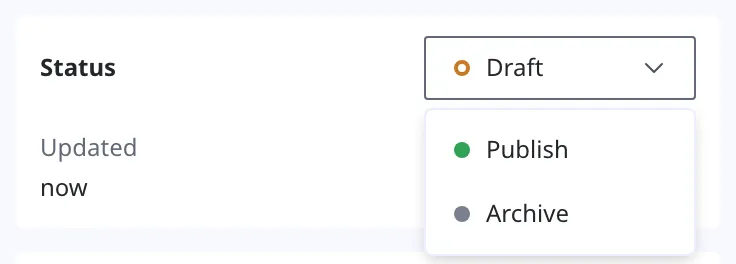
Once the status changes to Published, the product is published. The Status column of the Content list shows Published too. From then on, it's delivered through public delivery, so your actual site can show this product.
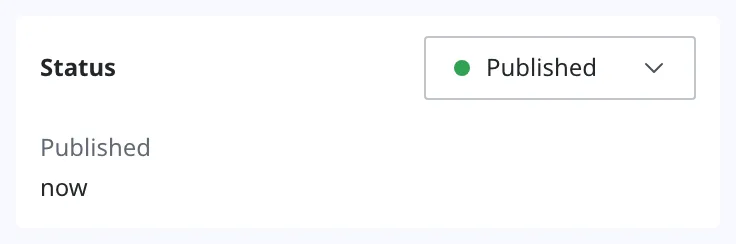

If publishing is blocked, check the cause and what to do in Troubleshooting.
If you edit something such as the price after publishing and save, the status changes to Changed. To make your edits public, Publish once more the same way. The steps for editing the price and saving are in Edit and save.
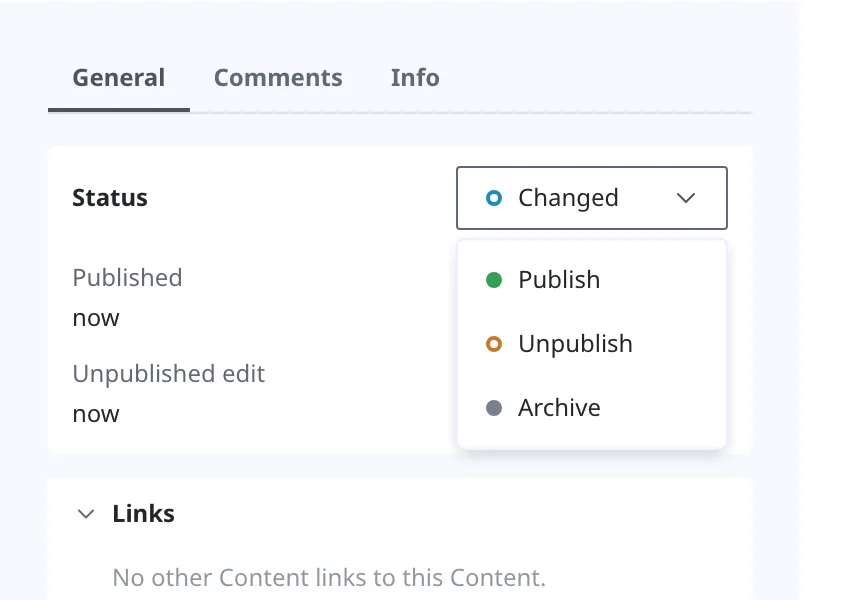
The actions shown in the list depend on the current status.
| Current status | Actions shown in the list |
|---|---|
| Draft | Publish, Archive |
| Published | Unpublish, Archive |
| Changed | Publish, Unpublish, Archive |
| Archived | Unarchive |
For which action to choose in situations such as fixing a price typo, taking something down in a hurry, or archiving seasonal products, see Publishing operations.
View and compare past published versions
You check past published versions in the Published History area of the right sidebar on the Content detail screen. When you open the tumbler product, the versions you've published so far are listed, most recent first.
- Open the "Stainless Tumbler 500ml" Content whose past versions you want to see.
- In the Published History area of the right sidebar, select the published version you want to check.
- Click Compare With Current.
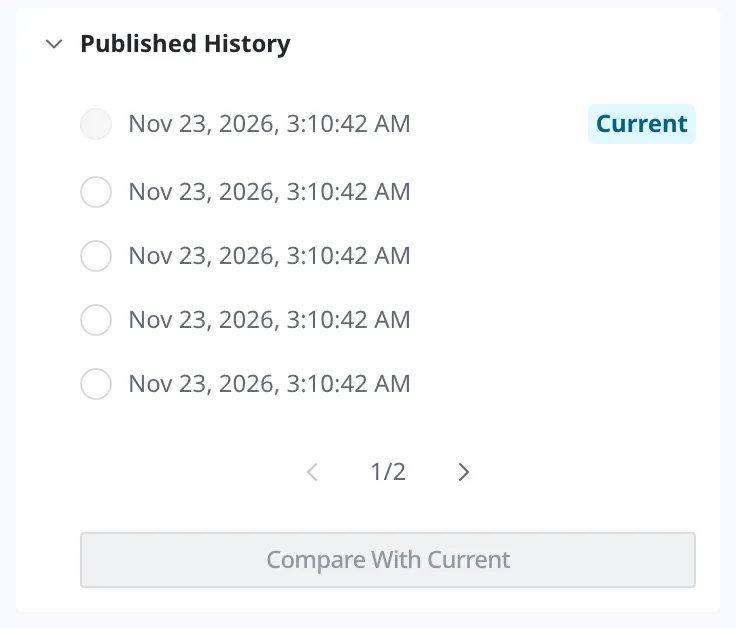
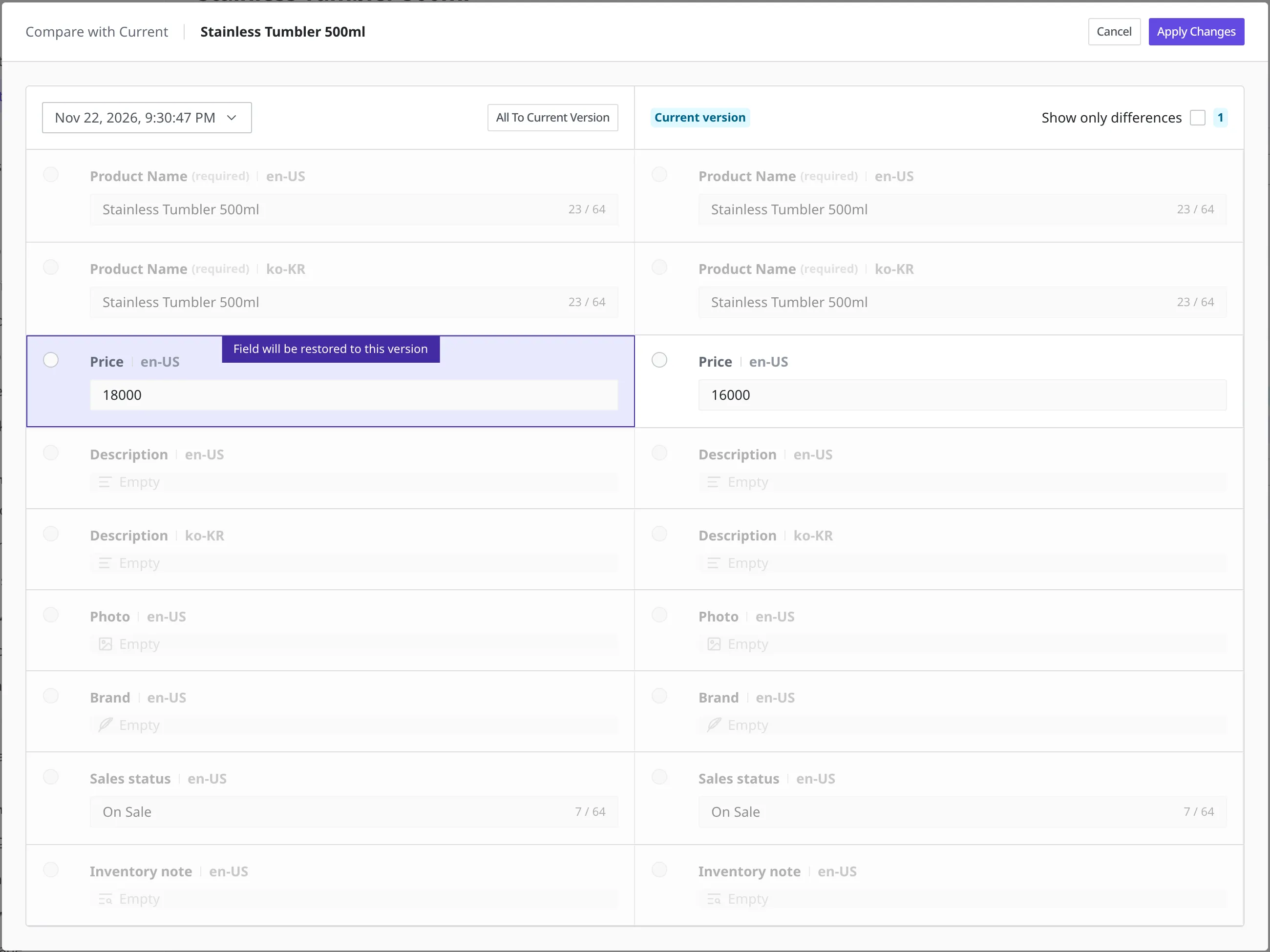
The comparison screen shows the selected published version and the current content side by side, for each Field and each language. To see only the fields whose values differ, turn on Show only differences.
While the Content is Published, the most recent published version in the list has the Current label. This version is the same as the current content, so you can't select it for comparison. While the Content is Changed, no version has the Current label, and you can also select the most recent published version. That way, you can check on the comparison screen the edits you only saved after publishing.
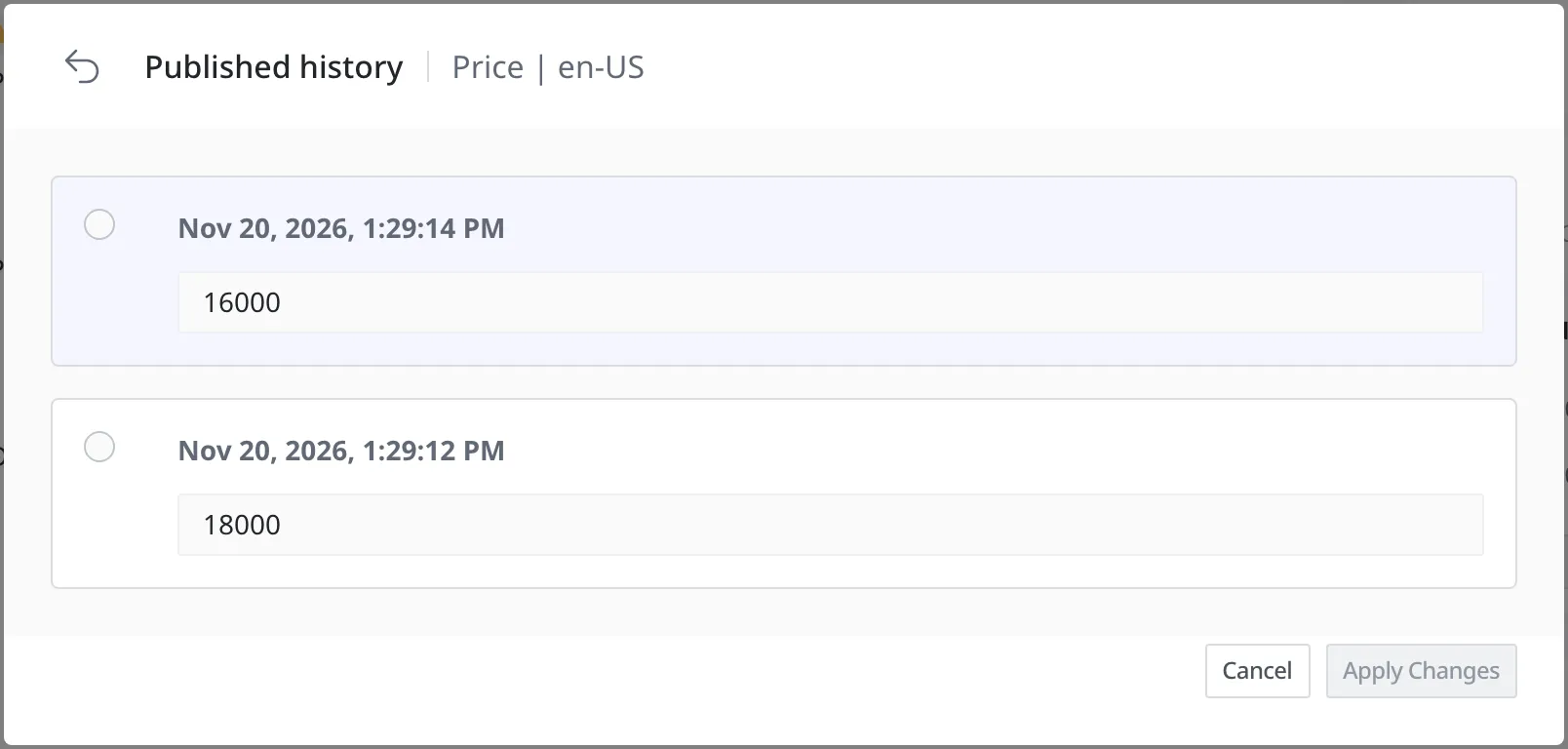
On the editing screen, you can also click the history icon next to a Field name to see the published versions of that Field alone. The values of that Field are listed by publish time.
Restore values from a past published version
On the comparison screen, you can restore only the Fields you select to their values in a past published version. Say you want to set the tumbler's price, which you changed to 16,000 won and published, back to the earlier price of 18,000 won.
- Following View and compare past published versions, open the comparison screen for the version you published with the price of 18,000 won.
- In the price row, click the field on the past published version's side (left). To restore every field whose value differs, click Use previous for all instead of clicking each field.
- Click Apply Changes. The price field on the editing screen is filled in with
18000. It isn't saved yet. - Click Save. The tumbler's status changes to Changed.
- Click the Status badge, then click Publish.
Keep these points in mind when restoring:
- Once every field whose value differs is selected on the past published version's side, the Use previous for all button changes to Use current for all. Clicking it moves every selection back to the current version's side.
- Saving restored values is the same as editing and saving. So the tumbler, which was Published, becomes Changed, and its version number goes up by one.
- To make the change public, you have to Publish again. When you publish, one more published version with the price of 18,000 won is kept.
- What gets published is always the saved content. Until the restored values are saved, publishing doesn't include them.
- A Content that's Archived can't be edited, so Unarchive it before restoring.
- You can restore only content that was kept as a published version. Content you only saved and never published, and items you've deleted, can't be restored.
Troubleshooting
For cases where a link field blocks saving or publishing, or where a linked item looks empty in public delivery, see the table in Reference rules.
| Problem | Cause | What to do |
|---|---|---|
| Publish isn't in the status list | The item is Archived, or it's Published with no edits | If it's Archived, Unarchive it and then Publish it. If it's Published, the latest content is already published |
| What you saved doesn't show up publicly | The status is Changed. You only saved and didn't publish again | Publish it |
| It won't save with a Required Field left empty | Required values are checked even when you save as a Draft | Fill in the value, then save |
| Publishing is blocked by an error saying the same value already exists | The value of a Field with Unique Field turned on matches that of another Content that's already published | Change the value. If the other Content using the same value isn't needed anymore, Unpublish that one first |
| You can't edit an Archived item | Archived items can be neither edited nor published | Unarchive it to return it to Draft |
| You can't archive a published item | Archiving works only from Draft, so the item has to be unpublished first, but your role has no Unpublish action | Add Unpublish to the role, or ask a colleague who has the Unpublish permission |
| An item can't be deleted | Items that are Published or Changed can't be deleted | Unpublish it, then delete it. If it's still blocked, check Deletion rules |
| You can't edit or delete a Media | Its file is being processed | Wait until processing finishes |
| A Media doesn't become Published | File processing hasn't finished, it failed, or there's no file | If it's processing, wait. If it failed, upload the file again. If there's no file, upload one |
| A Media you unpublished went public again | A Media is published again when you edit and save it | Unpublish it again after saving |
| The Version Conflict window appears when you try to save | A colleague saved the same item first after you started editing | Handle it by following the steps in Editing together |
| The content you want to restore isn't in Published History | Content you only saved and never published isn't kept as a published version | Content that wasn't kept as a published version can't be recovered |
| You can't Unpublish or delete a Content Type | Content made from that Content Type still remains | Delete all that Content, then try again. The steps are in Deletion rules |
| A member's review you unpublished went public again | When a member edits and saves it in your service, it's published again | To keep the member from editing it, Archive it |
Related docs
- Status and publishing: Covers, with diagrams, the two places (Content Studio and public delivery), what the four statuses mean, and what's delivered publicly as you create, publish, and edit.
- Deletion rules: Covers what blocks deleting what, and the order to delete in.
- Reference rules: Covers how a linked item looks publicly when it isn't published or has disappeared.
- Publishing operations: Covers how to handle situations after publishing, such as fixing a price typo, taking something down in a hurry, and archiving seasonal products.
- Editing together: Covers the steps that keep both people's edits when you get a version conflict notice.
- Content: Covers technical specs, such as the request formats you need to publish, unpublish, and archive from a program, and how to include the version number.