

Deletion rules
As you tidy up your online clothing store, you'll find some items that don't go away even when you click Delete. That's because an item can't be deleted while items inside it remain or while another item is using it. This page brings together in one place what you can delete and when, what blocks a deletion, and what goes away along with it.
Unpublish and Archive are steps you go through before deleting. For how they change statuses such as Draft and Published, see Status and version rules.
Rules
Deletion can't be undone
There's no trash or restore feature that brings back a deleted item. Even the past versions kept each time you publish can't bring back an item you've already deleted. The confirmation window that appears when you delete a Content also warns, "This action cannot be undone."
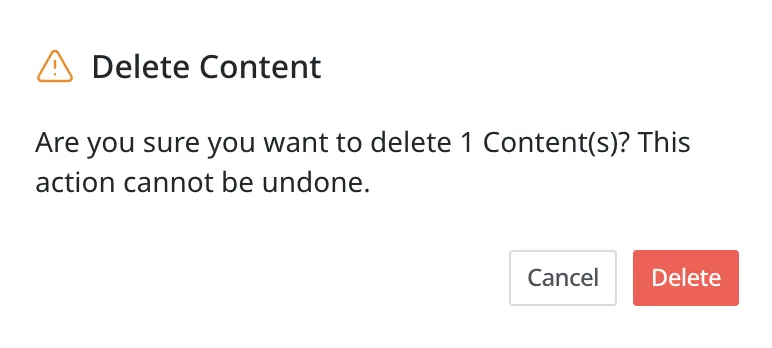
If there's even a small chance you'll use an item again, choose a different action instead of deleting it. To stop only the delivery to visitors, use Unpublish. To set an item aside from your active work for a while, use Archive. You can undo either action at any time.
Deletion goes from the inside out
Items in WEEGLOO are nested inside one another. A Space sits inside an Organization, and Content Types, Media, and Web Hosting sit inside a Space. Each Content is tied to the Content Type it follows as its template. While even one item inside remains, the item that contains it can't be deleted. You can't wipe out the Content Types, Content, Media, and Web Hosting inside all at once by deleting what contains them.
So you delete from the inside out, in this order.
- Delete the Content.
- Delete the Content Types.
- Delete the Media and Web Hosting. These two block only the deletion of the Space, regardless of any Content Type, so you can swap this step with the two before it.
- Delete the Space.
- Once no Space remains and every one of the conditions for deleting an Organization is met, you can delete the Organization.
The other items in a Space (roles, tokens, Locales, Webhooks, and so on) aren't part of this order. A token is the key a program uses to access this Space. These items go away along with the Space when you delete it (see What blocks deleting a Space and what goes with it).
Content and Media can be deleted only while Draft or Archived
You can delete a Content or Media only while it's Draft or Archived. For an item that's Published or Changed, first use Unpublish to return it to Draft, then delete it. An Archived item can be deleted as is, without unarchiving it.
A Media can be deleted only after its uploaded file has finished processing. While the system is still processing the file, both deleting and editing are refused, so wait until processing finishes and try again. A Media whose processing failed can be deleted.
When you delete an item, the Comments left on it are deleted too. When you delete a Media, its uploaded file is deleted too.
A deletion isn't blocked even if another Content links to the item. Even if the tumbler product links to the main photo "Stainless Tumbler 500ml Front Shot", that photo is deleted, and the product keeps a link that points to the deleted photo. What that leftover link causes, and the confirmation window Content Studio shows before you delete, are covered in When you delete a linked item. How to find where an item is linked before you delete it is in Check what links to an item before deleting it.
Archived items still count as remaining
An item you put away with Archive hasn't been deleted. It's still in the Space, so it counts as remaining when it comes to what blocks a deletion. An archived Content blocks deleting its Content Type, and archived Content and Media block deleting the Space. To finish cleaning up, you have to delete the archived items too.
To see only archived items, apply a filter in the Content list that keeps only items whose status is Archived. How to apply a filter is covered in Finding the content you need.
A Content Type can be deleted only after all its Content is deleted
While even one Content made from a Content Type remains, that Content Type can't be deleted, and Unpublish doesn't work on it either. A Content counts as remaining whatever its status: Draft, Published, Changed, or Archived.
A Content Type can't be archived. Only Content and Media can be archived. So you delete a Content Type after unpublishing it to return it to Draft. A Content Type created in Content Studio is published as soon as it's created, so you have to unpublish it before you can delete it. However, when you delete one in Content Studio, the "Delete Content Type" window also takes care of the unpublishing, so you don't have to unpublish it separately.
When you delete a Content Type, the Comments left on it and the version records kept each time it was published are deleted too.
If you want to change a template by deleting its Content Type and creating it again, you first have to delete all the Content made from that template. To change a template while keeping the Content you've built up, see Changing Content Types on a live service.
What blocks deleting a Space and what goes with it
A Space can't be deleted while even one Content Type, Content, Media, or Web Hosting remains in it. Draft items you never published and Archived items you put away count as remaining too.
Everything other than these four goes away along with the Space when you delete it, so you don't need to delete each one beforehand. The default Locale and the Administrator role, which can't be deleted on their own, also go away at this point.
- Roles (SpaceRole) and member assignments. Members are removed only from this Space, and keep their place as Organization members.
- Tokens (Delivery Access Token and Space Access Token). Deleted tokens can no longer be used for access.
- Locales and Tags
- Webhooks and their call logs, Schedulers and their run history, and Scripts and their execution logs
- Member login settings (ServiceLogin), signed-up members (ServiceUser), and member roles (ServiceUserRole)
- Email Accounts
- Views saved on list screens, and any remaining Comments
Conditions for deleting an Organization
You can delete an Organization only when all of the following conditions are met.
- It must be on the Free plan. If you're on a paid plan, request cancellation first. Cancellation takes effect on the next billing date, so you can delete the Organization after it switches to Free on that day. Until then, you can keep using the period you've already paid for.
- There must be no payment in progress and no scheduled change. Even right after the switch to the Free plan, if a payment or a change you scheduled hasn't wrapped up yet, you can delete the Organization once it has.
- No Space can remain. You can delete the Organization after deleting every Space inside it.
- No Market App can remain. Apps listed in the market, apps blocked from appearing in the market, and even apps you've already deleted count as remaining. Apps you haven't listed yet and haven't deleted don't block the deletion.
So you can't delete an Organization yourself if it has ever listed or deleted a Market App, and deleting that app doesn't lift this condition. If you plan to delete the Organization, leave any apps you haven't listed as they are instead of deleting them.
If a Market App you listed or deleted keeps you from deleting an Organization, contact support@weegloo.com.
When you delete an Organization, its member list and usage alert settings go away too.
Deleting items such as Locale, Tag, and Script
Most other items in a Space can be deleted right away. Some, however, can't be deleted while another item is using them, and deleting some items makes other things go away or stop.
| What you're deleting | When it can't be deleted | What goes away or stops when you delete it |
|---|---|---|
| Locale | When it's the only one left, when it's the default Locale (the one with the Default badge in the list), or when it's set as another Locale's Fallback Locale | Values written in the deleted Locale no longer appear in public delivery or in responses that programs read. What else happens is covered in When you delete a Locale |
| Tag | When it's attached to even one Content or Media, whatever that item's status | Nothing. What happens to roles that use this Tag in a scope condition is covered in What to check before deleting a Tag |
| Script | When a Webhook or Scheduler is set to run this Script, including ones that are turned off | Its execution logs |
| Webhook | None | Its call logs, and the execution logs of the Script runs this Webhook started |
| Scheduler | None | Its run history, and the execution logs of the Script runs this Scheduler started |
| Web Hosting | While its deployment files are being processed | The uploaded site files and the connection to your own domain. The address it used (for example, myclothes) is freed up, so someone else can use it |
| Email Account | None | For up to 1 minute after deletion, mail may still be sent. After that, Scripts that sent mail through this account fail when they try to send mail |
| Role (SpaceRole) | When it's the Administrator role, when it's assigned to a member, or when it's bound to a token | Nothing |
| Delivery Access Token, Space Access Token | None | The token stops working for access the moment you delete it. The role that was bound to it can now be deleted |
| Member role (ServiceUserRole) | When it's the Default Role in the member login settings, or when it's assigned separately to any member | Nothing |
| Member login settings (ServiceLogin) | None | All signed-up members (ServiceUser) and the social login settings. This can't be undone. The Content and Media members created, and the member roles, remain |
A role bound to a token can't be deleted. To delete that role, first delete the token it's bound to, or change that token's role to a different one (The bound role decides what a token can do).
The Script a Scheduler runs can't be changed later. So to delete a Script that a Scheduler uses, you have to delete that Scheduler first. A Webhook stops using the Script once you change its Endpoint to something else.
Disable ServiceLogin, which turns off ServiceLogin in Content Studio, deletes the ServiceLogin. It's deleted when you click Disable in the confirmation window. All signed-up members are deleted and this can't be undone, so if people are already signing up for your service, decide carefully. The steps for removing a single member are in Process an account deletion.
When you remove members or delete your account
When you remove a member from a Space, that member is removed only from this Space. Their place as an Organization member and their assignments to other Spaces stay as they are, and a notification email is sent to the removed member's email address. For the steps, see Inviting team members and granting permissions.
When you remove a member from an Organization, that member is also removed from every Space in that Organization, and a notification email is sent. You can't remove a member in these cases:
- The member is the last remaining Owner
- The member is the only member left in the Organization
- The member is the payment method manager for a paid subscription. To find out who the payment method manager is, see The payment method manager is the member billed for the next charge
The same conditions apply when a member leaves an Organization on their own. Changing an Owner to a lower role is also blocked if that member is the last Owner or the payment method manager. Separately from these conditions, an Admin can't remove an Owner or change an Owner's role (You can't give a role higher than your own).
Your account can't be deleted in these cases:
- An Organization where you're the Owner still exists
- A paid subscription for which you're the payment method manager is active, or is unpaid because a payment failed
When you delete your account, your Personal Access Tokens (keys that act on behalf of your account), two-step verification settings, mail preferences, and profile picture are deleted too. You can also delete Personal Access Tokens one at a time without deleting your account. A deleted token stops working for access immediately.
Required permissions
To delete items in a Space, the role (SpaceRole) you have in that Space needs the permissions below. For the screen where you turn permissions on and off, see Roles and permissions.
| What you're deleting | Permission the role needs |
|---|---|
| Content | Delete in the Content permissions. To take down a published item first, you also need Unpublish |
| Media | Delete in the Media permissions. To take down a published item first, you also need Unpublish |
| Content Type | Delete and Unpublish in the Content Type permissions |
| Script | Delete in the Script permissions |
| Locale | Manage Locales |
| Tag | Manage Tags |
| Webhook | Manage Webhooks |
| Scheduler | Manage Schedulers |
| Web Hosting | Manage Web Hostings |
| Email Account | Manage Email Accounts |
| Role (SpaceRole) | Manage Roles |
| Removing a member from a Space | Manage memberships |
| Delivery Access Token | Manage Delivery Access Tokens |
| Space Access Token | Manage Space Access Tokens |
| Member login settings (ServiceLogin), signed-up members (ServiceUser), member roles (ServiceUserRole) | Manage ServiceLogin |
If a role narrows the scope of Delete (for example, to only what the member created), you can delete only items within that scope. How to narrow the scope is covered in Role and permission rules.
Whether you can delete a Space or an Organization is decided by your Organization role, not by your role in the Space.
| Task | Organization role needed |
|---|---|
| Delete a Space | Owner or Admin |
| Remove a member from the Organization | Owner or Admin |
| Delete the Organization | Owner |
Even if you have the Administrator role in a Space, you can't delete that Space if you're a Member in the Organization. Only you can delete your own account and your own Personal Access Tokens.
Tasks in Content Studio
Check what links to an item before deleting it
To see whether another Content links to an item you want to delete, such as the main photo "Stainless Tumbler 500ml Front Shot", check the Links area on the item's detail screen. The steps are in Check which Content links to this item.
If the Links area shows a Content that links to it, open that Content and either link a different photo or remove the link. For the steps to remove a link, see Remove a link. If that Content is already published, you have to publish it again after changing the link before the change reaches public delivery (A product whose links changed has to be published again).
Empty and delete a Space
Say you're cleaning up the "Summer Sale" Space, which you ran separately for last summer's sale. You follow the order in Deletion goes from the inside out.
Check one thing before you start. If a Webhook set to send a request when an item is deleted is turned on, a request is sent or a Script runs every time you delete an item. If you plan to delete many items at once, turn that Webhook off by setting it to Inactive first.
- Delete all the remaining Content. Anything that's published has to be unpublished with Unpublish first. The steps for deleting a single item are in Publishing operations.
- Delete the Content Types one at a time. Click Delete at the top right of the Content Type screen. In the "Delete Content Type" window that opens, enter the name of that Content Type, then click Delete. A Content Type can be deleted only after it's unpublished, but this window takes care of the unpublishing too.
- Delete all the remaining Media. Anything that's published has to be unpublished with Unpublish first.
- Delete the Web Hosting. If its deployment files are being processed, wait until processing finishes. When processing is done, open the Web Hosting to delete from Web Hosting in the left menu, and click Delete at the top right of the detail screen. In the "Delete Web Hosting" window that opens, click Delete.
- Click Basic Settings in the left menu, then click Delete Space at the bottom of the screen. In the "Delete Space" window that opens, enter "Summer Sale", then click Delete.

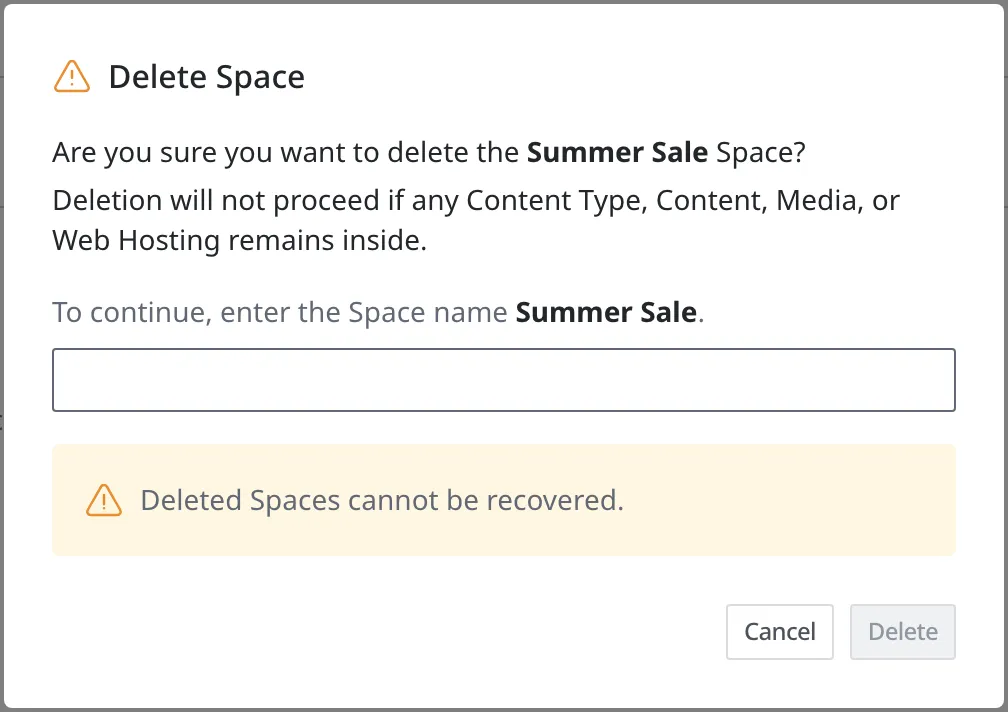
When the Space is deleted, the rest of the items in it, such as roles, tokens, Locales, and Webhooks, go away with it (see What blocks deleting a Space and what goes with it).
Delete an Organization
- Check that the Organization is on the Free plan. If it's on a paid plan, request cancellation and wait until it switches to Free on the next billing date. How to cancel and when it takes effect are covered in Pricing.
- Check whether there's any Market App you've listed or deleted. If there is, you can't delete that Organization yourself, so contact support as described in Conditions for deleting an Organization.
- Delete every Space in the Organization. The steps are the same as in Empty and delete a Space.
- Click the Organization name at the bottom left, then click Basic Settings in the menu that opens.
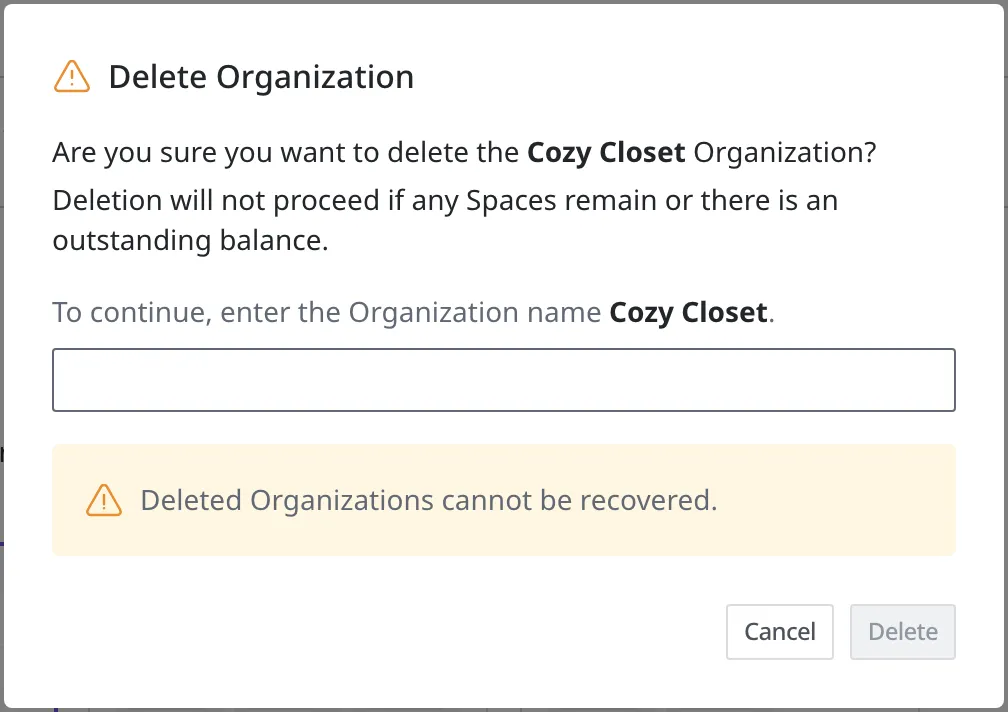
- Click the Delete Organization button in the Delete Organization area at the bottom of the screen.
- In the input box of the "Delete Organization" window, enter the Organization name "Cozy Closet".
- Click Delete.

Delete your account
- In each Organization where you're the Owner, change another member's role to Owner. If you plan to delete that Organization entirely, finish Delete an Organization first.
- If you're the payment method manager for that Organization's paid subscription, have the new Owner click Make Me the Manager in their own account to become the payment method manager. Charges go to the new payment method manager's payment method, so right after switching, that person has to register a default payment method. You can't hand over the payment method manager role. The person taking it on has to switch it themselves. The steps are in Make yourself the payment method manager.
- Lower your role below Owner, or leave that Organization.
- Click your name at the top right, then click User Profile in the menu that opens.
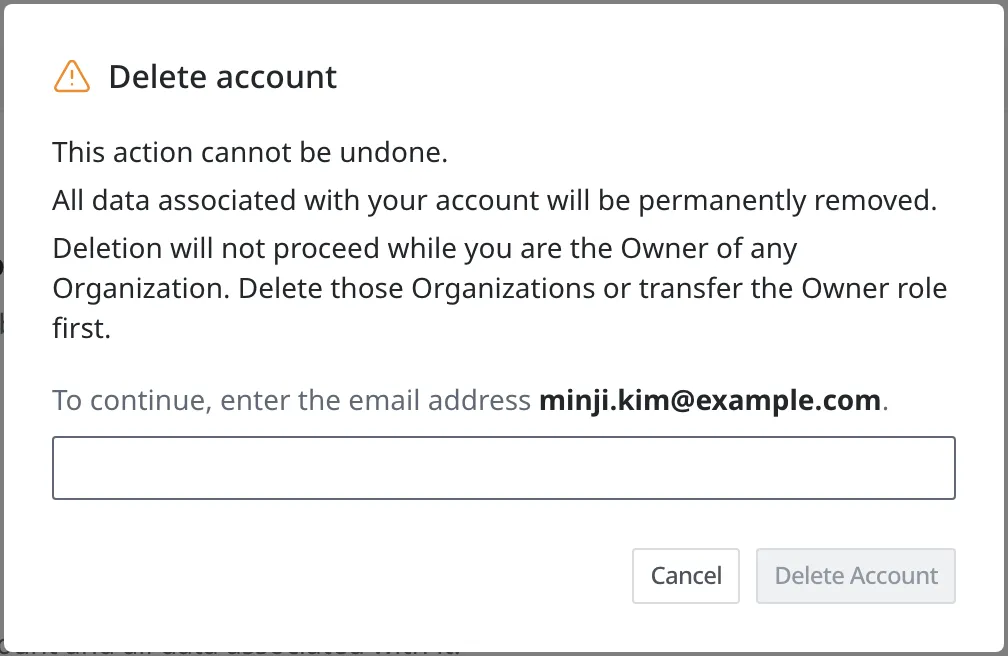
- Click the Delete button in the Delete my account area at the bottom of the screen.
- In the input box of the "Delete account" window, enter your email address.
- Click Delete account. A deleted account can't be restored.

Troubleshooting
| Problem | Cause | What to do |
|---|---|---|
| A Content or Media can't be deleted | It's Published or Changed | Click the status badge and choose Unpublish to return it to Draft, then delete it |
| A Media or Web Hosting can't be deleted | The uploaded file or the deployment files are still being processed | Wait until processing finishes, then try deleting it again |
| A Content Type can't be deleted or unpublished | Content made from that template still remains, and archived Content counts too | In the Content list, apply a filter that keeps only that Content Type, then delete all the remaining Content, including archived items |
| A Space can't be deleted | A Content Type, Content, Media, or Web Hosting still remains | Delete what remains in the order given in Empty and delete a Space |
| An Organization can't be deleted | It's on a paid plan, a payment or scheduled change hasn't wrapped up, or a Space or Market App remains | Go through the Conditions for deleting an Organization one by one. If there's a Market App you listed or deleted, you can't clear that yourself, so contact support@weegloo.com |
| A Locale can't be deleted | It's the default Locale, it's the only one left, or it's set as another Locale's Fallback Locale | Find the other Locales that selected it as their Fallback Locale and change that setting. To delete the default Locale, first turn on Set as default Locale in the "Edit Locale" window of another Locale and click Save. If it's the only one left, add another Locale first. Changing the default Locale immediately changes the values received without specifying a language or through a Fallback Locale, and the change shows up in public delivery and in responses that programs read. Existing values aren't moved to the new default Locale. Before you change it, read When you change the default Locale |
| A Tag can't be deleted | A Content or Media has that Tag attached | Find every place it's attached and remove the Tag. For Content, you can gather them with the Tag filter in the list (Finding the content you need) |
| A Script can't be deleted | A Webhook or Scheduler runs this Script, and ones that are turned off count too | For a Webhook, change its Endpoint to something else or delete the Webhook. For a Scheduler, delete it |
| A role (SpaceRole) can't be deleted | It's the Administrator role, it's assigned to a member, or it's bound to a token | Give each member a different role with Change Role, or remove them with Remove from this Space. If it still can't be deleted after you've taken it away from every member, delete the token it's bound to, or change that token's role to a different one. The Administrator role can't be deleted |
| A member role (ServiceUserRole) can't be deleted | It's the Default Role, or it's assigned separately to a member | In the member login settings, change the Default Role to a different role. For a member with a separately assigned role, select the item that starts with Follow Default, or a different role, from the Role dropdown |
| You can't remove a member from the Organization | They're the last Owner, they're the only member left, or they're the payment method manager for a paid subscription | If they're the last Owner, change another member's role to Owner. If they're the payment method manager, have another Owner click Make Me the Manager in their own account to become the payment method manager. If the subscription was canceled, try again after the cancellation takes effect |
| Your account can't be deleted | There's an Organization where you're the Owner, or a paid subscription for which you're the payment method manager | Clear things up in the order given in Delete your account |
Related docs
- Status and version rules: Covers how Unpublish and Archive, which you go through before deleting, change the status.
- Reference rules: Covers the link left behind on items that linked to a deleted Content or Media, and the problems it causes.
- Publishing operations: Covers the steps for selecting and deleting only the products you won't use again.
- Member account deletion: Covers the flow of removing one signed-up member and deciding whether to also delete what that member created.
- API reference: Covers technical specs such as the request formats you need to delete items from a program.