

Script settings and rules
This page covers everything about Scripts: their settings, rules, limits, permissions, and the tasks you do in Content Studio. If you're new to Scripts, start with Script, which explains what a Script is, how it differs from a Webhook, and the basic flow where a Webhook runs a Script to fill in a product's detailed description automatically when the product is registered.
The examples use the same online clothing store as Getting Started. The "Online Store" Space of the "Cozy Closet" Organization has the Script "Fill Product Description". This Script takes one product, has an outside AI writing service write a detailed description, and fills the product's detailed description field (for example, on "Stainless Tumbler 500ml") with the result. The access token for calling the AI writing service (a value the outside service uses to check that you're a paying user) is stored in the secret value AI_WRITER_TOKEN. The Webhook "Auto-fill Product Description" runs this Script every time a new product is registered. The same Space also has the Script "Restock Order", which the Scheduler "Restock Order" runs every day.
Settings
You set a Script's settings on the "New Script" screen that opens when you create it. After that, you edit them on the Settings tab of that Script's detail screen. The screen is divided into the Basic, Calls, Execution, and Secrets sections. Of these, what you write in HTTP method, Payload Schema, Statement, and Secrets is called the Script's definition. The definition records what this Script receives, and what it does in what order. The Settings tab has the same sections in the same order, and its Secrets section looks the same as on the New Script screen.
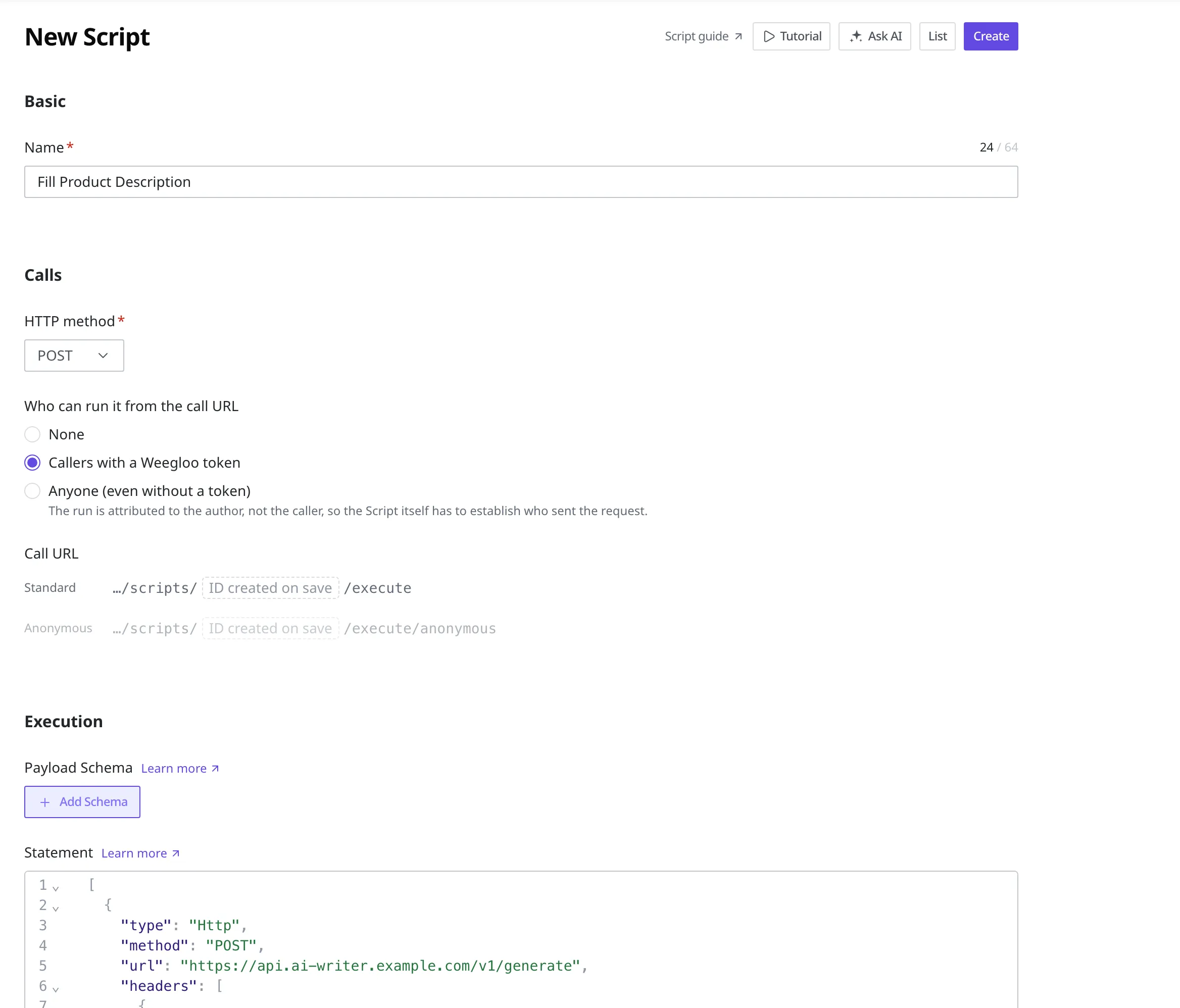
| Setting | Description | Default | Constraints |
|---|---|---|---|
| Name | A name that tells you which Script this is. It's in the Basic section. It appears in the Script list and in the lists where you select the Script a Webhook or Scheduler runs | None. Required | 1 to 64 characters. You can change it after creating the Script |
| Who can run it from the call URL | The range of callers who can run this Script through its Call URL. You select one of three radio buttons. With None, it can't be run through a call URL and runs only through a Webhook or Scheduler. With Callers with a Weegloo token, callers who send a token run it through the standard call URL. With Anyone (even without a token), it can also be run through the anonymous call URL with no token. It's in the Calls section | Callers with a Weegloo token | When you select Anyone (even without a token), the note "The run is attributed to the author, not the caller, so the Script itself has to establish who sent the request." appears. With None, it doesn't run through the anonymous call URL either (Ways to run a Script). For the rules, see Anonymous call opens a Script to anyone, with no token |
| HTTP method | The method used to call this Script. It's one of GET, POST, PUT, PATCH, and DELETE. It's in the Calls section | GET | When you call the Script through a call URL, you must use this method |
| Call URL | The address for calling this Script. It's in the Calls section and has two lines, Standard and Anonymous. When you select None, both lines appear dimmed, and when you select Callers with a Weegloo token, the Anonymous line appears dimmed | Empty. Set when you save | Not a field you fill in. It's made from the Space ID and the Script ID, so it doesn't change when you change the Name |
| Payload Schema | Click the Add Schema button and, in the editor that appears, write down the format of the input this Script accepts. Input that doesn't match is rejected before the run. It's in the Execution section | None (only the Add Schema button is shown) | The rules are in Setting the format of the input it accepts |
| Statement | The list of tasks this Script does, written in the order they run | [] (an empty list). "At least one statement is required." appears below the field | How to write it is covered in What you write in the Statement field |
| Secrets | The list of values that must not be written into Statement as they are (secret values), such as an outside service's access token. Fill in Key, Value, and Description on each row, and add rows one at a time with the Add Secret button | None | Up to 20. A Key is 1 to 64 characters, uses only English letters, numbers, _, and -, and can't repeat within one Script. A Value is 1 to 4,096 characters. A Description is up to 128 characters and can be left empty (Secret values are stored separately in the definition and called by name) |
In the API reference, the on-screen Who can run it from the call URL appears as two values, directCallEnabled and anonymousCallEnabled, and HTTP method, Payload Schema, Statement, and Secrets appear as method, payloadSchema, statements, and secrets.
What you write in the Statement field
In the Statement field, you write what this Script does as a list of Statements. Each Statement is one predefined action. Examples include calling an outside service (Http), editing an item (ResourcePatch), sending an email (EmailSend), and returning a result (Return).
- You write the list in JSON (a way of writing data as items and values inside curly and square brackets), and it starts with a square bracket
[. - When the Script runs, the list runs in order from top to bottom. When an earlier Statement stores its result under a name, a later Statement uses that result with a placeholder in the form
{ /name/… }. - You use the input that came with the call as
{ /payload/… }, and the secret values stored in Secrets as{ /secrets/<Key> }. - The full list written in the Statement field of "Fill Product Description" is in Create a Script.
- The kinds of Statements you can use, their fields, and the rules for writing placeholders and conditions are covered in the API reference.
The Statement field is a single JSON editor, and there's no button to switch to another way of editing. The line below the field shows how much you've written against the limits, such as "statements 0/80 · external calls 0/50 · SetVar 0/10 · Cache 0/5", and has a Format button.
What the list and detail screens show
To open the Script screen, click Scripts in the left menu. To find where this menu is, see Where the other settings in a Space are.
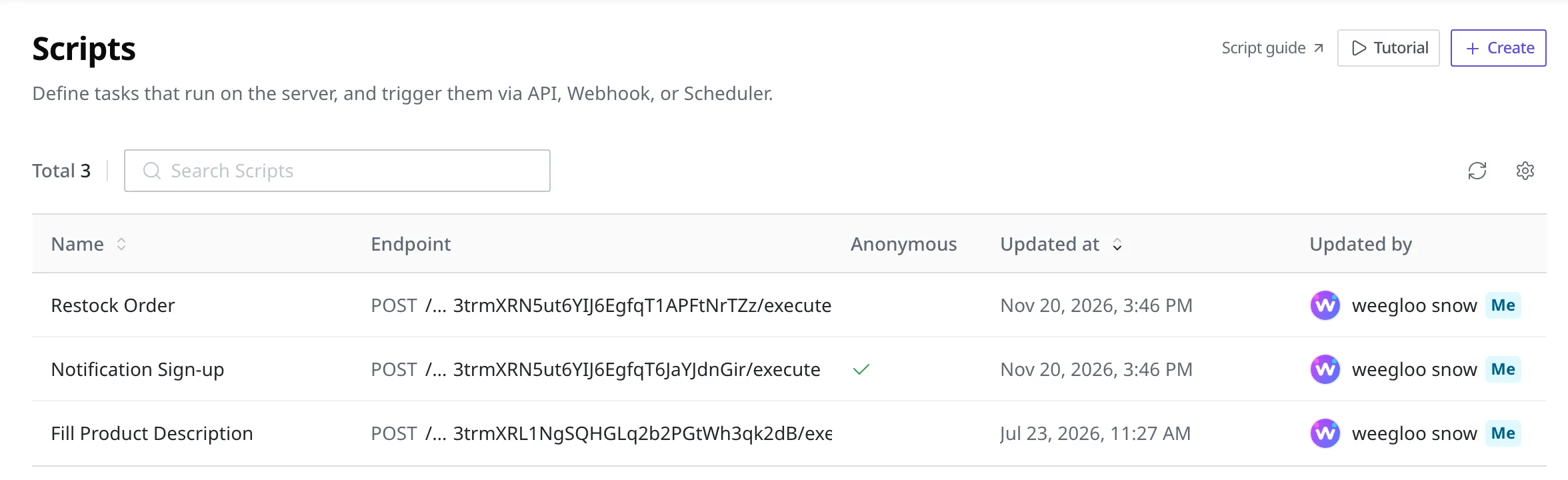
| Part | What appears |
|---|---|
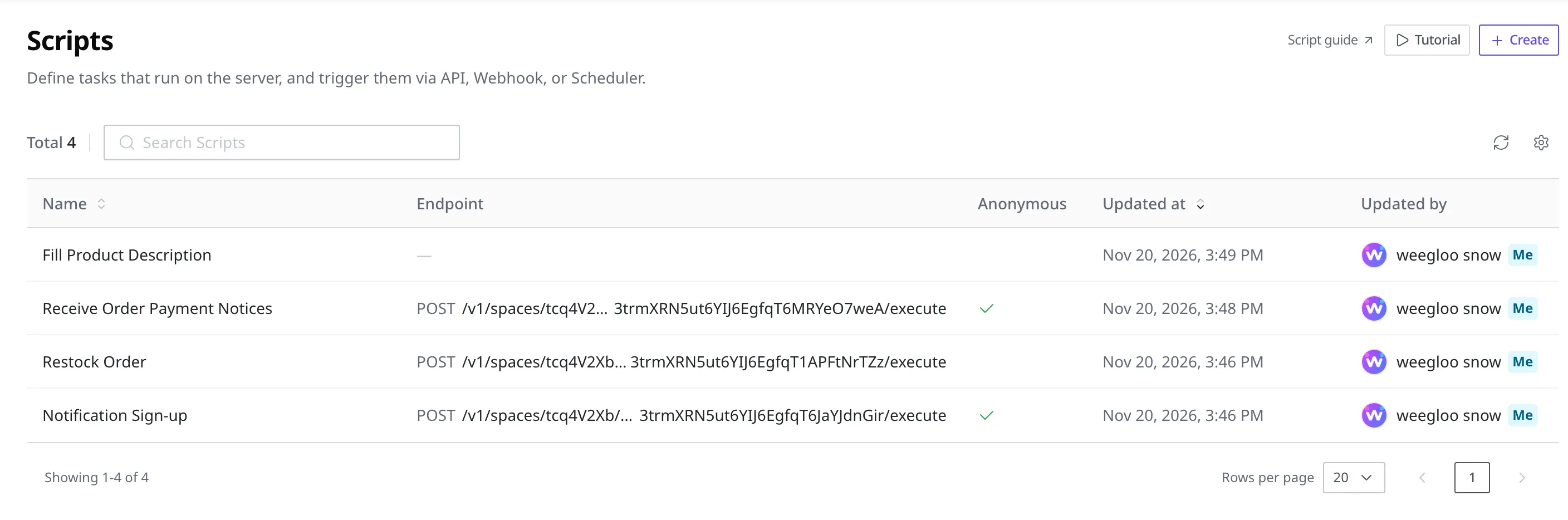
| List | The columns are Name, Endpoint (the call method and the end of the call URL), Anonymous, Updated at, and Updated by. The list shows only the Scripts your role allows you to Read (Required permissions). A Script saved with Who can run it from the call URL set to None shows a dash in the Endpoint column, and a Script saved with Anyone (even without a token) shows a check mark in the Anonymous column |
| Above the list | The Search Scripts field, and the Create button at the top right. The Search Scripts field finds Scripts by part of their name or ID |
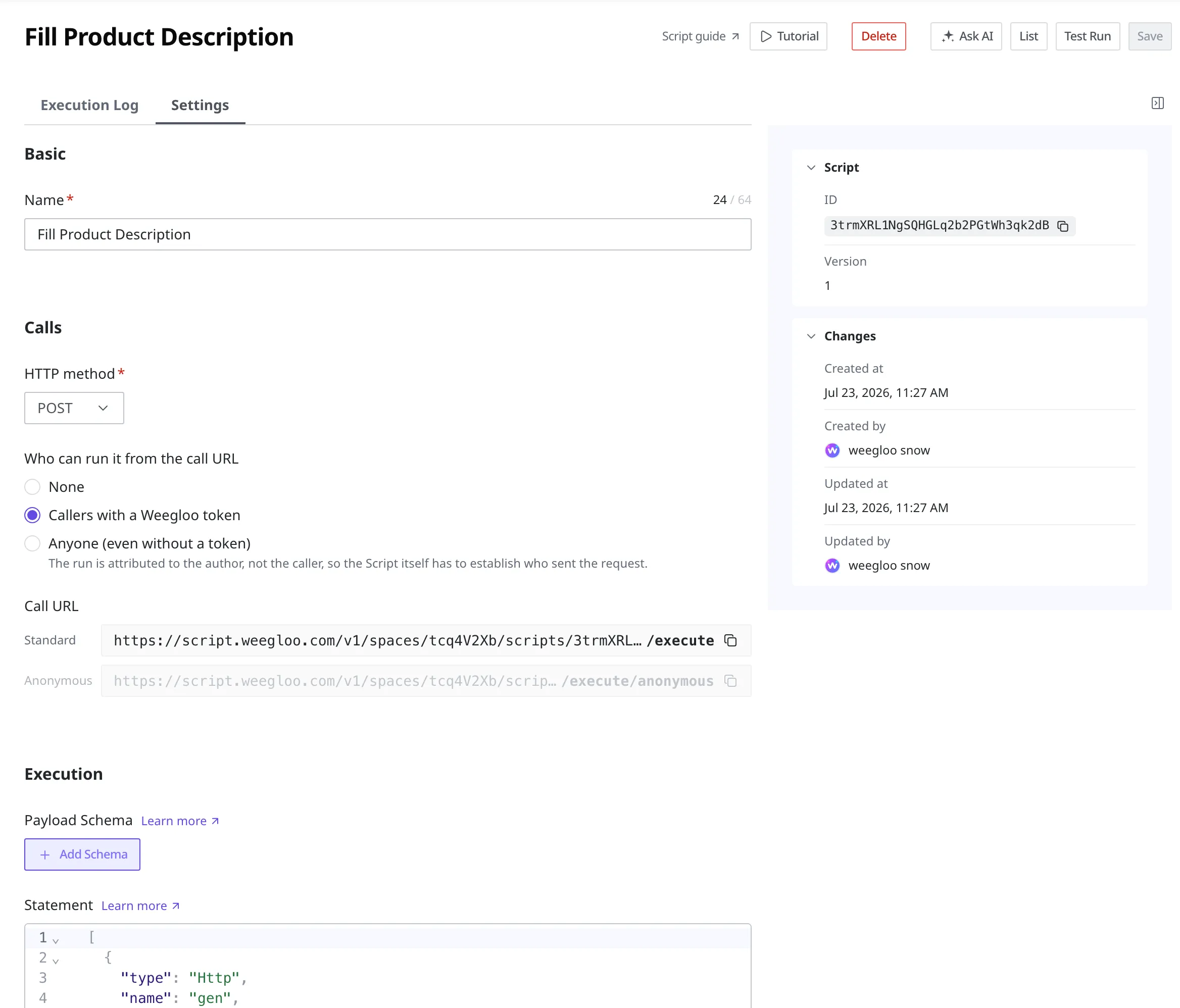
| Detail screen | Split into two tabs, Execution Log and Settings. When you first open it, the Execution Log tab is shown |
| Settings tab | Shows the settings, along with the Call URL, which is filled in after you save. The right panel shows ID and Version, plus Changes (Created at, Created by, Updated at, and Updated by) |
| Execution Log tab | Records of this Script's runs (Execution logs are kept for 1 hour on success and 3 days on failure) |
| Top-right buttons | The New Script screen has Ask AI, List, and Create. The Settings tab has Delete, Ask AI, List, Test run, and Save, and the Execution Log tab has Delete, List, and Test run. On the Execution Log tab, there's a refresh icon at the top right of the table. Click Ask AI to create a question with that screen's content and ask an AI agent (Ask AI from Content Studio). |
Rules
What's checked when you save
When you create a new Script, or edit one and save it, the items below are checked. If even one fails, the Script isn't saved. If you were editing an existing Script, its definition stays as it was before you tried to save.
| What's checked | When it isn't saved |
|---|---|
| Shape of the definition | The Name is empty or longer than 64 characters, or a Statement isn't written in its required shape. The required shape and count limits for each Statement are in the API reference |
| Plan limits | The number of Statements in one Script, or the number of outside service call and email sending Statements, is over your plan's limit. The same definition can be saved on a higher plan (Limits) |
| Permissions of the person saving | The Script works with Content Types, Content, Media, or signed-up members, but the role of the person saving it doesn't allow that action. For how it must be allowed, see Script run permission and delegation |
| Outside addresses | An outside address written in a Statement doesn't meet the same standards a Webhook uses (Addresses you can send to). For example, an address whose domain can't be found isn't saved. An address decided at run time, such as { /payload/… }, is checked against the same standards when the Script runs, and if it doesn't meet them, that Statement fails |
| Secret values | A Key breaks the rules or is duplicated, there are more than 20 secret values, or a Key that a Statement calls with { /secrets/<Key> } isn't in Secrets (Secret values are stored separately in the definition and called by name) |
| Anonymous call | Anyone (even without a token) is selected, but the definition has a condition that finds "only what the caller created" (createdBy: ":self") (Anonymous call opens a Script to anyone, with no token) |
Even before you save, the Statement field draws a red underline on the line with a problem and shows the reason in red text below the field. For example, if you use a Key that isn't in Secrets, it shows "statements[0].value.token "AI_WRITER_TOKEN" is not declared in this Script's Secrets." If you try to save in this state, the notice "Cannot save yet. Fix the problems marked in the editor, then save again." appears, and nothing is saved.
Changes take effect from the next run after you save
- Scripts have no publishing step. Once you save, the next run uses the changed definition, and the version number goes up by 1 (What has the four statuses).
- Earlier definitions aren't kept, so there's no way to go back to one. Before a big edit, copy the contents of the Statement field and keep them somewhere else.
- If two people edit the same Script at the same time, the server refuses whoever saves later, and a "Version Conflict" window opens on that person's screen (When several people edit at once, the later save is refused). Along with the message "Someone else has modified this item since you started editing. Your changes may overwrite their work.", you choose one of Cancel, Discard My Changes & Reload, and Overwrite with My Changes. Until you choose in the window, the content saved first stays as it is.
- When you edit and save a Script, or delete it, all the values it had stored temporarily with the
CacheStatement are cleared (API reference).
Ways to run a Script
A Script runs in the four ways below. Whichever way it runs, each run uses one of your plan's Script runs (All Spaces in an Organization share the run count).
| Way to run | What it needs | When Who can run it from the call URL is None |
|---|---|---|
| Run through the standard call URL | The caller must send a value that proves who they are (a token), and the caller's role needs Execute on this Script (Required permissions) | Doesn't run |
| Run through the anonymous call URL | Anyone (even without a token) must be selected. No token or Execute is needed | Doesn't run |
| Run by a Webhook | A Webhook must have this Script set as its Endpoint (When it runs a Script instead of a URL) | Still runs |
| Run by a Scheduler | A Scheduler must be set to run this Script (Scheduler settings and rules) | Still runs |
When you run it through a call URL, follow these rules.
- Call it with the method set in HTTP method. If you call it with a different method, it doesn't run.
- Any input you send with the call must be a JSON object that starts with a curly bracket
{. You can also call it with no input. - If you've set a Payload Schema, the input must match that format (Setting the format of the input it accepts).
The caller waits until the run finishes and gets the result back as a response. There's no way to hand in a request now and pick up the result later. For the request and response formats, see the API reference.
Anonymous call opens a Script to anyone, with no token
When you select Anyone (even without a token) under Who can run it from the call URL, the Script also runs through the anonymous call URL. This setting is for outside services that need to call this Script but have no way to send a token with the call, such as a payment provider (a company that processes card payments). Wherever you can send a token, use the standard call URL.
- Calls through the anonymous call URL don't check Execute. Anyone who knows the address can run this Script, and every call counts toward the run count.
- Items that an anonymously run Script creates or edits are recorded under the name of the person who first created that Script. Even if a token is sent along, it isn't used.
- You can select only one of the three options. When you select None, the Script doesn't run through the anonymous call URL.
- If the definition has a condition that finds "only what the caller created" (
createdBy: ":self"), the Script can't be saved with Anyone (even without a token) selected. An anonymous call has no caller, so that condition would end up pointing to the items of the person who created the Script. - The Script itself has to check who sent the request. Usually you put a Statement that checks the signature of the incoming request at the very start of the definition. For how to write it, see the API reference.
- The actions inside a Script run with the permissions of the person who saved it (Script run permission and delegation). The screen shows the same notice. So in a Script with Anyone (even without a token) selected, include only the work the outside service actually needs to request.
Setting the format of the input it accepts
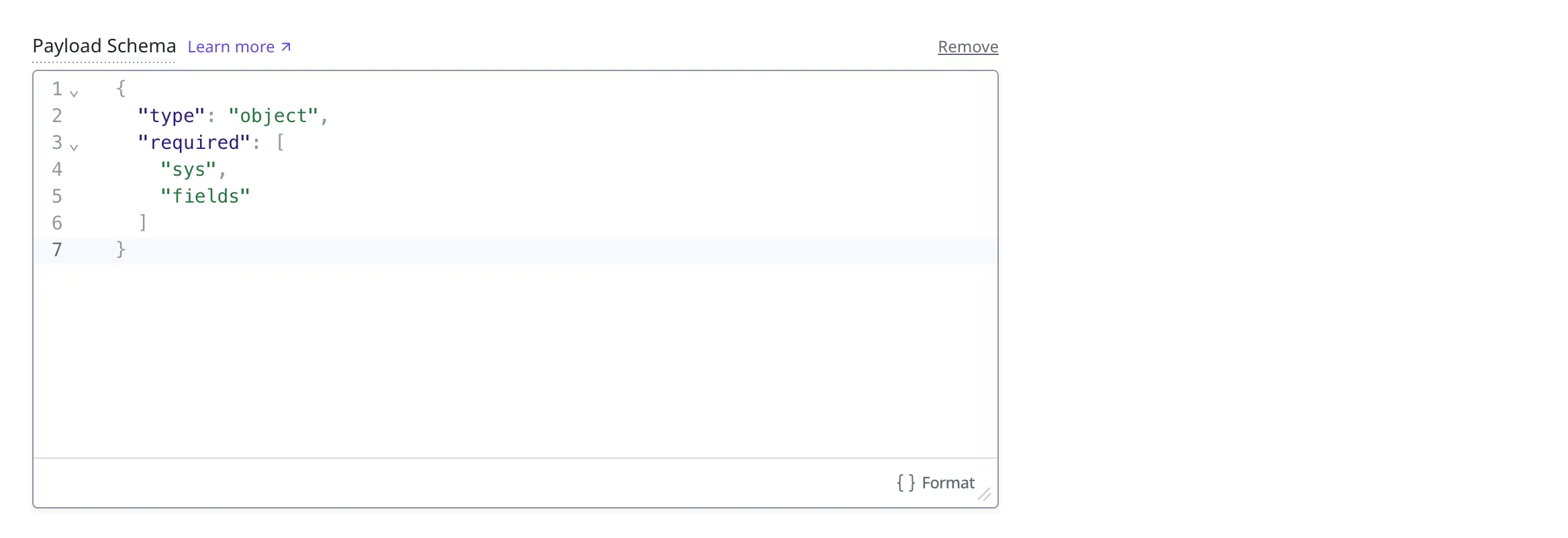
When you click the Add Schema button under Payload Schema, an editor appears, and you can write the format of the input this Script accepts as a JSON Schema (a standard form for describing what shape a JSON value must have). There's also a Remove button at the right end of the title and a Format button at the bottom right of the editor. When input that doesn't match the format arrives, the Script doesn't run, and the input is rejected.
"Fill Product Description" accepts input that contains the product's ID information (sys) and the product's values (fields). To reject input that's missing either of the two, write the following.
{
  "type": "object",
  "required": ["sys", "fields"]
}- This format is checked both when the Script runs through a call URL and when a Webhook runs it. The values a Webhook passes along must match this format too (When it runs a Script instead of a URL).
- If input sent through a call URL is rejected for not matching the format, it's recorded as a failure in the Execution Log. It doesn't count toward the run count.
Time allowed for a single run
Once a Script starts a run, it keeps going through to the last Statement. The time a single run can use is set as follows.
- The base is 30 seconds. All actions that don't call an outside service, such as reading and writing items, are handled within these 30 seconds.
- If there's a Statement that calls an outside service (
Http) or sends an email (EmailSend), the time grows by the wait time set on that Statement. If no wait time is set, an outside service call counts as 30 seconds, and sending an email as 10 seconds. - For a Statement inside a loop, its wait time is multiplied by the maximum number of times the loop can repeat.
- The Script can still be saved if the calculated time is over 180 seconds. But the run stops at 180 seconds.
"Fill Product Description" has one Http Statement with no wait time set, so it gets 60 seconds: the base 30 seconds plus 30 seconds. For how the time is calculated for Statements that send files or are set to retry, see the API reference.
If a run goes over its time, it stops right there and is recorded as a failure in the Execution Log. A stopped run still counts toward the run count. There's no guarantee that a run that's stopped or fails partway undoes everything it did up to that point. In particular, a request already sent to an outside service can't be undone. How much is undone is laid out in the API reference.
The name recorded on items a Script creates or edits
Content and Media that a Script creates or edits keep a record of who created them and who edited them. Whose name is recorded depends on how the Script was run.
| How it was run | Name recorded |
|---|---|
| Run through the standard call URL | The member or token that called it, or the signed-up member (ServiceUser) |
| Run through the anonymous call URL | The person who first created that Script |
| Run by a Webhook | The person set in that Webhook's Run as (Run as only sets the name on the record) |
| Run by a Scheduler | The person who created that Scheduler |
This name is only a record. However the Script runs, what it can do is decided by the permissions of the person who saved it (Script run permission and delegation).
Secret values are stored separately in the definition and called by name
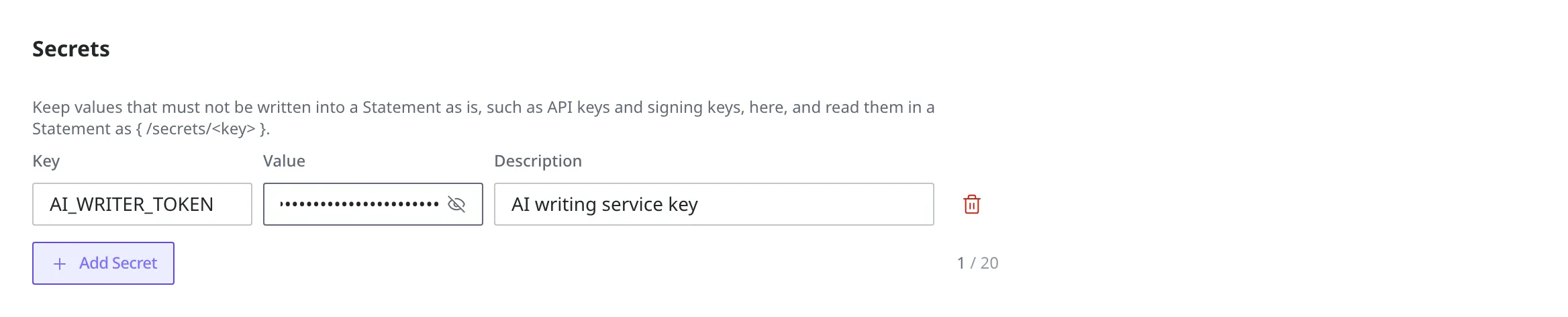
Put values that must not be written into Statement as they are, such as an outside service's access token or a signing key, in Secrets, and call them from a Statement with { /secrets/<Key> }. "Fill Product Description" calls its token with { /secrets/AI_WRITER_TOKEN }.

- After
{ /secrets/, write a Key that's in Secrets, exactly as it's spelled. If you call a Key that isn't in Secrets, the Script isn't saved. - WEEGLOO encrypts the values you enter before storing them. But anyone with Read on that Script can see the original values, so on the role's Script tab, allow Read only to people who really need it. The Value field is masked with dots, but clicking the eye icon at the end of the row shows the saved original value as it is.
- If a Script returns a secret value as its result or puts it into Content, the original value stays there as is. Returned results are also kept in the Execution Log. Send a secret value only to the outside service that needs it.
- To delete a secret value, first edit or delete the Statements that call it. If a Statement still calls it, the Script isn't saved.
- When you edit the definition from a program or through your connected AI tool, each edit replaces the whole definition with what you send. If you leave out the secret values, the stored ones are deleted, and if a Statement still calls one of them, the save is refused. If you also leave out Who can run it from the call URL, it goes back to its default (Callers with a Weegloo token). For the format to send, see the API reference.
- When you package a Script into a Market App, its secret values aren't included in the app, and the person installing it enters their own values (Values the installer enters).
Execution logs are kept for 1 hour on success and 3 days on failure
Every time a Script runs, one record is added to the Execution Log tab on that Script's detail screen. Each record shows Executed at, Trigger (what started the run), Result, Duration, and Request ID. The Result column shows a status code (for example, 502 Bad Gateway) instead of Success or Failure. The Trigger column shows what started the run, with a "Direct call", "Webhook", or "Scheduler" label: the caller for a direct call, or the name of the Webhook or Scheduler.
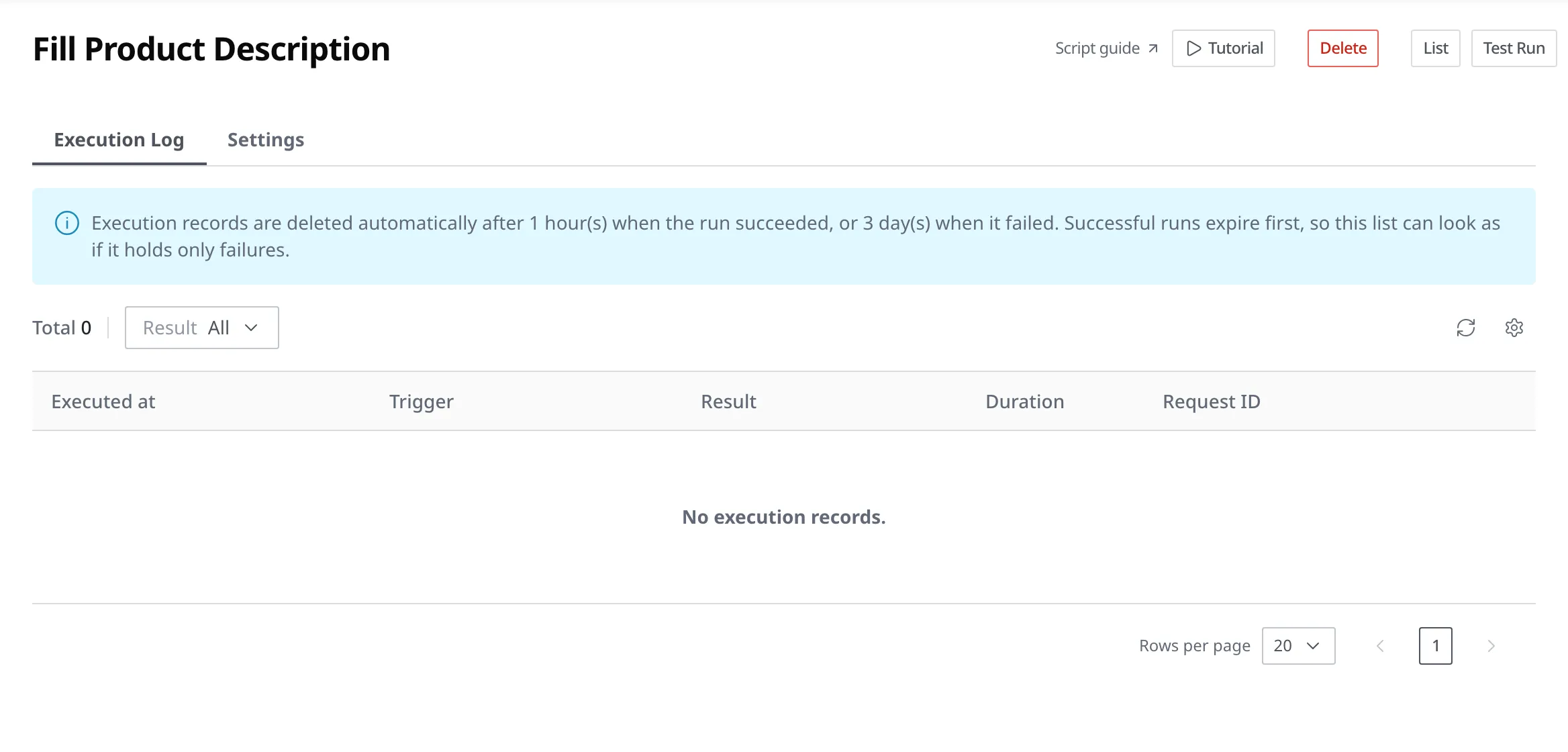
- Records of successful runs are deleted automatically after 1 hour, and records of failed runs after 3 days. Successful records disappear first, so the list can look as if it holds only failures. Save any result you need to keep for a long time as Content from inside the Script.
- The Request ID is the same as the run number in the response the caller received. The caller uses it to find the record of a particular run.
- A record keeps up to 4,096 characters of the result value. If it's longer, only the beginning is kept. The response the caller receives isn't cut.
- Requests sent through a call URL aren't recorded if they're rejected because the method is wrong, the call doesn't match the choice in Who can run it from the call URL, the role has no Execute, or this month's run count is used up. Only requests rejected because the input doesn't match the Payload Schema are recorded, as failures.
- Deleting a Script also deletes its execution logs. Deleting a Webhook or Scheduler also deletes the execution logs of the Script runs it started (Deleting items such as Locale, Tag, and Script).
The steps for viewing the records are in View execution logs.
All Spaces in an Organization share the run count
- Each plan sets how many times you can run Scripts in a month. This count is kept per Organization, and the Scripts in every Space of that Organization share it.
- Every run counts once, whether it runs through the standard call URL, the anonymous call URL, a Webhook, or a Scheduler. It counts even if the result is a failure or the run is stopped for going over its time.
- If the caller disconnects before getting the result, the run stops right there. A run stopped this way still counts. As with a run stopped for going over its time, there's no guarantee that the work done up to that point is undone (Time allowed for a single run).
- Requests rejected before running don't count. These include requests rejected because the method is wrong, the input doesn't match the Payload Schema, the call doesn't match the choice in Who can run it from the call URL, or the caller lacks permission.
- On the Free, Basic, and Pro plans, once this month's count is used up, requests to run through a call URL are rejected, Webhooks that run a Script record a failure without running it, and Schedulers that were running a Script turn off (It turns off when the run count is used up). For when the limit lifts, see When you exceed transfer volume or storage space.
- The data a Script sends out when it calls an outside service or sends an email is counted separately, as external call transfer volume, which it shares with Webhooks. On the Free, Basic, and Pro plans, once this transfer volume is used up, the Script's outside service calls and email sending stop.
You can see how many runs you've used so far in Keeping an eye on usage and limits.
When you delete a Script
Scripts have no publishing step, so there's no unpublishing step before you delete one either. But a Script that a Webhook or Scheduler is set to run can't be deleted. When a deletion is blocked, and what disappears along with a deleted Script, are laid out in Deleting items such as Locale, Tag, and Script.
Limits
| Item | Limit |
|---|---|
| Length of Name | 1 to 64 characters |
| Number of Statements in one Script (including those inside loops or conditions) | Varies by plan. Check the "Max statements per Script" row in Pricing |
Number of outside service call (Http) and email sending (EmailSend) Statements in one Script | Varies by plan. Check the "Max external calls per Script" row in the same table |
| Other limits for each Statement | In the API reference |
| Number of secret values | 20 |
| Length of a secret value's Key | 1 to 64 characters. Only English letters, numbers, _, and - |
| Length of a secret value's Value | 1 to 4,096 characters |
| Length of a secret value's Description | 128 characters |
| Time allowed for a single run | The base 30 seconds plus the wait times for outside service calls and email sending. Up to 180 seconds (Time allowed for a single run) |
| How long execution logs are kept | 1 hour on success, 3 days on failure |
| Length of the result value kept in an execution log | 4,096 characters |
| Number of Scripts | Varies by plan. Check the "Script" row in the same table |
| Script run count | Varies by plan, and resets every month. Check the "Script executions" row in the same table |
| External call transfer volume | Varies by plan, and is shared with Webhooks. Check the "External calls" row in the same table |
Plan limits apply per Organization and are shared by every Space in that Organization. Once the number of Scripts reaches the limit, you can't create a new Script, but you can create one again after deleting Scripts you don't use (When you exceed a count limit). For the message you see when you reach a limit, see When you reach a resource count limit.
Required permissions
| What you want to do | Required permission |
|---|---|
| View the Script list | The list shows only Scripts with Read allowed on the Script tab of your role (SpaceRole) |
| View the detail screen (including the definition and secret values) and execution logs | Read on that Script |
| Create | Create on the Script tab. When you save, the permissions for the actions in the definition are also checked (What's checked when you save) |
| Edit | Edit on that Script. When you save, the same checks as on creation are run |
| Delete | Delete on that Script |
| Run through the standard call URL | Execute on that Script |
| Run through the anonymous call URL | None needed (Anonymous call opens a Script to anyone, with no token) |
| Have a Webhook run this Script | Manage Webhooks (Webhook settings and rules) |
| Have a Scheduler run this Script | Manage Schedulers and Execute on that Script (Scheduler settings and rules) |
- The actions on the Script tab are set separately from the settings permissions on the Settings tab. For each action, you can narrow the scope to one specific Script or to the creator (Actions you can choose on each tab, Narrowing to one specific Script).
- Whose Execute is checked at run time, and the rule that the work inside a Script is done with the permissions of the person who saved it, are covered in Script run permission and delegation.
- You create, view, edit, and delete Scripts with your own account: logged in to Content Studio, or with a Personal Access Token (a key that acts on behalf of your account) or your connected AI tool. A Space Access Token can only run Scripts (Settings permissions work only for people), and a Delivery Access Token can't even run them (What tokens can't do).
- Members (ServiceUsers) who signed up through member login (ServiceLogin) can run a Script if their member role (ServiceUserRole) has Execute. They can't view, create, or edit its definition.
- Anyone with Read can also see the original secret values. Allow Read only to people who really need it.
Tasks in Content Studio
You can create a Script's definition by asking your connected AI tool (Build a backend by describing it), or create it yourself in Content Studio. Either way, you edit and delete it with the steps below. For how to open the Script screen, see What the list and detail screens show.
Create a Script
These are the steps for creating "Fill Product Description" yourself in Content Studio. The url in the definition below is a made-up address for illustration. The Script can't be saved with this address, so replace it with the address of the AI writing service you'll actually call (What's checked when you save).
-
In the left menu, click Scripts.
-
Click the Create button at the top right of the list. The "New Script" screen opens.
-
Enter
Fill Product Descriptionin the Name field. -
In HTTP method, select
POST. -
Enter the list below in the Statement field.
[ { "type": "Http", "method": "POST", "url": "https://api.ai-writer.example.com/v1/generate", "headers": [ { "key": "Authorization", "value": "Bearer { /secrets/AI_WRITER_TOKEN }" } ], "body": { "product": "{ /payload/fields/productName/ko-KR }", "keywords": "{ /payload/fields/keywords/ko-KR }" }, "name": "gen" }, { "type": "ResourcePatch", "resource": "Content", "target": { "sys": { "id": "{ /payload/sys/id }" } }, "fields": { "body": { "ko-KR": "{ /gen/body/text }" } }, "publish": true }, { "type": "Return", "value": { "id": "{ /payload/sys/id }" }, "statusCode": 200 } ] -
Under Secrets, click the Add Secret button.
-
In the new row's Key field, enter
AI_WRITER_TOKEN. -
In the Value field of the same row, enter the access token issued by the AI writing service.
-
In the Description field of the same row, enter
AI writing service key. -
Click the Create button at the top right.
The first Statement in the list (Http) uses the secret value to call the AI writing service and stores the result under the name gen. The second Statement (ResourcePatch) uses that result to fill in only the detailed description (body) of the product it received, then publishes the product. When a Script edits a product this way, by default a Webhook doesn't react again (By default, Webhooks don't react to changes made by Scripts). The last Statement (Return) returns the ID of the product whose description it filled in.
When you click Create, the detail screen of the Script you created opens with the Execution Log tab shown. It doesn't go back to the list.
Because you left Who can run it from the call URL at its default, Callers with a Weegloo token, this Script runs through its call URL as well as from a Webhook or Scheduler. To make it run only through a Webhook, follow the steps in Run it only from a Webhook or Scheduler. If "Fill Product Description" appears in the Script list in the left menu, it worked.
Edit a Script
These are the steps for opening "Fill Product Description" again and editing it. The other tasks below also start by opening the Settings tab this way.
- In the left menu, click Scripts.
- In the list, click "Fill Product Description". The detail screen opens on the Execution Log tab.
- Click the Settings tab.
- Edit the settings you want to change.
- Click Save at the top right.
When you save, the Version in the right panel goes up by 1, and the next run uses the edited definition (Changes take effect from the next run after you save).
Change a secret value
These are the steps for replacing the secret value AI_WRITER_TOKEN in "Fill Product Description" with a new access token issued by the AI writing service.
- Open the Settings tab of "Fill Product Description" as in Edit a Script.
- Under Secrets, delete the existing value in the Value field of the row whose Key is
AI_WRITER_TOKEN, and enter the new access token. The value you enter is also masked with dots. - Click the Save button at the top right.
Because the Key stays the same, you don't need to edit the Statement. From the next run after you save, the Script calls the AI writing service with the new value.

Run it only from a Webhook or Scheduler
For "Fill Product Description", it's enough for the Webhook "Auto-fill Product Description" to run it when a product is registered. These are the steps for blocking it from running through its call URL.
- Open the Settings tab of "Fill Product Description" as in Edit a Script.
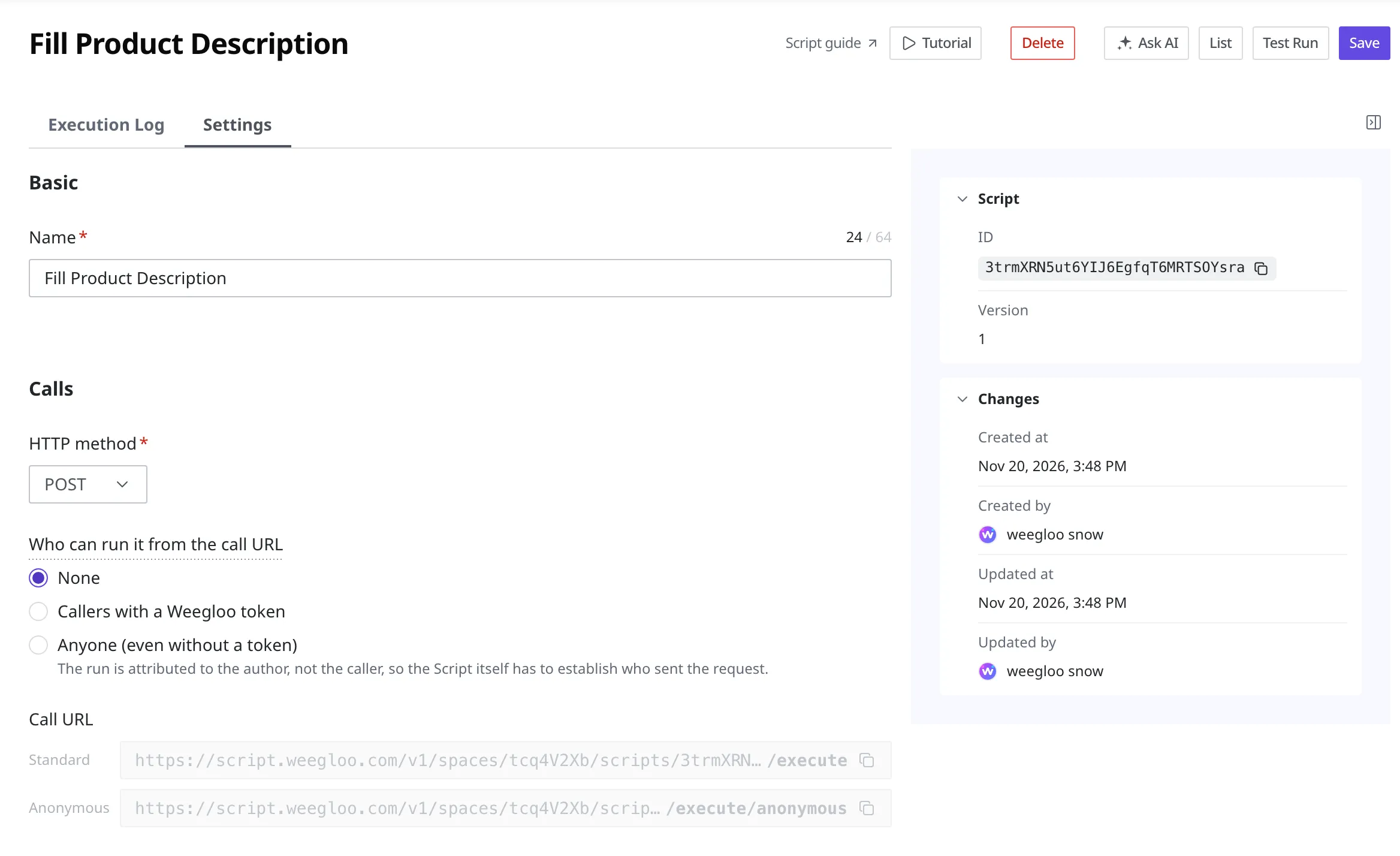
- Under Who can run it from the call URL, select None.
- Click the Save button at the top right.
Now the Script doesn't run when someone calls its call URL. It runs only when the Webhook "Auto-fill Product Description" runs it. To stop this Script from running at all, turn that Webhook off (Turn it on or off).
Copy the call URL
These are the steps for copying the call URL so a website or app can call "Fill Product Description".
- Open the Settings tab of "Fill Product Description" as in Edit a Script.
- Under Call URL, click the copy icon at the right of the Standard line.
The copied address looks like https://script.weegloo.com/v1/spaces/<Space ID>/scripts/<Script ID>/execute. The anonymous call URL is this address with /anonymous added to the end. In a Script without Anyone (even without a token) selected, the Anonymous line appears dimmed. If you only need the Script's ID, click the copy icon next to ID in the right panel.
View execution logs
When "Fill Product Description" fails to fill in a product's detailed description, follow these steps to find the record of the failed run.
- In the left menu, click Scripts.
- In the list, click "Fill Product Description". The detail screen opens on the Execution Log tab.
- In the Result field at the top, select Failure.
- If a run from a moment ago doesn't appear, click the refresh icon at the top right of the table.
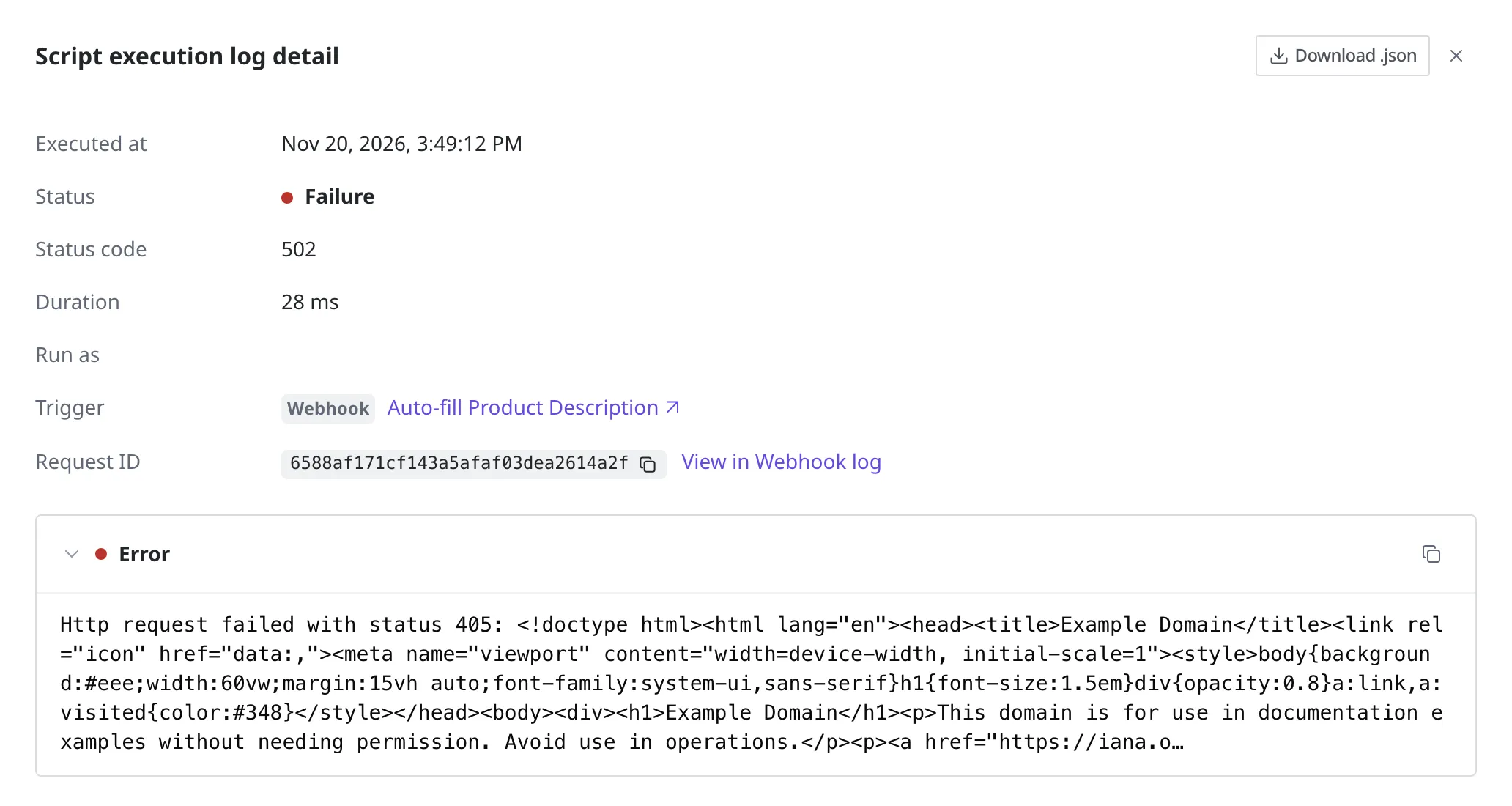
- Click the record you want to look into. The "Script execution log detail" window opens.
The window shows Executed at, Result, Status code, Duration, Run as, Trigger, and Request ID, and for a failed run, the reason appears in the Error area. For a record run by a Webhook, the Trigger field shows the Webhook's name as a link, and clicking View in Webhook log next to Request ID takes you to that Webhook's call records. Click Download .json at the top right to save the record as a file.
Delete a Script
These are the steps for deleting the Script "Restock Order", which you no longer use. The Scheduler "Restock Order" runs this Script, so you need to delete that Scheduler first (Scheduler settings and rules).
- In the left menu, click Scripts.
- Click "Restock Order" in the list.
- Click the Delete button at the top right.
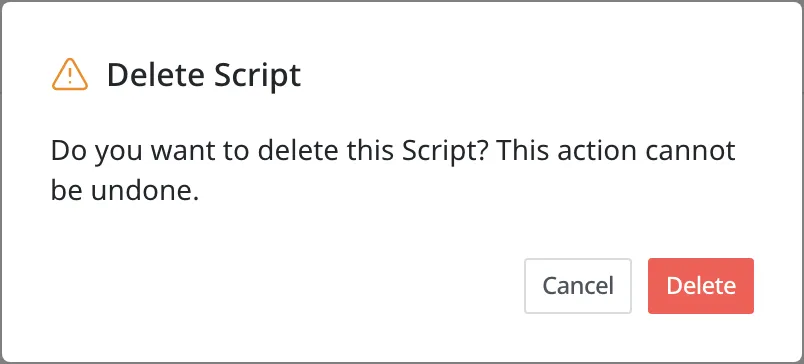
- When the "Delete Script" confirmation window shows "Do you want to delete this Script? This action cannot be undone.", click Delete.
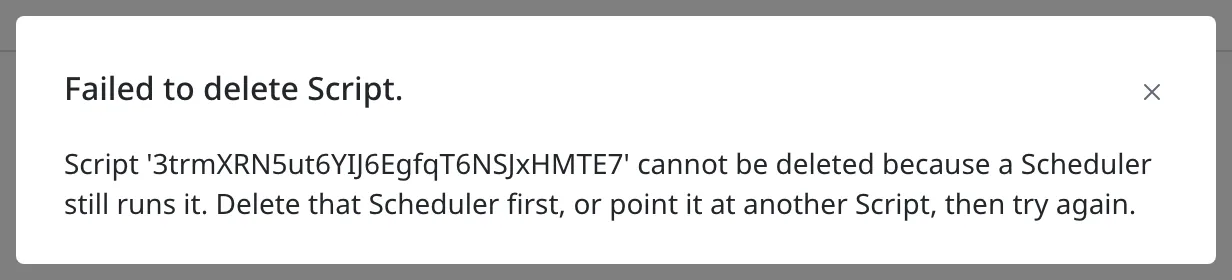
If you try to delete a Script that a Scheduler runs, a "Failed to delete Script." window opens with a notice that the Script can't be deleted because a Scheduler runs it, so delete that Scheduler first or point it to another Script, then try again.
A deleted Script can't be restored, and its execution logs are deleted along with it (Deleting items such as Locale, Tag, and Script).
Troubleshooting
| Problem | Cause | What to do |
|---|---|---|
| A Script that works with Content or Media won't save | The role of the person saving it doesn't allow the actions in the Script, or allows them only with scope conditions | Have someone who's allowed those actions with no scope conditions (for example, a member with the Administrator role) save it (Script run permission and delegation) |
| It won't save after you add Statements | The number of Statements in one Script, or the number of outside service call and email sending Statements, is over your plan's limit | Use fewer Statements, or switch to a higher plan (Limits) |
| It won't save after you enter an outside service's address | The address doesn't meet the standards in Addresses you can send to. A typical case is an address whose domain can't be found | Change it to an address that actually opens on the internet (What's checked when you save) |
| It won't save after you delete a secret value | A Statement still calls the deleted secret value | First edit or delete the Statements that call that secret value |
It won't save after you write { /secrets/… } | The name you call doesn't match a Key in Secrets | Write it exactly like the Key, down to every character |
| You can't add or save more secret values | One Script can hold only up to 20 secret values | Delete secret values you don't use |
| It won't save when you select Anyone (even without a token) | The definition has a condition that finds "only what the caller created" (createdBy: ":self") | Remove that condition, or select Callers with a Weegloo token and use the standard call URL (Anonymous call opens a Script to anyone, with no token) |
| You edited the same Script as a colleague, and it won't save | Your colleague saved first, so the version number went up | Open the screen again, check your colleague's changes, then make your edits again |
| You can't create a new Script | The Organization has reached the number of Scripts it can create | Delete Scripts you don't use, or switch to a higher plan (When you exceed a count limit) |
| A Script doesn't appear in the list | Your role's Script tab doesn't have Read on that Script | Ask your Space admin for Read |
| You called the call URL, but the Script didn't run and nothing shows in the execution log | The method you called with differs from the HTTP method, Who can run it from the call URL is None, the caller's role has no Execute, or this month's run count is used up | Match the method, change Who can run it from the call URL to an option other than None, or allow Execute on that Script in the role. For the run count, check All Spaces in an Organization share the run count |
| You called the call URL, and the run is recorded as a failure in the execution log | The input you sent doesn't match the Payload Schema, or a Statement failed during the run | Open the failed record and check the result value (View execution logs) |
| You called the anonymous call URL, but the Script didn't run | Who can run it from the call URL isn't set to Anyone (even without a token) | Select Anyone (even without a token) and save |
| A run stops partway | It went over the time allowed for a single run | Shorten the time spent waiting for outside services, or lower the maximum number of loop repeats (Time allowed for a single run) |
| The Execution Log is empty | Records of successful runs are deleted automatically after 1 hour, and records of failed runs after 3 days | Save any result you need to keep for a long time as Content from inside the Script |
| A result value in the execution log is cut off | A record keeps only up to 4,096 characters of the result value | Check the response the caller received. The response isn't cut |
| Content created by an anonymous call shows the name of the person who created the Script | An anonymous call has no caller, so it's recorded under the name of the person who first created the Script | To record the caller's name, send a token and call the standard call URL |
| A colleague can see the original value of a secret value | Anyone with Read on that Script can also see the original secret values | On the role's Script tab, allow Read only to people who really need it |
| You can't create or edit a Script with a Space Access Token | A Space Access Token can only run Scripts | Log in to Content Studio, or use a Personal Access Token |
| No Scripts run, and Schedulers turned off | This month's Script run count is used up | Wait until next month, or switch to a higher plan (When you exceed transfer volume or storage space) |
| Only a Script's outside service calls and email sending stopped | This month's external call transfer volume is used up | Wait until next month, or switch to a higher plan (When you exceed transfer volume or storage space) |
| You can't delete a Script | A Webhook or Scheduler is set to run this Script. Ones that are turned off count too | For a Webhook, change its Endpoint or delete it. For a Scheduler, delete it (Deleting items such as Locale, Tag, and Script) |
| You changed Who can run it from the call URL to None, but the Script keeps running | Webhooks and Schedulers run the Script regardless of the Who can run it from the call URL setting | To stop the runs, turn off that Webhook or Scheduler |
Related docs
- Script: Covers what a Script is, how it differs from a Webhook, and the basic flow for connecting them so a product's detailed description is filled in automatically when the product is registered.
- Role and permission rules: Covers the actions on the Script tab, Execute, and the rule that the work inside a Script is done with the permissions of the person who saved it.
- Webhook settings and rules: Covers the settings of a Webhook, which runs a Script when a change you set in advance happens.
- Scheduler settings and rules: Covers the settings of a Scheduler, which runs a Script on a schedule you set.
- Email sending settings and rules: Covers the Email Account a Script uses to send email.
- Deletion rules: Covers when a Script can't be deleted, and what disappears along with it when you delete it.
- Pricing: Covers the limits on the number of Scripts, the number of Statements in one Script, and the run count.
- API reference: Covers technical specs, such as the Statements and placeholders you write in a Script definition and the run rules.