

Scheduler settings and rules
This page covers everything about Schedulers: their settings, rules, limits, permissions, and the tasks you do in Content Studio. If you're new to Schedulers, start with Scheduler, which explains what a Scheduler is, how it differs from a Webhook, and the flow from preparing a Script to running it.
The examples use the same online clothing store as Getting Started. The "Online Store" Space of the "Cozy Closet" Organization has the Script "Restock Order", which finds products with 0 stock and places orders with the supplier. The Scheduler of the same name, "Restock Order", runs this Script every day at 9
a.m. Korea time. Korea time is 9 hours ahead of Coordinated Universal Time (UTC), so the saved schedule is0 0 * * *, which means 00 UTC.
Settings
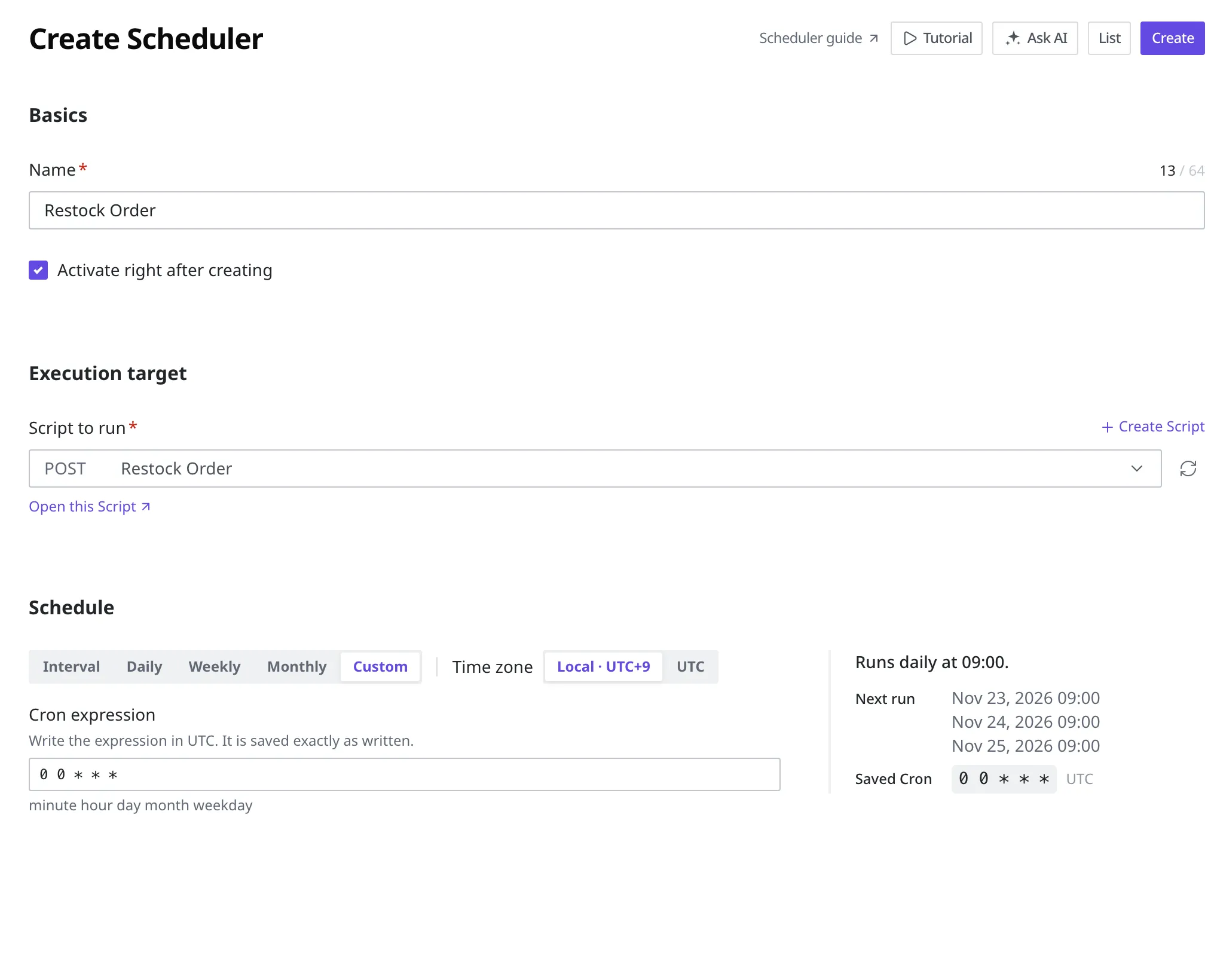
The settings for one Scheduler are split into three sections on the "Create Scheduler" screen: Basics, Execution target, and Schedule. After you create it, you edit them on the Settings tab of that Scheduler's detail screen. The Settings tab has the same three sections, but it doesn't have the Activate right after creating checkbox, and Script to run is shown as not editable. You turn a Scheduler on and off from the status menu next to the title on the detail screen (Pause it and turn it back on).
| Setting | Description | Default | Constraints |
|---|---|---|---|
| Name | The name that identifies the Scheduler in the list. It's in Basics | None. Required | 1 to 64 characters. You can edit it after creating the Scheduler |
| Activate right after creating | A checkbox that appears only when you create a new Scheduler. If it's selected, the Scheduler turns on (Active) as soon as it's created and runs the Script at each set time. If it's cleared, the Scheduler is created turned off (Inactive) and doesn't run until you turn it on. It's in Basics | Selected. When you create a Scheduler by duplicating another one's settings, it starts cleared | After creation, you turn the Scheduler on and off from the status menu next to the title on the detail screen. Its settings stay as they are while it's off. Turning it on or off also requires Execute on that Script (Required permissions) |
| Script to run | The one Script to run at the set times. It's in Execution target | None. Required | You can select only Scripts in the same Space. It can't be changed after creation (The Script to run can't be changed) |
| Schedule | Sets when it runs. You set it in one of these ways: Interval, Daily, Weekly, Monthly, or Custom | Daily, run time 09, with Time zone set to the viewer's time zone. If you create it with these defaults in the Korea time zone, it's saved as 0 0 * * * | Whichever way you set it, what's saved is a single five-field schedule, read in UTC (A schedule is written in five fields). Up to 128 characters |
Here's what you fill in for each way of setting the Schedule.
| Method | What you enter |
|---|---|
| Interval | Run every. Set a number and a unit (minutes or hours), as in "every 15 minutes" |
| Daily | Run at. With Add time, you can add up to 6 times |
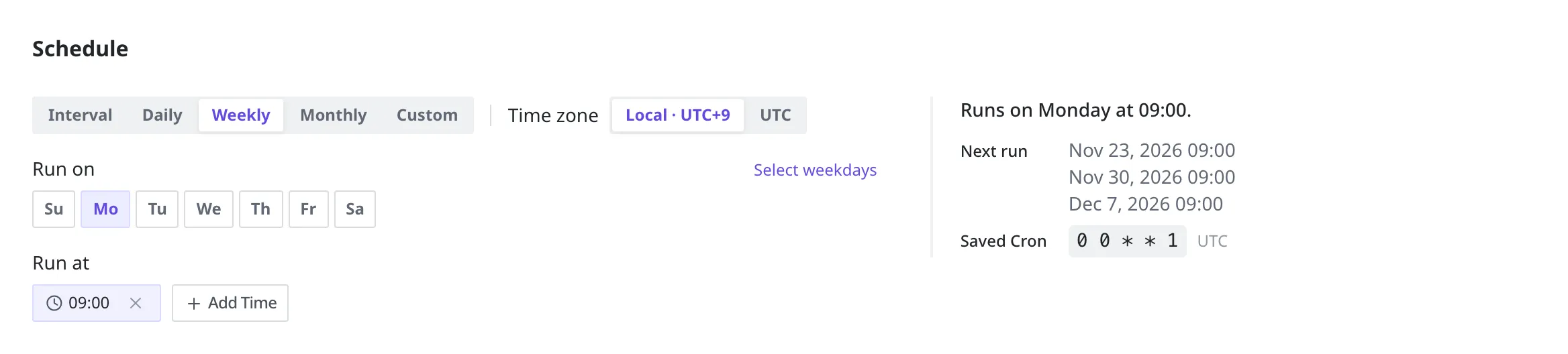
| Weekly | Days of the week and Run at |
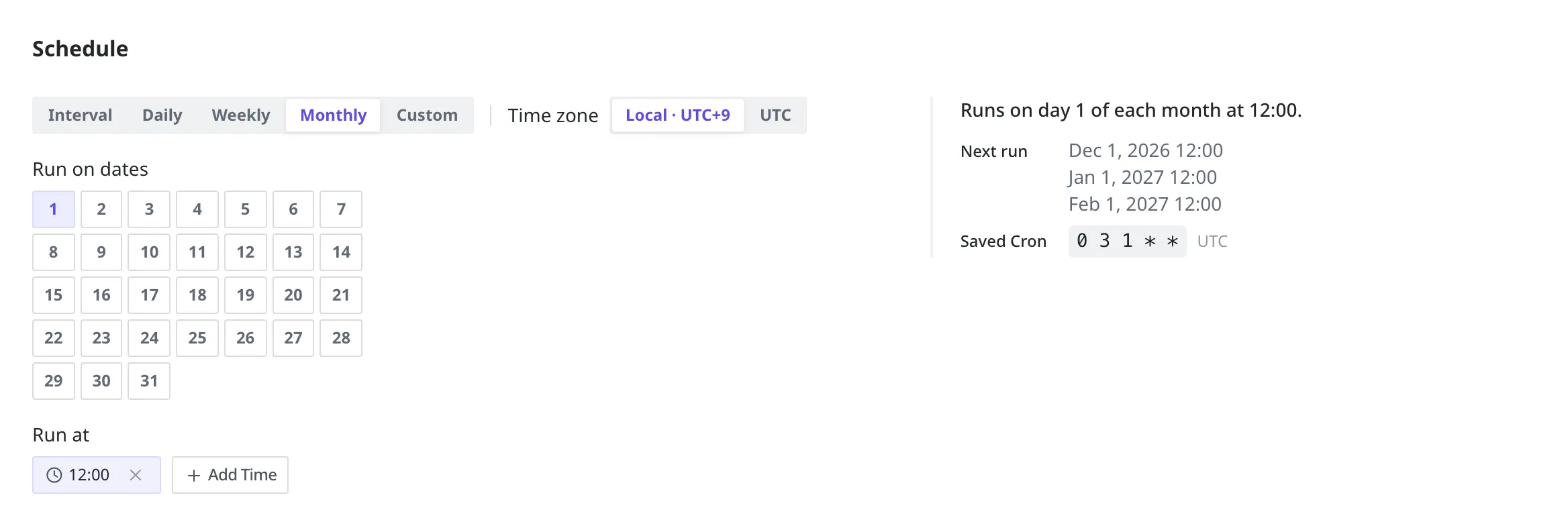
| Monthly | Day of the month and Run at |
| Custom | Write the five-field schedule as is in the Cron expression field (A schedule is written in five fields) |
- Time zone appears next to the Interval, Daily, Weekly, Monthly, and Custom tabs, and you choose either Local · UTC+9 (your time zone) or UTC. In Daily, Weekly, and Monthly, it sets which time zone you enter times in. If you choose your own time zone, the times you enter are converted to UTC and saved. If you choose UTC, they're saved exactly as entered.
- Interval doesn't depend on time zones. The Cron expression field in Custom shows the note "Write the expression in UTC. It is saved exactly as written.", and what you write there is read in UTC (Times are read in UTC).
- All the run times in one Scheduler must have the same minute. If you enter times with different minutes, a message asks you to match the minutes, and the Scheduler isn't saved.
- Below the fields you filled in, you see a sentence describing the schedule in words, along with Next run and Saved Cron.


In the Script to run field, each Script is shown with its call method, as in "POST Restock Order". Click Open this Script below the field to open the selected Script in a new tab. Click the refresh icon to the right of the field to reload the list of Scripts. If you created a Script in another tab a moment ago, click this icon. Scripts your role doesn't have Execute on are grayed out in the list with "You don't have permission to run this Script", and you can't select them.
Rules
A schedule is written in five fields
A schedule is a way of writing "when to run" in five fields separated by spaces. It's also called a cron expression. From the left, the fields are minute, hour, day, month, and day of the week, and the Script runs every time all five fields match. In Content Studio, you write this notation as is in Custom. If you set the schedule another way, it's converted to this notation and saved.
| Field | What it sets | Values you can write | Example |
|---|---|---|---|
| 1 Minute | The minute to run at | 0 to 59 | 30 means at minute 30 |
| 2 Hour | The hour to run at, on a 24-hour clock in UTC | 0 to 23 | 9 means at hour 9 |
| 3 Day | The day of the month to run on | 1 to 31 | 1 means on the 1st |
| 4 Month | The month to run in | 1 to 12 | 12 means in December |
| 5 Day of the week | The day of the week to run on | 0 to 7. 0 and 7 are Sunday, 1 is Monday, and 6 is Saturday. You can also write three-letter English abbreviations, like MON | 1 means on Mondays |
Besides a single number, a field can use the following notation.
| Notation | Meaning | Example |
|---|---|---|
* | Every value the field can take | * in the hour field means every hour |
a-b | From a to b | 1-5 in the day-of-the-week field means Monday through Friday |
a,b | a and b | 0,9 in the hour field means hour 0 and hour 9 |
*/n | Every n, starting from the first value | */15 in the minute field means minutes 0, 15, 30, and 45 |
Here are some commonly used schedules. All times are in UTC.
| What you write | When it runs |
|---|---|
0 0 * * * | Every day at 00 |
30 9 * * * | Every day at 09 |
0 * * * * | Every hour, on the hour |
*/10 * * * * | Every 10 minutes |
0 0 * * 1 | Every Monday at 00 |
0 0 1 * * | On the 1st of every month at 00 |
*/15 9-17 * * 1-5 | Every 15 minutes from 09 to 17, Monday through Friday |
- If you put values in both the day field and the day-of-the-week field, the Script runs only on days that match both.
0 0 13 * 5doesn't run on "the 13th of every month and every Friday". It runs only on "days that are both the 13th and a Friday". - If you put several values in several fields, the Script runs at every combination of those values.
0,30 0,9 * * *runs four times: at 00, 00, 09, and 09. To run only at two times with different minutes (for example, 00 and 09), create two Schedulers that run the same Script. - The shortest interval is 1 minute. You can't write units smaller than a minute.
- If you write the 29th, 30th, or 31st, the Script doesn't run in months that don't have that day.
Times are read in UTC
The hour, day, and day of the week in a schedule are all read in UTC. If you write them in local time, the Script runs at a different time, shifted by the time difference. Decide the run time in local time, then convert it to UTC and write that. Korea time is 9 hours ahead of UTC, so you write Korea time minus 9 hours.
In Daily, Weekly, and Monthly, if you leave Time zone set to your own time zone, Content Studio does this conversion for you (Settings). Use the table below when you write in Custom or read a saved value.
| Korea time you want | Converted to UTC | What you write |
|---|---|---|
| Every day at 9 a.m. | Every day at 00 | 0 0 * * * |
| Every day at 6 p.m. | Every day at 09 | 30 9 * * * |
| Every day at 6 a.m. | Every day at 21 (the previous day by the UTC date) | 0 21 * * * |
| Every Monday at 8 a.m. | Every Sunday at 23 | 0 23 * * 0 |
| On the 1st of every month at 10 a.m. | On the 1st of every month at 01 | 0 1 1 * * |
- If subtracting the time difference moves you to the previous date, you also have to move the day of the week and the date back one day. That's why "Every Monday at 8 a.m." in the table above has
0(Sunday) in the day-of-the-week field. - For a schedule that runs on a set date, it's safer to pick a time that keeps the same date in UTC. 6 a.m. on the 1st of every month in Korea time is 21 on the last day of the previous month in UTC, and the last day of a month varies from the 28th to the 31st. Times at or after 9 a.m. Korea time keep the same date when converted to UTC.
- A schedule that runs at minute intervals, like
*/10 * * * *, runs at the same interval regardless of the time difference. - UTC has no daylight saving time. In regions that use daylight saving time, the run time in local time shifts by one hour when daylight saving time starts or ends. The saved schedule doesn't change.
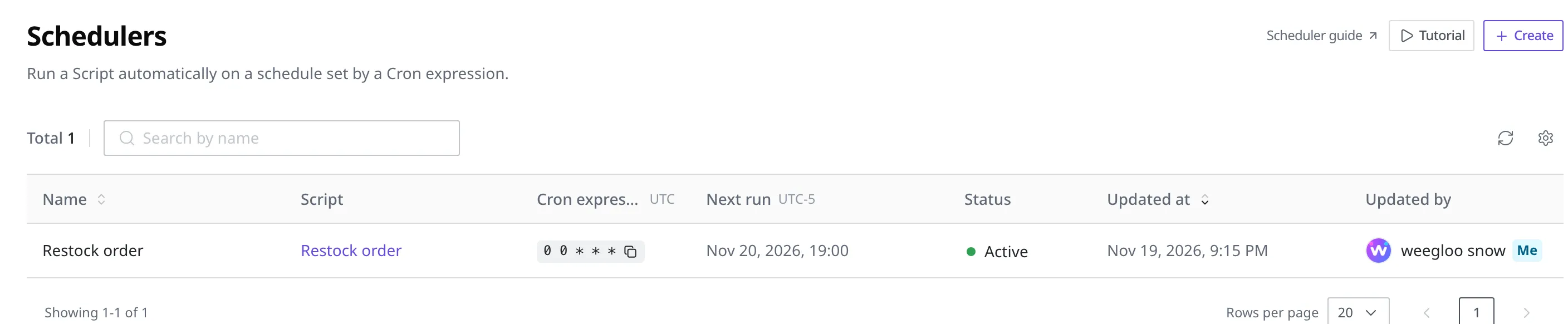
The list in Content Studio shows both the saved value and when that is in your time zone. The Cron expression column header has UTC next to it, and the Next run column header has the viewer's time zone next to it, like UTC+9. In time zones ahead of UTC, like Korea (UTC+9), Next run can show a date one day later than the UTC date. In time zones behind UTC, it can show a date one day earlier.
Schedules that can't be saved
The following schedules can't be saved. This is checked both when you create a Scheduler and when you edit one.
- A value that doesn't have exactly five fields. You can't add a sixth field for seconds either.
- A value with an entry a field doesn't allow (for example,
99in the minute field), or with notation that can't be read. - A value that would never run.
0 0 30 2 *points to February 30, which doesn't exist, so it can't be saved. - A value longer than 128 characters.
If you write a value in Custom with the wrong number of fields, notation, or length, the reason appears below the input field. For example, if you write six fields, you see "Expected 5 fields but got 6.", and if you write notation that can't be read, you see "This expression can't be read. Check the notation in each field."
The Script to run can't be changed
Each Scheduler runs one Script in its Space. The Script you select when you create it can't be changed later. After creation, what you can change is the Name, the Schedule, and whether it's on or off.
- To run a different Script, create a new Scheduler that runs it (Switch to a different Script).
- Several Schedulers can run the same Script.
- You can't delete a Script that a Scheduler runs. The same goes for a Script run by a Scheduler that's turned off. Delete that Scheduler first (Deleting items such as Locale, Tag, and Script).
Runs happen under the creator's name
When a Scheduler runs a Script, the run is recorded as done by the person who created that Scheduler. The creator appears in Run as in the execution record details.
- Even if another member later edits the name or schedule, runs still happen as the person who first created it.
- When the Script creates or edits Content or Media, the Scheduler creator's name is recorded on those items (The name recorded on items a Script creates or edits).
- Permissions for what the Script does aren't checked again when it runs. That scope is set by the role of the person who saved the Script, at the time they saved it (Script run permission and delegation).
- When a Scheduler runs a Script, the Script receives no input values. A Script that needs values from its caller to work isn't suited to running from a Scheduler.
- A Scheduler runs the Script even if Who can run it from the call URL is set to None on the Script (Run it only from a Webhook or Scheduler).
- Whether a Webhook reacts to products the Script edits follows the rule in By default, Webhooks don't react to changes made by Scripts.
It turns off if its creator loses the run permission
Each time a run time arrives, the Scheduler checks whether its creator's role still has Execute on that Script. If the creator has left the Space or their role has changed so they no longer have Execute, WEEGLOO doesn't run the Script and turns the Scheduler off (Inactive).
- No execution record is kept when this happens. If a Scheduler is off and its execution records show no reason for a failure, check the creator's permissions first. For a Scheduler that WEEGLOO turned off, Updated at in the list changes to the time it was turned off, and the Updated by column shows a dash.
- If the creator loses only Manage Schedulers but still has Execute on that Script, the Scheduler doesn't turn off and keeps running.
- Even when the creator's permission comes back, the Scheduler doesn't turn back on by itself. Turn it back on yourself (Pause it and turn it back on).
- Even if another member turns it back on, it's still the creator's permission that gets checked. If the creator's permission hasn't come back, the Scheduler turns off again at the next run time. If the creator has left the team, have a member with Execute create a new Scheduler with the same settings, and delete the old one. If your Scheduler count has reached your plan's limit, you have to delete the old Scheduler before you can create a new one.
What happens when a run time arrives
- A run can start a little later than the set time. Don't use a Scheduler for work that has to happen at an exact second.
- Runs of the same Scheduler usually don't overlap. The next run time is set only after a run finishes, so if a run takes long enough to pass the next time, the run for that time is skipped. However, if you edit and save the settings while a run is in progress, the schedule is set anew, so the run in progress can overlap with a run on the new schedule. For how much time one run gets, see Time allowed for a single run.
- Missed runs aren't made up. Even if some run times were missed while the Scheduler was off or during maintenance, once it can run again, it starts from the next run time.
- When you turn on a Scheduler that was off, it runs at the next run time after the moment you turned it on.
- When you edit and save the Schedule, it runs at the next time on the new schedule after the moment you saved.
- Each time a Scheduler runs, it uses one Script run from your plan's run count. Schedulers don't have a run count limit of their own (Limits, All Spaces in an Organization share the run count).
Success and failure
If the Script finishes without an error, that run is a success. If the Script ends with an error, returns a result that signals failure, or is stopped for going over its allowed run time, the run is a failure. Success and failure are judged the same way as when the Script is run any other way (Script settings and rules).
- A failure doesn't turn the Scheduler off. Only that run is recorded as a failure, and the Scheduler runs again at the next time.
- Failed runs aren't retried automatically. If the supplier's system didn't respond for a while and that day's order didn't go out, wait for the next run time or run the Script yourself to place the order.
It turns off when the run count is used up
On the Free, Basic, and Pro plans, once the Organization uses up this month's Script run count, any Scheduler whose run time arrives after that doesn't run its Script and turns off.
- That run is recorded as a failure, with the reason that the run count was used up. In Content Studio's Execution Log, though, this run's Result shows Not run, and the details window shows only "The scheduled run didn't take place."
- Even when runs become possible again because a new month starts or you upgrade your plan, the Scheduler doesn't turn back on by itself. Turn it back on yourself.
- When the run count resets and what gets blocked are covered in When you exceed transfer volume or storage space.
Execution records are kept for 1 hour on success and 3 days on failure
Each time a Scheduler runs, a record of that run is added to the Execution Log tab on that Scheduler's detail screen. The same run is also recorded in that Script's execution log.
- Records of successful runs are deleted automatically after 1 hour, and records of failed runs after 3 days. Because successful records disappear first, the list can look as if it holds only failures.
- To keep values for a long time, like order history, save them as Content from within the Script.
- When the Scheduler turns off because its creator lost the run permission, no record is kept (It turns off if its creator loses the run permission).
- When you delete a Scheduler, its execution records and the execution logs of the Script runs it started are deleted with it (Deleting items such as Locale, Tag, and Script).
The steps for viewing records are in View execution records.
Limits
| Item | Limit |
|---|---|
| Length of Name | 1 to 64 characters |
| Length of a schedule | 128 characters |
| Shortest run interval | 1 minute |
| Scripts one Scheduler runs | 1 |
| How long execution records are kept | 1 hour on success, 3 days on failure |
| Time allowed for one run | Same as when you run a Script. See Time allowed for a single run |
| Number of Schedulers | Varies by plan. See the "Scheduler" row in Pricing |
| Script run count | Varies by plan. See the "Script executions" row in the same table. Each Scheduler run counts once |
Plan limits apply per Organization, and all the Spaces in that Organization share them. The number of Schedulers is also counted across all Spaces. Once you reach the limit, you can't create new ones. Delete Schedulers you don't use, and you can create as many as you deleted (When you exceed a count limit).
The shorter the schedule interval, the faster you use up the Script run count. Counting a month as 30 days, one Scheduler that runs every minute uses 43,200 runs, one that runs every 10 minutes uses 4,320, and one that runs once a day uses 30. Runs of Scripts by Webhooks or programs in the same Organization count too (All Spaces in an Organization share the run count). You can check how much you've used so far in Keeping an eye on usage and limits.
Required permissions
| What you want to do | Required permission |
|---|---|
| View the Scheduler list and settings, and view execution records | Manage Schedulers in the role (SpaceRole) you have in that Space |
| Create a Scheduler | Manage Schedulers, plus Execute on the Script to run |
| Edit Name or Schedule, or turn it on or off | Manage Schedulers, plus Execute on the Script that Scheduler runs |
| Delete a Scheduler | Manage Schedulers |
| Run at the set times | The role of the person who created that Scheduler must still have Execute on that Script (It turns off if its creator loses the run permission) |
- You turn on Manage Schedulers on the Settings tab of the role screen. You need it even to view Schedulers (Settings permissions on the Settings tab).
- You set Execute on the role's Script tab. You can also narrow it so the role can run only one specific Script (Script run permission and delegation).
- When someone edits a Scheduler, it's the editor's Execute that gets checked. That's because changing the run time decides when that Script runs, and turning it on starts the runs.
- Manage Schedulers takes effect only when a member works with their own account. You can't work with Schedulers using a Space Access Token (a token for reading and writing within one Space) (Settings permissions work only for people).
- Scripts your role doesn't have Execute on are grayed out in the Script to run list with "You do not have permission to run this Script", and you can't select them. For a Scheduler that runs a Script you can't read, the Script column of the list shows "Cannot verify". Scripts without Read on the Script tab of your role don't appear in the Script to run list at all.
Tasks in Content Studio
To open the Scheduler screen, click Schedulers in the left menu. Where this menu is located is covered in Where the other settings in a Space are. The first task, Create a Scheduler, is the basic flow for creating one for the first time. The tasks after it cover editing and managing a Scheduler you've created.
On the "Create Scheduler" screen and on the Settings tab of the detail screen, you can use Ask AI to build a question that includes what's on that screen and ask an AI agent (Ask AI from Content Studio).
Create a Scheduler
These are the steps for creating the Scheduler "Restock Order" in the "Online Store" Space. Assume you've already created the Script to run, "Restock Order", in the same Space. Who can create and manage Schedulers is covered in Required permissions, and how many Schedulers you can create and the Script run count are covered in Limits.
- Click Schedulers in the left menu.
- Click the Create button at the top right of the list. The "Create Scheduler" screen opens.
- Enter
Restock Orderin the Name field. - Make sure Activate right after creating is selected.
- In Script to run, select "Restock Order".
- In Schedule, select Custom.
- Enter
0 0 * * *in the input field. - Click the Create button at the top right of the screen.
You can see what the "Create Scheduler" screen looks like in Settings. The same section also covers setting the Schedule in ways other than Custom.
Below the input field, you see when the schedule you entered will run. If you enter 0 0 * * * with Time zone set to Local · UTC+9, the sentence "Runs daily at 09
UTC appears next to Saved Cron. Before you click Create, use this sentence to double-check the run time.
When you click Create, the detail screen for "Restock Order" opens. Click Schedulers in the left menu to open the list. If "Restock Order" shows as Active, the Scheduler was created. You can see what the list looks like in Times are read in UTC.
If the Next run column header shows UTC+9 and the time shows 09
Change the run time
These are the steps for changing "Restock Order" to run at 6
a.m. Korea time, because your supplier moved its order deadline earlier. 6 a.m. Korea time is 21 the previous day in UTC, so you write0 21 * * *.
- Click Schedulers in the left menu.
- Click "Restock Order" in the list. That Scheduler's detail screen opens.
- Click the Settings tab.
- In Schedule, select Custom.
- Change the value in the input field to
0 21 * * *. - Click the Save button at the top right of the screen. You can click Save only when you've made changes.
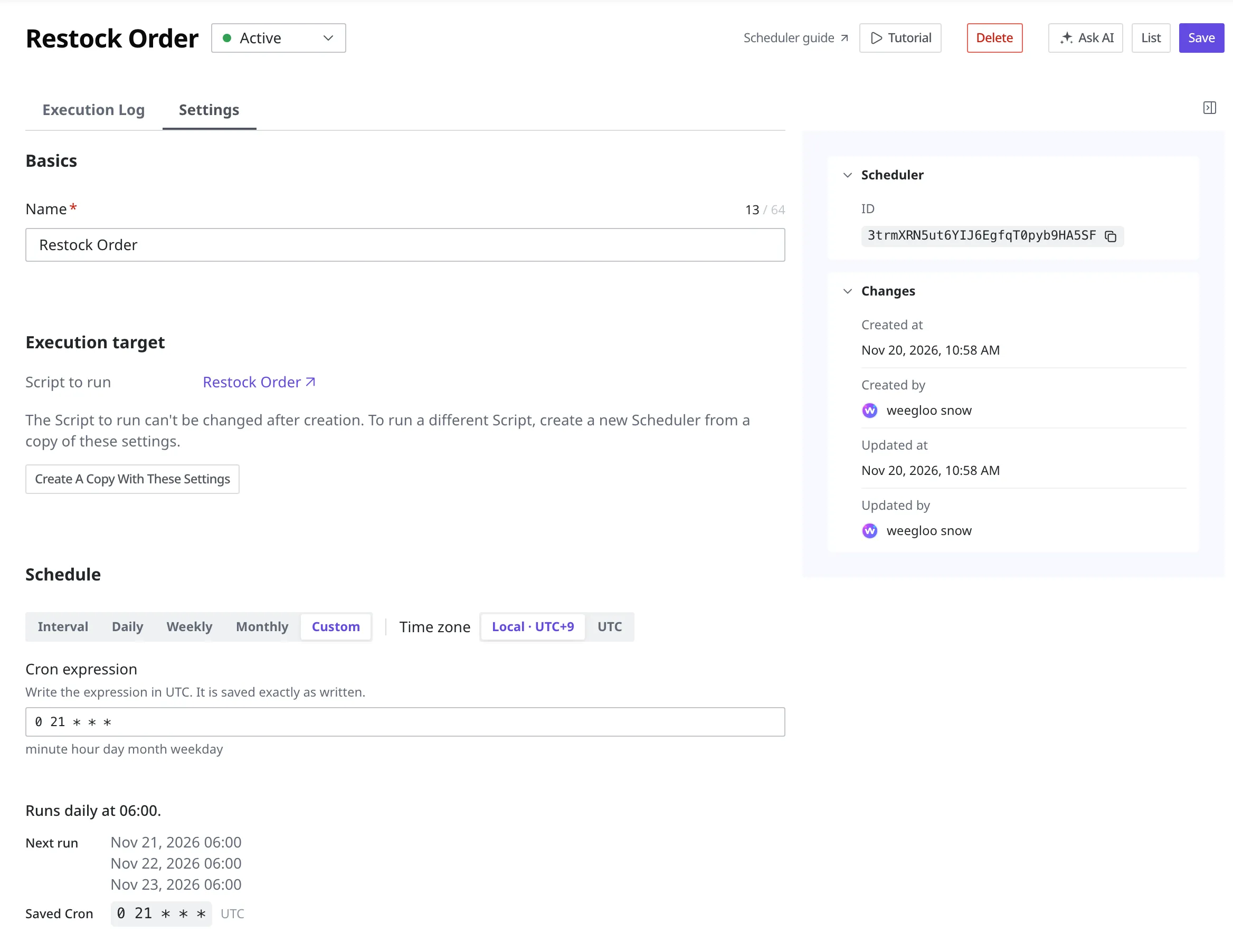
The next run time on the new schedule is set from the moment you save. Check the changed time in Next run in the list.
Pause it and turn it back on
These are the steps for pausing "Restock Order" while your supplier is closed. If you turn it off instead of deleting it, its settings stay as they are, so when the supplier reopens, all you have to do is turn it back on.
- Click Schedulers in the left menu.
- Click "Restock Order" in the list.
- Click the status menu (Active) next to the title on the detail screen.
- In the menu that opens, select Inactive. The "Deactivate Scheduler" confirmation window opens with the note "This Scheduler won't run its Script at the scheduled times until you activate it again."
- In the confirmation window, click Deactivate.
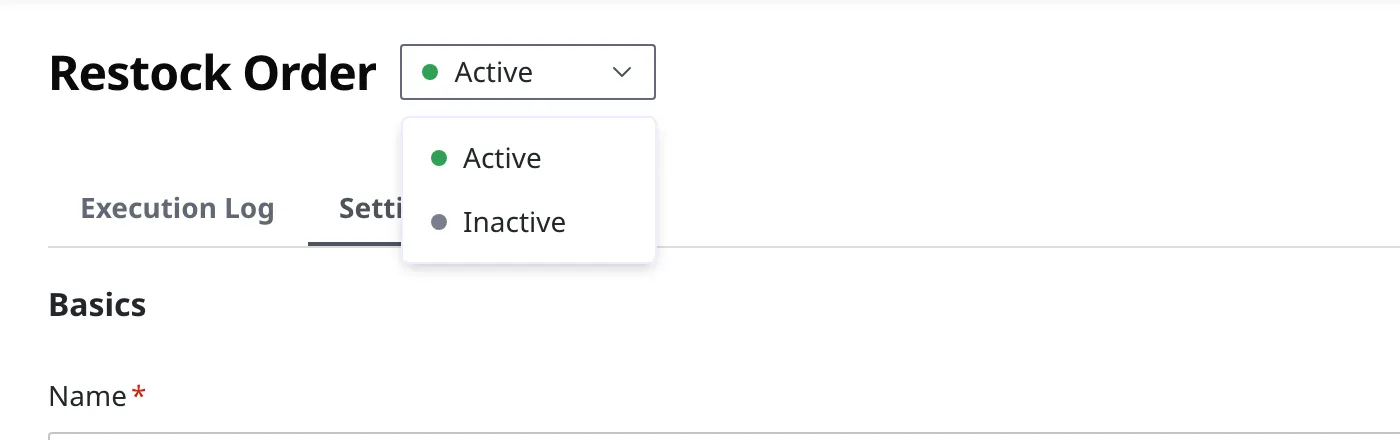
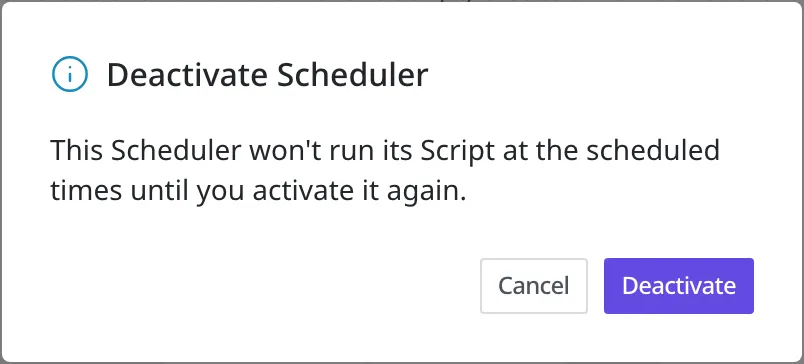
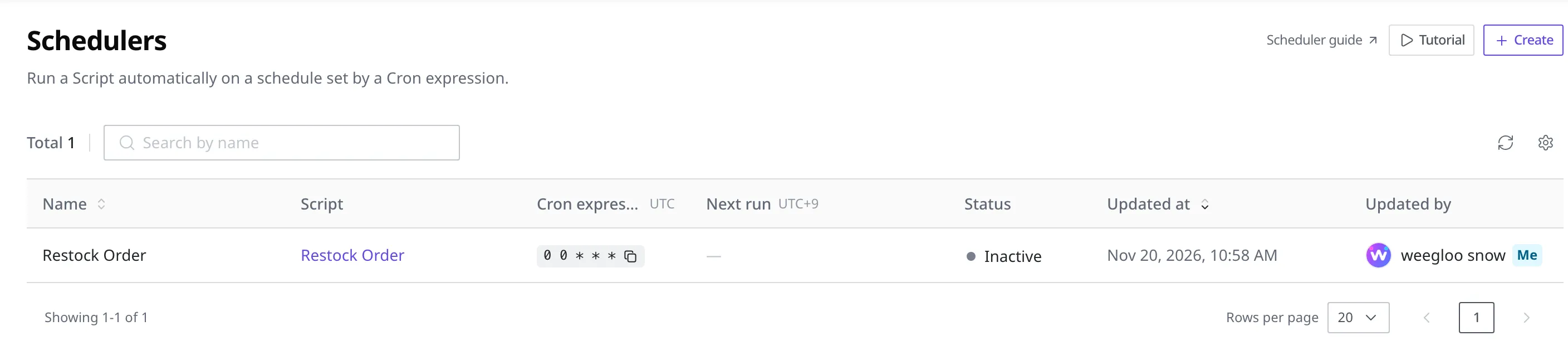
When the status next to the title and the Status column in the list show Inactive, the Scheduler is off. To turn it back on, select Active in the same menu. It turns on right away, with no confirmation window. It runs at the next run time after the moment you turn it on, and runs missed while it was off aren't made up. Turning it off and on also requires Execute on that Script. Without Execute, you can't click the status menu.
Switch to a different Script
Say you've switched suppliers and created the Script "New Supplier Restock Order", which places orders with the new supplier. You can't change the Script a Scheduler runs, so you create a new Scheduler and delete the old one. If your Organization's Scheduler count has reached your plan's limit, you can't create a new one, so write down the Schedule of the old Scheduler "Restock Order" and do the last step first.
- Click Schedulers in the left menu.
- Click the Create button at the top right of the list.
- Enter
New Supplier Restock Orderin the Name field. - In Script to run, select "New Supplier Restock Order".
- In Schedule, select Custom.
- Enter
0 0 * * *. - Click the Create button at the top right of the screen.
- Delete the old Scheduler "Restock Order". The steps are in Delete a Scheduler.
If both Schedulers are on when the run time comes, both Scripts run. Delete or turn off the old one before the run time. After you delete the old Scheduler, you can also delete the old Script "Restock Order".
If you don't want to write the schedule again, you can instead click Create a copy with these settings in Execution target on the Settings tab of the old Scheduler "Restock Order". A create screen opens with " (copy)" added to the end of the name, and with the Script to run and the schedule filled in as they were. On this screen, change Script to run to "New Supplier Restock Order", edit the name, and click Create. A copy starts with Activate right after creating cleared, so it doesn't run alongside the old one. Delete the old one, then turn on the new Scheduler.
View execution records
These are the steps for checking whether "Restock Order" actually ran last night.
- Click Schedulers in the left menu.
- Click "Restock Order" in the list. The Execution Log tab of the detail screen opens.
- Click the row of the run you want to check. The "Scheduler execution log detail" window opens.
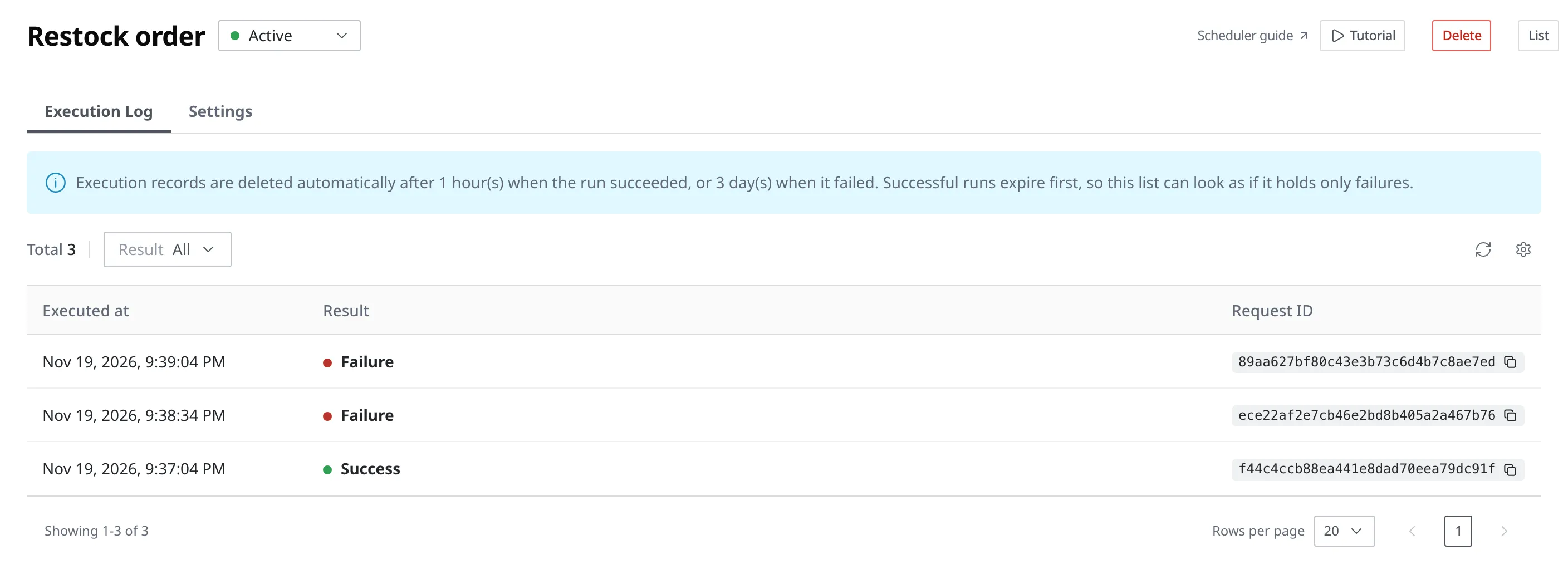
The table on the Execution Log tab shows, for each run, Executed at, Result (Success, Failure, or Not run for a run that didn't happen), and Request ID. Use the Result filter at the top to see only successful runs or only failed runs. Click the refresh icon at the top right of the table to reload the list, including the most recent runs.
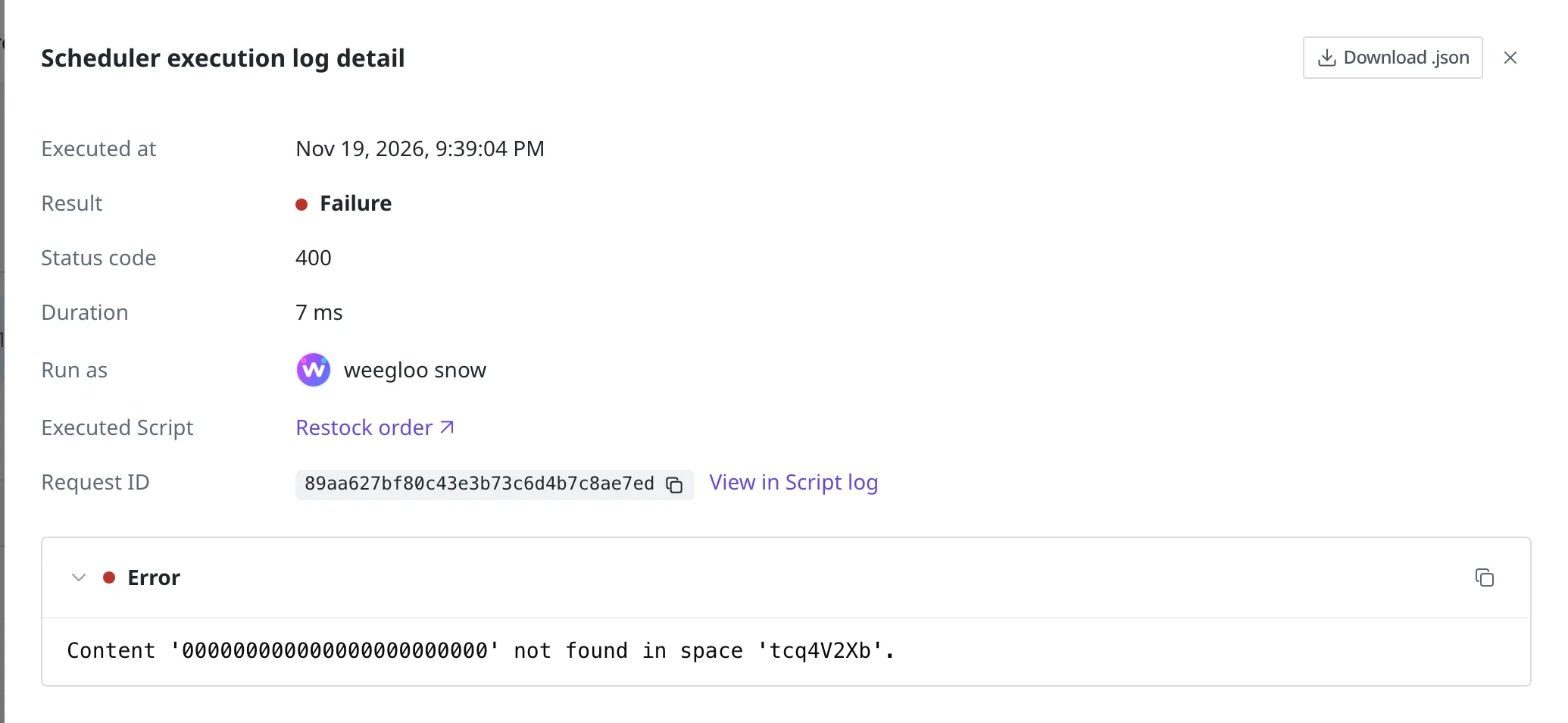
The details window shows Executed at, Result, Status code, Duration, Run as, Executed Script, and Request ID. For a failed run, the reason appears in the Error area. Click the name under Executed Script to go to that Script. To see the same run in the Script's execution log, click View in Script log next to Request ID. Click Download .json at the top right to save the record as a file.
Delete a Scheduler
These are the steps for deleting "Restock Order" when you no longer use it. If you only want to pause it, turn it off instead of deleting it (Pause it and turn it back on).
- Click Schedulers in the left menu.
- Click "Restock Order" in the list.
- Click the Delete button at the top right.
- When the "Delete Scheduler" confirmation window shows "Do you want to delete this Scheduler? Its execution history is deleted with it. This action cannot be undone.", click Delete.
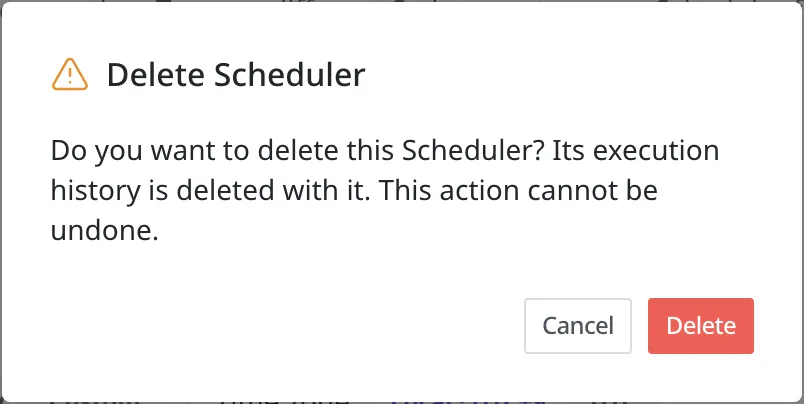
A deleted Scheduler can't be restored. What's deleted along with it is covered in Execution records are kept for 1 hour on success and 3 days on failure. The Script it ran stays.
Troubleshooting
| Problem | Cause | What to do |
|---|---|---|
| You wrote a Schedule, but it won't save | It doesn't have exactly five fields, has an entry a field doesn't allow, or would never run | Check Schedules that can't be saved and fix it |
| It runs a few hours earlier or later than you expected | You wrote the schedule in Custom in local time, or entered local time with Time zone set to UTC. Saved schedules are read in UTC | Convert the time to UTC, or change Time zone to your own time zone (Times are read in UTC) |
| It runs one day off from the day of the week or date you set | Converting to UTC moved the date, but you left the day-of-the-week or date field unchanged | Move the day-of-the-week or date field back one day too, or pick a time that keeps the same date in UTC |
| You set both a day and a day of the week, and it almost never runs | It runs only on days that match both the day field and the day-of-the-week field | Set one of the two to *. If you need both, create two Schedulers |
| You selected a Script, but the Scheduler isn't created | Your role doesn't have Execute on that Script, or your Organization already has as many Schedulers as it can create | Ask an admin for Execute. If it's the count limit, delete Schedulers you don't use or switch to a higher plan (When you exceed a count limit) |
| You can't edit the name or schedule, or turn it on or off | Your role doesn't have Execute on the Script that Scheduler runs | Ask an admin for Execute |
| You can't change the Script to run | It can't be changed after creation | Create a new one by following Switch to a different Script |
| The Scheduler is off, but its execution records show no reason | The creator's role lost Execute on that Script. The same happens if the creator left the Space | Restore the creator's permission, then turn it back on. If the creator has left the team, have a member with Execute create a new one (It turns off if its creator loses the run permission) |
| You turned it back on, but it turns off again at the next run time | No matter who turned it on, it's the creator's permission that gets checked | As above, restore the creator's permission or create a new one |
| The Scheduler turned off, and Result in the execution log is Not run | Your Organization may have used up this month's Script run count | Check the run count in Keeping an eye on usage and limits. If it's used up, wait for next month or upgrade your plan, then turn it back on yourself (It turns off when the run count is used up) |
| A failed run isn't run again | A Scheduler doesn't retry failed runs | Fix the cause, then wait for the next run time or run the Script yourself |
| Runs missed while it was off aren't made up | A Scheduler doesn't catch up later on runs scheduled while it was off | If you need to, run the Script yourself once |
| The time in an execution record is a little later than the set time | Runs can start a little later than the set time | For work that has to happen at an exact second, use another method |
| A run was skipped | The previous run took long enough to pass that time. Runs of the same Scheduler don't overlap | Lengthen the schedule interval or cut down what the Script does |
| You can't see the record of a run that succeeded yesterday | Successful records are deleted after 1 hour, and failed ones after 3 days | Save values you want to keep for a long time as Content from within the Script |
| You can't delete a Script | A Scheduler runs that Script. Schedulers that are turned off count too | Delete that Scheduler first (Deleting items such as Locale, Tag, and Script) |
| Items the Script created don't show you as the creator | Items created by a Script run from a Scheduler carry the name of the person who created the Scheduler | To have a particular person's name recorded, that person has to create the Scheduler |
| You can't create a Scheduler with a Space Access Token | Space Access Tokens and Delivery Access Tokens can't work with Schedulers | Do it in Content Studio (Settings permissions work only for people) |
Related docs
- Scheduler: Covers what a Scheduler is, how it differs from a Webhook, and the flow from preparing a Script to a Scheduler running it.
- Script settings and rules: Covers the rules for the Scripts a Scheduler runs: their definition, run time, and execution logs.
- Webhook settings and rules: Covers the rules for Webhooks, which run a Script when a set change happens rather than at a set time.
- Role and permission rules: Covers how to turn on the Manage Schedulers permission, Execute on Scripts, and delegation.
- Deletion rules: Covers the conditions for deleting Schedulers and Scripts, and the records deleted along with them.
- Pricing: Covers the limits on the number of Schedulers and the Script run count, and what happens when you use up the run count.
- API reference: Covers technical specs, such as the request formats you need to work with Schedulers and their execution records from a program.