

Validations
This page covers every validation condition you can set on a Field, organized by Field type. It explains the values you set for each condition, custom error messages, rules for combining conditions, limits and permissions, how to turn conditions on, change them, and turn them off in Content Studio, and how to find the cause when a condition blocks saving or publishing. If you're new to validation, start with Content modeling, which explains what validation is and why it's used.
The examples on this page use the "Product" Content Type of an online clothing store. "Product" has the Fields Product Name, Product Code, Sale Price, Sales Status, Release Date, and Color. The product "Stainless Tumbler 500ml" has the product code TB-500, and its sales status is "On Sale".
Settings
You set validation conditions on the Validations tab of the "Configure Field" window. When you first create a Field, click More Settings in the "Basic Field Settings" window to open this window. For a Field you've already created, click the gear icon in that Field's row on the Content Type edit screen. After you click Save in this window, you still need to click Save at the top right of the Content Type edit screen for the changed conditions to take effect. If you're creating a new Content Type, they take effect when you click Create at the top right.
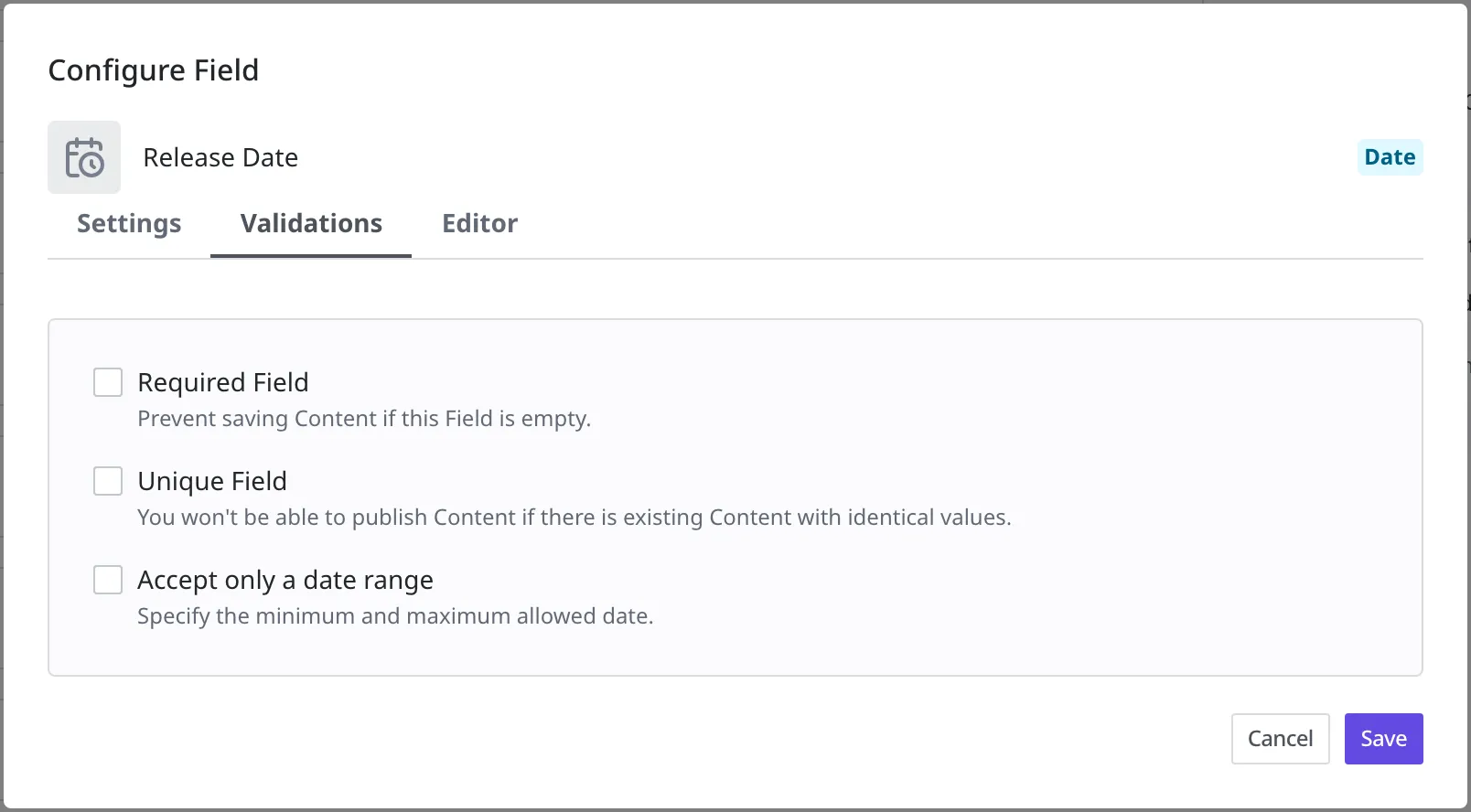
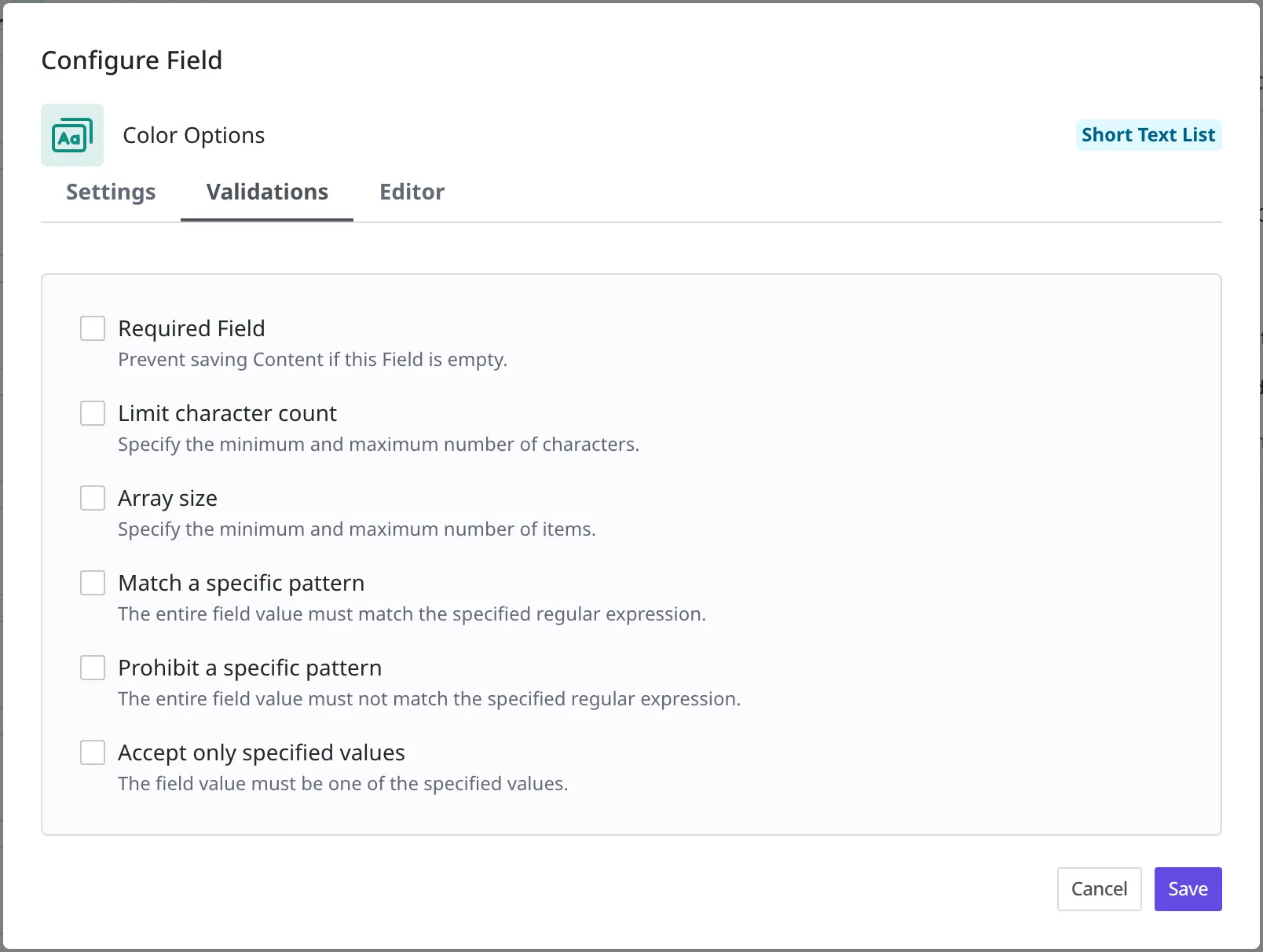
You turn each condition on and off with a checkbox. Each condition comes with a description of what it does. When you turn on a condition such as Accept only a date range or Match a specific pattern, the boxes for its values and a Custom error message box open below it.
Conditions you can set for each Field type
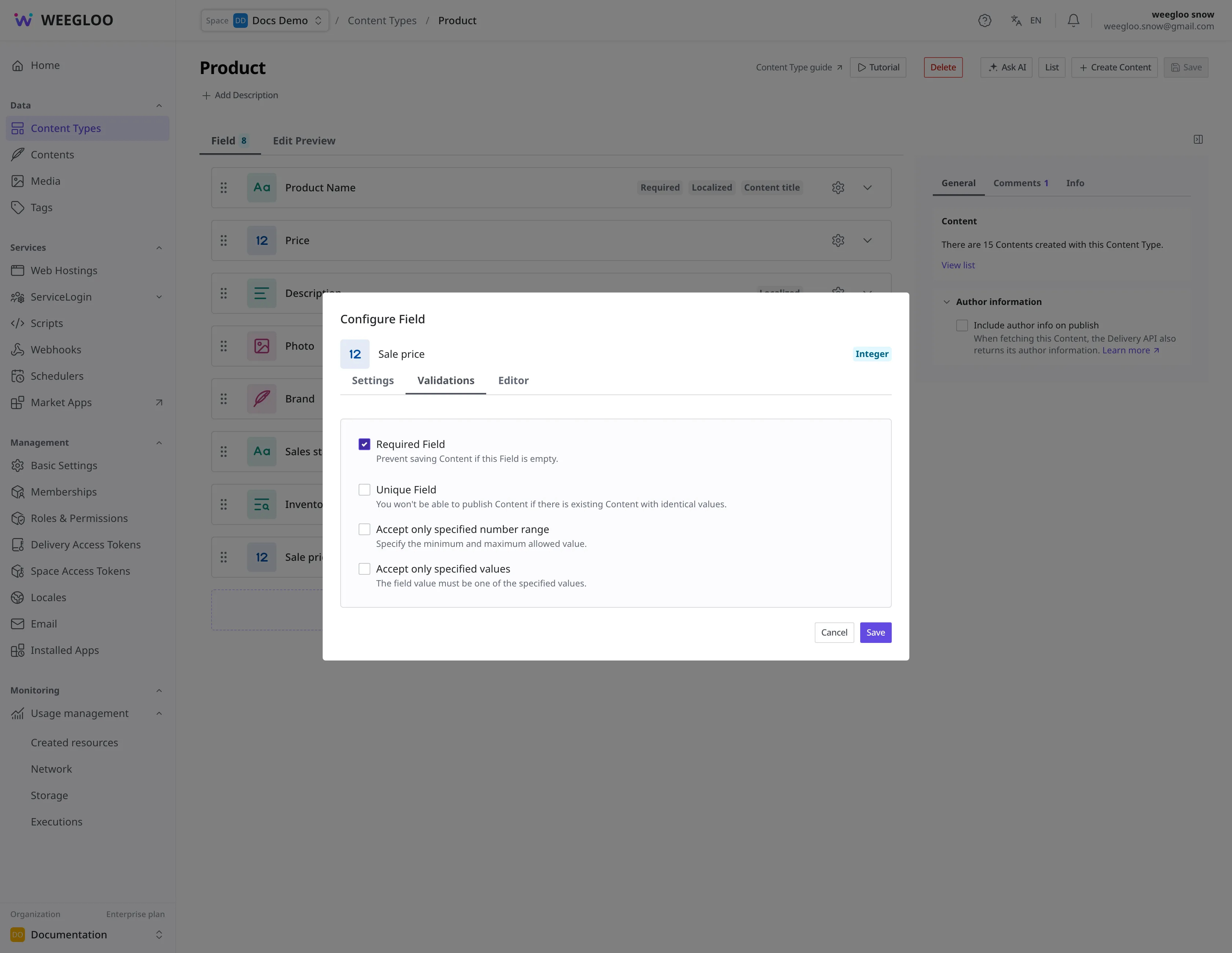
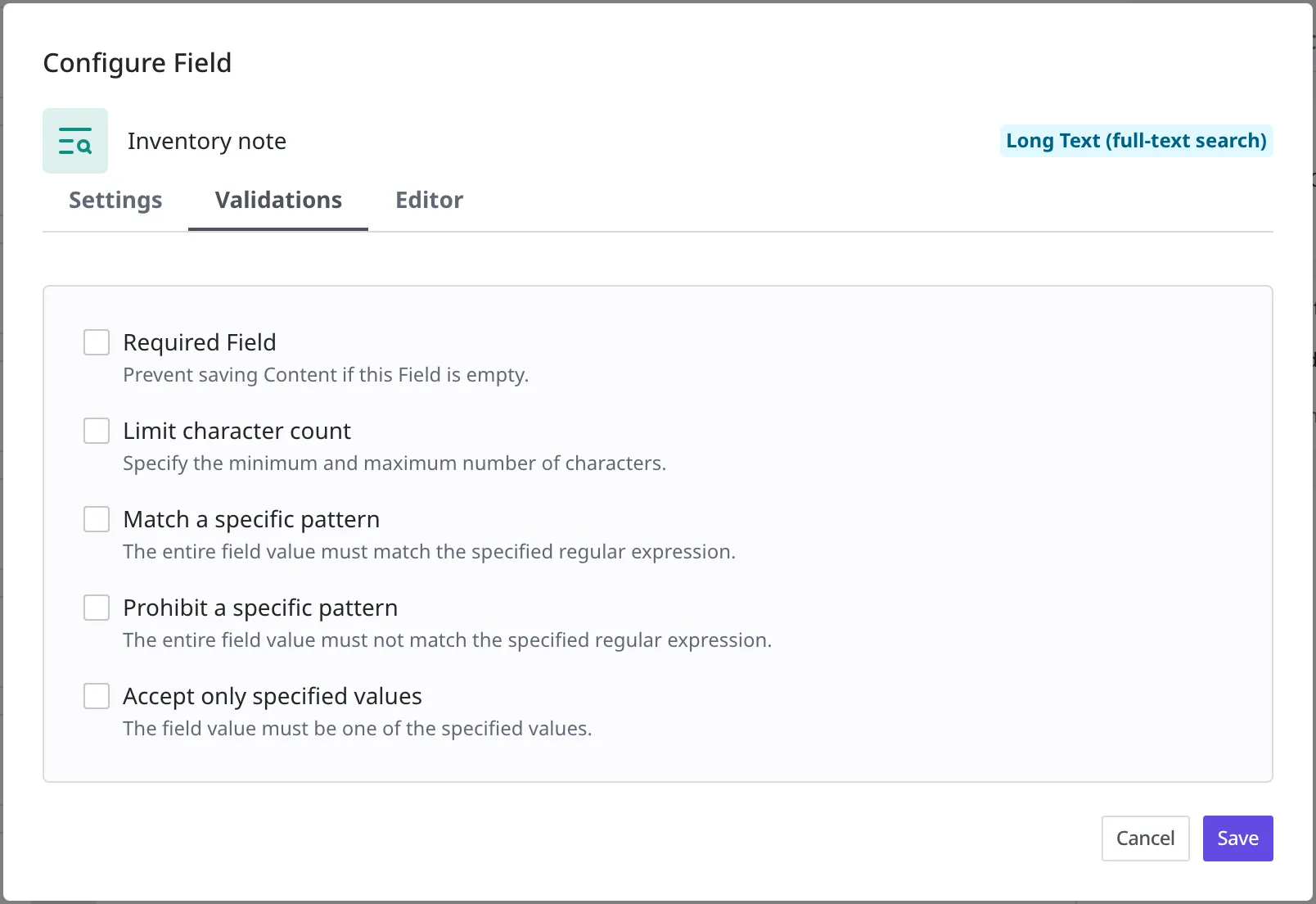
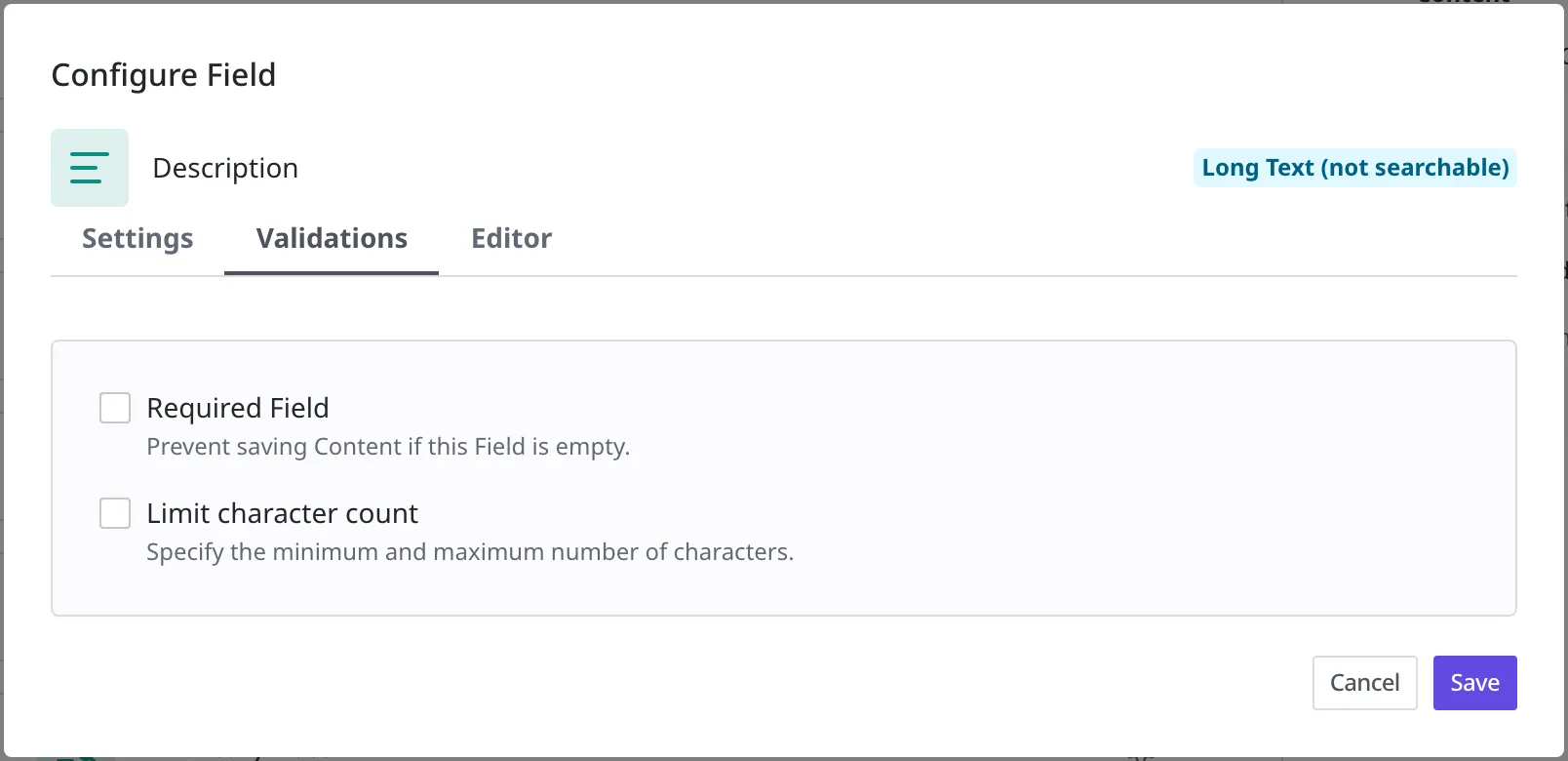
The Validations tab shows only the conditions you can set for that Field's type. Here are the conditions available for each type.
| Field type | Conditions you can set |
|---|---|
| Short Text | Required Field, Unique Field, Limit character count, Match a specific pattern, Prohibit a specific pattern, Accept only specified values |
| Short Text with Use as list type on | Required Field, Array size. For each item: Limit character count, Match a specific pattern, Prohibit a specific pattern, Accept only specified values |
| Long Text (full-text search) | Required Field, Limit character count, Match a specific pattern, Prohibit a specific pattern, Accept only specified values |
| Long Text (not searchable) | Required Field, Limit character count |
| Integer, Number | Required Field, Unique Field, Accept only specified number range, Accept only specified values |
| Date & Time | Required Field, Unique Field, Accept only a date range |
| JSON | Required Field, Limit number of properties |
| Boolean, Location | Required Field |
| Content, Media | Required Field and the link field conditions |
Among list fields, Content List shows Required Field, Accept only specified Content Type, and Array size. Media List shows Required Field, Accept only specified Media types, Accept only specified image dimensions, Accept only specified file size, and Array size.
In the Field list on the Content Type edit screen, a field whose type shows as Long Text (full-text search) is a Long Text with full-text search (the feature that finds text by the words in it) turned on. A field that shows as Long Text (not searchable) is a Long Text with full-text search off. The two allow different conditions. For more on full-text search, see Field types.
Conditions for link fields (Fields of the Content or Media type) are covered in Reference rules. These are Accept only specified Content Type; the file conditions Accept only specified Media types, Accept only specified file size, and Accept only specified image dimensions; and Array size for link fields that are lists.
Values you set for each condition
| Setting | Description | Default | Constraints |
|---|---|---|---|
| Required Field | When on, you can't save the Content while this field is empty | Off | A list field with no items counts as empty. You can also turn it on and off in the expanded area of the Field row on the Content Type edit screen |
| Unique Field | When on, you can't publish this Content while another published Content has the same value in this field | Off | There's no value to set |
| Limit character count | Sets the minimum and maximum number of characters | Off | The minimum is 0 or more. Neither the minimum nor the maximum can exceed the number of characters that Field type can hold |
| Match a specific pattern | Sets the regular expression pattern a value must follow, and its flags | Off | The pattern is 1 to 256 characters. Only the flags i, m, s, and u are allowed |
| Prohibit a specific pattern | Sets the regular expression pattern a value must not follow, and its flags | Off | Same as Match a specific pattern |
| Accept only specified values | Sets, as a list, the values that can be entered in this field | Off | 1 to 256 values. You can't add the same value twice |
| Accept only specified number range | Sets the minimum and maximum number | Off | For an Integer field, you can set only whole numbers |
| Accept only a date range | Sets the earliest and latest date and time allowed | Off | The earliest can't be later than the latest |
| Limit number of properties | Sets the minimum and maximum number of items at the outermost level of a JSON value. {"350ml": 12, "500ml": 30} counts as 2 | Off | The minimum and the maximum are both 5,120 or less |
| Array size | Sets the minimum and maximum number of items in a list field | Off | The minimum and the maximum are both 64 or less |
| Custom error message | Sets the message shown when a value breaks the condition | Empty. If you leave it empty, the default message is shown | One for each condition. Up to 500 characters |
In conditions that set a range (Limit character count, Accept only specified number range, Limit number of properties, and Array size), the Content Type won't save if the minimum is larger than the maximum. In Accept only a date range too, it won't save if the earliest date is set after the latest date.
Rules
Conditions check only fields that have a value
An empty field saves regardless of other conditions, unless it's a Required Field. Even if Product Code has Match a specific pattern, a product with Product Code left empty isn't caught by that condition. To keep the field from being left empty, turn on Required Field too. A field with Limit character count set to a minimum of 3 saves when you delete its whole value and click Save. If you enter only two characters, saving is blocked with "Must be at least 3 characters".
Localized Fields are checked per language
A field with Enable localization for this Field turned on holds a separate value for each language, and conditions are checked for each language too. If you set the maximum of Limit character count on Product Name to 40, the English (en-US) product name and the Korean (ko-KR) product name must each be 40 characters or fewer. You set conditions once per Field. You can't set them differently for each language.
In a localized field with Required Field on, which languages must be filled in depends on your Locale settings. For that rule, see Locale settings and rules.
List fields are checked item by item
A Short Text field with Use as list type on takes conditions at two levels. Array size checks how many items are in the list. Limit character count, Match a specific pattern, Prohibit a specific pattern, and Accept only specified values check each item one by one. The field saves only when every item meets the conditions.
If you set Accept only specified values on the Color field to Silver, Black, and White, every item entered in Color must be one of those three. If you enter Silver and Gold, the field won't save, because Gold isn't on the list.
How characters are counted
Limit character count counts most characters and spaces as 1 each. "Stainless Tumbler 500ml" is 23 characters, including its two spaces. Some characters count as 2 or more, such as emoji or characters made by combining several characters. If a field might get characters like these, set a generous maximum.
You can see the current count in the character counter on the right inside the input box (for example, 23 / 64). When you set Limit character count, the maximum in the counter changes to that value. A Short Text field with a maximum of 50 shows something like "6 / 50". A Short Text field without the condition shows "/ 64".
Ranges include the values you set
Limit character count, Accept only specified number range, Array size, and Limit number of properties also let through values equal to the minimum or maximum you set. If you set Accept only specified number range on Sale Price to at least 1,000 and at most 1,000,000, 1,000 won and 1,000,000 won are saved, but 999 won isn't.
When you set these conditions, you choose one of the following four options. For Accept only specified number range and Limit character count, you pick one of these four in the selector to the left of the value boxes. Array size and Limit number of properties use the same selector, and Between is selected at first. The value boxes change with your choice: Between shows two boxes, one for the minimum and one for the maximum. At least shows one minimum box, No more than shows one maximum box, and Exactly shows one value box. If you leave a value empty, "A value is required." appears.
| Option | What you set | Values that pass |
|---|---|---|
| Between | A minimum and a maximum | Values at or above the minimum and at or below the maximum |
| At least | A minimum | Values at or above the minimum |
| No more than | A maximum | Values at or below the maximum |
| Exactly | One value | Values equal to that value |
If you set Limit character count on Product Code to Exactly 6, only codes that are 6 characters long are saved.
A value equal to the date and time set in Later than or Earlier than of Accept only a date range passes. For example, if you set Later than for Release Date to March 1, 2024, 00:00
, a value of exactly midnight on March 1, 2024 is saved too. When you turn on Accept only a date range, two rows appear: Later than and Earlier than. Each row has a checkbox, a date box, and a time box, with UTC+9 shown on the right. The UTC+9 label follows the browser's time zone. In a browser set to US Eastern Time (New York), it shows UTC-5.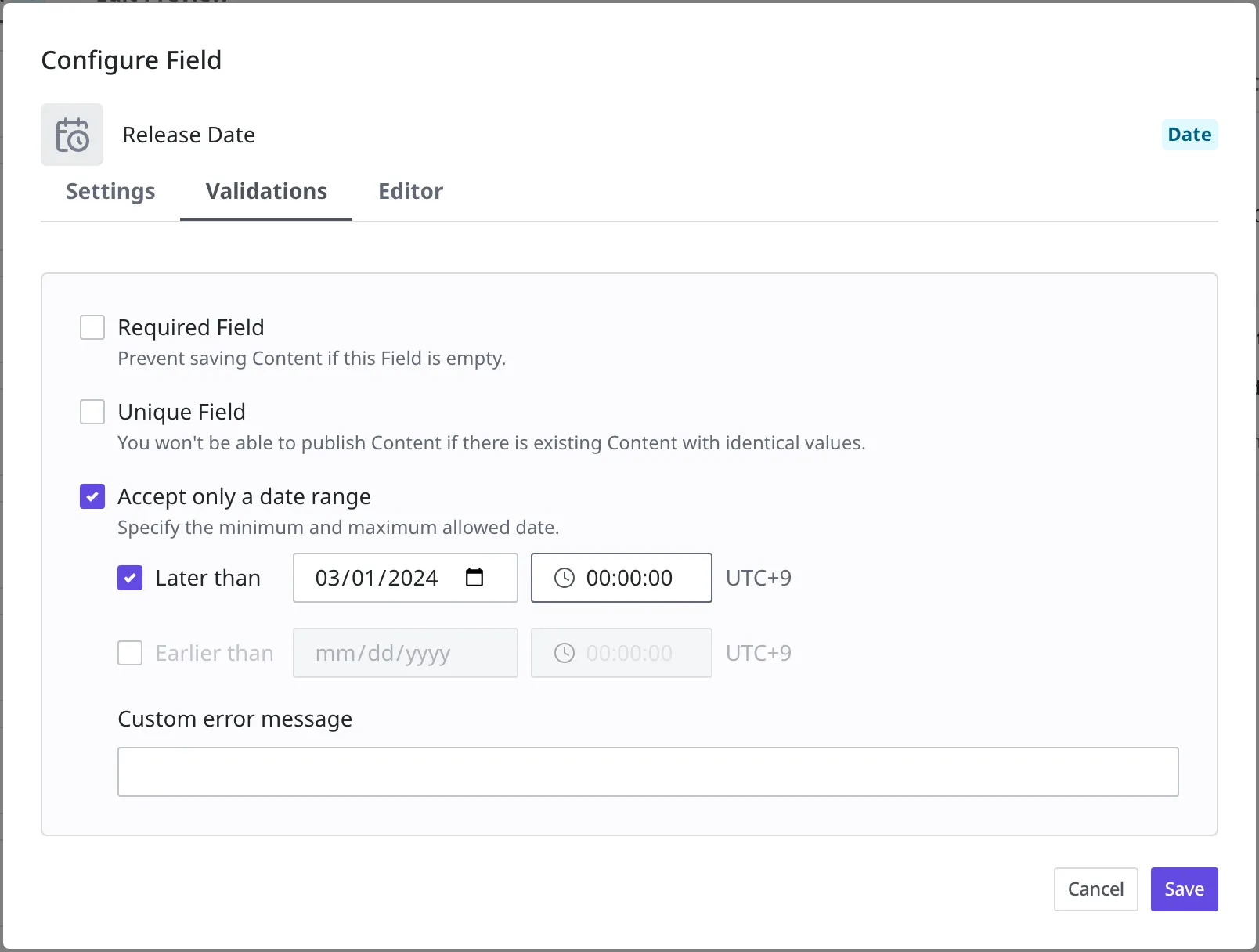
A regular expression checks the whole value against the pattern
A regular expression is a rule that describes the shape of text with symbols. Match a specific pattern lets a value through only when the whole value matches the pattern. Prohibit a specific pattern rejects a value when the whole value matches the pattern. Whether a value matches is judged on the whole value, not on part of it. So to match when certain text merely appears anywhere in the value, put .* before and after the pattern. For example, to block saving when the product name contains "Sold Out", enter .*Sold Out.* in Prohibit a specific pattern. If you enter only Sold Out, a value is rejected only when it's exactly "Sold Out".
To allow only product codes made of 2 uppercase letters, a hyphen, and 3 digits, enter ^[A-Z]{2}-[0-9]{3}$ in Match a specific pattern. Here's what the symbols in this pattern mean.
| Symbol | Meaning |
|---|---|
^, $ | The start and the end of the value |
[A-Z] | One uppercase letter |
[0-9] | One digit |
{2} | The character right before it repeats exactly 2 times |
- | A hyphen, as is |
Here's how several values fare against this pattern.
| Value | Result | Why |
|---|---|---|
TB-500 | Passes | It's 2 uppercase letters, a hyphen, and 3 digits |
tb-500 | Rejected | It's lowercase. To allow lowercase too, enter the flag i |
TB-5000 | Rejected | It has 4 digits |
TB-500 (with a space at the end) | Rejected | The space at the end keeps the whole value from matching the pattern |
To keep a certain word from appearing anywhere in the value, put .* before and after the word. . means any one character except a line break. * means the character right before it repeats 0 or more times. So .* means any number of any characters.
To keep "Lowest Price" or "Free Shipping" out of product names, enter .*(Lowest Price|Free Shipping).* in Prohibit a specific pattern. The | inside the parentheses means either side of it. Then "Stainless Tumbler 500ml Lowest Price" is rejected, and "Stainless Tumbler 500ml" is saved.
Regular expression flags
Flags are letters that change how a regular expression matches text. Only four letters are allowed: i, m, s, and u. You can also write several together, as in is.
| Flag | Meaning |
|---|---|
i | Treats uppercase and lowercase letters as the same. If you add i to ^[A-Z]{2}-[0-9]{3}$, tb-500 passes too |
s | Makes . match line breaks too. Add it when you use .* in a field that takes several lines, such as one shown as Long Text (full-text search) |
m | Makes ^ and $ match the start and end of each line, not only the start and end of the value |
You can also add u, but it doesn't change the result for patterns like the examples on this page.
When you set Prohibit a specific pattern on a field that takes several lines, add s as well. Without s, .* can't cross a line break, so a value with a line break is treated as not matching .*(Lowest Price|Free Shipping).*.
Regular expression syntax you can't use
Some regular expression syntax isn't supported. If you set a pattern that contains it, the Content Type won't save. A pattern with a syntax error won't save either. Examples of syntax you can't use:
- Syntax that checks in advance which characters come before or after, such as
(?=[0-9]),(?!ad),(?<=#), and(?<!-) - Numbered references back to characters matched earlier, such as
(.)\1 - Repeat counts larger than 1,000, such as
a{1001} - Some other advanced syntax, such as
(?>ab),a*+, and\Z
Patterns such as (?=[0-9])abc, (.)\1, and a{1001} are accepted in the "Configure Field" window without any message, and you can click the window's Save. When you click Save on the Content Type edit screen, the notice "Failed to save Content Type." appears with a message saying that the request has one or more invalid values, and nothing is saved. This notice doesn't say which Field is the problem. For a pattern with broken syntax (for example, ([a-z), the "Configure Field" window shows "Invalid regular expression pattern." right away, and you can't click the window's Save.
Accepted values must match exactly, character for character
A value passes only if it matches one of the values you added to the list, character for character. Spaces and letter case matter too. If you set the accepted values for Sales Status to On Sale and Sold Out, then OnSale, without the space, won't save.
The values you add to the list follow the field's type.
- For a Short Text field or a field shown as Long Text (full-text search), you enter text. Each value can't be longer than the number of characters that type can hold.
- For Integer and Number fields, you enter numbers. For an Integer field, you can enter only whole numbers.
- You can't add the same value twice.
How the input looks is set on the Editor tab (Input methods on the Editor tab). When you've set a list of accepted values, you can choose Dropdown (default) or Radio, which select from the list of values, on the Editor tab of a Short Text. For a Short Text List, you can choose Checkbox. If you choose one without a list of accepted values, a notice appears.
What Unique Field treats as the same value
When you publish, Unique Field compares the value with other Content. Which Content it compares against is covered in Checks on save and on publish. Here's what counts as the same value.
- Values count as the same only when they match character for character.
TB-500andtb-500are different values. - The comparison uses the values other products had when they were last published. Say you changed the product code of "Insulated Mini Tumbler 350ml" from
TB-500toTB-350and only saved it. That product is Changed, and its published version still hasTB-500. So until you publish that product again, you can't publish another product withTB-500.
Custom error messages
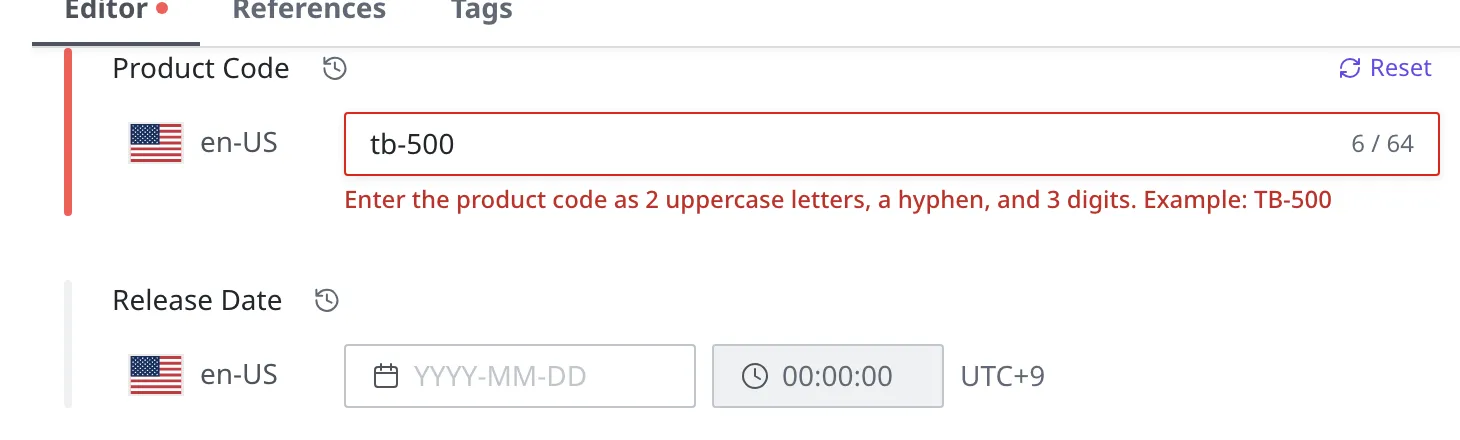
You can set a Custom error message on every condition except Required Field and Unique Field. When a value breaks the condition, this message is shown instead of the default one. If you leave it empty, the default message is shown. If you enter Enter the product code as 2 uppercase letters, a hyphen, and 3 digits. Example: TB-500 for the Match a specific pattern condition on Product Code, you can tell someone who entered tb-500 how to fix it. When you turn on a condition, a Custom error message box appears below it. Turning on Unique Field doesn't show this box.
- You set one message for each condition. If a field has several conditions, the message for the condition that was broken is shown.
- You can't set a separate message for each language. Whatever language Content Studio is in, and whichever language's value broke the condition, the message is shown exactly as you entered it.
- A message can be up to 500 characters.
- When a program saves Content and a value breaks the condition, this message is included in the error too.
With several conditions, a value must meet them all
When you turn on several conditions for one field, a value saves only if it meets all of them. If Product Name has Required Field, Limit character count (up to 40), and Prohibit a specific pattern (.*(Lowest Price|Free Shipping).*) turned on, a product name saves only if it isn't empty, is 40 characters or fewer, and doesn't contain "Lowest Price" or "Free Shipping".
Conditions aren't checked against each other for conflicts. If you add On Sale to Accept only specified values on Sales Status and set the maximum of Limit character count to 6, On Sale won't save even though it's on the list, because it's 7 characters. When you combine conditions, first check that the values you want to allow pass every condition.
Conditions also apply when saving outside Content Studio
Conditions aren't checked only when you save in Content Studio. The same conditions are checked when a signed-up member (ServiceUser) writes a post in your service, and when a Script creates or edits Content. No permission in a role (SpaceRole) lets anyone skip the conditions.
When checks run, and what happens after you change a condition
Whether each condition is checked on save or only on publish is listed in the table in Checks on save and on publish. The same section also explains what happens to Content that's already saved or published when you add or change a condition later.
When you add a condition to a Content Type that already has many products, first fix the values that break the condition, then turn it on. For the steps, see Add a required Field in two steps.
Limits
| Item | Limit |
|---|---|
| Pattern length for Match a specific pattern and Prohibit a specific pattern | 256 characters |
| Values you add to Accept only specified values | 256 |
| Length of one value in Accept only specified values | The number of characters that Field type can hold |
| Minimum and maximum for Limit character count | Up to the number of characters that Field type can hold |
| Values you set in a list field's Array size | Both the minimum and the maximum must be 64 or less |
| Values for Limit number of properties on a JSON field | The minimum and the maximum are both 5,120 or less |
| Length of a Custom error message | 500 characters |
How many characters each Field type can hold is in Field types. If you set a value over these limits in a condition, the Content Type won't save. These limits are the same on every plan.
Required permissions
Each condition-related task needs a different permission in the role (SpaceRole). For what each action means and how to create a role, see Role and permission rules.
| What you want to do | Required permission |
|---|---|
| Turn on, change, or turn off a condition on an existing Field | Edit on that Content Type |
| Set conditions while creating a new Content Type | Create on Content Types |
| Enter values in fields with conditions and save the Content | Create on that Content when creating it, Edit when editing it |
| Publish Content that has conditions | Publish on that Content |
Having a permission doesn't let you skip the conditions (Conditions also apply when saving outside Content Studio).
Tasks in Content Studio
Turn on Required Field for the product name
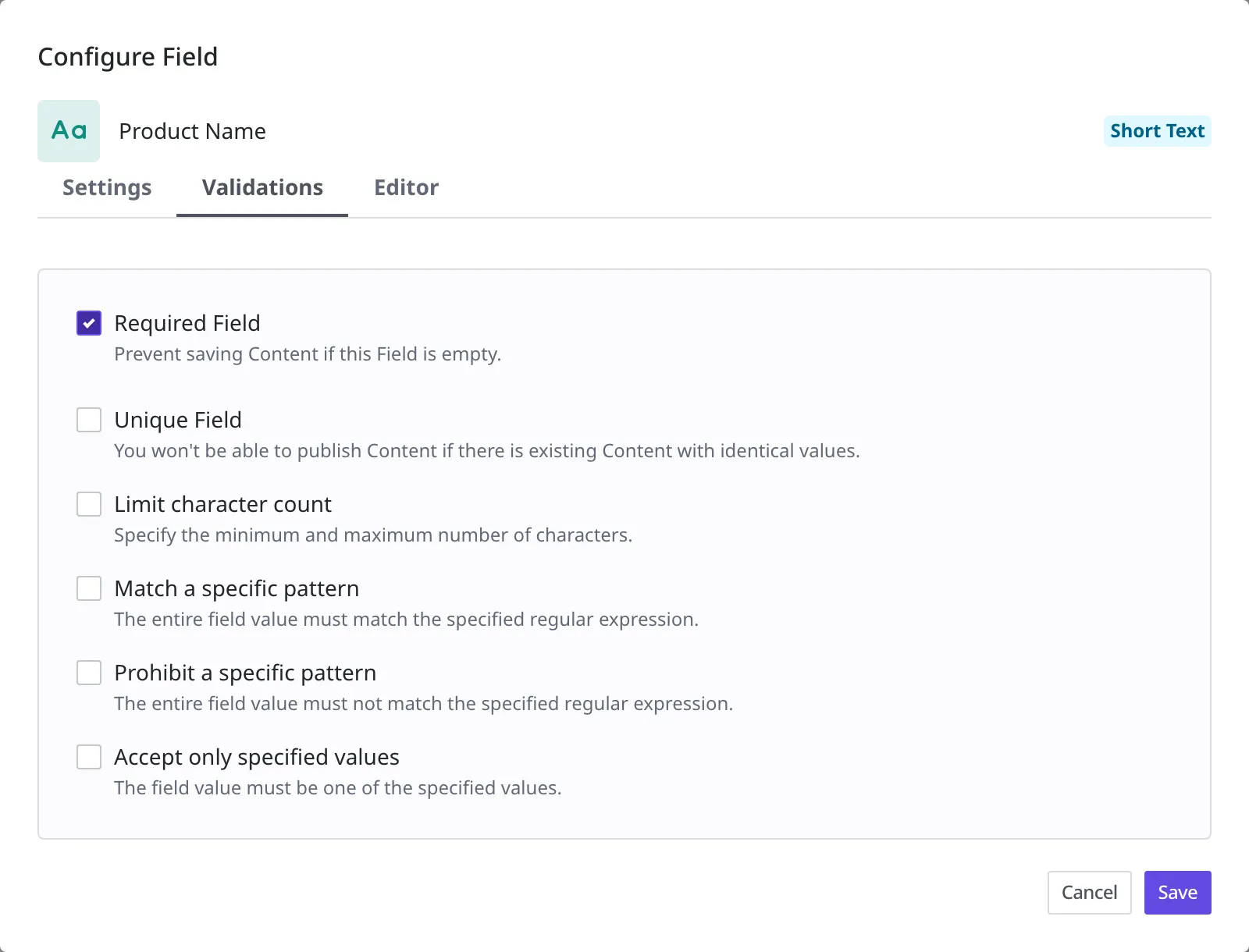
These steps turn on Required Field while adding Product Name as the first Field of the new Content Type "Product". You start in the "Basic Field Settings" window, with Product Name entered in Field name and productName in Field ID (Add the product name as the first Field).
- In the "Basic Field Settings" window, click More Settings.
- Click the Validations tab.
- Turn on Required Field.
- Click Save.
You can see what the "Configure Field" window looks like with Required Field on in Settings.
Because you're creating a new Content Type, this condition takes effect when you click Create at the top right of the creation screen (Settings). The steps to continue creating the Content Type are in Set the product name as the title and save. Once it's created, a product with an empty product name won't save (Find the condition that blocked saving or publishing).
To turn on Required Field for a Field you've already created, follow the same steps as in Turn on a condition. You can also turn it on in the expanded area of the Field row on the Content Type edit screen (Values you set for each condition). Either way, it takes effect only after you click Save at the top right of the Content Type edit screen.
Turn on a condition
These steps set Match a specific pattern and a Custom error message on the "Product Code" Field.
- In the left menu, click Content Types.
- In the list, click "Product". The Content Type edit screen opens.
- Click the gear icon in the "Product Code" Field row. The "Configure Field" window opens.
- Click the Validations tab.
- Turn on Match a specific pattern.
- In the box labeled "Regular expression pattern", enter
^[A-Z]{2}-[0-9]{3}$. Leave the box labeled "Flags (e.g. imus)" empty. - In the Custom error message box, enter
Enter the product code as 2 uppercase letters, a hyphen, and 3 digits. Example: TB-500. - Click Save.
- Click Save at the top right of the Content Type edit screen.

Now a product whose product code is entered in lowercase, like tb-500, won't save, and the message you entered above is shown. The message appears in red below that field. A red dot also appears next to the Editor tab name on the edit screen.
If you already have many products, check that their product codes meet the condition before you turn it on (When checks run, and what happens after you change a condition).
Set a range condition
These steps set Accept only specified number range on the "Sale Price" Field to at least 1,000 and at most 1,000,000.
- In the left menu, click Content Types.
- In the list, click "Product".
- Click the gear icon in the "Sale Price" Field row.
- Click the Validations tab.
- Turn on Accept only specified number range.
- In the selector to the left of the minimum box, select Between. This selector has Between, At least, No more than, and Exactly.
- In the minimum box, enter
1000. - In the maximum box, enter
1000000. - Click Save.
- Click Save at the top right of the Content Type edit screen.
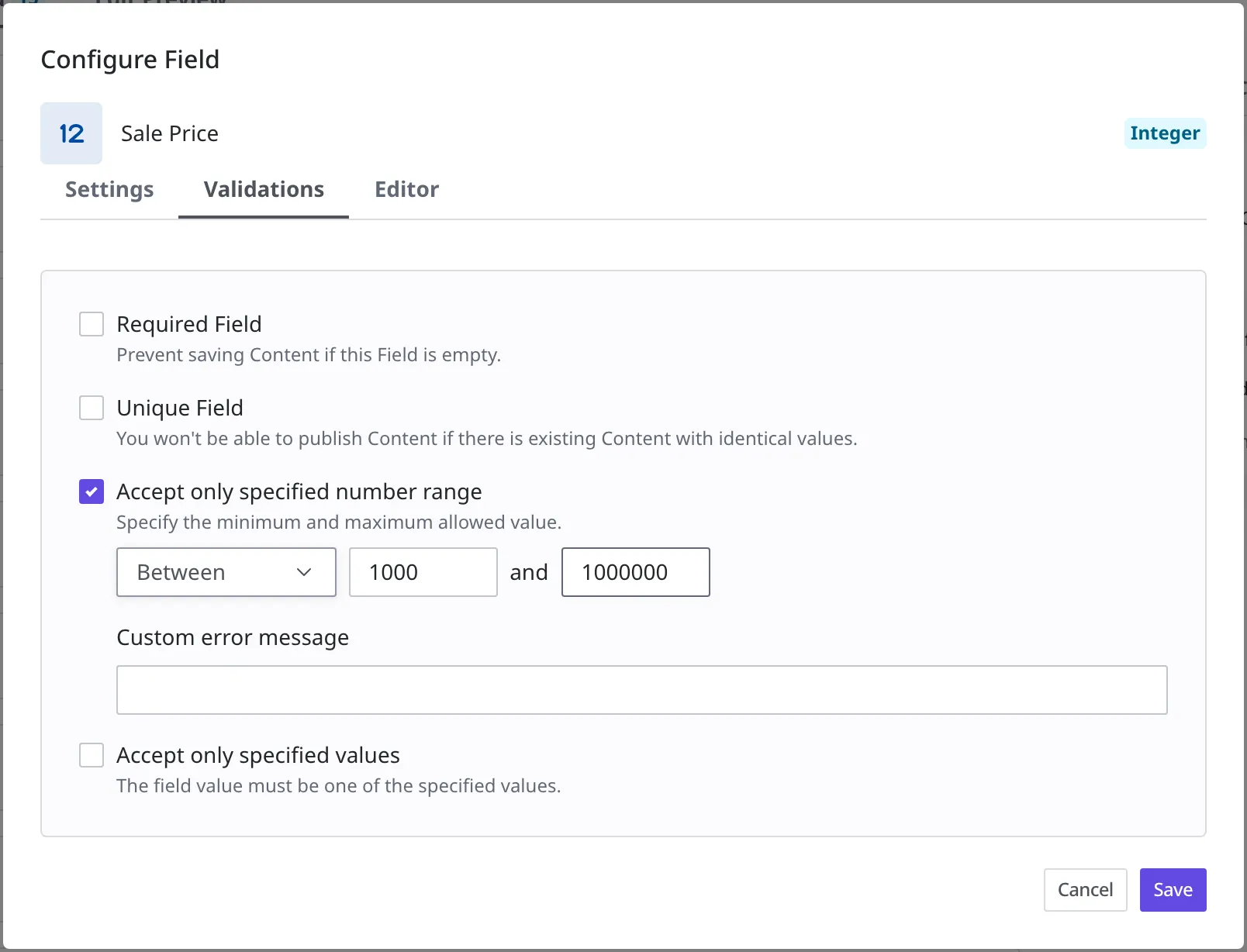
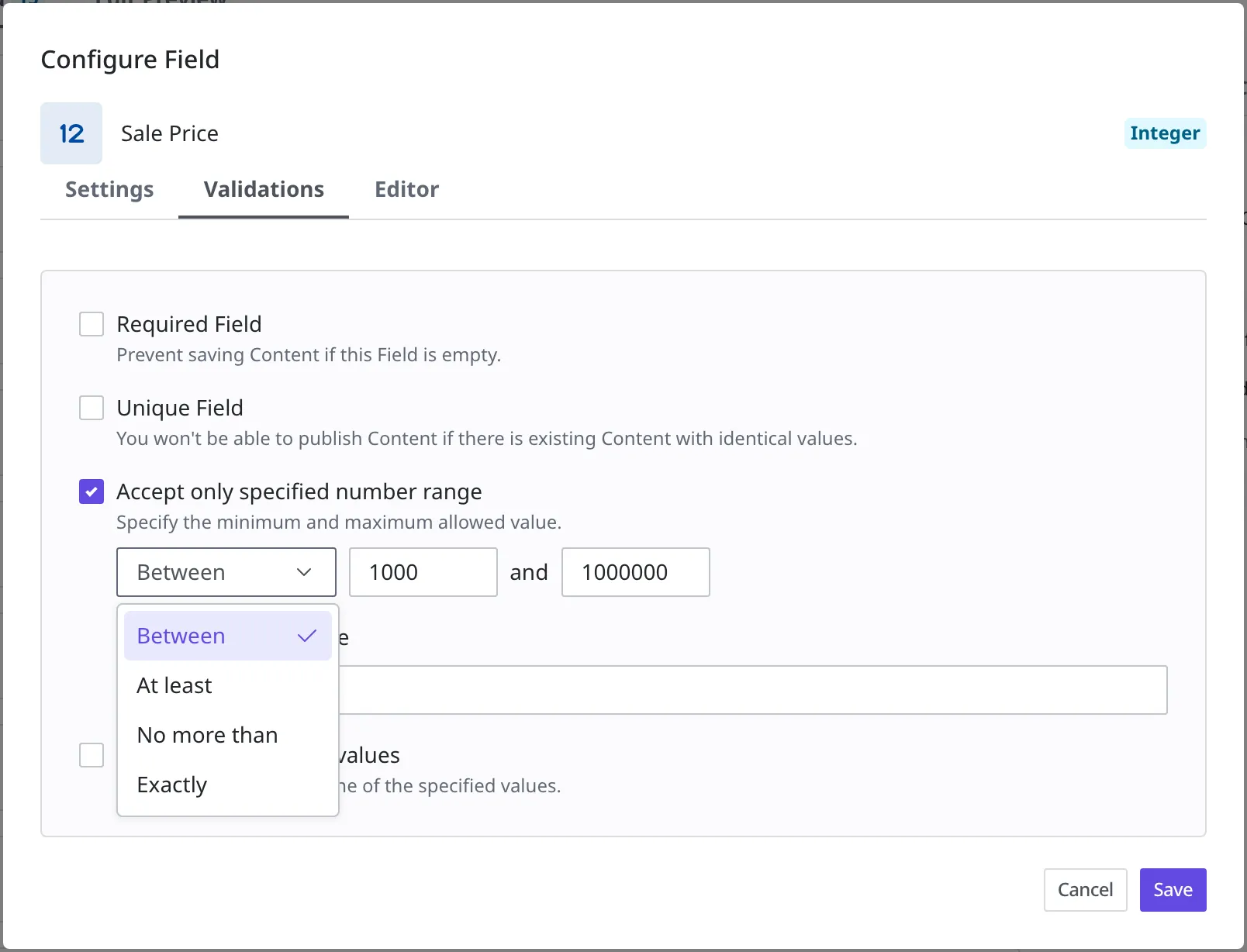
You set Limit character count, Array size, and Limit number of properties the same way. They all use the same selector as Accept only specified number range (with Between selected at first) and the same value boxes.
Build a list of accepted values
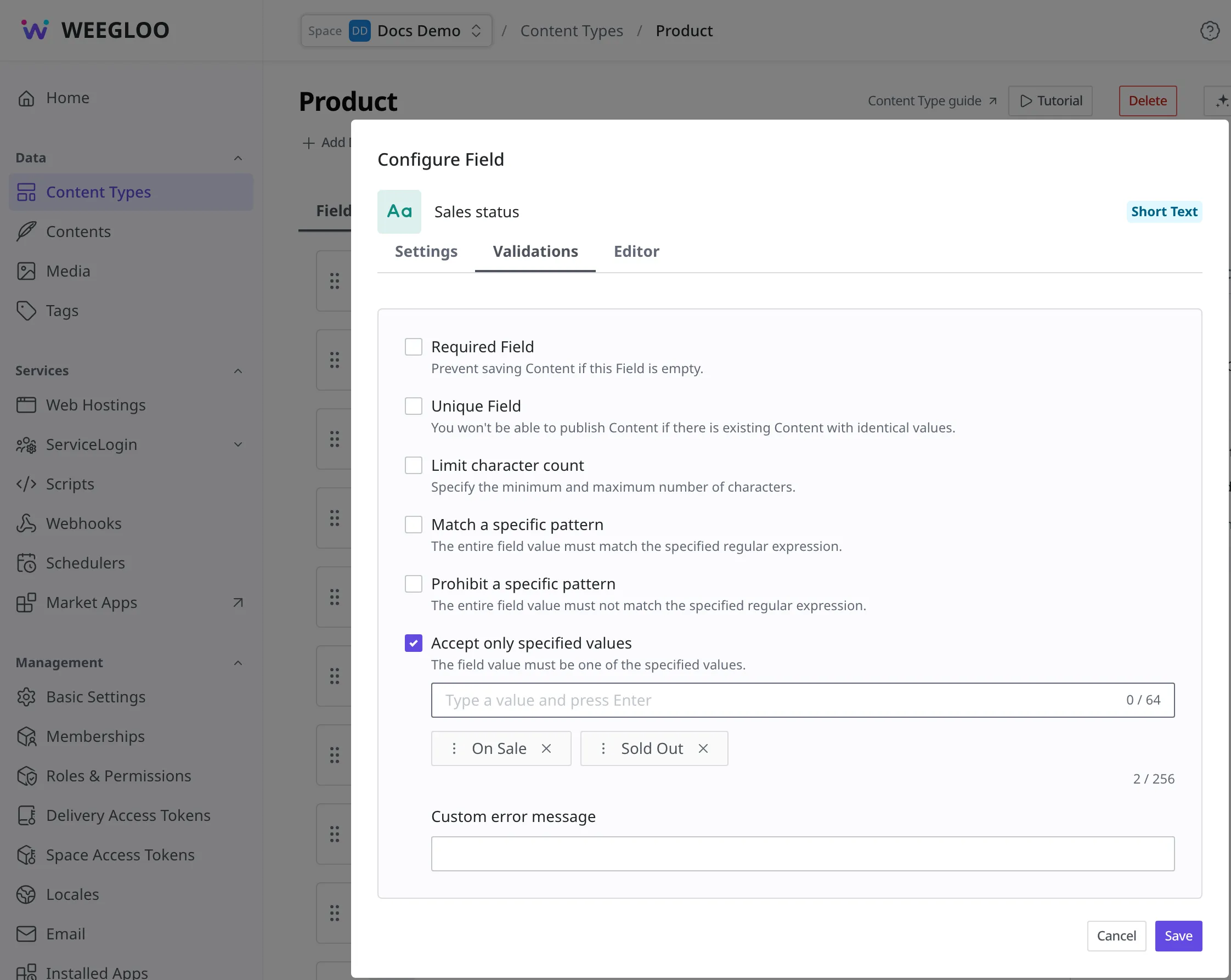
These steps allow only two values, On Sale and Sold Out, in the "Sales Status" Field.
- In the left menu, click Content Types.
- In the list, click "Product".
- Click the gear icon in the "Sales Status" Field row.
- Click the Validations tab.
- Turn on Accept only specified values.
- In the value input box, enter
On Sale. - Press Enter. The value you entered is added to the list. Each added value appears as a chip below the input box, and each chip has an × icon. You use this × icon to remove an added value.
- Add
Sold Outthe same way. - Click Save.
- Click Save at the top right of the Content Type edit screen.
Change a condition
These steps raise the maximum of Limit character count on "Product Name" from 40 to 50 characters.
- In the left menu, click Content Types.
- In the list, click "Product".
- Click the gear icon in the "Product Name" Field row.
- Click the Validations tab.
- In the maximum box of Limit character count, change the value to
50. When you open the tab, the selector (No more than) and the value box already appear below Limit character count, which you turned on. - Click Save.
- Click Save at the top right of the Content Type edit screen.
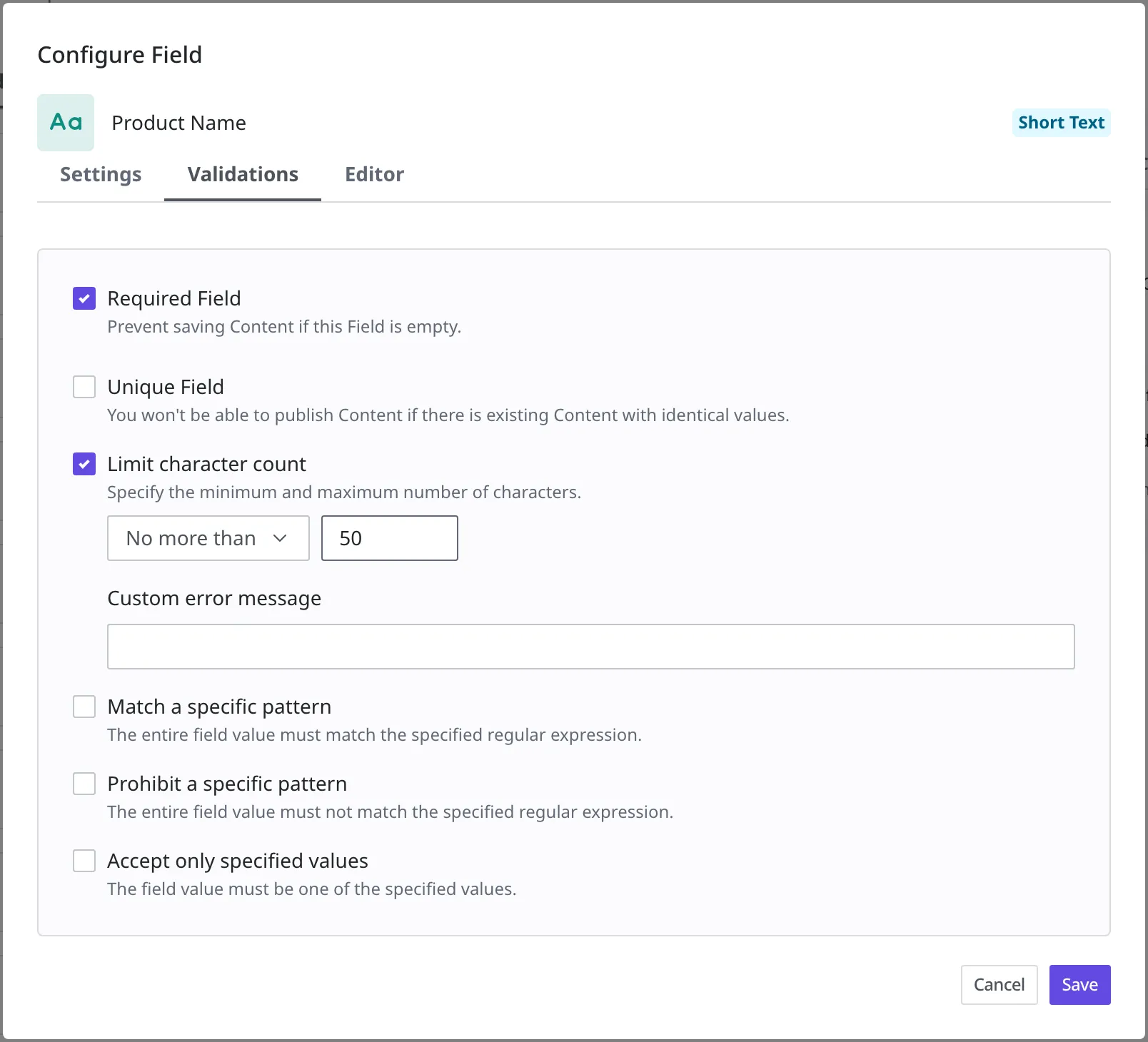
The changed condition applies from the moment you save the Content Type (A Content Type is published as soon as you save it). For what happens to products that are already saved or published when you tighten a condition, see Checks on save and on publish.
Turn off a condition
These steps turn off Match a specific pattern on "Product Code".
- In the left menu, click Content Types.
- In the list, click "Product".
- Click the gear icon in the "Product Code" Field row.
- Click the Validations tab.
- Turn off Match a specific pattern.
- Click Save.
- Click Save at the top right of the Content Type edit screen.
Turning off the condition leaves product codes that are already saved as they are. From the moment you save the Content Type, that condition is no longer checked.
You can also turn Required Field on and off in the area that opens when you click the expand icon in a Field row on the Content Type edit screen. Here too, the change takes effect only after you click Save at the top right of the Content Type edit screen.

Find the condition that blocked saving or publishing
If you save with a Required Field left empty, the field that broke the condition gets a red border. Under the field, the message This Field is required appears in red. On the right of the screen, the notice Couldn't save appears along with the text "There are invalid Fields on the Editor tab." When a value breaks another condition, messages appear in the same places. For example, a field that breaks Match a specific pattern gets a red border, and the message you set as its Custom error message appears in red below it.

- In the Couldn't save notice, click Go to Editor.
- Find the field with the red border. For a localized field, errors appear separately on each language row (for example, en-US and ko-KR). If the broken value is in a language you haven't opened on the screen, saving switches the Translation box to that language, shows it in red, and makes that language row appear.
- Fix the value as the message under the field says.
- Click the Save button at the top right.
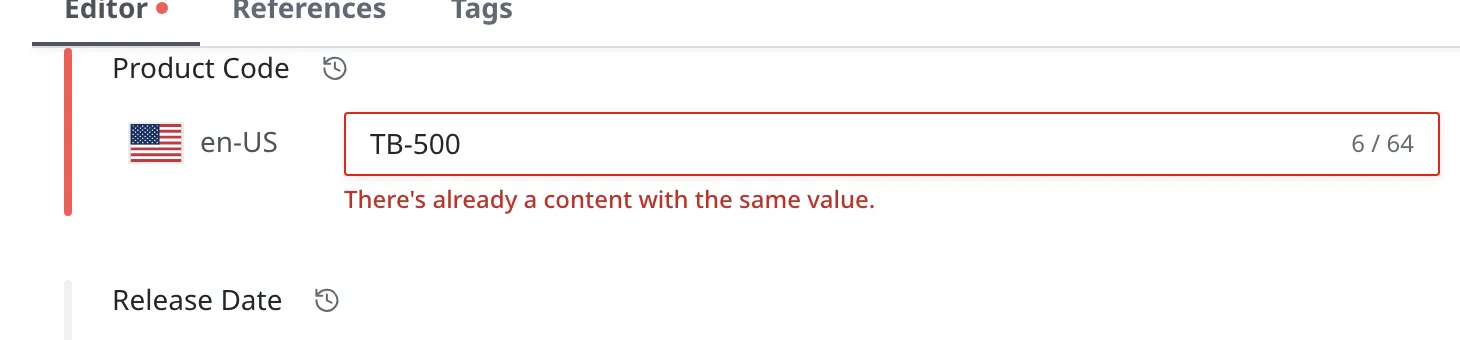
If a value breaks a condition that's checked on publish, such as Unique Field, you're blocked when you click Publish. For example, if Unique Field blocks Publish, "There's already a content with the same value." appears in red below that field. This message appears in English whatever language you use Content Studio in.
Troubleshooting
If a link field condition blocks you, see the table in Reference rules.
| Problem | Cause | What to do |
|---|---|---|
| Clicking Save shows Couldn't save | A field breaks a condition | Find and fix that field by following Find the condition that blocked saving or publishing |
| A field you never changed keeps the product from saving | A condition on that field was added or tightened later. Conditions are checked again every time you save | Fix that field's value to meet the condition, then save. If you have many products, follow the steps in Add a required Field in two steps |
| The English product name meets the conditions, but the product won't save | Conditions are checked per language. A value in another language, such as the Korean product name, breaks them | Check the value on each language row of the field |
| A localized field won't save when its Korean value is empty | The field is a Required Field, and Korean is set as a language that must be filled in | Fill in the Korean value. For which languages must be filled in, see Locale settings and rules |
| An empty field saves without being caught by a condition | Conditions check only fields that have a value | To keep the field from being left empty, turn on Required Field too |
You entered TB-500, but Match a specific pattern catches it | There's a space before or after it, or some letters are lowercase. A regular expression passes only when the whole value matches the pattern | Delete the spaces and use uppercase letters. To allow lowercase too, enter the flag i |
| A value containing a word you put in Prohibit a specific pattern isn't rejected | The pattern doesn't match the whole value. You entered only the word, or the value has several lines but there's no s flag | Put .* before and after the word. If the field takes several lines, add the flag s too |
| You entered a regular expression, and now the Content Type won't save | The pattern has a syntax error, contains regular expression syntax you can't use, or the flags include letters other than i, m, s, and u | Fix the pattern and flags, then save again |
| You set values for a condition, and now the Content Type won't save | The minimum is larger than the maximum, or a value is over the limits | Set the minimum and maximum again, within the limits |
| You set Accept only specified values, and now the Content Type won't save | You added the same value twice, there are more than 256 values, or a value is longer than that Field type can hold | Clean up the values, then save again |
| A value that's in the accepted values list won't save | Its spaces or uppercase and lowercase letters differ from the value in the list | Enter it exactly as it appears in the list, character for character |
| No value you enter will save | The conditions you combined conflict with each other | Fix the conditions, referring to With several conditions, a value must meet them all |
| Limit character count catches a value that looks shorter than the maximum | It contains characters that count as 2 or more, such as emoji | If the field might get characters like these, set a generous maximum |
| You changed another product's code, but publishing is still blocked as a duplicate | You only saved that product after editing it and didn't publish it again (Changed). Values are compared with the last published value | Publish that product again, then publish this one |
| The Custom error message shows in English even when Content Studio is in Korean | You can't set a separate message for each language | Write the message so everyone you work with can read it |
| You made a condition stricter, but products that break it are still public | Conditions are checked only at the moment you save or publish | Fix the product's values to meet the condition, then publish it again. The detailed rules are in Checks on save and on publish |
Related docs
- Content modeling: Covers what validation is and why it's used, and the flow from creating a template to filling in products.
- Field types: Covers the values each Field type can hold, their character limits, and full-text search.
- Content Type settings and rules: Covers the rules for adding Fields and changing their settings.
- Status and version rules: Covers which conditions are checked on save and which on publish.
- Reference rules: Covers conditions you set on link fields, such as Accept only specified Content Type and file conditions.
- Locale settings and rules: Covers the rules that decide which languages must be filled in on a localized field.
- Changing Content Types on a live service: Covers the steps for safely adding conditions after products have piled up.
- API reference: Covers technical specs such as the notation you need to set conditions directly from a program.