

Comment rules
This page covers everything about Comments and replies: their rules, limits, required permissions, and the tasks you do in Content Studio. If you're new to Comments, start with Comments, which explains what a Comment is, how it differs from a Tag, and the flow from leaving a Comment to getting a reply.
The examples use the same online clothing store as in Getting Started. In the "Online Store" Space of the "Cozy Closet" Organization, you left a Comment on the product "Stainless Tumbler 500ml": "Is this price of 18,000 won final? Please confirm whether I can put it up early, before the sale." Under it is the reply "Yes, it is final at 18,000 won. You may put it up early, before the sale." The colleague you work with is minji.kim@example.com.
Settings
The only thing you enter for a Comment is its text. You type the text in the input field on the Comments tab and post it with the Send button.
| Setting | Description | Default | Constraints |
|---|---|---|---|
| Text | The words you leave as a Comment | Empty | 1 to 500 characters. You can't post an empty Comment, and the same goes for replies. The current character count and 500 appear together at the bottom left of the input field, and you can't click the Send button while the field is empty or over 500 characters. Text over 500 characters isn't cut off. It stays in the field as is |
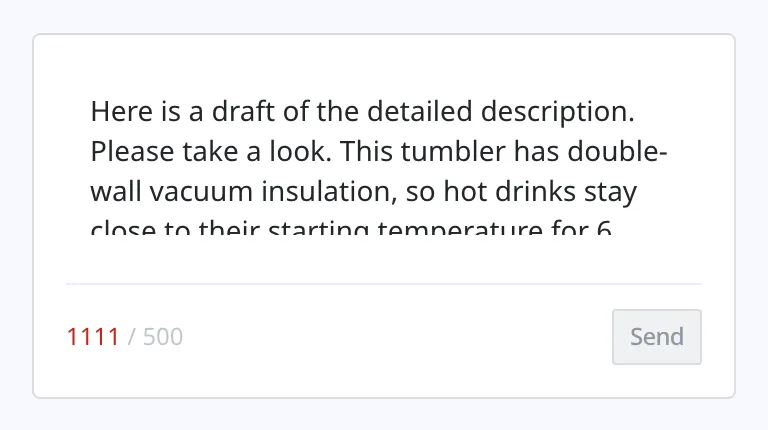
When you post a Comment, its author and the time it was written are recorded with it, and a reply also records which Comment it answers. After posting, only the text can be changed. You can't change the author or the time it was written, and you can't move a Comment to another item or move a reply under a different Comment. Who can edit the text is covered in Who can edit and delete.
What the Comments tab shows
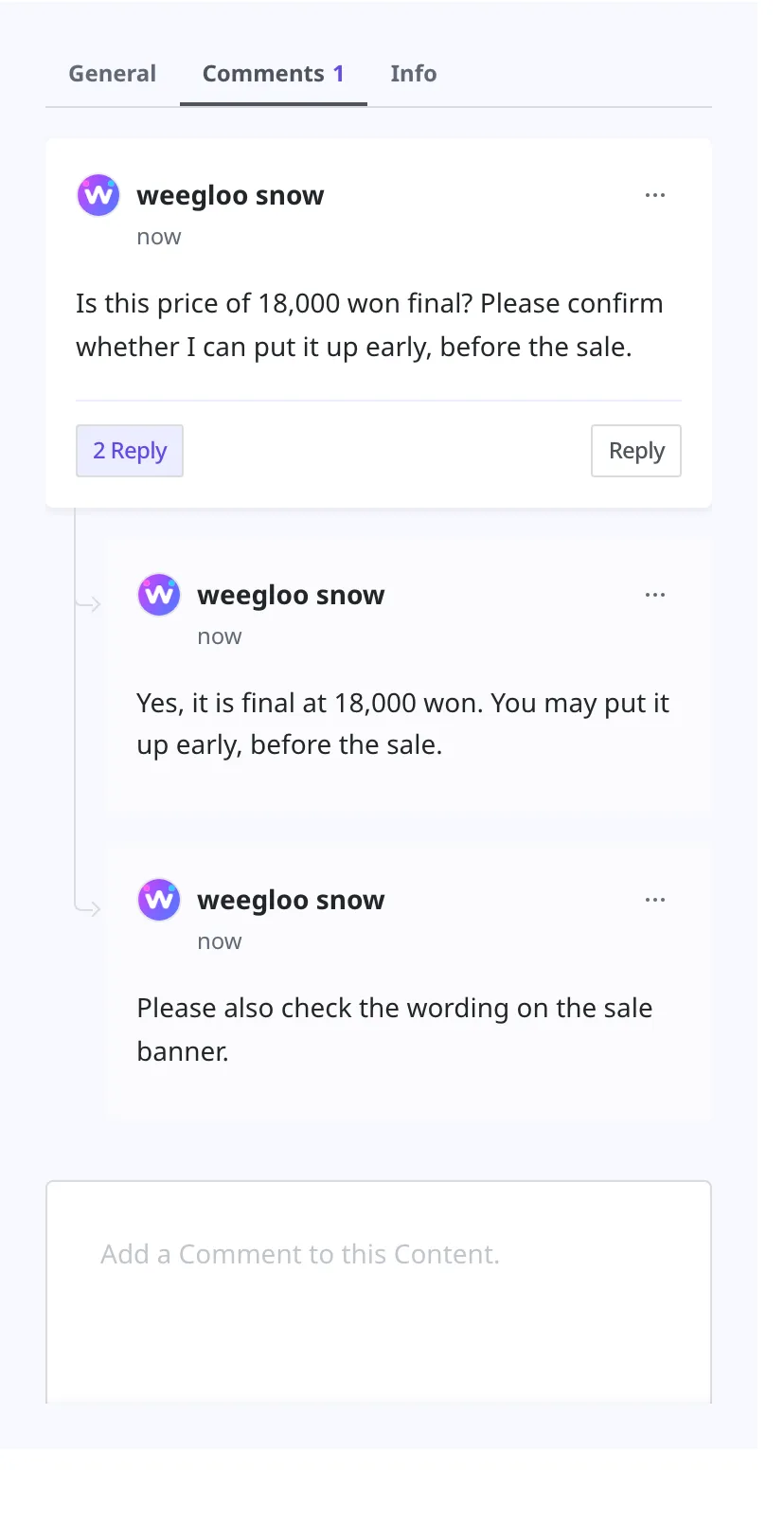
The Comments tab shows the Comments left on that item as cards. Below is the Comments tab of the product "Stainless Tumbler 500ml".
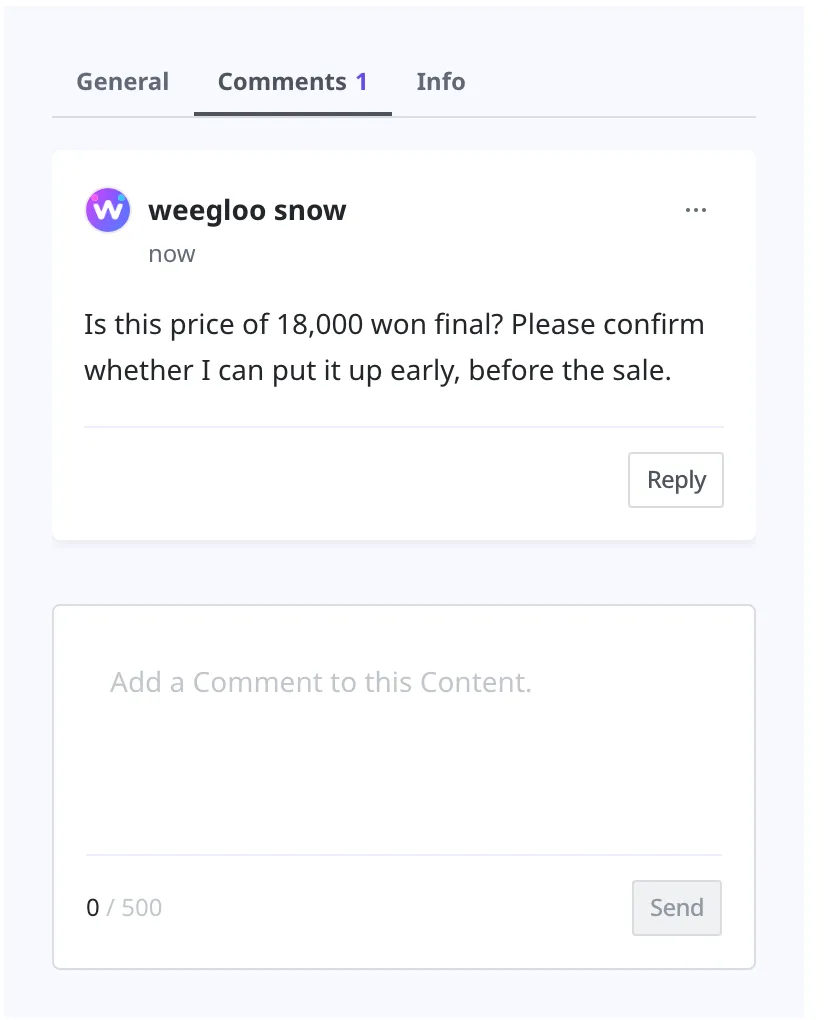
| Part | What appears |
|---|---|
| Tab name | The number of Comments appears next to Comments, as in "Comments 1". Replies don't add to this number (see the screen in Replies are grouped under the Comment) |
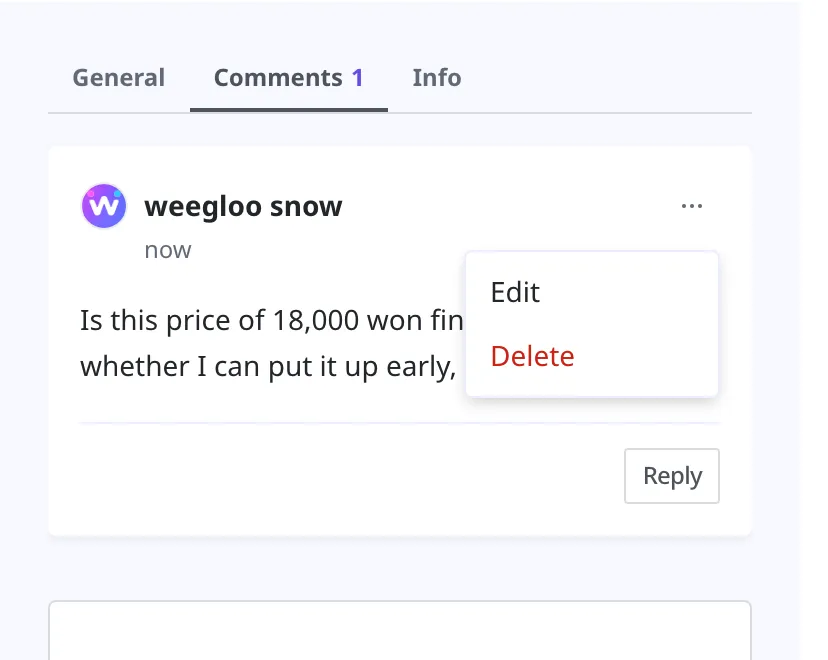
| Comment card | The author's name, the time it was written (such as "now"), and the text. Comment cards you wrote have a ⋯ menu at the top right with Edit and Delete in it. Comments other people wrote don't have this menu. A Comment whose text was edited shows Edited next to the time it was written. The Reply button is at the bottom right |
| Replies | A Comment card with replies shows the number of replies at its bottom left, as in 1 Reply. Clicking it expands the replies under the original Comment card, grouped with a connecting line and indentation |
| Input field | Below the Comment cards. It holds the placeholder "Add a Comment to this Content.", and the Send button is at its bottom right. While the field is empty, the Send button is grayed out |
Comments appear 20 at a time, newest first. If there are more, a Load more button appears at the bottom of the list, and clicking it loads the next 20. Replies appear oldest first. The number next to the tab name counts the Comments loaded so far, so if there are more than 20 Comments, it goes up each time you click Load more.
Rules
Where you can comment
You can leave a Comment on three kinds of items: Content, Media, and Content Types. You can't leave a Comment on other items, such as Scripts, Webhooks, and Locales, or on the Space itself.
| Item you leave a Comment on | Where you leave a Comment |
|---|---|
| Content | The Comments tab in the right sidebar of the edit screen (How the edit screen is laid out) |
| Media | The Comments tab in the right panel of the detail screen (What the screens show) |
| Content Type | The Comments tab on the right of the edit screen (Open the edit screen) |
- A Comment belongs only to the item it was left on. A Comment left on the product "Stainless Tumbler 500ml" appears only on that product's Comments tab. It doesn't appear on the Comments tab of the Media "Stainless Tumbler 500ml front shot", linked as the product's main photo, or of the "Product" Content Type the product follows.
- You can leave a Comment on an item only after it's created. The screens for creating new Content and Media don't have a Comments tab (How the edit screen is laid out, Media settings and rules).
Who can see Comments
Any member who can read an item can read its Comments. A colleague who can read the product "Stainless Tumbler 500ml" can read every Comment and reply on it, no matter who wrote them. The permission you need to read them is in Required permissions.
Comments aren't part of what's delivered publicly.
- Comments have no publishing step. Even when you Publish the item a Comment was left on, its Comments aren't delivered to visitors.
- When a site reads content with a Delivery Access Token (a read-only key), Comments aren't delivered with it either.
- Members (ServiceUsers) who signed up through member login (ServiceLogin) can't read or leave Comments.
Put the text visitors should see in a Field of the Content, not in a Comment, and publish it.
Comments don't change an item's status or version
Leaving, editing, or deleting a Comment doesn't change the item it was left on.
- The item's status doesn't change. Leaving a Comment on a Published product doesn't make it Changed, so you don't need to Publish it again.
- The item's version number doesn't go up, and the person and time of its last edit don't change. For when the version number goes up, see The version number goes up with every change.
- The published version saved each time you publish doesn't include Comments. So restoring the values of an earlier published version doesn't change the Comments (A published version is kept each time you publish).
- Comments aren't deleted when you Unpublish or Archive the item.
Replies are grouped under the Comment
A reply is a Comment you add as an answer to a specific Comment. You add one with the Reply button on the Comment card. The steps for replying are in Reply to a Comment.
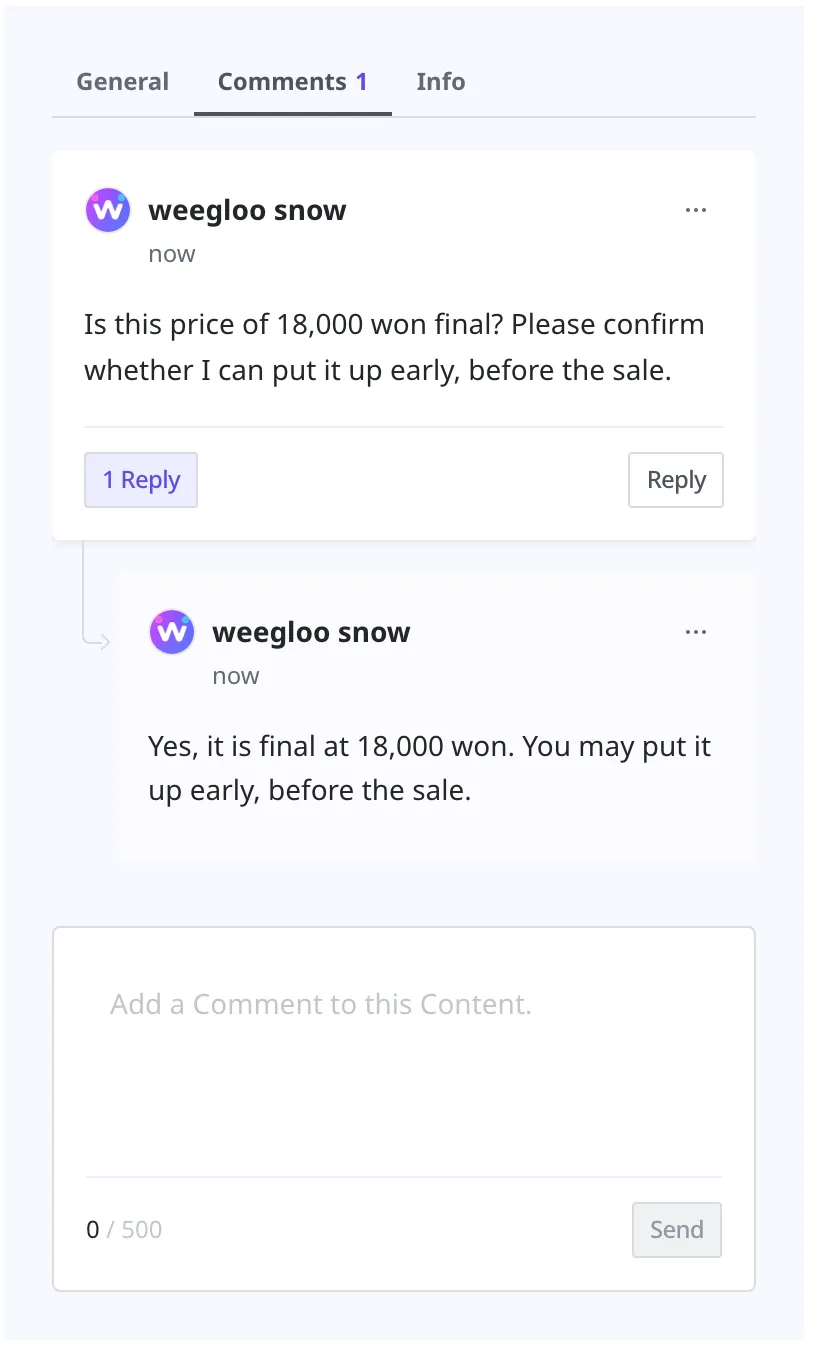
- Replies appear under the original Comment card, grouped with a connecting line and indentation. The bottom left of the original Comment card shows the number of replies, as in 1 Reply, and you click it to expand or collapse the replies. Right after you reply, they expand automatically.
- Replies follow the same rules as Comments. The length limit and who can edit and delete them are the same, and each reply counts as one Comment toward your plan's Comment count (Limits).
- Reply cards don't have a Reply button, so in Content Studio you can't reply to a reply. You can add several replies to the same Comment.
Who can edit and delete
Only the person who wrote a Comment or reply can edit or delete it. This is the same whether it was left on Content, Media, or a Content Type. Members who can read the item can read anyone's Comments, but they can't edit or delete Comments other people wrote. The same goes for members with the Space's Administrator role and for the Organization's Owner.
In Content Studio, the ⋯ menu (Edit, Delete) appears only on Comment cards you wrote.
- Even if the author leaves this Space or deletes their account, the Comments they left aren't deleted. Someone who has left the Space can't read its items, so they can't edit or delete the Comments they left either.
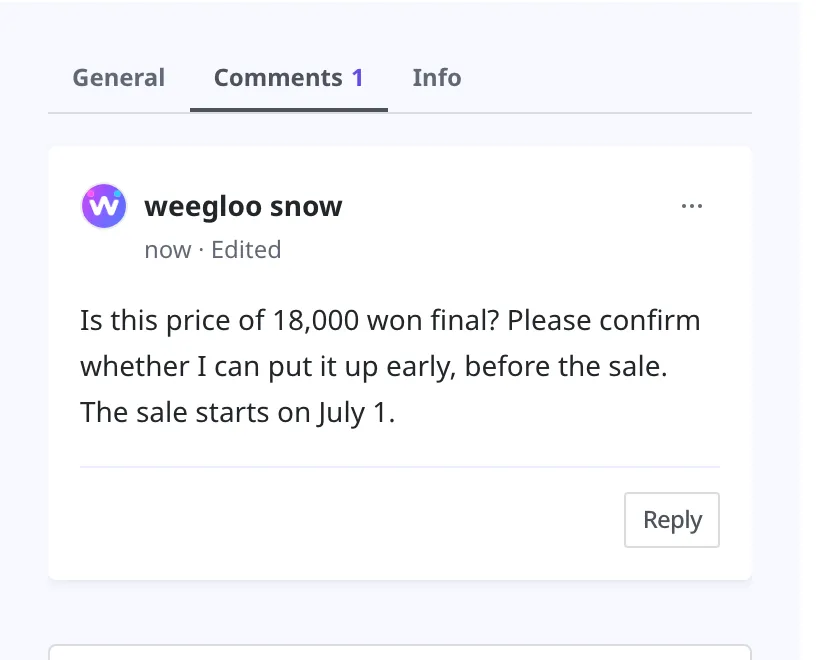
- Only the text can be edited. Editing the text doesn't change the time it was written. Instead, Edited appears next to that time. Hover over Edited to see when the Comment was last edited.
What gets deleted along with a Comment
- Deleting a Comment also deletes the replies to it, including replies other people wrote. If you delete your Comment "Is this price of 18,000 won final?", the reply "Yes, it is final at 18,000 won." under it goes away too.
- Deleting a reply leaves the original Comment and the other replies in place.
- Deleted Comments and replies can't be restored (Deletion can't be undone). To correct only the text while keeping the replies, edit the Comment instead of deleting it.
What happens to Comments when you delete the item they were left on, or the Space, is covered in Deletion rules. For Content and Media, see Content and Media can be deleted only while Draft or Archived. For a Content Type, see A Content Type can be deleted only after all its Content is deleted. For a Space, see What blocks deleting a Space and what goes with it.
Comment alerts and Webhooks
Leaving a Comment doesn't send an email alert to your colleagues. That's true even if you write a colleague's name or email address in the Comment. If a colleague really needs to see a Comment, let them know separately.
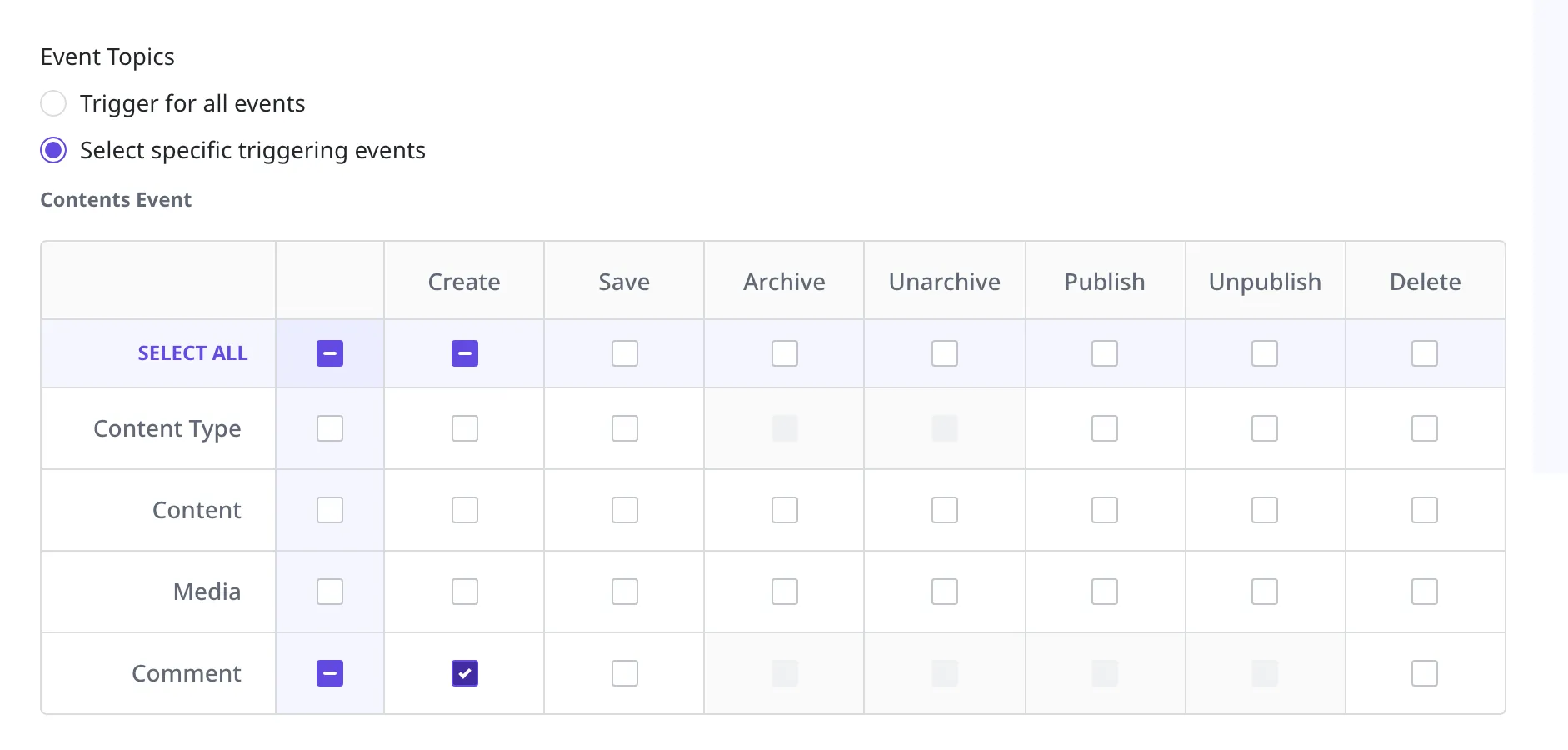
Leaving, editing, and deleting Comments are among the changes a Webhook sends requests for. If you want your team messenger to be notified whenever a colleague leaves a Comment, create a Webhook that sends a request when a Comment is created. The steps to create a Webhook are in Create a Webhook. You choose Comment changes in the Comment row of the table that appears when you select Select specific triggering events under the Webhook's Event Topics. In this row, you can choose only Create, Save, and Delete.
- A Webhook set to send requests for every change also sends a request, or runs a Script, when Comments are left, edited, or deleted. To make it react only to product changes, choose only the changes it should send requests for (Which changes send a request).
- A Webhook that reacts to Comments can't be narrowed to the item the Comment is on, or to a Content Type. For the conditions you can add, see Narrowing the scope with conditions.
- Webhooks don't send requests for replies deleted along with their original Comment, or for Comments deleted along with their item.
Limits
| Item | Limit |
|---|---|
| Length of one Comment | 1 to 500 characters. The same for replies |
| Number of Comments | Varies by plan. Check the "Comment" row in Pricing |
Each reply also counts as one Comment. The count is kept per Organization: it's the total of the Comments left on Content, Media, and Content Types in every Space in that Organization.
Once you reach the limit, you can't leave new Comments or replies. Delete Comments you don't need to free up room, or switch to a higher plan (When you exceed a count limit). The notice shown when you reach the limit is described in When you reach a resource count limit.
Required permissions
The only permission you need to read and leave Comments is Read on the item you're commenting on. For how to put actions in a role (SpaceRole), see Role and permission rules.
| What you want to do | Permission needed in your role |
|---|---|
| Reading Comments on Content, and leaving Comments and replies | Read on that Content (Content tab) |
| Reading Comments on Media, and leaving Comments and replies | Read on that Media (Media tab) |
| Reading Comments on a Content Type, and leaving Comments and replies | Read on that Content Type (Content Type tab) |
| Editing and deleting your own Comments | The same Read as above |
| Editing and deleting Comments other people wrote | No one can (Who can edit and delete) |
- You don't need Edit or Delete on the item you're commenting on. A colleague who is allowed only to read can still leave Comments and replies, and edit and delete their own Comments.
- Roles have no separate setting for allowing or denying Comments. So you can't block only the Comments on an item from a member who can read that item.
- If you've narrowed the scope of Read by Content Type, creator, or Tag, you can leave and read Comments only on items within that scope. How to narrow the scope is in The group and conditions for each action.
- A Comment left with a Personal Access Token (a key that acts for your account) or with a connected AI tool counts as written by the account that issued the token or connected the AI tool. To work with Comments from a connected AI tool, you must specify the
allgroup, which includes the Comment tools, when you connect the AI tool (MCP). - With a Space Access Token (a token that reads and writes in this Space), you can also leave and read Comments, as long as the role bound to the token has Read on that item. A Comment left this way counts as written by that token, so it can be edited and deleted only with that token.
Tasks in Content Studio
This section starts with the basic task of commenting on a product, Comment on a product, and then replying to that Comment, Reply to a Comment. After that, it covers commenting on photos and templates, and editing and deleting your own Comments.
Comment on a product
These steps leave a Comment on the "Stainless Tumbler 500ml" product to ask a colleague whether the price is final. You leave the Comment on the screen where that product (Content) is open.
- In the Content list, click "Stainless Tumbler 500ml" to open the product screen.
- Click the Comments tab in the right sidebar.
- In the input field on the Comments tab ("Add a Comment to this Content."), enter
Is this price of 18,000 won final? Please confirm whether I can put it up early, before the sale. - Click the Send button.
When a Comment card with the author's name and the time it was written appears above the input field, your Comment is posted. You can see what the Comments tab looks like after commenting in What the Comments tab shows. How many characters one Comment can hold is listed under Limits.
Reply to a Comment
To answer a question you got in a Comment, reply to that Comment. These steps are for a colleague replying to the price question left in Comment on a product.
- In the Content list, open "Stainless Tumbler 500ml".
- Click the Comments tab in the right sidebar.
- Click the Reply button at the bottom right of the Comment card you're replying to.
- In the reply input field, enter
Yes, it is final at 18,000 won. You may put it up early, before the sale. - Click the Send button.
When a reply card appears right under the original Comment, your reply is posted. You can see how replies are grouped in Replies are grouped under the Comment.
Comment on a photo
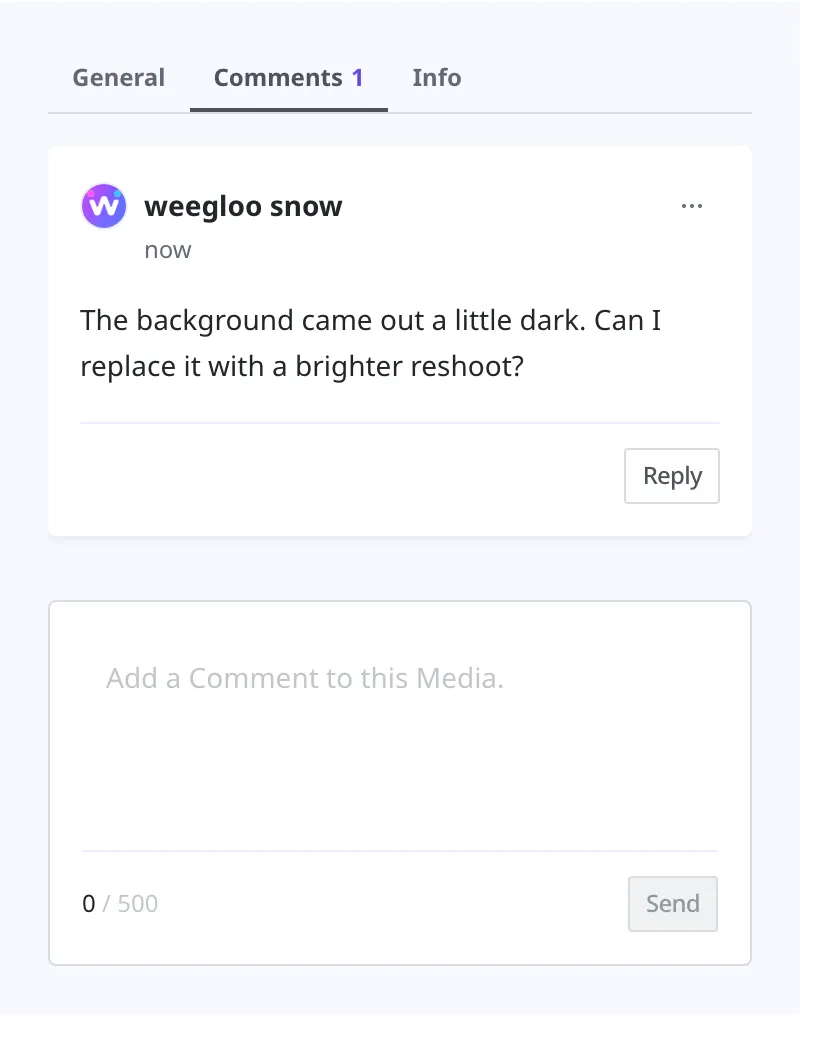
These steps leave a Comment on the tumbler's product photo, the Media "Stainless Tumbler 500ml front shot", to ask whether the photo can be retaken.
- In the Media list, open "Stainless Tumbler 500ml front shot".
- Click the Comments tab in the right panel.
- In the input field, enter
The background came out a little dark. Can I replace it with a brighter reshoot? - Click the Send button.
Comment on a template
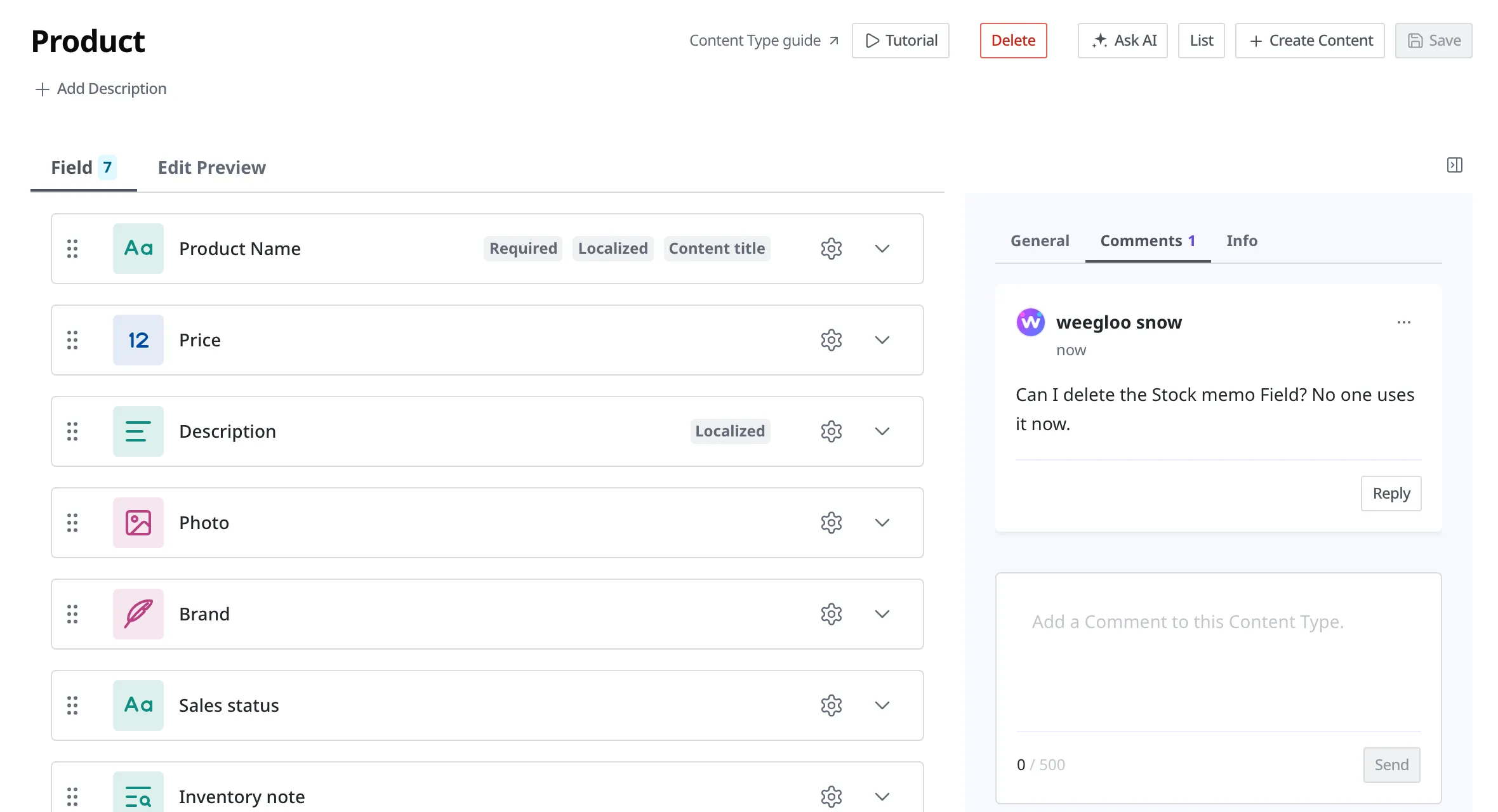
These steps leave a Comment on the "Product" Content Type to ask whether an unused Field can be deleted.
- In the left menu, click Content Types.
- In the list, click "Product".
- Click the Comments tab on the right.
- In the input field, enter
Can I delete the Stock memo Field? No one uses it now. - Click the Send button.
Leaving a Comment isn't an edit to the Content Type, so you don't need to save the Content Type after commenting.
Edit your Comment
These steps add the sale's start date to the Comment you left on the tumbler product.
- In the Content list, open "Stainless Tumbler 500ml".
- Click the Comments tab in the right sidebar.
- Click the ⋯ menu at the top right of the Comment card you want to edit.
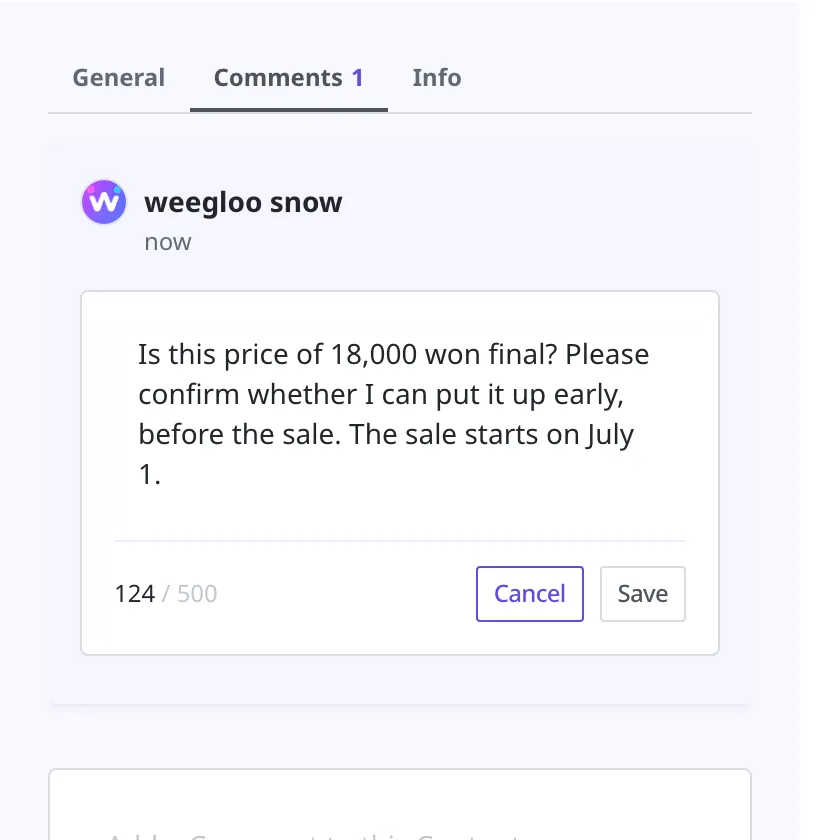
- Click Edit. The text on the Comment card turns into an input field.
- Change the text to
Is this price of 18,000 won final? Please confirm whether I can put it up early, before the sale. The sale starts on July 1. - Click the Save button at the bottom right of the field.
To cancel editing, click Cancel next to Save, or press the Esc key.
Delete a Comment
These steps delete one of two identical Comments on the tumbler product, both reading "Please add cleaning instructions to the description."
- In the Content list, open "Stainless Tumbler 500ml".
- Click the Comments tab in the right sidebar.
- Of the two Comments, click the ⋯ menu at the top right of the card you want to delete.
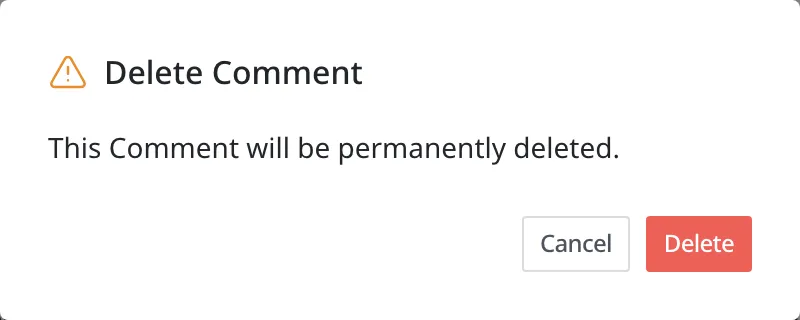
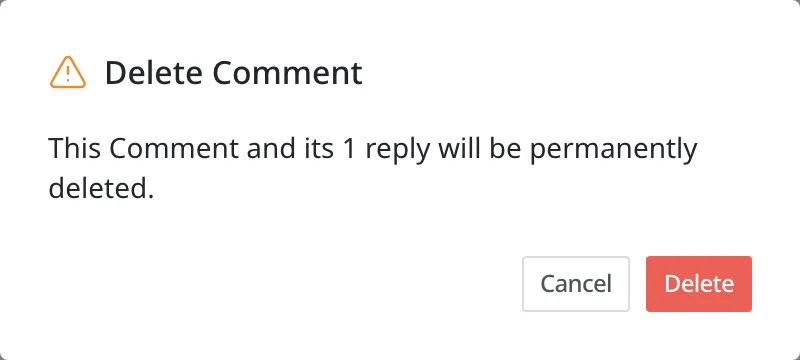
- Click Delete. A confirmation window titled "Delete Comment" opens and shows "This Comment will be permanently deleted." If the Comment has replies, the window shows how many replies will be deleted with it, as in "This Comment and its 1 reply will be permanently deleted."
- In the confirmation window, click Delete.
A deleted Comment can't be restored. Deleting a Comment that has replies deletes those replies too (What gets deleted along with a Comment).
Troubleshooting
| Problem | Cause | What to do |
|---|---|---|
| The Comments tab doesn't appear | You're on the screen for creating a new item. You can leave a Comment on an item only after it's created | Create the item first, then open it and leave your Comment |
| You can't post a Comment | The text is empty or over 500 characters | Enter between 1 and 500 characters. Split long text into several Comments |
| You can't leave new Comments or replies | The Organization has reached its Comment limit | Delete Comments you don't need to free up room, or switch to a higher plan (When you exceed a count limit) |
| You can't edit or delete a Comment a colleague wrote | Only the person who wrote a Comment can edit or delete it. This applies to members with the Administrator role too | Ask the author to edit or delete it |
| You can't delete a Comment left by a colleague who left the Space | Only the author can delete a Comment, and a colleague who left can't read this Space's items | Add that colleague back to this Space and ask them to delete it. The rules for adding members are in Member and invitation rules |
| Deleting a Comment also removed a colleague's reply | Deleting a Comment also deletes the replies to it | Deleted Comments and replies can't be restored. To keep the replies, edit the original Comment instead of deleting it |
| You left a Comment on the wrong product | Comments can't be moved to another item | Delete the misplaced Comment and post it again on the right product |
| A colleague left a Comment, but you didn't get an alert | Comments don't send email alerts | Create a Webhook that sends a request when a Comment is created (Comment alerts and Webhooks) |
| You can't create a Webhook that reacts only to Comments on the tumbler product | A Webhook that reacts to Comments can't take conditions that narrow it to the item the Comment is on or to a Content Type | Make the receiving side handle only the Comments it needs (Comment alerts and Webhooks) |
| A Webhook sends a request every time a Comment is left | A Webhook set to send requests for every change also sends them for Comment changes | Choose only the changes that Webhook should send requests for (Which changes send a request) |
| Comments don't appear on the site | Comments aren't part of what's delivered publicly | Put the text visitors should see in a Field of the Content and Publish it |
Related docs
- Comments: Covers what a Comment is, how it differs from a Tag, and the flow from leaving a Comment to getting a reply.
- Content authoring rules: Covers the layout of the Content edit screen, where the Comments tab is.
- Media settings and rules: Covers the Media detail screen, where the Comments tab is.
- Content Type settings and rules: Covers the Content Type edit screen, where the Comments tab is.
- Role and permission rules: Covers how to put the Read that Comments need in a role and narrow its scope.
- Deletion rules: Covers what gets deleted along with the item or Space a Comment was left on.
- Create a Webhook: Covers the steps to create a Webhook that sends a request to an outside service when a Comment is added.