

Member role rules
This page covers everything about the member roles (ServiceUserRole) you give signed-up members (ServiceUser). It covers what goes into a role, which role applies to a member and how that role decides what they can do, limits, permissions, and the tasks you do in Content Studio. If you're new to member roles, start with Member roles and permissions, which explains what a member role is, why you use one, and the flow from creating a role to applying it to members.
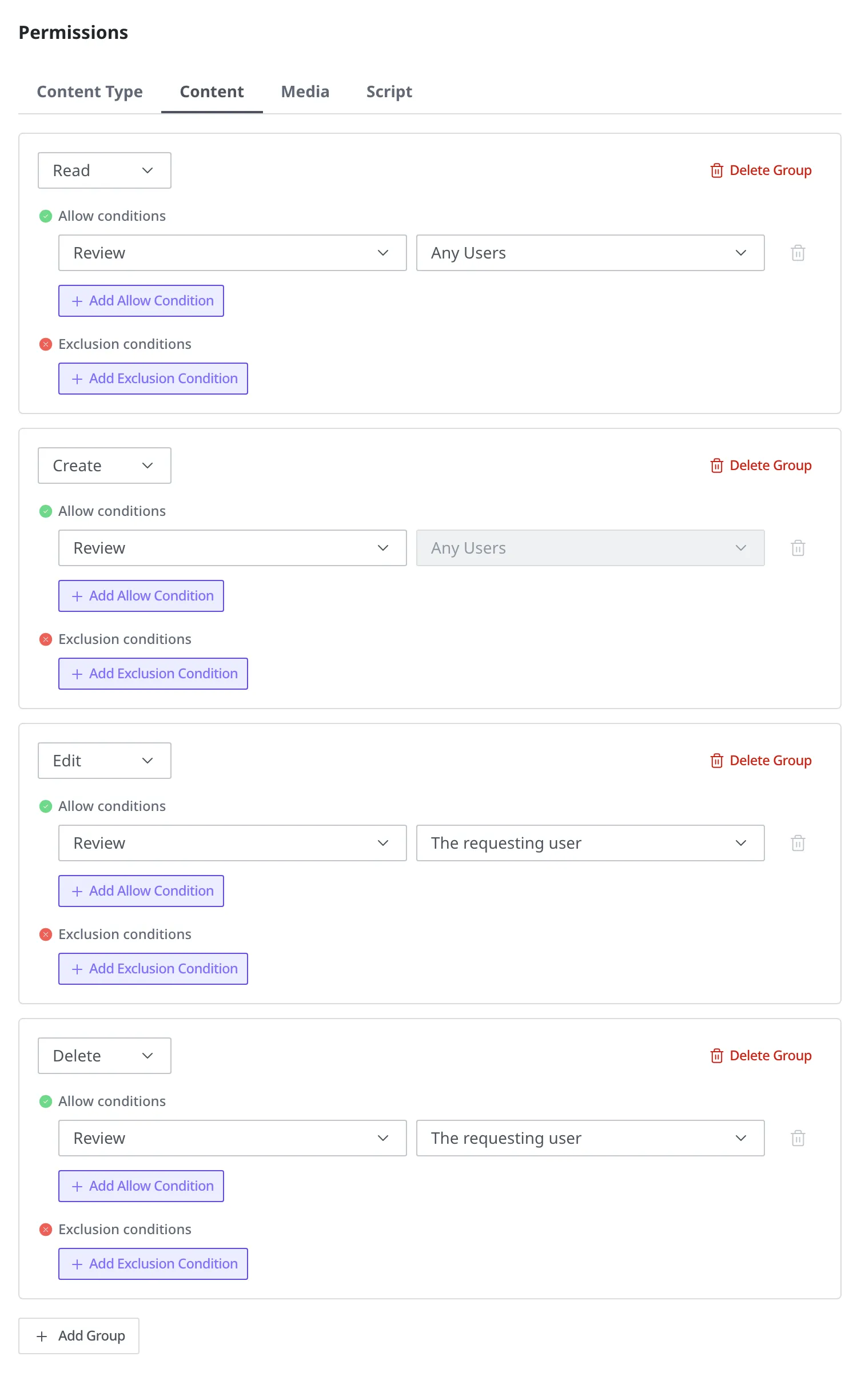
The examples use the same Space as that page: "Online Store" of the clothing store "Cozy Closet". Customers sign up on the site, write product reviews, and upload photos. Reviews are saved as Content of the "Review" Content Type, and photos as Media. Every newly signed-up member gets "Regular Member", the Default Role. Emma, a member who tidies up reviews, has been separately assigned the "Review Moderator" role. "Regular Member" has these groups.
| Tab | Group's action | Allow condition |
|---|---|---|
| Content Type | Read | Any Content Types (the group it starts with, left as is) |
| Content | Read | Content Type "Review", creator Any Users |
| Content | Create | Content Type "Review" |
| Content | Edit | Content Type "Review", creator The requesting user |
| Content | Delete | Content Type "Review", creator The requesting user |
| Media | Read | Creator Any Users |
| Media | Create | No conditions |
| Media | Delete | Creator The requesting user |
This table shows the role created by following Create a member role, plus the Delete group on the Content tab and the Create and Delete groups on the Media tab. You add those three groups by following Let members delete only their own reviews and photos. If you've only followed the creation steps, these three groups aren't there yet, and the Media tab has only a Read group.
"Review Moderator" has the same groups. The only difference is that the creator in the Delete group on the Content tab is Any Users.
Settings
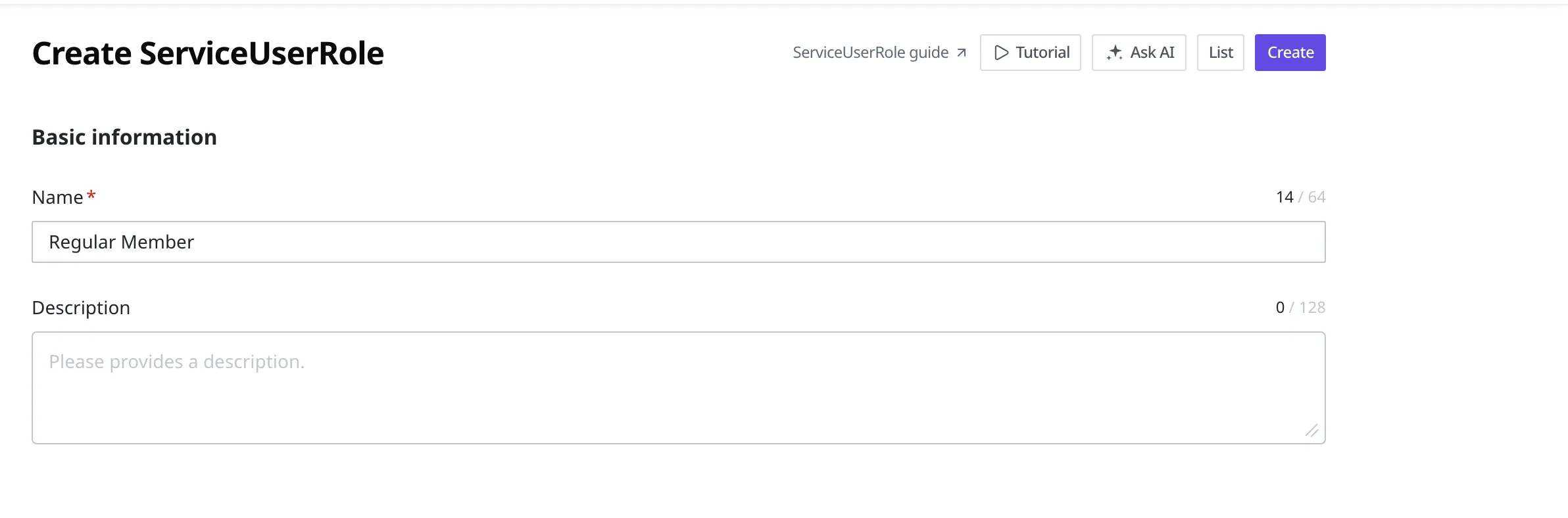
You create and edit member roles in Roles, under ServiceLogin in the Services section of the left menu. On the "Create ServiceUserRole" screen, where you create a new role, you set the name and description in Basic information at the top, and set groups on the four tabs Content Type, Content, Media, and Script under Permissions below it. It doesn't have the Settings tab that staff roles have. The Ask AI, List, and Create buttons are at the top right of the screen, and clicking Create saves the basic information and every tab at once.
The edit screen you open for a role you've created has the same layout, with Basic information and the four tabs under Permissions. The difference is the buttons at the top right. The edit screen has no ⋮ menu, and has five buttons at the top right: Delete, Ask AI, List, Set as Default Role, and Save. When you open the role used as the Default Role, Delete and Set as Default Role are grayed out and can't be clicked. You can see what the edit screen looks like in Edit a member role.
What each tab sets
| Tab | What it sets | Actions you can choose | Condition fields |
|---|---|---|---|
| Basic information (not a tab, but the part at the top of the screen) | The role's name and description | None | None |
| Content Type | Which Content Types members can load Content lists for, one Content Type at a time | Read | Content Type, creator |
| Content | What members can do with Content | All actions, Read, Create, Edit, Delete | Content Type, creator |
| Media | What members can do with photos and files (Media) | All actions, Read, Create, Delete | Creator |
| Script | Which Scripts members can run | Execute | Script, creator |
On the rule tabs (Content Type, Content, Media, and Script), each action gets one group. The Allow conditions and Exclude conditions inside a group decide the scope that action applies to. How the tabs are laid out and how you work with groups and conditions are the same as in staff roles (Role and permission rules). What differs from staff roles are the actions you can choose and the condition fields.
Name and description
| Setting | Description | Default | Constraints |
|---|---|---|---|
| Name | The name you know this member role by. It appears in the Roles list, and you select the role by this name when you set the Default Role or assign a role to a member | None. Required | 1 to 64 characters. It can be the same as another member role's name. You can change it after creating the role |
| Description | A note on which members the role is for. It appears in the Description column of the Roles list | Empty | Up to 128 characters. You can leave it empty and change it after creating the role |
Actions you can choose
On screen, actions appear under the names in the table below. Member roles have fewer actions to choose from than staff roles, because members can do less on the site than staff.
| Action | What members can then do | Content Type | Content | Media | Script |
|---|---|---|---|---|---|
| Read | Read lists and contents. On the Content Type tab, it lets members load Content lists by that Content Type | Yes | Yes | Yes | No |
| Create | Create something new. Creating Media means uploading a photo or file | No | Yes | Yes | No |
| Edit | Edit an existing Content and save it | No | Yes | No | No |
| Delete | Delete it | No | Yes | Yes | No |
| Execute | Run a Script | No | No | No | Yes |
| All actions | Covers every action on that tab at once | No | Yes | Yes | No |
- Publish, Unpublish, Archive, and Unarchive aren't on any tab. When a member creates, edits, or deletes Content, the publishing step is handled along with it (Status and version rules).
- The Content Type tab has only Read. Members can't create, edit, or delete Content Types.
- The Media tab has no Edit. Members can't edit the title or file of Media they uploaded. To change a photo, they have to upload a new one.
- The Script tab has only Execute. Members can only run Scripts. They can't view, create, or edit their definitions (Script settings and rules).
Condition fields
| Field | Description | Default | Tabs |
|---|---|---|---|
| Content Type | On the Content tab, it narrows to Content created from that template. On the Content Type tab, it narrows to that Content Type | Any Content Types | Content Type, Content |
| Creator | Decides whose creations this condition applies to | Any Users | All four tabs |
| Script | Decides which Script this condition applies to | Any Scripts | Script |
There's no Tag field (Member roles don't use Tag conditions).
In the creator field, select one of the following.
| Option | Items this condition matches | Tabs |
|---|---|---|
| Any Users | Every item, no matter who created it | All four tabs |
| The requesting user | Items the requesting member created themselves. Even members with the same role each match only the items they created | Content, Media |
| A specific user | Items created by the one you select from this Space's members (staff) or Space Access Tokens. Find and select them in the creator field's Members list or Space Access Tokens list | All four tabs |
- Signed-up members don't appear in the creator list. You can't add a condition that narrows to what one particular member created. To narrow to what members created, use The requesting user. When you expand the creator field, member names appear under Members, and token names appear under Space Access Tokens with a Token badge. You can search by name or email in the search field at the top.
- The Content Type and Script tabs don't have The requesting user. Members can't create Content Types or Scripts, so no Content Type or Script is ever created by a member.
- The creator field in a Create group is locked in Content Studio, so you can't change it (Role and permission rules).
Rules
Member roles are created separately from staff roles
Member roles (ServiceUserRole) and staff roles (SpaceRole) are created in different lists. A role created on one side can't be given on the other.
| Item | Staff role (SpaceRole) | Member role (ServiceUserRole) |
|---|---|---|
| Who gets it | Space staff members and tokens | Members who signed up on the site (ServiceUser) |
| Where you create it | Roles & Permissions | Roles under ServiceLogin |
| Tabs | Basic information and five tabs under Permissions (including Settings) | Basic information and four tabs under Permissions |
| Actions you can choose | Includes actions that change status, such as Publish and Archive | Only those in the table in Actions you can choose |
| Tag conditions | On the Content and Media tabs | None |
| The requesting user | All four tabs | Only the Content and Media tabs |
| Roles applied to one person | Every role they have | One |
| Count limit | The Role & Permission row of the plan | The ServiceUserRole row of the plan |
Whether a member can do something is decided the same way as for staff roles (Role and permission rules). But only one role applies to a member, so the rules for having several roles don't apply to members.
One role applies to each member
What a member can do is decided by the one member role applied to that member. The role that applies is decided in this order.
- If the member has a separately assigned role, that role applies.
- If there's no separately assigned role, the Default Role of the member login settings (ServiceLogin) applies.
Review Moderator
instead of the Default Role
The Delete group's creator is The requesting user in Regular Member and Any Users in Review Moderator.
- A separately assigned role doesn't add to the Default Role. It takes the place of the Default Role. None of the groups in "Regular Member" apply to Emma, who has "Review Moderator". That's why "Review Moderator" also includes the groups for reading and writing reviews.
- That one applied role decides both what the member can read and what they can create, edit, and delete.
- The Default Role isn't recorded on members when they sign up. Members without a separately assigned role always get whatever the Default Role is at that moment. So if you change the Default Role to another role, the new Default Role applies right away to every existing member without a separately assigned role. Members who are already logged in don't need to log in again.
- The notice above the Roles list is "Define which Content and Media ServiceUsers can read and write." and doesn't explain the Default Role. The Default Role is explained below the Default Role field in the ServiceLogin settings. That explanation is "The Role applied to ServiceUsers with no Role assigned, such as newly signed-up ones. Changing it changes their Role too." Whether a member signed up just now or earlier, they get the Default Role as long as they don't have a separately assigned role.
- When you edit and save a member role, the changes take effect from the next request of every member that role applies to. Members who are already logged in don't need to log in again.
- No role applies to a member whose login is blocked, so that member can't read or write anything (ServiceUser management rules).
How to set the Default Role is in ServiceLogin settings and rules, and how to assign a different role to one member is in ServiceUser management rules. You can also change the Default Role with Set as Default Role in the ⋮ menu of a row in the Roles list or with the button at the top of a role's edit screen.
"Only what you created" works only when it's in the role
WEEGLOO doesn't separately restrict members to working only with what they created. Which Content and Media a member can read, edit, and delete is decided entirely by the member role applied to that member.
- If you set the creator in the allow conditions of the Edit and Delete groups to The requesting user, members can edit and delete only what they created. Daon, who has "Regular Member", can edit Daon's own reviews but not the reviews Emma wrote.
- If you set the creator to Any Users, any member that role applies to can edit or delete what other members created too. Such edits and deletions aren't refused.
- The All actions group also covers Edit and Delete. If the All actions group's creator is Any Users, members can edit and delete other members' items even if you narrow the Edit and Delete groups to The requesting user (Role and permission rules).
- The Default Role applies to every member without a separately assigned role. So in a role you'll use as the Default Role, always narrow Edit and Delete to The requesting user.
- If you need a member who can also work with what other members created, create a separate role with only that action set to Any Users, and assign it to that member only (Let a member delete other members' reviews).
- If you narrow Read to The requesting user, members can read only what they created. Use this for Content other members shouldn't see, like one-on-one inquiries. With Read narrowed this way, receiving published Content takes one more setting on that Content Type (What a member can read).
How a new member role starts out
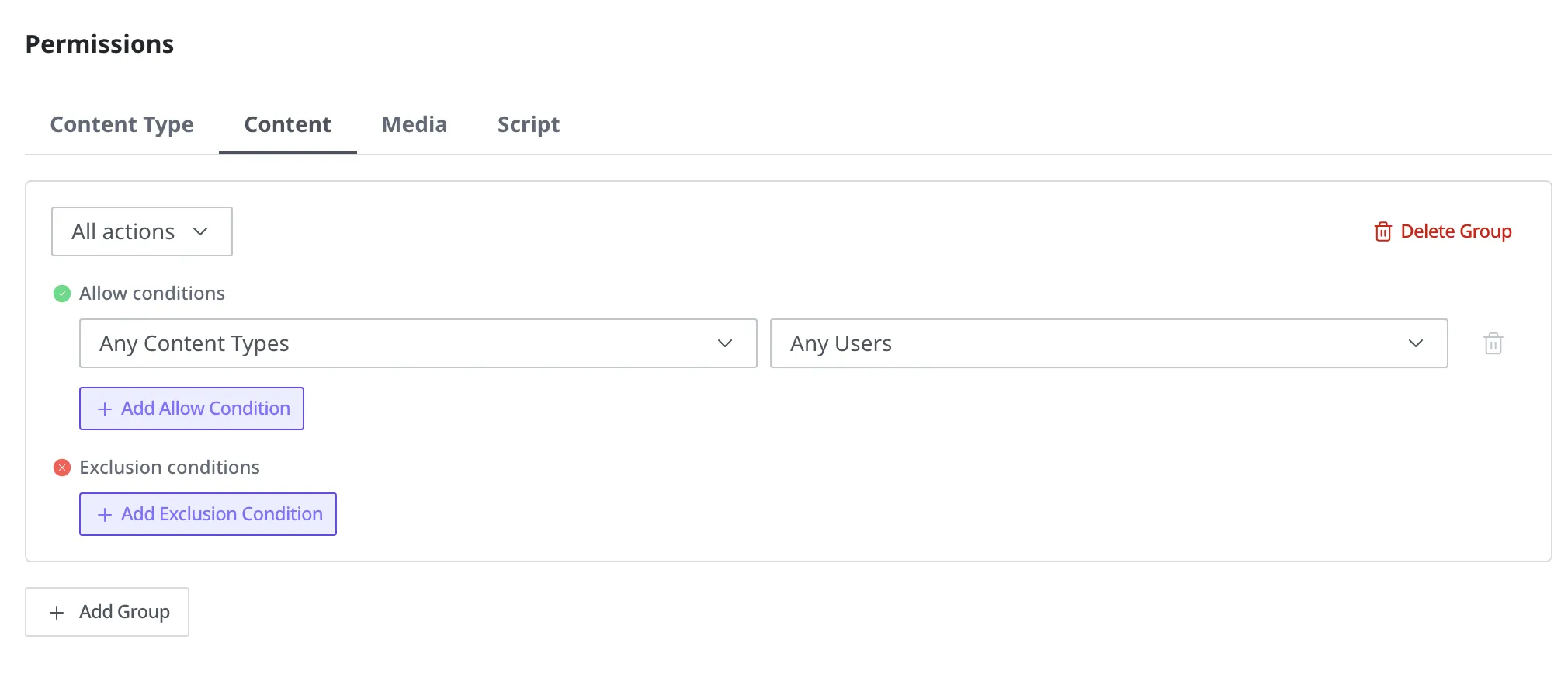
When you click Create to open a new member role, each tab already has the following groups.
| Tab | Group it starts with | If you save it as is |
|---|---|---|
| Content Type | A Read group. Its allow condition is Any Content Types | Members can load the Content list of every Content Type, by Content Type |
| Content | An All actions group. Its allow condition is Any Content Types and Any Users | Members can create, read, edit, and delete Content of every Content Type. That includes what other members and staff created |
| Media | An All actions group. Its allow condition is Any Users | Members can upload Media, and read and delete all Media. That includes what other members and staff uploaded |
| Script | None (Deny all) | Members can't run Scripts |
So don't save a new role as is. Change the All actions groups on the Content and Media tabs to groups for the actions you need, narrow their scope, and then save. The steps for narrowing are in Create a member role.
What a member can read
When the site reads Content and Media while a member is logged in, it can read only what's within the Read scope of the member role applied to that member. So even on the same screen, what can be read differs from member to member. When the site reads through public delivery with a Delivery Access Token (a read-only key), it can read only what's within the Read scope of the role (SpaceRole) bound to that token. Then everyone gets the same items, no matter who's looking.
There are two kinds of reads on the member side, and the scope is decided differently for each.
| Kind of read | What can be read | What the creator condition is checked against |
|---|---|---|
| Receiving published items | Published Content and Media within the Read scope | The creator information in the published version |
| Reading to write and edit | Content and Media as currently saved, within the Read scope, whether published or not | The person who first created the item |
- For a Read narrowed to The requesting user as creator to apply when members receive published items, the published version must include creator information. A published version of Content includes creator information only if Include author info on publish is on for its Content Type (Content Type settings and rules). Everything else is decided the same way as for staff roles (Role and permission rules).
- When members read to write and edit, even Content staff haven't published yet can be read if it's within the Read scope. To keep members from reading Content staff are still working on, narrow the Read group's allow condition to the Content Type members write ("Review").
- When members load the Content list of one Content Type by that Content Type, the Content Type tab must have Read for that Content Type. Without it, they can't load that list, even with Read on the Content tab. Loading a single Content doesn't need Read on the Content Type tab.
For how a program does each of the two kinds of reads, see the API reference.
Member roles don't use Tag conditions
- The Content and Media tabs of a member role have no Tag field. You can't narrow a member's scope by Tag.
- To handle the Content members write separately, split it by Content Type. For example, if you make "Review" and "Inquiry" different Content Types, you can set each group's scope with the Content Type field.
- A member role saved with Tag conditions in an earlier version of Content Studio is evaluated with only the Tag left out of those conditions. If it was an allow condition, it allows more broadly, regardless of Tag. If it was an exclude condition, it excludes more broadly, regardless of Tag.
- If you open such a role in Content Studio and save it again, the Tag conditions are removed. When you open it, check again that each group's scope is what you intended.
For the rules on Tags themselves, see Tag rules.
Script run permission
- For a member to run a Script on the site, the Script tab of their member role must have an Execute group for that Script. A new member role has no Execute group.
- If you select one Script in the Script field of the Execute group, members can run only that Script. In the creator field, select Any Users or the staff member who created that Script.
- What a Script does when a member runs it isn't checked again against the member role. It's carried out with the permissions of the person who saved the Script. Even though "Regular Member" can't delete other members' reviews, a member with Execute on a Script that deletes reviews can delete reviews by running that Script. So put Execute in a member role only for the Scripts you want to hand to members. The rules for checking and delegation are in Role and permission rules.
- When a Script whose Who can run it from the call URL is set to Anyone (even without a token) is run at its anonymous call address, the member role isn't checked. So even visitors who aren't logged in can run that Script (Script settings and rules).
What member roles don't cover
- Member roles can't work with Space settings. Member roles have no Settings tab.
- Members can't read or leave Comments, and a member role can't allow it either (Comment rules).
- A member role is used only in the Space where it was created. You can't assign it to members of another Space (Space settings and rules).
When you delete a member role
You can't delete a member role that's used as the Default Role, or one that's separately assigned to any member (Deletion rules). For the role used as the Default Role, you can't click Delete, and the notice "Can't delete the default Role. Assign another Role as default first" appears. The steps for deleting are in Delete a member role.
Including member roles in a Market App
For the resources you must include along with a member role or the member login settings (ServiceLogin) when you include them in a Market App, see Resources you must include together.
A member role with a condition that selects a specific user in the creator field can't be included in a Market App. How to fix it is in Resources and conditions an app can't include.
Limits
| Item | Limit |
|---|---|
| Member role Name | 1 to 64 characters |
| Member role Description | Up to 128 characters |
| Allow conditions in one group | 30 |
| Exclude conditions in one group | 30 |
| Member roles applied to one member | 1 |
| Member roles you can create in one Organization | Varies by plan |
If the name or description is longer than the limit, or there are more conditions than the limit, the member role isn't saved.
The number of member roles is counted across all the Spaces in that Organization together, separately from the number of staff roles. The limit values are in the ServiceUserRole row of Pricing. Once you reach the limit, you can't create new member roles. You can create them again after you delete member roles you don't use (When you exceed a count limit).
Required permissions
| What you want to do | Required permission |
|---|---|
| View the member role list and what each role contains | Manage ServiceLogin in your role in that Space |
| Create, edit, and delete member roles | Manage ServiceLogin |
| Set a member role as the Default Role | Manage ServiceLogin |
| Assign member roles to members | Manage ServiceLogin |
- You turn on Manage ServiceLogin on the Settings tab of a staff role (Role and permission rules). The Administrator role includes this permission.
- You work with member roles using your own account, either by logging in to Content Studio or with a Personal Access Token or a connected AI tool. You can't do it with a Space Access Token (Role and permission rules).
- Signed-up members can't view or edit member roles.
Tasks in Content Studio
The steps for creating your first member role are in Create a member role. The tasks after that cover editing a role you've made to add groups, creating more roles to give other members, and deleting roles you don't use.
With Ask AI on the screens for creating and editing a member role, you can build a question that includes what's on the screen and ask an AI agent (Ask AI from Content Studio).
Create a member role
These steps create the member role "Regular Member", which lets members read all reviews (Read), write new ones (Create), and edit only the reviews they wrote (Edit). You start with the "Review" Content Type already created in the "Online Store" Space. You can create member roles even before you turn on ServiceLogin. When you turn on ServiceLogin, the member role you'll select as the Default Role must already exist (You need five things to turn it on). If you're starting out, create this role first. Create member roles with an account that has the Manage ServiceLogin permission (Required permissions).
Open a new role and name it, then work through Set up groups on the Content tab and Set up the Media tab and save in order.
Open a new role and name it
- In the left menu, click ServiceLogin under Services.
- In the expanded menu, click Roles.
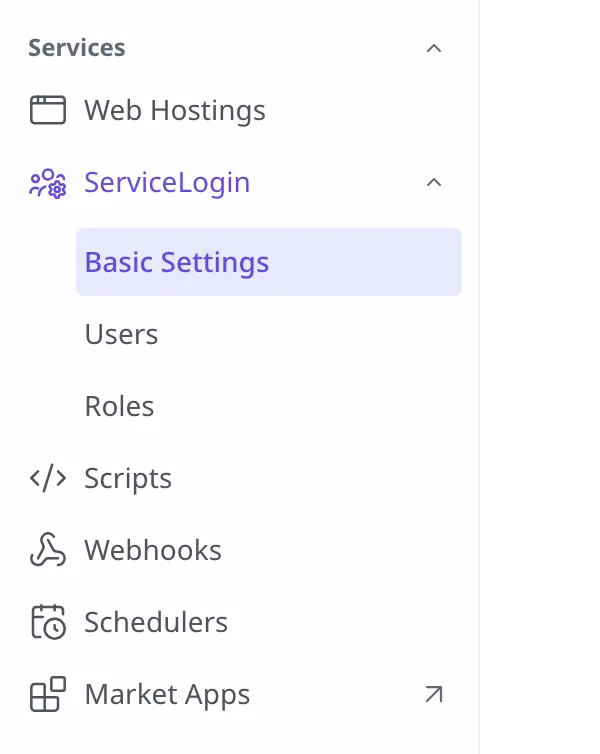
- Click the Create button at the top right of the list. The "Create ServiceUserRole" screen opens.
- In Basic information, enter
Regular Memberin the Name field. You can leave the Description field empty.
You can see what the screen looks like with the name entered in Settings. What each tab sets is in What each tab sets.
Set up groups on the Content tab
Change the All actions groups that the Content and Media tabs of a new member role start with, so that only the actions "Regular Member" needs remain. How a new member role starts out explains why you shouldn't save them as is.
- Click the Content tab.
- In the action field at the top of the All actions group, select Read.
- Under Allow conditions in that group, select "Review" in the Content Type field (it shows Any Content Types). Leave the creator field at Any Users.
- Click the Add group button at the bottom of the tab.
- In the list of actions that appears, select Create.
- In the new Create group, select "Review" in the Content Type field. The creator field of a Create group is locked.
- Click the Add group button at the bottom of the tab again.
- In the list of actions that appears, select Edit.
- In the new Edit group, select "Review" in the Content Type field.
- In the creator field of the same allow condition (it shows Any Users), select The requesting user.
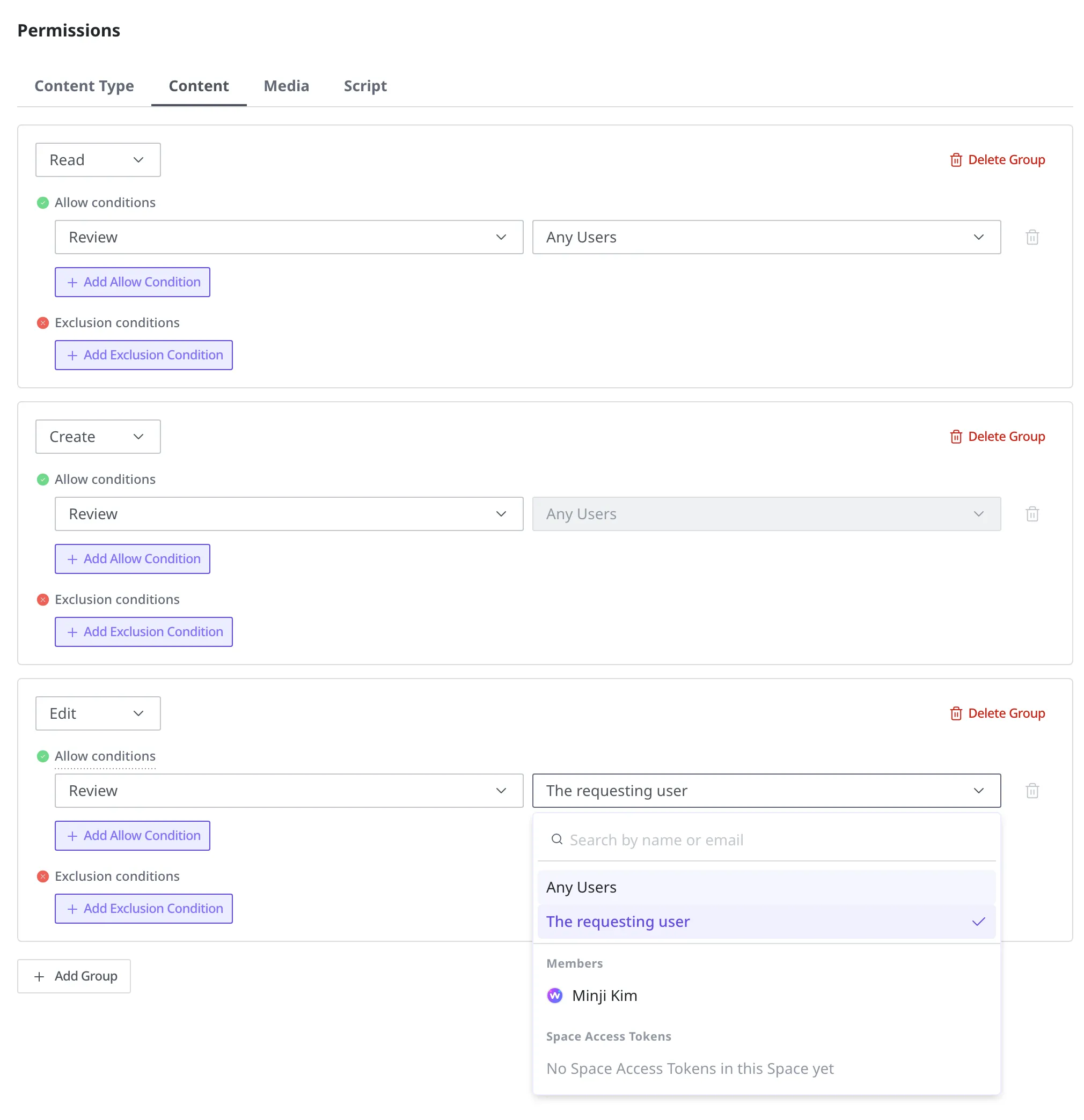
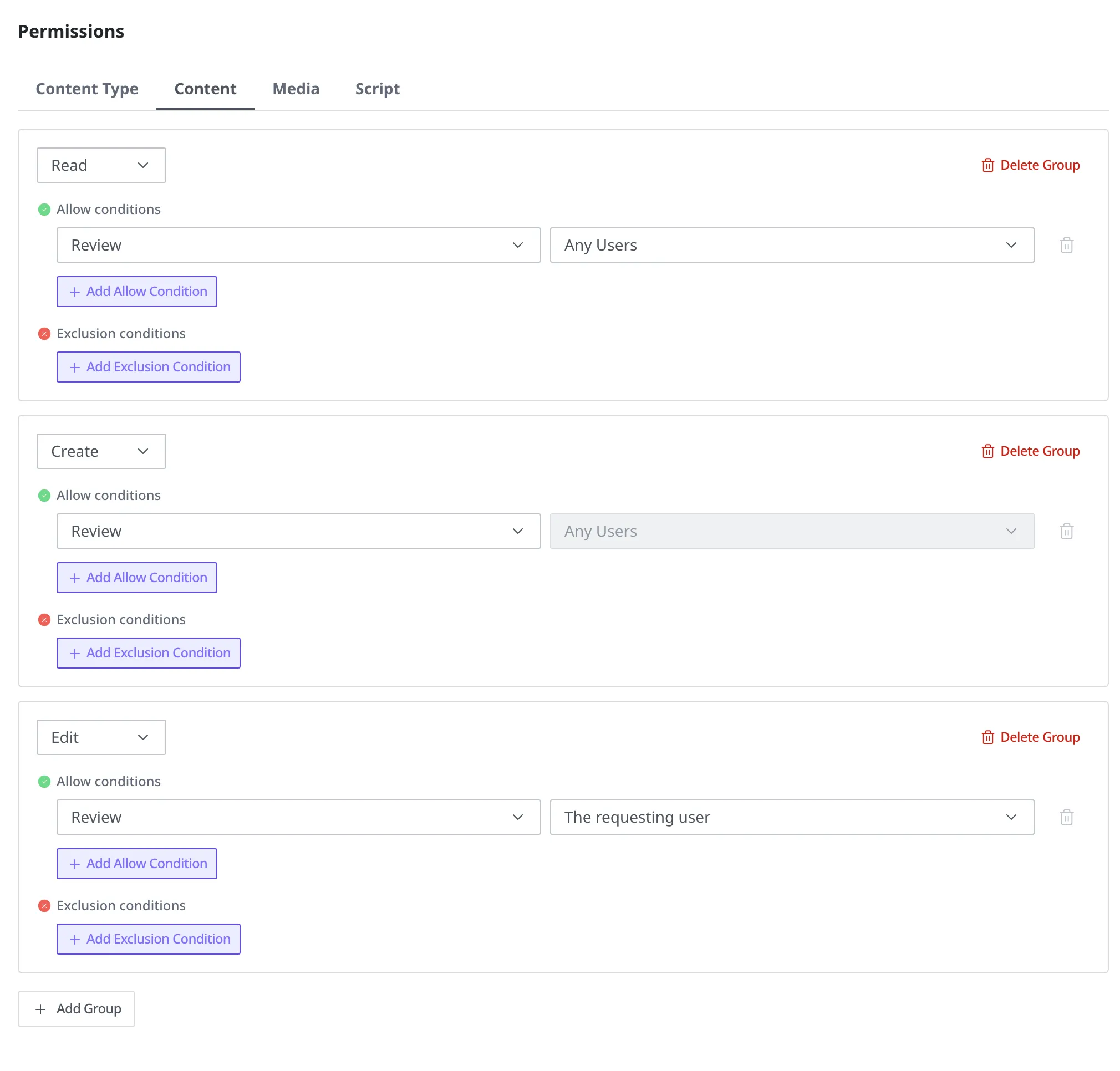
Set up the Media tab and save
These steps assume members don't upload photos, so only a Read group is left on the Media tab. The Content Type tab has a Read group from the start, so members can load the review list. The Script tab starts out empty. Leave these two tabs as they are.
- Click the Media tab.
- In the action field at the top of the All actions group, select Read. Leave the creator field at Any Users.
- Click the Create button at the top right.
When you click Create, the screen switches to the edit screen of the new "Regular Member" role. "Regular Member" also appears in the Roles list. You can see what the list looks like in Edit a member role.
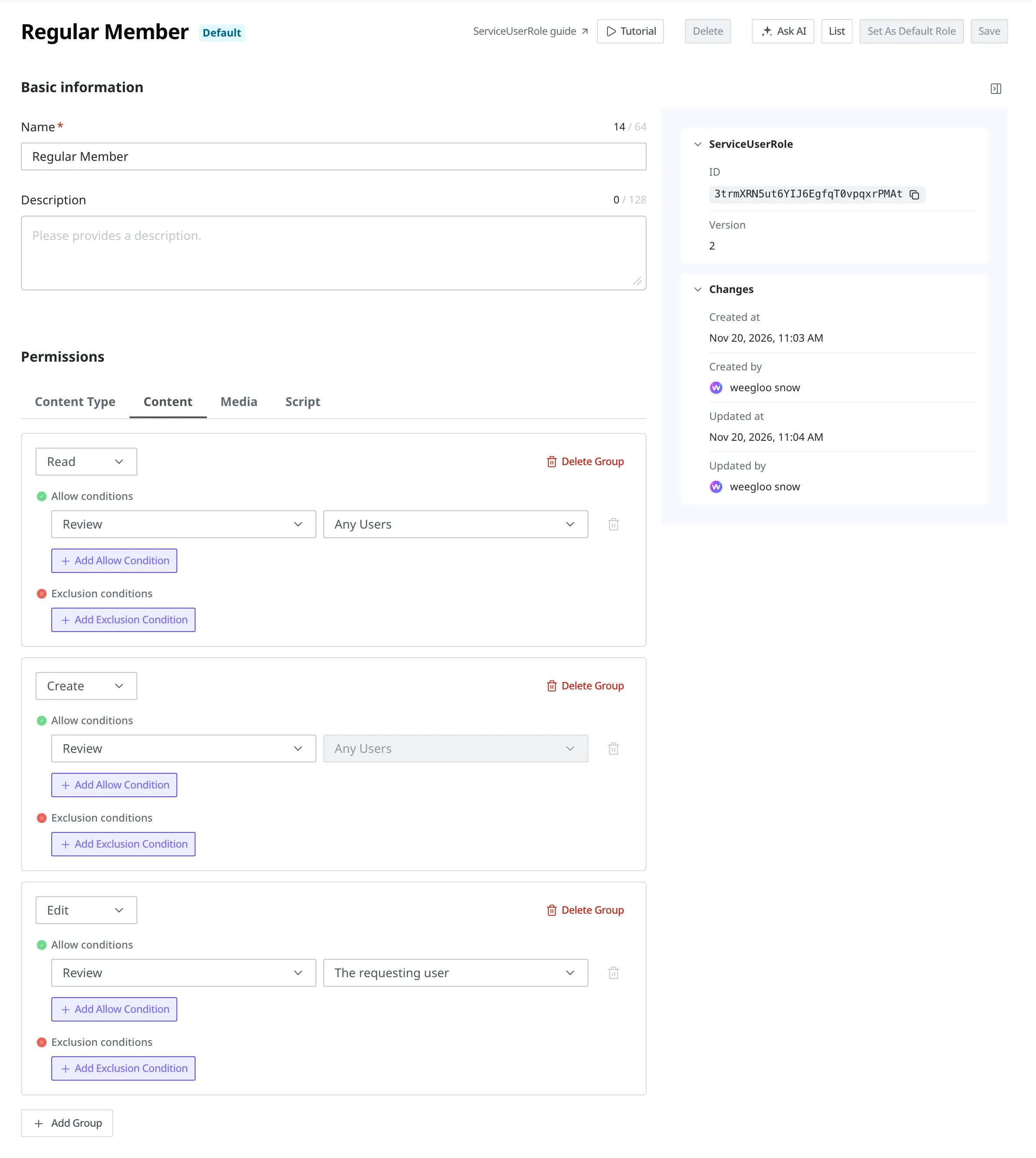
The steps for setting the role you created as the Default Role depend on whether you're turning on ServiceLogin for the first time or it's already on. When you first turn it on, see Fill in the settings form. If it's already on, see Change the Default Role.
The steps for letting members delete their own reviews, or upload and delete photos, are in Let members delete only their own reviews and photos. To let members run Scripts on the site, add an Execute group on the Script tab (Script run permission). The actions you can choose on each tab are in Actions you can choose.
Edit a member role
These steps open the "Regular Member" role again and edit it. The other tasks below also start by opening the role this way.
- In the left menu, click ServiceLogin under Services.
- In the expanded menu, click Roles. You can see what the menu looks like in Open a new role and name it.
- Click the "Regular Member" row in the list. The edit screen opens, with the role's name as its title.
- Click the tab you want to edit.
- Edit the groups and conditions.
- Click the Save button at the top right.
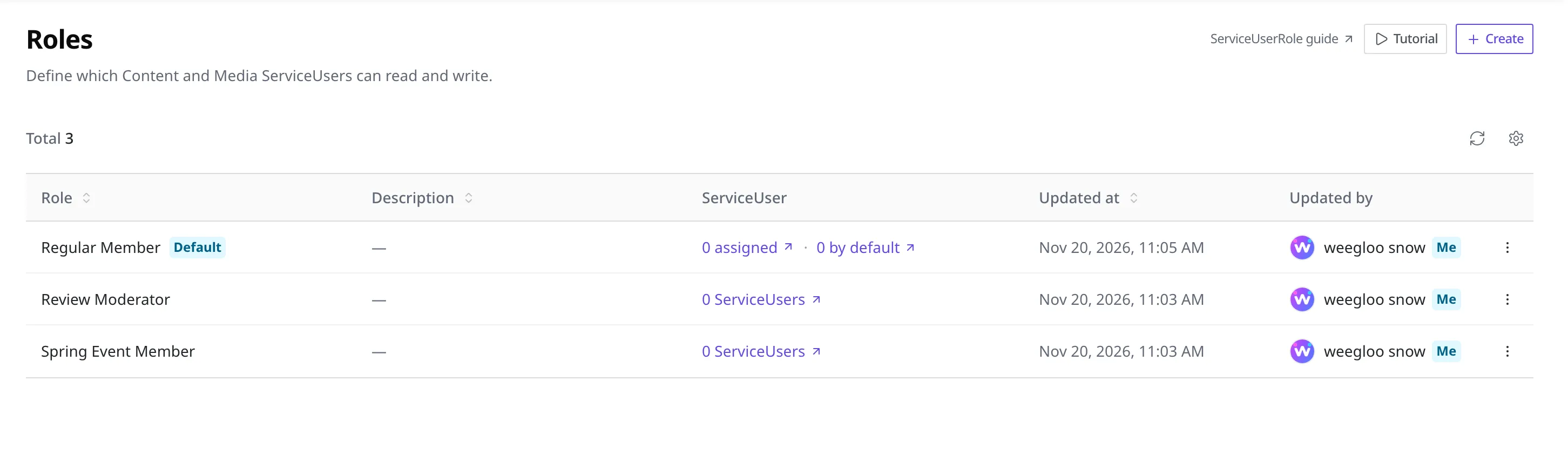
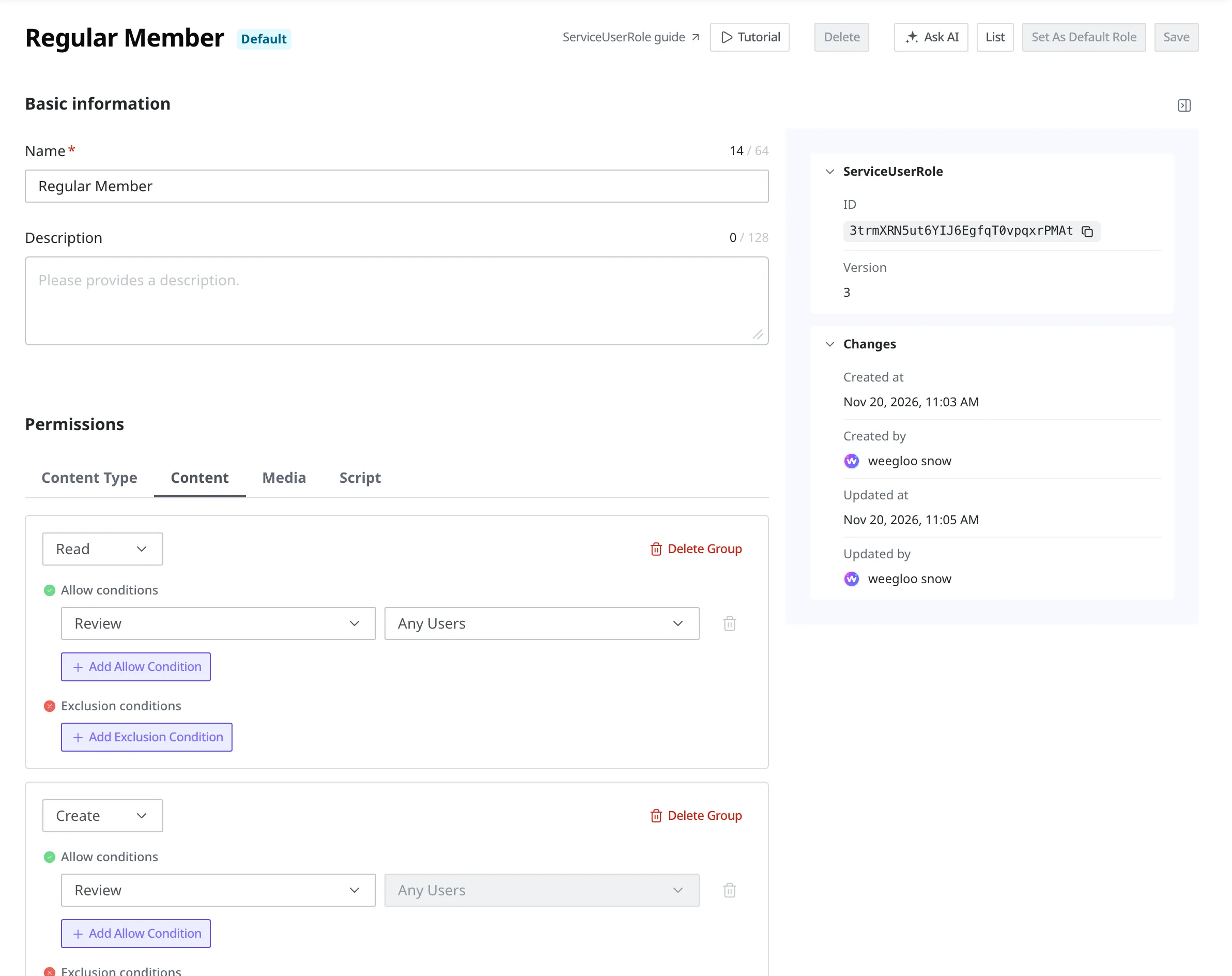
In the list, the role used as the Default Role has a Default badge next to its name. The ServiceUser column shows the number of members for each role. "Regular Member", which has the Default badge, shows something like "0 assigned · 0 by default", and other roles show something like "0 ServiceUsers". When you save, the changed permissions apply to every member that role applies to (One role applies to each member).
If two people edit the same member role at the same time, the person who saves later sees the Version Conflict notice. Discard My Changes & Reload loads what was saved first. Overwrite With My Changes overwrites what was saved first with your changes. Cancel closes only the notice window and leaves the edit screen as it is.
Let members delete only their own reviews and photos
These steps let members with "Regular Member" delete the reviews they wrote, upload photos, and delete the photos they uploaded. Do the two tasks below after opening "Regular Member" by following Edit a member role. You can do only the one you need.
Add a Delete group to the Content tab
- Click the Content tab.
- Click the Add group button at the bottom of the tab.
- In the list of actions that appears, select Delete.
- In the new Delete group, select "Review" in the Content Type field.
- In the creator field of the same allow condition (it shows Any Users), select The requesting user.
- Click the Save button at the top right.
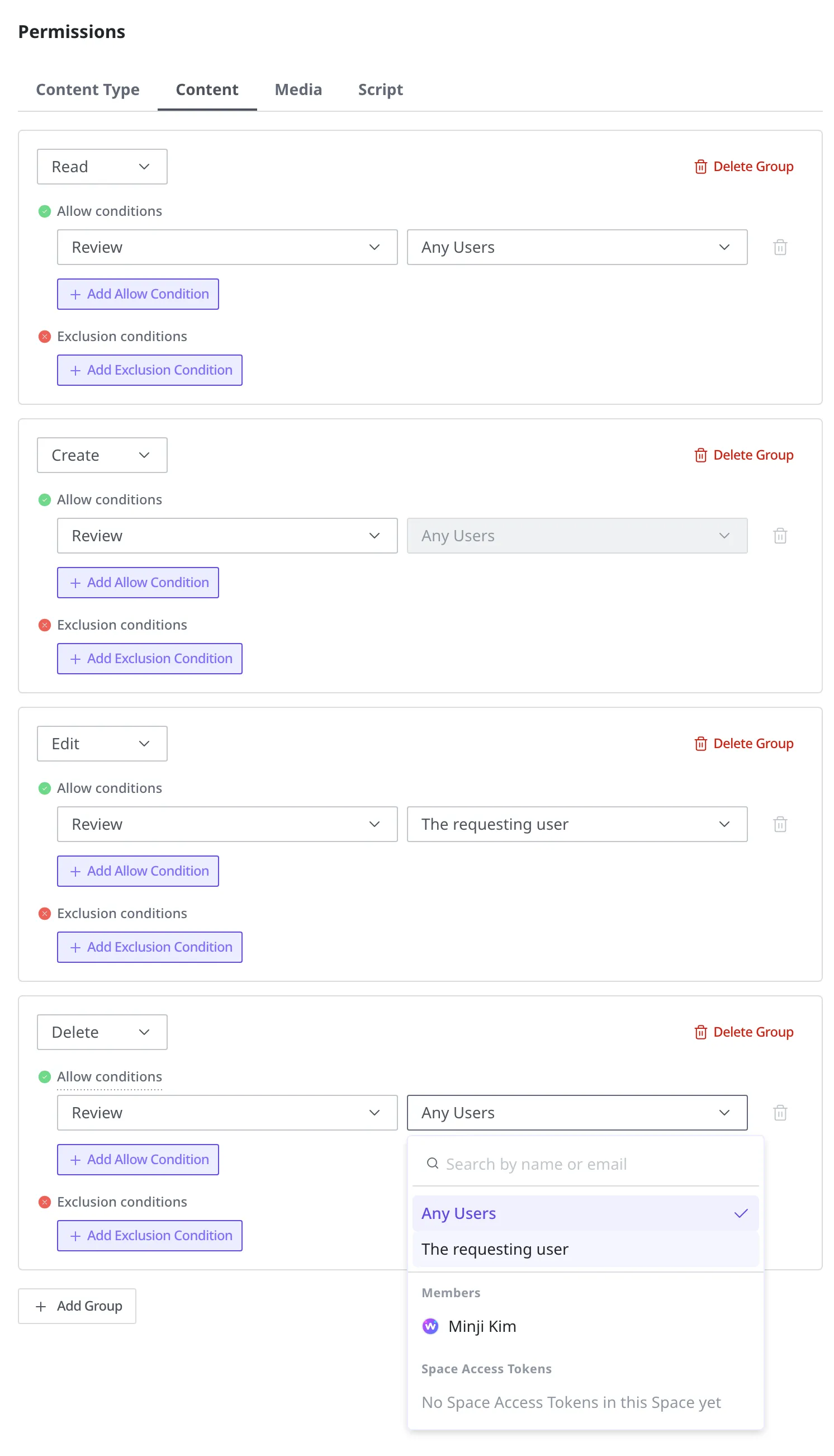
Now members can delete only the reviews they wrote. A review a member deletes is unpublished first and then deleted (Status and version rules).
Add Create and Delete groups to the Media tab
- Click the Media tab.
- Click the Add group button at the bottom of the tab.
- In the list of actions that appears, select Create. The Media tab has only the creator field, and that field is locked in a Create group. So there are no conditions to set in the new Create group (Condition fields).
- Click the Add group button at the bottom of the tab again.
- In the list of actions that appears, select Delete.
- Under Allow conditions in the new Delete group, select The requesting user in the creator field (it shows Any Users).
- Click the Save button at the top right.
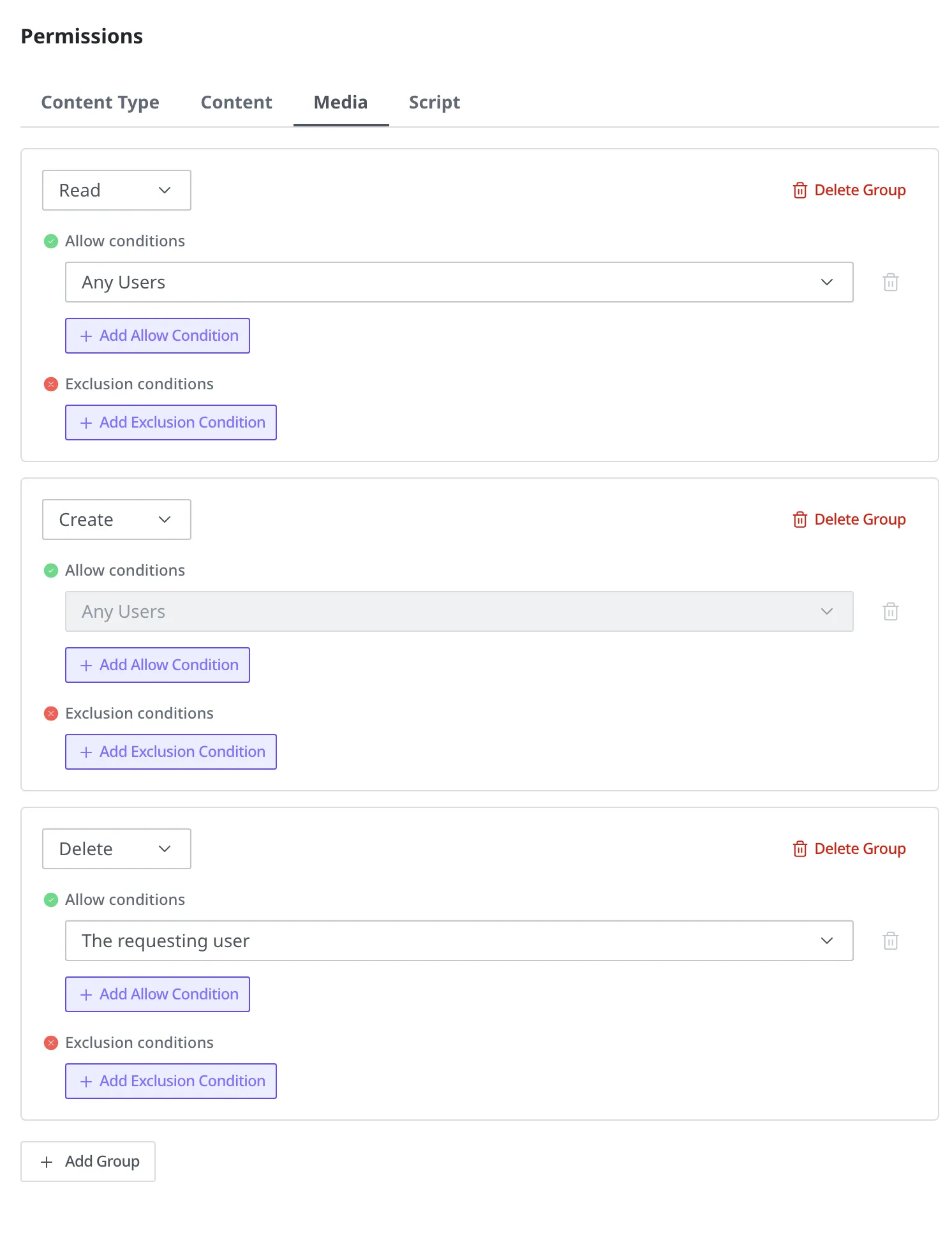
Now members can upload photos and delete only the photos they uploaded.
Let a member delete other members' reviews
These steps create the "Review Moderator" role for a member who'll tidy up reviews.
- Open the Roles list by following Edit a member role.
- Click the Create button at the top right of the list.
- In Basic information, enter
Review Moderatorin the name field. - Set up the Read, Create, and Edit groups on the Content tab by following Set up groups on the Content tab.
- Click the Add group button at the bottom of the same tab again.
- In the list of actions that appears, select Delete.
- In the new Delete group, select "Review" in the Content Type field. Leave the creator field at Any Users.
- Change the All actions group on the Media tab to a Read group by following Set up the Media tab and save. Don't click the Create at the end of those steps yet.
- On the Media tab, add a Create group and a Delete group whose creator is narrowed to The requesting user, by following Add Create and Delete groups to the Media tab. Don't click the Save at the end of those steps yet either.
- Click the Create button at the top right.
- Assign the role you created to Emma. The steps for assigning it are in ServiceUser management rules.
Now Emma can delete reviews other members wrote too, but can edit only the reviews Emma wrote. Don't set "Review Moderator" as the Default Role. If you do, every member without a separately assigned role can delete other members' reviews.
Allow running only one specific Script
These steps let members with "Regular Member" run only one Script, "Report a Review".
- Open "Regular Member" by following Edit a member role.
- Click the Script tab. If it has no groups, Deny all is shown.
- Click the Add group button at the bottom of the tab.
- In the list of actions that appears, select Execute.
- In the Allow conditions row of the new Execute group, select "Report a Review" in the Script field.
- Click the Save button at the top right.
When the Script tab has one Execute group, the Add group button isn't shown.
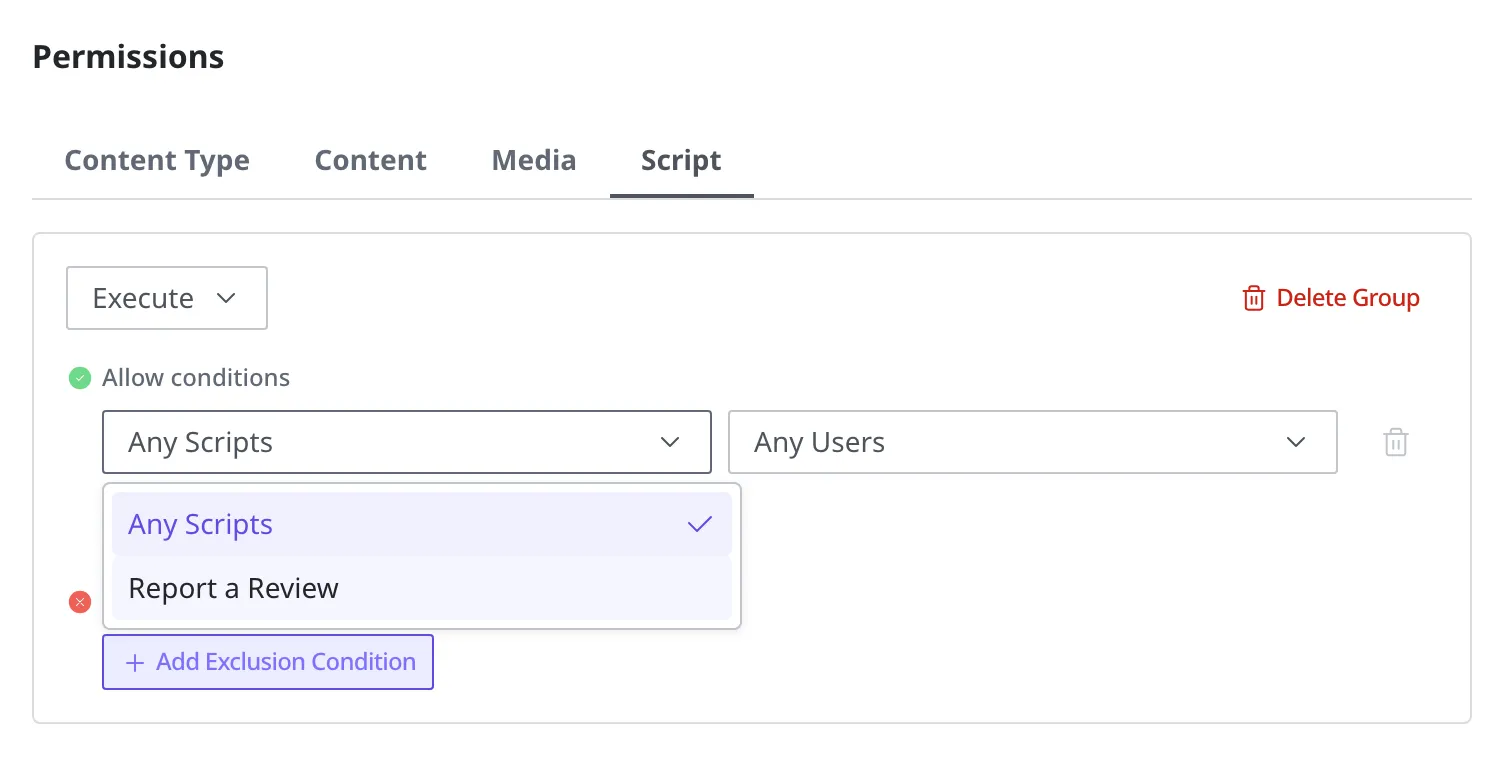
Delete a member role
These steps delete the "Spring Event Member" role, which is no longer used.
- Open the Roles list by following Edit a member role.
- Check that there's no Default badge next to the name "Spring Event Member". If there is, you can delete it only after you set another role as the Default Role.
- Check that no member has been separately assigned this role. If the ServiceUser column of the Roles list shows "0 ServiceUsers" in the "Spring Event Member" row, no member is assigned. You can also see the role applied to each member in the Role column of the Users list. If a member is assigned, change that member's role first (ServiceUser management rules).
- Click the ⋮ menu at the far right of the "Spring Event Member" row.
- Click Delete.
- In the "Delete ServiceUserRole" confirmation window, click Delete.
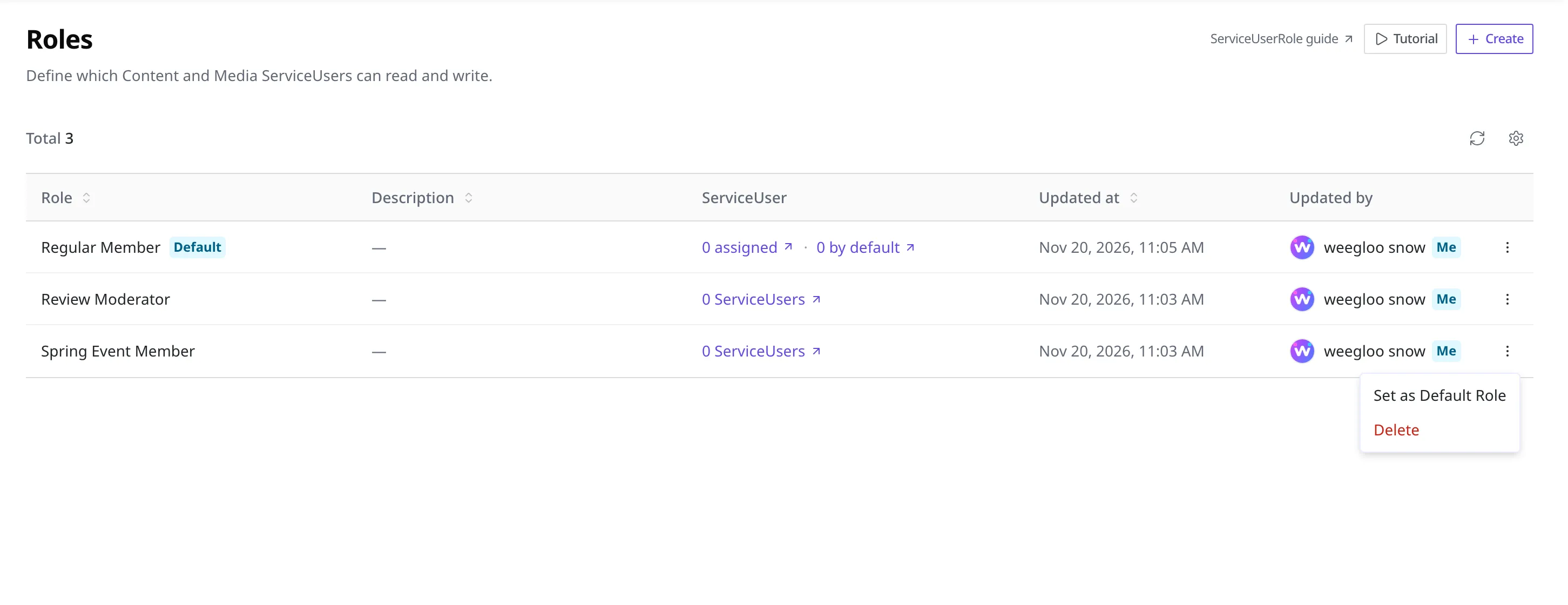
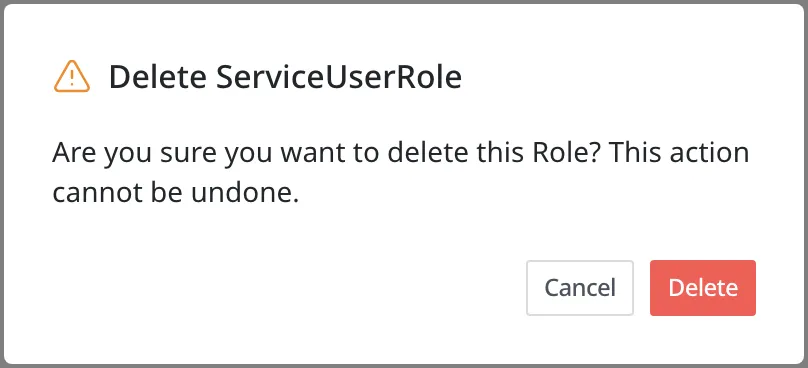
You can also delete it with the Delete button at the top right of the role's edit screen. A deleted member role can't be restored (Deletion rules).
Troubleshooting
| Problem | Cause | What to do |
|---|---|---|
| Members can edit or delete other members' reviews | The creator in the Edit group, the Delete group, or the All actions group is Any Users | Change that group's creator to The requesting user. Change the All actions group to groups for the actions you need ("Only what you created" works only when it's in the role) |
| Members with a newly created role can edit and delete even Content staff created | You saved the new role with the All actions groups it starts with unchanged | Narrow the groups on the Content and Media tabs to the actions you need (How a new member role starts out) |
| Members can't write new reviews | The Content tab has no Create group narrowed to "Review", and no All actions group | Add a Create group and select "Review" in its Content Type field |
| Members can't load the review list by the "Review" Content Type | Loading by Content Type needs Read for that Content Type on the Content Type tab, and there's no Read for "Review" | Add "Review" as an allow condition to the Read group on the Content Type tab |
| Members don't receive the reviews they wrote on the site | The Read group's creator is The requesting user, and Include author info on publish is off for the "Review" Content Type | Turn on this setting and publish the already published reviews again (Turn author info on or off) |
| Photos members uploaded aren't delivered on the site | Read on the Media tab is narrowed to The requesting user, and published versions of Media don't include creator information | Don't narrow Read on the Media tab by creator (Role and permission rules) |
| Members can read Content staff are still working on | When members read to write and edit, even unpublished Content can be read if it's within the Read scope | Narrow the Read group's allow condition to the Content Type members write (What a member can read) |
| Members can't edit photos they uploaded | The Media tab of a member role has no Edit | Have them upload a new photo |
| Member roles have no Tag field | Member roles don't use Tag conditions | Split the scope by Content Type (Member roles don't use Tag conditions) |
| A member role you narrowed by Tag applies more broadly than intended | Tag conditions added earlier are left out of the evaluation | Open the role, set the scope again without Tag, and save |
| Members don't appear in the creator list | Signed-up members can't be used in creator conditions | To narrow to what members created, use The requesting user |
| A member with a separately assigned role can't do what regular members do | A separately assigned role doesn't add to the Default Role. It takes the place of the Default Role | Put the groups regular members need into that role too |
| After you changed the Default Role, the permissions of members who already signed up changed too | Members without a separately assigned role always get whatever the Default Role is at that moment | Separately assign the previous role to members who should keep their previous permissions |
| Members can't run a Script | The Script tab has no Execute group for that Script, or the Execute group is narrowed to another Script or by creator | Add an Execute group for that Script |
| You can't click Delete for a member role | That role is the Default Role | Set another role as the Default Role, then delete it |
| Deleting a member role fails | A member has been separately assigned that role | Before deleting, check the number of assigned members in the ServiceUser column. Change that member's role, then delete it |
| You can't open the Roles menu or click the Create button | Your role doesn't have Manage ServiceLogin. Without this permission, Basic Settings, Users, and Roles under ServiceLogin appear grayed out, and hovering over them shows a notice such as "You don't have permission to access Roles. Contact your administrator." | Ask an Administrator of that Space for Manage ServiceLogin |
| You can't work with member roles using a Space Access Token | Member roles can be worked with only through a person's account | Log in to Content Studio, or use a Personal Access Token |
| The Version Conflict notice appears when you try to save | Someone else saved the same member role after you opened the screen | Click Discard My Changes & Reload, check what changed, then make your edits again and save |
| A limit notice appears when you try to create a member role | You've reached your plan's member role limit. The limit is counted across the whole Organization | Delete member roles you don't use, or upgrade your plan (When you exceed a count limit) |
| A member role isn't saved | The name is empty or longer than 64 characters, the description is longer than 128 characters, or a group has more than 30 allow or exclude conditions | Cut them down to fit the Limits |
Related docs
- Member roles and permissions: Covers, with diagrams, what a member role is and why you use one, and the flow from creating a role to applying it to members.
- ServiceLogin settings and rules: Covers the member login settings and the rules for setting the Default Role applied to new members.
- ServiceUser management rules: Covers the rules for managing signed-up members (ServiceUser) and assigning a different role to each member.
- Role and permission rules: Covers the staff role (SpaceRole) screens and the rules that decide what someone can do.
- API reference: Covers the technical specifications, such as request formats, that you need to create and manage member roles from a program.