

Locale settings and rules
This page covers every setting, rule, limit, permission, and task for Locales, the languages registered in a Space. If you're new to localization, start with Managing multiple languages, which explains what localization is and the flow from holding several languages in one Content to delivering each language.
The examples use the "Online Store" Space of the clothing store "Cozy Closet". Its default Locale is English (en-US). When Korean (ko-KR) was added, its Fallback Locale was set to English. In the product "Stainless Tumbler 500ml", the product name has Required Field turned on, and both the product name and the description are Fields with Enable localization for this Field turned on. This page calls such a Field a "localized Field". The price 18000 and the main photo field aren't localized.
Settings
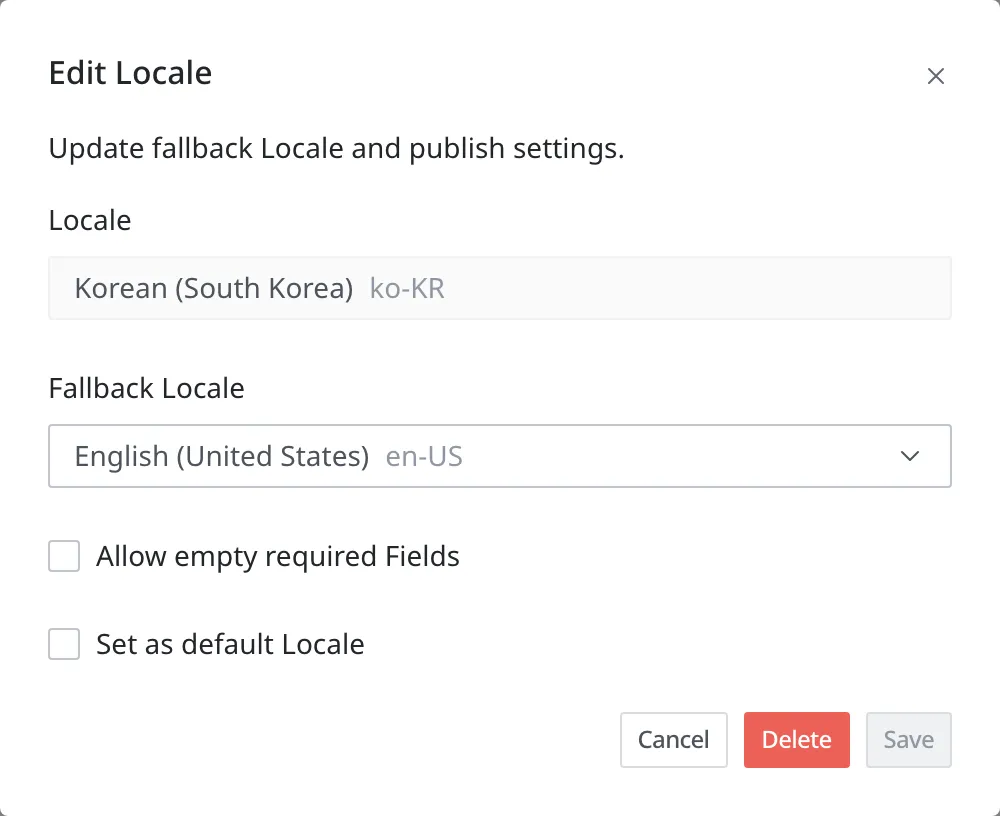
You manage Locales on the list screen that opens when you click Locales under Management in the left menu. You add a new language in the "Add Locale" window, which opens when you click Add at the top right of the list. To change the settings of a language you've already added, click that Locale in the list to open the "Edit Locale" window.
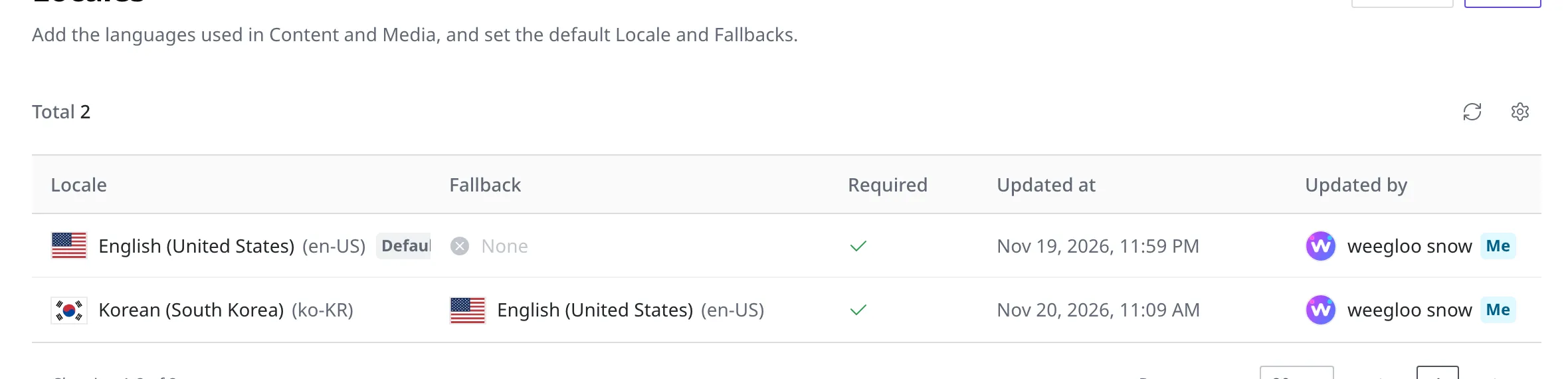
In the list, the default Locale has a Default badge. The Fallback column shows the Fallback Locale set for that Locale, or "None" if none is set. The Required column shows a check mark only for required languages. A required language is a Locale that doesn't have Allow empty required Fields turned on, so the Required column is empty for a Locale with this setting on.
| Setting | Description | Default | Constraints |
|---|---|---|---|
| Locale | The language to add. You select it in the "Add Locale" window. The screen shows the language name together with its language code (for example, Korean (South Korea) (ko-KR)) | None. You select it when you add the Locale | You can't add a language that's already been added. You can't change it after adding it, and the "Edit Locale" window shows it in a gray field. Different language codes make different Locales, as with ko and ko-KR |
| Name | An English name assigned automatically from the language code | Set by the language code | You can't set or change it yourself. The same language can appear under different names on different screens. en-US appears as English (United States) in the Locale list and as English (United States) in the Translation area of the Content editing screen |
| Fallback Locale | When a field has no value in this language, the language whose value is delivered publicly in its place | The default Locale. It's selected in advance in the "Add Locale" window. | You can't select the Locale itself, and you can't set one on the default Locale. To leave it unset, select None (no fallback) in the dropdown. The detailed rules are in Only a language with a Fallback Locale takes another language's value |
| Allow empty required Fields | When it's on, you can save and publish Content even if a localized Required Field has no value in this language. The screen also shows the description "Content can be saved and published without a value in this Locale for required Fields." | On. It starts turned on in the "Add Locale" window. Turning it off makes this language a required language too | It's in both the "Add Locale" and "Edit Locale" windows. You can't turn it on for the default Locale. Which languages must be filled in is covered in Languages a required Field needs |
| Set as default Locale | Turn it on and save to make this Locale the Space's default Locale. The Locale that was the default until then becomes a regular Locale | Off. A newly added Locale isn't the default Locale | You can't add a new Locale as the default from the start, so turn this on in the "Edit Locale" window after adding it. You can't turn it off on the current default Locale. Before you change it, check When you change the default Locale |
The steps for adding a language in the "Add Locale" window are in Add a Locale.
Rules
Each Space has one default Locale
A Space always has exactly one default Locale. When you create a Space, the language you select in Default Locale in the "Create Space" window becomes that Space's first Locale and its default Locale. English was selected when the "Online Store" Space was created.
The default Locale behaves differently from other Locales in these places:
| Where | What the default Locale does |
|---|---|
| A Field without localization | The value is stored only in the default Locale's field |
| Required Field | The default Locale's value must always be filled in. For a localized Field, that's because you can't turn on Allow empty required Fields for the default Locale. For a Field without localization, it's because the value is held only in the default Locale's field |
| Reading from public delivery without specifying a language | The default Locale's value is delivered |
| Fallback Locale | You can't set one for the default Locale. So when a default Locale field is empty, no other language's value takes its place, and an empty value is delivered |
Whether you can delete the default Locale is covered in Deleting items such as Locale, Tag, and Script. How to change the default to another Locale, and what happens to existing Content when you do, are covered in When you change the default Locale.
Languages a required Field needs
Which languages you must fill in for a Field with Required Field turned on depends on whether the Field is localized and on the Locale settings.
| Field setting | Languages you must fill in |
|---|---|
| A localized Field with Required Field turned on | Every required language: the default Locale, plus every Locale that doesn't have Allow empty required Fields turned on |
| A Field without localization, with Required Field turned on | The default Locale only |
| A Field without Required Field turned on | None. You can leave any language empty |
This check runs both when you save and when you publish. If a language that doesn't have Allow empty required Fields turned on is empty, saving is blocked as well as publishing. For the other checks that run on save and on publish, see Checks on save and on publish.
The clothing store's Korean (ko-KR) is a required language, because Allow empty required Fields was turned off after Korean was added. So the tumbler won't save while its Korean product name is empty. If you turn this setting on for Korean, you can save and publish with only the English product name filled in. Visitors viewing in Korean then receive the English product name, because English is Korean's Fallback Locale.
- If you turn on Allow empty required Fields later, you can leave that language empty from your next save and publish on.
- If you turn off Allow empty required Fields later, Content that's empty in that language is blocked the next time you save or publish it. Content that's already published stays in public delivery as it is.
- The same rule applies if you turn on localization for a Required Field later. From then on, that Field needs a value in every required language before you can save and publish (Turning localization on or off).
- The same rule is checked when signed-up members (ServiceUser) create or edit Content in your service.
Only a language with a Fallback Locale takes another language's value
When something that reads Content from public delivery, such as your online store site, receives values in one language, any field with no value entered in that language is delivered as an empty value. Another language's value is delivered in its place only when that language has a Fallback Locale. The default Locale's value doesn't take its place automatically.
A language with a Fallback Locale looks for a value in this order:
- If the requested language's field has a value, that value is delivered.
- If not, the lookup checks the field of that language's Fallback Locale.
- If there's no value there either and that language also has a Fallback Locale, the lookup checks that Fallback Locale's field next.
- The lookup stops when it finds a value or reaches a language with no Fallback Locale. If no value turns up anywhere, an empty value is delivered.
You can't set a Fallback Locale for the default Locale, so the lookup always stops once it reaches the default Locale.
Say you add Japanese (ja-JP) to the "Online Store" Space and set its Fallback Locale to Korean (ko-KR). You plan to fill in the Japanese translation later, so you've turned on Allow empty required Fields for Japanese, and you haven't entered the Korean description yet either. If the tumbler's values are as below, visitors viewing in Japanese receive the values in the last column of the table.
| Field | English (en-US, default) | Korean (ko-KR) | Japanese (ja-JP) | Value delivered for Japanese |
|---|---|---|---|---|
| Product Name | Stainless Tumbler 500ml | 스테인리스 텀블러 500ml | Empty | The Korean value "스테인리스 텀블러 500ml" |
| Description | Double-wall vacuum insulation keeps drinks hot or cold for hours. A roomy 500ml. | Empty | Empty | The English value "Double-wall vacuum insulation keeps drinks hot or cold for hours. A roomy 500ml." |
- Values are looked up separately for each Field. As the table above shows, within one Content the product name can come from Korean while the description comes from English.
- A Fallback Locale stands in for values only when they're delivered publicly. Stored values don't change, so no value appears in the Japanese field.
- When Content is read without specifying a language, the default Locale's value is delivered. If the default Locale's field is empty, an empty value is delivered even if another language has a value.
- If you change a Fallback Locale, values are looked up under the new setting without republishing the Content.
- The same rules apply when values are delivered to signed-up members (ServiceUser).
The languages you can set as a Fallback Locale have these limits:
- You can't choose the language itself.
- You can't set a Fallback Locale for the default Locale.
- A setting that makes the lookup come back to the first language isn't saved. While Korean's Fallback Locale is English, you can set Japanese's Fallback Locale to Korean. But if you then change Korean's Fallback Locale to Japanese, Japanese and Korean point to each other, so the change isn't saved.
- You can only choose Locales in that Space. The conditions for deleting a Locale that's set as another Locale's Fallback Locale are in Deletion rules.
A Field without localization holds values only in the default Locale
The value of a Field without localization is stored only in the default Locale's field. If a value is left in the field of a language other than the default Locale, that Content can't be published. Such values can be left behind after you change the default Locale, or in a Field whose localization was turned on and then off (Turning localization on or off). Delete that value and save, and you can publish again.
When the value is requested in another language on public delivery, it's delivered only if that language's chain of Fallback Locales reaches the default Locale. The clothing store's price 18000 is delivered like this:
| Language requested | Lookup order | Price delivered |
|---|---|---|
| English (en-US, default) | English | 18000 |
| Korean (ko-KR), Fallback Locale: English | Korean → English | 18000 |
| Japanese (ja-JP), Fallback Locale: Korean | Japanese → Korean → English | 18000 |
| Korean, when Korean's Fallback Locale is removed | Korean | Empty value |
| Japanese, when Korean's Fallback Locale is removed | Japanese → Korean | Empty value |
To make the value of a Field without localization appear in every language, set Fallback Locales so that, starting from any Locale, the chain reaches the default Locale.
For how link fields (Fields of the Content or Media type) behave when localized, see Link fields that allow several languages. The setting that enables localization for each Field is in Content Type settings and rules.
Media holds a separate file for each language
A Media's file, title, and description are always stored separately for each language. Unlike a Content's Fields, a Media has no separate setting to enable localization. For the main photo Media "Stainless Tumbler 500ml Front Shot", you can upload a photo with English text on it and a photo with Korean text on it, one for each language.
- A Media's per-language values have no required-language check. Allow empty required Fields doesn't apply to Media either.
- On public delivery, values are looked up in the same order as for Content, separately for the file, title, and description. If there's no Korean file, the English file is delivered, since English is Korean's Fallback Locale.
- When a Media is read without specifying a language, the default Locale's file is delivered. If the default Locale has no file, no file is delivered even if another language has one.
The conditions for processing and publishing the file uploaded for each language are in Media publishes itself once processing finishes, and how a link field's file conditions apply to per-language files is in Settings only Media fields have. For the steps to upload a file for each language, see Upload a different file for each language.
When you add a Locale
Adding a Locale doesn't change the values of existing Content and Media. Every field for the new language starts out empty.
- Allow empty required Fields starts turned on in the "Add Locale" window, so if you leave it that way, the new language isn't a required language. Existing Content can be saved and published as before, even with the new language left empty.
- If you turned this setting off when adding the language, or turn it off later, the new language becomes a required language too. Content with a localized Required Field then needs a value in the new language the next time you save or publish it. The tumbler, for example, won't save again until you fill in its Japanese product name.
- Content that's already published stays in public delivery as it is.
- When the new language is requested on public delivery, fields with no value are looked up through the new Locale's Fallback Locale. If you didn't set a Fallback Locale, an empty value is delivered.
For a language whose translation you'll fill in later, leave Allow empty required Fields on and set a Fallback Locale. You can then save and publish Content before the translation is finished, and visitors receive the Fallback Locale's values. Once you've filled in the whole translation, turn Allow empty required Fields off to make that language a required language too.
Each Locale you add counts toward your plan's Locale limit (Limits).
When you change the default Locale
If you turn on Set as default Locale for another Locale and save, that Locale becomes the new default Locale. These things change along with it:
- The new default Locale can't have a Fallback Locale, and it becomes a required language.
- The Locale that was the default becomes a regular Locale. It stays a required language, and it has no Fallback Locale set.
- Public delivery and the responses your programs read reflect the change right away, without republishing any Content. Reading without specifying a language delivers the new default Locale's values, and the Fallback Locale lookup also follows the new settings.
Values in existing Content and Media aren't moved to the new default Locale. They stay in the field of the language they were first entered in. If you change the clothing store's default Locale from English to Korean, all of the following happens to every Content and Media at once:
- Values of Fields without localization stay in the English field. Korean, the new default Locale, has no Fallback Locale, so the tumbler's price is delivered as an empty value when it's read without specifying a language or requested in Korean. When it's requested in English, the price is still delivered.
- To publish such Content again, you must move that value to the Korean field. The value left in the English field now belongs to a language that isn't the default Locale, so the Content won't be published while it stays there. After you change the default Locale, values left in the previous default Locale's fields aren't shown on the Content detail screen or editing screen in Content Studio. The price field shows "ko-KR Empty". Even if you select the previous default Locale (en-US) in the Translation area, a field for that language is added only to localized Fields. No field appears for a Field without localization, such as the price.
- A localized Required Field needs a Korean value before you can save and publish.
- A Media with no Korean file delivers no file when it's read without specifying a language.
If you need to change the default Locale of a Space that's already in use, write down the values of your Fields without localization before you change it. After the change, enter those values again in the new default Locale's field of each such Content, save, and then publish. The steps for changing it are in Change the default Locale.
Installing a Market App also has a step where you choose whether to change the Space's default Locale to match the app. For that step, see Locales are matched to the app.
When you delete a Locale
The conditions for deleting a Locale are in Deleting items such as Locale, Tag, and Script. This section covers what happens to existing values after you delete one.
- Values entered in the deleted language are no longer delivered on public delivery or in the responses your programs read. They aren't delivered even when every language's values are received at once.
- A request on public delivery that specifies the deleted language is rejected. Values in other languages are still delivered.
- Content that still holds values in the deleted language can't be published, because it contains values for a language the Space doesn't have. Delete those values, save, and then publish. If you click Publish from the status badge of such Content in Content Studio, it isn't published, and the message "Failed to publish." appears. The message includes text saying that the deleted language (ja-JP) isn't allowed for that field, and a red dot appears next to the Editor tab name. The editing screen doesn't show a field for the deleted language.
- Media has no language check, so files left in the deleted language don't block saving or publishing.
- Creating or editing Content with a Script goes through the same check. A Script that contains the deleted language's code can't save values in that language, so update the Script too.
- Content Studio shows a warning about Scripts when you delete a Locale or change the default Locale. The delete confirmation window shows the warning "Scripts name Locale codes directly, so a Script that names ja-JP will fail or behave differently once it is deleted." and a link for checking the Scripts. When you turn on Set as default Locale, the warning "Scripts name Locale codes directly and keep using the code they name, which may no longer be the one your app should read." and the same link appear at the bottom of the window. Neither place warns you about Content that keeps values in the deleted language.
Choosing the language to receive on public delivery
Anything that reads Content and Media from public delivery can choose which language to receive.
- If it specifies a language, that language's values are delivered, and fields with no value are looked up in the order described in Only a language with a Fallback Locale takes another language's value.
- If it doesn't specify a language, the default Locale's values are delivered.
- The language code it specifies must exactly match a code in the Locale list. In a Space that only has
ko-KR, a request forkois rejected. - It can also receive every language's values at once.
The request format for choosing the language is in the API reference.
Limits
| Item | Limit |
|---|---|
| Number of Locales across the whole Organization | Varies by plan. Check the Locale row in Pricing |
| Number of Locales in one Space | At least 1. The rule that keeps you from deleting the last one is in Deleting items such as Locale, Tag, and Script. There's no separate maximum for each Space. You can add Locales up to the Organization limit above |
| Number of default Locales in one Space | 1 |
| Number of Fallback Locales set on one Locale | 1. There's no separate limit on how many Fallback Locales a chain can pass through |
The Locale limit is shared by every Space in the Organization. The default Locale created along with a Space counts toward the limit too. Once you reach the limit, you can't add new Locales. For what you can do then, see When you exceed a count limit.
Required permissions
The permissions a role (SpaceRole) needs differ for each Locale task. For the items you turn on in a role's Settings tab, see Role and permission rules.
| What you want to do | Required permission |
|---|---|
| View the Locale list | Being a member of that Space is enough. There's no permission to turn on |
| Add, edit, or delete a Locale | Manage Locales on the Settings tab. This also covers setting the Fallback Locale and Allow empty required Fields, and changing the default Locale |
| Enter per-language values for a Content | Edit on that Content |
| Enter per-language files, titles, and descriptions for a Media | Edit on that Media |
- Roles can't split editing permissions by language. With Edit on a Content, you can edit its values in every language.
- A Space Access Token (a token that reads and writes in this Space) or a Delivery Access Token (a token that only reads published content) can't change Locale settings, even if its role has Manage Locales (Settings permissions work only for people).
Tasks in Content Studio
To add Korean for the first time and deliver the tumbler in Korean too, follow Add a Locale, Turn on localization for a Field, and Fill in values for another language in that order.
Add a Locale
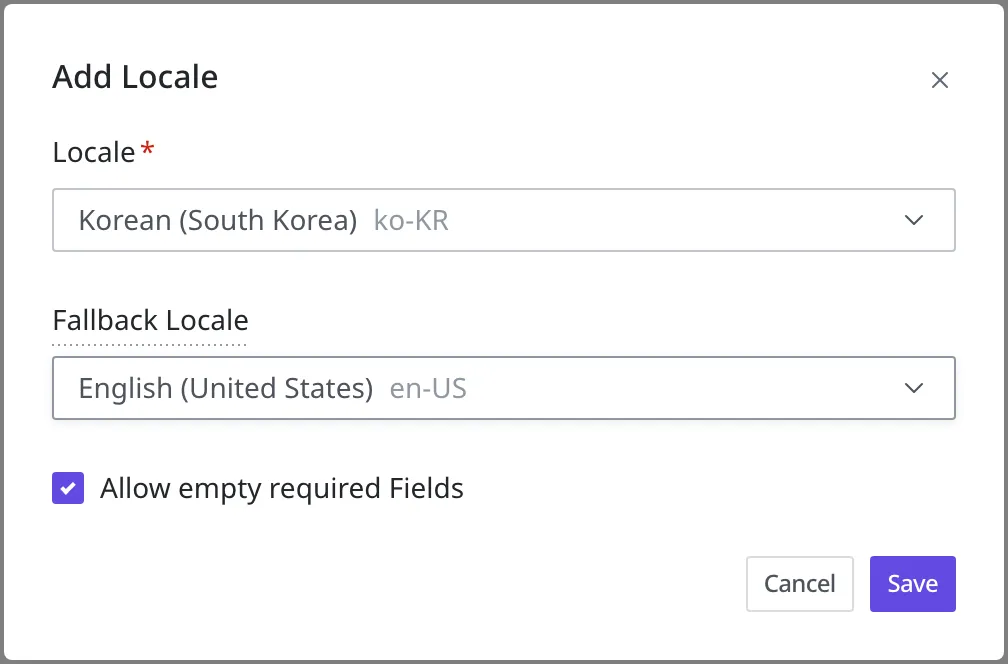
To fill in values in another language, the Space must have that language first. These steps add Korean (ko-KR) to the "Online Store" Space and set Korean's Fallback Locale to English.
- In the left menu, under Management, click Locales.
- Click Add at the top right of the list. The "Add Locale" window opens.
- From the Locale dropdown, select Korean (ko-KR). The option shows "Korean (South Korea)" with "ko-KR" on the line below, and you can find it by typing
ko-KRin the search box. - Check that "English (United States) (en-US)" is selected in the Fallback Locale dropdown. If something else is selected, select "English (United States) (en-US)".
- Click Save.
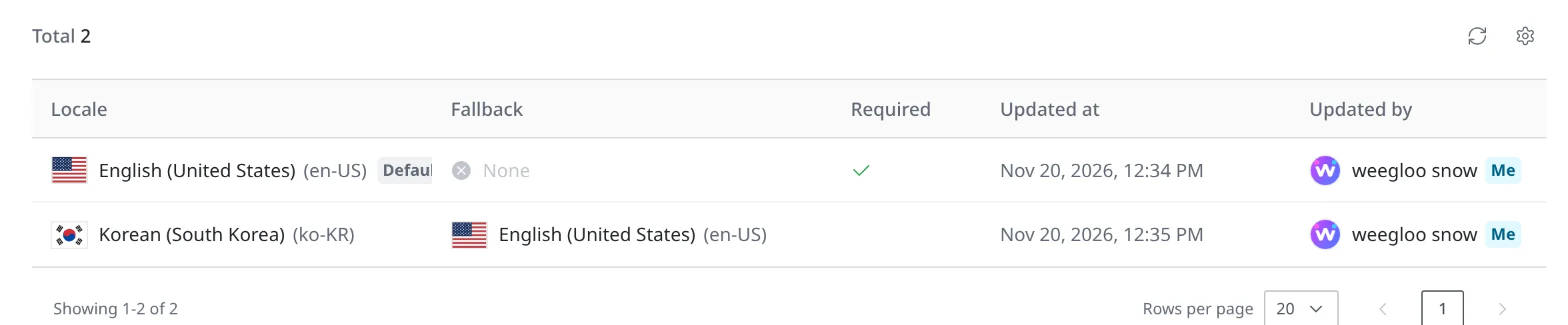
The setup is complete when the Fallback column for "Korean (South Korea) (ko-KR)" in the list shows "English (United States) (en-US)". English, the default Locale, has the Default badge.
For what happens to existing Content after you add a Locale, see When you add a Locale.
Turn on localization for a Field
These steps enable localization for the product name and description Fields in the "Product" Content Type. Leave the price as it is.
- In the left menu, click Content Types.
- In the list, click "Product".
- Click the gear icon in the product name Field row. The "Configure Field" window opens.
- On the Settings tab, turn on Enable localization for this Field.
- Click Save in the window.
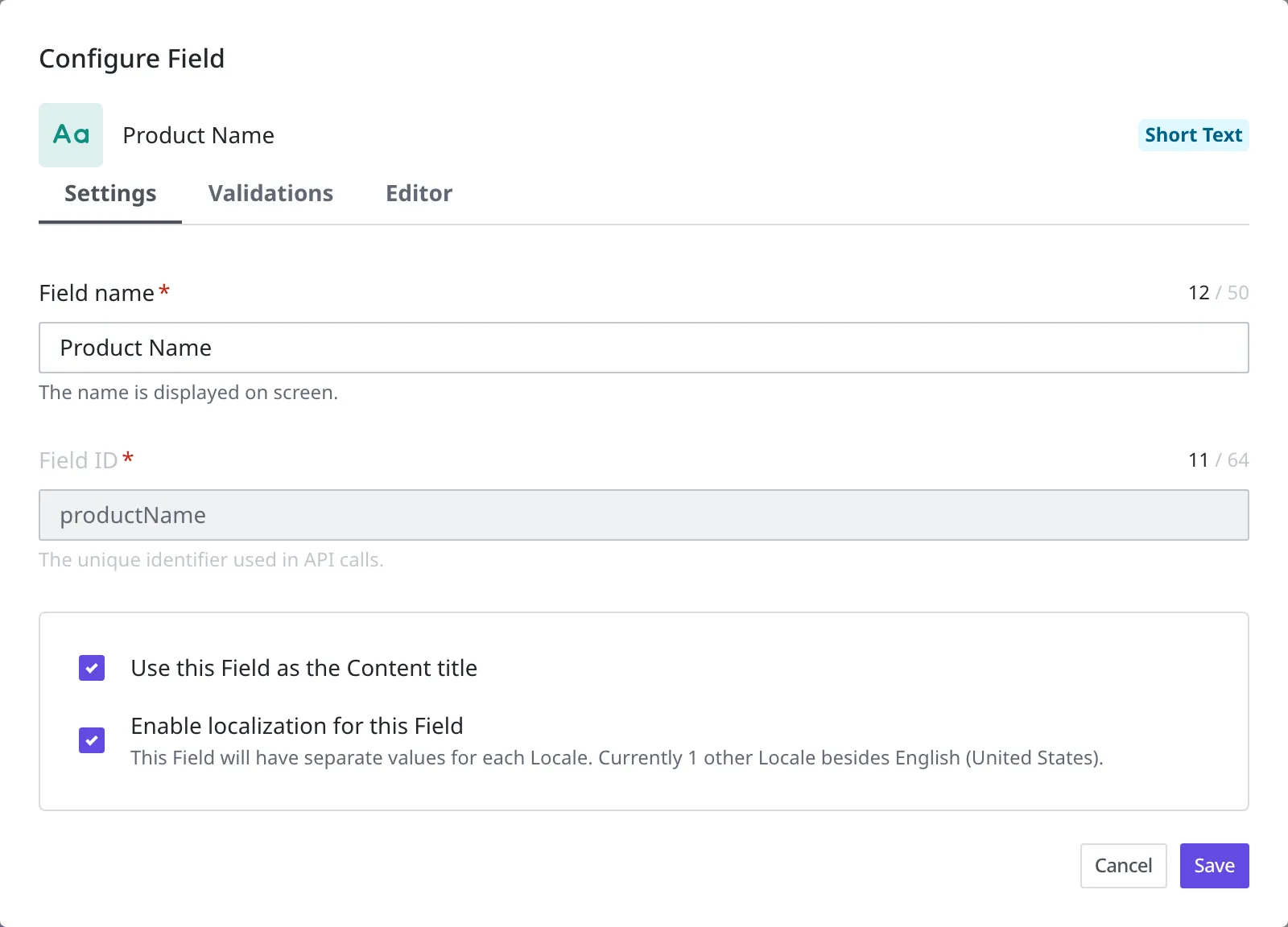
- Follow the same steps for the description Field to turn on Enable localization for this Field and save.
- Click Save at the top right of the edit screen.
The setup is complete when the product name and description rows in the Field list show the Localized label.
For what happens to existing products if you turn localization on or off after products have piled up, see Turning localization on or off.
Fill in values for another language
These steps enter Korean values in the tumbler Content. The English values are already filled in.
- In the left menu, click Contents.
- In the list, open "Stainless Tumbler 500ml".
- Click Edit at the top right.
- In the Translation area, select "Korean (South Korea) (ko-KR)" from the dropdown. A ko-KR input field appears for each localized Field.
- In the product name's ko-KR field, enter
스테인리스 텀블러 500ml. - In the description's ko-KR field, enter
이중 진공 단열로 보온·보냉이 오래갑니다. 500ml 대용량.
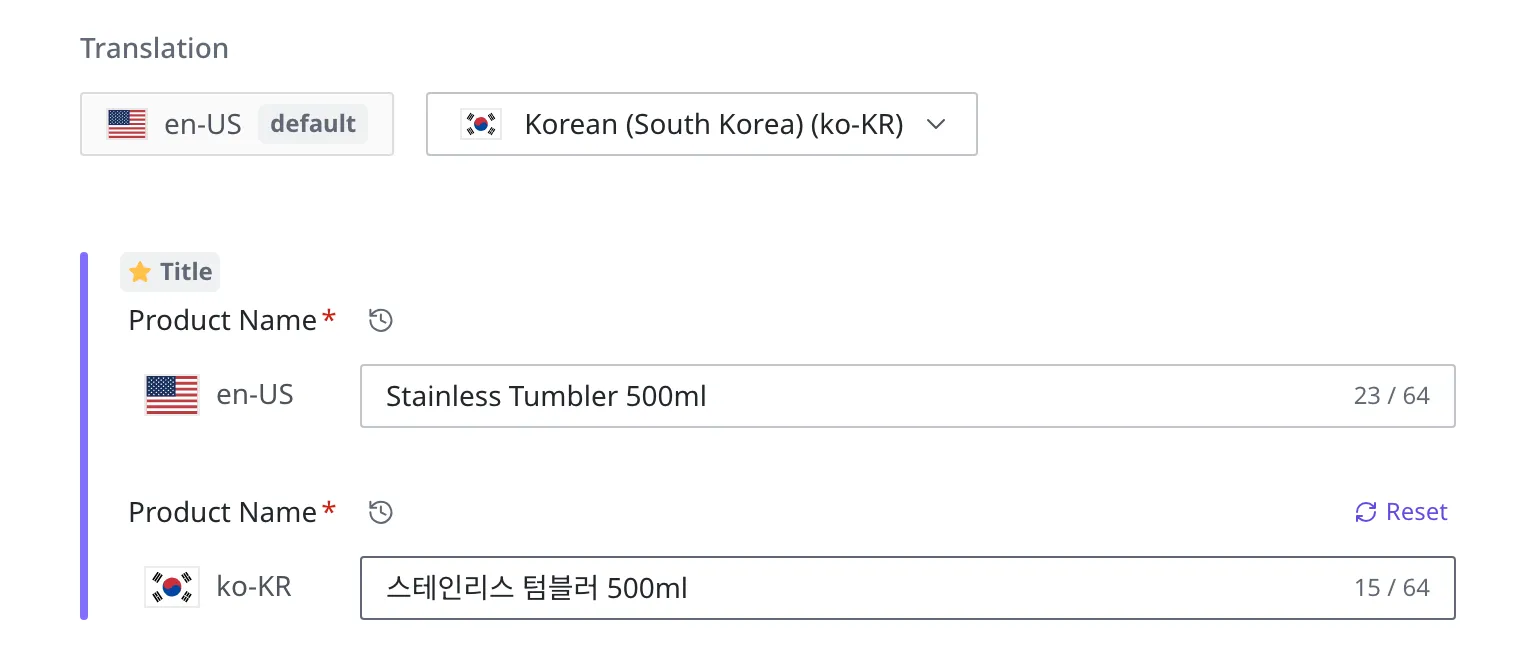
- Click the Save button at the top right.
- Publish the tumbler. How to do it is in Change the status with the status badge.
Once you publish it, the Korean values are delivered publicly too. When your online store site requests Korean, it receives the Korean product name and description. Because Korean's Fallback Locale is English, the price 18000, which exists only in the English field, is delivered along with them (A Field without localization holds values only in the default Locale).
For the steps to upload a different file for each language to a Media such as a photo, see Upload a different file for each language.
Set a Fallback Locale
These steps set the Fallback Locale of Japanese (ja-JP) to Korean (ko-KR).
- In the left menu, under Management, click Locales.
- In the list, click Japanese (ja-JP). The "Edit Locale" window opens. The list shows it as "Japanese (Japan)" with "(ja-JP)" on the line below.
- Click the Fallback Locale dropdown.
- Select "Korean (South Korea) (ko-KR)".
- Click Save.
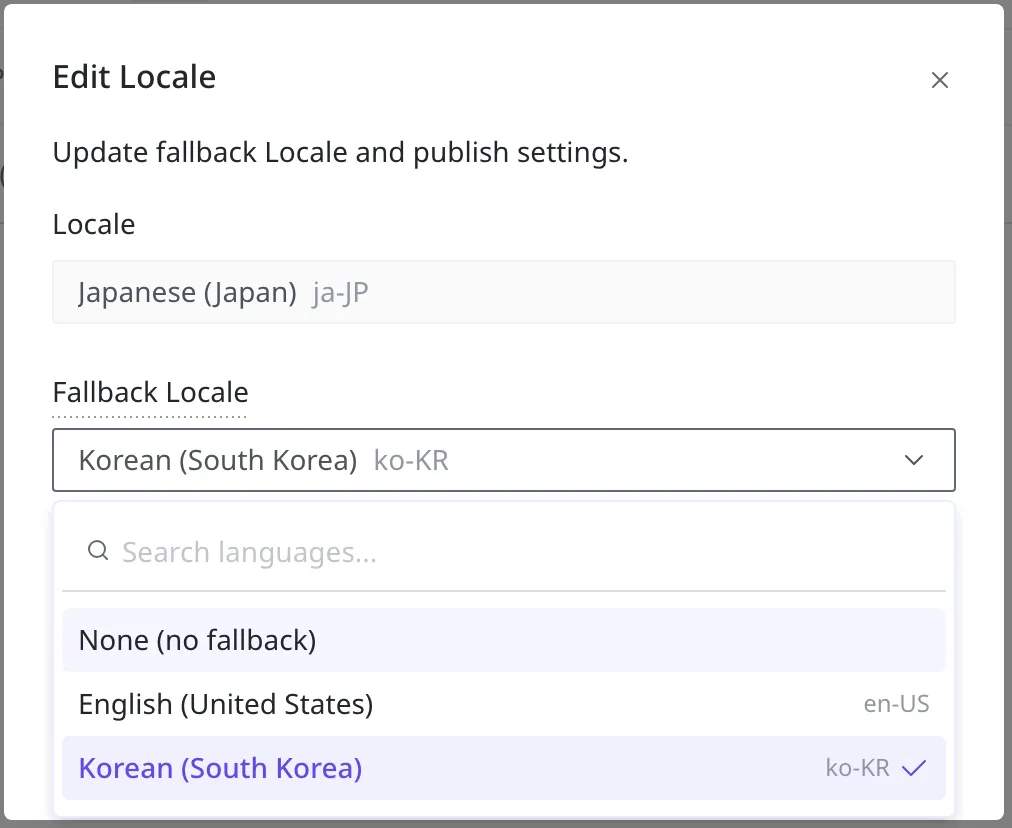
The setup is complete when Korean appears in the Fallback column of the list. To remove a Fallback Locale, select None (no fallback) in the same dropdown and save.
Turn Allow empty required Fields on or off
These steps turn on Allow empty required Fields for Japanese, so you can save and publish the tumbler before the Japanese translation is finished. A newly added Locale starts with this setting on, so you only need these steps for a Locale where it's turned off.
- In the left menu, under Management, click Locales.
- In the list, click Japanese (ja-JP). The "Edit Locale" window opens.
- Turn on Allow empty required Fields.
- Click Save.
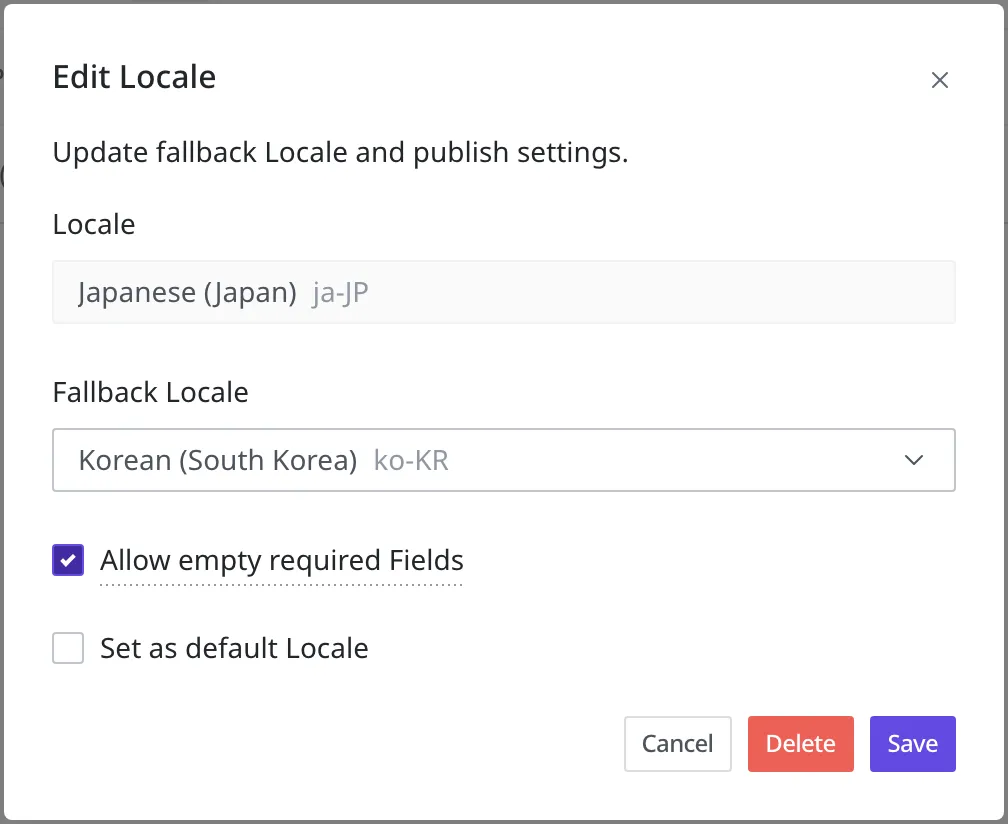
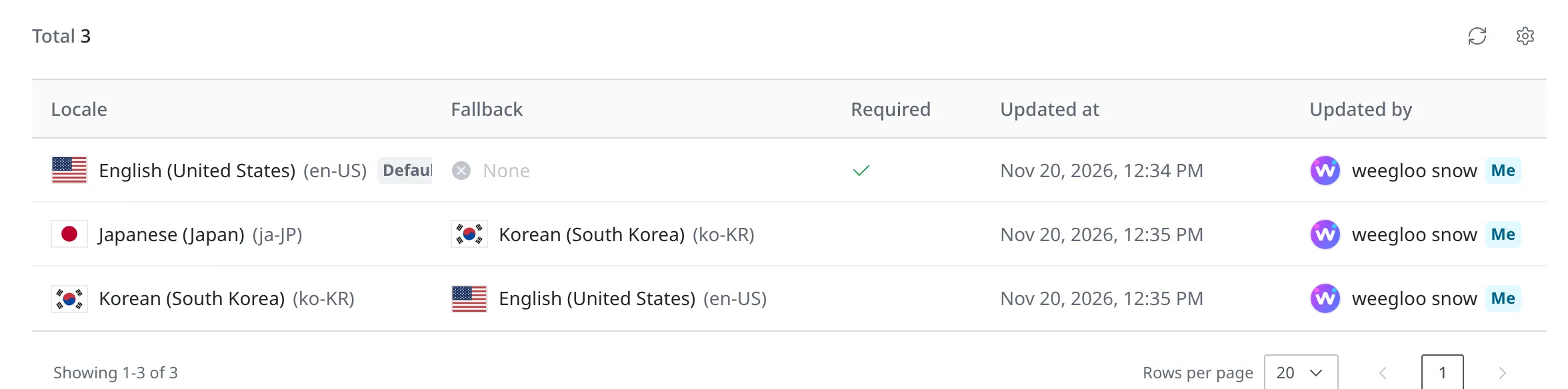
Once you've filled in the whole translation, turn this setting off with the same steps. After it's off, Content that's empty in Japanese is blocked the next time you save or publish it (Languages a required Field needs).
Change the default Locale
These steps make Korean (ko-KR) the clothing store's default Locale. Before you change it, check what happens to existing Content in When you change the default Locale.
- In the left menu, under Management, click Locales.
- In the list, click "Korean (South Korea) (ko-KR)". The "Edit Locale" window opens.
- Turn on Set as default Locale.
- Click Save.
The default Locale can't have a Fallback Locale, and you can't turn on Allow empty required Fields for it. So when you turn on Set as default Locale for Korean, the Fallback Locale set for Korean (English) changes to None (no fallback) on its own, and Allow empty required Fields is unchecked and dimmed. You don't need to clear them yourself. Click Save, and the change is saved without any message.
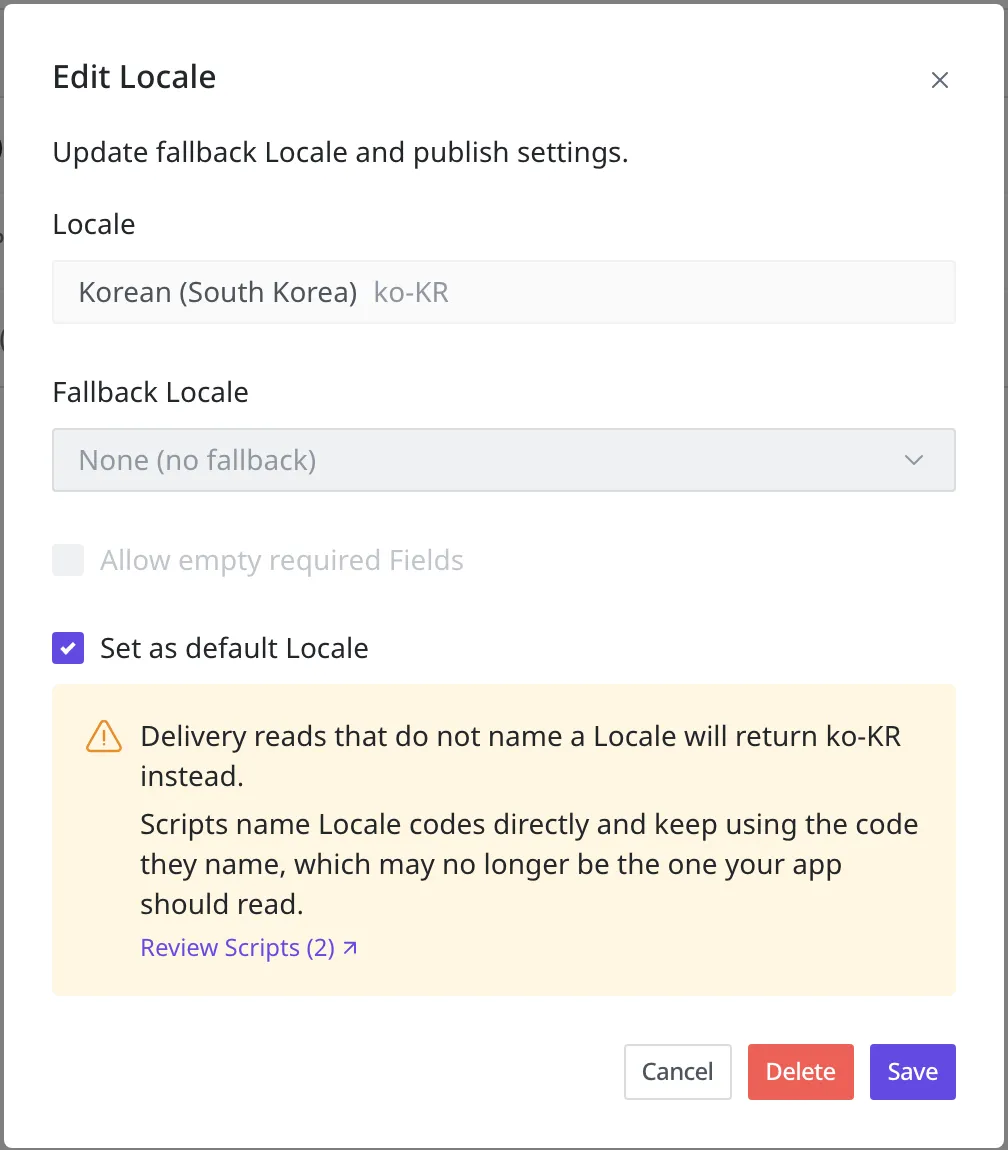
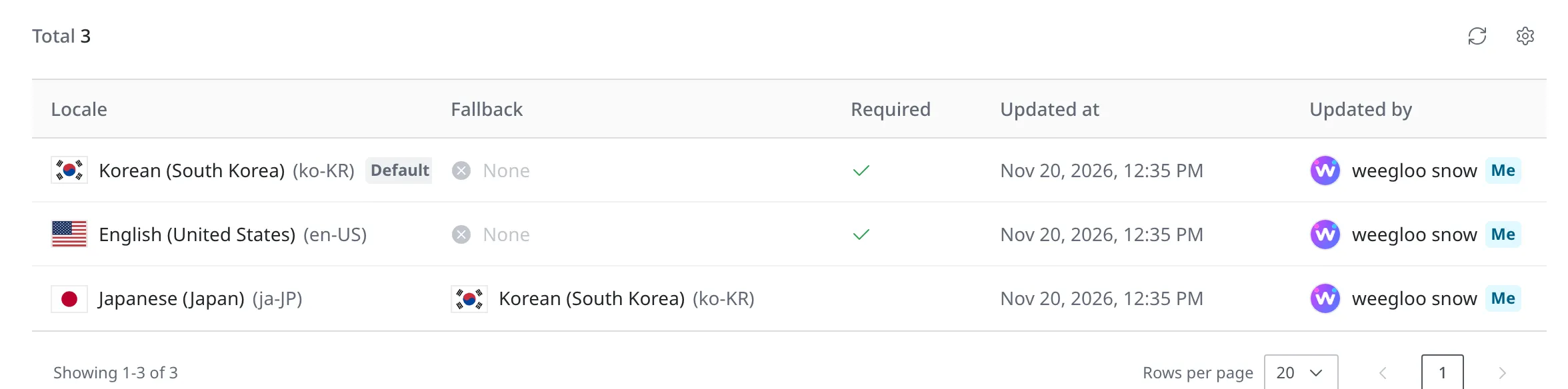
The default Locale has changed when the Default badge appears on "Korean (South Korea) (ko-KR)" in the list. What to do after the change is in When you change the default Locale.
Delete a Locale
These steps delete Japanese (ja-JP), which you no longer use. The conditions for deleting a Locale are in Deleting items such as Locale, Tag, and Script.
- In the left menu, under Management, click Locales.
- In the list, click Japanese (ja-JP). The "Edit Locale" window opens.
- Click the Delete button.
- In the input field below "To continue, enter the Locale code ja-JP.", enter
ja-JP. Until you enter the code, Delete is dimmed. - Click Delete in the confirmation window.
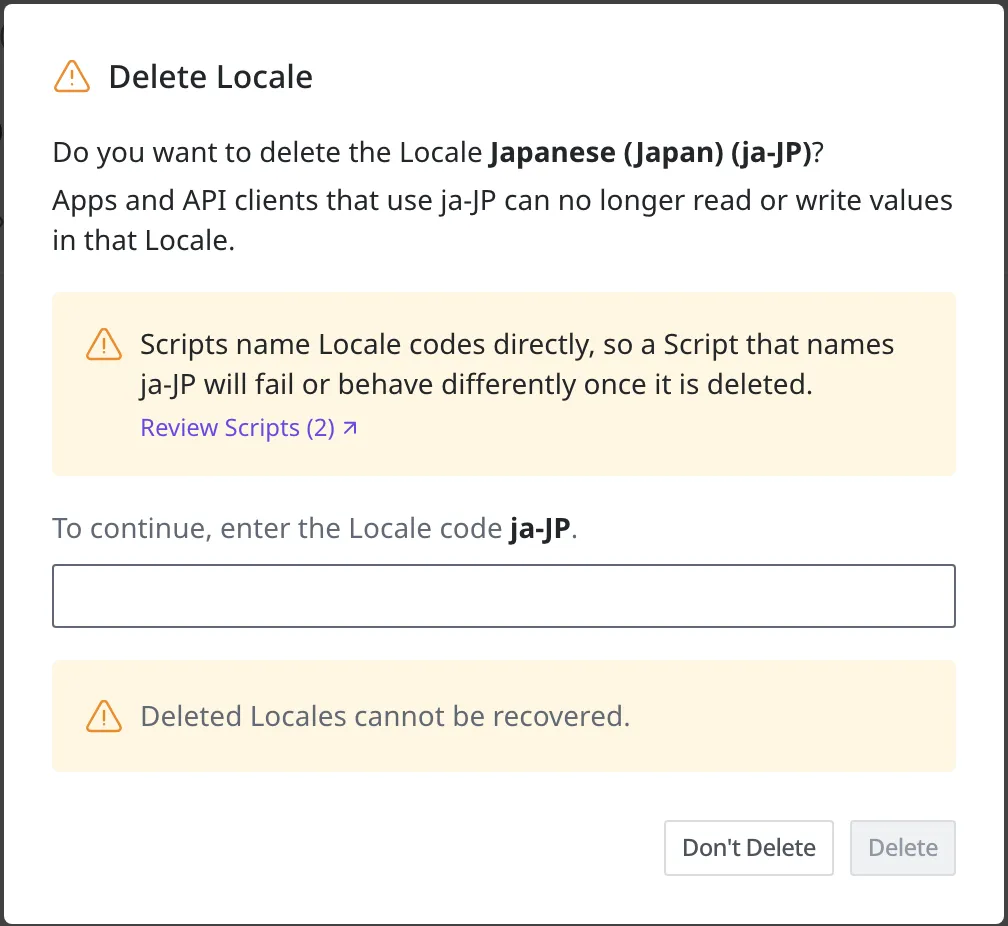
Japanese has been deleted when it disappears from the list. For what happens to values left in existing Content after you delete a Locale, see When you delete a Locale.
Troubleshooting
| Problem | Cause | What to do |
|---|---|---|
| Content won't save or publish | A Required Field is empty in one of the required languages | Fill in that language's value. To fill in that language later, turn on Allow empty required Fields for that Locale |
| After you add a Locale, Content that used to save and publish is blocked | Allow empty required Fields was turned off for the new Locale, so the new language became a required language. Localized Required Fields need a value in the new language | Fill in the new language's values, or turn on Allow empty required Fields for the new Locale |
| A field is empty when a language is requested on public delivery | That language has no value, and either it has no Fallback Locale or the languages along the way have no value either | Fill in that language's value or set a Fallback Locale (Set a Fallback Locale) |
| A field without localization, such as the price, is empty in another language | That language's chain of Fallback Locales doesn't reach the default Locale | Set Fallback Locales so the chain reaches the default Locale |
| A field is empty when requested without a language, even though another language has a value | The default Locale's field is empty. The default Locale has no Fallback Locale | Fill in the default Locale's value |
| After you change the default Locale, a field without localization, such as the price, is empty on public delivery | The value is still in the previous default Locale's field | Enter the value again in the new default Locale's field, save, and then publish |
| After you change the default Locale, Content won't save or publish | Values of Fields without localization are still in the previous default Locale's field, or a localized Required Field has no value in the new default Locale | Move the values to the new default Locale's field, fill in the required languages, and save |
| After you delete a Locale, Content won't save or publish | That Content still holds values entered in the deleted language | Remove the deleted language's values, then save and publish |
| You set a Fallback Locale, but it won't save | The lookup comes back to the first language | Select a different language so the languages don't point to each other |
| You can't set a Fallback Locale or turn on Allow empty required Fields for the default Locale | The default Locale can't take another language's value, and it's always a required language | Once you make another Locale the default, you can set both on this Locale |
| You can't turn off Set as default Locale | A Space must always have one default Locale | Turn on Set as default Locale for the Locale you want as the new default |
| You can't delete a Locale | A condition that blocks deletion applies | Check the conditions and fixes in Deletion rules |
| You can't add a Locale | You've reached your plan's Locale limit, or you've already added that language | Delete a Locale you don't use, or upgrade your plan (When you exceed a count limit) |
| Your online store site's request for a language is rejected | That language isn't in the Space, or the code doesn't match exactly. ko and ko-KR are different languages | Use the codes in the Locale list exactly as they appear |
| You can't change Locale settings | Your role doesn't have Manage Locales, or you tried with a token tied to one Space, such as a Space Access Token | Ask a Space admin for the Manage Locales permission, or make the change while logged in to Content Studio or with a Personal Access Token |
| You set a Fallback Locale, but no value appears in that language's field | A Fallback Locale stands in for values only when they're delivered publicly. Stored values don't change | This is expected. To deliver a different value in that language, enter a value in its field |
Related docs
- Managing multiple languages: Covers how one Content holds several languages, with diagrams of the flow from adding a language to delivering the tumbler in Korean as well.
- Status and version rules: Covers the checks made on save and on publish, and the conditions under which a Media publishes itself.
- Deletion rules: Covers the conditions that keep you from deleting a Locale and how to resolve them.
- Media settings and rules: Covers the steps for uploading a file for each language to a Media.
- API reference: Covers the technical specifications, such as request formats, for creating and editing Locales directly from a program.