

Token rules
This page covers everything about the three tokens, Personal Access Token, Space Access Token, and Delivery Access Token: their settings, rules, limits, permissions, and the tasks you do in Content Studio. If you're new to tokens, start with Tokens, which explains what a token is, which token to use when, and the flow the online store site follows to read published products with a token.
The examples use the same online clothing store as that page. Three tokens appear on this page.
- Personal Access Token "Nightly New Arrivals Upload": Used by the program that uploads new arrivals every night.
- Space Access Token "New Arrivals Auto-register Server": Used by the server that automatically adds products to the clothing store's Space. It's bound to the role "Product Editor".
- Delivery Access Token "Online Store Site Delivery": Used by the online store site
https://shop.example.comto load products. It's bound to the role "Product Read-Only".
Settings
What you set when you issue a token depends on its type. For a Personal Access Token, you set only a name. For a Space Access Token or a Delivery Access Token, you set a name, a description, the role to bind, and the allowed referrers. After issuing, you can change Description, SpaceRole, and Allowed referrers on the token's detail screen. To change SpaceRole, you also need the Manage memberships permission (Required permissions). Changing SpaceRole immediately changes what the token can do (The bound role decides what a token can do).
Personal Access Token settings
You issue a Personal Access Token in the "Create Personal Access Token" window in your account settings. The window has only one field, Name. You don't set the scope of what the token can do, because it uses the issuing account's own permissions (A Personal Access Token follows your account's current permissions).
| Setting | Description | Default | Constraints |
|---|---|---|---|
| Name | A name that tells you what the token was made for | None. Required | 1 to 64 characters. Can't be changed after issuing |
A Personal Access Token has no Description, no bound role, and no Allowed referrers.
Space Access Token and Delivery Access Token settings
You issue these two tokens in the settings of the Space where the token will be used. The "Create Space Access Token" and "Create Delivery Access Token" screens have the same settings. Each screen has two sections: Basic information and Access scope. Two notices appear at the top of Access scope, and what they say depends on the token type. What they say is covered in Set the name and role.
| Setting | Description | Default | Constraints |
|---|---|---|---|
| Name | A name that tells you where the token is used. It's in Basic information | None. Required | 1 to 64 characters. Can't be changed after issuing |
| Description | A note on what the token is used for. It's in Basic information | Empty | Up to 128 characters. You can leave it empty, and you can edit it after issuing |
| SpaceRole | The role (SpaceRole) that sets what this token can do, and how far | None. No role is selected when the screen opens, so you must select one | You bind one role from that Space. There are conditions on which roles you can bind (Roles you can bind). If you don't select one, the token isn't issued. You can change it on the detail screen after issuing too (Change the bound role) |
| Allowed referrers | The list of site addresses that can use this token | No restriction | When you select Allow only the referrers I list, fields for entering addresses appear. You can enter up to 50 addresses. The rules for entering them are in Rules for entering addresses in Allowed referrers. You can change it after issuing too |
Clicking Create a new Role at the top right of the SpaceRole field opens the role creation screen in a new tab. Use it when the role you want to bind doesn't exist yet. After you create the role, come back to the token screen and click the refresh icon to the right of the field, and the new role appears in the list. Create a new Role appears only when the role you have in that Space includes Manage Roles.
Rules
Comparing the rules of the three tokens
The three tokens differ in where you issue them, what they can do, and what you can change after issuing. Which token to use for which job is covered in Tokens.
| Personal Access Token | Space Access Token | Delivery Access Token | |
|---|---|---|---|
| Where you issue it | Account settings | Settings of the Space where the token will be used | Settings of the Space where the token will be used |
| Where it works | Every Organization and Space the issuing account belongs to | The one Space it was issued in | The one Space it was issued in |
| What decides what it can do | The issuing account's current permissions | The bound SpaceRole | The bound SpaceRole |
| Reading content | Yes. Reads Draft too | Yes. Reads Draft too | Reads only Published content |
| Creating, editing, publishing, and deleting content | Yes | Yes | No |
| Uploading files to create Media | Yes | Yes | No |
| Running a Script | Yes | Yes | No |
| Handling Space settings | Yes | No | No |
| Allowed referrers | None | Available | Available |
| What you can change when editing the token | Nothing | Description, SpaceRole, Allowed referrers | Description, SpaceRole, Allowed referrers |
| Expiration | None. Valid until you delete it | None. Valid until you delete it | None. Valid until you delete it |
| Who issues and manages it | The account owner | Members with the Manage Space Access Tokens permission | Members with the Manage Delivery Access Tokens permission |
A "Yes" in the table means it's a kind of work that token can do. Whether it can actually do that work is decided by the account's permissions for a Personal Access Token, and by the bound role for the other two tokens. What tokens can't do is gathered in What tokens can't do.
A Personal Access Token follows your account's current permissions
A Personal Access Token can do exactly what the issuing account is allowed to do right now. The permissions the account had at the time of issuing aren't locked into the token.
- If the account's role changes, what the token can do changes with it.
- If the account leaves a Space, the token can no longer work with that Space either.
- If the account joins a new Space, the token can work with that Space too.
The bound role decides what a token can do
What a Space Access Token or a Delivery Access Token can do is decided by the SpaceRole bound to it when it was issued. The token can't do anything the bound role doesn't allow.
- You can switch the bound role to a different one even after issuing. You change it in SpaceRole in the Access scope section of the token's detail screen (Change the bound role). The permission you need to change it is in Required permissions. The conditions in Roles you can bind decide which roles you can switch to.
- Changing the role immediately changes what the sites or programs using that token can do. The token value stays the same, so the new role applies from the next request after you save, without any change to the site or program. If you switch to a broader role, anyone who has the token value can use the wider scope. For a Delivery Access Token in a public site, or a Space Access Token in a site your customers use, check what the new role allows first. If you switch to a narrower role instead, features that used the token can stop working right away.
- That's why you should be careful about who gets the Manage memberships permission. A member with this permission can broaden a token's role, within the roles they're able to give, and so expand what the sites or programs using that token can do. To replace the token with a new one bound to a different role, instead of changing the bound role, see Replace a token.
- If you edit the permissions of a bound role, what the tokens bound to that role can do changes too. If you also gave that role to members, their permissions change as well. If you create a separate role for each token and bind that, you can edit members' permissions without also changing what the tokens can do.
- If you've narrowed the role's creator field to The requesting user, then for a token, the requesting user is the token itself. The token can work only with items it created, not with items created by members or other tokens. For the rules of the creator field, see Narrowing by creator.
- A Delivery Access Token only reads, even if the bound role allows actions like Create or Edit, and it can read only Published items. The rule that unpublished Draft content isn't delivered publicly is in Status and version rules, and how the bound role's conditions are judged for public delivery is in Conditions that work differently in public delivery.
- For when you can delete a role that's bound to a token, see Deleting items such as Locale, Tag, and Script.
Roles you can bind
The roles you can bind to a token follow these conditions.
- It must be a role in the Space where you're issuing the token.
- You can bind only roles you have in that Space. This keeps you from giving a token broader permissions than your own.
- If you have the Administrator role in that Space, you can bind any role in that Space.
- You can bind the Administrator role too. But don't, because if the token leaks, anyone who has it can do everything that role allows.
- These conditions apply both when you issue a token and when you change its bound role after issuing.
The SpaceRole list is split into two groups. Roles you can bind appear in the Assignable group, and roles you don't have appear in the Not assigned to you group. You can't select roles in the Not assigned to you group. The list is split this way both when you issue a token and when you change its bound role. When you change the bound role, the role currently bound appears in the Assignable group even if you don't have it.
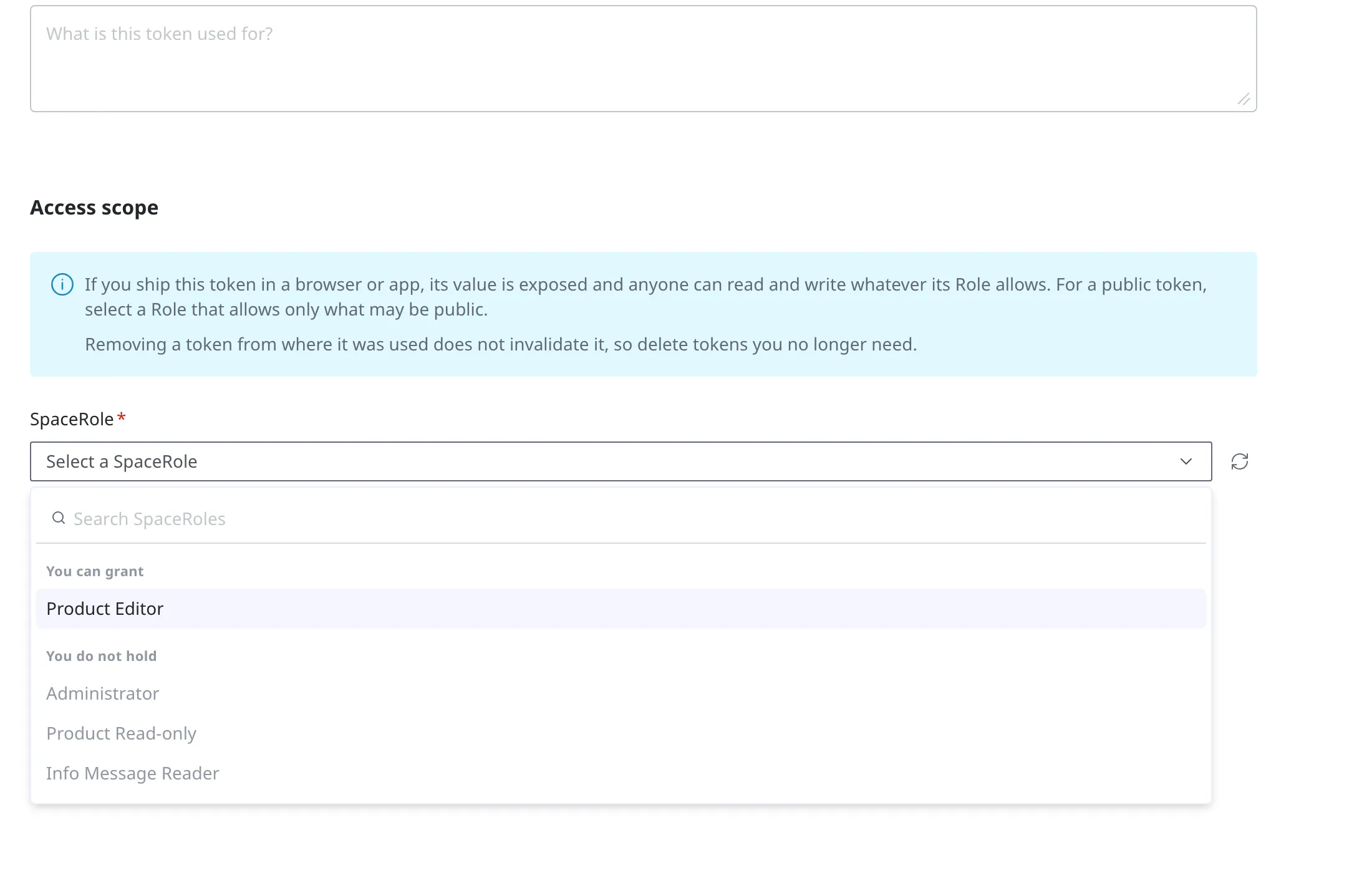
Bind a narrow role that allows only the actions the token's job needs. For the clothing store's tokens, you bind roles like this.
| Token | Role to bind |
|---|---|
| The Space Access Token "New Arrivals Auto-register Server", which adds and edits products from a server | "Product Editor", which allows only Read, Create, and Edit on product Content and leaves out Delete and Publish |
| A Space Access Token placed in a site or app that takes inquiries from customers who aren't logged in | A role that allows only Create, for creating new "Inquiry" Content |
| The Delivery Access Token "Online Store Site Delivery", which the online store site uses to load products | "Product Read-Only", which allows only Read on product Content |
If the site also needs to receive the photos linked to products, allow Read on Media too, in the role of the Delivery Access Token that site uses (Reference rules).
Allowed referrers decide which sites can use a token
Allowed referrers sets where this token can be used. While the bound role decides what the token can do, this list decides which sites' requests are accepted. Only Space Access Tokens and Delivery Access Tokens have this setting.
- With No restriction, requests from anywhere are accepted. This is the default.
- If you select Allow only the referrers I list and enter addresses, only requests from sites at the addresses on the list are accepted. Requests from anywhere else are rejected. This keeps other sites from taking this token and using it in their own pages. However, a program can write a site address into its request directly, so if the value leaks, how far the damage reaches is ultimately decided by the bound role.
- Once you enter even one address, requests that don't say which site they came from are rejected too. Requests sent by programs running on a server are usually like this. Leave tokens used on a server at No restriction.
- The list applies to every request sent with that token. For a Space Access Token, that means not only reading content but also writing content, uploading files, and running Scripts.
- You can change the list after issuing too. When you save, all the addresses left on the screen become the new list, and it applies from the next request onward.
- A list with no addresses is the same as No restriction. So if you select Allow only the referrers I list and leave every address field empty, a notice asks you to enter at least one address or select No restriction, and the token can't be created or saved. If you've entered at least one address, empty fields are dropped when you save.
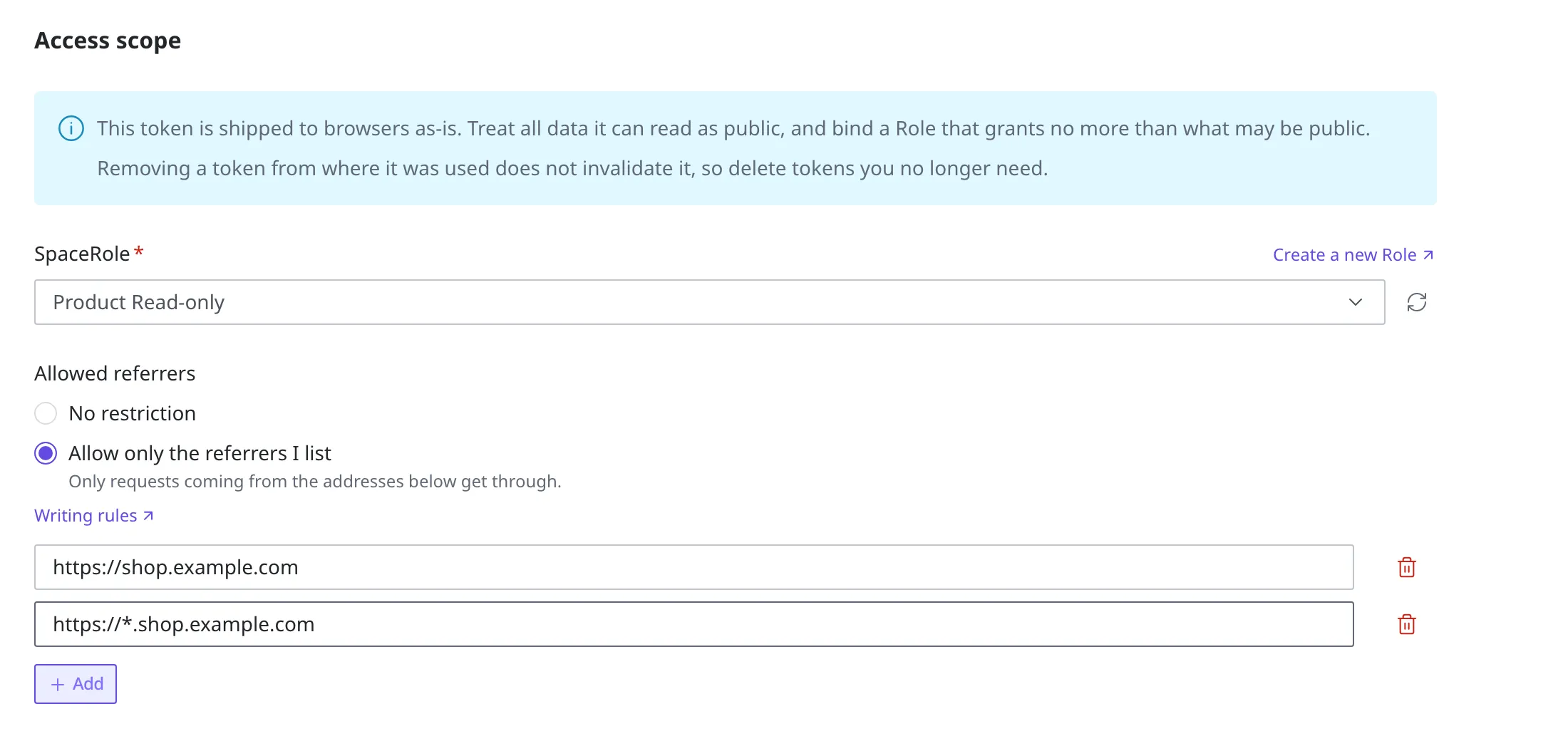
You can enter several addresses. Click the Add button to add a field, and click the delete icon to the right of a field to remove that line. When you select Allow only the referrers I list, a Formatting rules link also appears above the address fields. Clicking it opens a page about the rules for entering addresses in a new tab.
Rules for entering addresses in Allowed referrers
Each address field holds one site address. If even one address breaks the rules, the token isn't issued. If you're editing the list after issuing, the changed list isn't saved. The reason appears below the field with the address that breaks the rules. For example, if you put * in the middle, as in https://shop.*.example.com, the message "A wildcard can only be used once, at the very beginning." appears.
| What you enter | Rule |
|---|---|
| Start of the address | Start with https://. Use http:// only for localhost, 127.0.0.1, and [::1], the addresses that point to your own computer |
| Allowing all sub-addresses at once | Put *. at the front. https://*.shop.example.com covers every address with something in front, such as event.shop.example.com. But it doesn't cover https://shop.example.com itself. You can use * only at the very front |
| Port | If you leave out the port (the number at the end of an address, like :3000), https:// is treated as 443 and http:// as 80. For a site you open on a different port, include the port, as in http://localhost:3000 |
| Path | If you add a path after the address, like /event, only requests from exactly that path are accepted. You can't use * in a path. To use the token across the whole site, enter the address without a path. If you enter an address with a path, a caution appears below that field. Some browsers send only the site address, without the path, so a token with a path can't be used in those browsers |
| What you can't include | You can't include the part starting with ? or #, or user information before @ |
| Letters outside the English alphabet | Write a domain that contains letters outside the English alphabet in its converted English-letter form (Punycode). Paths can also contain only English letters, numbers, and symbols |
| Number of addresses | Up to 50 per token. You can't enter the same address twice |
https://shop.example.com and https://www.shop.example.com are different addresses. If your site opens at both, enter both, or enter https://shop.example.com together with https://*.shop.example.com. The exact notation for addresses and how they're matched are in the API reference.
You can copy the secret value again from the detail screen
When you issue a token, its secret value is created. This value is the token itself, and it's what you put in a site or program to use the token.
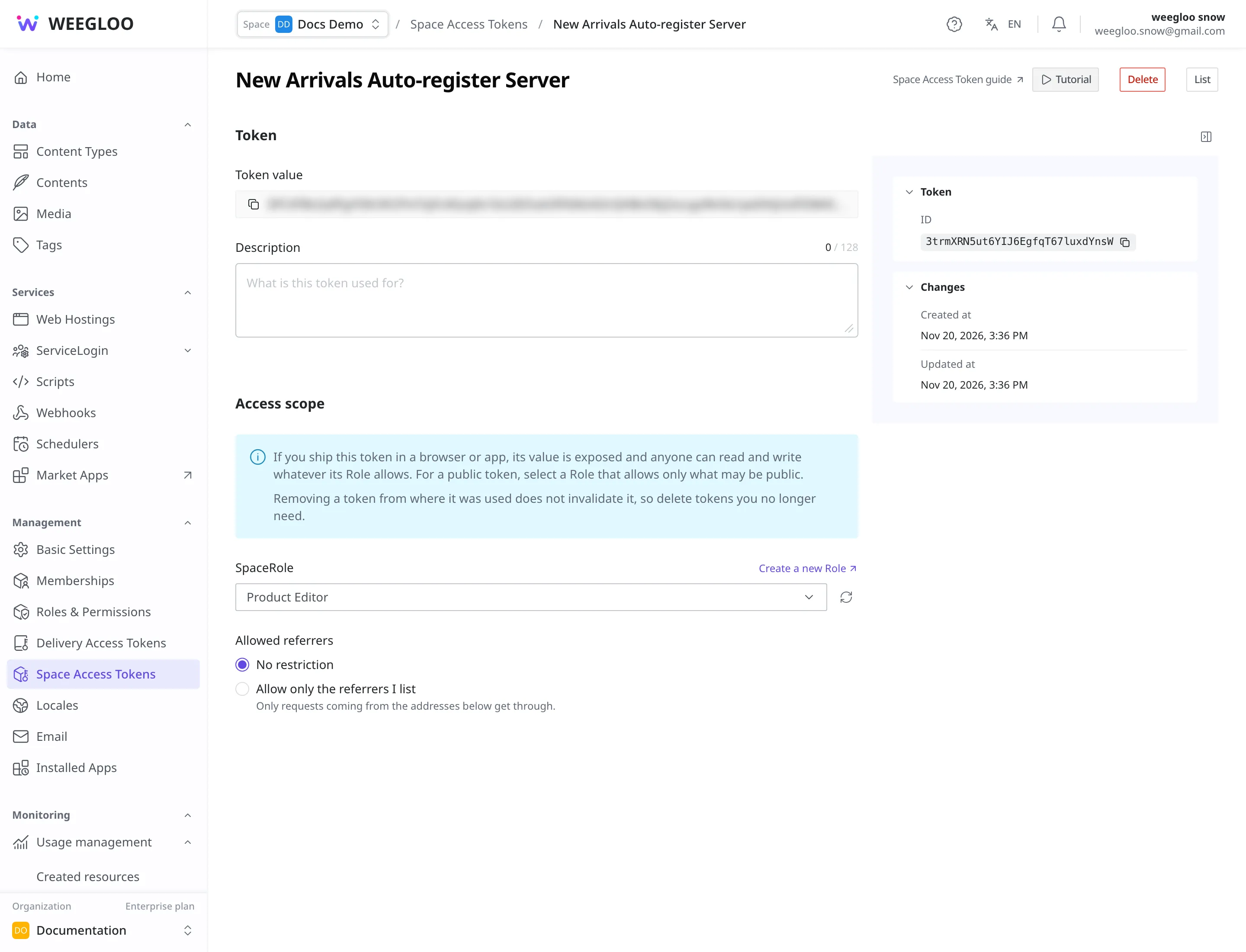
When issuing finishes, you move to the token's detail screen. The secret value is in the Token value field of the Token section, and clicking the copy button on the left of the field copies the whole value. The value is longer than the field, so its end looks cut off on screen, but the whole value is copied.
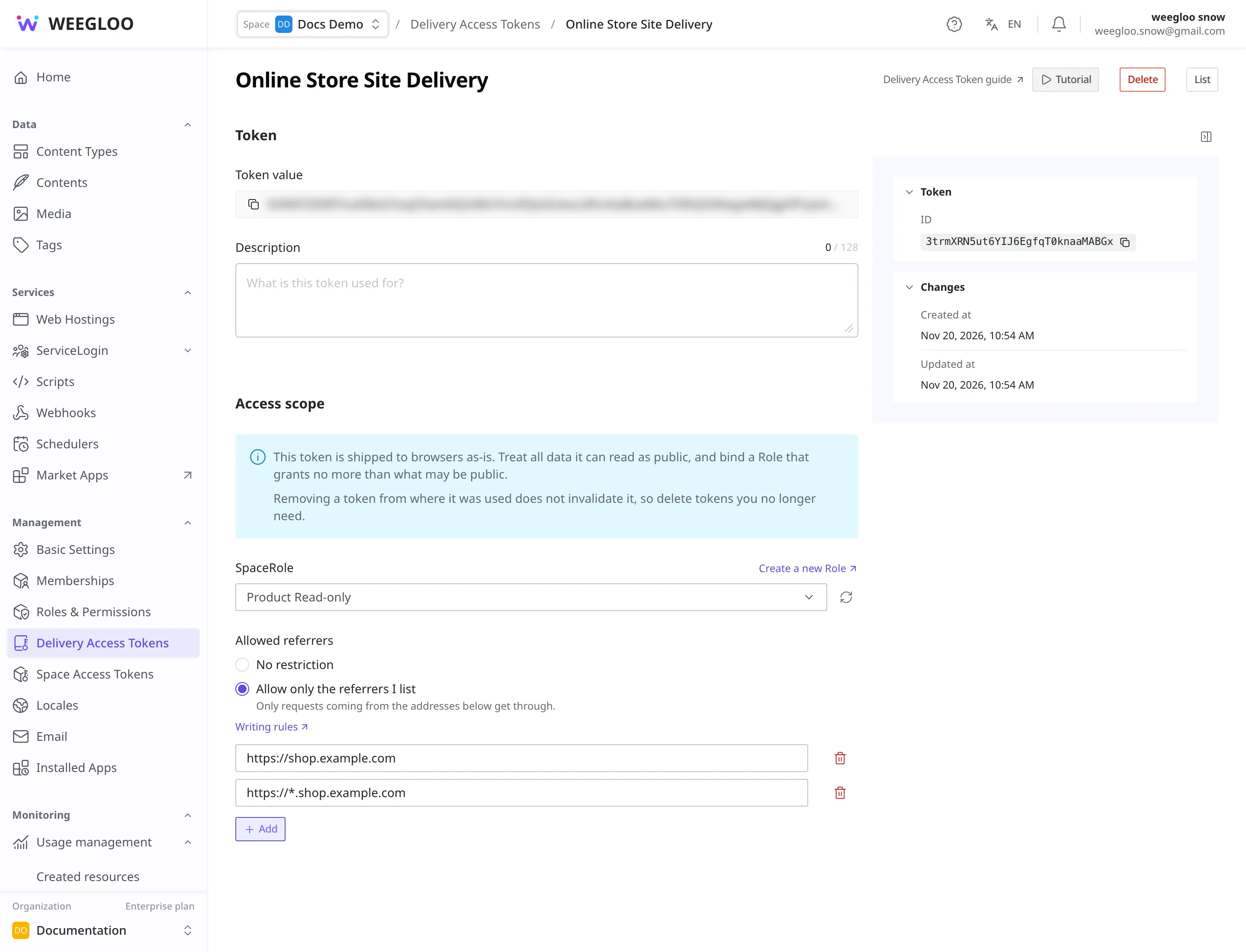
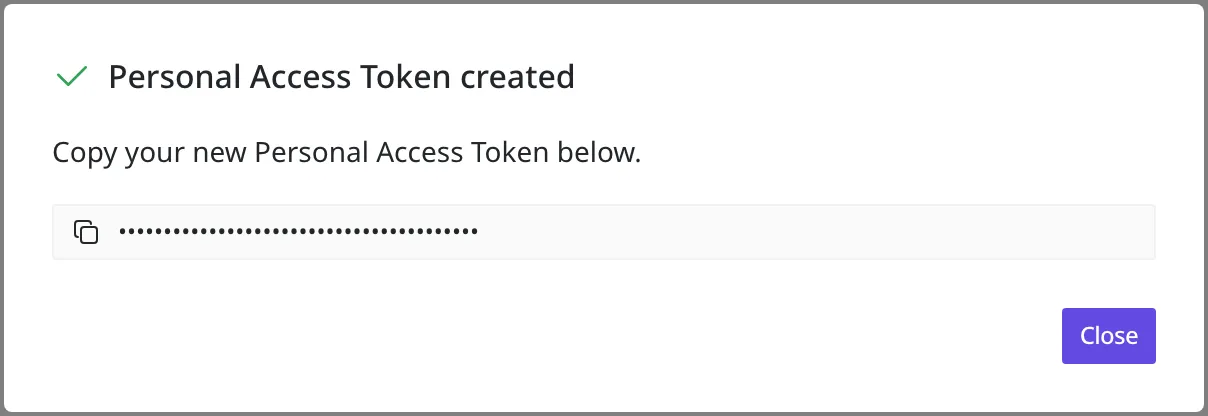
A Personal Access Token has no detail screen. When issuing finishes, the secret value appears in the "Create Personal Access Token" window, and later you copy it again from the Token column of the Personal Access Token list (Issue a Personal Access Token).
- The secret value isn't shown only once, when you issue the token. You can come back to the detail screen (the list, for a Personal Access Token) and copy it at any time.
- The ID under the Token item in the right panel is an identifier that points to the token. It isn't the secret value.
- You can't change the secret value. If you need a new value, issue a new token and swap it in (Replace a token).
- Anyone who can open the detail screen can also copy the secret value. For Space Access Tokens and Delivery Access Tokens, a member with the management permission can open the detail screens of tokens other members issued, too (Required permissions).
For the format for including the token value in a request, see the API reference.
Where to keep each token's secret value
Where it's safe to keep the secret value differs by token.
- Treat a Personal Access Token like a password. Keep it only on a server, and don't put it in a site or app your customers see, or in code other people can view. If this value leaks, every Organization and Space the issuing account can access is at risk.
- For a Space Access Token, bind a role that fits where you keep it. For a token kept on a server, bind a write role that allows only what it needs. A feature anyone can use, such as taking inquiries from customers who aren't logged in, can't use a read-only Delivery Access Token, so you may also put a Space Access Token in a site or app your customers use. In that case, anyone who opens the site can dig out the token value, so choose the role to bind very carefully. Bind a role narrow enough that you could live with it leaking, such as one that allows only Create on new "Inquiry" Content, and enter that site's address in Allowed referrers too.
- A Delivery Access Token is meant to go in a public site. Anyone who opens the site can see this value, so treat everything this token can read as public. If you enter the online store site's address in Allowed referrers, other sites can't take this token and use it in their pages.
Tokens stay valid until you delete them
None of the three tokens expire. Removing the token value from a site or program doesn't make the token invalid, so delete tokens you no longer use (Delete a token).
Space Access Tokens and Delivery Access Tokens stay independent of the member who issued them. Even if that member leaves the Space or Organization, or deletes their account, the tokens they issued remain valid. Tokens you haven't deleted yourself go away along with their Space only when that Space is deleted (What blocks deleting a Space and what goes with it).
A Personal Access Token is deleted along with the account that issued it (When you remove members or delete your account).
What tokens can't do
A Delivery Access Token is only for reading published content. It can't create, edit, or delete content, read unpublished Draft content, upload files, run Scripts, or handle Space settings.
A Space Access Token works only in the one Space it was issued in. It can't access other Spaces, and it can't do anything involving the Organization or accounts. Even inside its Space, it can't do any of the work covered by the items on the Settings tab of the role screen (Settings permissions on the Settings tab). That holds even if those items are turned on in the bound role (Settings permissions work only for people). Do that work by logging in to Content Studio, or with a Personal Access Token.
A Space Access Token can run Scripts, but it can't create, view, edit, or delete them. Space Access Tokens and Delivery Access Tokens also can't act as a member (ServiceUser) who signed up through member login (ServiceLogin).
With a Personal Access Token, you can do most of what the account owner does in Content Studio. But it can't do the following, so do these by logging in to Content Studio.
- Issuing, viewing, or deleting Personal Access Tokens
- Deleting an Organization
- Deleting an account
- Setting up two-step verification
- Uploading a new profile photo
- Setting up usage alerts for an Organization
- Billing tasks, such as registering a payment method or changing your subscription and plan
- Deleting members (ServiceUsers) who signed up
Limits
| Item | Limit |
|---|---|
| Token name length | 1 to 64 characters |
| Description length | 128 characters |
| Addresses in Allowed referrers for one token | 50 |
| Number of Space Access Tokens | Varies by plan. Tokens issued in every Space of the same Organization are counted together |
| Number of Delivery Access Tokens | Varies by plan. Tokens issued in every Space of the same Organization are counted together |
| Number of Personal Access Tokens | Each account can issue up to a set number. The number doesn't depend on your plan |
The values of the count limits are in Plan comparison and User resources. Once you reach a limit, you can't issue new tokens. Deleting tokens you don't use lets you issue that many again. Upgrading to a higher plan raises the limit for Space Access Tokens and Delivery Access Tokens, but upgrading doesn't raise it for Personal Access Tokens. For what the screen shows when you reach a limit, see Keeping an eye on usage and limits.
Required permissions
| What you want to do | Required permission |
|---|---|
| Issuing a Delivery Access Token, viewing its detail screen, editing it, and deleting it | Manage Delivery Access Tokens in the role you have in that Space |
| Issuing a Space Access Token, viewing its detail screen, editing it, and deleting it | Manage Space Access Tokens in the role you have in that Space |
| Binding a role to a token | On top of the permission above, you must have the role you're binding, or have the Administrator role in that Space |
| Changing the role bound to an issued token | Manage memberships in the role you have in that Space. In Content Studio, you change it on the token's detail screen, so you also need the management permission for that token (Manage Delivery Access Tokens or Manage Space Access Tokens). The conditions in Roles you can bind decide which roles you can switch to |
| Issuing, viewing, and deleting a Personal Access Token | The account owner. No one else can view them, not even an Owner of the Organization |
- You turn on Manage Delivery Access Tokens and Manage Space Access Tokens separately on the Settings tab of the role screen. That way, you can let someone issue only read-only tokens and block them from issuing tokens that can also write. How to turn on permissions, and which permissions Select all includes, are in Settings permissions on the Settings tab.
- A member with the management permission can see every token in that Space, no matter who issued it. They can also copy its secret value, edit it, and delete it. More people can then see secret values, so give the management permission only to members who really need it.
- If you have a token's management permission but not Manage memberships, only the SpaceRole field of the detail screen is locked, with the notice "You do not have permission to manage memberships, so you cannot change the SpaceRole." You can still edit Description and Allowed referrers.
- You issue and manage Space Access Tokens and Delivery Access Tokens by logging in with your own account (Settings permissions work only for people). You can't issue tokens with a Space Access Token or a Delivery Access Token (What tokens can't do).
Tasks in Content Studio
The first task, Issue a Delivery Access Token, is the basic procedure for issuing the token the online store site will use. After that come the steps for issuing a Personal Access Token and a Space Access Token, and for editing, replacing, and deleting tokens you've issued.
Issue a Delivery Access Token
These steps issue the Delivery Access Token "Online Store Site Delivery", which the online store site will use to load products, in the clothing store's Space. You go through Set the name and role, Use Allowed referrers to set which sites can use it, and Copy the secret value in order. Use an account with the Manage Delivery Access Tokens permission (Required permissions).
First, the role to bind must exist in the clothing store's Space. Create a role that allows only Read on product Content ahead of time. For the steps to create a role, see Create a role. The steps below assume you named that role Product Read-Only.
Set the name and role
- Open the Delivery Access Token screen in the clothing store Space's settings.
- Click the Create button at the top right of the list. The "Create Delivery Access Token" screen opens.
- Enter
Online Store Site Deliveryin the Name field under Basic information. - In the Description field, note what this token is used for. You can leave it empty.
- Under SpaceRole, select
Product Read-Only.
Two notices appear at the top of Access scope. One says that all data this token can read must be treated as public, and the other says that tokens you stop using should be deleted. The first notice is exactly why you bind a narrow role, like "Product Read-only", that allows only what's fine to make public.

Use Allowed referrers to set which sites can use it
Set the token so it can be used only from the online store site https://shop.example.com and from addresses with something in front of it. The rules for entering addresses are in Rules for entering addresses in Allowed referrers.
- Under Allowed referrers near the bottom of the screen, select Allow only the referrers I list.
- Enter
https://shop.example.comin the field that appears. - Click the Add button.
- Enter
https://*.shop.example.comin the new field. This form allows addresses with something in front of the online store's address, such asevent.shop.example.com. It doesn't includehttps://shop.example.comitself. - Click the Create button at the top right of the screen.
You can see what the Allowed referrers section looks like with both addresses entered in Allowed referrers decide which sites can use a token. The same section also explains why you leave tokens used on a server at No restriction.
Copy the secret value
When issuing finishes, the token's detail screen opens.
- Click the copy button on the left of the Token value field under Token. The whole value is copied.
- Put the copied secret value in the online store site.
What the detail screen looks like and how to copy the secret value again are in You can copy the secret value again from the detail screen. How to clean up tokens you stop using is in Tokens stay valid until you delete them.
Issue a Personal Access Token
These steps issue a Personal Access Token for the program that uploads new arrivals every night.
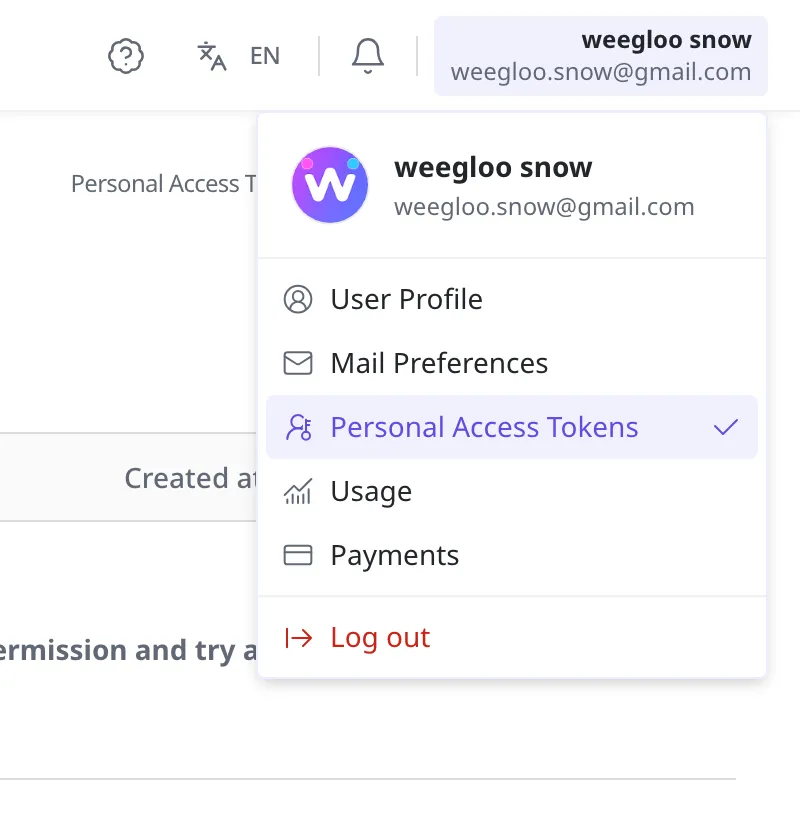
- Click your name and email at the right end of the bar at the very top of the screen. On a narrow screen, only your profile photo appears there. The account menu opens.
- In the menu, click Personal Access Tokens. The Personal Access Token screen in your account settings opens.
- Click the Create button at the top right. The "Create Personal Access Token" window opens.
- Enter
Nightly New Arrivals Uploadin the Name field. - Click the Save button.
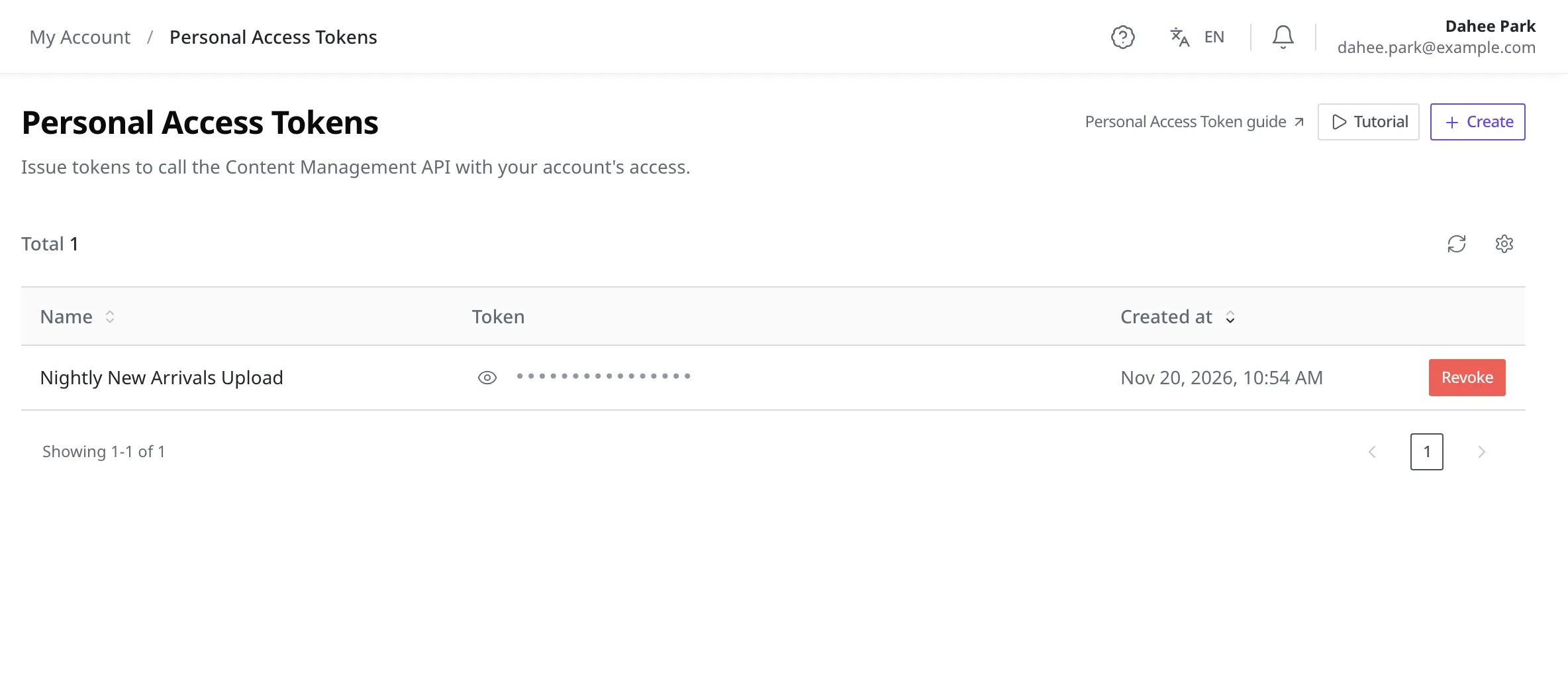
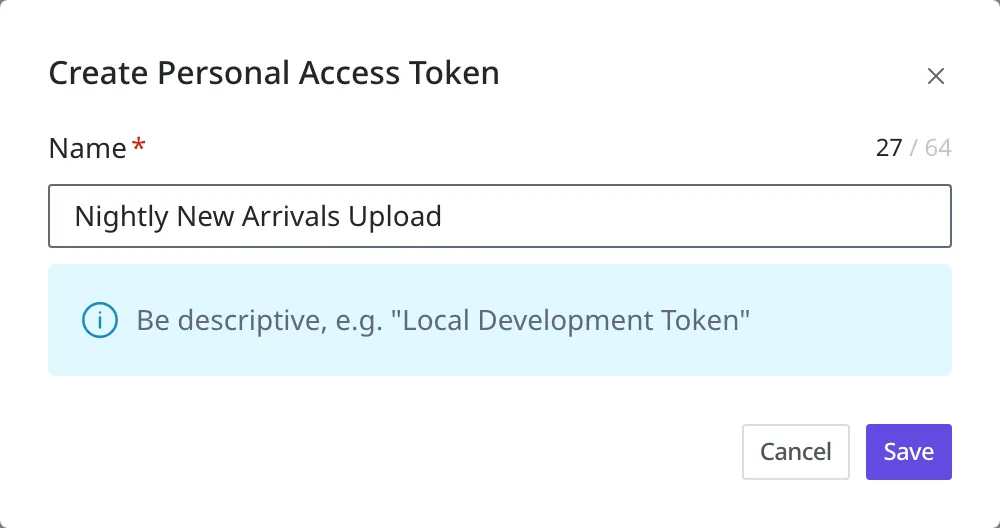
When you click Save, the "Personal Access Token created" window opens and shows the new secret value. Click the copy icon on the left of the value to copy it, keep it somewhere safe on the server where the program runs, and then click the Close button. Even after you close the window, you can copy the value again from the Token column of the Personal Access Token list. Click the eye icon in that column to show the value, then click the value to copy it.
Issue a Space Access Token
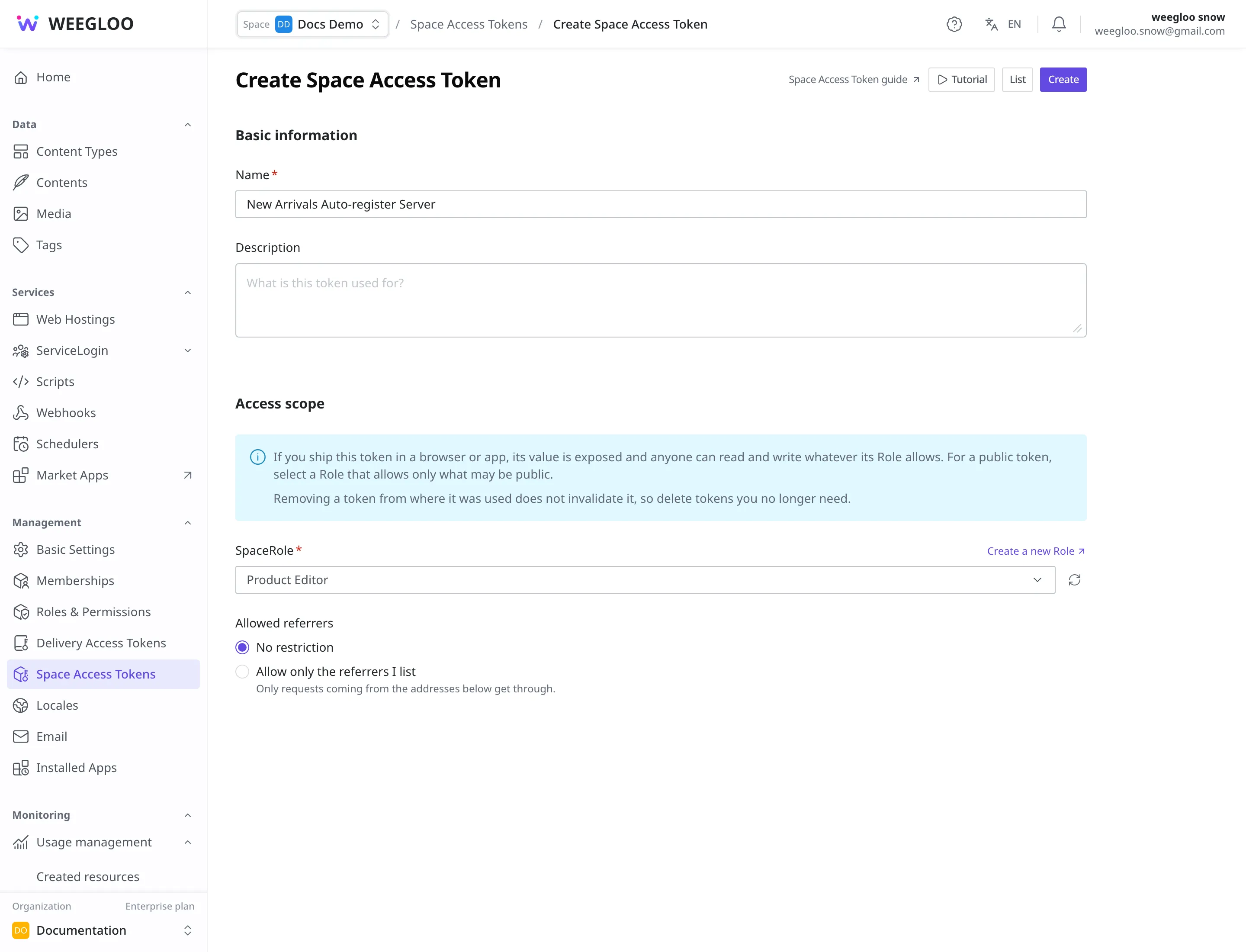
These steps issue a Space Access Token for the server that will automatically add products to the clothing store's Space. They assume you've already created the role to bind, "Product Editor" (Read, Create, and Edit allowed on product Content). The steps to create a role are in Create a role.
- Open the Space Access Token screen in the clothing store Space's settings.
- Click the Create button at the top right of the list. The "Create Space Access Token" screen opens.
- Enter
New Arrivals Auto-register Serverin the Name field. - Under SpaceRole, select "Product Editor".
- Leave Allowed referrers at No restriction. This token is used on a server, not on a site.
- Click the Create button at the top right of the screen.
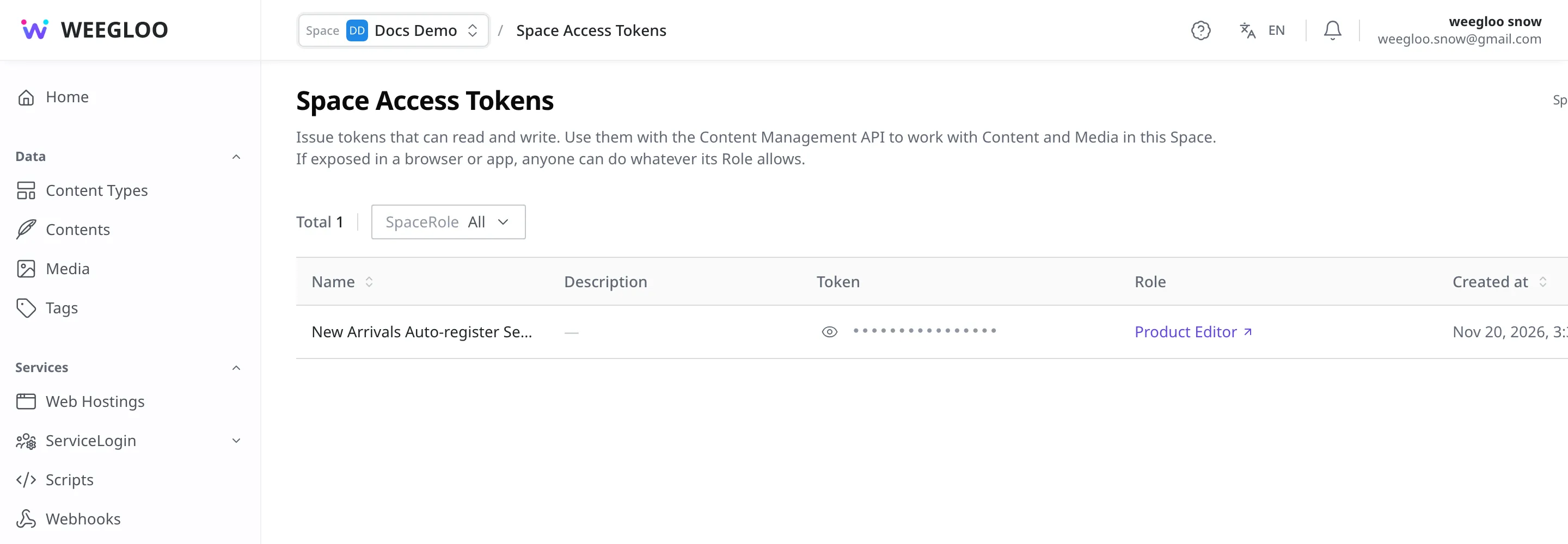
When issuing finishes, you move to the token's detail screen. Copy the secret value and keep it somewhere safe on the server.
Edit the description and Allowed referrers
The clothing store is opening a separate promotion site at https://sale.example.net, so these steps add that address to Allowed referrers of the "Online Store Site Delivery" token. You edit Description on the same screen. You edit a Space Access Token the same way. Its detail screen looks the same, and only the notices in Access scope are different.
The detail screen has two sections, Token (Description) and Access scope (SpaceRole, Allowed referrers). When you change a section, Cancel and Save appear at its bottom right. Each section's Save saves only the changes made in that section. Clicking Cancel returns only that section to its saved values. If you go to another screen without saving, a window asks whether to save.
- Open the Delivery Access Token screen in the clothing store Space's settings.
- In the list, click the "Online Store Site Delivery" row. The token's detail screen opens.
- Under Allowed referrers, click the Add button. Allowed referrers on the detail screen looks the same as on the creation screen.
- Enter
https://sale.example.netin the new field. - Click the Save button at the bottom right of the Access scope section.
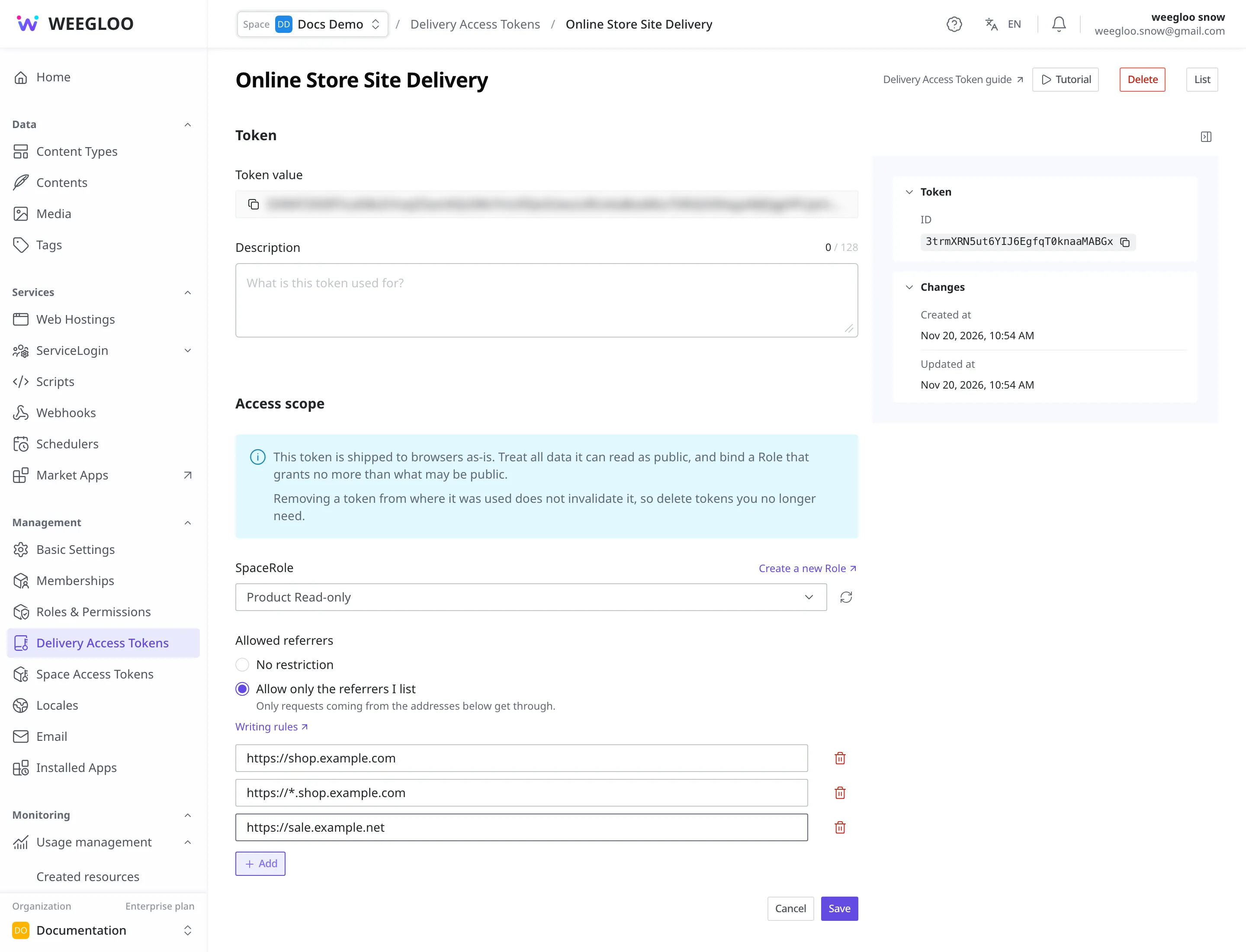
You can't change the name on this screen. If you need to change the name, follow the steps in Replace a token. You change the bound role in SpaceRole in the Access scope section of the same screen (Change the bound role).
Change the bound role
The online store site will now show promotion posts along with products, so these steps change the role bound to the "Online Store Site Delivery" token from "Product Read-Only" to "Product and Promotion Read-Only" (Read allowed on product and promotion Content). Editing "Product Read-Only" directly would also change the permissions of other tokens bound to it and of members who have it, so the steps assume you've created the new role ahead of time. You change the role of a Space Access Token the same way.
The permission you need to make the change is in Required permissions. What the site using the token can do changes from the next request after you save, so check what the new role allows first (The bound role decides what a token can do).
- Open the Delivery Access Token screen in the clothing store Space's settings.
- In the list, click the "Online Store Site Delivery" row. The token's detail screen opens.
- Under SpaceRole, select "Product and Promotion Read-Only".
- Click the Save button at the bottom right of the Access scope section.
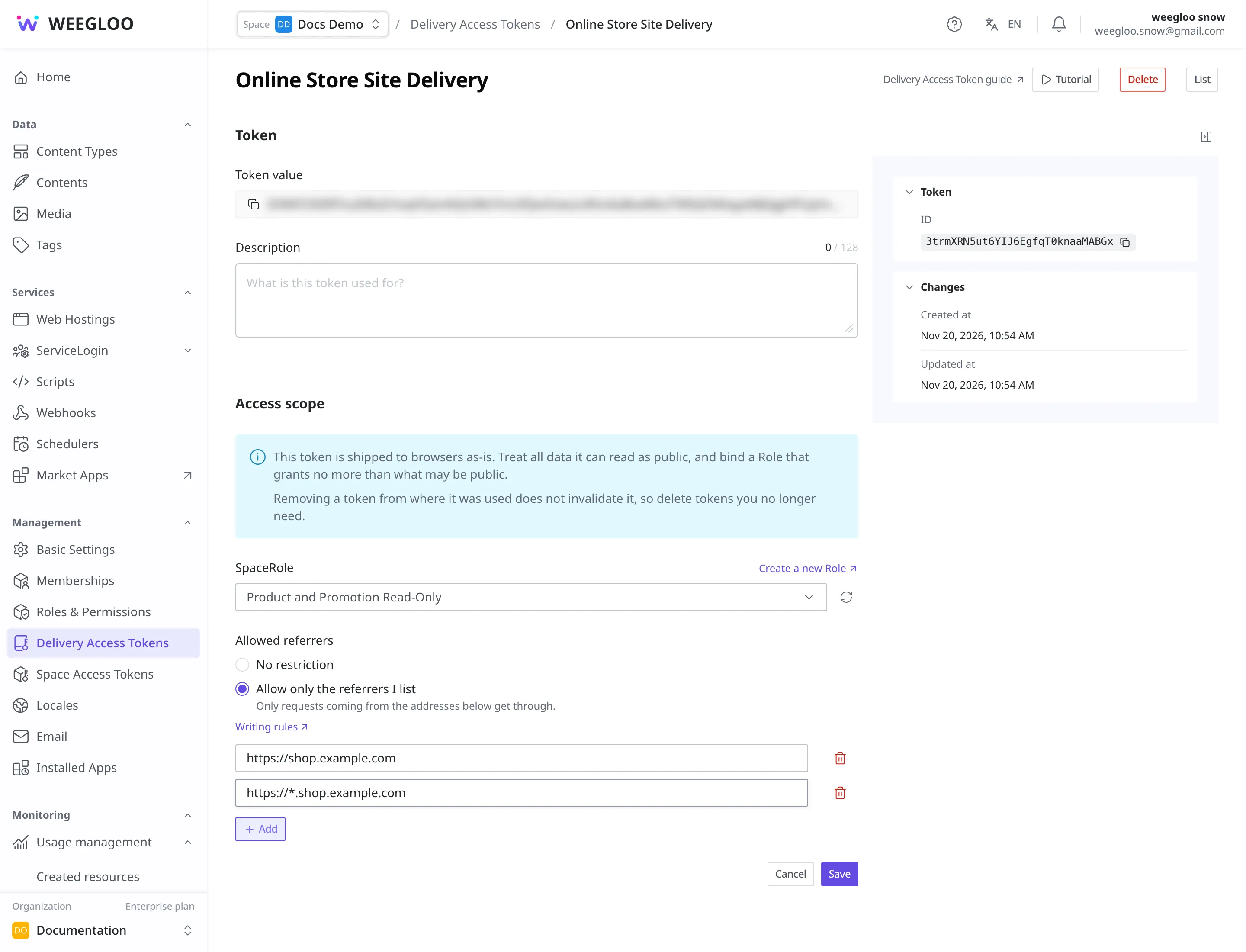
- The conditions in Roles you can bind decide which roles you can select.
- If a program has bound two or more roles to the token, the notice "Multiple SpaceRoles are currently assigned. Saving will replace them with the single SpaceRole you selected." appears. When you save, only the one role you selected remains.
Replace a token
When a token value seems to have leaked, or when you need to change a token's name, issue a new token and swap it in, because editing an issued token can't change its secret value or name. You can also follow these steps to switch to a token bound to a different role. To change only the bound role without replacing the token, see Change the bound role. The steps below replace "Online Store Site Delivery".
- Issue a new token of the same type. Give it a name that sets it apart from the old token, such as
Online Store Site Delivery 2, and set the role and Allowed referrers as needed. - Copy the new token's secret value, and replace the old value in the site or program with it.
- Check that the site or program works with the new value.
- Delete the old token. The steps are in Delete a token.
If you're sure the value leaked, delete the old token first. The sites or programs that used it stop working until you put in the new value, but the leaked value can't be used anymore either.
Delete a token
These steps delete the "Online Store Site Delivery" token, which you no longer use. You delete a Space Access Token the same way.
- Open the Delivery Access Token screen in the clothing store Space's settings.
- In the list, click the "Online Store Site Delivery" row. The token's detail screen opens.
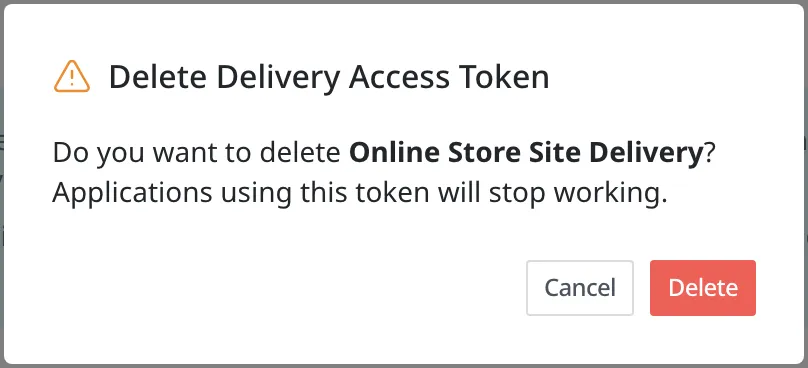
- Click the Delete button at the top right of the screen. The "Delete Delivery Access Token" window opens, with a notice that applications using this token will stop working.
- In the confirmation window, click Delete. To keep the token, click Cancel.
You delete a Personal Access Token from the Personal Access Token list in your account settings.
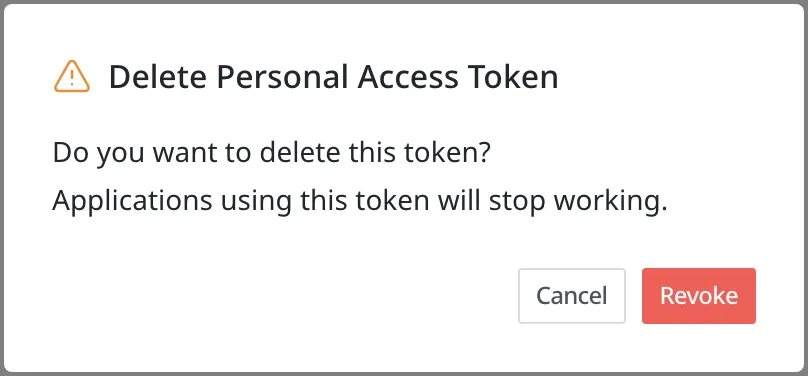
- In the list, click the Revoke button in the "Nightly New Arrivals Upload" row. The "Delete Personal Access Token" confirmation window opens, with a notice that applications using this token will stop working.
- In the confirmation window, click Revoke.
A deleted token can't be restored, and it can no longer be used to access anything. What happens after a deletion (for example, the role that was bound can then be deleted) is covered in Deleting items such as Locale, Tag, and Script.
Troubleshooting
| Problem | Cause | What to do |
|---|---|---|
| You can't open the token screen in the Space settings, or issuing is blocked | Your role doesn't have the Manage Delivery Access Tokens or Manage Space Access Tokens permission | Ask a Space admin for the permission you need |
| When you click Create, the message "A SpaceRole must be selected." appears and the token isn't issued | You didn't select a role under SpaceRole | Select a role to bind. If there's no role to bind, create one with Create a new Role at the top right of the SpaceRole field (Space Access Token and Delivery Access Token settings) |
| You can't select the role you want to bind in the SpaceRole list | It's a role you don't have in that Space (Roles you can bind) | Bind a role you have, or ask a member with the Administrator role in that Space to issue the token or change its role |
| A newly created role doesn't appear in the SpaceRole list | You created the role after opening the token screen | Click the refresh icon to the right of the list |
| The SpaceRole field of the detail screen is locked and shows "You do not have permission to manage memberships, so you cannot change the SpaceRole." | Your role doesn't have Manage memberships (Required permissions) | Ask a Space admin to change the role, or ask for the Manage memberships permission |
| After you change the bound role, content doesn't show up in the site or program, or work is blocked | The new role applies from the next request after you save, and the new role doesn't allow that work | Check the new role's permissions and allow the actions you need, or switch back to the original role (Change the bound role) |
| After you select Allow only the referrers I list, the token can't be issued or saved | All the address fields are empty | Enter at least one address, or select No restriction |
| A limit notice appears when you try to issue a token | You've reached the limit on how many you can issue | Delete tokens you don't use. For Space Access Tokens and Delivery Access Tokens, you can also upgrade to a higher plan |
| After you enter addresses in Allowed referrers, the token can't be issued or saved | An address breaks the rules. This includes a public address that starts with http://, a * anywhere but the very front, an address with ? or #, the same address entered twice, and more than 50 addresses | Check the reason shown below the address field and fix the address to follow Rules for entering addresses in Allowed referrers |
| After you fill in Allowed referrers, content doesn't show up on the site | The address you opened the site at isn't on the list. An address with www, http:// versus https://, and an address with a different port are all treated as different addresses | Add the address you opened the site at to the list |
You entered https://*.shop.example.com, but requests from https://shop.example.com are blocked | *. covers only addresses with something in front, not the base address itself | Enter https://shop.example.com on its own line too |
| Requests are blocked from a site whose address you entered with a path | With a path, only requests from exactly that path are accepted. Some browsers send only the site address without the path, so even requests from pages at that same path can be blocked | Remove the path and enter only the site address |
| A program running on a server can't use the token | Allow only the referrers I list is selected, so requests that don't say which site they came from are rejected | Set tokens used on a server to No restriction. You can also issue separate tokens for the site and the server |
| After the site's address changes, the site can't use the token | The new address isn't on the Allowed referrers list. This happens when the site's address changes, for example when you connect your own domain | Open the token and add the new address to Allowed referrers |
| Content can't be read with a Delivery Access Token | The content isn't Published, or the bound role has no permission to read it. Content that doesn't meet the role's creator condition can't be read either (Conditions that work differently in public delivery) | Publish the content, or allow Read in the bound role |
| The token can't work with content members created | The bound role's creator field is narrowed to The requesting user. For a token, the requesting user is the token itself | Change the token's bound role to one without that condition (Change the bound role), or issue a new token bound to such a role and swap it in |
| You can't change the token's name on its detail screen | A name can't be changed after issuing. On the detail screen, you can change only Description, SpaceRole, and Allowed referrers | Issue a new token and swap it in, following Replace a token |
| You can't add a Locale or create a Webhook with a Space Access Token | This token can't handle Space settings (What tokens can't do) | Do it by logging in to Content Studio, or with a Personal Access Token |
| You can't issue another Personal Access Token with a Personal Access Token | Personal Access Tokens are issued and managed only by logging in to Content Studio | Issue it from your account settings in Content Studio |
| A Personal Access Token can no longer access a certain Space | The issuing account was removed from that Space, or the account's role changed | Ask that Space's admin about your membership and role |
| You didn't copy the secret value when you issued the token | The secret value isn't shown only when you issue the token | Copy it again from the Token field on the token's detail screen. For a Personal Access Token, copy it from the Token column of the list |
| Tokens a member issued still work after that member leaves | Space Access Tokens and Delivery Access Tokens stay independent of the member who issued them | If you don't use those tokens, delete them |
| You can't delete a role bound to a token | A role can't be deleted while it's bound to a token | Delete the tokens bound to that role, or switch their bound role to a different one (Change the bound role), and then delete the role (Deletion rules) |
Related docs
- Tokens: Covers what the three tokens are and when to use them, and the flow the online store site follows to read published products with a Delivery Access Token.
- Role and permission rules: Covers the rules for creating and narrowing the roles you bind to tokens, and how to turn on the token management permissions.
- Account settings: Covers the items and rules of account settings, where the Personal Access Token screen is.
- Deletion rules: Covers the conditions for deleting tokens and the roles bound to them, and what goes away along with a deleted Space.
- Pricing: Covers how many tokens you can issue on each plan.
- API reference: Covers the technical specifications, such as request formats, that you need to issue and work with tokens from a program.