

Image processing
Even for the same product photo, a small image suits the thumbnail in a product list (the small photo shown in a list), and a large one suits the product detail page on your site. You don't have to make and upload a separate photo for each size. Add a style name to the end of the Media's file address, and you get the image scaled down to a set size while the original stays as it is. This feature is called image processing.
This page fully covers the styles and sizes you can choose, how images are scaled down and what format you get, which files you can add a style name to and when, data transfer, and troubleshooting. For the steps to upload a photo as a Media, see Upload a single file. For the steps to link it to a Content, see Link a main photo to a product.
The examples on this page use "Stainless Tumbler 500ml Front Shot", a product photo from an online clothing store. This Media holds tumbler.png, a PNG file that is 900 pixels wide and 900 pixels tall. A pixel is one of the tiny dots that make up a screen, and it's the unit used to measure an image's size.
Rules
You add a style name to the end of the file address
Every file uploaded to a Media has its own file address. A file address is the address that opens that file on the internet. In Content Studio, it's shown in the URL field on the Media detail screen. Your online store site shows a photo using the file address of the Media it receives through public delivery.
When you add a slash (/) and a style name to the end of the file address, you get the same photo scaled down to that style's size. A style is a name given to each preset size. There are ten, from style1 to style10. Here's an example with the tumbler photo's address.
| Address | Image you get |
|---|---|
https://.../tumbler.png | The original 900 × 900 PNG, as is |
https://.../tumbler.png/style3 | A WebP scaled down to 128 × 128 |
https://.../tumbler.png/style8 | A WebP scaled down to 640 × 640 |
PNG · 900 × 900
Write the style name exactly as it appears in the Available styles table.
Available styles
| Style | Size (width × height) | Format |
|---|---|---|
style1 | 32 × 32 | WebP |
style2 | 64 × 64 | WebP |
style3 | 128 × 128 | WebP |
style4 | 192 × 192 | WebP |
style5 | 256 × 256 | WebP |
style6 | 320 × 320 | WebP |
style7 | 480 × 480 | WebP |
style8 | 640 × 640 | WebP |
style9 | 960 × 960 | WebP |
style10 | 1024 × 1024 | WebP |
The sizes in the table are the largest width and height the scaled-down image can have. How a photo that isn't square is scaled down is explained in Images keep their proportions and are never cropped. The largest style is style10, so where you show an image larger than 1024 × 1024, use the original address with no style name.
Images keep their proportions and are never cropped
Every style keeps the original's width-to-height ratio and scales the photo down until its width and height fit within the size in the table. So no part of the photo is cut off.
- A square photo shrinks to the size in the table. Adding
/style3to the 900 × 900 tumbler photo makes it 128 × 128. - For a photo that isn't square, the longer side is fitted to the size in the table, and the shorter side shrinks by the same ratio. Adding
/style3to a sale banner photo that is 900 wide and 600 tall makes it 128 wide and about 85 tall. - When the original is smaller than the size in the table:
If the spot for the photo is square and you need a square image, upload a photo that's already cropped to a square.
Format of the resulting image
An image you get with a style name is converted to WebP. WebP is an image format made for the web. Even the tumbler photo, whose original is a PNG, comes as a WebP when you add a style name.
To get the image in its original format, use the address with no style name.
Choosing a style that fits where it's shown
Choose a style that's the same size as the spot where the photo is shown, or a little larger.
- If you choose a style smaller than the spot, the small image is stretched to fill it, so the photo can look blurry.
- If you use a style much larger than the spot, or the original, the whole large image is sent even though it looks small on screen. That increases data transfer, and the photo can take longer to show up.
You can check the original's width and height in the Dimensions column of the Media list (for example, 900 x 900 px), or in Dimensions in the File area of the detail screen. Here's an example of choosing a style for each spot where the tumbler photo is used.
| Where it's shown | Size of the spot | Address to use | Image you get |
|---|---|---|---|
| Thumbnail in the product list | 120 pixels wide and tall | https://.../tumbler.png/style3 | 128 × 128 WebP |
| Main photo on the product detail page | 600 pixels wide and tall | https://.../tumbler.png/style8 | 640 × 640 WebP |
| Full-size photo view, original download | Original size | https://.../tumbler.png | 900 × 900 PNG (original) |
The original stays as it is
Getting an image with a style name doesn't change the original file uploaded to the Media. If you use the address with no style name, the original is delivered as is.
A scaled-down image isn't created as a new Media. So it isn't added to the Media list, and it doesn't count toward your number of Media or your Media storage usage. Instead of uploading separate photos for thumbnails and detail pages, add different style names to the address of one original.
Files you can add a style name to
You add a style name to the address of an image file. A file shown as Image in the Type column of the Media list is an image file.
For files that aren't images, such as videos or PDF documents, use the original address without a style name.
You can use it once file processing finishes
A file address is created once processing of the file uploaded to the Media finishes. A file that's still being processed, or one that failed processing, has no address yet, so you can't add a style name to it either. For the rule on how a Media is published after processing finishes, see Status and version rules.
Your online store site adds a style name to the file address of a Media it receives through public delivery. It adds one the same way to the file address of a main photo received along with a product Content. The rules for receiving a linked photo along with its product are covered in Reference rules. For the request format for getting a Media and its file address through public delivery, see the API reference.
Each language has its own file address
If you uploaded separate tumbler photo files, one with English (en-US) text and one with Korean (ko-KR) text, the two files have different addresses. Add the style name to the file address for the language your site will show. For the rules on how file addresses are created and changed, see File addresses. For the steps to upload a file for each language, see Upload a different file for each language.
Replacing the file changes the address
The image you get from an address with a style name is a scaled-down version of the photo at the file address in front of it. When you replace a Media's file with a new one, the file address changes to a new one too (File addresses). So anywhere you used the old address with a style name, you need to update it to the new address. If you reshot the tumbler photo and replaced the file, also update the address written in your site's thumbnail spot to the new file address with /style3 added.
If your site doesn't write the address down and instead reads the Media's file address from public delivery each time, it gets the new address once the replaced file is published. For the steps to replace a file, see Replace the file.
Limits
| Item | Limit |
|---|---|
| Styles you can choose | 10, from style1 to style10 |
| Size of the largest style | 1024 × 1024 (style10) |
| Data transfer for images you get with a style name | Counts toward monthly CDN bandwidth and Origin bandwidth, which are usage items in your plan |
Like the original, images you get with a style name count toward your plan's CDN bandwidth and Origin bandwidth. Even for the same address, CDN bandwidth usage grows with every visitor who gets the image. If you use the original address in a spot shown small, like a thumbnail, the whole original is sent. Using a small style in spots like these cuts down on data transfer.
On the Free, Basic, and Pro plans, if that month's CDN bandwidth or Origin bandwidth goes over its allowance, uploaded photos and files are no longer delivered to visitors. Images with a style name aren't delivered either. You can check each plan's allowance in Pricing. How delivery resumes after you go over the allowance is also in Pricing. For how to check how much you've used so far, see Keeping an eye on usage and limits.
Required permissions
You don't need a separate permission to add a style name. Permissions are needed to find out the file address. For how to create a role and set its permissions, see Role and permission rules.
| What you want to do | Required permission |
|---|---|
| Open the Media detail screen in Content Studio and copy the file address | Read on that Media |
| Have your site get the file address of a Media, or of a photo linked to a product, through public delivery | Read on Media in the role bound to the Delivery Access Token (a read-only key) your site uses |
| Get an image from an address with a style name | None |
Like the original address, an address with a style name opens without logging in (File addresses).
If the role of the Delivery Access Token your site uses can't read Media, your site can't get photo file addresses through public delivery. The roles you can bind to a token are covered in Token rules.
Tasks in Content Studio
Add a style name to a file address and check the result
These steps copy the tumbler photo's file address and open it in a web browser with /style3 added to the end.
- Open the Media list screen.
- Open "Stainless Tumbler 500ml Front Shot" from the list.
- In the File area, click the copy icon at the right end of the URL field.
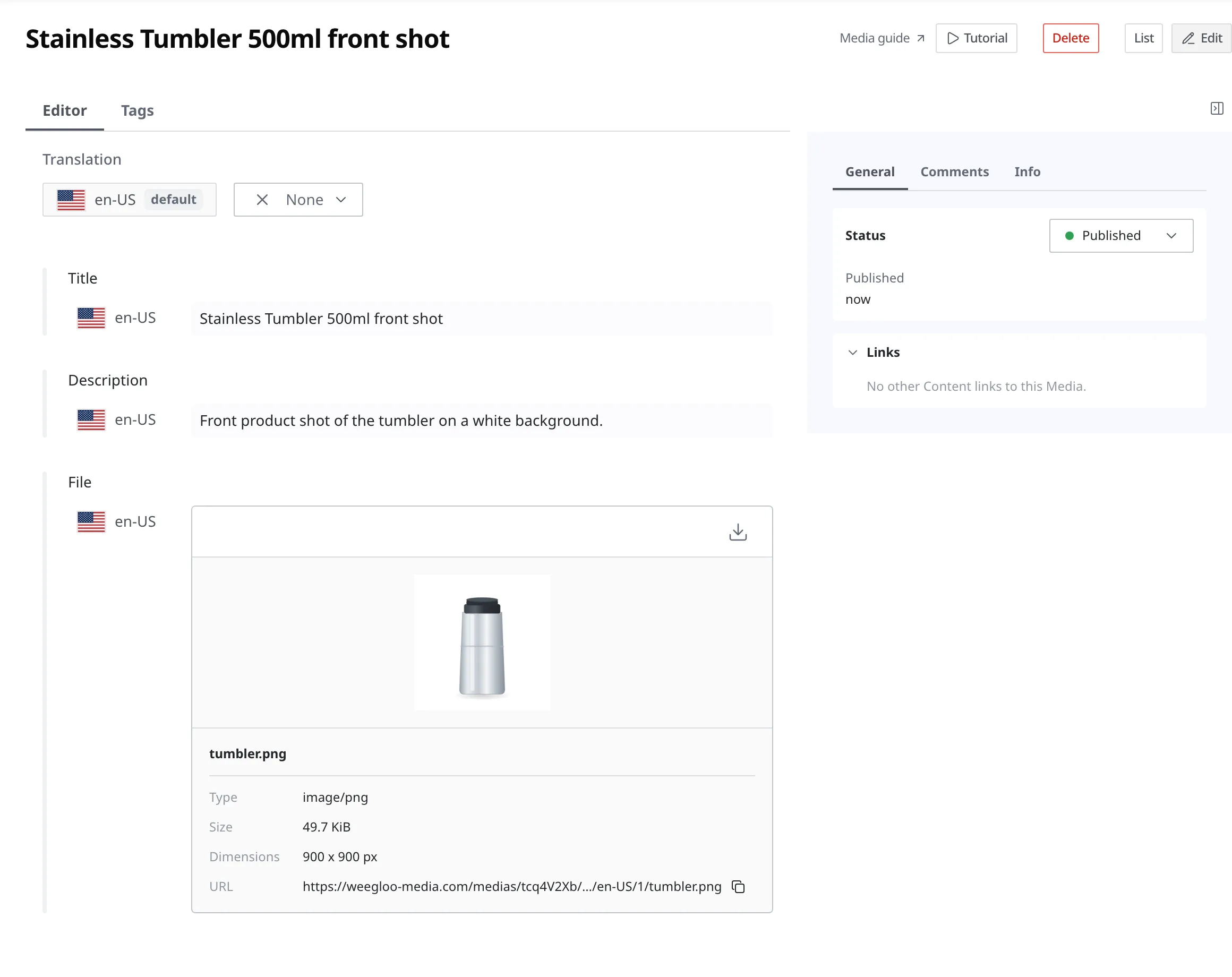
The URL field on screen shows the address with its middle left out and replaced by an ellipsis (…). So don't type the address out yourself. Copy it with the copy icon. When you click the copy icon, the full address, not shortened, is copied, and "Copied" appears briefly above the icon.
- Open a new tab in your web browser.
- Paste the copied address into the address bar.
- Type
/style3at the end of the address. The address looks likehttps://.../tumbler.png/style3. - Press Enter.
If the tumbler photo appears scaled down to 128 × 128, it worked. If you delete /style3 from the end of the address and open it again, the original 900 × 900 photo appears.
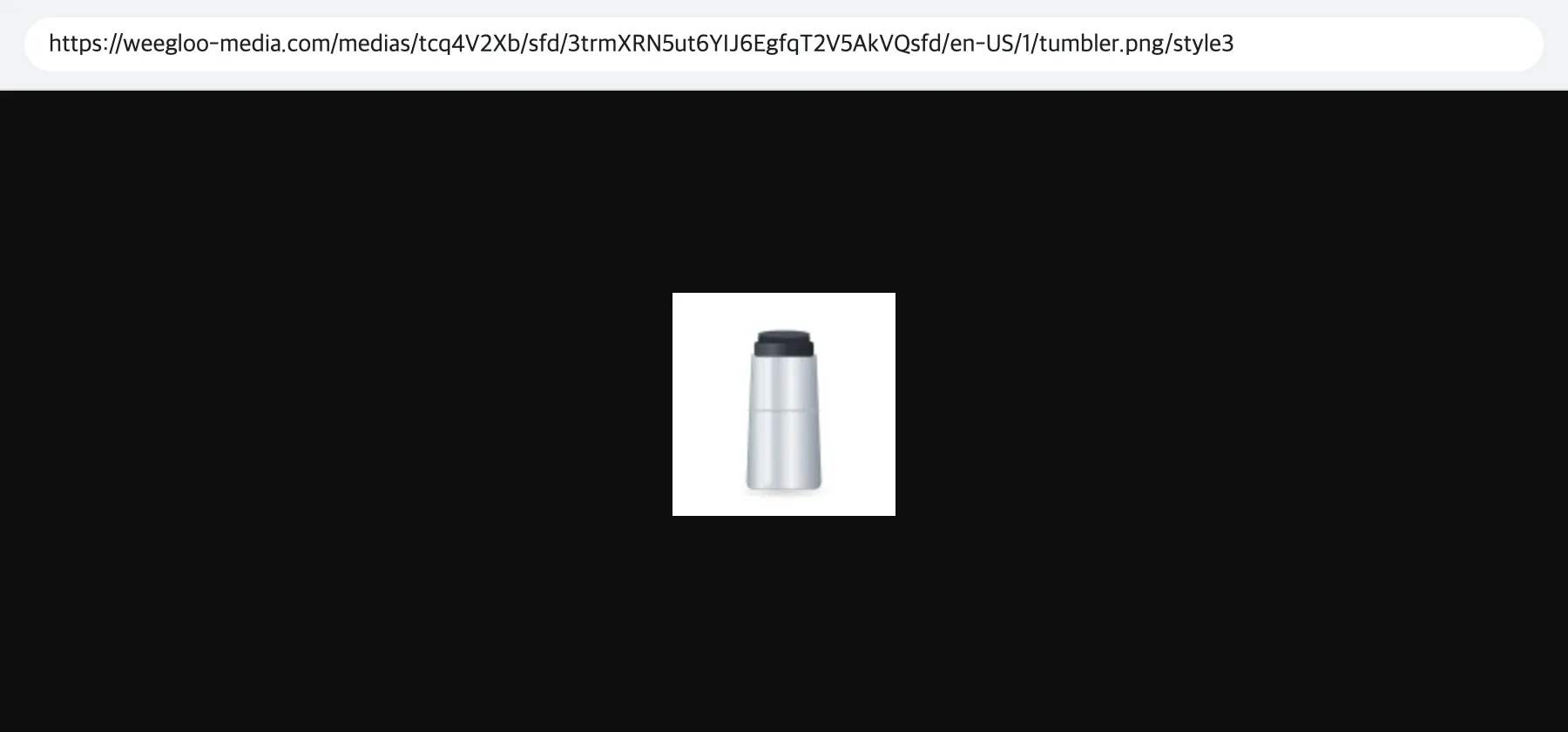
If you use this address in the thumbnail spot of your site's product list, the list shows the photo scaled down to 128 × 128.
Copy the address of another language's file
If you uploaded a separate tumbler photo file with Korean (ko-KR) text, copy that file's address like this.
- In the Media list, open "Stainless Tumbler 500ml Front Shot".
- In the Translation area, select ko-KR from the dropdown.
- Click the copy icon at the right end of the URL field for the ko-KR file.
When you select ko-KR, the ko-KR file and its URL field appear in the File area below the en-US file.
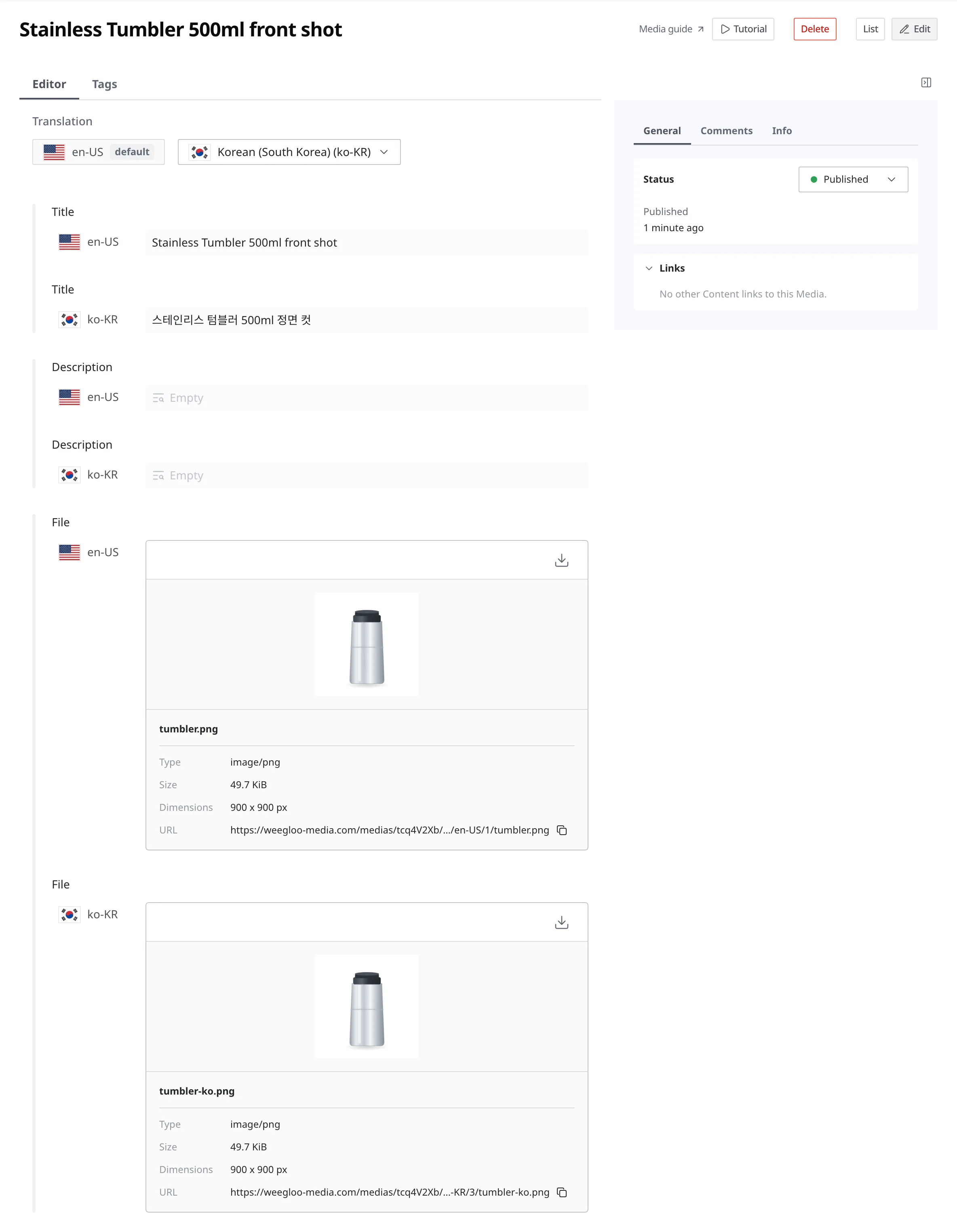
Adding a style name to the end of the copied address works the same way as in Add a style name to a file address and check the result.
Troubleshooting
| Problem | Cause | What to do |
|---|---|---|
| There's no file address to copy | The file is still being processed, or processing failed. A file address is created once processing finishes | Wait for processing to finish. If processing failed, upload the file again. |
| Images show at their original size on your site | The address your site uses has no style name | Check that the address your site uses ends with a style name, like /style3 |
| The image is still its original size even with a style name in the address | The original may be smaller than the size of the style you chose. | Choose a style smaller than the original, or use the original address |
| You don't get an image of the size you want | The style name is written differently from the table | Write the name exactly as it appears in the Available styles table |
| The image you get is blurry | You chose a style smaller than the spot where the photo is shown | Choose a style the same size as the spot or a little larger. For spots larger than 1024 × 1024, use the original address |
| You wanted a square image but got a rectangle | Styles scale down while keeping the original's proportions, and don't crop | Upload a photo cropped to a square |
| The image you get isn't in the original format (such as PNG) | Images you get with a style name are converted to WebP (Format of the resulting image) | If you need the original format, use the address with no style name |
| The Korean version of your site shows a photo with English text | You added the style name to the address of another language's file. Or no Korean file was uploaded, so the English file, Korean's Fallback Locale, was delivered | Copy the file address for the language you want to show and add the style name to it. If there's no Korean file, upload one by following Upload a different file for each language |
| You replaced the file, but your site shows the old photo, or no photo | Replacing the file changes its file address, but your site is still using the old address | Copy the new file address and add the style name to it again |
| You added a style name to a video or PDF document, but didn't get the result you wanted | Style names are for image files (Files you can add a style name to) | Use the original address without a style name |
| A photo won't open from an address with a style name | That Media was archived (Archived) or deleted | If it's archived, click Unarchive and then Publish. A deleted Media can't be restored, so upload the photo again and use its new file address |
| None of the photos on your site show for visitors | On the Free, Basic, or Pro plan, that month's CDN bandwidth or Origin bandwidth went over its allowance | See how delivery resumes in Pricing |
Related docs
- Media: Covers the flow from uploading a photo as a Media to delivering it to visitors along with a product.
- Media settings and rules: Covers the settings and rules for uploading, replacing, and deleting a Media's files.
- Keeping an eye on usage and limits: Covers how to check, on the usage screen, how much data was transferred to deliver photos.
- API reference: Covers technical specs such as the request format for getting a Media and its file address through public delivery.