

Field types
This page covers all ten Field types in the "Select Field Type" window in Content Studio. For each type, it explains the format and size limit of the value it holds, whether it can be a list or localized, how you search and sort by its values, how values are entered, and whether you can change the type after creating it. If you're new to Fields, start with Content modeling, which explains what a Field is and how to create your first one.
The examples on this page use the "Product" Content Type of "Cozy Closet", an online clothing store. The product "Stainless Tumbler 500ml" has Fields such as Product Name, Price, Description, Main Photo, Brand, and Sales Status. Settings and rules for link fields (Fields of the Content or Media type) are in Reference rules, and conditions you set on values are in Validations.
Settings
You set type-related settings in two windows that open one after the other when you create a Field, and in the "Configure Field" window. When you select a type card in the "Select Field Type" window and click Next, the "Basic Field Settings" window opens. In this window, you decide whether the field is a list and, for Long Text, whether it uses full-text search. You choose how values are entered on the Editor tab of the "Configure Field" window.
Settings that every Field has, such as Field name, Field ID, Required Field, and Enable localization for this Field, are covered in Basic settings for each Field. You can turn on Enable localization for this Field for every type. This setting is on the Settings tab of the "Configure Field" window for every type, including list fields. For localization rules, see Locale settings and rules. For the Field to use as the Content title, see The Field used as the title.
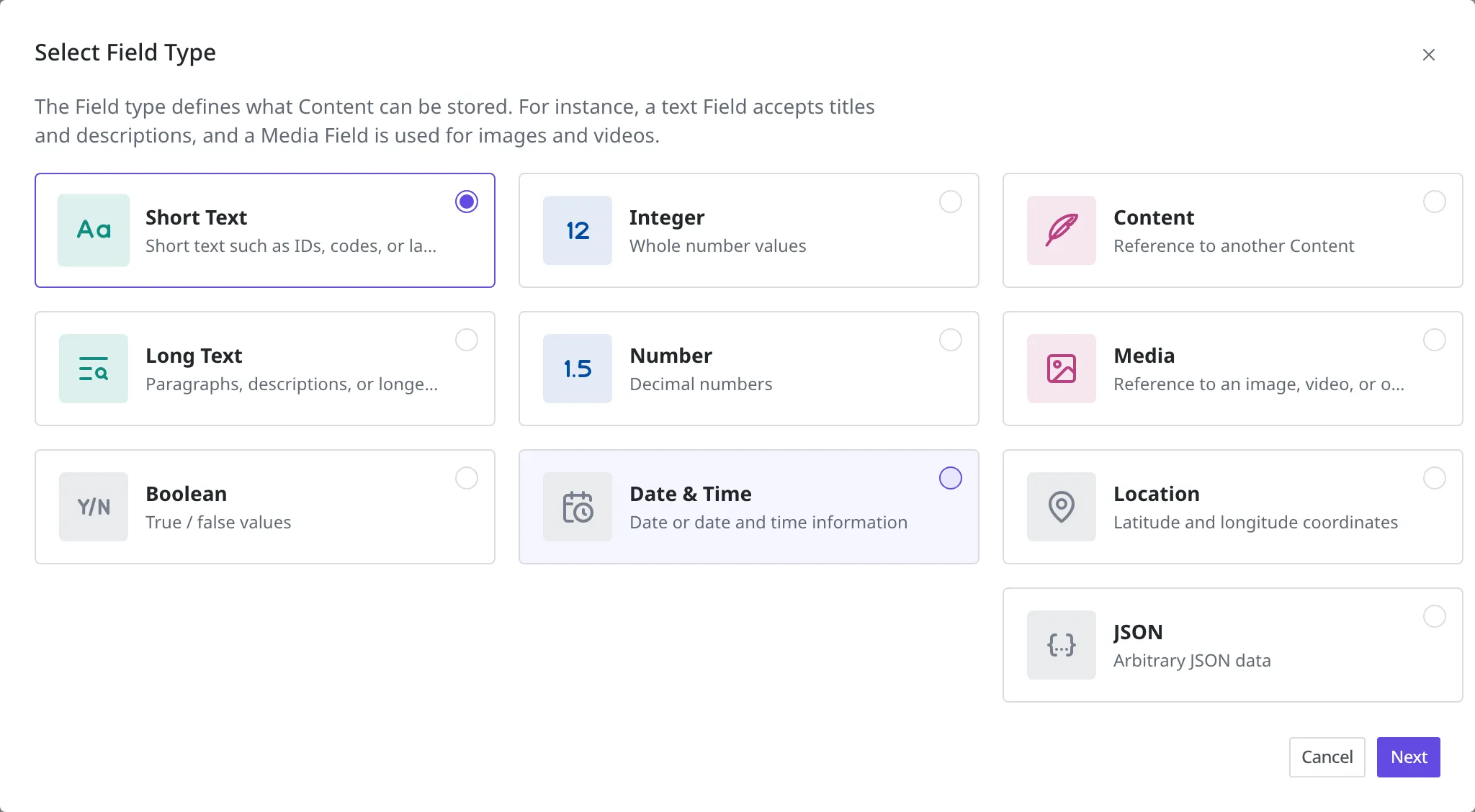
| Setting | Description | Default | Constraints |
|---|---|---|---|
| Field type | One of the ten cards in the "Select Field Type" window. It decides what kind of value this field holds | None. You must choose one | You can't change it in Content Studio after creating the field (You can't change the type after creating it) |
| Use as list type | When on, one field holds several values of the same type, in order | Off | You can turn it on only for Short Text, Content, and Media. How many values a list can hold is in Limits |
| Enable full-text search | When on, you can find this field's text by the words in it | Off | You can turn it on only for Long Text. Turning it on lowers how many characters the field can hold (Limits) |
| Input method | How you enter a value in this field on the Content edit screen. You choose it on the Editor tab | A default set for each type | The methods you can choose differ by type (Input methods on the Editor tab) |
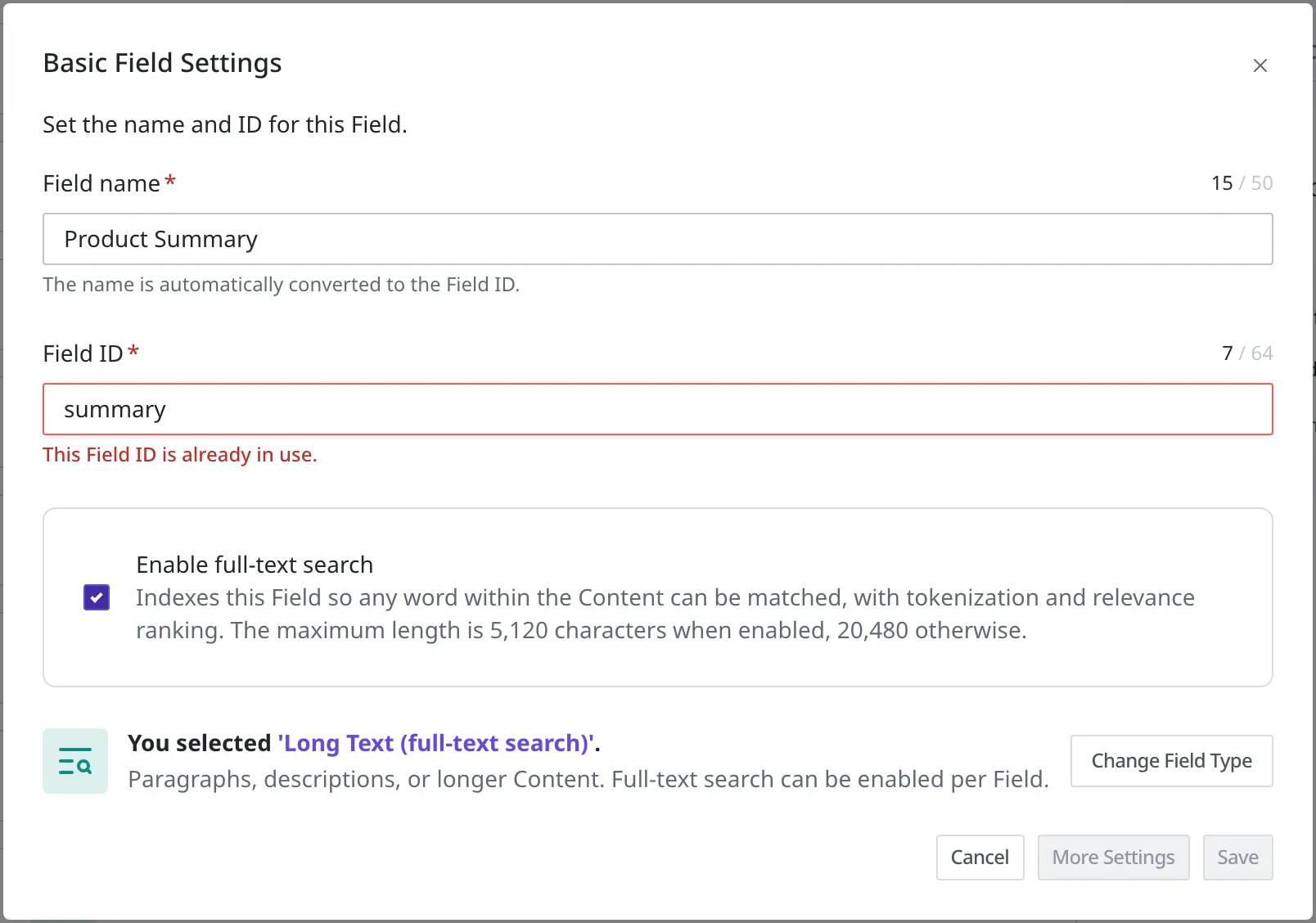
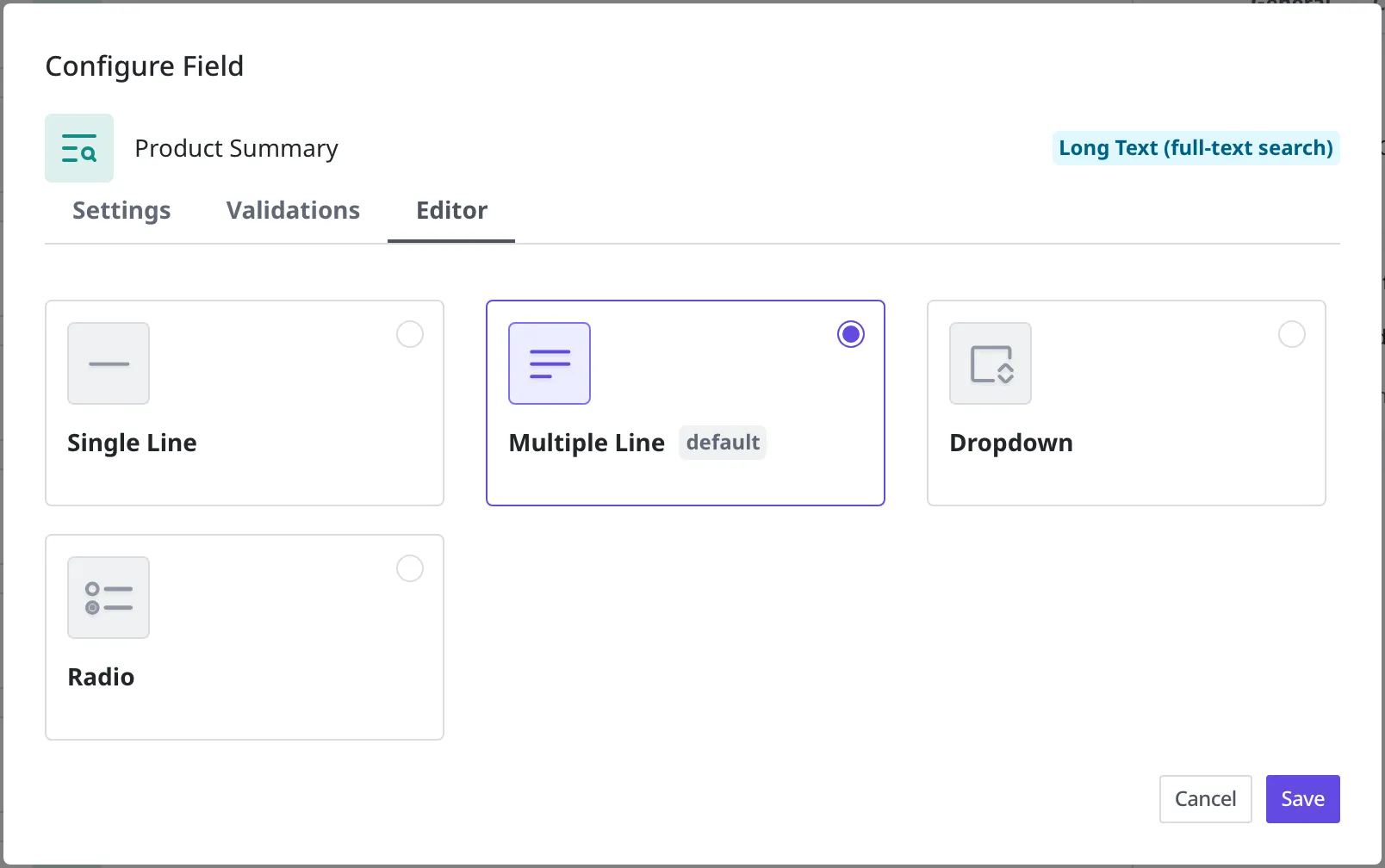
You set Use as list type and Enable full-text search in the "Basic Field Settings" window. Once the field is created, the Settings tab of the "Configure Field" window has only Field name, Field ID, Use this Field as the Content title, and Enable localization for this Field. These two settings aren't there, so you can't change them after creating the field. The type only shows at the top right of the window, as "Short Text List", "Long Text (full-text search)", or "Long Text (not searchable)".
Rules
What each type holds
Here's what each of the ten cards in the "Select Field Type" window holds. A field of any type can be left empty. To make a field mandatory, use the Required Field condition.
| Type | What it holds | Product example |
|---|---|---|
| Short Text | Short text, such as a name, a code, or a label | Product name "Stainless Tumbler 500ml", product code TB-500 |
| Long Text | Long text with paragraphs | Description "Double-wall vacuum insulation keeps drinks hot or cold for hours. A roomy 500ml." |
| Integer | Whole numbers, with nothing after the decimal point | Price 18000, stock quantity 120 |
| Number | Numbers, including ones with digits after the decimal point | Weight 0.5 (kg) |
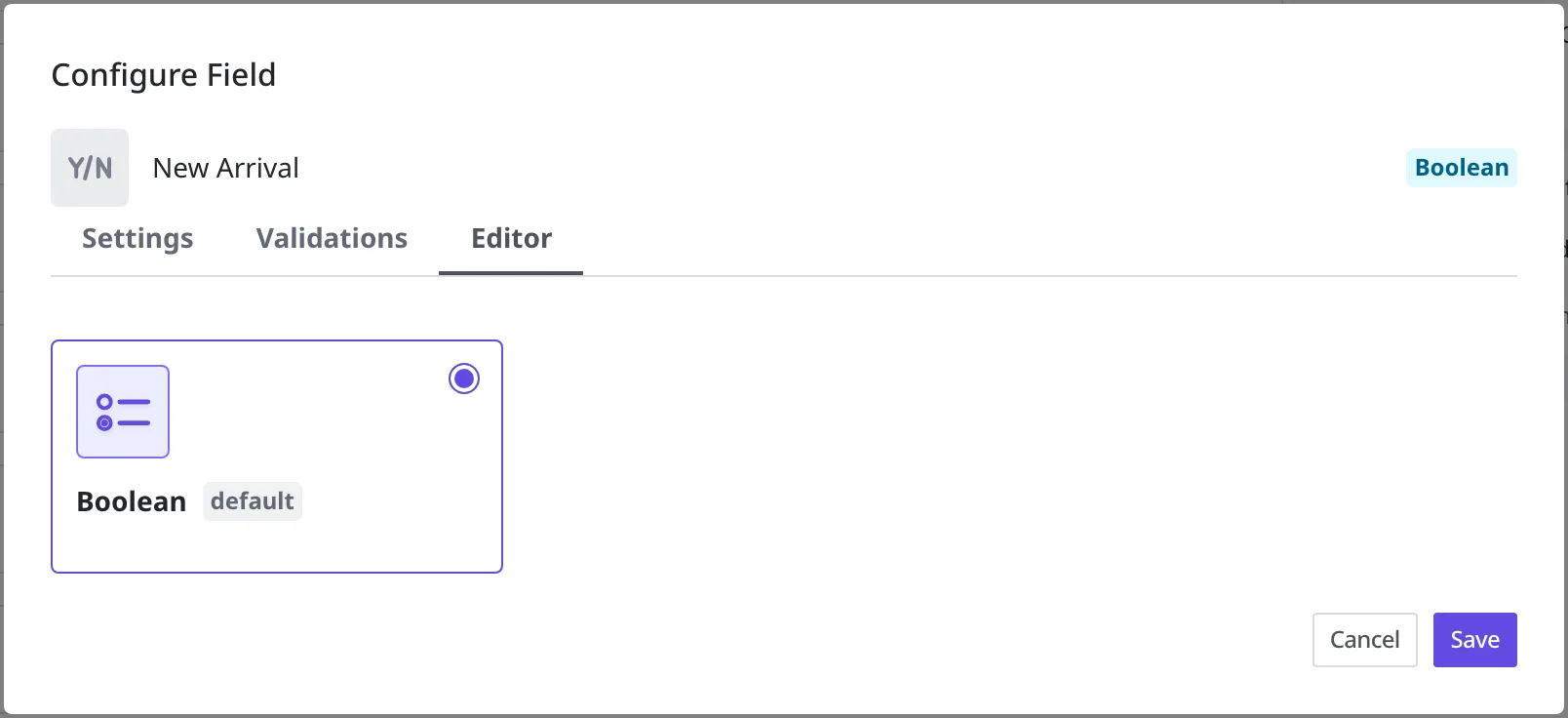
| Boolean | True or false | Whether it's a new arrival |
| Date & Time | A date and a time | Release date: March 2, 2026, 10 AM |
| Location | One point, given as latitude and longitude | Store location (latitude 37.5446, longitude 127.0557) |
| JSON | Free-form data that's hard to split into the types above (written as pairs of names and values) | Stock by color {"Silver": 40, "Black": 55, "Mint": 25} |
| Content | A link to another Content | Brand "DailyWear" |
| Media | A link to a Media you uploaded | Main photo "Stainless Tumbler 500ml Front Shot" |
Whether a value matches its type, and whether it's within the size limit for that type, is checked both when you save and when you publish. If a value fails the check, saving or publishing is blocked. For when these checks run, see Checks on save and on publish.
Short Text holds short text
Short Text holds short text, such as a product name or a product code. One value can hold up to 64 characters, and spaces count toward that. The "Basic Field Settings" window for this type shows the note "Supports exact and prefix-based search only". As the note says, you find Content by a Short Text value only by an exact match or by its first few characters (How search works for each type).
Put text that might run past 64 characters in Long Text instead of Short Text. You can't change the type after creating the field, so for a value whose length you can't predict, it's safer to make it Long Text from the start.
Long Text is saved as one of two types, depending on full-text search
A field created with the Long Text card is saved as one of two different types, depending on whether you turned on Enable full-text search in the "Basic Field Settings" window. Full-text search is the feature that finds text by the words inside it. The two types differ in the name shown in the Field list, how many characters they can hold, and how you search them.
| Item | Full-text search off (default) | Full-text search on |
|---|---|---|
| Shown in the Field list | Long Text (not searchable) | Long Text (full-text search) |
| Characters in one value | 20,480 | 5,120 |
| Finding it by words in the text | Not possible | Possible with Advanced Search |
| Other searching and sorting | Not possible | You can find it when the whole text matches exactly, and you can sort by it. You can't sort by it when reading with Advanced Search |
Long body text that you only show on your site, like a description, goes in a field with full-text search off. To let visitors find the tumbler by a word like "cold", put that text in a field with full-text search on. Keep in mind that turning on full-text search lowers how many characters the field can hold.
Integer and Number hold numbers
Integer holds whole numbers with nothing after the decimal point, like a price of 18000 or a stock quantity of 120. A value with digits after the decimal point, like 12.5, isn't saved. Number holds any number, including ones with digits after the decimal point, like a weight of 0.5. Use Integer for a price in whole won, and Number for a weight that needs decimals.
With either type, you can search for an exact value or a range (at least, at most), and sort by size.
Boolean holds either true or false
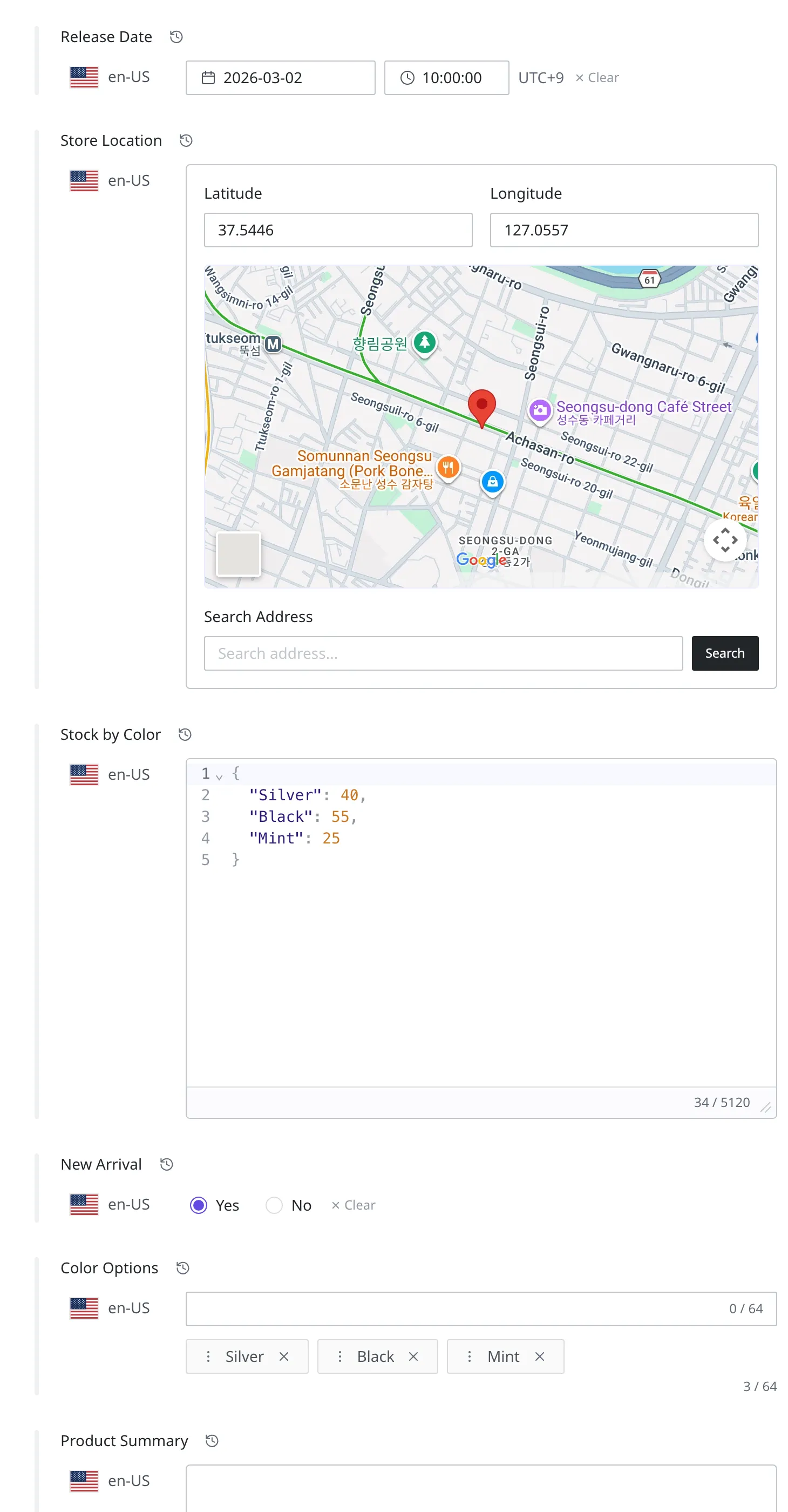
Boolean holds a value you'd answer with "yes" or "no", such as whether a product is a new arrival. It has two values: true and false. Programs read them as true and false. On the Content edit screen, a Boolean field shows the options Yes and No. To the right of the options is × Clear, which clears the value you entered.
If you leave the field empty on a product, it stays empty, neither true nor false. So when you search for products where New Arrival is false, products with this field left empty aren't included in the results.
Date & Time is saved in UTC
Date & Time holds a date and a time together, such as a release date. The value is saved in Coordinated Universal Time (UTC), down to a thousandth of a second. It's delivered publicly in the same format. Korea time is 9 hours ahead of UTC, so 10
AM on March 2, 2026, Korea time, is saved as2026-03-02T01:00:00.000Z. The Z at the end marks the time as UTC.
When you show a release date on your site, convert the time you receive to the visitor's time zone first. If you keep only the date part without converting, any time from midnight to before 9
AM Korea time shows as the previous day.On the Content edit screen, a Date & Time field is split into a date box and a time box, with UTC+9 shown to their right. There's also × Clear, which clears the value you entered. The UTC+9 label follows your browser's time zone. In a browser set to US Eastern Time (New York), it shows UTC-5. If you choose only a date and don't set a time, the value is saved as midnight in the time zone shown on screen. If you choose March 15, 2026, Korea time, it's saved as 2026-03-14T15:00:00.000Z.
With a Date & Time value, you can search for an exact time or a period (after, before), and sort by date.
Location holds two numbers: latitude and longitude
Location holds one point on a map as two numbers: latitude and longitude. For the location of the "Cozy Closet Seongsu" store, that's latitude 37.5446 and longitude 127.0557. Latitude accepts only values from -90 to 90, and longitude only values from -180 to 180. The field can't hold anything besides latitude and longitude, so put the store's name or address in a separate Short Text field.
On the Content edit screen, a Location field has a latitude box, a longitude box, a map, and an address search box. To the right of the address search box is the Search button.
You can search by a Location value only with Advanced Search. You find points that are within a set distance (in kilometers) of a given point, or inside an area you specify. When reading with Advanced Search, you can also sort by distance from a point, nearest first.
JSON accepts only a group or a list
JSON is a way of writing data as pairs of names and values. You use a JSON field to hold, in one field, data that's hard to split into set fields. The value must be a group wrapped in curly braces ({ }) or a list wrapped in square brackets ([ ]). A lone number or a single line of text isn't accepted. For the tumbler's stock by color, you'd write it like this.
{ "Silver": 40, "Black": 55, "Mint": 25 }One value can hold up to 5,120 characters. Its size is counted as the number of characters when the value is written on one line with no spaces. You can't use a JSON field's value to search or sort. If you need to find products by a value, put that value in a separate field of another type.
If you enter a value that doesn't follow the format in a JSON field on the Content edit screen, "Invalid JSON" appears below the field as soon as you type it. If you click Save in that state, the same message stays and the value isn't saved.
Content and Media fields hold links
A Content field links to another Content, and a Media field links to a Media you uploaded. Neither field holds the brand name or the photo file itself. They hold only the information that points to the linked item. The setting that limits which kinds can be linked, what happens when a linked item isn't published or is deleted, and the order of items in list fields are all covered in Reference rules.
With these two fields, you search by the linked item. For example, you can read a list of only the products that have "DailyWear" linked in the Brand field.
Types that can be lists
Three types let you turn on Use as list type: Short Text, Content, and Media. Long Text, Integer, Number, Boolean, Date & Time, Location, and JSON can't be made into lists. The "Basic Field Settings" window for these types doesn't show Use as list type.
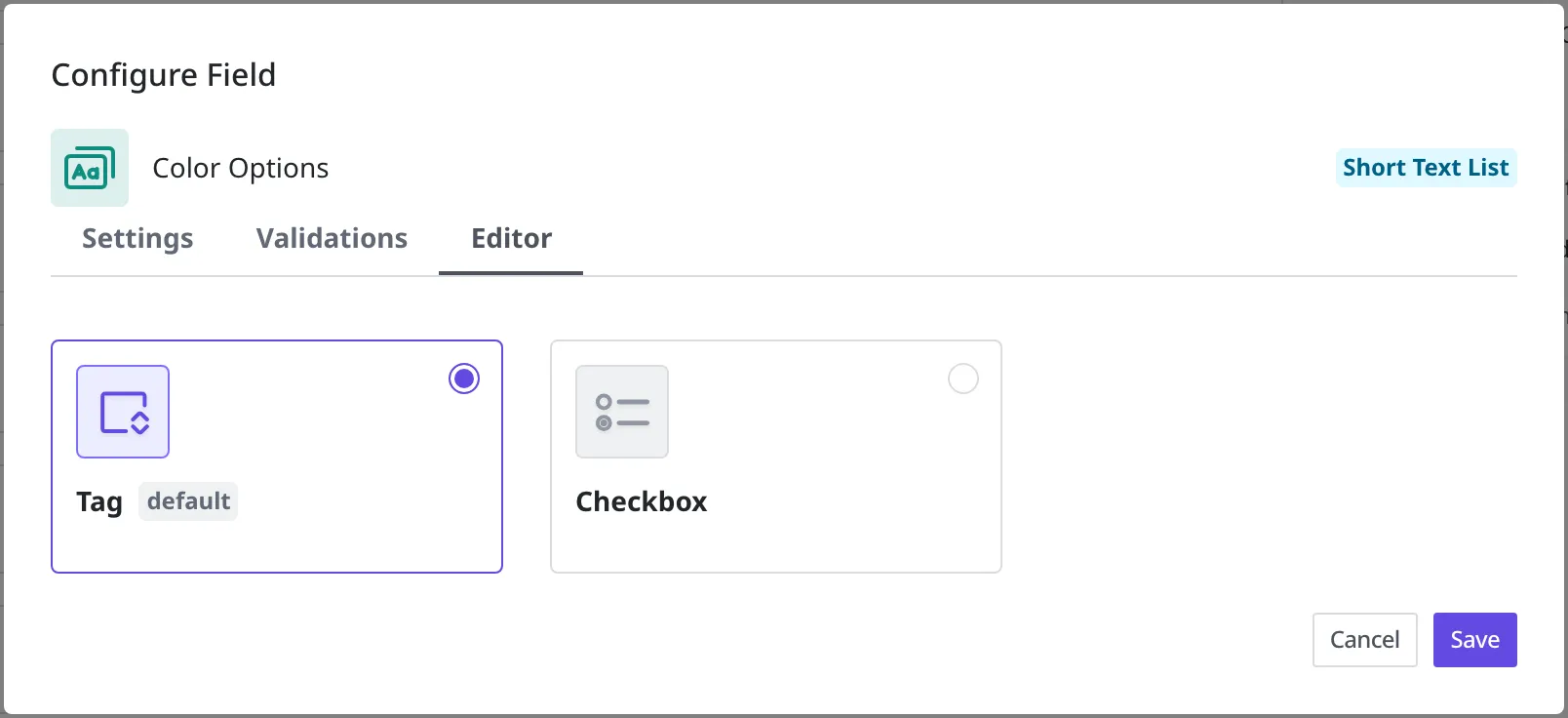
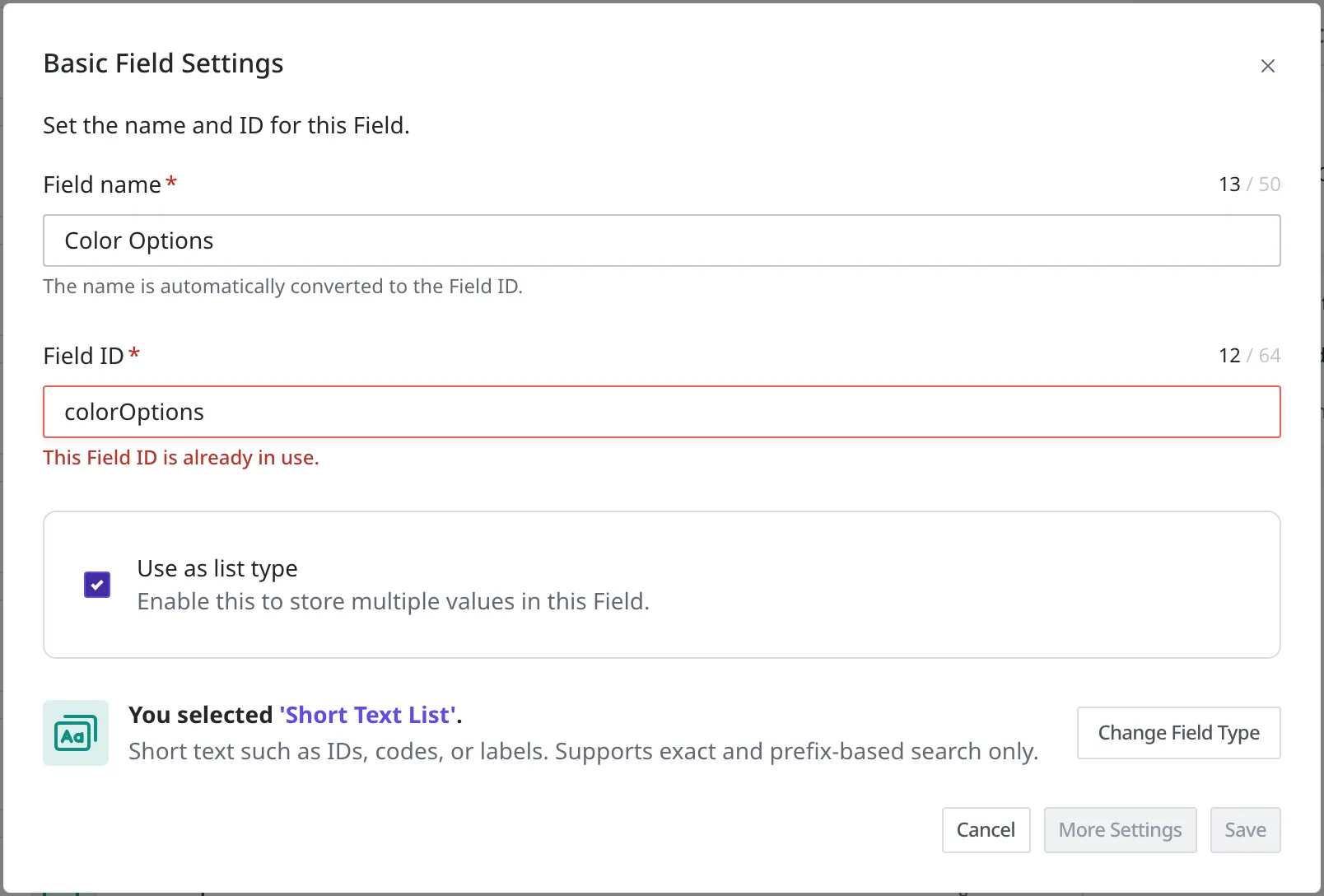
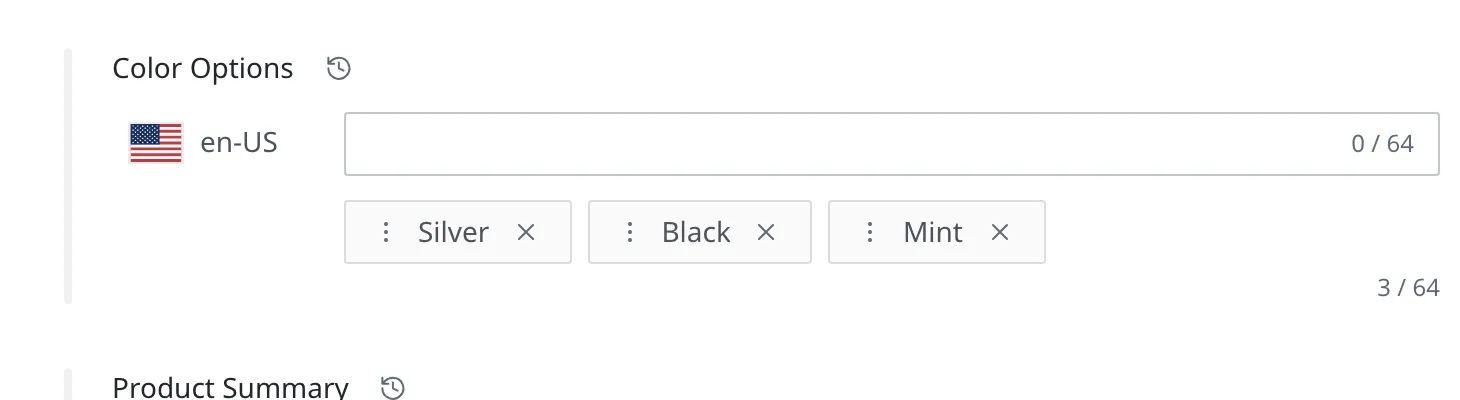
A list field holds several values of the same type, in order. If you make a product's "Color Options" field a Short Text list, it can hold "Silver", "Black", and "Mint" in one field. Each value is also subject to its type's limit, so in a Short Text list, each value can hold up to 64 characters. How many values one list field can hold is in Limits.
When you search by a list field, you find Content where at least one of the values matches, or Content that holds all the values you list.
In the Field list, a list field's type shows as Short Text List, Content List, or Media List.
If you need several numbers or dates in one field, you can hold them as a list ([ ]) in a JSON field. However, you can't search or sort by a JSON value.
How search works for each type
How you find and sort Content by a Field's value also depends on the Field's type. Here, finding means reading a list of only the Content that meets a condition. This covers your online store site reading a product list with conditions attached, and filtering the Content list in Content Studio by a Field value. For every comparison you can choose for each type in Content Studio's filters, see Filters in the list. For the steps to apply a filter, see Finding the content you need.
Some ways of searching work only with Advanced Search. Advanced Search is a search mode your online store site turns on when it reads a list. How to turn it on is in the API reference.
The table below sums up, for each type, whether you can search by its value and the ways of searching you'll use most. It doesn't list every comparison.
| Type | How you search | Sorting |
|---|---|---|
| Short Text | Exact value, first few characters | Yes |
| Long Text (full-text search on) | With Advanced Search, words in the text. Without it, an exact match of the whole text. You can also search by the first few characters, or for values that aren't equal | Yes. Not with Advanced Search |
| Long Text (full-text search off) | Can't be searched | No |
| Integer, Number | Exact value, range (at least, at most) | Yes |
| Date & Time | Exact time, period (after, before) | Yes |
| Boolean | True or false | Yes |
| Location | Only with Advanced Search: within a set distance of a point, inside an area you specify | When reading with Advanced Search, by distance from a point, nearest first |
| JSON | Can't be searched | No |
| Content, Media | The linked item | Not by the linked item's contents |
A few more things to know beyond the table:
- Types you can search by exact value can also be searched for a match with any one of several values you list.
- You can search by whether a field is empty for every type except JSON and Long Text with full-text search off.
- Short Text and Long Text with full-text search on can also be searched with a regular expression (a search pattern that describes the shape of text with symbols). Regular expressions work only with Advanced Search.
- You set search conditions for each language separately. For example, on a localized field, you set a condition on the English (en-US) value and on the Korean (ko-KR) value separately.
- Other ways of searching that work only with Advanced Search, and the request format, are covered in the API reference.
Searching by words in the text (full-text search)
To find the tumbler by the word "cold" in its description, both of these must be true.
- The field is a Long Text created with Enable full-text search turned on. In the Field list, its type shows as Long Text (full-text search).
- Your online store site turns on Advanced Search when it reads the list. Without Advanced Search, the same condition finds only products whose whole text matches exactly.
When both are true, the search also finds products whose text contains the word. To see which plans include Advanced Search and how it counts toward your usage, see Pricing.
You turn on full-text search in the "Basic Field Settings" window when you create the Field. Once the field is created, the Settings tab of the "Configure Field" window has no Enable full-text search setting, so you can't turn full-text search on or off. If you need to search the text of an existing field by word, follow Change the type of an existing Field to create a new field with full-text search on and move the values to it.
Input methods on the Editor tab
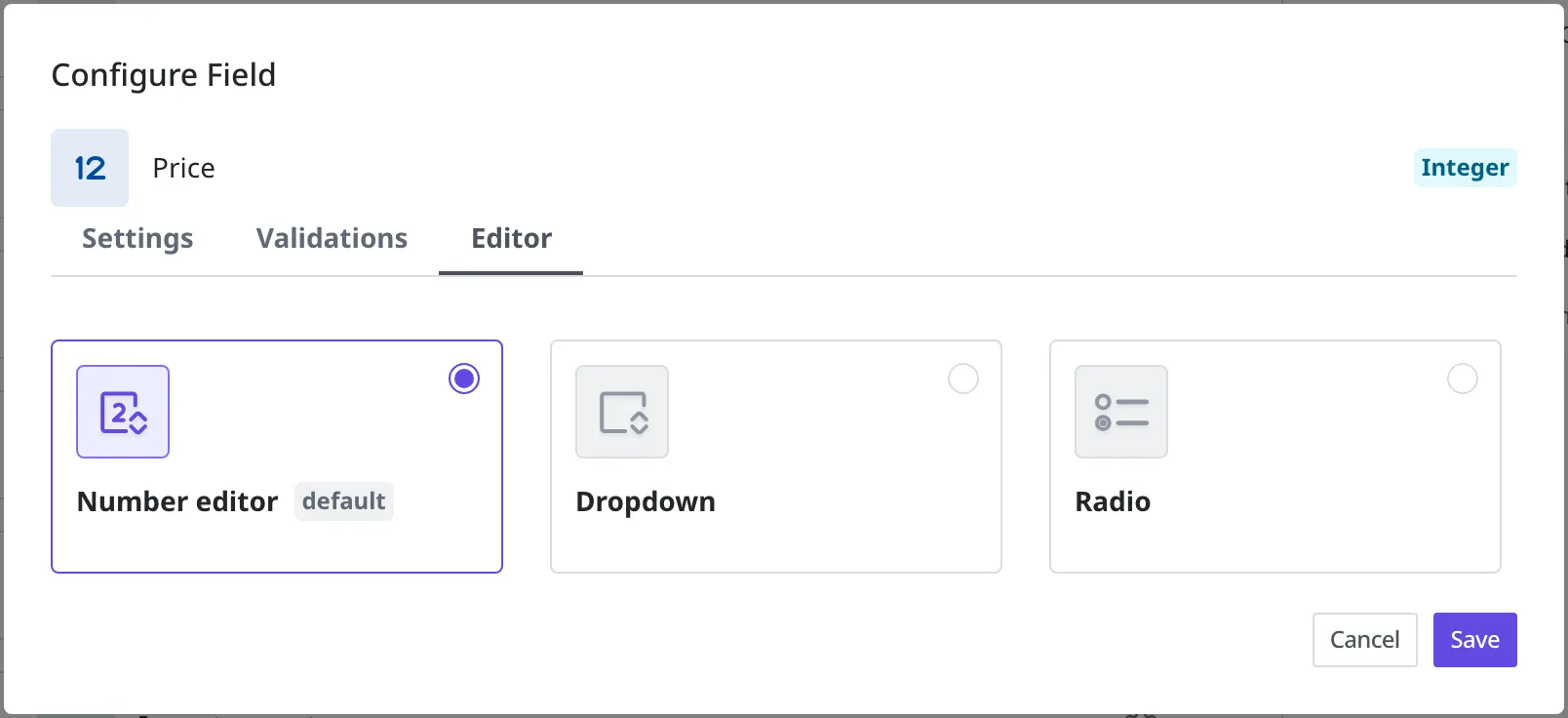
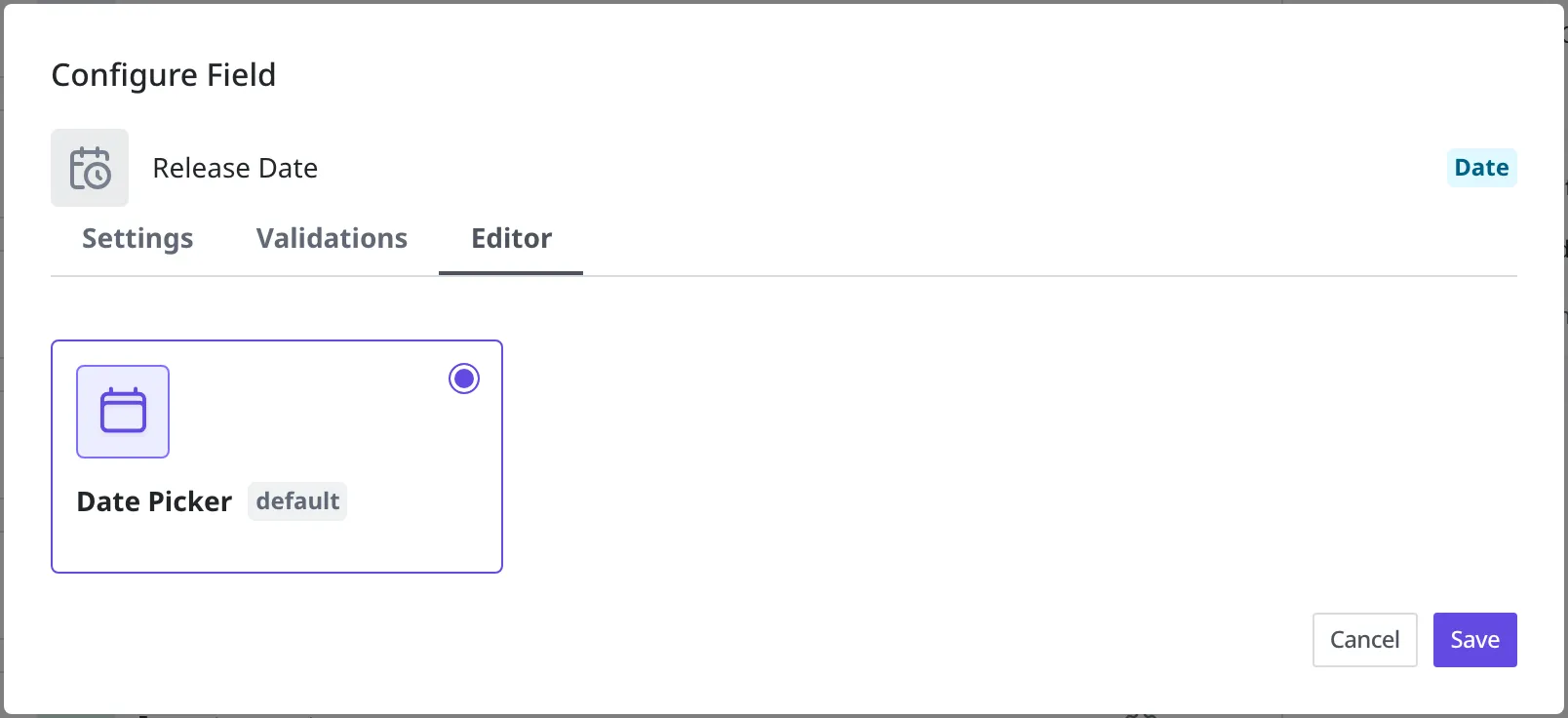
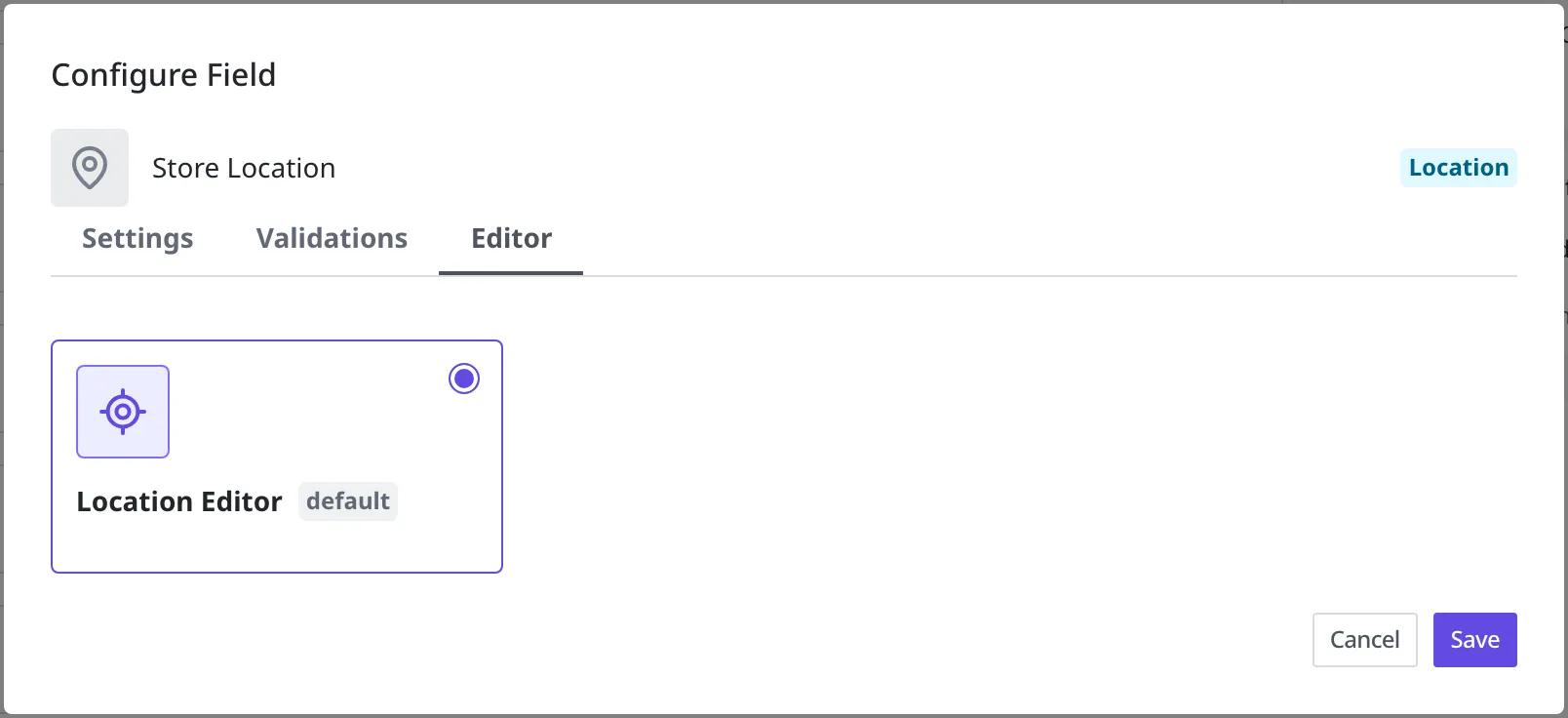
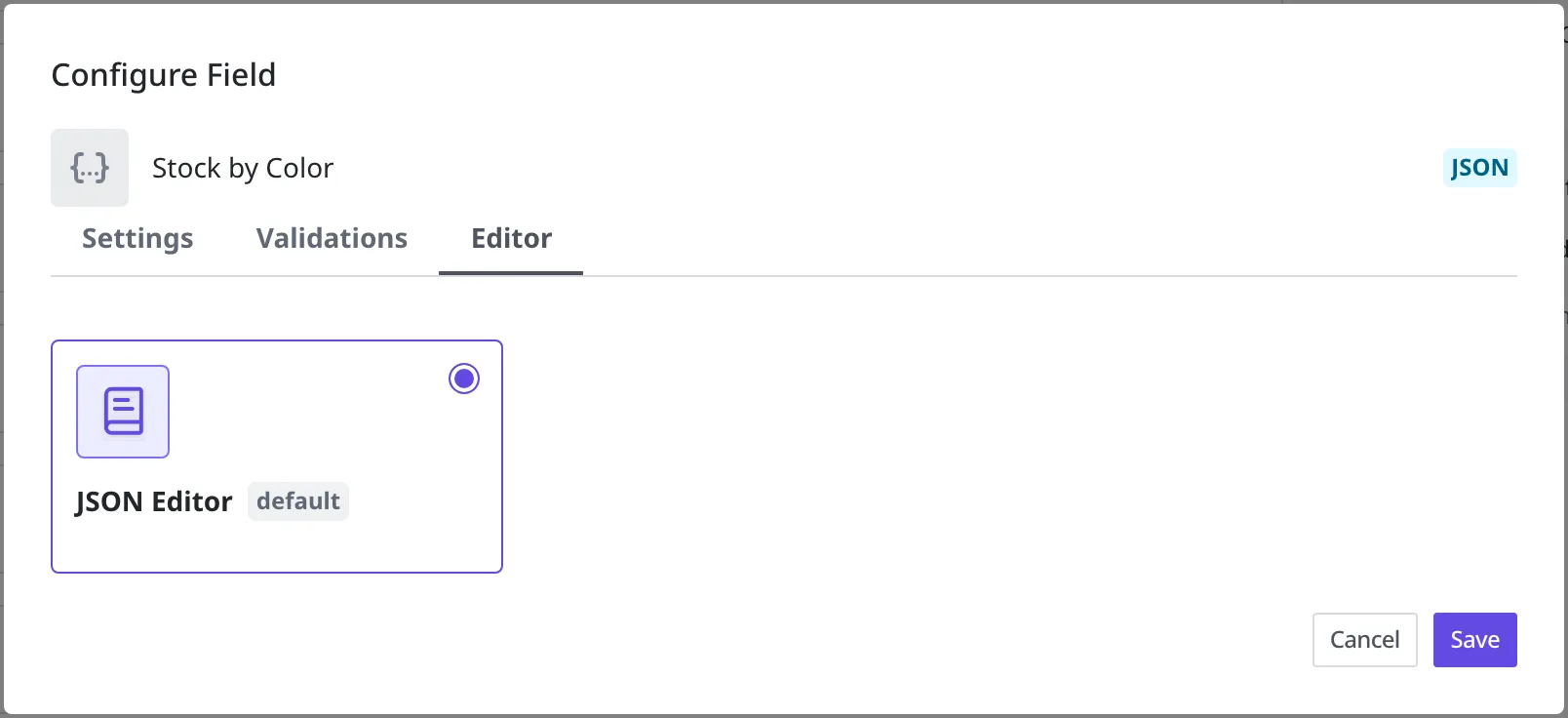
On the Editor tab of the "Configure Field" window, you choose how values are entered in this field on the Content edit screen. Changing the input method changes only how the input looks on the edit screen. The type of value saved, its limits, and how you search it stay the same.
When you create a Field, the default input method for its type is applied. Here are the input methods you can choose for each type.
| Shown in the Field list | Default input method | Other methods you can choose |
|---|---|---|
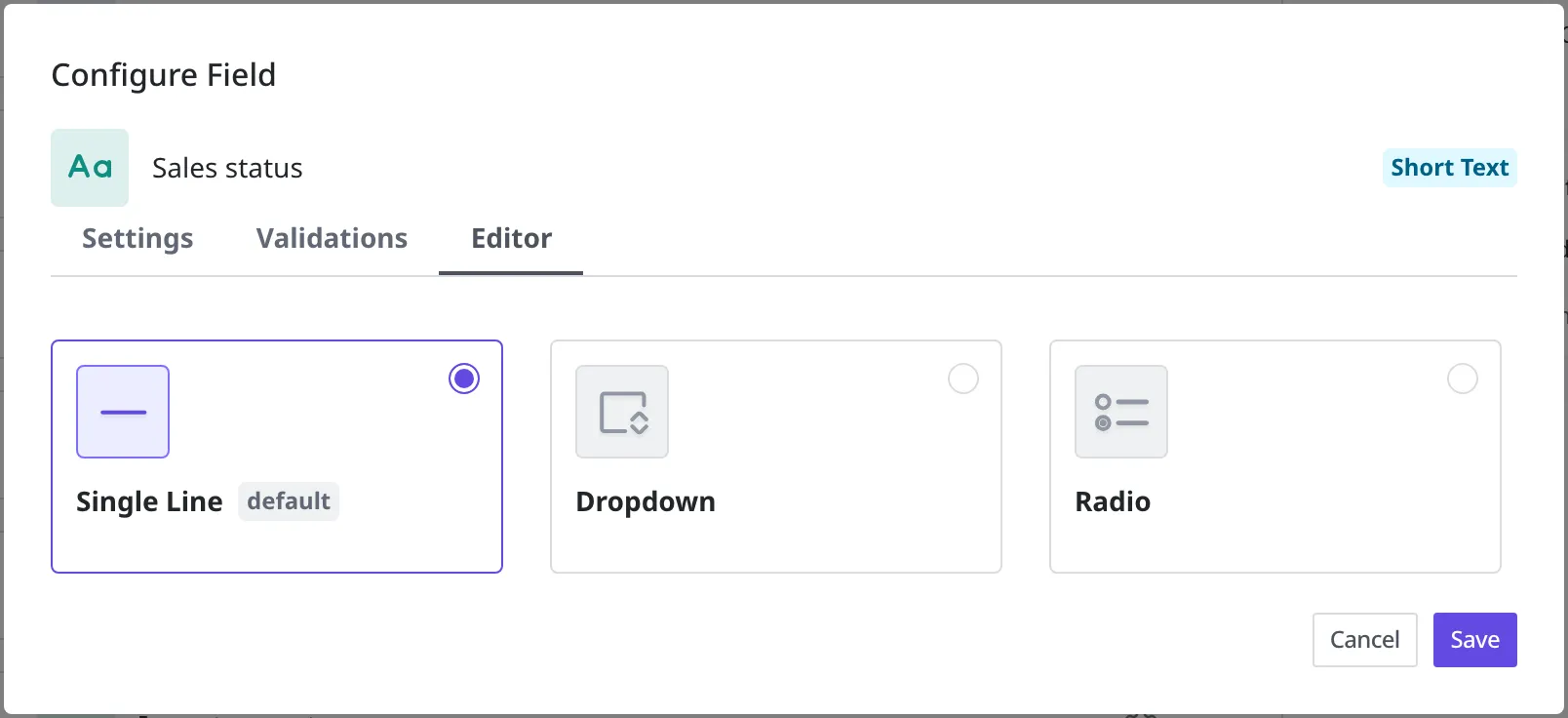
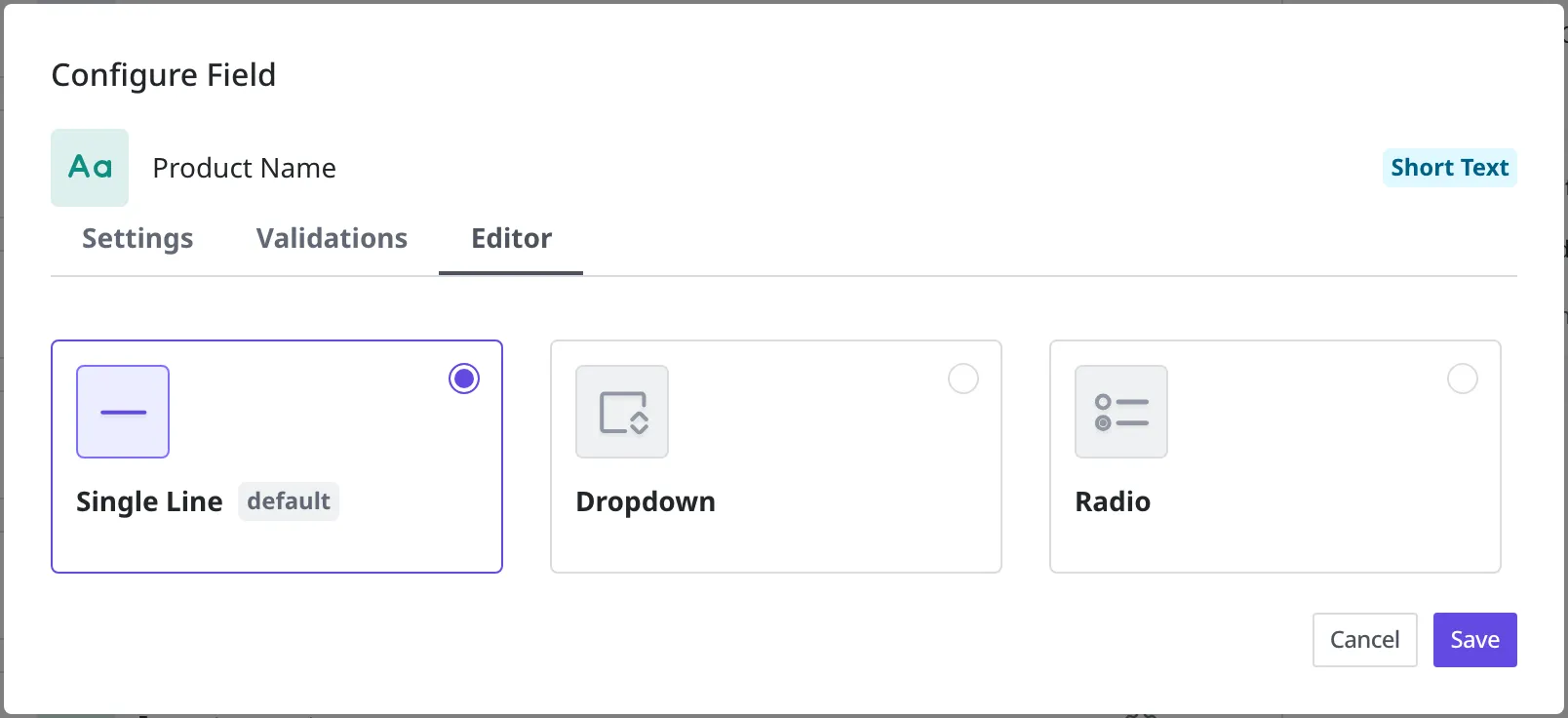
| Short Text | Single Line | Dropdown, Radio (once you set a list of accepted values, Single Line disappears and only Dropdown (default) and Radio remain) |
| Short Text List | Tag | Checkbox |
| Long Text (full-text search) | Multiple Line | Single Line, Dropdown, Radio |
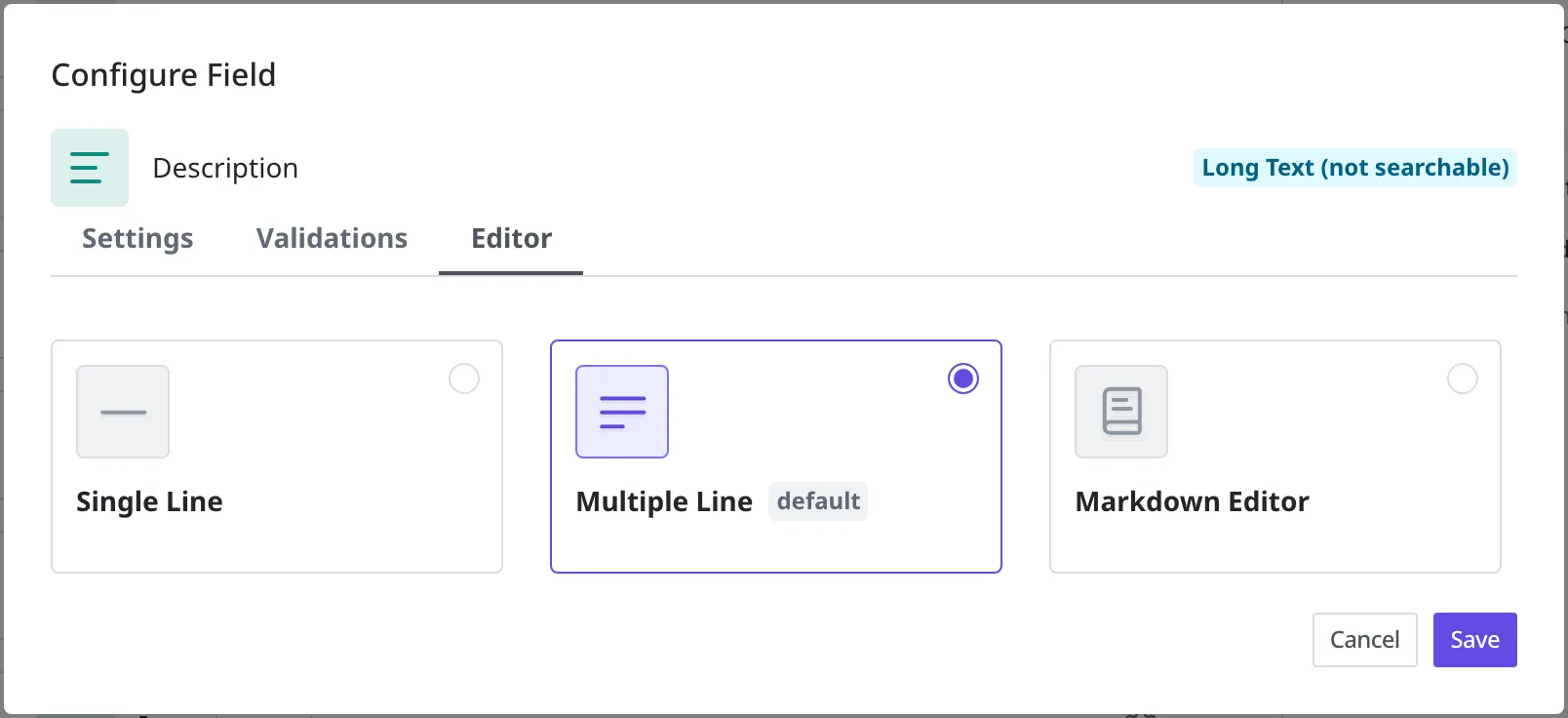
| Long Text (not searchable) | Multiple Line | Single Line, Markdown Editor |
| Integer, Number | Number editor | Dropdown, Radio |
| Media List | Media List | Media Gallery |
| Other types | One for each type | None |
On the edit screen of "Product", the Product Name (Short Text) field shows as a one-line input box that also shows how many characters you've entered. A newly created Description field (Long Text with full-text search off) shows as a box for entering several lines. To apply formatting such as bold or lists to the description, choose Markdown Editor on the Editor tab.
To use a method that chooses a value, the Validations tab must first have a list of accepted values. If you choose Dropdown or Radio (Short Text, Integer, Number, Long Text (full-text search)) or Checkbox (Short Text List) without a list of accepted values, the message "To use this editor, add at least one accepted value in the Validations tab." and the Open Validations button appear, and you can't click Save in the window. Once you set a list of accepted values, the methods you can choose on the Editor tab for Short Text change to two, Dropdown (default) and Radio, and Single Line disappears from the options.
You can't change the type after creating it
In Content Studio, you can change a Field's type only while you're creating it. Click Change Field type in the "Basic Field Settings" window to choose the type again. Clicking it takes you back to the "Select Field Type" window. If you choose a different type and click Next, the Field name and Field ID you entered stay as they were. Use as list type, if you had turned it on, is turned off.
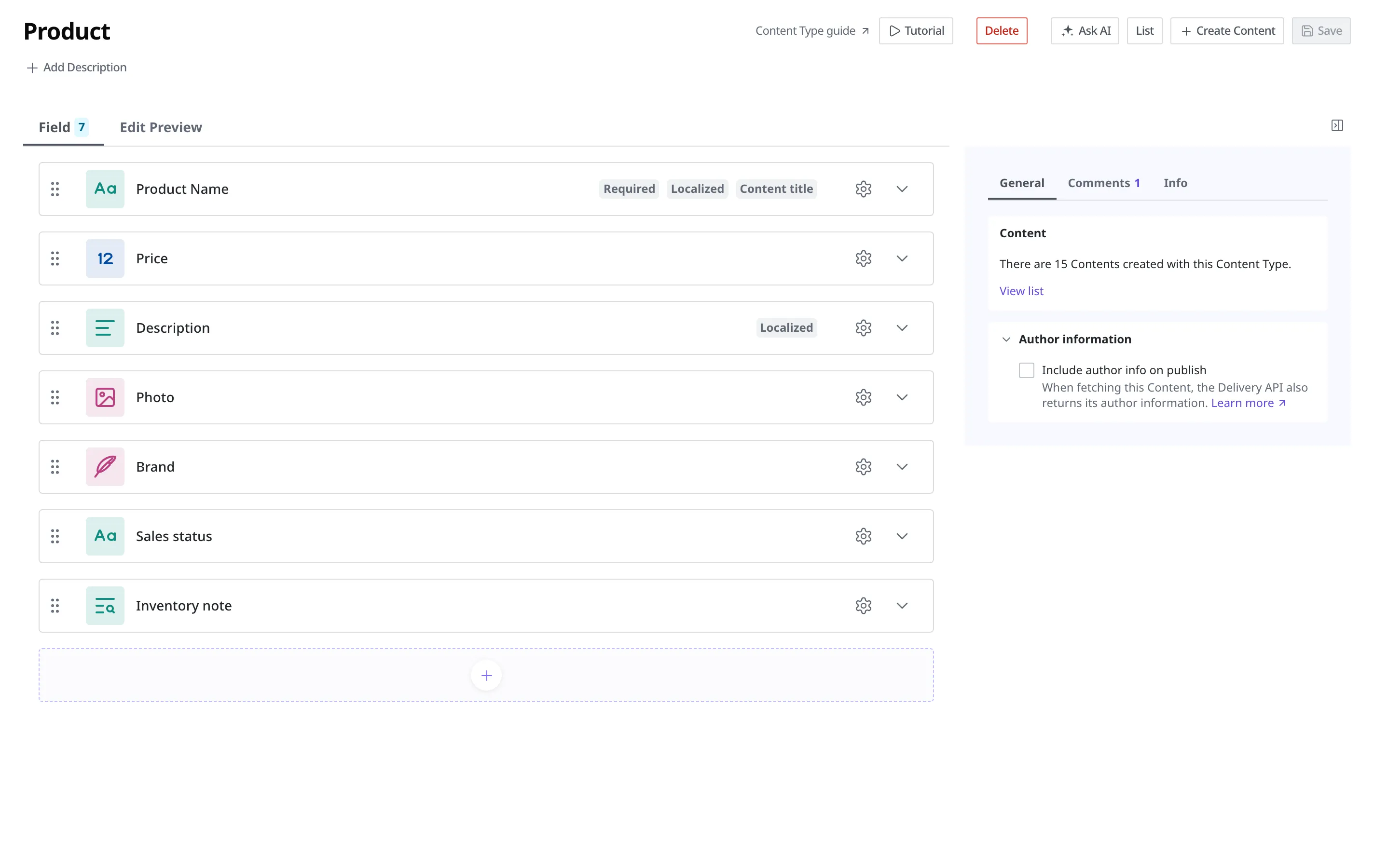
After you create a Field, the "Configure Field" window only shows the type name at the top right. There's no setting to change the type. There's no setting to change the type anywhere else in the Field row, either. The row has only a drag handle, a gear icon, and an expand icon, and the expanded area has only Delete Field, Required Field, Enable localization, and Set Field as Content title. If you need a different type, create a new Field of the type you want and move the values to it. The steps are in Change the type of an existing Field.
Type names on screen and in programs
The Field list and the "Configure Field" window usually show the card name as the type. The types below show a name that differs from their card.
| Card on screen | Shown in the Field list |
|---|---|
| Long Text (full-text search off) | Long Text (not searchable) |
| Long Text (full-text search on) | Long Text (full-text search) |
| Date & Time | Date |
| Content | Content. As a list field, Content List |
| Media | Media. As a list field, Media List |
| Short Text | Short Text. As a list field, Short Text List |
When you work with types directly from a program or read the API reference, they go by names different from the cards. In particular, what programs call LongText is the field with full-text search on. The field with full-text search off is called RichText. The Integer card is called Long.
| Card on screen | Name in programs |
|---|---|
| Short Text | ShortText |
| Long Text (full-text search off) | RichText |
| Long Text (full-text search on) | LongText |
| Integer | Long |
| Number | Number |
| Boolean | Boolean |
| Date & Time | Date |
| Location | Location |
| JSON | Json |
| Content | Refer (link target Content) |
| Media | Refer (link target Media) |
| List field | Array (its values are ShortText or Refer) |
Where these names are used, and their exact specifications, are in the API reference.
Limits
| Item | Limit |
|---|---|
| Characters in one Short Text value | 64 characters |
| Characters in one Long Text value with full-text search on | 5,120 characters |
| Characters in one Long Text value with full-text search off | 20,480 characters |
| Size of one JSON value | 5,120 characters, written on one line with no spaces |
| Values in one list field | 64 per language |
| Location latitude | -90 to 90 |
| Location longitude | -180 to 180 |
- Spaces and line breaks count as characters.
- Each value in a list field is also subject to its type's limit.
- A value over the limit isn't saved. With a condition such as Limit character count, you can set a tighter range than the limit, but not a wider one. For how to set conditions, see Validations.
- There's also a limit on the total number of characters across all the text values in one Content. That limit is in Content authoring rules.
- For how many Fields one Content Type can have, see Content Type settings and rules.
Required permissions
The permissions you need to create a Field and change its type-related settings are covered in Content Type settings and rules. For the permissions you need to enter values in each product's fields, save, and publish, see Content authoring rules.
Tasks in Content Studio
The basic steps for creating a Field are in Create a new Content Type. This section covers tasks for setting type-related options.
Create a Long Text field you can search by word
These steps add a "Product Summary" field, which visitors can search by word, to the "Product" Content Type.
- In the left menu, click Content Types.
- In the list, click "Product". The Content Type edit screen opens.
- Click the + button at the bottom of the Field list. The "Select Field Type" window opens.
- Select the Long Text card.
- Click Next. The "Basic Field Settings" window opens.
- In the Field name box, enter
Product Summary. - In the Field ID box, enter
summary. - Turn on Enable full-text search.
- Click Save.
- Click Save at the top right of the Content Type edit screen.
If Long Text (full-text search) appears next to Product Summary in the Field list, you're done. Product Summary can hold up to 5,120 characters per value.
Create a list field that holds several values
These steps create a "Color Options" field that holds the tumbler's colors "Silver", "Black", and "Mint" in one field.
- In the left menu, click Content Types.
- In the list, click "Product".
- Click the + button at the bottom of the Field list.
- Select the Short Text card.
- Click Next.
- In the Field name box, enter
Color Options. - In the Field ID box, enter
colorOptions. - Turn on Use as list type.
- Click Save.
- Click Save at the top right of the Content Type edit screen.
Now, on the edit screen of "Stainless Tumbler 500ml", enter "Silver", "Black", and "Mint" in the Color Options field one after another, and save. The values are saved in the order you entered them. When you type a value in the input box and press Enter, it's added as a chip below the input box. Click the × (remove) on a chip to delete it. To change the order of the chips, drag the handle (three dots) on the left of a chip to where you want it. When you save, the values are saved in the new order.
Change the input method
The "Sales Status" field uses only two values: "On Sale" and "Sold Out". For a field like this, switching from typing text to choosing a value prevents typos. For Short Text, Dropdown and Radio are the input methods that choose a value. These steps change the input method on the Editor tab.
- On the Content Type edit screen, click the gear icon in the "Sales Status" Field row. The "Configure Field" window opens.
- Click the Editor tab.
- Select the Dropdown or Radio card.
- Click Save.
- Click Save at the top right of the Content Type edit screen.
For the condition that limits Sales Status to "On Sale" and "Sold Out", see Build a list of accepted values. To use an input method that chooses a value, the Validations tab must first have a list of accepted values. If you choose Dropdown or Radio without a list of accepted values, the Editor tab shows the message "To use this editor, add at least one accepted value in the Validations tab." and the Open Validations button, and you can't click Save in the window. On the Edit Preview tab, the options are filled with the values in the list of accepted values ("On Sale", "Sold Out").
You can see the changed input method on the Edit Preview tab of the Content Type edit screen. The changed input shows there even after you click only Save in the "Configure Field" window, before you click Save on the edit screen.
Change the type of an existing Field
Say you want the Description field, which you created with full-text search off, to be searchable by word. You can't change the type of a Field you've created, so you create a new Field of the type you want and move the values to it.
- Create a new Field by following Create a Long Text field you can search by word. Give it a Field name and Field ID different from the existing Field's, such as
Description (Searchable)for the Field name andsearchableDescriptionfor the Field ID. Field IDs can't repeat within one Content Type. - Open the product Content whose value you're moving, "Stainless Tumbler 500ml".
- Click Edit at the top right.
- Copy the text in Description and paste it into the Description (Searchable) field. A field with full-text search on holds up to 5,120 characters, so shorten longer text before moving it.
- Click Save at the top right.
- If the product is already published, click the status badge that says Changed in the Status area on the right. If you only save, the new field's value isn't delivered publicly.
- In the list that opens, click Publish.
- Move the other products' values the same way.
- If your online store site reads the value by the old Field ID (
description), update it to read by the new Field ID (searchableDescription). - Once you've moved the values for every product, delete the old Description Field. What happens to the saved values when you delete it is covered in Deleting a Field deletes its values too. What to check before you delete, and the order to delete in, are covered in Changing a Content Type in use.
Troubleshooting
If a link field (a Field of the Content or Media type) blocks saving or publishing, see the table in Reference rules.
| Problem | Cause | What to do |
|---|---|---|
| Long text entered in a Short Text field won't save | Short Text holds up to 64 characters per value | Shorten it to 64 characters or fewer. If you need longer text, create a new Long Text field and move the text to it (Change the type of an existing Field) |
| Text pasted into a Long Text field won't save | A field with full-text search on holds up to 5,120 characters, and one with it off holds up to 20,480 | Shorten the text. For long body text you don't need to search by word, use a field with full-text search off |
| Searching for a word in the description doesn't find the product | The field is a Long Text created with full-text search off. The Field list shows Long Text (not searchable) for it | Create a new field with full-text search on and move the values to it (Change the type of an existing Field) |
| Full-text search is on, but the search finds only products whose whole text matches | Your online store site read the list without turning on Advanced Search | Have the site turn on Advanced Search when it reads the list. The request format is in the API reference |
| A value with digits after the decimal point won't save in an Integer field | Integer holds only whole numbers, with nothing after the decimal point | If the value needs decimals, create a new Number field and move the values to it |
| Searching for products where New Arrival is false misses some products | Products with this field left empty aren't included when you search for false | Fill in a value for the products where it's empty |
| The release date shows as the previous day on the site | Date & Time values are delivered in UTC. If the site keeps only the date part, times before 9 AM Korea time fall on the previous day | Have the site convert the time it receives to the visitor's time zone before showing it |
| A Location field won't save | The latitude is outside -90 to 90, or the longitude is outside -180 to 180 | Check that you didn't swap the latitude and longitude |
| You can't find products by their Location value | Searching by location works only with Advanced Search | Have your online store site turn on Advanced Search and search by distance or area |
| A JSON field won't save | The value isn't a group in curly braces or a list in square brackets, doesn't follow the format, or is over 5,120 characters when written on one line with no spaces | Check that the whole value is wrapped in { } or [ ] and that the names are in double quotes. If it's over the size limit, shorten the value |
| You can't search or sort by a JSON value or a Long Text value with full-text search off | These two types can't be used for searching or sorting | Put values you need to search or sort by in a separate field of another type |
| You can't make a number or date field a list | Only Short Text, Content, and Media can be lists | To hold several numbers or dates, you can put them in a JSON field as a list. However, you can't search or sort by those values |
| A list field won't save after you add more values | One list field holds up to 64 values per language | Cut the values down to 64 or fewer |
| There's no setting to change the type of a Field you created | You can't change the type in Content Studio after creating the field | Create a new Field and move the values to it by following Change the type of an existing Field |
| The input method you want isn't on the Editor tab | The input methods you can choose differ by type | To use a method that chooses a value (Dropdown, Radio, Checkbox), set a list of accepted values on the Validations tab first. Without a list of accepted values, you can't save with those methods. The methods you can choose for each type are in Input methods on the Editor tab |
Related docs
- Content modeling: Covers what a Field is and, with diagrams, the flow from creating the "Product" Content Type to filling in products.
- Content Type settings and rules: Covers settings and rules for the template as a whole, such as Field names and Field IDs, and adding and deleting Fields.
- Validations: Covers the conditions you can set on values for each type, and how to turn them on.
- Reference rules: Covers the settings and rules for Content and Media fields.
- Finding the content you need: Covers how to filter and sort the list in Content Studio by Field values.
- API reference: Covers technical specs such as the request format for reading a list with search, filter, and sort conditions.