

Web Hosting settings and rules
This page covers every setting, rule, limit, permission, and Content Studio task for Web Hosting. If you're new to Web Hosting, start with Deploying a website, which explains what Web Hosting is and the flow from preparing site files to making the site public. The rules for connecting your own domain to a site are in Connecting your own domain.
The examples on this page use the same setup as Getting Started: the "Online Store" Space of the clothing store Organization "Cozy Closet". The online store site customers see was uploaded as the Web Hosting "My Clothing Store". This site's Subdomain (the first part of the site's address) is myclothes. Customers visit this site at https://myclothes.weegloo.app.
Settings
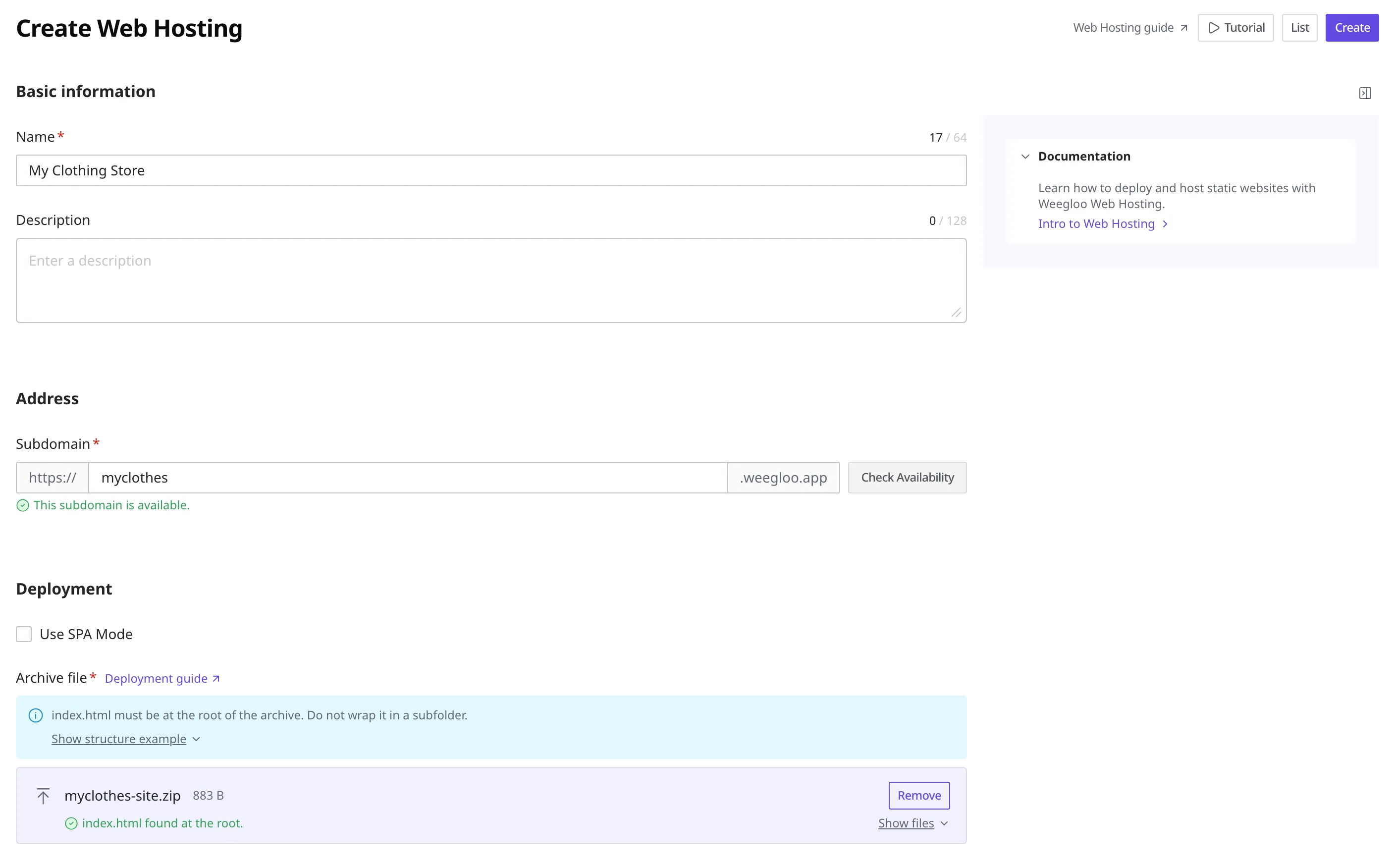
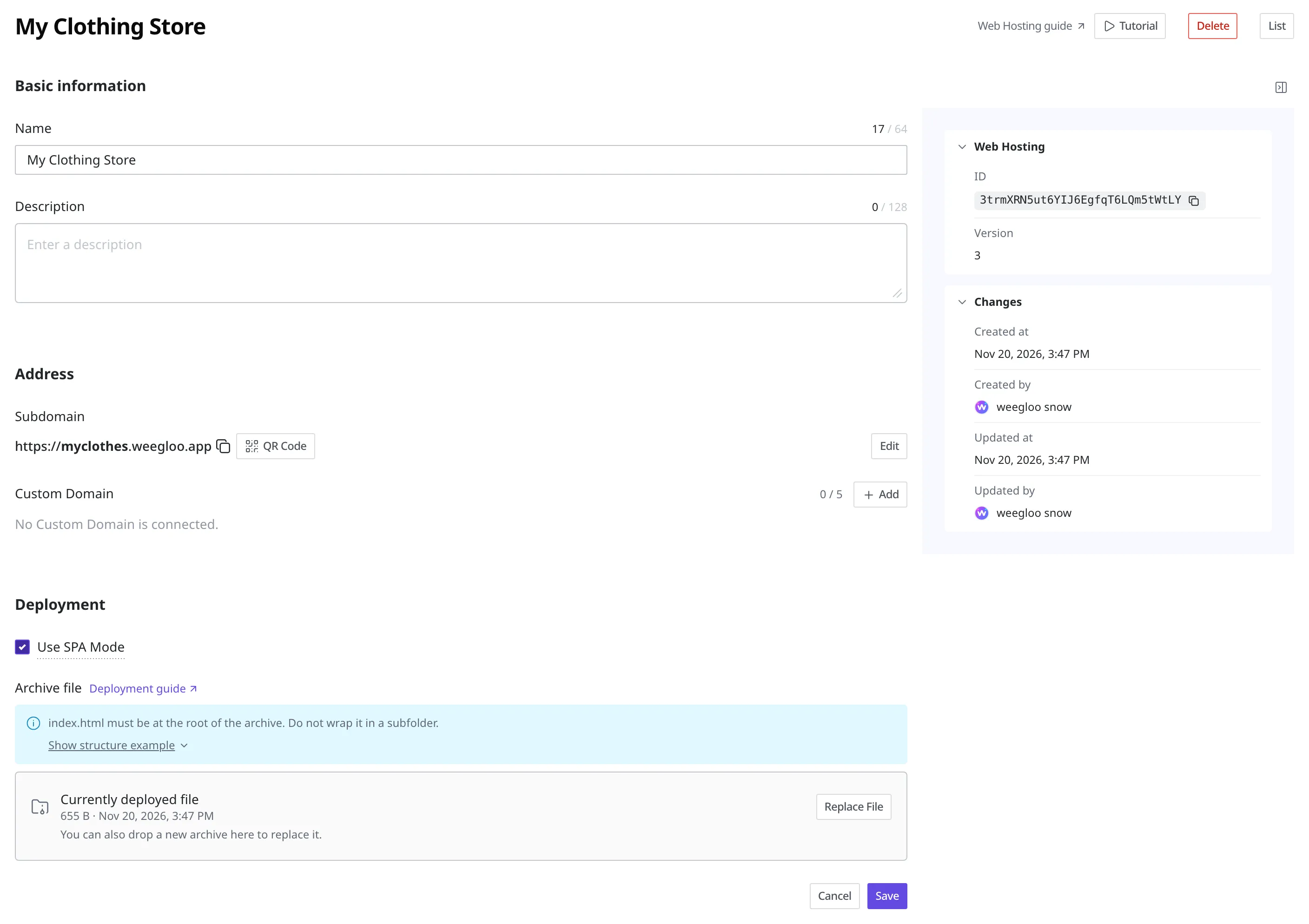
When you create a new Web Hosting, you set Name, Description, Subdomain, Use SPA Mode, and Archive file on the "Create Web Hosting" screen. The screen is divided into three sections: Basic information (Name, Description), Address (Subdomain), and Deployment (Use SPA Mode, Archive file). After it's created, you edit them on that Web Hosting's detail screen. Some settings, such as Custom Domain, are set only on the detail screen.
| Setting | Description | Default | Constraints |
|---|---|---|---|
| Name | The name you recognize this site by. It appears in the list's Name column and at the top of the detail screen. It doesn't appear on the site customers see | None. Required | 1 to 64 characters. You can create several Web Hostings with the same name. You can change it after creating |
| Description | A note about what the site is. It doesn't appear on the site customers see | Empty | Up to 128 characters. You can leave it empty and change it after creating |
| Subdomain | The first part of the site's address. If you set it to myclothes, the site's address is https://myclothes.weegloo.app | None. Required | 3 to 32 characters, with rules for which characters you can use and which names you can't (Rules for choosing a Subdomain). You can change it after creating (If you change the Subdomain, the old address stops working) |
| SPA Mode | Whether to deliver the top-level index.html to customers who visit an address with no matching file in the bundle. The checkbox on the screen is labeled Use SPA Mode, and selecting it turns SPA Mode on | Off | You can turn it on or off after creating (SPA Mode delivers the first page file for addresses that don't exist). The detail screen of a site installed from an app doesn't have this field |
| Archive file | The bundle file: the files that make up your site, compressed into one. It's in the Deployment section. After creating, you replace it with a new bundle file by clicking Replace File under Archive file on the detail screen | None. You must upload it when creating | It must be a ZIP or tar.gz file with index.html at the top level (Rules for the site file bundle). Its size and number of items are limited (Limits). For a site installed from an app, you can't replace it in Content Studio |
| Custom Domain | Lets customers reach the site on your own domain as well as at the free address (https://myclothes.weegloo.app). You set it in the Address section of the detail screen | None | See Connecting your own domain |
| Custom Metadata | Only on sites installed from an app. Changes the information used in search results and link previews for each document, such as the title, description, and image | The values in the app's site files | Each field has a length limit (Fields in Custom Metadata). The steps and rules for changing it are in Custom metadata exists only on sites installed from an app |
After you enter a Subdomain, click Check Availability to see whether you can use it. If you can, "This subdomain is available." appears below the field. If you can't, "This subdomain is already in use." appears. If the format is wrong, the requirement it breaks, such as "Must be at least 3 characters.", appears below the field.
What the detail screen shows
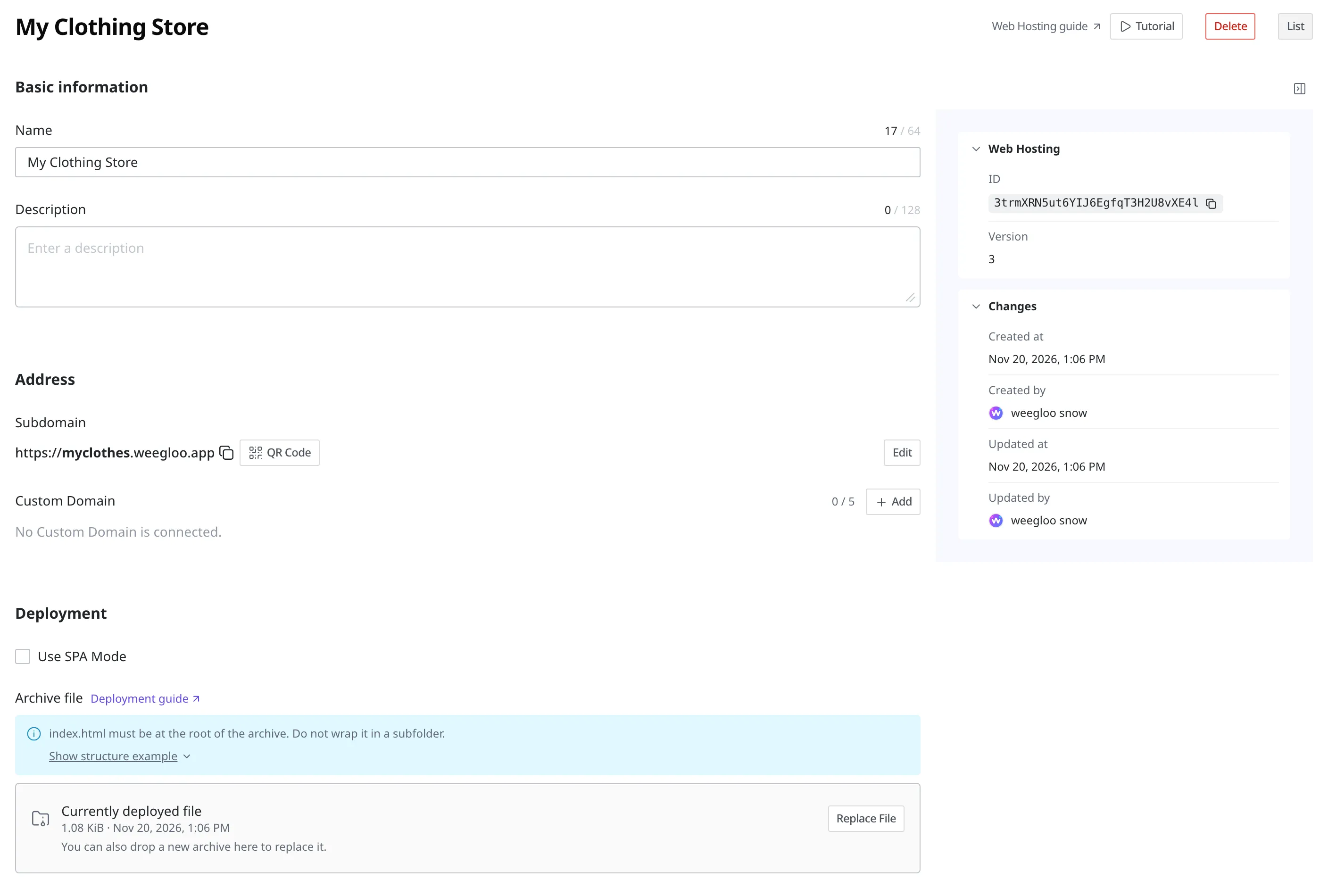
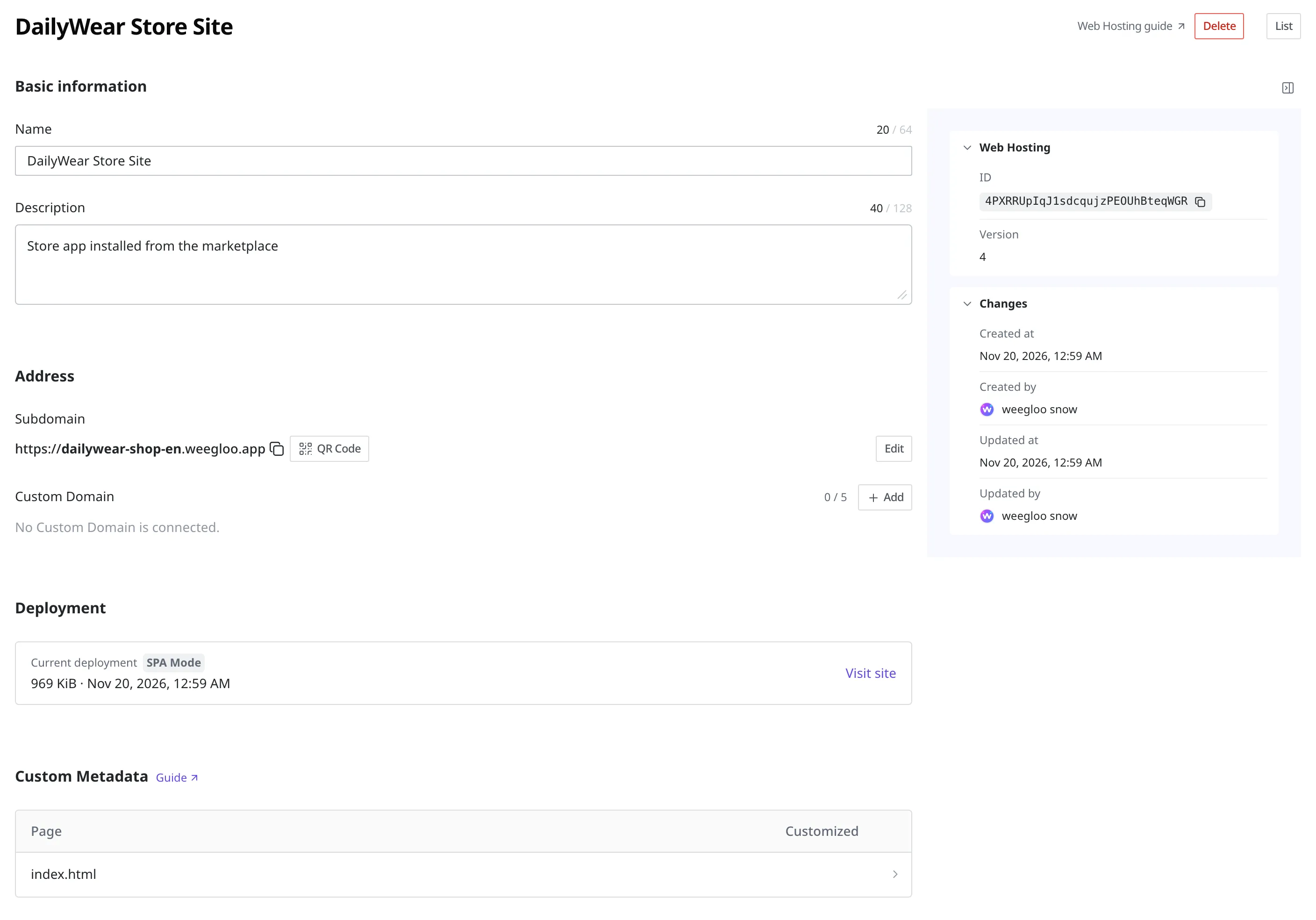
When you open a Web Hosting from the list, its detail screen appears. From the top, its sections are Basic information, Address, Deployment, and Custom Metadata, and the right panel shows information about this Web Hosting. In the table below, the Save, Cancel, and Deploy buttons appear at the bottom only after you change something.
| Part | What appears |
|---|---|
| Top | Name. The Delete and List buttons are at the top right |
| Basic information | The Name and Description fields |
| Address | Subdomain: the site's address, a copy icon, the QR code button, and the Edit button. Custom Domain: the number of connected domains (for example, 0 / 5), the Add button, and the list of connected domains. If no domain is connected, "No Custom Domain is connected." appears. Details are in Connecting your own domain |
| Deployment | The Use SPA Mode checkbox and Archive file. Archive file has Currently deployed file (the size of the currently deployed site files, and the time) and the Replace File button. Sites installed from an app have no Use SPA Mode or Archive file, only Current deployment and the Visit site link |
| Custom Metadata | Appears only on sites installed from an app |
| Web Hosting on the right | ID (a unique value that identifies this Web Hosting, used to point to this site from a program) with a copy icon, and Version (a version number that goes up every time you edit or deploy; see The version number goes up with every change) |
| Changes on the right | Created at, Created by, Updated at, and Updated by |
What the list shows
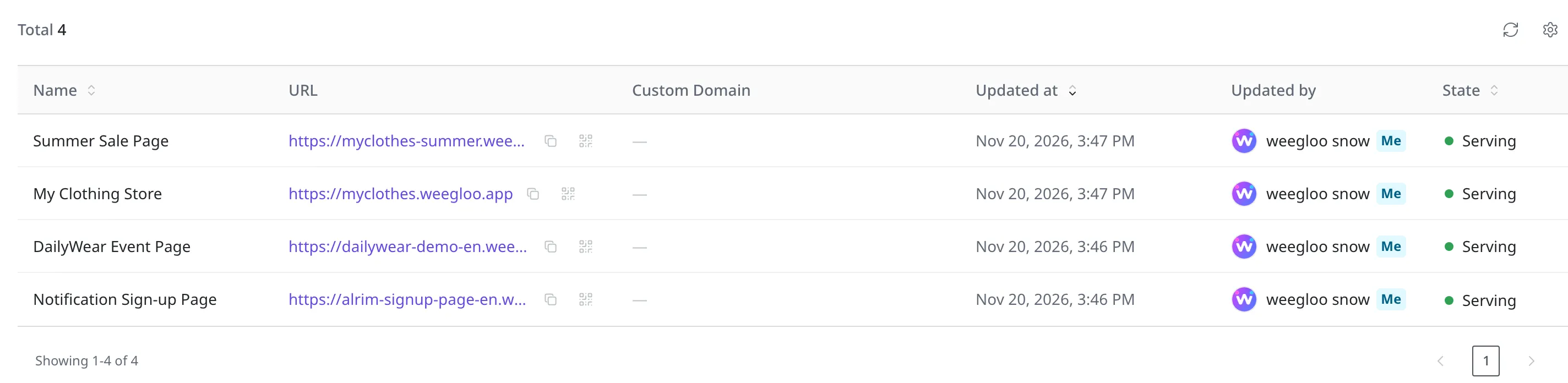
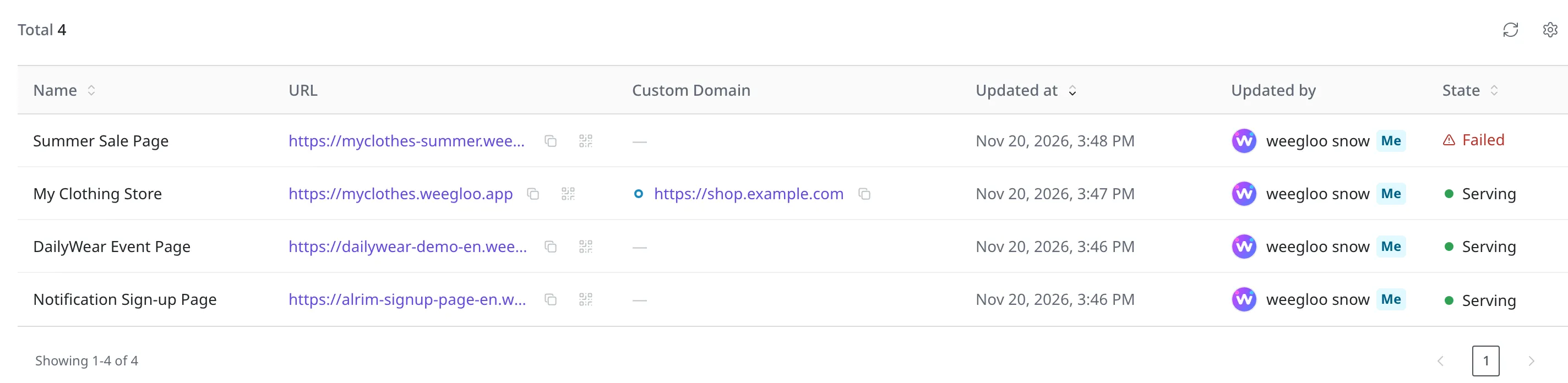
Click Web Hostings under Services in the "Online Store" Space's left menu to see this Space's Web Hosting list. The total count (for example, Total 2) is at the top of the list, and each Web Hosting takes up one row.
| Column | What it shows |
|---|---|
| Name | The Name. Sites installed from an app have the App badge next to the name |
| URL | The site's address, with a QR code icon to its right |
| Custom Domain | Your connected domain. If none is connected, only a short dash appears |
| Updated at, Updated by | When it was last edited, and who edited it |
| State | The deployment processing state (for example, Serving or Failed). What each state means is in While a deployment is processing and after it finishes |
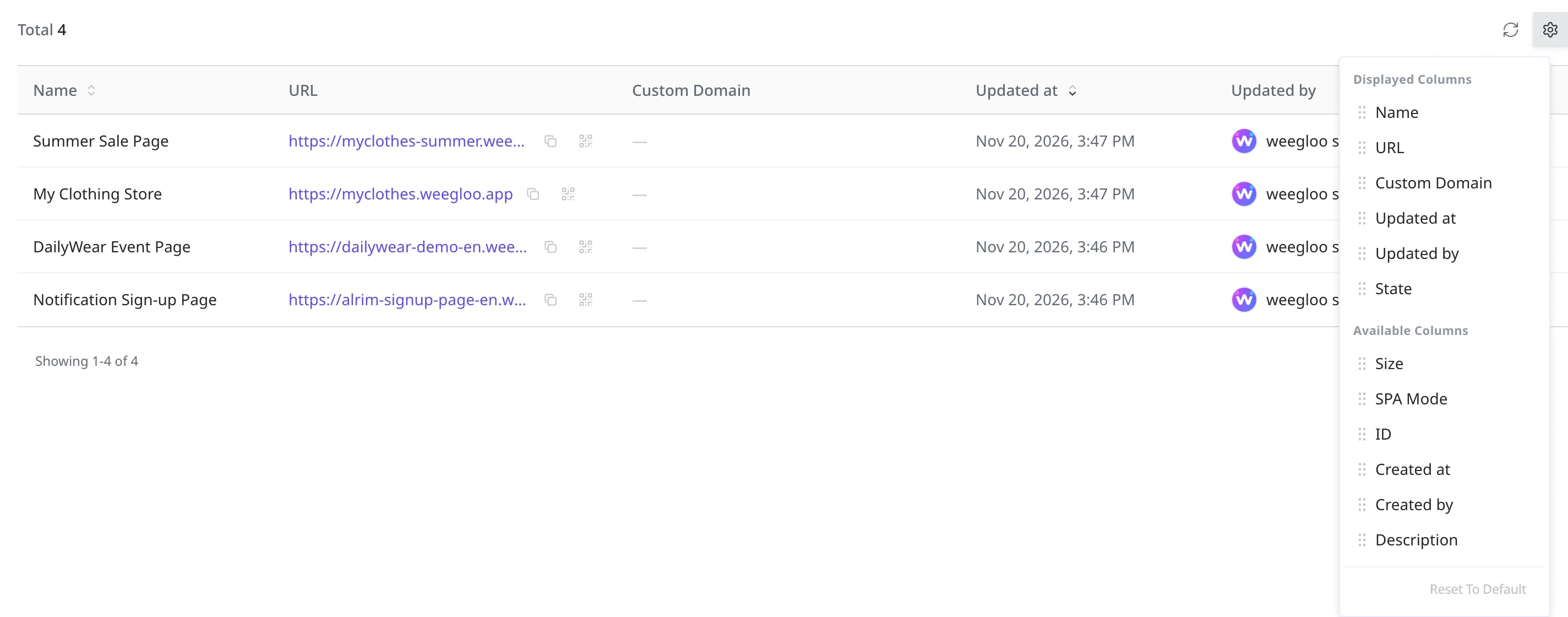
Clicking the gear icon at the top right of the list shows the column list divided into Displayed Columns (Name, URL, Custom Domain, Updated at, Updated by, State) and Available Columns (Size, SPA Mode, ID, Created at, Created by, Description). At the bottom of the list is Reset To Default.
Rules
Prebuilt files are delivered as they are
Web Hosting delivers the site files you uploaded as a bundle to customers as they are. No program runs on a server to build pages anew each time a customer visits. So you need to finish all of your site's pages as files before you upload. Work that has to run on a server can be handled with a Script (Script).
Web Hosting has no publishing status like Draft or Published (What has the four statuses). Once the uploaded bundle finishes processing, the site goes public to customers right away (While a deployment is processing and after it finishes).
Rules for the site file bundle
You bundle the files that make up your site, such as pages, styles, images, and fonts, into one compressed file and upload it. This bundle file must follow these rules.
- It must be a ZIP file or a tar.gz file.
- When the bundle is unpacked,
index.htmlmust be at the top level.index.htmlis the first page file that opens when a customer first visits the site's address. Its name must matchindex.htmlexactly, including uppercase and lowercase, soIndex.htmldoesn't count. If you compress the whole site folder,index.htmlends up inside that folder instead of at the top level. Open the folder, select all the files and folders inside it, and compress those. - The number of items in the bundle and its size are limited. Each folder counts as an item, not only each file. Hidden files that some compression programs add (for example, a
__MACOSXfolder or.DS_Storefiles) count as items too. The limit values are in Limits. - You can't include shortcut files (symbolic links). You also can't include items that would land outside the bundle when it's unpacked (for example, items whose path starts with
../). - You can't use a password-protected bundle. If even one item in the bundle is password-protected, the deployment fails. Compress it again without a password.
Every file in the bundle, including hidden files, goes up to the site and opens at its own address (Anyone can open a deployed site).
When you upload a bundle file, Content Studio checks whether index.html is at the top level. If it is, "index.html found at the root." appears. If there's no index.html at the top level, "index.html is missing from the root of the archive." appears. If all the files are inside a single folder, a notice appears with that folder's name, saying "Files must be at the root level." While these notices are shown, clicking Create doesn't create the site, and with Replace File the Deploy button doesn't appear.
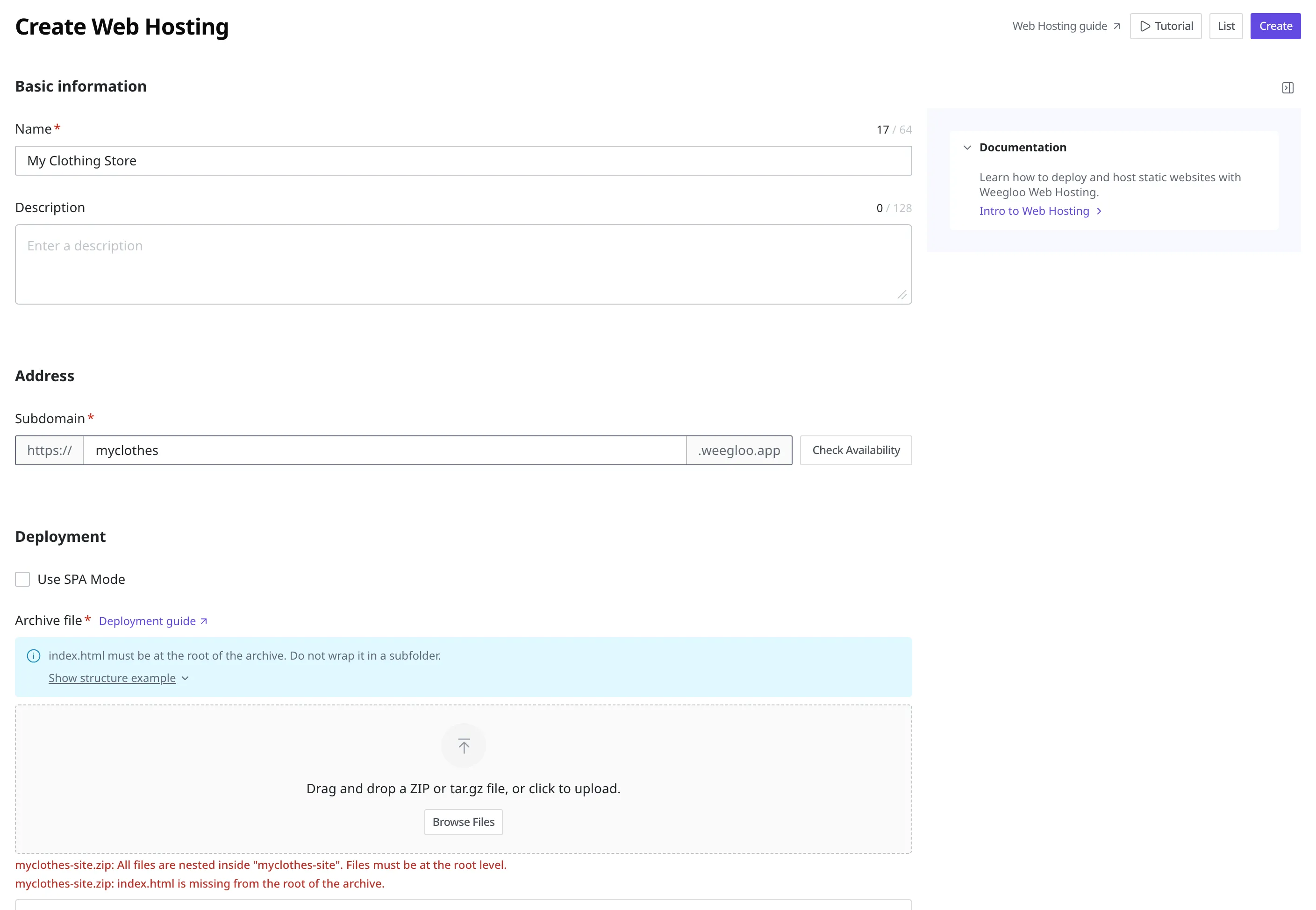
The size of a single bundle file is checked when you create a Web Hosting or save a new bundle. So if it goes over the limit, it's rejected the moment you create or save. The other rules are checked while the deployment is processed after upload, and if the bundle breaks one, the deployment fails (If a deployment fails).
A file's type is decided by the extension in its file name. The browser opens the file according to that type. Extensions aren't case-sensitive.
| Type | Extensions |
|---|---|
| Web pages | .html, .htm |
| Styles and scripts | .css, .js, .mjs |
| Data | .json, .map, .xml, .txt |
| Images | .png, .jpg, .jpeg, .gif, .svg, .webp, .avif, .ico, .bmp, .apng |
| Video | .mp4, .webm, .ogv, .mov, .m4v |
| Audio | .mp3, .wav, .ogg, .oga, .m4a, .aac |
| Fonts | .woff, .woff2, .ttf, .otf, .eot |
| Other files | .pdf, .zip, .gz, .wasm |
Files with extensions that aren't in the table are delivered as files of unknown type. The browser may download such a file instead of opening it on screen.
Which file opens at each address
When a customer visits the site's address with a path after it (for example, https://myclothes.weegloo.app/about), Web Hosting looks for the file to deliver in this order.
- If the bundle has a file whose name matches the path, it delivers that file.
- If not, it treats the path as a folder name and delivers the
index.htmlinside that folder. - If that doesn't exist either and SPA Mode is on, it delivers the top-level
index.html. - Otherwise, a not-found response (an error) comes back.
| Path of the address the customer opens | File delivered |
|---|---|
No path (/) | The top-level index.html |
/style.css | style.css |
/about.html | about.html |
/about | The index.html inside the about folder. If that file doesn't exist either, it depends on the SPA Mode setting |
A path that isn't in the bundle, like /products/tumbler | The top-level index.html if SPA Mode is on, or a not-found response if it's off |
Web Hosting doesn't add an extension to the end of a path when it looks for a file. The about.html file opens at /about.html, not at /about. To make it open at /about, create an about folder and put an index.html in it.
SPA Mode delivers the first page file for addresses that don't exist
Sites built with tools like React or Vue change only the address when they switch pages, without a separate page file for each address. Sites like these are called SPAs. On an SPA, if a customer goes straight to an address like /products/tumbler or refreshes the page there, the bundle has no file for that path, so a not-found response comes back. With SPA Mode on, the top-level index.html is delivered instead, and the site shows the page that fits that address.
- SPA Mode turns on when you select Use SPA Mode. It's off at first.
- While it's on, every visit to a path that isn't in the bundle gets the top-level
index.html. Even if a customer mistypes an address, they get the first page file instead of a not-found response. - If the bundle has a file that matches the path, or an
index.htmlin a matching folder, that file is delivered regardless of SPA Mode (Which file opens at each address). - You can turn it on or off after creating. Changing it doesn't require uploading the bundle file again, and it doesn't go through deployment processing.
- If your site has a separate page file for each address, keep it off. Only when it's off do customers who visit a nonexistent address get a not-found response.
Rules for choosing a Subdomain
The Subdomain is the first part of the site's address. .weegloo.app is added after the Subdomain you choose, making an address like https://myclothes.weegloo.app. These rules apply to a Subdomain.
- It must be 3 to 32 characters long.
- You can use only lowercase letters (a to z), numbers (0 to 9), and hyphens (
-). You can't use uppercase letters, spaces, underscores (_), periods (.), or any other characters. - It must start and end with a lowercase letter or a number. Names that start or end with a hyphen, like
-myclothesormyclothes-, aren't allowed. - It's unique across all of WEEGLOO. You can't choose a Subdomain that any Web Hosting already uses, whether that site belongs to another Organization or to another of your Spaces.
- You can't choose names WEEGLOO has reserved for its own use. These are
www,home,official,weegloo,snow,auth,authentication,help,admin,main,root,system,login,origin, andwebhosting.
Check Availability only checks whether the Subdomain is available at the moment you click it. It doesn't reserve the Subdomain for you. If someone else creates a Web Hosting with that Subdomain after you check but before you create yours, creating your Web Hosting is rejected.
When a Web Hosting is deleted or its Subdomain is changed, the Subdomain it used becomes free, and anyone can take it. For what goes away along with a deletion, see Deleting items such as Locale, Tag, and Script.
If you change the Subdomain, the old address stops working
You can change the Subdomain on the detail screen even after creating the site. Rules for choosing a Subdomain apply to the new Subdomain in the same way. The steps are in Change the Subdomain.
- Changing it changes the site's address, and the site no longer opens at the old address. Customers who bookmarked the old address, or who come in through a QR code with the old address, can't open the site either.
- The old Subdomain becomes free, and anyone can take it. If you try to switch back later, someone else may already be using it.
- The site files stay the same, so you don't need to upload them again.
- Update any other settings that list the site's address to the new address. If Allowed referrers of the Delivery Access Token the site uses lists only the old address, the site can't read content (Allowed referrers decide which sites can use a token). If the site uses member login, update Default Return URL in the ServiceLogin settings too (Basic settings).
- If you've connected your own domain, you can keep using that domain's address even after changing the Subdomain (Connecting your own domain).
While a deployment is processing and after it finishes
When you create a Web Hosting, or upload a new bundle file and save, the system first checks that the bundle meets the rules and limits. If it does, the bundle is unpacked and put on the site. This process is called deployment processing. While a deployment is processing, the State in the list changes as follows.
| State | Description |
|---|---|
| PENDING | The uploaded bundle is waiting to be processed |
| PROCESSING | The bundle is being checked, unpacked, and put on the site |
| Serving | Processing has finished, and the site is being delivered to customers |
| Failed | Processing failed (If a deployment fails) |
The list's State column shows the names in this table as they are.
- During processing (PENDING or PROCESSING), you can't change the name, description, Subdomain, SPA Mode, files, or domain connection, and you can't delete that Web Hosting either (Deleting items such as Locale, Tag, and Script). Do these after processing finishes. During processing, each section of the detail screen shows "Deployment is being processed", and Archive file shows "Deployment is being processed. You can upload a new file after it completes." You can't click the Delete button at the top right either. Hovering over it shows "You can delete it once deployment processing finishes."
- When processing finishes and the state becomes Serving, customers can visit the address and see the site. Currently deployed file under Archive file on the detail screen shows the total size of the site files and the time.
- When you change and save only Name, Description, SPA Mode, or Subdomain, there's no deployment processing. Saving Custom Metadata on a site installed from an app does go through deployment processing.
Redeploying replaces your site files entirely
If you've edited your site, bundle the whole edited site again and upload it to the same Web Hosting as a new bundle file. The steps are in Edit and redeploy your site.
- The addresses (the Subdomain and any domain you connected) stay the same. Only the site files are replaced with the files in the new bundle.
- All the files from the previous bundle go away, and only the new bundle's files remain. You can't upload only the files you edited, so bundle the unchanged files along with them. Files that aren't in the new bundle no longer open at their addresses.
- Rules for the site file bundle and Limits apply to the new bundle in the same way.
- During processing, the site may not display correctly for customers. Redeploy at a time when few customers visit.
- To go back to a previous bundle, you have to upload that bundle file again. Keep any bundle files you might reuse on your computer.
- If only content the site loads, such as products, has changed, you may not need to redeploy (For your site to load content).
If a deployment fails
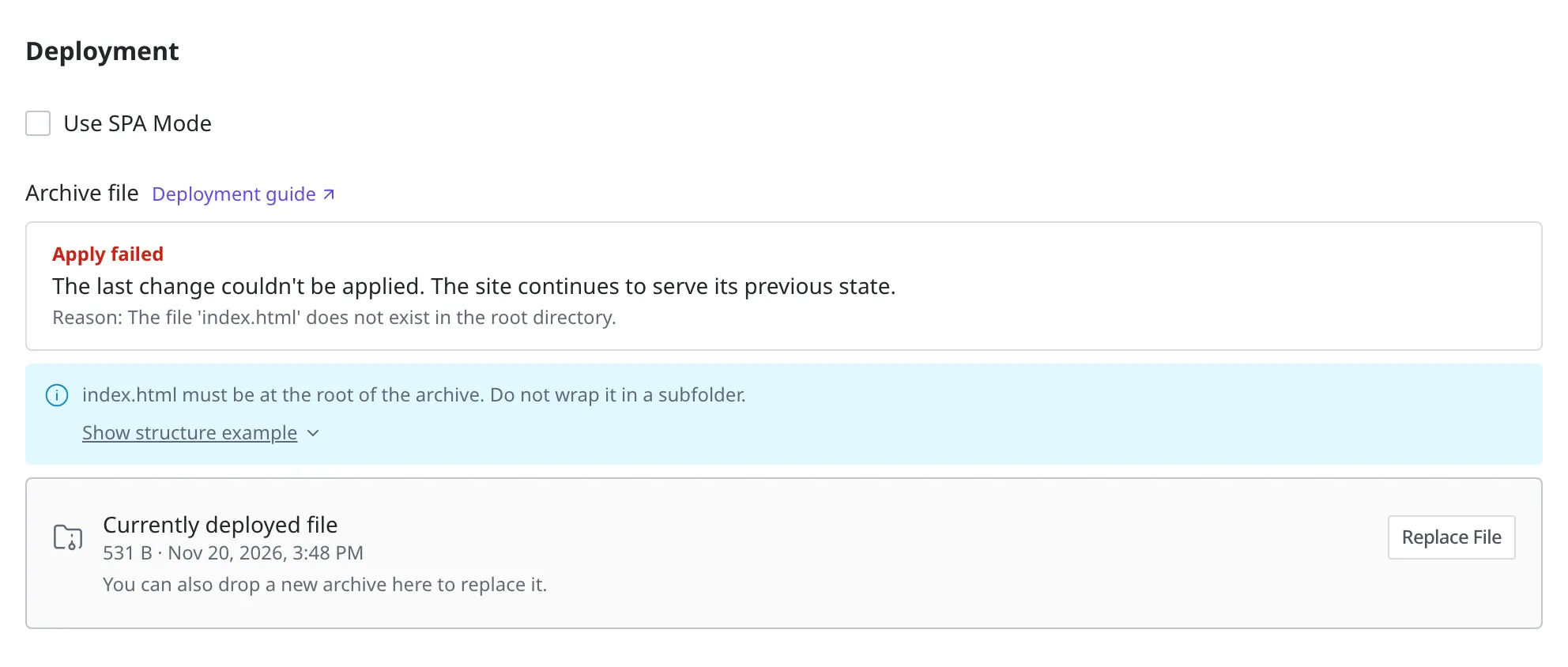
If the bundle breaks the Rules for the site file bundle or goes over the Limits, deployment processing fails and the State becomes Failed. The reason for the failure is recorded too, and it appears under Archive file on the detail screen, after "Reason:" below "Apply failed" and "The last change couldn't be applied. The site continues to serve its previous state." The reason is recorded as a sentence in English.
On the Free, Basic, and Pro plans, storage is also checked before deploying. If the new bundle's unpacked size is larger than the current site, the difference is added to the Web Hosting storage the Organization is already using, and the total is compared with the plan's allowance. If the total goes over the allowance, the deployment fails without deploying anything. In that case, the failure reason includes a sentence saying the plan allowance would be exceeded. A bundle that isn't larger than the current site still deploys, even when storage is already over the allowance (Limits).
- If the first deployment fails, no site opens at that address.
- If a redeployment fails because of the bundle or storage, the site you deployed before keeps opening. The State shows Failed, but customers keep getting the previous site.
- You can still edit or delete a failed Web Hosting. Fix the bundle and upload it again, and deployment processing starts again.
The cases that fail, and how to fix them, are summarized in the table under Troubleshooting.
For your site to load content
A site that shows products registered in Content Studio, like the online clothing store site, loads the publicly delivered products in the customer's browser.
- To read published content, you usually put a Delivery Access Token (a key that can only read published content) in your site files. For the basic steps to issue one, see Issue a Delivery Access Token. The roles to bind to the token and the rules for Allowed referrers are in Token rules.
- Only Published content is delivered publicly. A product you only save, without publishing it, doesn't appear on the site (How each action changes the status).
- If your site loads content each time a customer opens it, editing and publishing a product is enough to update the site. You redeploy the site when you change the site files. If you built the content into the files when you made the site, you have to rebuild and redeploy the site every time the content changes.
Anyone can open a deployed site
Anyone who knows the address can open a deployed site. Web Hosting has no setting that limits who can open a site. Every file in the bundle, including hidden files, opens at its own address, so don't put files that must not become public in the bundle. Don't write secret values such as a Personal Access Token in your site files either (Where to keep each token's secret value).
Sites installed from an app
When you install a Market App, the site included in the app is added to this Space as a Web Hosting (What installing creates in your Space). A site installed this way differs from a site you upload yourself in the following ways.
- In the list, the App badge appears next to its name.
- Its Subdomain is the Subdomain set in the app, followed by a hyphen and five lowercase letters and numbers (for example,
dailywear-demo-s4ibk). You can change it to another Subdomain after installing (If you change the Subdomain, the old address stops working). - Its name, description, and SPA Mode are set to the values specified in the app. A domain the app's maker connected doesn't come along with it (Sites installed from an app connect the same way).
- Its detail screen has no place to upload a bundle file. This site's files are managed by the app's maker. To use a new version of the app, install the app again (The installer manages installed copies).
- Its detail screen has Custom Metadata. There, you can change the information used in search results and link previews for each document. For the steps and rules for changing it, see Custom metadata exists only on sites installed from an app. For how long each field can be, see Fields in Custom Metadata.
You change the name, description, and Subdomain, connect your own domain, and delete the site the same way as for a site you upload yourself. Sites installed from an app also count toward the Organization's Web Hosting count and storage (Limits).
If two people edit at once, the later save is refused
If two people edit the same Web Hosting at the same time, the one who saves later is refused. It's decided the same way as in When several people edit at once, the later save is refused. When the save is refused, "Another user is editing this Web Hosting at the same time. The latest version has been loaded, so please try again." appears, and the detail screen fills in again with the latest content. Check what changed, then make your edits again.
Limits
| Item | Limit |
|---|---|
| Length of Name | 1 to 64 characters |
| Length of Description | 128 characters |
| Length of Subdomain | 3 to 32 characters |
| Size of one bundle file | 50 MiB. When you upload a bundle file, it must not exceed your plan's maximum upload size per file (Pricing). Separately, a bundle you deploy must not exceed 50 MiB, whatever your plan |
| Total file size when the bundle is unpacked | 1 GiB |
| Number of items in the bundle | 300, files and folders combined |
| Number of Web Hostings | Varies by plan. Check the Web Hosting row in Pricing |
| Storage for deployed site files | Varies by plan. Check the Web Hosting row under Storage in the same table |
| Amount of data delivered to customers from the site | Counts toward your plan's monthly data transfer. Check "CDN bandwidth" and "Origin bandwidth" in the same table |
| Connecting your own domain | See Connecting your own domain |
| Length of Custom Metadata fields | Varies by field. See Fields in Custom Metadata |
- Plan limits apply per Organization and are shared by all the Spaces in that Organization. Sites installed from an app count too.
- Once you reach the Web Hosting count limit, you can't create new Web Hostings. Delete Web Hostings you don't use, and you can create that many again (When you exceed a count limit).
- Storage includes the total size of your deployed site files. The size shown in Currently deployed file (Current deployment for a site installed from an app) on the detail screen is the space that site takes up. Deleting a site frees up that much space, and redeploying changes the site's space to the unpacked size of the new bundle.
- On the Free, Basic, and Pro plans, once you use up your Web Hosting storage, you can't create new Web Hostings. A deployment also fails if deploying would push storage over the plan's allowance. How that's decided is in If a deployment fails. Delete Web Hostings you don't use to free up space, and you can create or deploy again.
- On the Free, Basic, and Pro plans, if CDN bandwidth or Origin bandwidth goes over that month's allowance, your deployed sites aren't delivered to customers. During that time, you can't create new Web Hostings either. For how the restriction is lifted, see When you exceed transfer volume or storage space.
- You can check how much you've used so far in Keeping an eye on usage and limits.
Required permissions
Whether you can work with Web Hosting is decided entirely by Manage Web Hostings on the Settings tab of your role (SpaceRole). For what this settings permission lets you do and how to turn it on, see Settings permissions on the Settings tab.
| What you want to do | Required permission |
|---|---|
| View the Web Hosting list and detail screens | Manage Web Hostings in your role in that Space |
| Create a new Web Hosting, redeploy | Manage Web Hostings |
| Change Name, Description, SPA Mode, or Subdomain | Manage Web Hostings |
| Connect your own domain, change Custom Metadata | Manage Web Hostings |
| Delete | Manage Web Hostings. Details are in Deletion rules |
| Customers open the site | None needed |
| The site reads publicly delivered content | Read in the role bound to the Delivery Access Token in the site (Roles you can bind) |
- Without Manage Web Hostings, you can't even see the list and detail screens. Without this permission, Web Hosting in the left menu appears dimmed and can't be clicked.
- Manage Web Hostings works only when a member works with their own account. Even if you bind the same role to a Space Access Token, that token can't create or deploy sites (Settings permissions work only for people).
- The Administrator role includes Manage Web Hostings (The Administrator role).
- Even an Owner or Admin of the Organization can't work with Web Hosting without a role in that Space (An Organization role alone doesn't let you work in a Space).
Tasks in Content Studio
You do the tasks in this section on the Web Hosting list or detail screen. To open the list, click Web Hostings under Services in the "Online Store" Space's left menu. To open the detail screen, click the "My Clothing Store" row in the list. The first task, Deploy a site for the first time, is the basic procedure for creating a new Web Hosting and making a site public for the first time. The tasks after it cover redeploying and managing a site you've deployed.
These tasks are on other pages.
- Connecting your own domain: The steps for connecting your own domain to a site.
- Edit custom metadata: The steps for changing Custom Metadata on a site installed from an app.
- Issue a Delivery Access Token: The steps for issuing the token the site uses to load products.
Deploy a site for the first time
These steps upload the online store site as the Web Hosting "My Clothing Store" and make it public at the myclothes address. Assume you've already compressed the site files into one bundle file with index.html at the top level (Rules for the site file bundle).
- In the "Online Store" Space's left menu, click Web Hostings under Services.
- Click the Create button at the top right.
- Enter
My Clothing Storein the Name field. - Enter
myclothesin the Subdomain field. - Click Check Availability. If "This subdomain is available." appears, you can use that Subdomain.
- Upload the bundle file you prepared to Archive file in the Deployment section. If
index.htmlis at the top level of the bundle, "index.html found at the root." appears. - Click the Create button.
You can see what the "Create Web Hosting" screen looks like in Settings. The same section also explains the settings these steps don't cover, such as Description and SPA Mode.
When you click Create, deployment processing of the uploaded bundle starts. When processing finishes, Serving appears in the State column of the Web Hosting list, and the site goes public. For what happens during and after processing, see While a deployment is processing and after it finishes.
After you click Create, the detail screen of "My Clothing Store" opens, with the site's address (https://myclothes.weegloo.app) shown under Subdomain in the Address section. You can see what the detail screen looks like in What the detail screen shows.
Go to this address and check that the site opens. If products appear on the online store site, the site went public correctly. If the site doesn't open, check the State following the steps in Check the deployment result.
Edit and redeploy your site
These steps redeploy the online store site after you've added a summer season banner. Assume you've compressed the edited site's files into one bundle file with index.html at the top level (Rules for the site file bundle).
- Open the detail screen of "My Clothing Store".
- Under Archive file in the Deployment section, click Replace File and select the edited site's bundle file. You can also drag the new bundle file into the Currently deployed file box.
- Check that "index.html found at the root." appears.
- Click the Deploy button that appeared at the bottom.
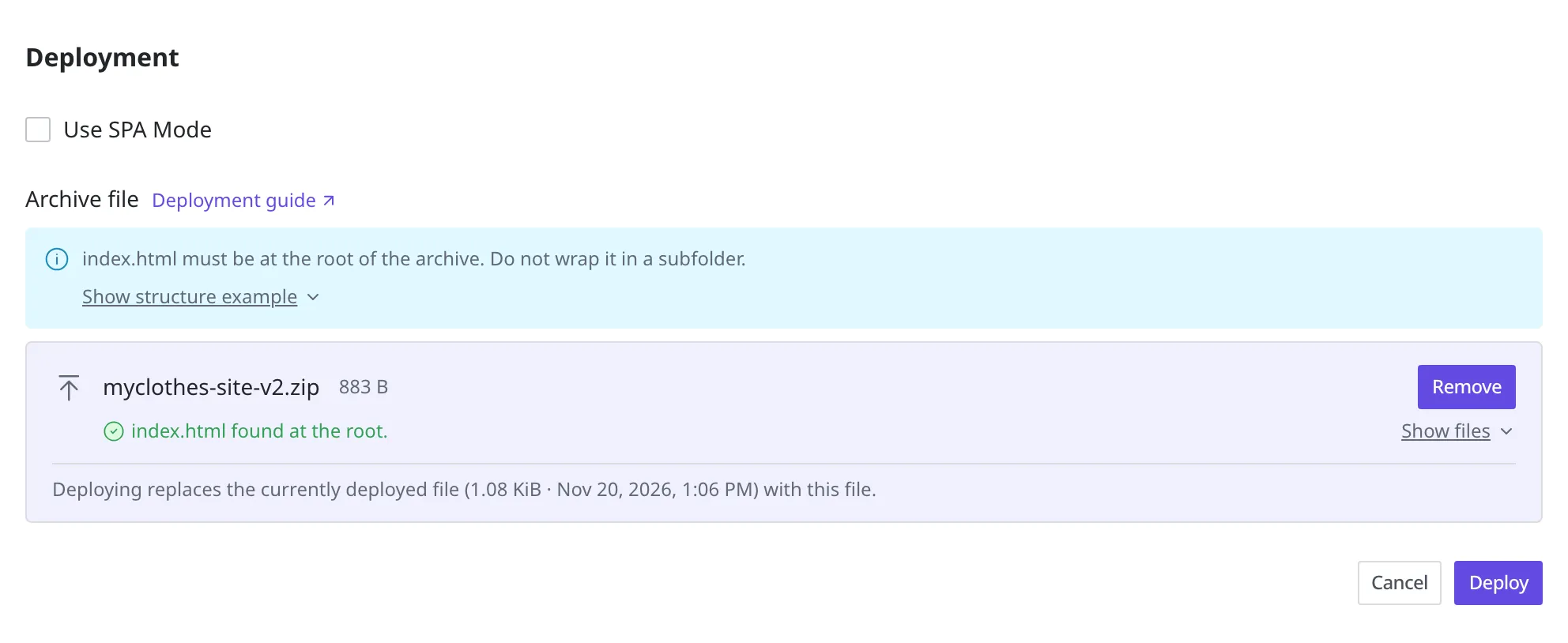
If you uploaded the wrong file, click Remove to the right of the uploaded file's name, then upload again.
Clicking Deploy starts deployment processing. When processing finishes, the edited site opens at the same address. To check the result, follow the steps in Check the deployment result. What happens during processing is in Redeploying replaces your site files entirely.
Check the deployment result
These steps check whether processing has finished for "My Clothing Store" after you deploy or redeploy it.
- In the "Online Store" Space's left menu, click Web Hostings under Services.
- In the list, check the State of the "My Clothing Store" row.
- Click "My Clothing Store" to open its detail screen.
- Under Archive file in the Deployment section, check the size of the site files and the time in Currently deployed file. The time is when you deployed (when you clicked Create or Deploy), not when you chose the bundle file.
- Visit the site's address (
https://myclothes.weegloo.app) and check that the edited site opens.
If the State is Serving, processing has finished and the site is being delivered to customers. If it's PENDING or PROCESSING, it's still processing, so check again in a moment. If it's Failed, check If a deployment fails, fix the bundle, and upload it again.
Turn SPA Mode on or off
Say you've rebuilt the online store site with React, and now customers who go straight to a product page address (/products/tumbler) get a not-found response. These steps turn on SPA Mode in that case.
- Open the detail screen of "My Clothing Store".
- Select Use SPA Mode in the Deployment section.
- Click the Save button that appeared at the bottom.
To turn it off, clear the same checkbox and save. You don't need to upload the bundle file again when you turn it on or off (SPA Mode delivers the first page file for addresses that don't exist).
Change the name and description
These steps add a note to the Description of "My Clothing Store" about what the site is. You change Name the same way.
- Open the detail screen of "My Clothing Store".
- Enter
The online store site customers seein the Description field under Basic information. - Click the Save button that appeared at the bottom.
Name and Description help you recognize the site in Content Studio, and they don't appear on the site customers see. Changing them doesn't change the site's address.
Change the Subdomain
These steps change the address from myclothes to pogeun-otjang-shop to match the store's name. After the change, the site no longer opens at the old address, so check If you change the Subdomain, the old address stops working first.
- Open the detail screen of "My Clothing Store".
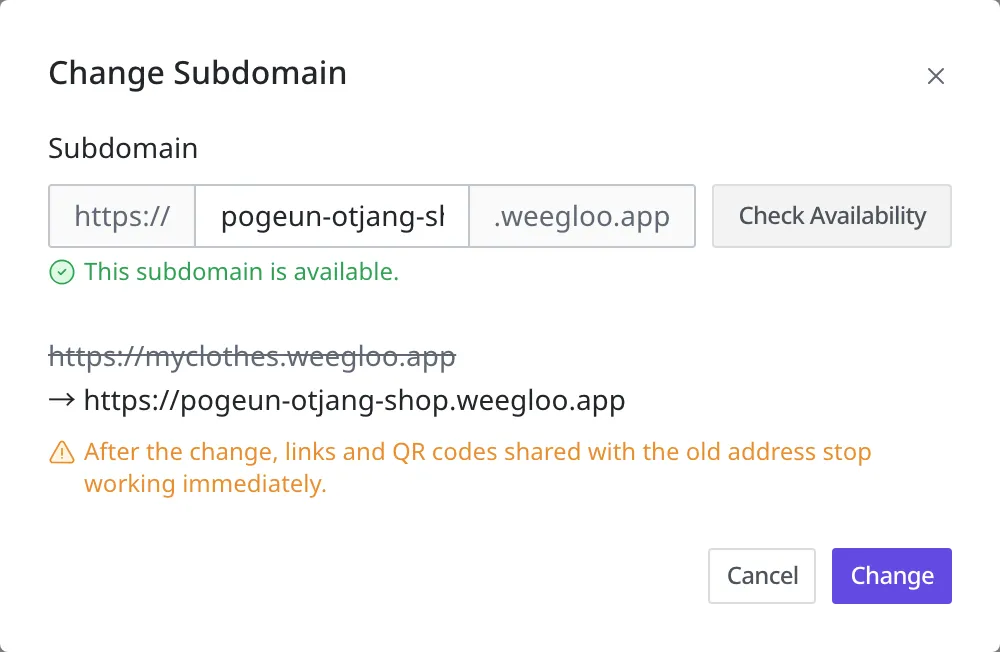
- In the Address section, click the Edit button to the right of Subdomain. The "Change Subdomain" window opens.
- Enter
pogeun-otjang-shopin the Subdomain field of the window. - Click Check Availability. If "This subdomain is available." appears, you can use that Subdomain. The window also shows the old address, the new address, and the warning "After the change, links and QR codes shared with the old address stop working immediately."
- Click Change.
Clicking Change saves right away, with no confirmation window.
The new site address is https://pogeun-otjang-shop.weegloo.app. Update any place that lists the old address, such as Allowed referrers of the Delivery Access Token the site uses, to the new address.
Share your site's address with a QR code
These steps put the online store's address, as a QR code, on a sign for the store's checkout counter.
- Open the detail screen of "My Clothing Store".
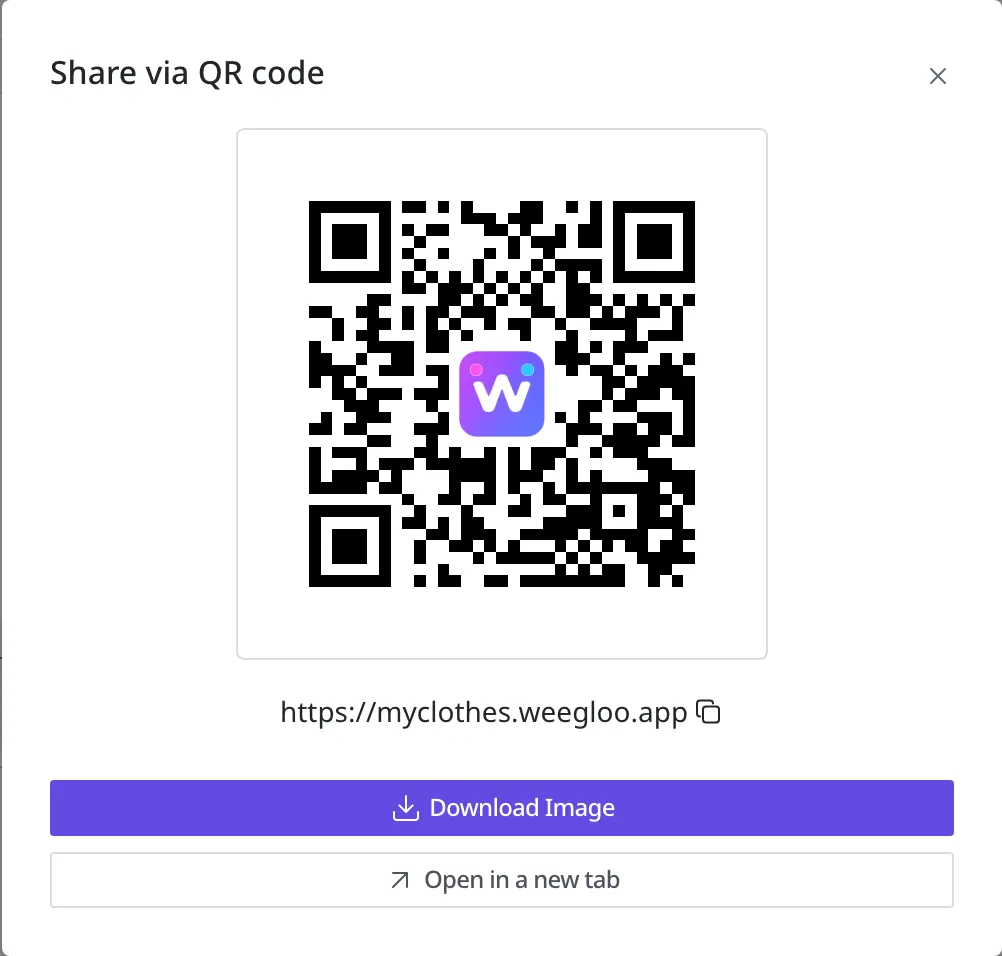
- Click the QR Code button to the right of the address under Subdomain.
- In the "Share via QR code" window that opens, click Download Image.
To copy the address, click the copy icon to its right. The whole address, starting with https://, is copied. After you change the Subdomain, download the QR code again.
Delete a site
The summer sale is over, so these steps delete the Web Hosting "Summer Sale Page" you uploaded to promote it. A deleted site can't be restored (Deletion can't be undone). If you might use it again, keep that site's bundle file on your computer.
- In the Web Hosting list, click "Summer Sale Page" to open its detail screen.
- Click the Delete button at the top right. The "Delete Web Hosting" confirmation window opens with the message "Do you want to delete this Web Hosting? The deployed website and all related settings will be deleted. This action cannot be undone."
- Click Delete in the confirmation window.

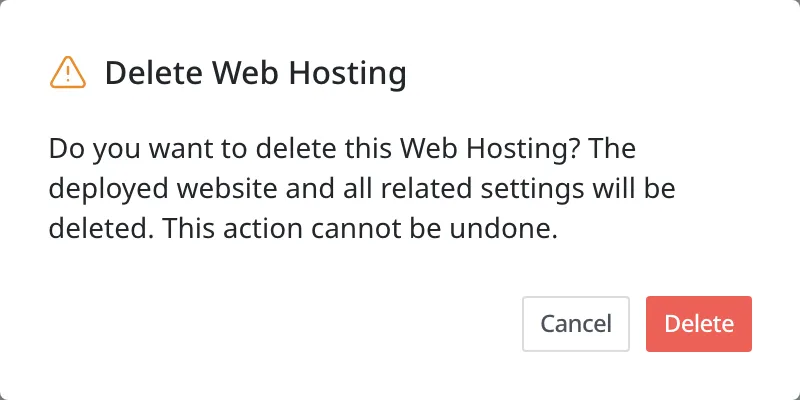
When "Summer Sale Page" disappears from the list, it's been deleted. For when you can't delete a site and what goes away with it, see Deleting items such as Locale, Tag, and Script.
- Deleting the site leaves the content it displayed, such as products, in the Space.
- The Delivery Access Token you put in the site isn't deleted either, and it stays valid. If you no longer use it, delete it separately (Delete a token).
Troubleshooting
Deployment failures are at the top of the table, and problems with addresses and settings are below them.
| Problem | Cause | What to do |
|---|---|---|
| A bundle made by compressing the whole site folder won't upload, or its deployment fails | index.html is inside that folder, not at the top level | Open the folder, select all the files and folders inside it, and compress them again |
A bundle whose first page file is named Index.html fails to deploy | The first page file's name must match index.html exactly, including uppercase and lowercase | Rename the file to index.html and compress again |
| You don't have many files, but the bundle won't upload or fails to deploy because of the item count | Folders, and hidden files added during compression, count as items too | Leave out the hidden files and compress again. You can cut down the item count by including each image only once and sharing it across pages, and by loading large files such as fonts from copies already published on the internet |
| A bundle with a large video is rejected or fails to deploy | The bundle file's size, or its unpacked size, is over the limit (Limits) | Upload large photos and videos as Media, and use their file addresses in the site (How long a file can be opened from its address) |
| A bundle with shortcut files fails to deploy | The bundle contains shortcut files (symbolic links) or paths that point outside the bundle | Put the actual files in place of the shortcuts and compress again |
| A password-protected bundle fails to deploy | Password-protected items can't be unpacked | Compress again without a password |
| A compressed file that isn't ZIP or tar.gz won't upload, or fails to deploy | A bundle file must be in ZIP or tar.gz format. Even in the right format, a damaged file fails | Compress it again as a ZIP file and upload it |
| You redeployed, but the previous site still shows | The new bundle is still processing, or processing failed and the previous site keeps opening | Check the State (Check the deployment result). If it's Failed, fix the bundle and upload it again |
| The site didn't display correctly during a redeployment | While the files are being replaced, the site may not display correctly | Check again after processing finishes. Next time, redeploy at a time when few customers visit |
| After a redeployment, some files' addresses don't open | Files that aren't in the new bundle disappear from the site | Add those files to the bundle and redeploy |
| You can't edit settings or delete the Web Hosting | You can't edit or delete while a deployment is processing | Wait until the State becomes Serving or Failed |
| Going straight to a sub-address, or refreshing there, gets a not-found response | The site doesn't have a page file for each address (an SPA), but SPA Mode is off | Turn on SPA Mode (Turn SPA Mode on or off) |
You included about.html, but it doesn't open at /about | Web Hosting doesn't add an extension to the end of a path when it looks for a file | Put it in an about folder as index.html, or change the site's links to /about.html |
| The first page appears even at addresses that don't exist | SPA Mode is on | If that isn't what you intended, turn off SPA Mode |
| The browser downloads a file instead of opening it on screen | Its extension isn't in the table of extensions that decide file types (Rules for the site file bundle) | If the file can be converted to a type in the table, convert it and include it in that format. If it's a file for customers to download, you can leave it as is |
| You clicked Check Availability, but you can't use that Subdomain | Another Web Hosting is already using it, or it's a name WEEGLOO has reserved | Choose a different Subdomain (Rules for choosing a Subdomain) |
| You can't use the Subdomain you entered because of its format | It contains characters such as uppercase letters, spaces, or underscores, starts or ends with a hyphen, or isn't 3 to 32 characters long | Enter 3 to 32 characters using lowercase letters, numbers, and hyphens |
| You passed Check Availability, but creating the site is rejected | Someone else created a Web Hosting with that Subdomain after you checked but before you created yours | Check again with a different Subdomain |
| Products don't appear on the site after you change the Subdomain | The new address isn't in Allowed referrers of the Delivery Access Token the site uses | Open the token and add the new address to Allowed referrers (Edit the description and Allowed referrers) |
| You can't use the old Subdomain you wanted to switch back to | The old Subdomain became free the moment you changed it, and someone else may have taken it first | Choose a different Subdomain |
| A site installed from an app has no place to upload files | The files of a site installed from an app are managed by the app's maker | To use a new version of the app, install the app again (The installer manages installed copies) |
| The detail screen has no Custom Metadata | Sites you upload yourself don't have this section | Edit the title and description inside your site files and redeploy |
| You can't create a new Web Hosting | The Organization's Web Hosting count or storage has reached its limit, or that month's CDN bandwidth or Origin bandwidth has gone over the allowance | Deleting Web Hostings you don't use frees up count and storage. A transfer restriction is lifted when the next month starts or when you upgrade your plan (What happens when you go over a limit) |
| The deployment becomes Failed, and the failure reason has a sentence saying the plan allowance would be exceeded | On the Free, Basic, or Pro plan, deploying this bundle would push the Organization's Web Hosting storage over the plan's allowance (If a deployment fails) | Trim the site files and upload again, delete Web Hostings you don't use to free up space, or upgrade your plan (When you exceed transfer volume or storage space) |
| Customers can't open the deployed site | The first bundle you deployed is still processing, or processing failed. Or, on the Free, Basic, or Pro plan, this month's CDN bandwidth or Origin bandwidth has gone over the allowance | Check the State (Check the deployment result). If it's Serving and still doesn't open, see how the restriction is lifted in When you exceed transfer volume or storage space |
| You can't open the Web Hostings menu or create a site | Your role doesn't have Manage Web Hostings | Ask a member who has Manage Roles for Manage Web Hostings (Turn on a settings permission) |
| You can't create or deploy a site with a Space Access Token | Manage Web Hostings works only when a member works with their own account | Do it by logging in to Content Studio, or with a Personal Access Token |
| Saving is refused | Someone else saved the same Web Hosting while you were editing it | Reopen the detail screen, check what changed, then make your edits again |
| A Space won't delete | You can't delete a Space while even one Web Hosting remains in it | See What blocks deleting a Space and what goes with it |
Related docs
- Deploying a website: Covers what Web Hosting is and the flow from preparing site files to going public at a free address.
- Connecting your own domain: Covers the rules and steps for connecting your own domain to a site.
- Token rules: Covers the role and Allowed referrers rules for the Delivery Access Token a site uses to read content.
- App install rules: Covers the site an app creates when you install it, and the rules for changing that site's search result and link preview information.
- Deletion rules: Covers when you can delete a Web Hosting and what goes away with it, and what blocks deleting a Space.
- Pricing: Covers how many Web Hostings you can create, the storage, and the monthly transfer on each plan.
- Put your site online: Covers how to deploy a site by asking an AI agent in plain words.
- API reference: Covers technical specs, such as the request formats you need to create a Web Hosting and upload a bundle file from a program.