

Editing Together
Last updated: July 6, 2026
Imagine running the online clothing store "Cozy Closet" together with your coworkers, Minji Kim and Dahee Park. As your team grows, this kind of thing happens. You open a product to edit the detailed description of the "Stainless Tumbler 500ml," but at the same moment Minji has the same product open to change its price. This page covers, as a set of recipes, the situations that come up when several people work on the same content this way, and how to handle them. It covers what happens when two of you edit at the same time, how to check who changed what and when, and what habits keep you from colliding in the first place.
How to bring a coworker into your workspace is covered in Inviting Members and Granting Permissions; the comment feature itself, the shared notes you exchange, is covered in Comments; and the concepts of status and versions are covered in States and Publishing. This page builds on those and focuses on how to handle specific situations when you "work together."
Editing at the same time triggers a conflict warning
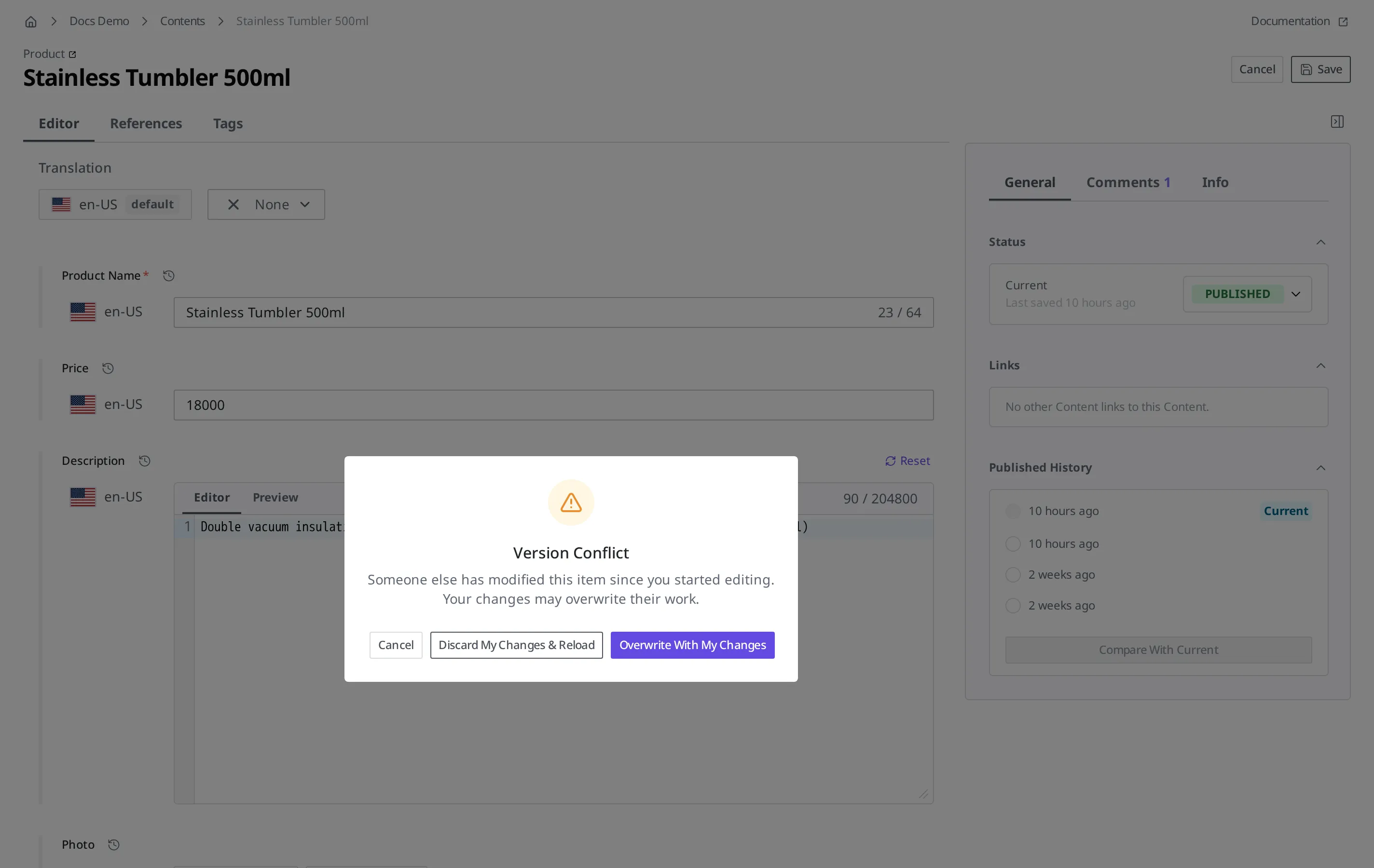
Return to the situation where you and Minji each have the same tumbler product open. Minji changes the price from 18,000 won to 16,000 won and clicks Save first. A moment later, you also edit the detailed description and click Save. This time your save is not applied as is; a "Version Conflict" notice appears. That is because, at the moment you save, WEEGLOO checks "whether anyone else saved first after you opened the screen," and it lets you know if someone did. The notice reads: "Someone else has modified this item since you started editing. Your changes may overwrite their work."
This notice matters because it keeps your save from silently overwriting Minji's edit. If your save had been applied with no notice at all, the old price of 18,000 won still sitting on your screen would have wiped out the 16,000 won Minji had just set, and Minji would have gone on working without noticing. WEEGLOO does not do that; it warns you of the conflict and then lets you choose what to do.
There are three options you can choose from in the notice.
- Discard My Changes & Reload: Discards what you just entered and loads the latest content Minji saved. Minji's edit stays as is.
- Overwrite With My Changes: Saves with the content you entered. Because what Minji just changed disappears, choose this only when you are certain the other person's edit is not needed.
- Cancel: Stops the save and keeps you on the editing screen.
In most cases the safe choice is Discard My Changes & Reload. Once you check what the other person changed and then reapply your own edit, both people's work survives. That procedure is covered right below.
What to do when you get a conflict notice
If you immediately click Overwrite With My Changes in the conflict notice, the other person's edit disappears. Do not rush; work through it in an order that protects both people's work.
- Copy the edits you entered on the screen (the revised detailed description) somewhere else, such as a notepad.
- In the notice, click Discard My Changes & Reload. The screen changes to the latest content Minji saved.
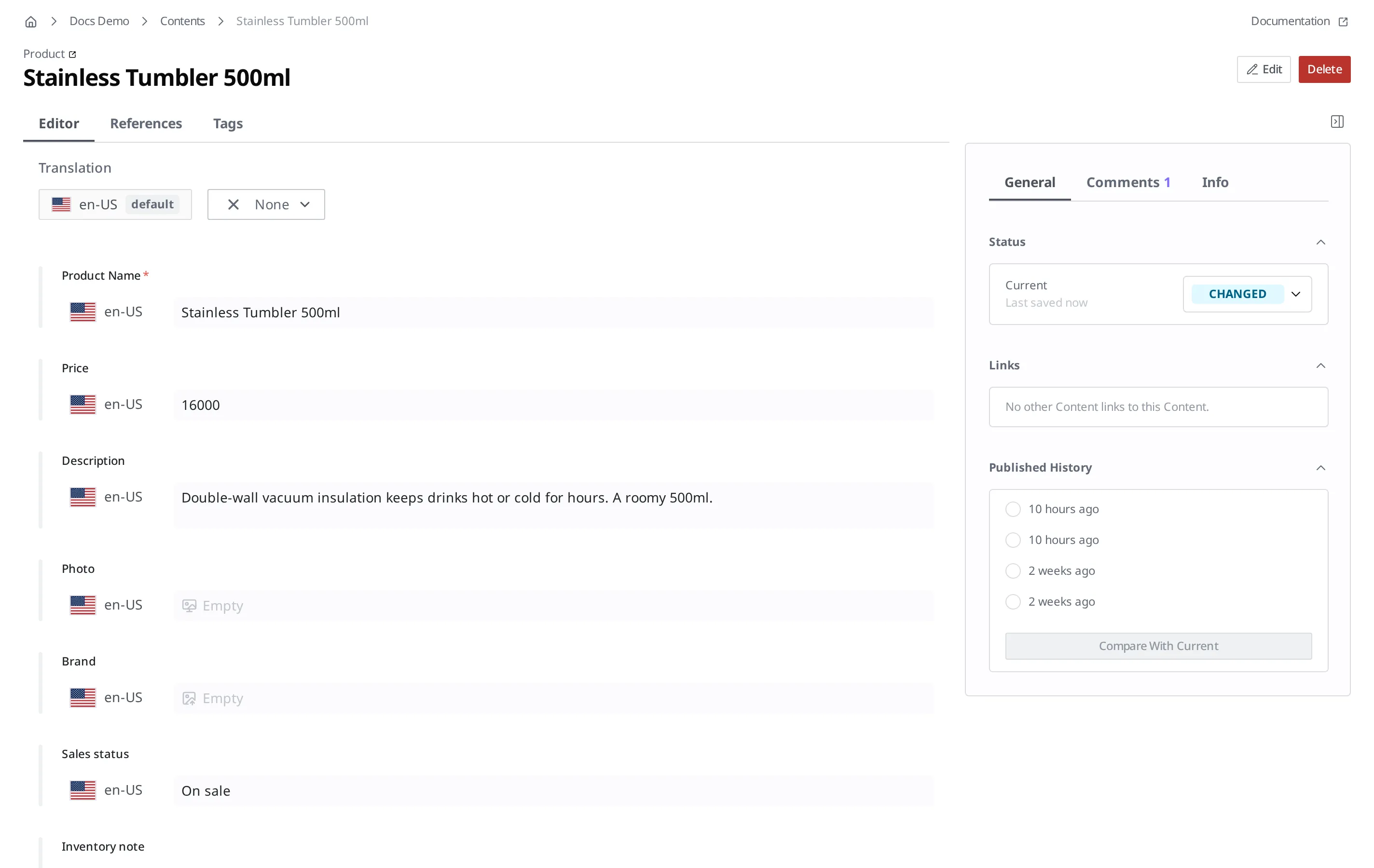
- Check what Minji changed. In this example, the price has changed to 16,000 won.
- Enter your detailed description again from the copy you made.
- Click Save.
This time it saves with no conflict notice, because you are saving after checking the latest content. As a result, both the price Minji changed and the detailed description you changed survive.
It is important not to skip step 1. When you reload the latest content, the screen changes to what Minji saved, so any input you did not copy has to be rewritten. For a description of a few lines, rewriting it is no trouble, but for a long passage you polished with care, that one copy saves you the effort.
Checking who changed something and when
For every content item, the person who last edited it and the time are recorded automatically. In the Content list they appear as the Updated by and Updated at columns, so you can see at a glance who last touched which product and when.
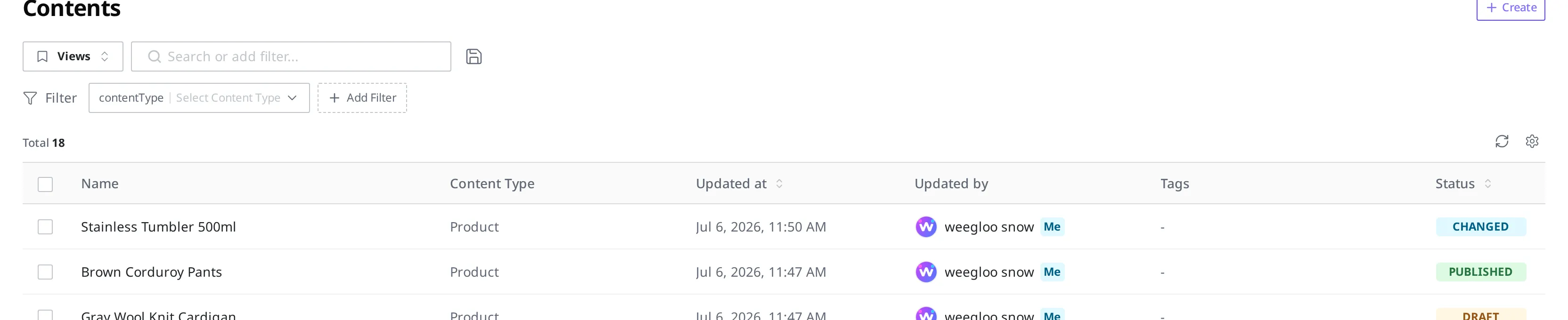
Getting into the habit of checking this record helps reduce conflicts. If, before you open the tumbler product, the last edit reads "Minji Kim, just now," there is a good chance Minji is working on this product right now. Instead of opening it and editing right away, ask Minji first, and you will run into the conflict notice from earlier far less often.
Conversely, when you are retracing your own work, as in "which product did I edit last week?", the built-in "Updated by me" View and sorting by modified date are quick. How to use them is covered in Finding the content you need.
When something looks overwritten: comparing with Publish history
"Why has the description I fixed yesterday gone back to the old wording?" When you work together, some days a doubt like this comes up. At such times, instead of arguing over memory, you can look at the record. Because every time you publish, the content at that moment is kept as a version, you can compare what you published in the past side by side with the current content.
You do the comparison in the Published History area on the right of the content detail screen. Choose the version you want to check and click Compare With Current, and that version and the current content are shown side by side, item by item. The step-by-step method is covered in States and Publishing.
Keep two things in mind.
- Versions are kept only when you publish. Edits that were only saved and not published are not kept as versions, so you cannot check them this way.
- You can revert to an earlier value. On the comparison screen, choose the items to restore and click Apply Changes, and those items return to their earlier values. A detailed recipe is covered in Publishing Operations.
Team habits that reduce conflicts in the first place
Apart from knowing how to handle the conflict notice, if you reduce how often two people open the same product at the same time in the first place, working together gets much easier. For the "Cozy Closet" team, it looks like this.
- Split up who owns what. If you split up who owns which content, with Minji handling price changes for seasonal products and Dahee handling new-product registration, two people's hands overlap on the same product less often. How to grant roles that match each person's responsibilities is covered in Inviting Members and Granting Permissions.
- Flag long edits with a comment. If you are in the middle of a big revision to a detailed description, leave a comment on that product, such as "I'm editing the detailed description. I'll finish it by end of day." A coworker who opens the same product sees that note and can hold off. You can leave comments not only on Content but also on Media and Content Type, so the same approach works when you touch up a product photo or its template. How to leave one is covered in Comments.
- Ask about anything unclear right there. Instead of asking a question like "Is this price final?" separately over a messenger, leave it as a comment on that product, and the question and answer stay on the product's screen, so a coworker who joins later can follow the context too.
What to do next
- Comments: Covers how to leave and reply to comments, the notes you exchange with a coworker over the same product.
- Publishing Operations: Covers how to handle operational situations after publishing, including a recipe for restoring wrongly edited content from an earlier published version.
- States and Publishing: Covers when versions are created and how to compare them in the Publish history, and the concepts of status and publishing.