

States and Publishing
Imagine you add a new product, "Stainless Tumbler 500ml," to your clothing shop's online store. You fill in the product details in the content studio and save them, yet the tumbler still does not appear on the actual store site. That is because creating something and showing it to customers are two separate steps. To show it to customers, you have to Publish it one more time.
What decides "show it or not" is states and publishing. Items such as Content and Media each carry a state that tells you where they stand right now, and the publishing action changes that state so the item can be delivered to customers. This page covers what states an item can have, what changes when you publish, and how to publish from the content studio.
The content studio and external delivery, two places
To understand states, it helps to know that an item lives in two places.
- Content studio: the management screen where you and your colleagues in the same Space work. Here you can see both items that are still being written and items that have been published.
- External delivery: the place that shows items to visitors, such as your actual store site. Only published items are delivered here.
Publishing is the action that puts an item you created in the content studio onto the external delivery side. If you only create the tumbler product in the content studio, it shows up in the content studio but is not yet on the external delivery side. Only after you publish it does it reach visitors.
To put it another way, the content studio is the workroom at the back of the shop, and the external delivery side is the display case that customers see. Even after you finish preparing a product in the workroom, you have to take one more action to put it in the display case before customers can see it.
The four states an item can have
Each individual Content carries a state that shows which step it is at right now. Using the tumbler product as an example, here are the four states.
| State | Meaning | Delivered to external delivery |
|---|---|---|
| Draft | Being written. Not published even once yet. | Not delivered |
| Published | Publishing complete. What you saved matches what is delivered externally. | Delivered |
| Changed | Published before, but edits made since then have not been published again. | The most recently published content is delivered |
| Archived | Archived. Set aside from your active work for now. | Not delivered |
When you first create the tumbler product, its state is Draft. When you publish it, it becomes Published. If you edit the price of a Published tumbler and save, it becomes Changed. And when you tidy up items you no longer use, you can keep them as Archived.
Media (files you upload, such as images and videos) has the same four states. However, the publishing step for Media differs from Content. This difference is covered separately below in Media is published automatically when you upload it.
What changes when you publish
Publishing is the action that sends the content you worked on in the content studio out to the external delivery side. When you publish the tumbler product, its state changes to Published, and from that point you can show this product on the actual store site.
Publishing takes the content exactly as it is at that moment, like a single snapshot, and places it on the external delivery side. So even if you edit the tumbler price in the content studio after publishing, what is delivered externally stays the price you published before the edit. To show the edited price to customers, you have to publish once more. This "edited but not yet republished" state is Changed.
Changed is a signal that the content studio content and the external content are out of sync. If you edit the tumbler price from 18000 to 16000 and save, the content studio shows 16000, but customers are still served 18000. You have to publish again for customers to be served 16000.
Each publish saves a version
As mentioned, publishing takes the content at that moment like a single snapshot and places it on the external delivery side. This snapshot is called a version. Each time you publish, the tumbler product content at that point in time is kept as one version, and as you publish repeatedly the versions pile up into a publishing history.
When you first publish the tumbler product at 18000, "the tumbler at 18000" is kept as one version. If you later edit the price to 16000 and publish again, "the tumbler at 16000" is added as one more version. Having published twice this way, there are two versions.
What gets delivered to the external delivery side is always the most recently published version. So if you only edit and save a Published tumbler (Changed), the externally delivered content stays the previously published version, and you have to publish again to create a new version and deliver it to customers. The past versions that have piled up remain as a record of "what content you published before."
A version (snapshot) is a publishing record created when you publish. If you only save in the content studio without publishing, no new version is created.
Viewing past versions in the content studio
You view past versions in the right sidebar of the content detail screen. When you open the tumbler product, the Published History area in the right sidebar shows the published versions as a list.
- Open the "Stainless Tumbler 500ml" Content whose past versions you want to view.
- In the Published History area of the right sidebar, choose the version you want to check.
- Click the Compare With Current button to see how it differs from the current content.
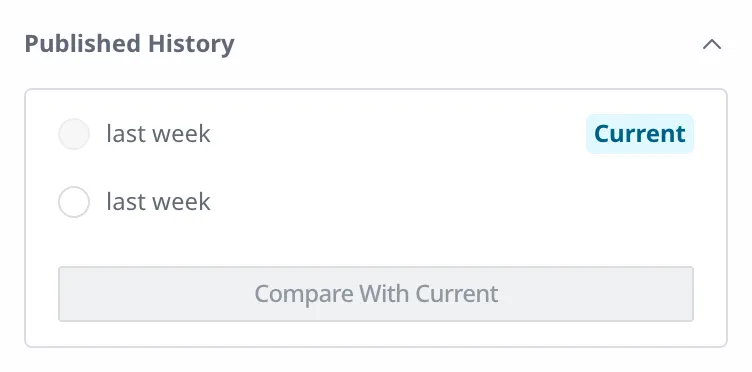
When you choose a version, you can compare its content side by side with the current content. Choose the item you want to restore and click Apply Changes, and that item returns to that version's value.
Rules are checked before you publish
The moment you publish, the system checks once more whether the item follows all the rules set on its structure (Content Type). If a required field such as the product name is empty, or the cover image you linked has been deleted in the meantime, publishing is blocked and an error message appears. Fill in the missing value or relink the image, then try again.
This check applies both when you save and when you publish. So an item that breaks the rules is neither saved as Draft nor published. It is a safeguard that keeps incorrect data from being delivered to customers.
Which rules (validations) you can set is covered in Content Modeling.
How states change with each action
Each state changes only along set paths, depending on the actions you take in the content studio. Using the tumbler product as an example, here is a summary.
- Create: When you create a new tumbler product, it becomes Draft.
- Publish: When you publish a product that is Draft, Published, or Changed, it becomes Published. However, an Archived product cannot be published directly.
- Edit and save: When you edit a Published product and save, it becomes Changed. When you edit a Draft product and save, it stays Draft.
- Unpublish: When you Unpublish a Published or Changed product, it comes down from the external delivery side, and its state returns to Draft.
- Archive: Only a Draft product can be kept as Archived. When you unarchive it, it becomes Draft again.
- Delete: An item can be deleted only when it is Draft or Archived. For an item that is live (Published) or has pending edits (Changed), first Unpublish it to return it to Draft, then delete it.
Unpublishing and deleting are different. Unpublish only takes an item down from the external delivery side, so the item itself remains in the content studio as Draft and can be published again later. To remove it completely, you have to delete it separately from unpublishing.
Publishing the tumbler product from the content studio
Now you will publish a Draft tumbler product from the content studio to make it public. Assume the "Stainless Tumbler 500ml" product has already been created as Draft.
- Open the "Stainless Tumbler 500ml" Content you want to publish.
- On the right, in the Status box, click the dropdown showing the current state (Draft).
- In the expanded list, click Publish. (If you only want to archive an item you will no longer use, choose Archive.)
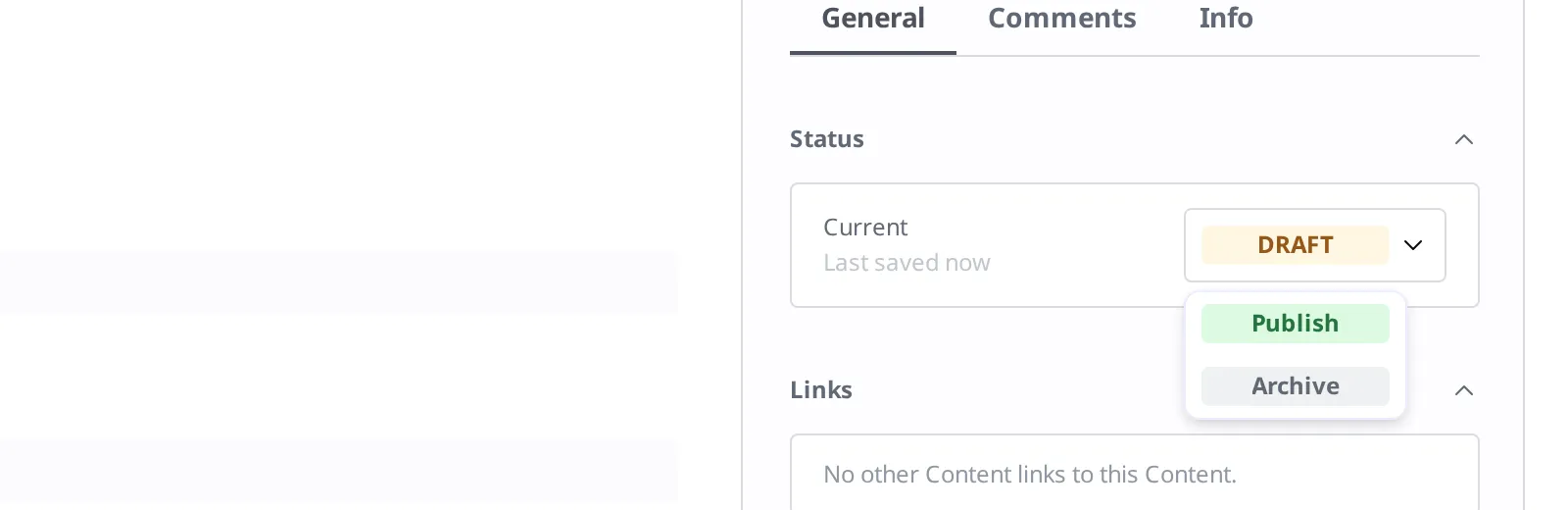
When the state changes to Published, it has been published. From that point it is delivered to the external delivery side, and you can show this product on the actual site.
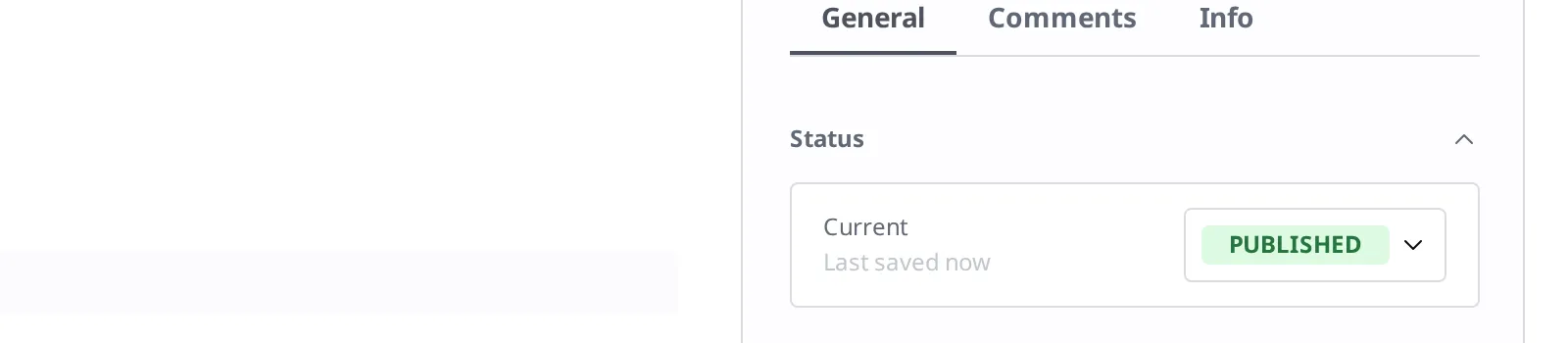
If you edit content such as the price after publishing, the state changes to Changed. To reflect the edited content externally, click Publish once more the same way.
Media is published automatically when you upload it
Media also has the four states Draft, Published, Changed, and Archived, but the flow when you first upload it differs from Content.
Content becomes Published only after a person publishes it directly. Media, on the other hand, is processed by the system when you upload the file (extracting image size information and so on), and once processing finishes it is automatically changed to Published. So when you upload the tumbler's cover image, it goes onto the external delivery side once processing finishes, without you taking a separate publishing action.
To link a Media to a Content such as the tumbler product, it is safest to link it after the Media has finished processing and become Published. Uploading images, linking, and the processing flow are covered in Media.
What to do next
- Authoring and Publishing Content: covers the full step-by-step flow of creating and publishing the tumbler product.
- Media: covers how to upload Media such as the tumbler's cover image and link it to Content.
- Roles and Permissions: covers how to decide who can publish using roles.
- Content: covers the request format needed to handle publishing and unpublishing directly from a program, the item structure such as
sys.status, and listing versions (snapshots).