

Publishing Operations
Last updated: July 6, 2026
When you run "Cozy Closet," an online clothing store, publishing is not the end but the beginning. It is only after publishing that you notice a price typo, find a product whose last unit has sold still listed live on the site, or reach the day when, winter over, you have to clear out dozens of knitwear products. This page covers, as a set of situation-by-situation recipes, what to do in the content studio for each of these operational situations.
What each of the Draft, Published, Changed, and Archived statuses means is covered in States and Publishing. Here, the focus is on using those statuses as operational tools.
Choosing the Right Action for Your Situation
First, the overall picture. The table below sums up the situations you run into during operations, the action you take in each, and whether that action can be undone.
| Situation | Action to take | Can it be undone? |
|---|---|---|
| There is a typo or wrong value in what you published | Fix it and Publish again | Just fix it and publish again |
| It must not reach visitors right now | Unpublish | Publish again and it goes public once more |
| You won't use it for a while, but you might later | Unpublish, then Archive | Restore it anytime with Unarchive |
| You will never use it again | Delete | Cannot be undone |
| You need content you published in the past | Compare it in Published History | For viewing only. How to bring it back is covered below |
The one thing to remember from this table is a single line. Only deletion cannot be undone. Every other action has a way back. So when you are unsure, choosing to keep something rather than delete it is the safer bet.
This rule applies not just to Content but equally to Media (the photos and files you have uploaded). The recipes below use a product Content as the example, but you can use the same approach when taking down or tidying up product photos.
Fixing a Price Typo on a Published Product
Suppose you meant to sell "Brown Corduroy Pants" for 39,000 won, but you published it with the price mistakenly entered as 93000. Right now, at this very moment, customers are being delivered 93,000 won, so you need to fix it quickly.
There is one important point here. When you edit and save something you have already published, its status changes from Published to Changed, and Changed means "edited, but not yet reflected externally." Your edited content is made public (delivered) only after you publish again. Until then, visitors keep receiving the content as of the publish time, that is, the wrong 93,000 won.
- Open "Brown Corduroy Pants" from the Content list.
- Click Edit at the top right.
- Change the price Field value to
39000. - Click Save.
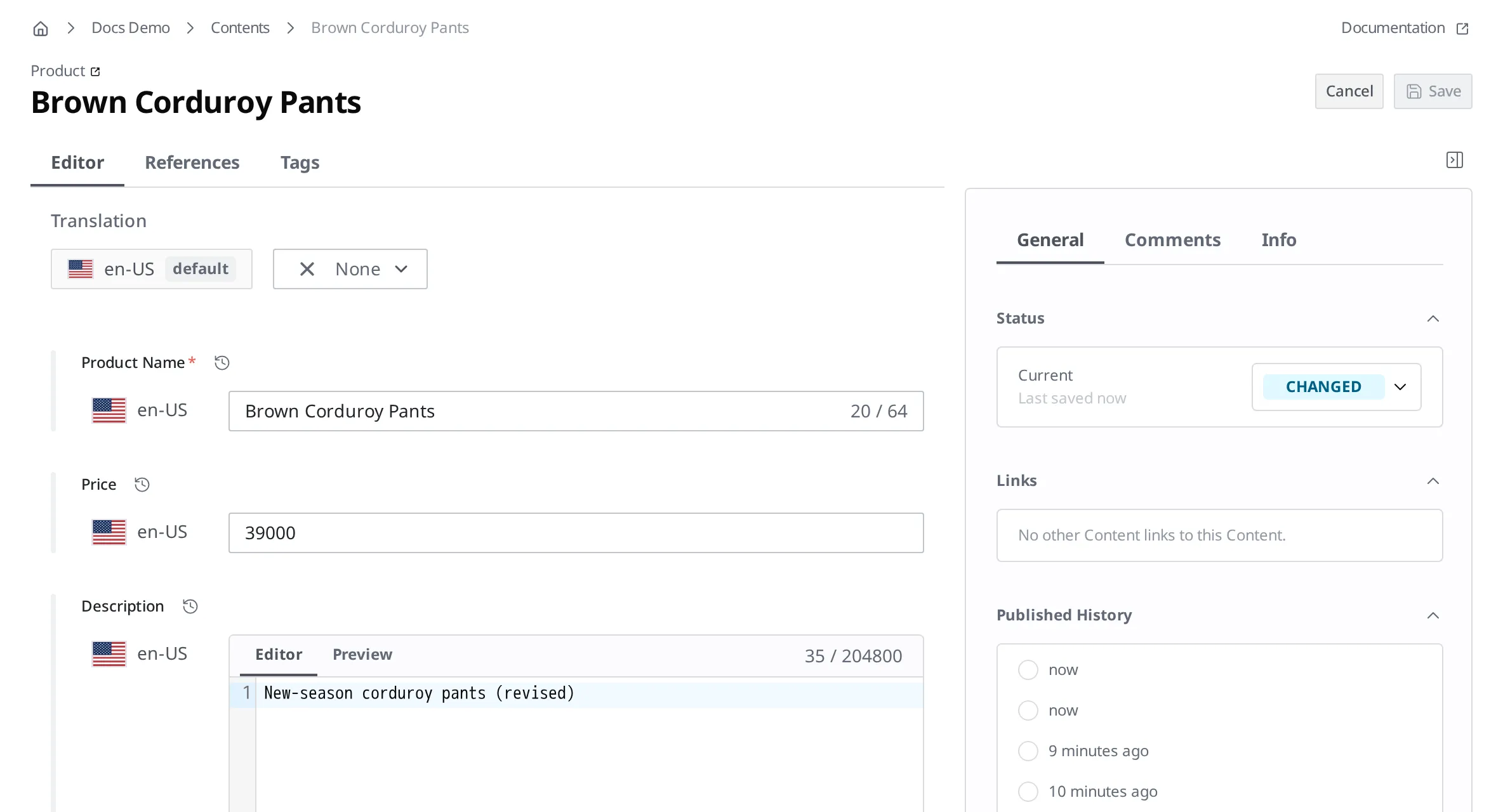
- In the Status area on the right, confirm that the status badge has changed to Changed.
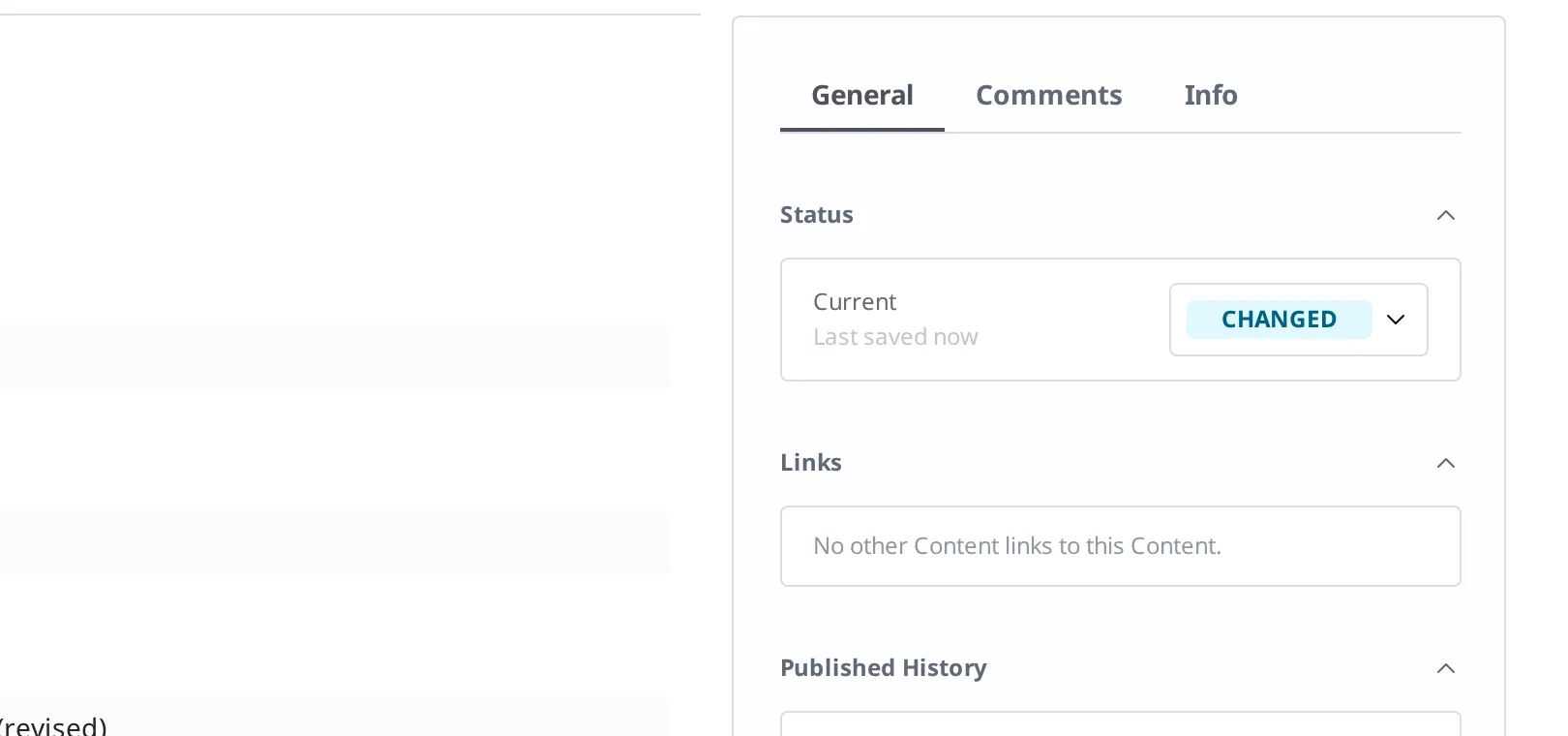
- Click the Changed status badge.
- In the expanded list, click Publish.
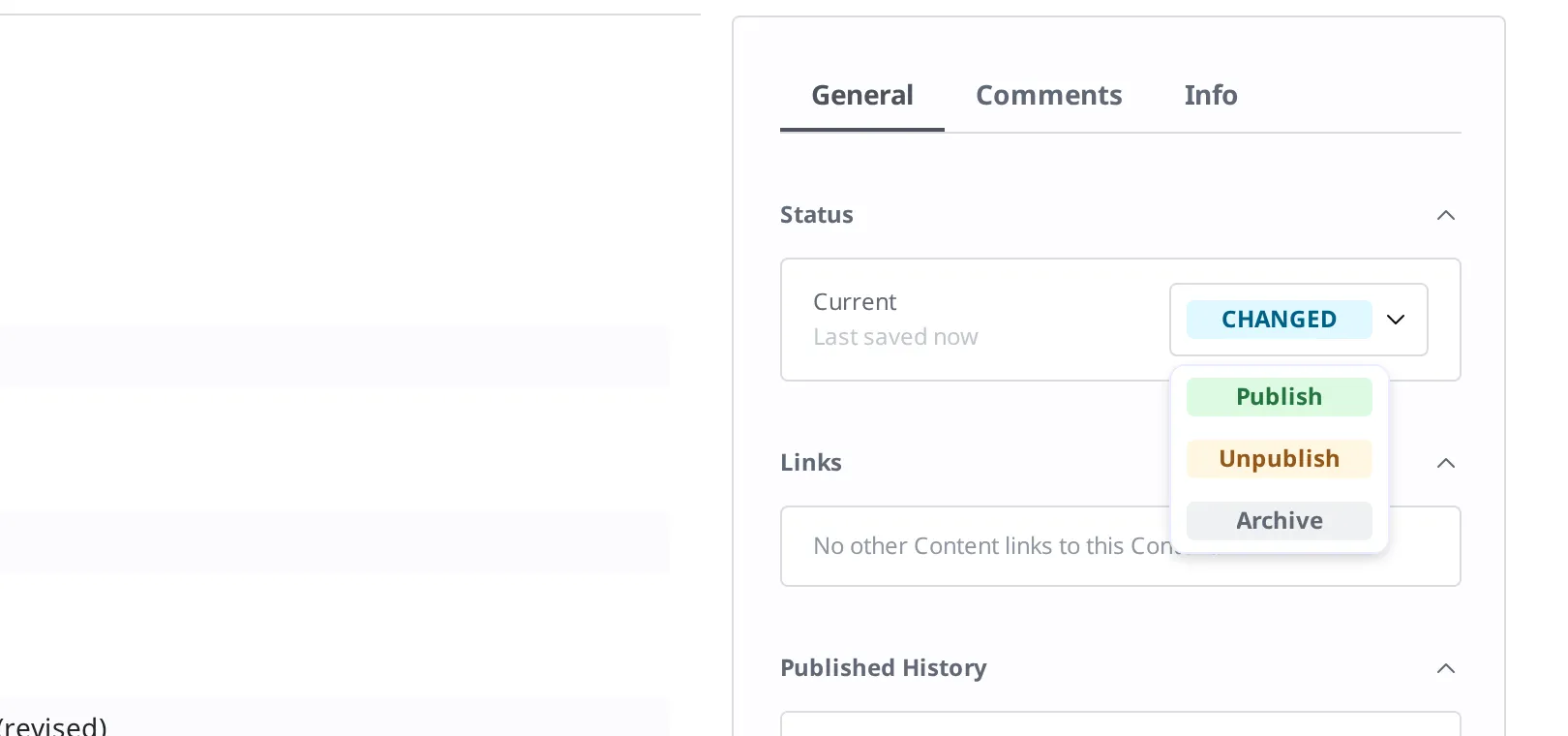
When you click the Changed status badge, the dropdown shows three items: Publish, Unpublish, and Archive.
Once the status returns to Published, you are done. Visitors are now delivered 39,000 won.
An edit is finished not by saving, but by publishing again. If you only save and forget to publish, the product stays in Changed status, and customers keep being delivered the old price. Getting into the habit of checking the list for anything left in Changed status will help you catch these oversights.
Quickly Taking Down a Product You Can No Longer Sell
Imagine the very last unit of "Oatmeal Linen Shirt" has sold, yet on the site it is still listed as if it can be ordered. You don't need to go so far as to erase the product information. For now, you just need to cut off what is delivered to visitors. The action for this is unpublishing, which appears on screen as Unpublish.
When you unpublish, the product drops out of external delivery, and its status returns to Draft. The product information itself remains in the content studio. You can take it down the same way not only from Published but also from Changed status, which still holds pending edits.
- Open "Oatmeal Linen Shirt" from the Content list.
- On the right, in the Status area, click the Published status badge.
- In the expanded list, click Unpublish.
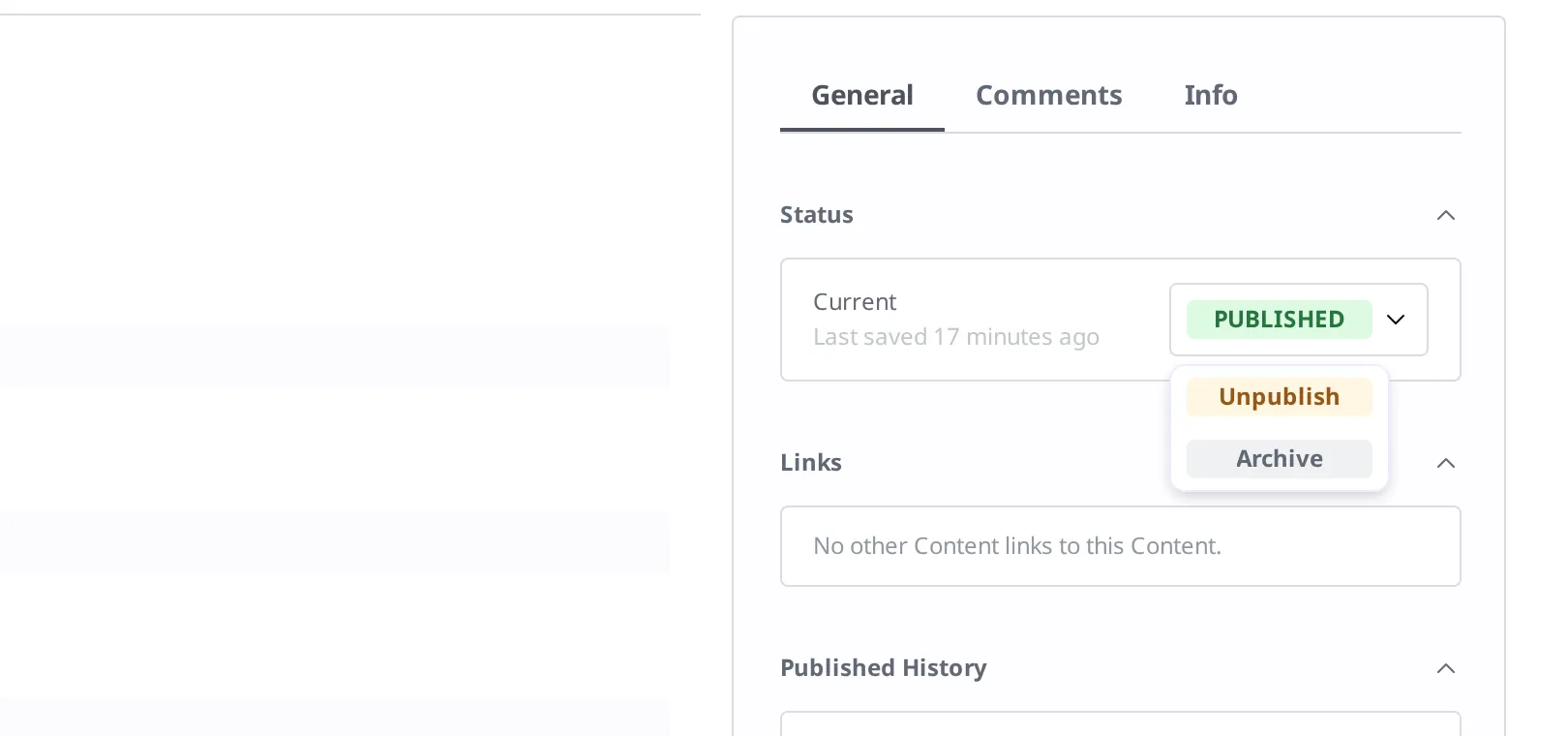
When you click the Published status badge, the dropdown shows two items: Unpublish and Archive.
When the status changes to Draft, it worked. This product is no longer delivered to visitors.
When it is restocked later, you can just Publish it again from the same place. The product information you saved is published again as it was, so there is no need to create the product from scratch.
Unpublishing is not deleting. Unpublishing takes the product down from the display case and sets it in the back room, while deleting removes the product information altogether. If there is even the slightest chance you will sell it again, stop at unpublishing or archiving.
Archiving End-of-Season Products
Say winter has ended and you have taken down "Gray Wool Knit Cardigan." Since it is a product you will sell again next winter, there is no reason to delete it. But if you leave it as only Draft, a product you won't touch for a while keeps showing up mixed into the work list you see every day. What you use for this is archiving, which appears on screen as Archive. When you archive it, the status becomes Archived, letting you set it aside as "not something to work on right now."
You archive from Draft status. If the product is currently published, first unpublish it to return it to Draft, then archive it.
- Open "Gray Wool Knit Cardigan" from the Content list.
- If it is still published, in the Status area on the right, click the status badge and click Unpublish to return it to Draft.
- Click the Draft status badge.
When you click the Draft status badge, the dropdown shows two items: Publish and Archive.
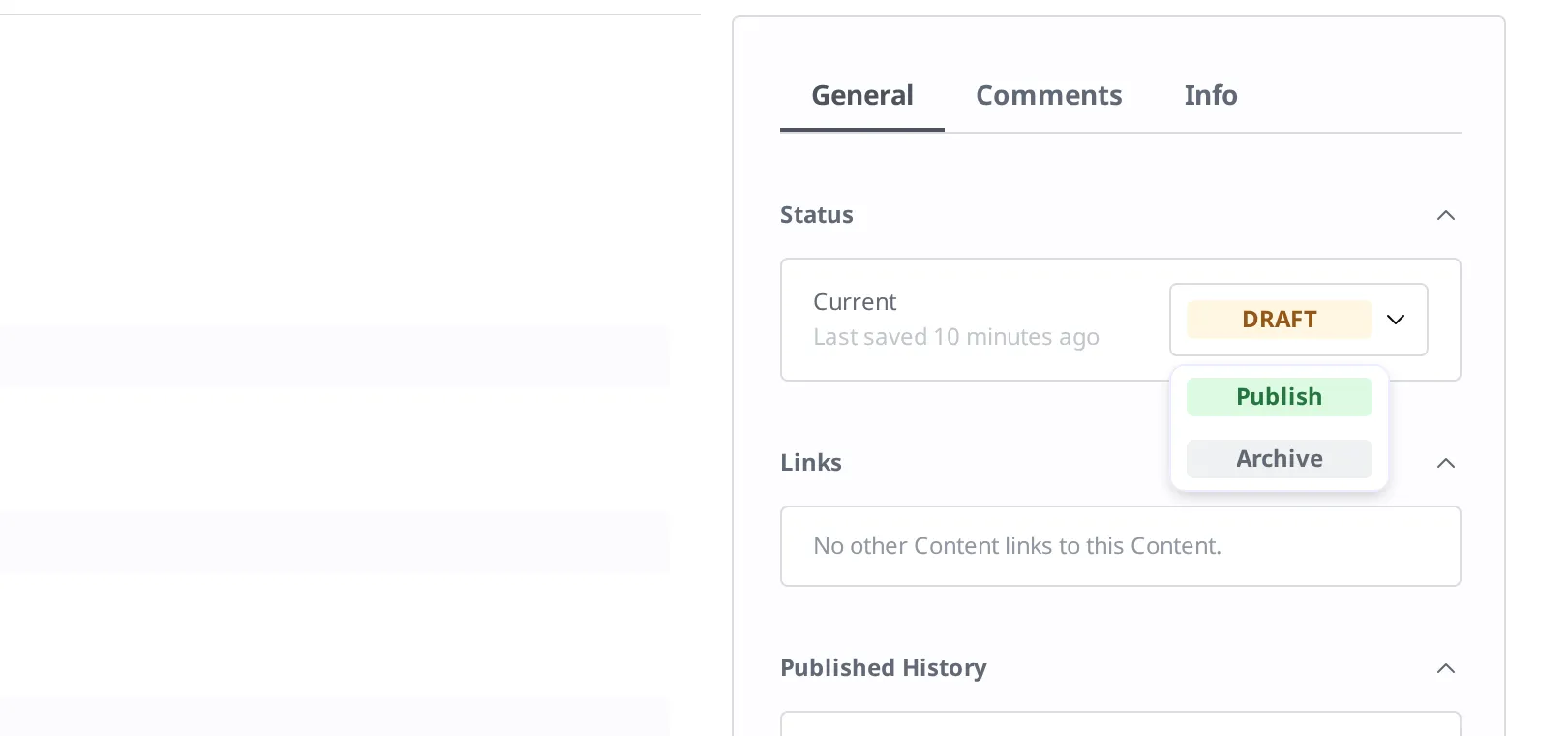
- In the expanded list, click Archive.
When the status changes to Archived, it worked. An archived product is not delivered externally, and it cannot be edited or published. To edit it or publish it again, you first have to unarchive it.
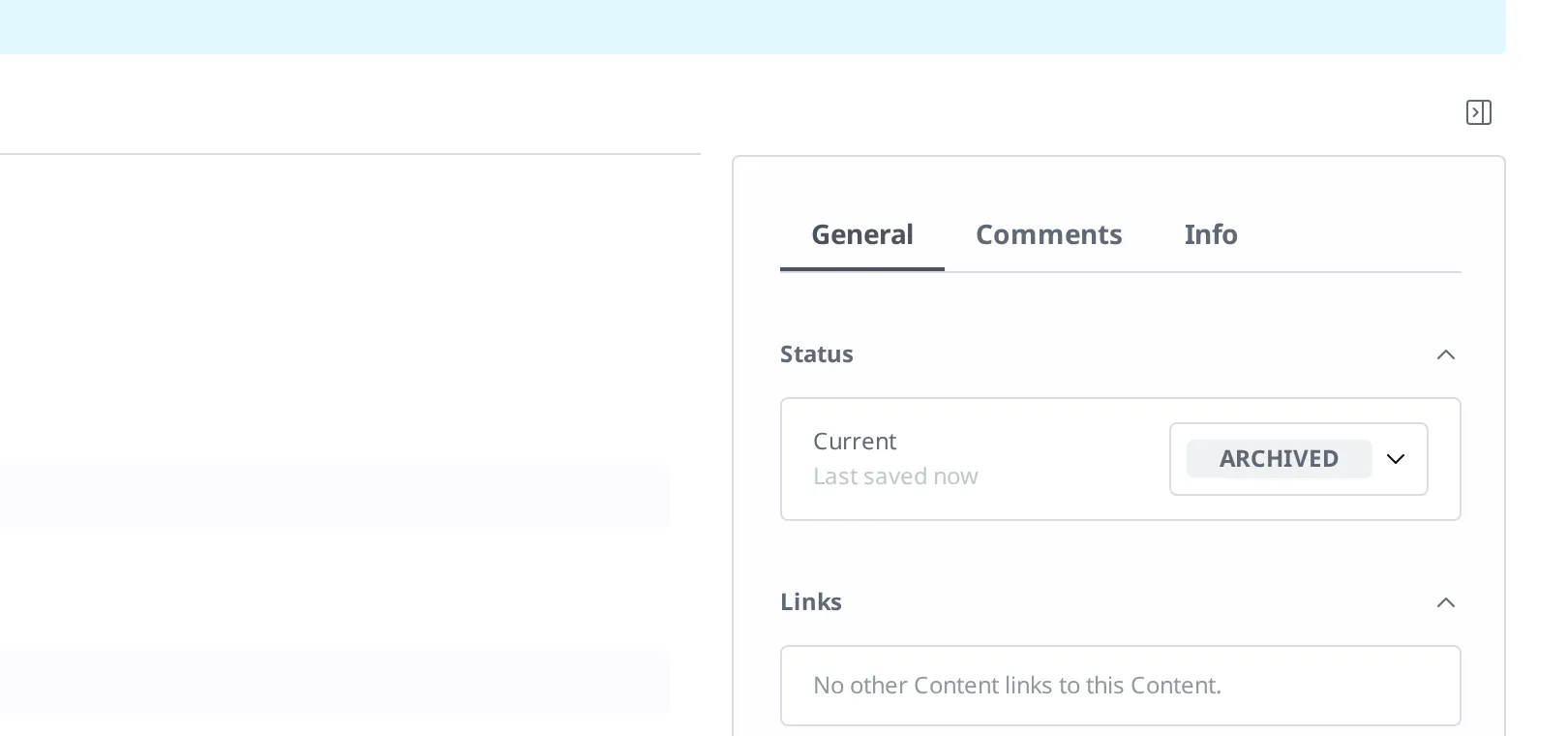
When archiving many items at once, such as a seasonal cleanup, gathering your targets first with the filter in Finding the content you need and then handling them one by one means nothing gets missed. When you want to look over your archived products again later, you can use a filter that keeps only items in Archived status.
Selling an Archived Product Again
Winter has come around again. The action to bring out your archived "Gray Wool Knit Cardigan" is unarchiving, which appears on screen as Unarchive. When you unarchive, the status returns from Archived to Draft, and the product information you had saved is still intact.
- Open "Gray Wool Knit Cardigan," which is in Archived status.
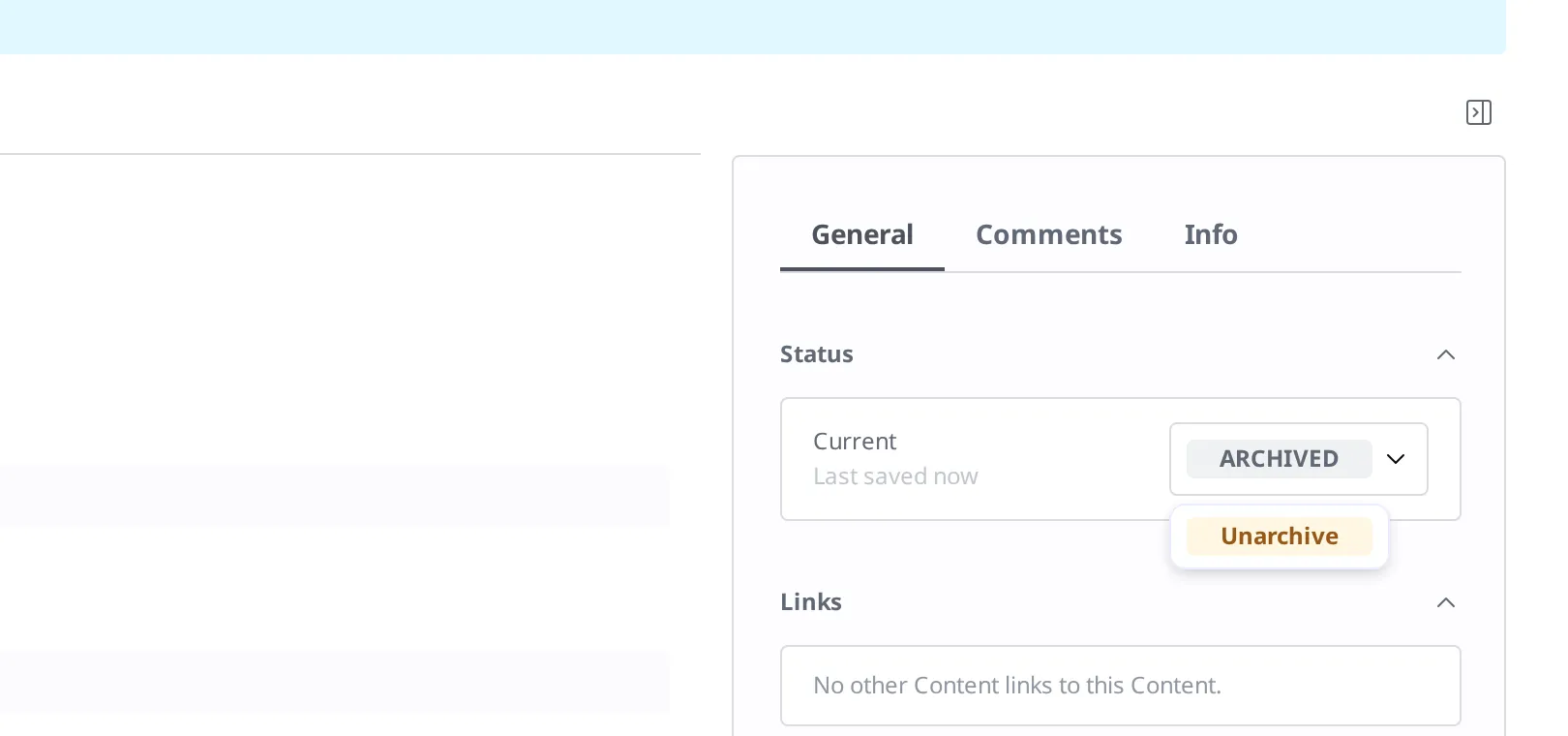
- Click the Status badge.
- In the expanded list, click Unarchive.
When you click the Archived status badge, the dropdown shows only one item: Unarchive.
- Once it is back to Draft, adjust content such as the price to this year's figures and save.
- Click the Status badge and click Publish.
Archiving can always be undone like this. That is the decisive difference from the deletion covered in the next section.
Deleting Only What You Will Never Use Again
Some items you are certain you will never use again, like "Last Season's Flat-Price Sale Has Ended," a notice about a past-season sale. There's no need to pile items like this into your archive, so you tidy them up by deleting. That said, there is something you must know before you delete.
Deleting cannot be undone. There is no recycle bin and no restore feature. Product information you have deleted cannot be recovered by any means.
So here is how to decide.
- If there is even the slightest chance you will use it again, next year or someday → archive it.
- If you are sure you will never use it again and no one will miss it once it is gone → delete it.
Deletion is only possible when an item is Draft or Archived. You can't delete something that is published directly; first unpublish it to take it down from external delivery, then delete it.
- Open "Last Season's Flat-Price Sale Has Ended" from the Content list.
- If it is still published, click the Status badge and click Unpublish to return it to Draft.
- Click Delete.
- In the confirmation dialog, check the message and click Delete again.
When you click Delete, a confirmation dialog appears, showing the message "This action cannot be undone."
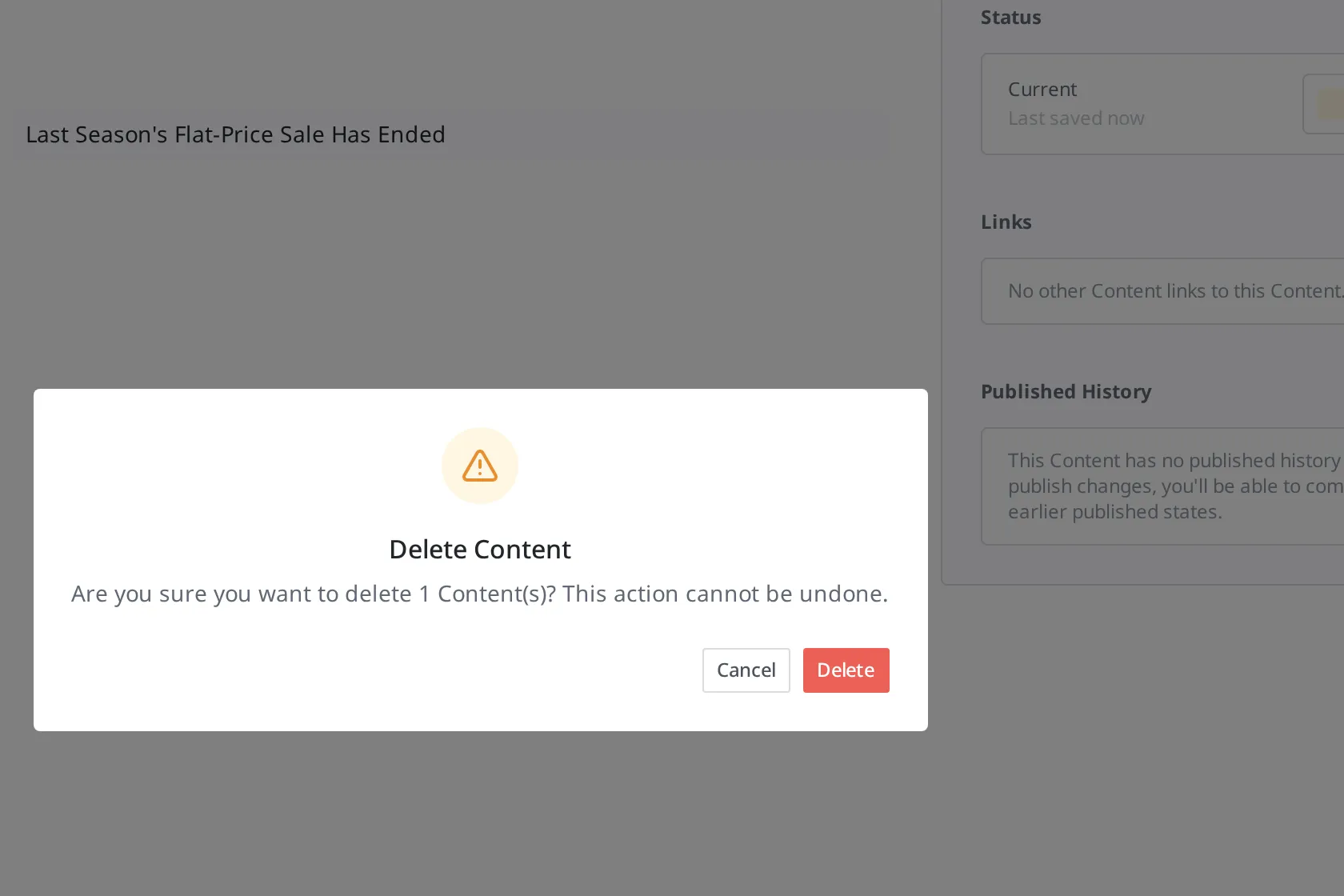
When "Last Season's Flat-Price Sale Has Ended" disappears from the list, it has been deleted.
Restoring Bad Edits from a Past Published Version
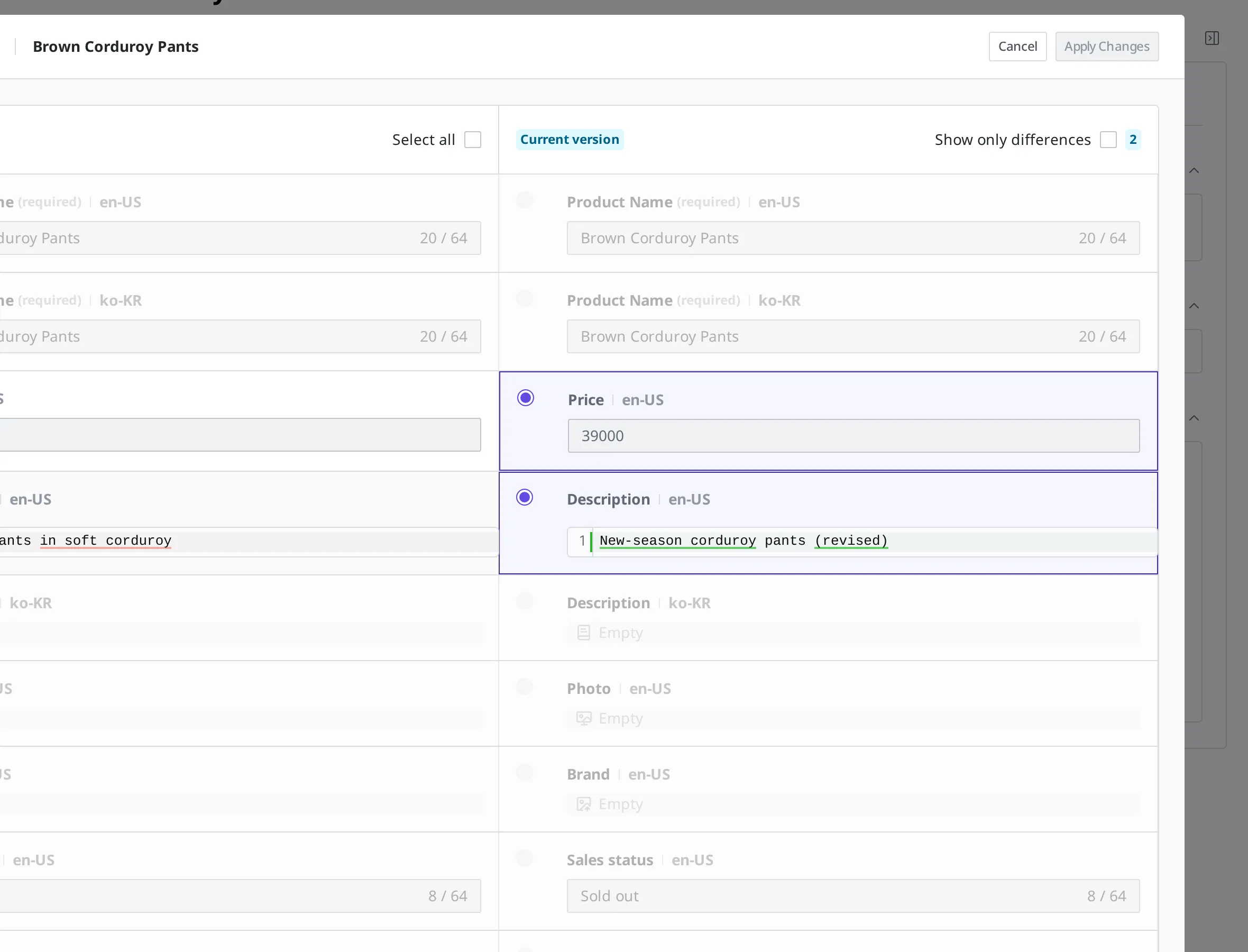
Imagine you overwrote the description of "Brown Corduroy Pants" with new wording, republished it, and only later realized the old wording was better. Each time you publish, the content at that moment is kept as a version (a snapshot), so you don't have to rewrite the old wording from memory. On the screen that compares a past version with the current content side by side, you can select only the items you want to restore and revert them in one go.
- Open the "Brown Corduroy Pants" Content.
- In the Published History area of the right sidebar, choose the version you want to restore.
- Click the Compare With Current button. The past version and the current content appear side by side item by item, and the items whose values differ are marked.
- Choose the item you want to restore (for example, the description) and click Apply Changes. That item reverts to its old value.
- Click the Status badge and click Publish.
Keep these two things in mind together.
- Versions are kept only when you publish. Content you only saved without publishing is not kept as a version, so it cannot be retrieved this way.
- This method applies only to items that still exist. A deleted item cannot be brought back, not even from a past published version.
What to Do Next
- States and Publishing: covers, starting from the concept, what each of the Draft, Published, Changed, and Archived statuses used as tools on this page is and which actions change them.
- Finding the content you need: covers how to gather cleanup targets (items left in Changed, items you have archived) all at once using status filters.
- Creating and Publishing Content: covers the whole flow from first creating a product through publishing it.