

Building and Deploying a Site with AI
Last updated: July 3, 2026
In Migrating a Static Page with AI, we looked at how to move an existing static page into a content-driven service managed by WEEGLOO. This time we cover a wider flow, including the step of building a page from scratch.
In this guide, you use an LLM agent together with the WEEGLOO MCP to start from a blank slate and work through five tasks in sequence. First, you complete the page's design and implementation with an AI-powered design tool. Next, you analyze the generated page to automatically define a Content Type, then load the data written into the page as Content. After that, you modify the code so the page fetches its data through the CDA, and finally you make the page public with WEEGLOO's Web Hosting.
By going through this process, you can take the entire workflow from design to content management to deployment and complete it with nothing more than an LLM agent and WEEGLOO, without building any separate infrastructure yourself.
What You Need First
Before you start, three things need to be in place.
First, a new, empty Space needs to exist in WEEGLOO. Every Content Type and Content you create from here on is managed inside this Space. Organization and Space are covered in detail in Access and Permissions.
Second, your LLM agent needs to be connected to the WEEGLOO MCP. This guide follows Cursor IDE, but any environment that supports MCP, such as Claude Desktop, can follow the same flow. Installation is covered in MCP.
Third, you need an AI tool that automatically produces the page's design and implementation. For convenience this guide uses Vercel v0, but any tool that builds both design and code from a natural-language request will do, such as Lovable or Bolt.new. If you are more comfortable writing code directly, you can also ask an LLM agent you already use, such as Cursor IDE, to produce the design and implementation together.
Designing and Implementing the Page
The first task is to finish the page's design and implementation. In this step, you describe in natural language what kind of page you want and pass that straight to the AI tool.
This guide uses an API documentation page for a fictional analytics API service as its example. Many development teams adopt a separate documentation tool or an external template to run their API docs, but with this approach the form of the documentation is tightly bound to its content, which often makes free structural changes or operation tailored to the team's workflow difficult. This time you build everything yourself, from design to content management, into a form you can run freely as your needs change.
The page holds information about the API itself (name, tagline, short intro) along with information about each endpoint (HTTP method, path, summary, description). You are free to decide the exact form of the page and how many endpoints it covers based on the API you run, and you can expand it as much as you like over time. You pass requirements like these to the AI tool in natural language, as follows.
Hey, I want to build a docs site for an analytics API called Pulse.
Standard API reference layout — an overview area with the API's name,
tagline, and a short intro, plus an endpoint reference section showing
the HTTP method, path, summary, and description for each. Clean,
dev-friendly, not too colorful — think Stripe-style readable.
The AI tool that receives the request produces a design mockup and writes the matching markup and styles. At this point no content management system is connected yet, so every piece of data shown on the page is written directly into the code.
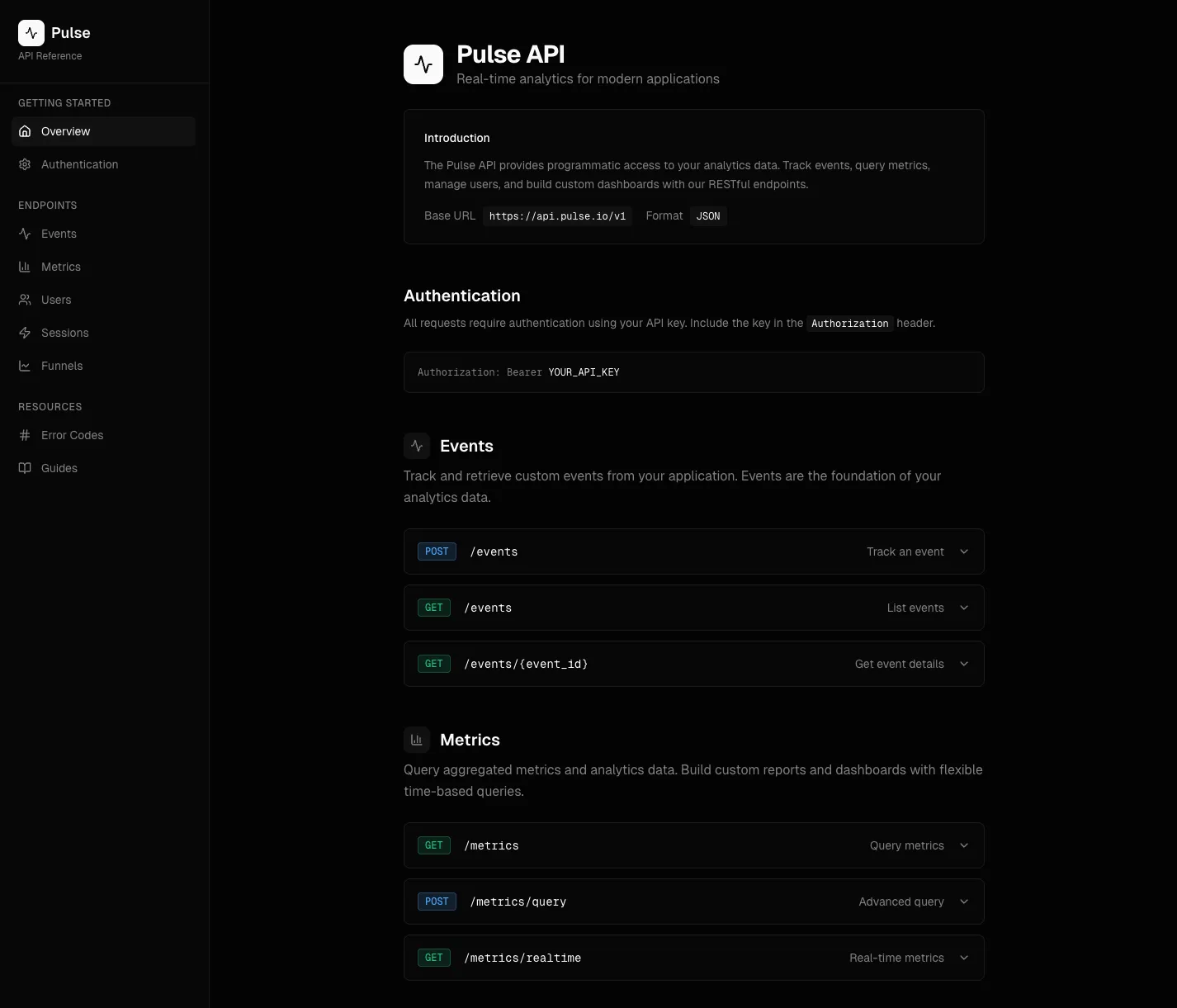
You download the code for the page built this way and bring it into an LLM agent environment such as Cursor IDE. Every task from here on builds on this code and goes through the same steps as the flow in Migrating a Static Page with AI.
Content Modeling
In this step, you define the data structure of the page you generated earlier as a Content Type. A Content Type is like a blueprint for your data: it sets out in advance which Field values the data managed in WEEGLOO will have.
Looking at the page's code, information about the API itself and information about each endpoint sit together, and the two kinds of data form a one-to-many relationship. So the page naturally splits into two Content Type definitions: one to hold the API information and one to hold the endpoint information.
This analysis and Content Type creation happens automatically just by asking the LLM agent, as follows.
Hey, I just dropped the page from v0 into the project.
The data's all hardcoded for now (the API info up top, the endpoints down
below).

I want to migrate it over to Weegloo so the page can pull its content from
a CMS instead of having it all baked in. Let's take it step by step rather
than doing the whole thing in one go.

To kick things off, could you take a look and figure out
what content types would make sense for it, then go ahead and create them
in Weegloo? We'll deal with the actual content and the API wiring in the
following steps.
The LLM agent that receives the request inspects the structure of the code to infer the kinds of data and their relationships, picks a type that suits each Field, and then creates the Content Type through the WEEGLOO MCP.
After the work is done, opening the Content Type page in the WEEGLOO content studio shows two newly created Content Type definitions: one representing the API and one representing the endpoint. The API Content Type contains Field values such as name, tagline, and intro, while the endpoint Content Type contains the HTTP method, path, summary, and description along with a reference (Reference) Field that points to which API it belongs to.
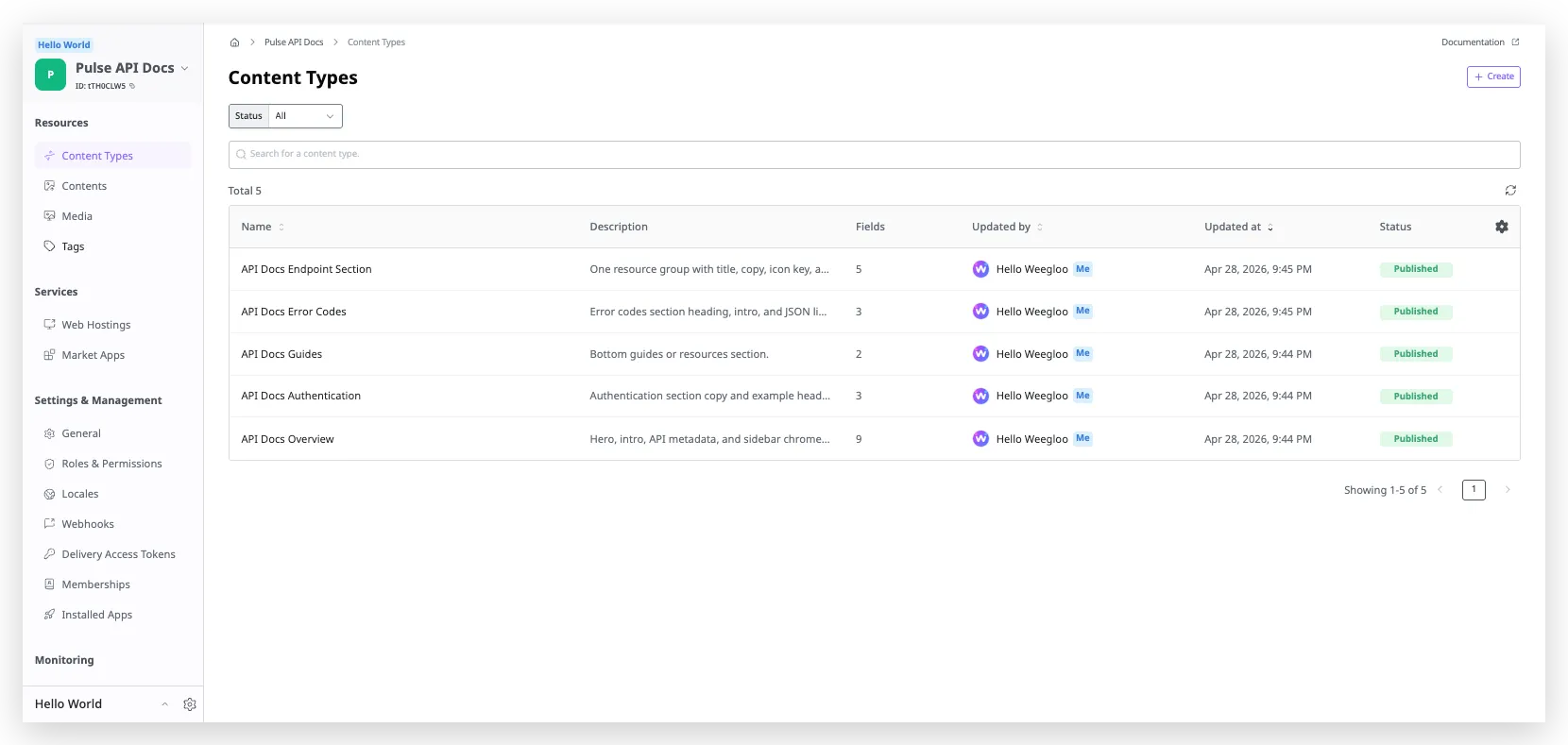
Once the Content Type is defined this way, you are ready to load the actual data based on this structure. Content Type is covered in detail in Content Modeling.
Creating Content
A Content Type only defines the format of your data; it does not hold any data itself. In this step, you move the actual data written into the page's code into Content, based on the Content Type you defined earlier.
When you ask the LLM agent as follows, it analyzes the data in the code, creates Content that matches the Content Type, and publishes it as well.
Alright, the content types look good. Now let's move on to actually loading
the data.

Could you go through project again, pull out the actual content
that's hardcoded in there, and create entries in Weegloo using the content
types we just made? Once everything's in, go ahead and publish them too
so they're ready to be served.
The LLM agent that receives the request analyzes the code again, breaks the data out item by item, and then registers the API information and each endpoint's information in turn through the WEEGLOO MCP. The registered Content is published as well so it can be queried externally.
After the work is done, opening the Content list in the WEEGLOO content studio shows both the API information and the endpoint information registered in a published state. From this point on, you can change the data freely from the content studio or with the LLM agent, without editing the page's code directly.
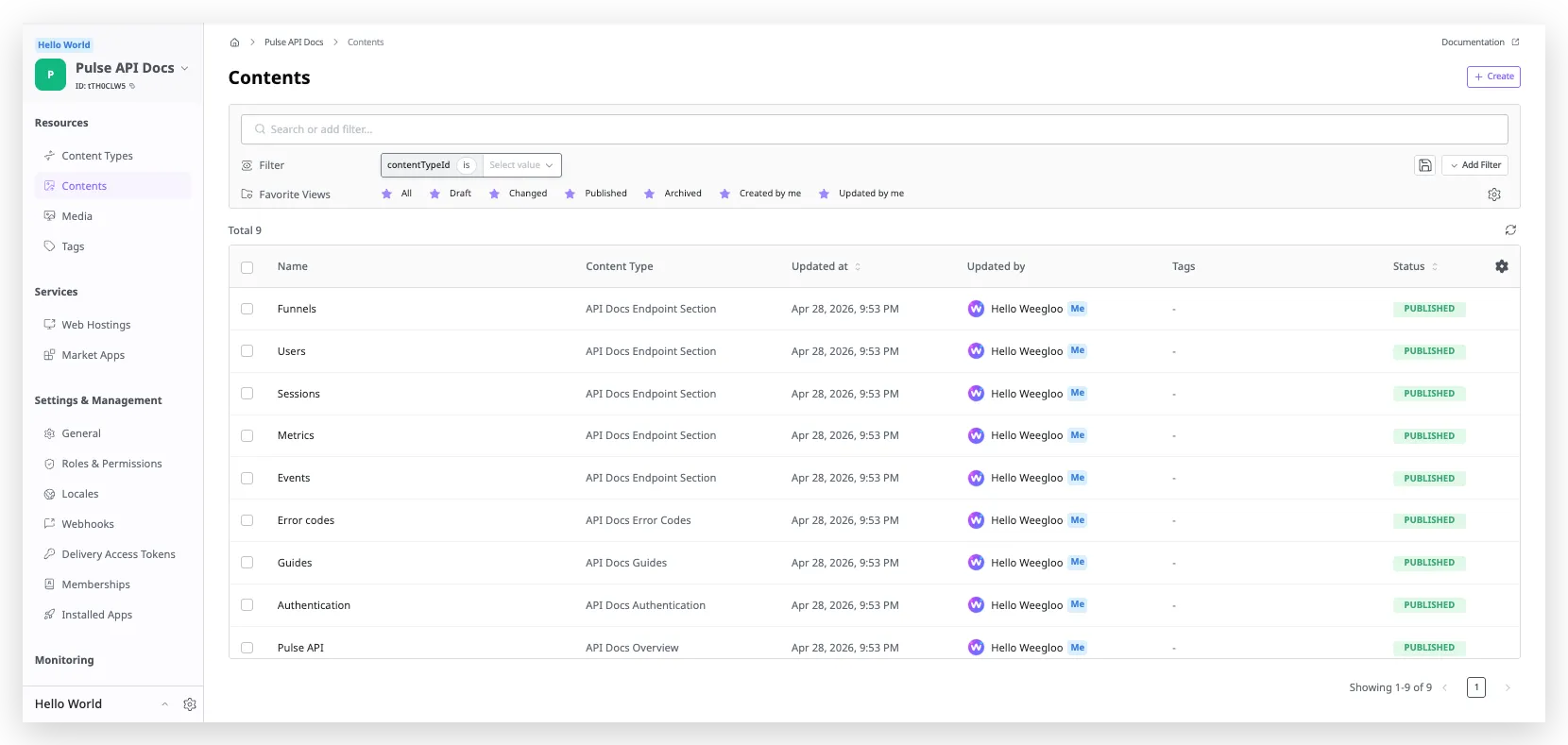
Creating and publishing Content is covered in detail in Authoring and Publishing Content.
CDA Integration
Once the data is ready, you now modify the code so the page fetches its data through WEEGLOO's CDA rather than from data written directly into the code. The CDA is a read-only API provided so that external services can query published Content, letting web pages and mobile apps pull WEEGLOO's data and use it directly.
This task, too, happens automatically when you ask the LLM agent as follows.
Okay, almost there. The content's all in Weegloo and published, so now
let's hook the page up to actually use it.

Could you update project so that instead of having all that data
hardcoded in the markup, it fetches from Weegloo's CDA on load and
renders the page from the response? Basically the same page as before,
just pulling from the API now.
The LLM agent that receives the request strips out the static data baked into the code and fills its place with CDA calls and code that renders the response data on screen. Where the endpoint information used to be, a CDA call that queries the list of endpoint Content goes in; where the API information used to be, a call that queries the API Content as a single item goes in.
After you run the modified page locally and open the Network tab in your browser's developer tools, you can confirm that the page sends real requests to WEEGLOO's CDA and receives responses as it loads. The CDA is covered in detail in Content Delivery API.
Web Hosting
The final step is to make the page you have built public. WEEGLOO provides a Web Hosting feature so you can host the page directly. With it, you can make a finished page available for anyone to access, without setting up separate hosting infrastructure yourself.
Ask the LLM agent as follows.
Last thing — let's get this live.

Could you set up a WebHosting in Weegloo for this project and deploy the
page to it?
The LLM agent that receives the request uploads the page's build output to Web Hosting and deploys the page so it can be accessed externally through an automatically issued subdomain.
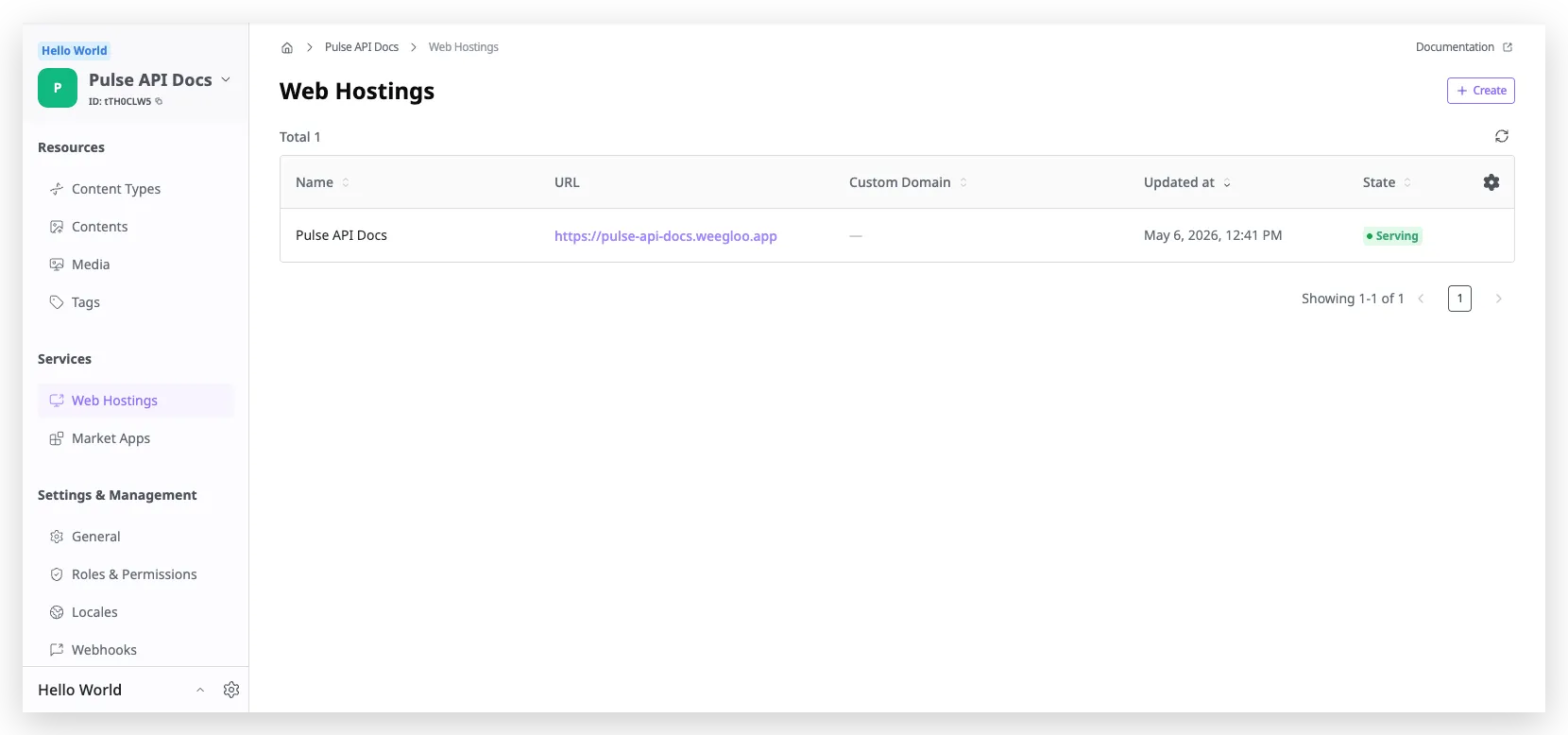
Once the deployment is done, you can reach the page from anywhere at the issued subdomain address. From this point on, simply editing Content in the WEEGLOO content studio reflects the changes on the live site right away, with no separate build or redeploy. Tasks that come up often when running API documentation, such as adding a new endpoint or changing the description of an existing one, can also be handled without touching the code.
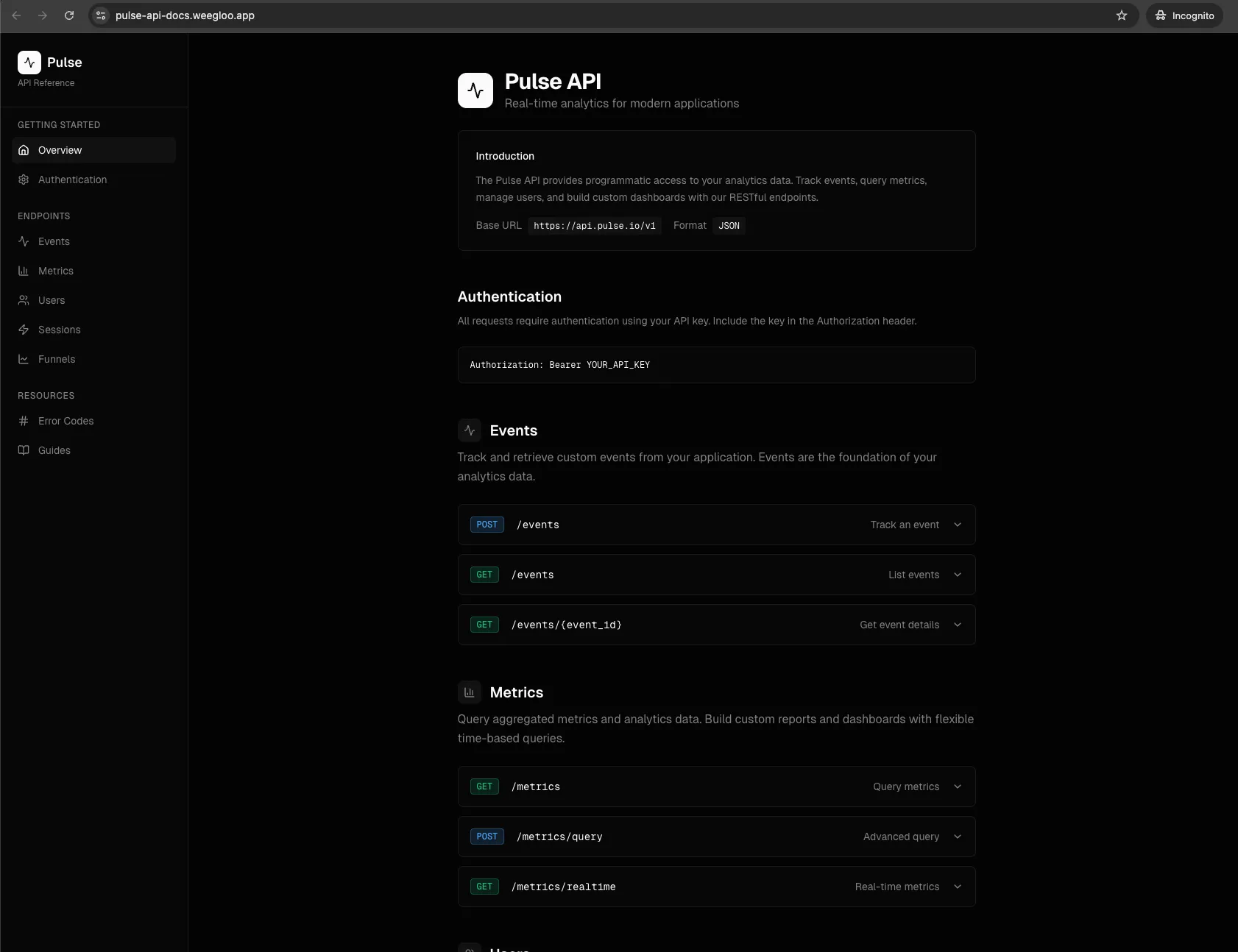
If you later want to use your own domain in production, you can connect a Custom Domain from the WEEGLOO content studio. Web Hosting and Custom Domain are covered in detail in Deploying a Website.
So far you have started from a blank slate and completed the entire process, from design and implementation to content management and deployment, with nothing more than an LLM agent and WEEGLOO. The same flow applies just as well to more complex sites, and tasks like adding a new Content Type or growing the amount of Content as you go can carry on naturally in the same way.