

Managing Multiple Languages
Imagine you want to open your clothing shop not only to English-speaking customers but also to Korean ones. There are times when you want to show a single tumbler product as "Stainless Tumbler 500ml" in English and "스테인리스 텀블러 500ml" in Korean. It is the same tumbler, but only the words should change depending on the viewer's language.
This is what the multi-language feature is for. Instead of registering the product separately for each language, you keep the text for every language together in one tumbler Content. Visitors then receive the text that matches their language, and information that does not depend on language, such as the price or the photo, only needs to be managed once.
This page first looks at how multiple languages work, then walks you through setting things up so the tumbler's product name and detailed description are shown in Korean as well.
Holding a Different Value per Language in One Box
In WEEGLOO, a language is handled as a Locale. A Locale (the language used to show content, written down to the region, such as en-US for English and ko-KR for Korean) is set per Space. Once you add the two Locales of English and Korean to the clothing shop Space, you can start filling in product information in both languages.
Among a Space's several Locales, one becomes the base Locale. The base Locale is this Space's central language. For a clothing shop that started in an English-speaking market, the base Locale is usually English (en-US).
When you set a Field whose text differs by language, such as the product name, to be multi-language, that box becomes a box that holds a value per language. A single product name Field on the tumbler then holds the English value and the Korean value side by side.
| Locale | Product name | Detailed description |
|---|---|---|
| English (en-US, base) | Stainless Tumbler 500ml | Vacuum-insulated to keep drinks hot or cold for hours. 500ml. |
| Korean (ko-KR) | 스테인리스 텀블러 500ml | 이중 진공 단열로 보온, 보냉이 오래갑니다. 500ml 대용량. |
How a Language Box You Did Not Fill In Appears
If you have not yet filled in a language value in a multi-language Field, what a visitor viewing in that language sees depends on whether you have set a language to show instead for that language (Locale). This "language to show instead" is called a Fallback.
- If you have not set a Fallback, that box goes out empty. If you did not write the Korean value for the tumbler's detailed description, that spot is delivered empty to Korean-speaking visitors.
- If you have set a Fallback, the value of the language you set goes out instead. For example, if you set the Fallback of Korean (ko-KR) to English (en-US), then when the Korean value is empty the English value is shown instead.
A Fallback does not have to be set to the base Locale. You can chain it to any other language you want, and you can also have it move step by step from one language to the next. You set a Fallback when you add or edit a Locale in the Space.
So far this is about "reading." Which language boxes you must fill in (the save rule) is a separate matter from Fallback, and is decided by that Field's required setting. This is covered below in "What to Know After Setting Up."
You Do Not Need to Make Every Field Multi-Language
A Field whose value is the same across languages is not turned on for multiple languages. For the tumbler, the product name and detailed description are turned on for multiple languages, while the price and the main photo are not. The value stays the same even when the language changes.
- Boxes to turn on for multiple languages: product name, detailed description. The text must differ by language.
- Boxes not to turn on: price (
18000), main photo. Even when a Korean customer views it, the price is still 18000 and the photo is still the same tumbler photo.
A Field not turned on for multiple languages is saved in just one box, the base Locale. So to make this value appear on other language screens too, you must set a Fallback for that language that chains to the base Locale. For example, if you did not turn on multiple languages for the price, you must set the Fallback of Korean (ko-KR) to English (the base) so the price appears on the Korean screen too. Without a Fallback, the price box appears empty on that language screen.
Holding several values in one box ("use as a list type," for example several product photos) is different from multiple languages. A list gathers several values of the same kind, while multiple languages splits one value across languages.
Adding a Language to the Space
To fill in multiple languages, the Space must first have that language (Locale). Say you add Korean (ko-KR) to the clothing shop Space. Assume English (en-US) is already there as the base Locale.
- Open the Space settings from the left menu and go to the Locale management screen.
- Press the + Add button at the top right to add Korean (ko-KR).
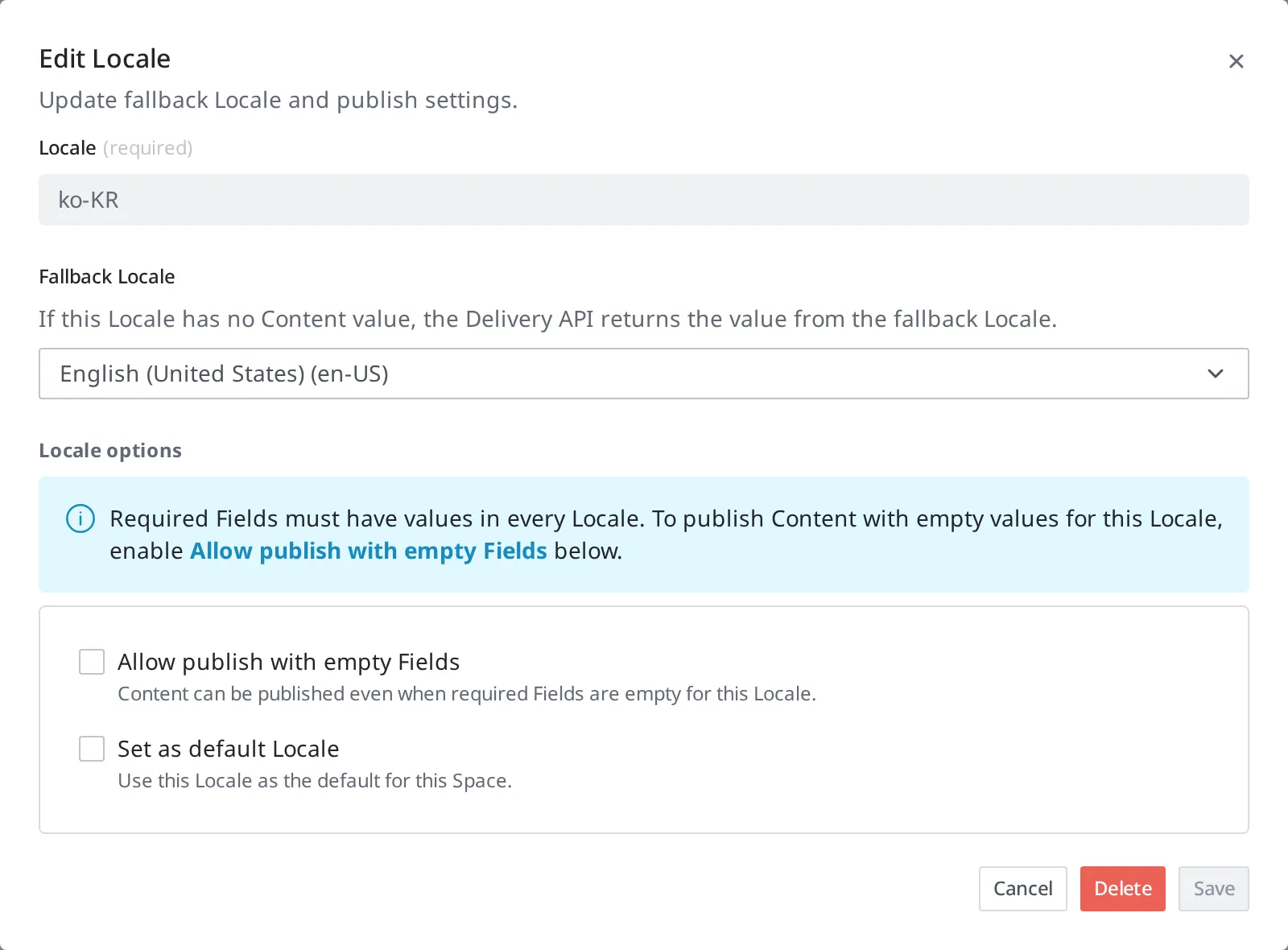
- Set the Fallback of Korean (ko-KR) (the language to show instead when a value is empty) to English (en-US). Doing this fills the boxes where you left the Korean value empty, and the boxes not turned on for multiple languages (such as price), with the English value on the Korean screen. If you do not set it, those boxes appear empty on the Korean screen. Press the added Korean (ko-KR) again in the list to open the Edit Locale dialog. In the Fallback Locale dropdown, choose "English (United States) (en-US)" and press Save. (The Add Locale dialog that appears when you add Korean also has the same Fallback Locale item, so you can set it right while adding.)
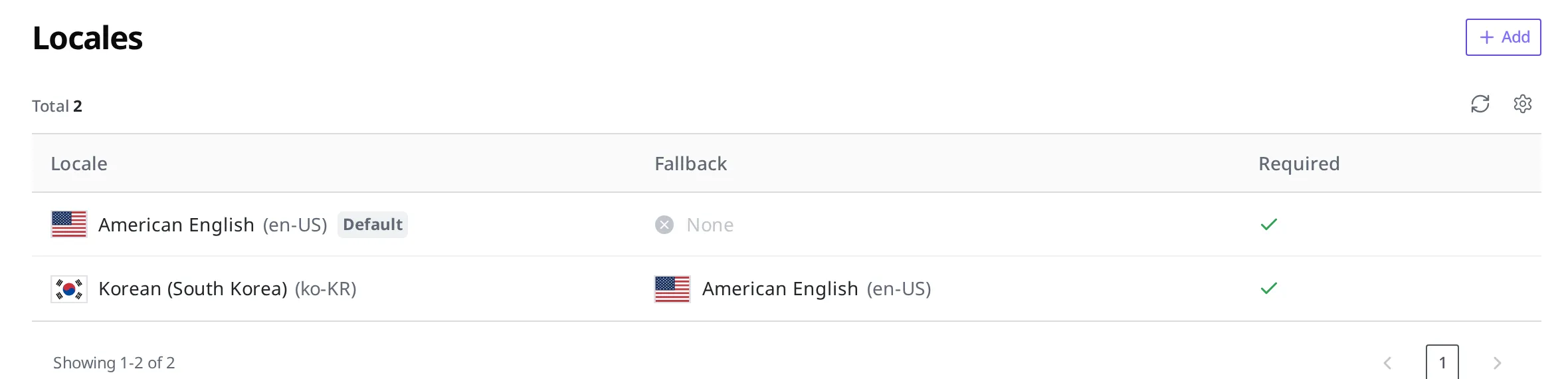
- Check that the "English (United States) (en-US)" item in the list has a Default badge. This badge marks the base Locale.
Setting Product Information to Multiple Languages
Once the languages are ready, you decide which Fields to fill in per language. Turn on multiple languages for the tumbler's product name and detailed description. Leave the price and the main photo as they are.
How to create a Field for the first time is covered in Content Modeling. Here we only look at the part where you open a product name Field you have already made and switch it to multiple languages.
- Press Content Type in the left menu and open "Product".
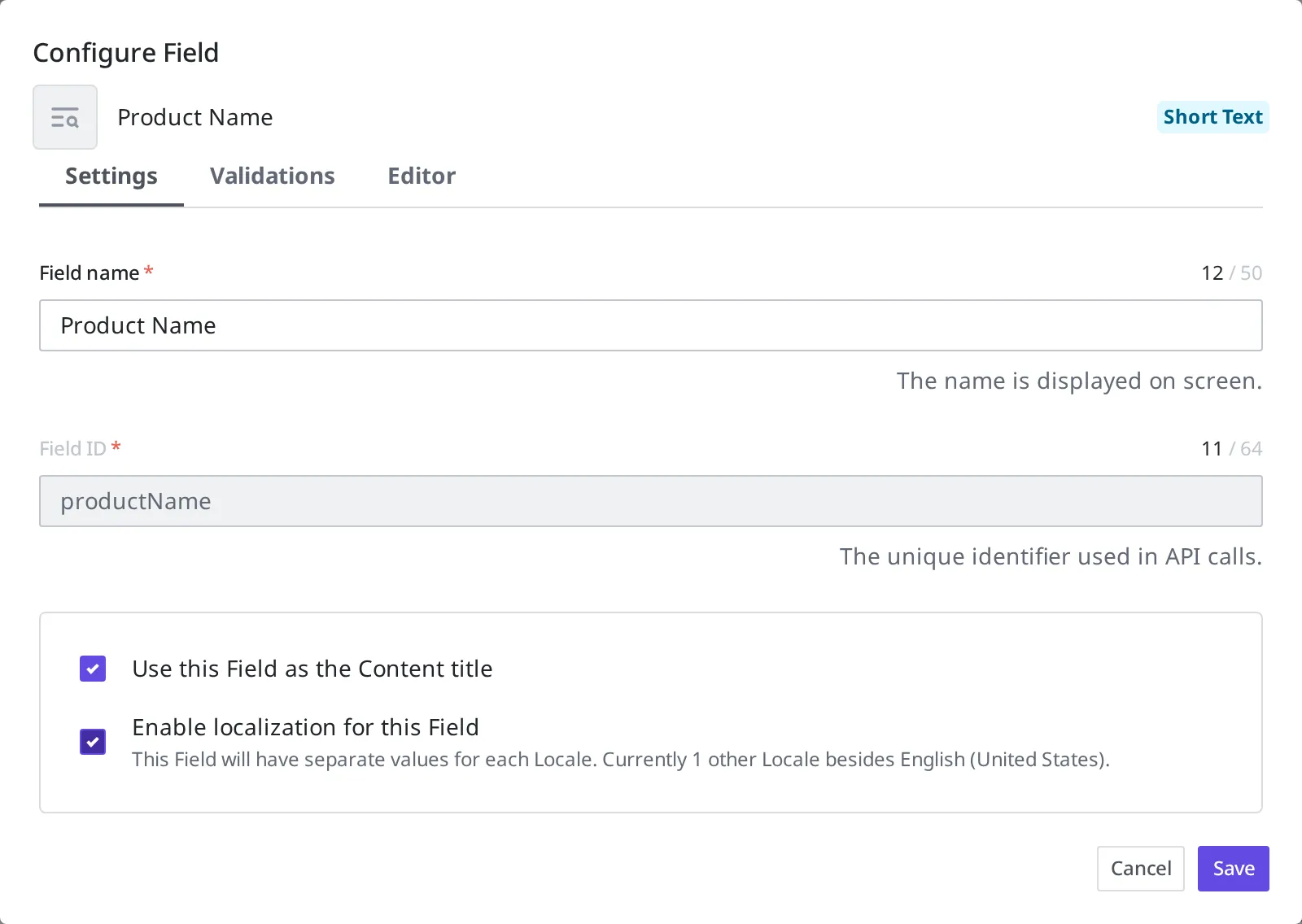
- Press the product name Field to open the Configure Field dialog.
- On the Settings tab, turn on the Enable localization for this Field checkbox.
- Press Save.
- Turn on the same setting for the detailed description Field too.
Filling In the Tumbler in Korean Too
Now when you open the tumbler Content, you can switch languages in the product name and detailed description boxes and enter values. The English value, which is the base Locale, was already filled in earlier.
- Press Content in the left menu and open "Stainless Tumbler 500ml".
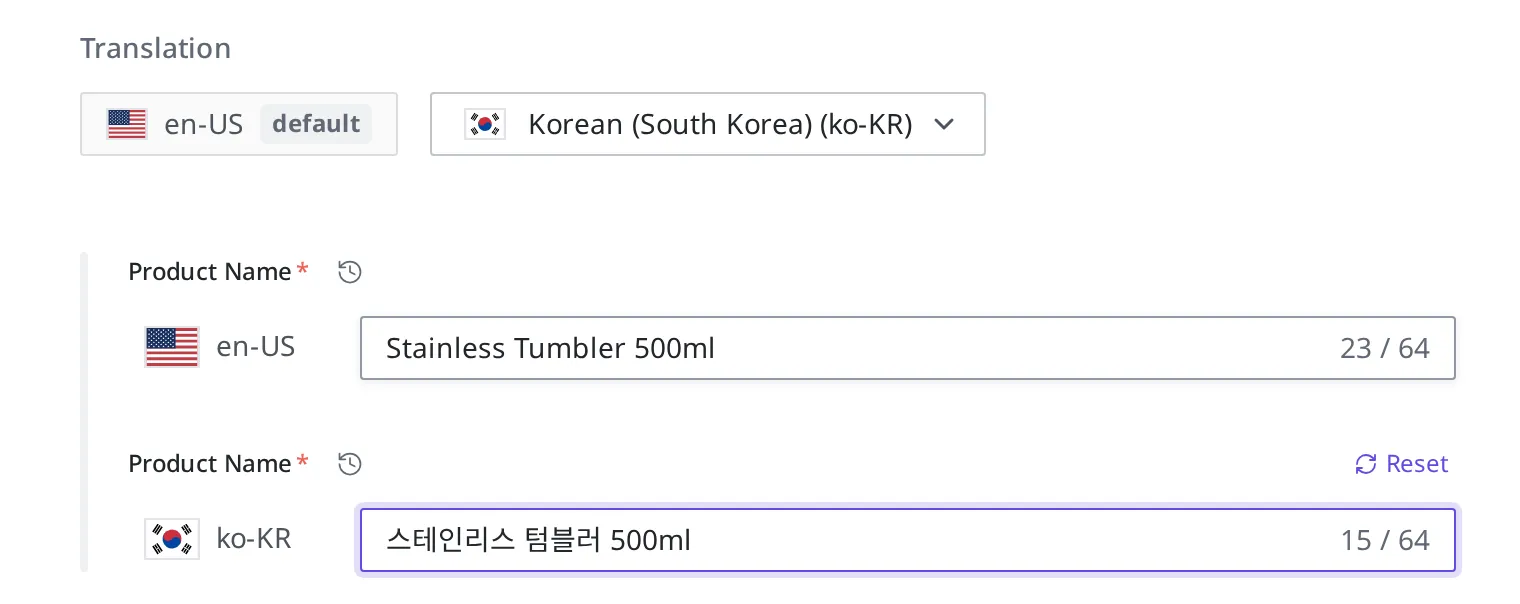
- In the Translation section of the edit screen, press the dropdown on the right and choose Korean (South Korea) (ko-KR). A ko-KR input box then appears side by side under each Field set to multiple languages.
- In the ko-KR row of the product name box, enter
스테인리스 텀블러 500ml. - In the ko-KR row of the detailed description box, enter the Korean description.
- Press Save at the top right.
- Publish the tumbler Content.
What Publish is and where you press it is covered in Writing and Publishing Content. Once you publish, the Korean value goes out together to the external delivery. Korean-speaking visitors receive the Korean product name and description, and English-speaking visitors receive the English values. If you left one of the language values empty, then if you have set a Fallback for that language, the value of the language you set (for example English, the base) goes out instead, and if you have not set one, that spot goes out empty.
Photos (Media) Are Held per Language Too
Multiple languages is not a feature found only in Content such as products. Photos and files (Media) can also be held differently per language. For example, if the tumbler's main photo has the English phrase "Hot & Cold" printed on it, you can show Korean-speaking visitors a separate photo with a Korean phrase printed in the same spot. Not just the file, but a photo's title and description are also split per language.
The way you turn it on is different from Content. With Content you have to turn on multiple languages per Field (see "Setting Product Information to Multiple Languages" above), but Media is set up from the start to be held per language, so there is nothing to turn on separately. You open one Media and switch languages to enter each language's file, title, and description.
Handling of languages you did not fill in is the same as Content. If you leave a language empty, the value of the Fallback set for that language goes out instead, and if you have not set one, that spot goes out empty (see "How a Language Box You Did Not Fill In Appears" above).
The Media edit form has a Translation section. When you choose a language from the dropdown next to the base Locale chip ("en-US default"), the title box for that language appears. Choose en-US and ko-KR in turn and fill in the title (and that language's file).
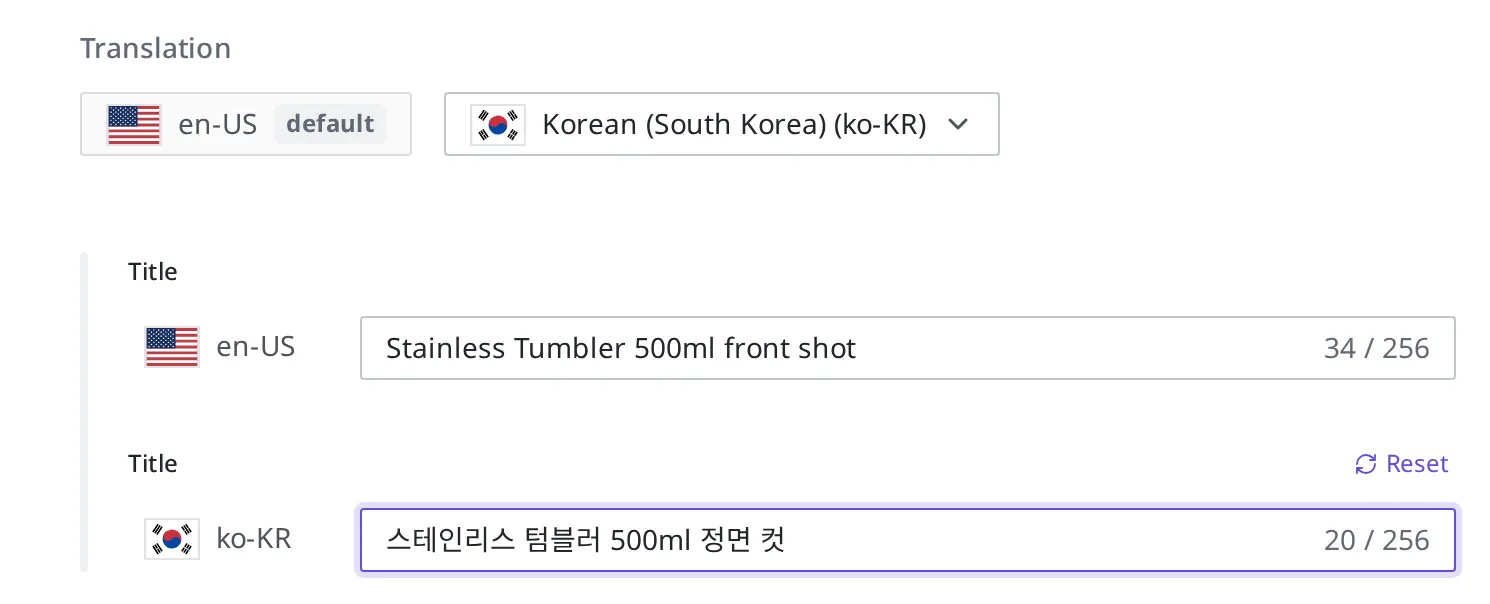
The basic way to upload a Media and connect it to Content is covered in Media.
What to Know After Setting Up
Whether you can leave it empty is decided by the Field's required setting. If you did not turn on a Field as required (the required Field in validation), that Field is saved left empty in every language. If you turned it on as required, you must fill in a value, and for a multi-language Field you must fill it in for each language the Space marks as required. The base Locale is usually required and must be filled in, while a language left optional may be left empty. Which languages you leave optional is decided in the Locale settings. The Fallback that fills an empty language box with another language's value is separate from this rule.
A Field not turned on for multiple languages is saved just once, in the base Locale. If you change the tumbler price to 16000, that one value changes. There is no need to manage it per language. However, for this value to appear on the Korean screen too, the Fallback of Korean (ko-KR) must chain to English (the base). Without a Fallback, this box appears empty on a non-base language screen (see "How a Language Box You Did Not Fill In Appears" above).
What to Do Next
- Content Modeling: covers the basic way to create a Field and decide its kind.
- Writing and Publishing Content: covers how to create a tumbler Content and Publish it.
- API Reference: covers technical specifications such as the request format for entering per-language values directly in code and receiving a specific language from the external delivery.