

Cursor IDE Setup
Once you connect the WEEGLOO MCP server to Cursor IDE, an LLM agent inside the IDE performs the work a person used to do in the content studio, driven only by natural-language requests. Describe in words what you want to build, and the agent handles tasks such as designing a Content Type and creating Content or Media directly. Along with the MCP server, the install tool also installs Skills and Rules so that the agent uses the WEEGLOO API the way it is meant to be used. Skills are guides that capture how to do a specific task well, and Rules are rules to follow across all tasks.
For details on the MCP server and on Skills and Rules, see the MCP and Skills and Rules pages respectively. This page covers only how to connect to Cursor IDE.
Let your agent install it
Paste the sentence below into Cursor's agent.
Install WEEGLOO by running the npm package weegloo (npx weegloo@latest), following the README at https://github.com/weeglooapi/weegloo-mcp-plugin.Once the agent finishes installing, follow the Authenticate the MCP connection step to authenticate. You can skip the prerequisites and the install commands.
Prerequisites
Running the install commands below requires Node.js. First, use the following commands to check whether it is installed and whether the version is 18.3 or higher.
If Node.js is installed but npx is not, update npm to the latest version with the command below. Updating npm installs npx along with it.
If Node.js is not installed or its version is too old, install Node.js using the method that fits your operating system.
If you do not have Homebrew, install it first from brew.sh (opens in a new tab), or download Node.js directly from nodejs.org (opens in a new tab).
If winget is missing or not recognized, download the LTS installer from nodejs.org (opens in a new tab). After installing, you need to open a new terminal.
Distribution packages can be outdated, so we recommend installing with nvm, which works across many distributions.
To download the installer directly, check nodejs.org (opens in a new tab).
Cursor must also be installed. If you do not have it yet, you can get it from Download Cursor (opens in a new tab).
Connecting
For a default install, copy the install command on this page and run it once in your terminal. To go through the install steps and choose each one yourself, open Custom install.
Install MCP and Skills
Copy the install command and run it in your terminal.
Authenticate the MCP connection
Authenticate in the following order.
-
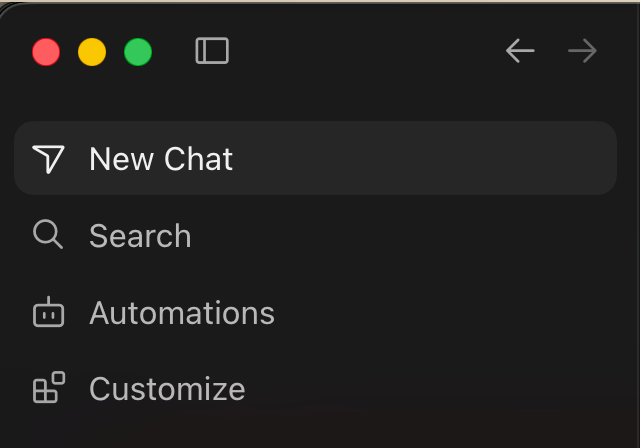
Click Customize in the menu at the top left of Cursor.
-
In the filter at the top, choose MCPs, then click
weegloo, shown as Disabled in the list, to open its settings window.weegloo-uploadis connected without any separate setup.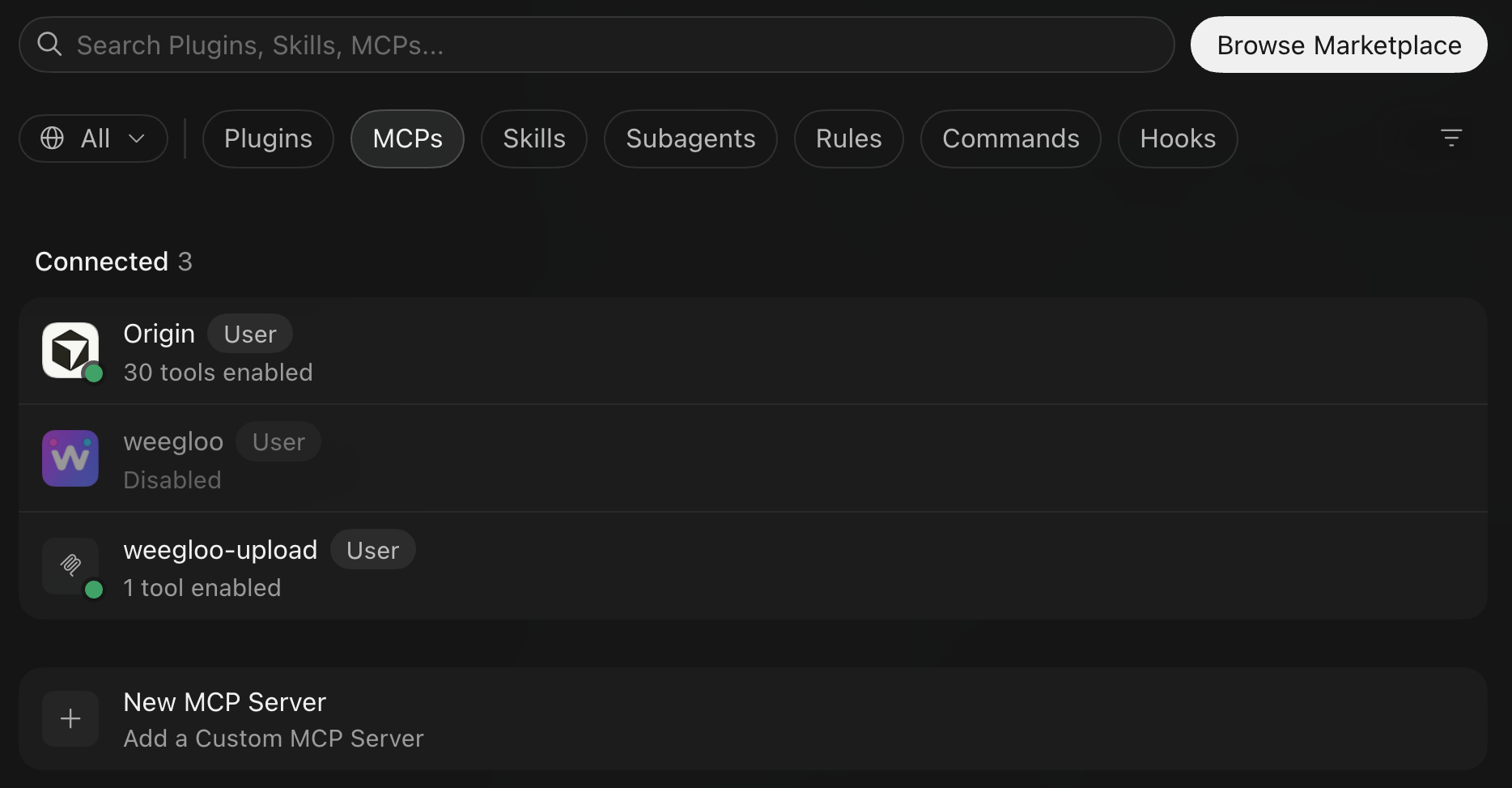
-
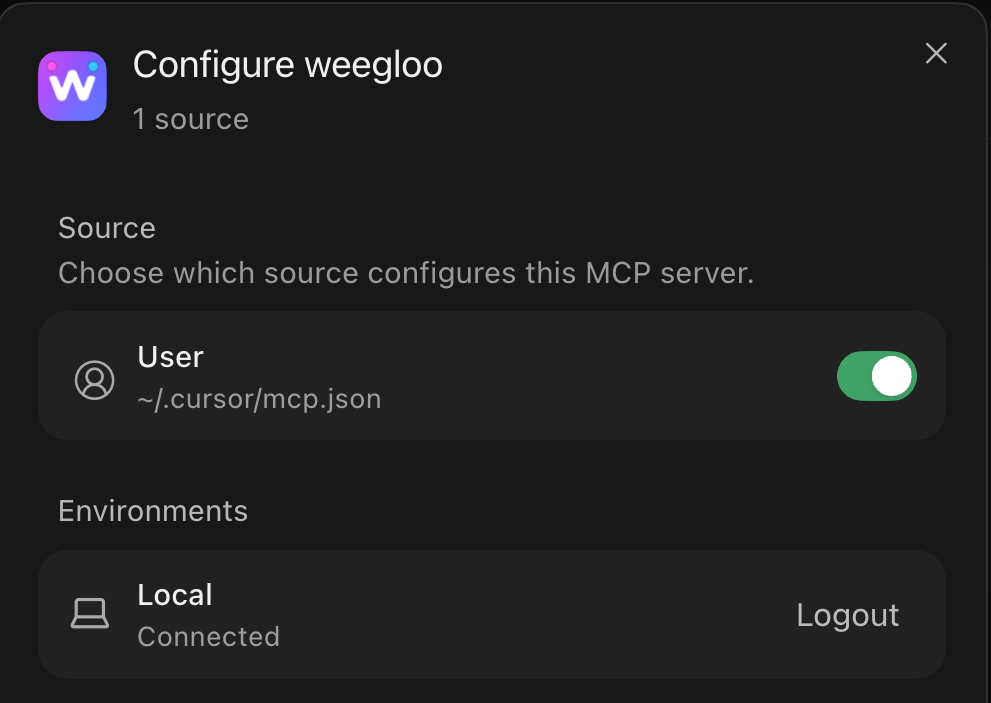
In the Configure weegloo window, turn on the User (
~/.cursor/mcp.json) toggle.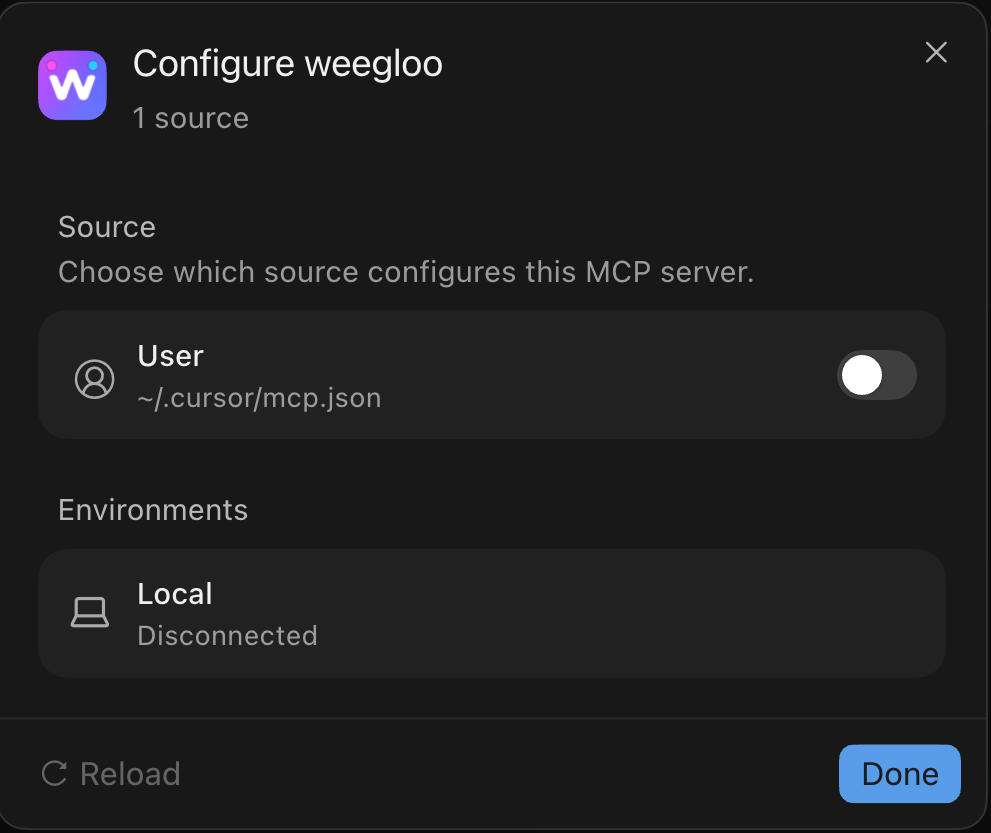
-
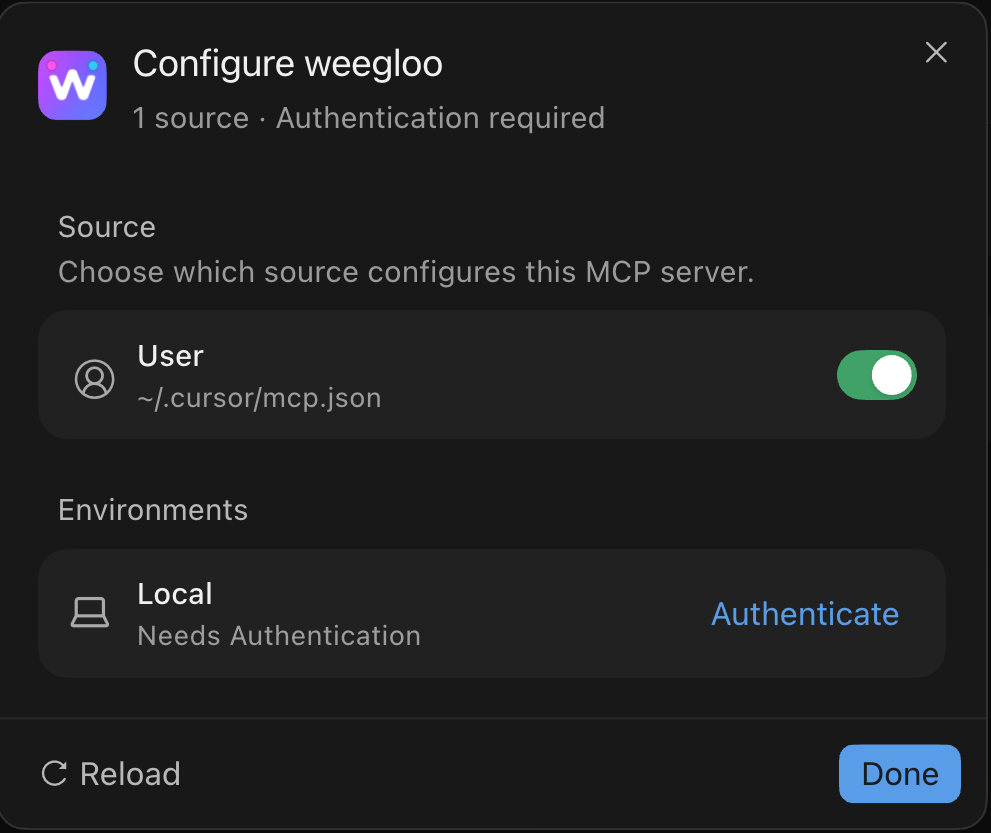
When Local changes to Needs Authentication, click Authenticate on the right.
-
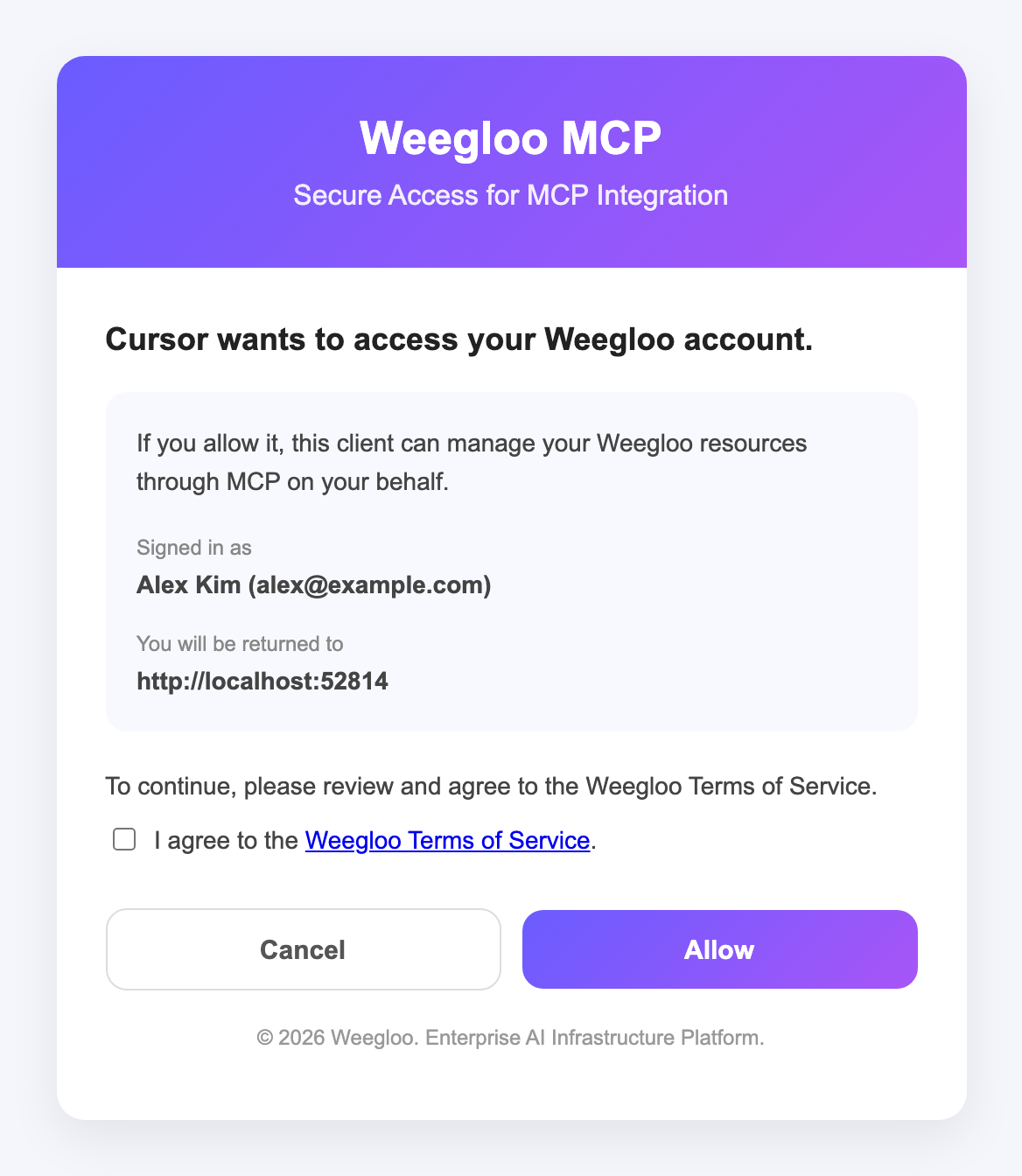
The WEEGLOO authentication page opens in your browser. Check that the signed-in account is correct, then click Allow.
If you are not signed in to WEEGLOO in this browser, the sign-in screen opens first, and once you sign in, you return to the authentication page. If you have not yet agreed to the WEEGLOO Terms of Service, or the terms have changed, a checkbox for agreeing to the Terms of Service also appears. In that case, select the checkbox and then click Allow.
-
When Local changes to Connected, the connection is complete. Click Done to close the window.
Install MCP and Skills
Copy the install command and run it in your terminal. Be sure to run it inside the project folder you want to connect.
Authenticate the MCP connection
Authenticate in the following order.
-
Click Customize in the menu at the top left of Cursor.
-
In the filter at the top, choose MCPs, then click
weegloo, shown as Disabled in the list, to open its settings window.weegloo-uploadis connected without any separate setup. -
In the Configure weegloo window, turn on the toggle under Source.
-
When Local changes to Needs Authentication, click Authenticate on the right.
-
The WEEGLOO authentication page opens in your browser. Check that the signed-in account is correct, then click Allow.
If you are not signed in to WEEGLOO in this browser, the sign-in screen opens first, and once you sign in, you return to the authentication page. If you have not yet agreed to the WEEGLOO Terms of Service, or the terms have changed, a checkbox for agreeing to the Terms of Service also appears. In that case, select the checkbox and then click Allow.
-
When Local changes to Connected, the connection is complete. Click Done to close the window.
Run npx weegloo interactively and install by choosing the prompted items yourself.
Run the install tool
Run the command below in your terminal and choose each prompted item in turn.
Authenticate the MCP connection
Authenticate in the following order.
-
Click Customize in the menu at the top left of Cursor.
-
In the filter at the top, choose MCPs, then click
weegloo, shown as Disabled in the list, to open its settings window.weegloo-uploadis connected without any separate setup. -
In the Configure weegloo window, turn on the User (
~/.cursor/mcp.json) toggle. -
When Local changes to Needs Authentication, click Authenticate on the right.
-
The WEEGLOO authentication page opens in your browser. Check that the signed-in account is correct, then click Allow.
If you are not signed in to WEEGLOO in this browser, the sign-in screen opens first, and once you sign in, you return to the authentication page. If you have not yet agreed to the WEEGLOO Terms of Service, or the terms have changed, a checkbox for agreeing to the Terms of Service also appears. In that case, select the checkbox and then click Allow.
-
When Local changes to Connected, the connection is complete. Click Done to close the window.
Run the install tool
Move to the project folder you want to connect, then run the command below in that folder and choose each prompted item in turn. Be sure to run it inside that project folder.
Authenticate the MCP connection
Authenticate in the following order.
-
Click Customize in the menu at the top left of Cursor.
-
In the filter at the top, choose MCPs, then click
weegloo, shown as Disabled in the list, to open its settings window.weegloo-uploadis connected without any separate setup. -
In the Configure weegloo window, turn on the toggle under Source.
-
When Local changes to Needs Authentication, click Authenticate on the right.
-
The WEEGLOO authentication page opens in your browser. Check that the signed-in account is correct, then click Allow.
If you are not signed in to WEEGLOO in this browser, the sign-in screen opens first, and once you sign in, you return to the authentication page. If you have not yet agreed to the WEEGLOO Terms of Service, or the terms have changed, a checkbox for agreeing to the Terms of Service also appears. In that case, select the checkbox and then click Allow.
-
When Local changes to Connected, the connection is complete. Click Done to close the window.
MCP server config file
The install tool creates and manages the config file automatically, so you do not need to check it yourself. The content below is reference material for those who need the specific config file structure and paths.
The install tool registers the servers in Cursor's MCP config file. A global install uses ~/.cursor/mcp.json, and a project install uses .cursor/mcp.json in the project folder. The weegloo server connects over HTTP to https://ai.weegloo.com/mcp, and the weegloo-upload server, which handles files, runs via npx. When uploading, the agent obtains an upload token from the weegloo server and passes it to the weegloo-upload server together with the files.
{
  "mcpServers": {
    "weegloo": {
      "type": "http",
      "url": "https://ai.weegloo.com/mcp"
    },
    "weegloo-upload": {
      "command": "npx",
      "args": ["-y", "weegloo-upload@latest"],
      "env": {
        "UPLOAD_API_URL": "https://upload.weegloo.com/v1"
      }
    }
  }
}
To change the server group, append a group value to the end of the weegloo server's url. For example, to use all tools, write https://ai.weegloo.com/mcp?group=all. For the tool makeup of each group, see MCP server groups.
Skills
The install tool sets up each Skill as its own directory. A global install uses ~/.cursor/skills/, and a project install uses .cursor/skills/ in the project folder.
Rules
Cursor supports Rules as a built-in feature (Cursor Rules). The install tool sets up each rule as a single .mdc file. A global install uses ~/.cursor/rules/, and a project install uses .cursor/rules/ in the project folder.
What to do next
- MCP: Covers the full picture of the connection, including server groups and the
weegloo-uploadserver. - Keeping up to date: Covers how to keep the Skills and Rules you installed up to date.
- Migrating a Static Page with AI: Follow the flow of moving a real page into a content-based service using the MCP you connected.