

Designing the Data Structure
Last updated: June 22, 2026
Before you can build a blog service, you first need to define what data you will be working with. Laying out the screens alone is not enough to make a service run. You have to clearly design how information such as a post's text, images, and attachments will be stored and managed.
Deciding What a Post Needs
The Tech Blog you will build in this example is a service that delivers the posts you write to your visitors. So each post is built around text, with the option to add images or attach files as needed. You also need to be able to sort multiple posts from newest to oldest, and to keep certain posts from being made public. On top of that, you need categories to organize posts by topic.
To sum up, the post you are going to build should have the following.
- A text-based body
- Images and attachments
- Sorting by the time of writing
- A visibility setting
- Category classification
Content Type: The Blueprint for Your Data
In WEEGLOO, you use a resource called a Content Type to define this kind of data structure. A Content Type is a sort of "data blueprint." It is a template that decides in advance which items (Field) the data you create will have. Each individual post is created as a Content that follows this template. In other words, a Content Type defines the shape of the data, and a Content is the actual data created in that shape.
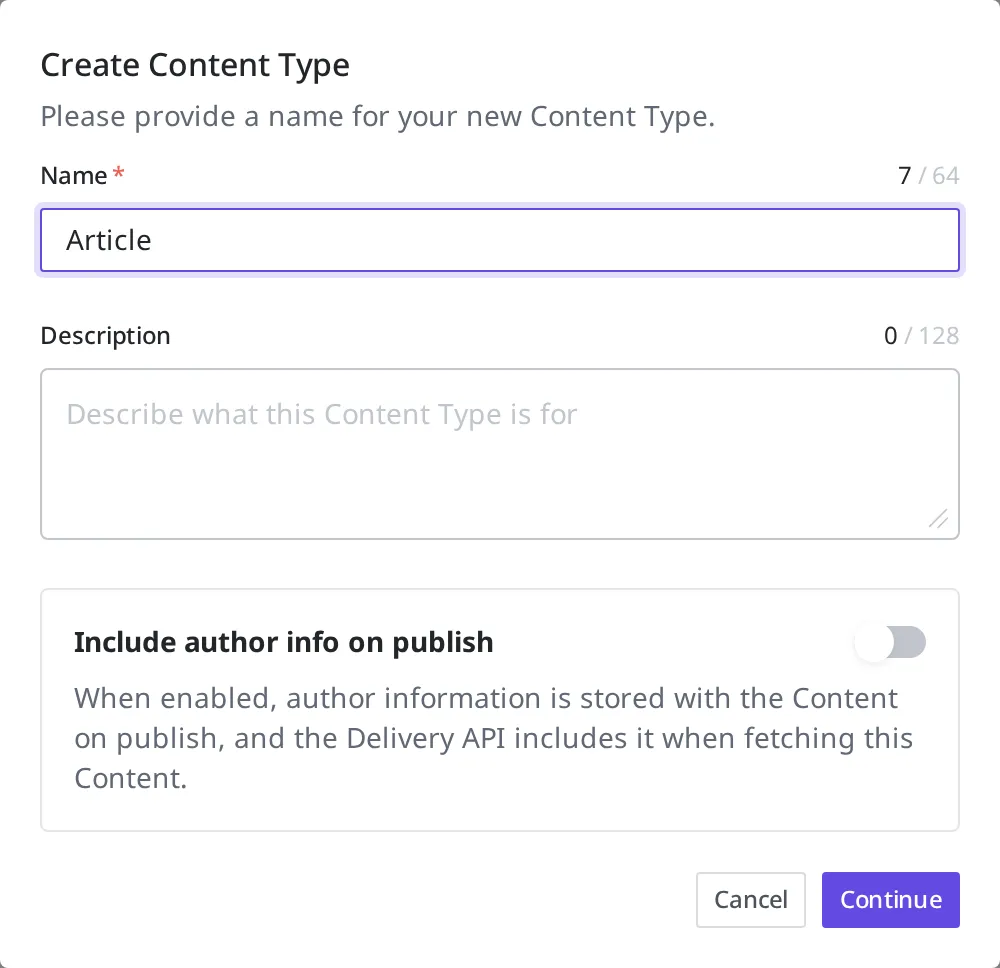
Now go to the Content Type screen and create a new Content Type. Name it Article. This Content Type becomes the basis for representing each blog post from now on.
- In the left menu, click Content Types.
- In the top right, click Create.
- Enter
Articlein the name field and click Continue.
Setting Up the Post's Fields
After you create the Content Type, you add the Fields a post needs one by one. A Field is a data item that makes up a post, and for each Field you also decide what type of value it holds and whether it is required.
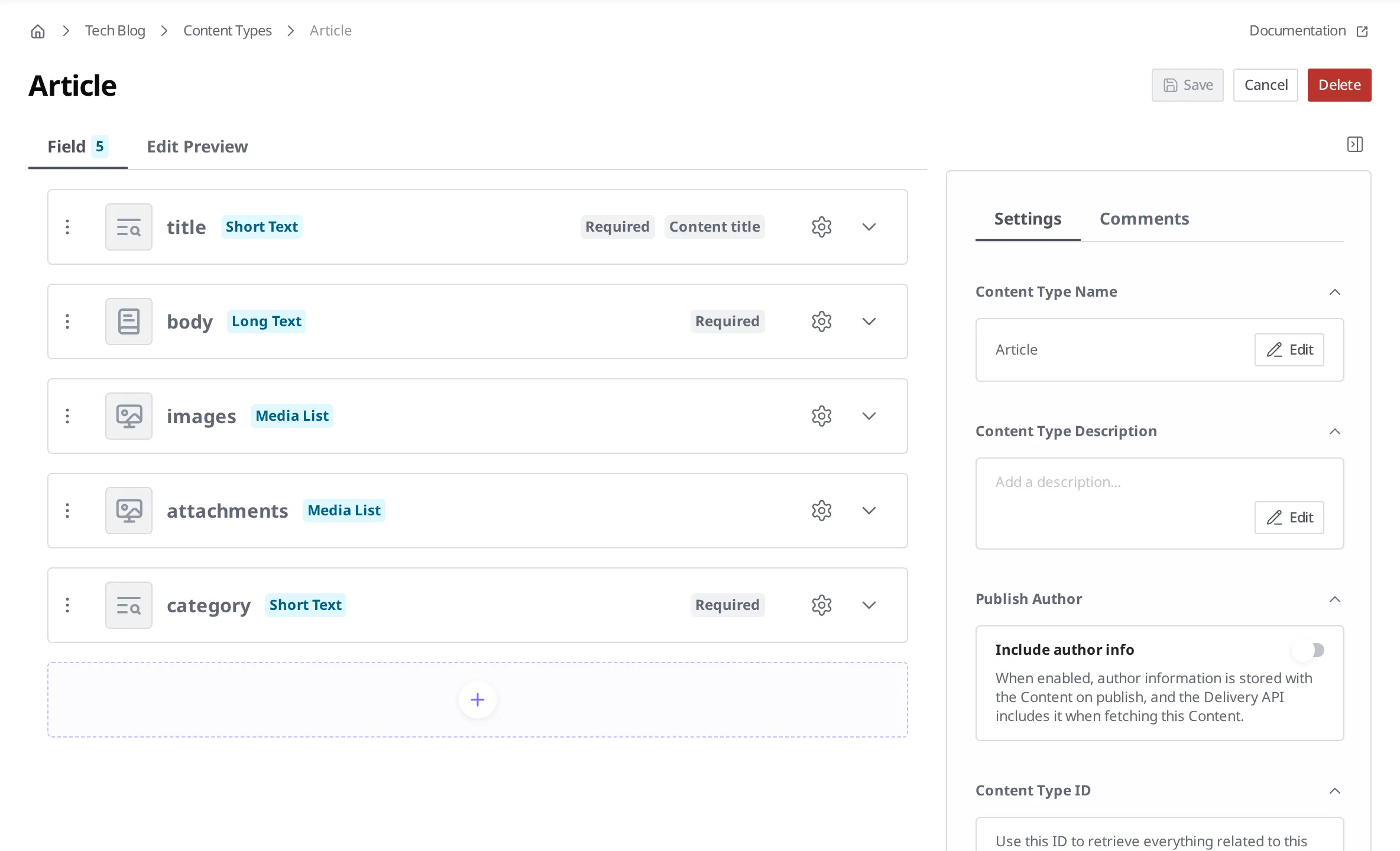
Set up five Fields as follows.
| Field | Type | As List | Required |
|---|---|---|---|
title | Short Text | No | Yes |
body | Long Text | No | Yes |
images | Media | Yes | No |
attachments | Media | Yes | No |
category | Short Text | No | Yes |
titleis the post's title. Since it is a short single line, you receive it as a Short Text type, and because it must not be empty, you make it required.bodyis the actual content. Since it is a long passage of text, you set it to a Long Text type and also make it required.imagescan hold one or more files, so you set the Media type to use as a list. You also restrict the allowed kinds to images so that only image files can be uploaded.attachmentsis also a Media type set as a list, but since it is optional you leave it out of required.categoryis the Field that classifies posts. You receive it as a Short Text type and make it required. In addition, to allow only predefined values, you restrict the possible input to four values:Web,Mobile,Server, andNews.
Once you have defined the Content Type this way, you can create actual post data based on this structure. How to set a Field's type, list, required, and validation conditions is covered in more detail in Content Modeling.
Now that the data structure is ready, in the next step you will write an actual post based on this structure.
- Adding Data: Create and publish an actual post that follows the
Articlestructure.