

Webhook
Last updated: July 3, 2026
Imagine you run a clothing store. Every time you register a new product, there is follow-up work you have to take care of yourself. Things like translating the product description into other languages, or letting your team know about the new product through your company messenger. Instead of doing this follow-up work by hand every time, you can have an outside program handle it for you, automatically notified the moment a product is registered. This "device that automatically notifies a place you have decided on in advance whenever something happens" is a Webhook.
You can think of it like a doorbell mounted on your shop's door. When a customer opens the door and walks in (a product is registered), the doorbell rings on its own, and the staff inside (the outside program) immediately starts moving, thinking "a customer is here." No one needs to keep watching the door. Like that doorbell, a Webhook sends a request to a place you have decided on the moment a thing you have decided on happens.
This page first looks at what a Webhook is and when you use it, then walks through creating a Webhook in your clothing store Space. It also covers WriteBack, which feeds the result returned by the outside program back into the product.
What a Webhook does
A Webhook is made up of three things you decide in advance.
- When to send: You decide what has to happen for a request to be sent. For example, you can set it to "when a product (Content) is newly registered."
- Where to send: You decide the address of the outside program that will receive the request. You write down a single internet address (URL).
- On or off: You decide whether to keep this Webhook on now (ACTIVE) or turn it off for the time being (INACTIVE). While it is off, no request is sent even when the thing you decided on happens.
When the thing you decided on actually happens, the Webhook sends a request to the address you wrote down, announcing that it happened. The request carries information such as what happened and which product it happened on. The outside program that receives the request looks at that information and does its own job.
Which changes send a request
The "thing" that triggers a request is a change to a resource inside your Space. You can choose a moment when something happens to a Content such as a product, a Media (an uploaded file), or a Content Type (the form template).
The changes you can choose differ by resource, as follows.
| Change | When it happens | Clothing store example |
|---|---|---|
| Create | When something is newly created | A new product is registered |
| Save | When the content is edited and saved | A product description is edited and saved |
| Delete | When something is deleted | A discontinued product is removed |
| Publish | When something is published and made public | A product is made public on the site |
| Unpublish | When publication is canceled | An out-of-stock product is taken down from the site |
| Archive | When something is archived | A past-season product is archived |
| Unarchive | When something is restored from the archive | An archived product is brought back |
For example, "send a request every time a product is newly registered" means choosing "Create of a product (Content)."
You can also choose several changes together in one Webhook. If you choose both "when a product is registered" and "when a product is edited," a request goes out whenever either one happens.
Narrowing it down with conditions
There are times when you do not want to send a request every time the change you chose happens. For example, you may want to receive a request "only when a Content made with the 'Product' form was registered, not every Content." In this case, you add a filter to narrow down when a request is sent.
A single filter is made of one line: "what to compare against, and how to compare it." You choose what to filter by from four options.
- Which form an item was made with: For example, send a request only for a Content made with the "Product" Content Type. This is the most frequently used condition.
- Whether it is one specific item: Send a request only for changes that happen on that one item you decided on.
- Who made the item: Send a request only for items made by a specific person.
- Who last edited the item: Send a request only for items that a specific person edited last.
You also choose how to compare. You can narrow it down to: only when it equals the value you set, only when it differs, only when it matches one of several values you decided on, only when it matches none of them, or only when it matches (or does not match) a format (pattern) you set.
In the trigger settings of the content studio, you add conditions one line at a time with Add Filter. If you add several filters, a request goes out only when all of those conditions are met; if you add none, a request goes out every time the change you chose happens.
Sending it in the shape the outside program wants
Unless you specify otherwise, the request carries the full information of the item that changed. For example, when the product "Stainless Tumbler 500ml" is registered, the content carried in the request looks roughly like this.
{
  "sys": { "id": "3trmXRM3RqbgSnifyg7OGhwhlqvAvq", "type": "Content" },
  "fields": {
    "productName": { "ko-KR": "스테인리스 텀블러 500ml" }
  }
}
(In practice, more information is included; the above is only a trimmed subset.) The outside program can pick out the values it needs from this. But some programs have a fixed format and "will only accept data in this shape." In that case, in the payload section of the content studio, you choose Customize the Webhook payload and write the shape to send yourself.
When you write the shape to send, you use a placeholder in the spots where you want to pull a value from the data above. A placeholder has the form { /payload/… }. Here payload refers to that whole item shown above, and the path after it pinpoints the value you want.
{ /payload/sys/id }→idinsidesysin the data above (the product's unique number){ /payload/fields/productName/ko-KR }→ theko-KRofproductNameinsidefields(the Korean product name). Afterfields/, you append the Field's ID (productNamefor the product name) and the language code (ko-KRfor Korean) in turn.
For example, if a translation program asks for "the text to translate and the product number in this shape," you write the payload like this.
{
  "id": "{ /payload/sys/id }",
  "text": "{ /payload/fields/productName/ko-KR }"
}
Then, the moment the tumbler product is registered, the placeholders are replaced with the actual values and delivered like this.
{
  "id": "3trmXRM3RqbgSnifyg7OGhwhlqvAvq",
  "text": "스테인리스 텀블러 500ml"
}
The same placeholders can also go in the sending address (URL) or in header values, and you can also choose the sending method (method) and the format (JSON or form format). If there is no value at the path you pointed to, that spot becomes an empty value.
For values that must not be exposed to others, such as an external API key, set the header's type to Secret when you add it. The value is then stored masked and is not exposed to the end user.
Feeding the response back in: WriteBack
If shaping the outgoing request is what the previous section covered, WriteBack handles the response that comes back. When a Webhook calls the outside program and receives a successful (2xx) response, it can process that response to create, edit, publish, or delete a Content or Media inside your Space. The step where a person copies and pastes the result by hand disappears.
Let us follow the clothing store translation example all the way through. Earlier, you sent a new product's Korean product name to the translation program. Suppose the translation program responds like this.
{ "translated": "Stainless Tumbler 500ml" }You set up a WriteBack that fills this translation into the English product name field of the same product. In the WriteBack section of the content studio, use Add Operation to add one Update action on a Content, and set it up like this.
- Target: Unless you specify otherwise, the product that changed (the tumbler) becomes the target.
- Field and language to fill: Since it is the English product name, the field is the product name (
productName) and the language is English (en-US). - Value to insert:
{ /response/translated }, which points to the translation in the response.
The English product name field of the tumbler product is then filled with Stainless Tumbler 500ml.
This kind of WriteBack is especially useful for connecting to an external LLM. For example, you can build a flow with a single Webhook that saves a promotional image made from a product description as Media, or creates a new Content from a generated description.
Order of operations
- When a change happens, the Webhook sends a request to the outside program in the shape you defined.
- If the response is 2xx, it runs the WriteBack actions (operations) you added from the top, in order.
- Each action is independent, so even if one fails, the rest keep running.
- Creations, edits, deletions, and publications that result from WriteBack are also caught as changes, which can chain into other Webhooks that subscribe to those changes. Endless loops are automatically checked for and blocked when you create or edit a Webhook.
The creator (createdBy) of a resource that is made or changed by WriteBack becomes the user who caused that change.
Value expressions
The value to fill is pulled in with the same kind of placeholder ({ /… }) you saw earlier. In WriteBack, however, there are two roots you can point to.
| Root | What it points to |
|---|---|
{ /response/… } | The response body returned by the outside program |
{ /payload/… } | The original item that changed (Content/Media) |
- If you use a single placeholder on its own (
{ /response/url }), it pulls in the value's original form (text, number, or collection) as is. - If you mix it with text (
"Created: { /payload/sys/id }"), it is joined into a single piece of text. - When the response comes back as plain text rather than JSON, use
{ /response }to receive the whole response as text (you cannot point to sub-paths inside it).
Working with Content ($content)
This is the action that creates or changes a Content from the response. The items you set are as follows.
| Item | Description |
|---|---|
action | One of Create , Update , Delete , Publish , Unpublish , Archive , Unarchive (case-insensitive) |
contentType | The Content Type of the Content to create. Required for Create; only sys.id is needed. |
target | The ID of the Content to change (specified by placeholder). If omitted, the item that changed is the target. (Update , Delete , Publish , Unpublish , Archive , Unarchive) |
locale | The language to record the fields values in. A code (e.g. ko-KR) or a placeholder that resolves to such a code. If omitted, the Space's default language. (Create , Update) |
fields | Field name → value to insert (placeholder). (Create , Update) |
publish | Whether to publish immediately after Create , Update (on by default). If off, it is not published and left as a Draft. |
unpublish | Whether to automatically unpublish first and then delete on Delete (on by default). If off, the delete fails when the target is not already in a deletable state. |
Working with Media ($media)
This is the action that brings a file received in the response in as Media, or changes a Media's state.
| Item | Description |
|---|---|
action | Create , Delete , Publish , Unpublish , Archive , Unarchive (there is no Update) |
source | The placeholder pointing to the file to bring in. (Create) |
encoding | How the file is received: Url (downloaded from an address) or Base64 (the file data carried in the response is decoded and stored) |
locale | The language to record the brought-in file and its title and description in. Same rule as Content. (Create) |
title , description | The media title and description in that language (placeholder, optional). (Create) |
target | The ID of the Media to change. If omitted, the item that changed. (Delete , Publish , Unpublish , Archive , Unarchive) |
publish | Whether to publish immediately after processing finishes on Create (on by default). |
unpublish | Whether to unpublish first and then delete on Delete (on by default). |
$media can also be used as the value of a Content's field. After bringing a file received in the response in as Media, you can link that Media directly into a field, creating "a Content that contains an image" in one step.
Delete,Archive,Unarchiveof Media handle not only the listing information but also the actual file in storage.
How to set it up, with examples
In the WriteBack section of the content studio, use Add Operation to add actions one at a time. You can switch between the Visual way, where you fill in items on the screen, and the JSON way, where you write a writeBacks block like the one below directly. The result is the same either way.
Create a new product by attaching an image made by an external LLM. Bring the image address carried in the response in as Media, and create a new Content that has that image.
{
  "writeBacks": [
    {
      "$content": {
        "action": "Create",
        "contentType": { "sys": { "id": "<Product Content Type sys.id>" } },
        "fields": {
          "productName": "{ /payload/fields/productName/ko-KR }",
          "photo": { "$media": { "source": "{ /response/data/0/url }", "encoding": "Url" } }
        }
      }
    }
  ]
}
Enrich the very product that changed. If you omit target, the Content that changed is the target. Fill the response's value into that product's field.
{
  "writeBacks": [
    {
      "$content": {
        "action": "Update",
        "locale": "en-US",
        "fields": { "productName": "{ /response/translated }" }
      }
    }
  ]
}
Create only as a Draft to publish after review. If you turn publish off, it is not published and is left as a draft, so a person can publish it after checking.
{
  "writeBacks": [
    {
      "$content": {
        "action": "Create",
        "contentType": { "sys": { "id": "<Content Type sys.id>" } },
        "fields": { "text": "{ /response/choices/0/message/content }" },
        "publish": false
      }
    }
  ]
}
Bring a response image in as a standalone Media. If you receive it by address, set encoding to Url; if you receive it as file data carried in the response, set it to Base64.
{
  "writeBacks": [
    { "$media": { "action": "Create", "source": "{ /response/data/0/url }", "encoding": "Url" } }
  ]
}
Delete , Publish , Unpublish , Archive , Unarchive have the same shape. If you write only action and the target to change, only that target's state changes (omit the target and it is the item that changed). For example, to publish a Content that the response told you about, you write it like this.
{
  "writeBacks": [
    { "$content": { "action": "Publish", "target": "{ /response/contentId }" } }
  ]
}
If you add several actions, they run in the order you wrote them. You can chain them, as in "fill the translation result into the product, then bring the promotional image in as Media."
Checking the execution result
You check how each WriteBack action turned out in the Webhook's call log. Each action records the following.
| Item | Description |
|---|---|
| Order | Which of the added actions it is |
| Target | Whether it is a Content or a Media |
| Action | The action that was performed |
| Status | Success , Failed , Skipped |
| Result ID | The ID of the resource that was created or changed (when there is one) |
| Error | The message when it failed |
For a successful action, you can trace which resource was created or changed by its result ID. If the response is not 2xx, WriteBack does not run at all, so the result log is also empty.
Things to know
- Only one change should send a request. If one Webhook catches both "registration (
Create)" and "publication (Publish)," the outside program may be called twice. For a Webhook that uses WriteBack, choose only one change. - It moves values but cannot calculate. It only goes as far as pulling values out of the response and inserting them; it does not do processing such as conditional branching or looping.
- It does not retry. If a problem occurs during processing, that action may simply be lost.
- Guard against careless creation. For a Content Type that is only ever created by WriteBack, it is best to narrow permissions so that regular users cannot create it directly.
Creating the clothing store Webhook
Now create one Webhook in your clothing store Space. It is a Webhook that "notifies a pre-prepared outside translation program whenever a new product is registered." Suppose the address of the outside program that will receive the request is https://example.com/translate.
- In your clothing store Space's settings, open the Webhook screen.
- Click the Create button at the top right.
- Enter
New product translation noticein the name field. This name is for recognizing later which Webhook it is. - Decide which change sends the request. To send for a specific change only, choose Select specific triggering events and then specify the change you want (here,
Createof a product (Content)); to send for every change, choose Trigger for all events. - Enter the address of the outside program that will receive the request,
https://example.com/translate, in the URL field. - If you turn Active on, it sends requests as soon as you create it (ACTIVE). To only test for a while, turn it off (INACTIVE).
- Click the Create button to create the Webhook.
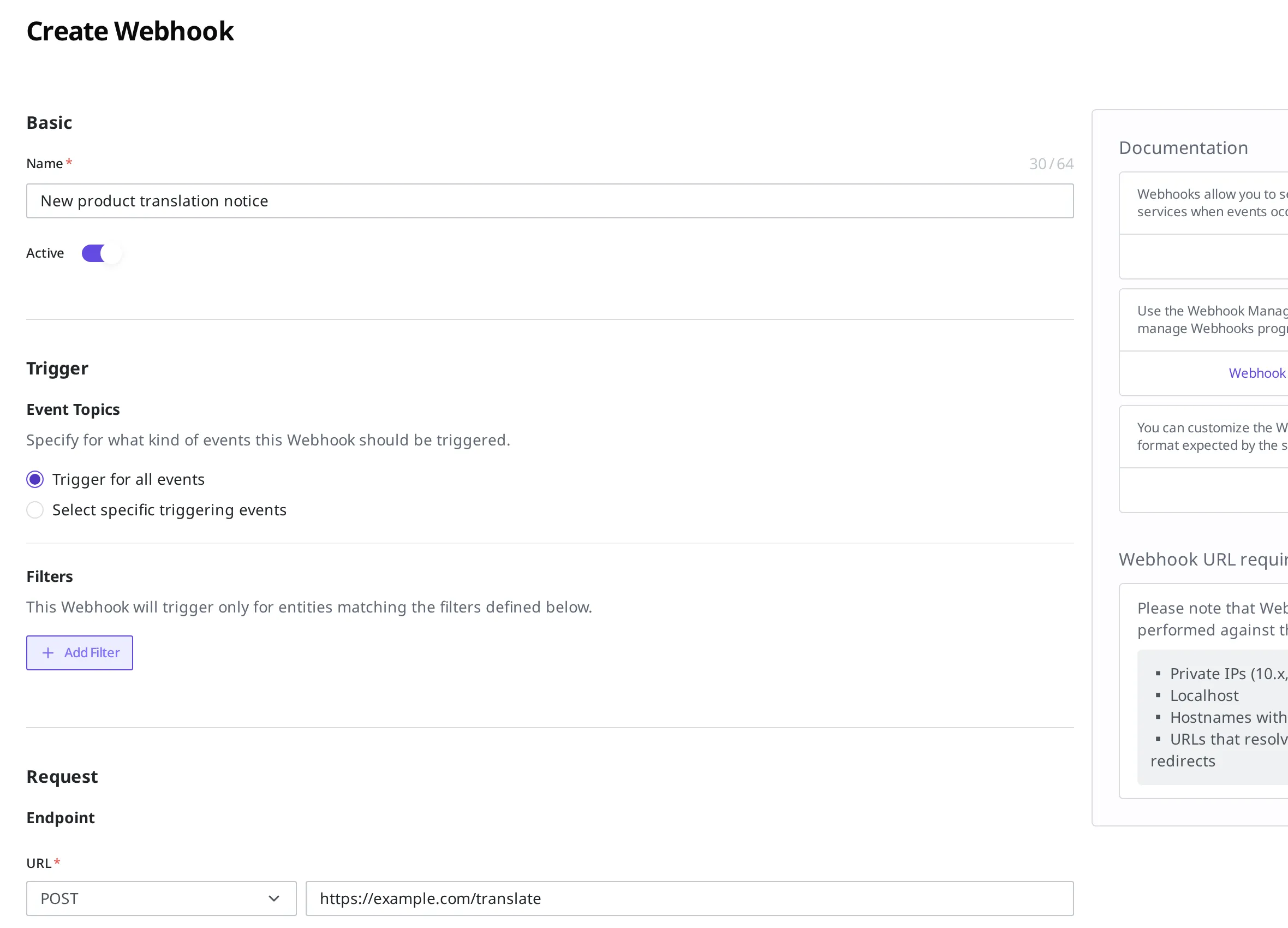
When New product translation notice appears in the list in the ACTIVE state, the Webhook has been created.
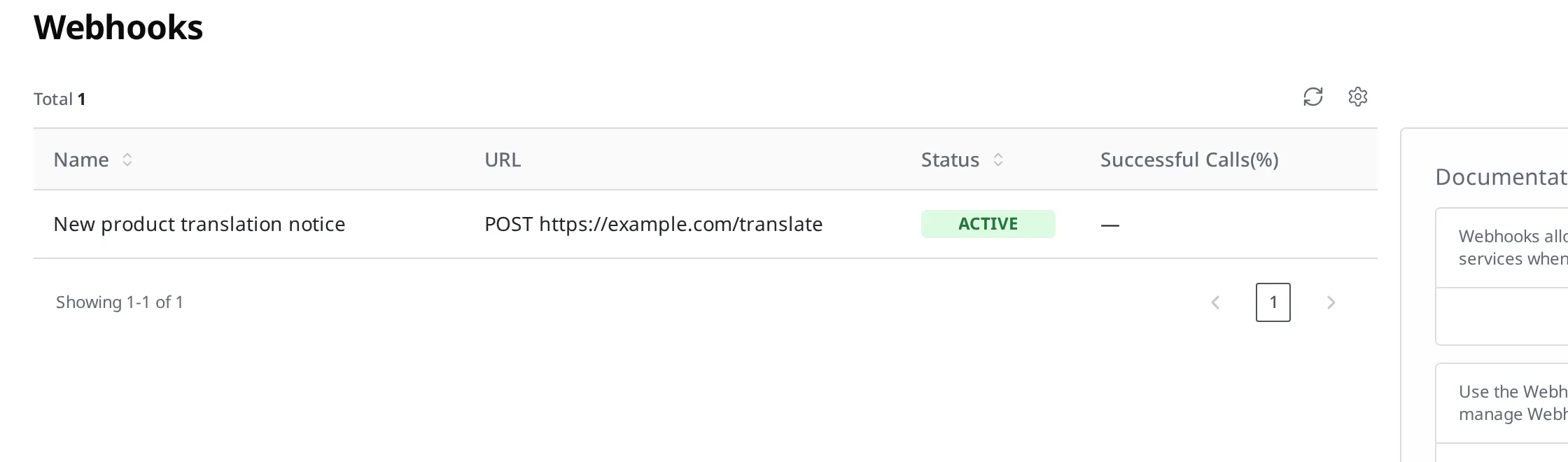
After creating it, try actually registering a new product in your clothing store. The moment you register it, the Webhook sends a request to the address you wrote down. You can check whether the request went out properly and how the outside program responded in the Webhook's call log.
Turning it on and off, and editing
You can turn a Webhook on and off at any time, even after creating it. When you want to pause requests for a while, do not delete it; turn it off to INACTIVE. While it is off, no request goes out even if you register a new product. When you turn it back on to ACTIVE, it starts sending requests again from then on.
When you reopen a Webhook you created, you can turn Active off or back on. You can also edit the name, the address to send requests to, and the changes to call later, and you can delete a Webhook you no longer use.
What to do next
- Content Modeling: Covers how to make the form template for a Content such as a "product," which is what a Webhook sends requests for.
- Authoring Content: You can register an actual product and check that the Webhook works.
- API Reference: Covers the request and response formats and field specs used when you create and manage Webhooks directly from a program.