

Organizations and Spaces
Imagine you have been running a clothing store on your own, and now you want to hand product registration over to a colleague. For that, your colleague needs to be able to come into the same workspace and work alongside you. In WEEGLOO, sharing the same workspace with a colleague is called membership, and bringing a colleague into that space is called an invitation.
WEEGLOO has no separate sign-up screen. No one can join on their own. A new person only comes in when someone already inside sends an invitation to their email address. So working with a colleague always starts with an "invitation."
This page first looks at the two places a colleague comes into, the Organization and the Space, and then walks through inviting a colleague to your clothing store so the two of you can work together.
The two places a colleague comes into
Before you invite a colleague, it helps to know that there are two places a colleague comes into.
A Space is the workspace where content such as products and photos actually lives. Registering your store's products, uploading photos, and publishing all happen inside one Space. Every task that involves working with content happens in a Space.
An Organization is the higher-level unit that groups these Spaces together. A single company can have several workspaces, such as a Space for its shopping mall and a Space for internal announcements, and the unit that gathers those workspaces in one place is the Organization. A Space always belongs to exactly one Organization.
To use a company as an analogy, the Organization is the whole company, and a Space is a department office inside it. A person first has to become a company employee (an Organization member), and then gets assigned to an office to work in (a Space member). For the clothing store, a colleague first joins your Organization and is then assigned to the shopping mall Space, where they work with the products.
A deeper explanation of how the Organization, the Space, and the personal account you log in with fit together is covered on a separate page. On this page, you only need to know the flow: "invite a colleague into the Organization, then assign them to a Space."
Members join only by invitation
There is no way to join an Organization on your own. For anyone to come in, someone already inside has to invite them by their email address. The only way to bring a colleague into your clothing store Organization is to invite them by their email. (A login account itself is created the first time anyone logs in, but which Organization or Space you get into is decided this way, by invitation. Signing up for an account and joining an Organization are different things.)
When you send an invitation, the following happens.
- The invited person becomes a member right away. They do not need to click a separate "accept" button.
- An invitation email is sent to the invited person's email address.
- You can invite someone even if the invited email has never used WEEGLOO before. In that case, a new account slot is set up for that email at the same time.
When you invite someone, you also decide the Organization role to give them. A role is a permission level within the Organization, and there are three.
| Organization role | What it can do |
|---|---|
| Owner | The highest permission, covering the entire Organization. An Owner can invite and manage members, create and manage Spaces, and even handle billing (plans and invoices). The person who creates an Organization becomes its first Owner. |
| Admin | Can invite and manage members and create and manage Spaces. However, an Admin cannot access billing (plans and invoices). |
| Member | Cannot do Organization-level administration (managing members, managing Spaces, or billing). A Member works with content only in the Spaces they are assigned to, and only as far as the role they were given in that Space allows. |
You cannot give someone a role higher than your own. For example, an Admin can invite others as an Admin or a Member, but not as an Owner. You can only hand out roles to colleagues within the limits of your own permissions.
The Organization role you set here (Owner, Admin, Member) is a level across the entire Organization. What a colleague can do inside a particular Space, such as whether they can create products or publish them, is decided separately by the role you assign in that Space. That Space role is covered on a separate page.
Inviting a colleague to your clothing store Organization
Now invite a colleague who will help you manage products to your clothing store Organization. Say your colleague's work email is minji.kim@example.com, and you are bringing them in as a regular member to handle product registration.
- Click the Organization name at the top left of the content studio to enter the Organization screen.
- In the left menu, click Membership.
- At the top right, click the Invite button. The invitation screen opens.
- In the Email(s) field, enter
minji.kim@example.com. - Under Choose an Organization Role, choose Member. (Member is selected by default.)
- Click the Invite button again at the top right to send the invitation.
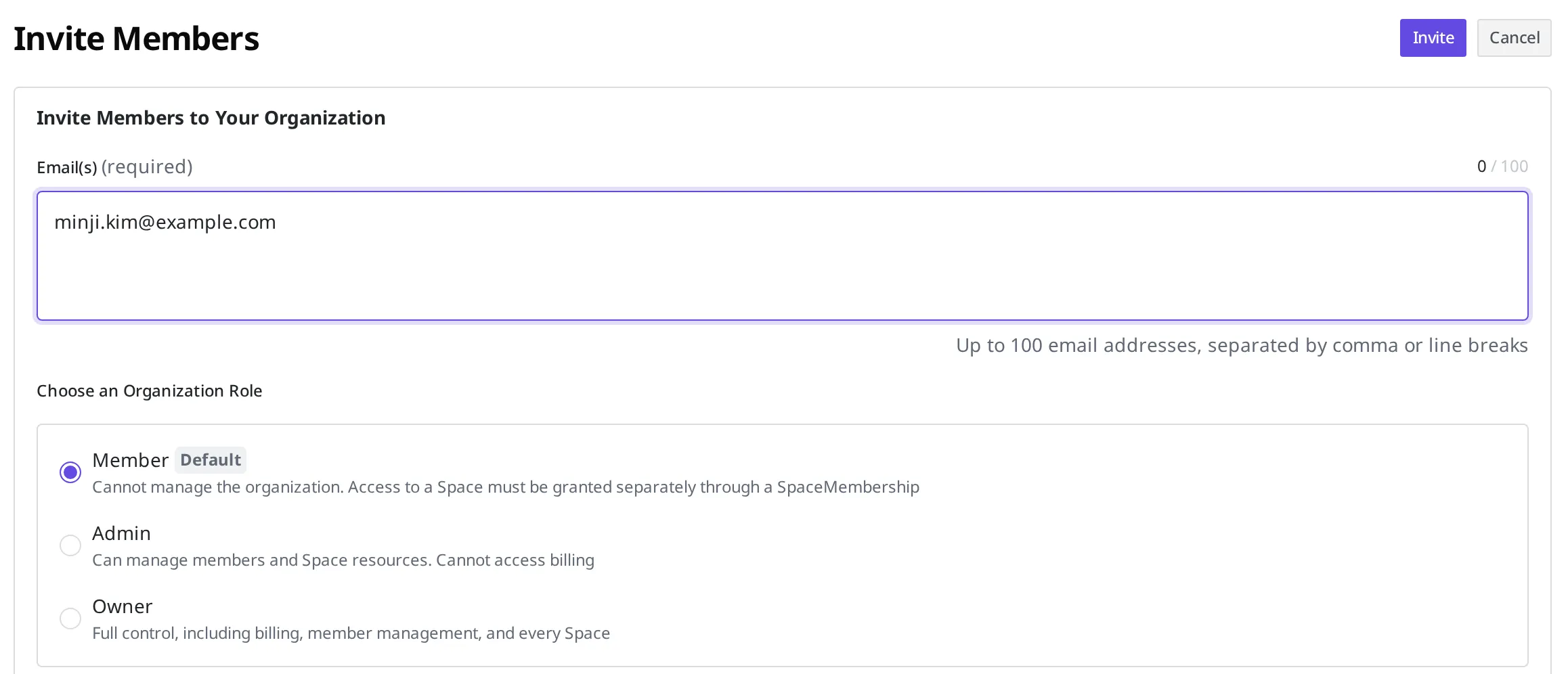
When minji.kim@example.com appears in the list as a Member, your colleague has become an Organization member. An invitation email is sent to your colleague's email.
If you try to invite an email that is already an Organization member again, it is not added and you see a notice that they are already a member. In that case, do not invite them again. Just move to the next step and assign that member to a Space.
Assigning a colleague to your shopping mall Space
Your colleague is now an Organization member, but they have not yet entered the workspace where products live. To let your colleague work with products, you need to assign them to the shopping mall Space. At this point you also decide which role they will work under inside that Space.
Only Organization members can be assigned to a Space. That is why you invited your colleague to the Organization first in the earlier step. Anyone who is not yet an Organization member cannot be assigned to a Space.
- Go back to the shopping mall Space and click Membership in the left menu.
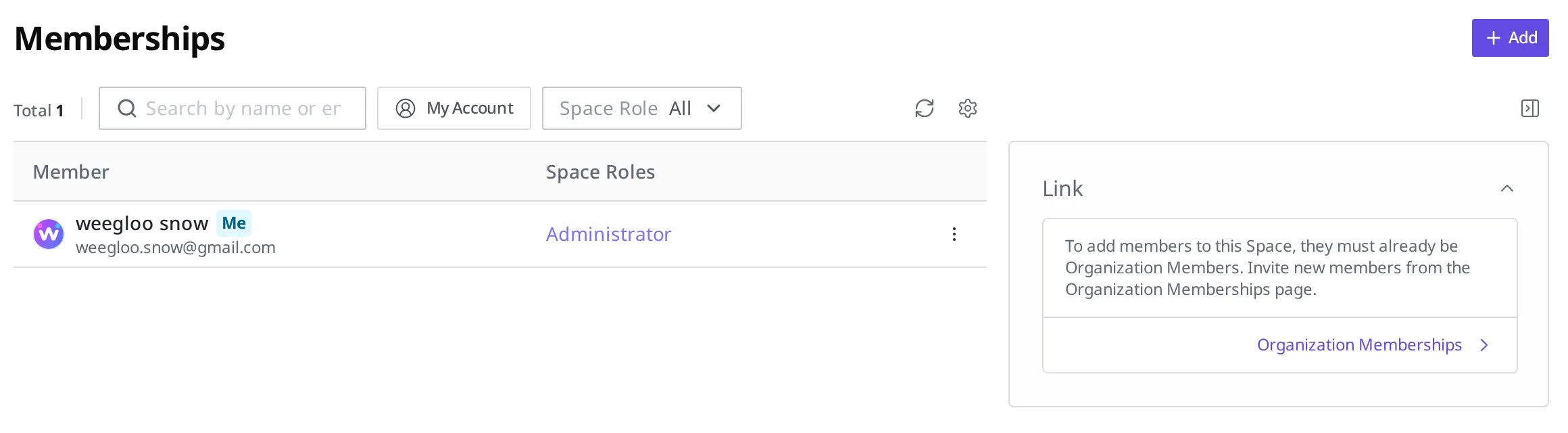
- At the top right, click the Add button.
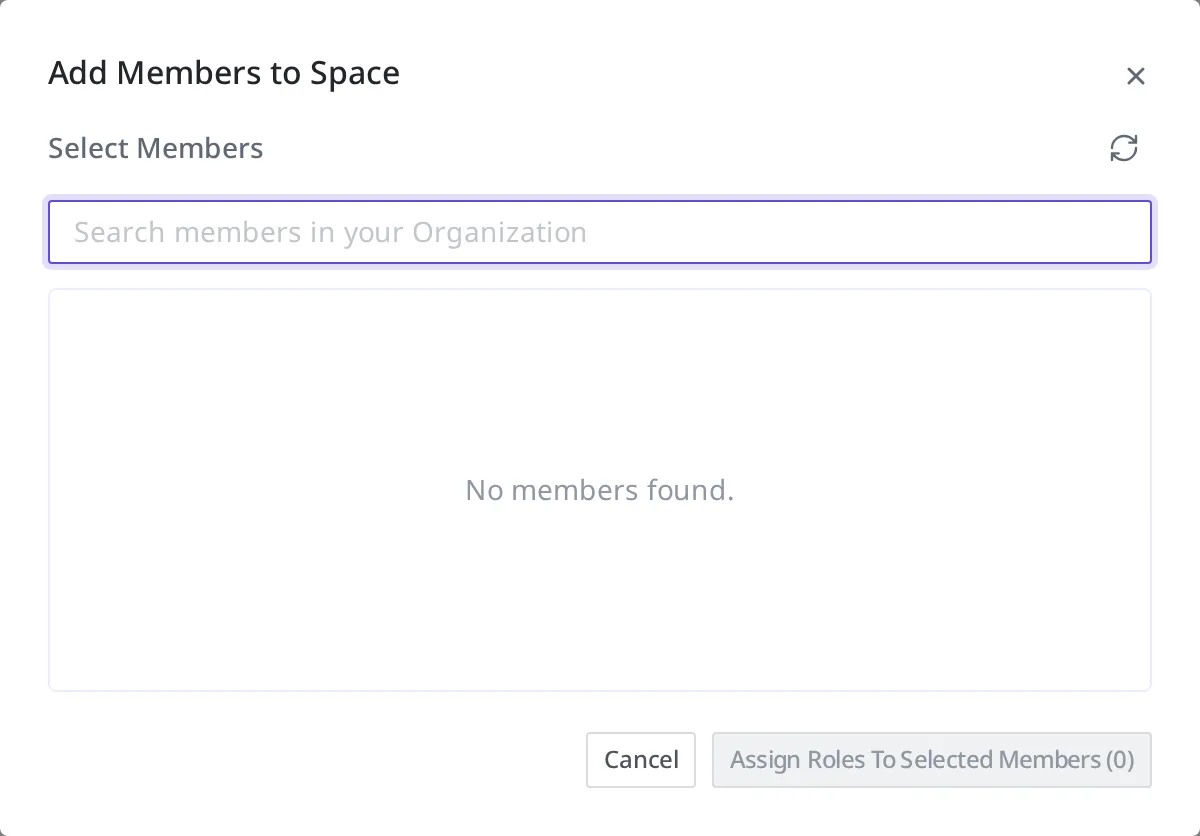
- In the search field of Select Members, find and choose
minji.kim@example.comamong the Organization members. - Choose one or more roles (SpaceRole) for your colleague to hold inside this Space.
- Click the Assign Roles To Selected Members button.
If no one shows up in the search results, it means that email is not yet an Organization member. Go back to the earlier step and invite them to the Organization first.
When minji.kim@example.com appears in the list, your colleague has become a member of the shopping mall Space. A Space invitation email is sent to your colleague's email. Your colleague can now enter the shopping mall Space in the content studio and work with products within the range their assigned role allows.
Organization members and Space members are different
The two memberships are separate places. An Organization member has become a company employee, and a Space member is that employee assigned to work in a particular office. Being an Organization member does not automatically put someone into every Space. To let a colleague work with the products in the shopping mall Space, you have to assign them to that Space separately, apart from bringing them into the Organization.
You can also assign one colleague to several Spaces. If you assign the same colleague to both the shopping mall Space and the internal announcements Space, they work in both workspaces. You can even give them a different role in each Space.
Removing a colleague
When a colleague you have been working with no longer needs to work with you, you can remove them from membership. Here too, it helps to keep the two places in mind.
If you want to remove them only from a particular Space, remove your colleague from that Space's member list. Your colleague drops out of just that workspace, while their Organization member place stays as is, so they can keep working in other Spaces.
If you remove them from the entire Organization, your colleague is dropped from every Space in that Organization as well. Either way, a notice email is sent to your colleague's email.
The last remaining Owner cannot be removed. Because an Organization must always have at least one Owner, when there is only one Owner, lowering that person to a Member or removing them is blocked. You have to promote someone else to Owner first and then try again.
To delete the Organization itself, you first have to delete every Space inside it. If even one Space remains, the Organization cannot be deleted.
What to do next
- Content modeling: Now that the colleague you will work with has joined, set the structure for what fields go into a product.
- Authoring and publishing Content: Fill that structure with products, create them, and publish them so they are visible externally.
- API reference: Covers the technical specifications, such as request formats, you need when handling member invitations and role assignments directly in code.