

Collaborating
Last updated: June 22, 2026
Keeping a Tech Blog running over time usually involves several people writing and managing posts together, rather than one person writing everything. That makes setting up a collaboration environment more than a convenience: it is an important part of running the service.
Inviting collaborators and granting permissions
WEEGLOO provides user invitation and permission management features for collaboration. To invite a user to a Space, that user must first belong to the Organization. In other words, you invite users at the Organization level first, and then grant them access to the Space they need.
Giving everyone administrator permissions may not be the right approach. For example, someone who writes posts only needs to be able to create and edit content. They do not need permission to change system settings or other resources. For situations like this, WEEGLOO lets you divide permissions into fine-grained pieces with a SpaceRole.
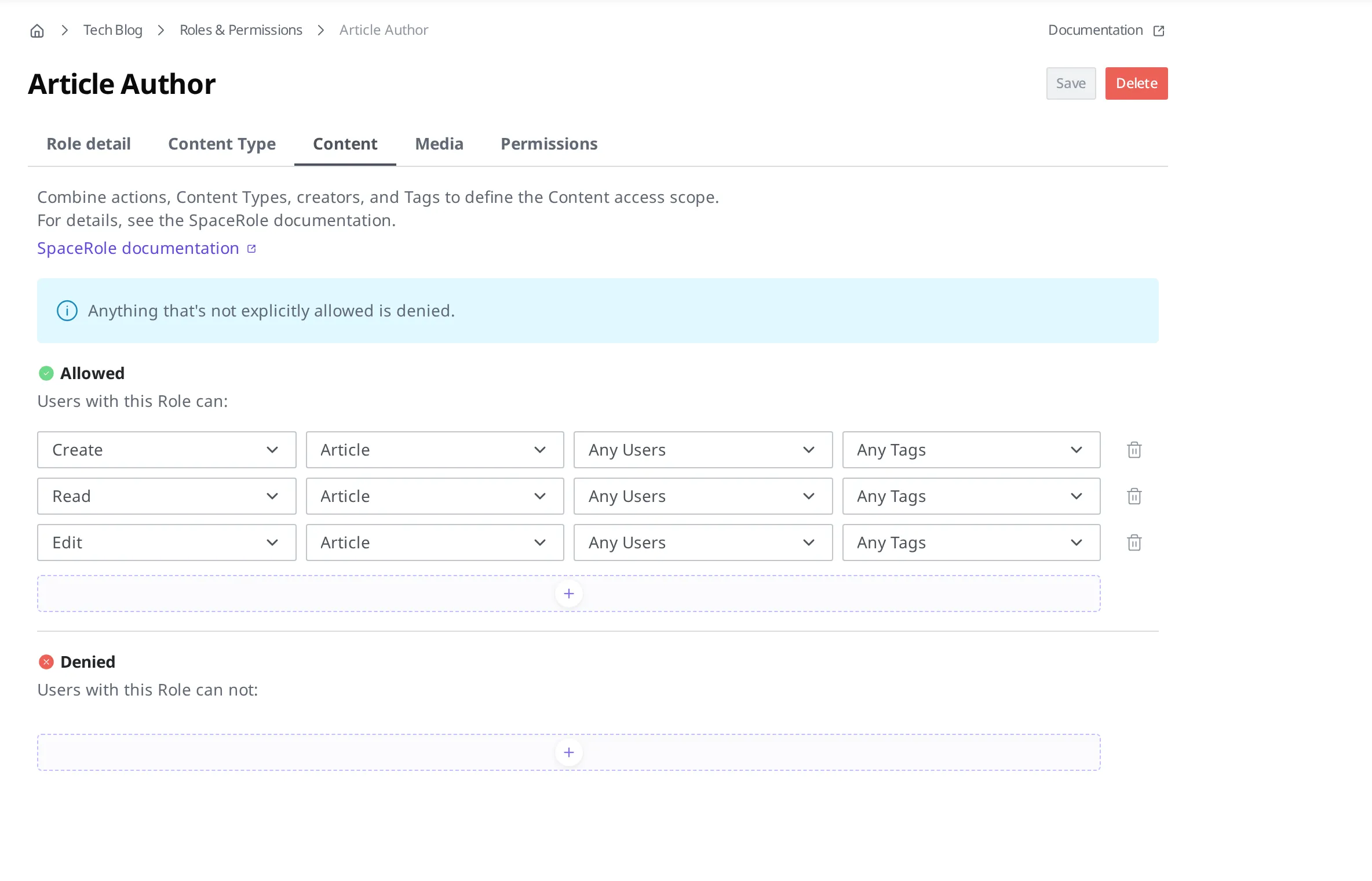
Start by creating a new SpaceRole that grants create and edit permissions for the Article Content Type. This role carries only the minimum permissions a blog author needs.
- In the left menu, click Roles & Permissions and then click Create.
- Enter a role name. For example:
Article Author. - Under Content, allow Read, Create, and Edit for
Article. Do not turn on permissions for settings or other resources. - Click Save to save it.
After creating the role, invite your collaborators to the Organization.
- In the Organization settings, click Invite under Memberships.
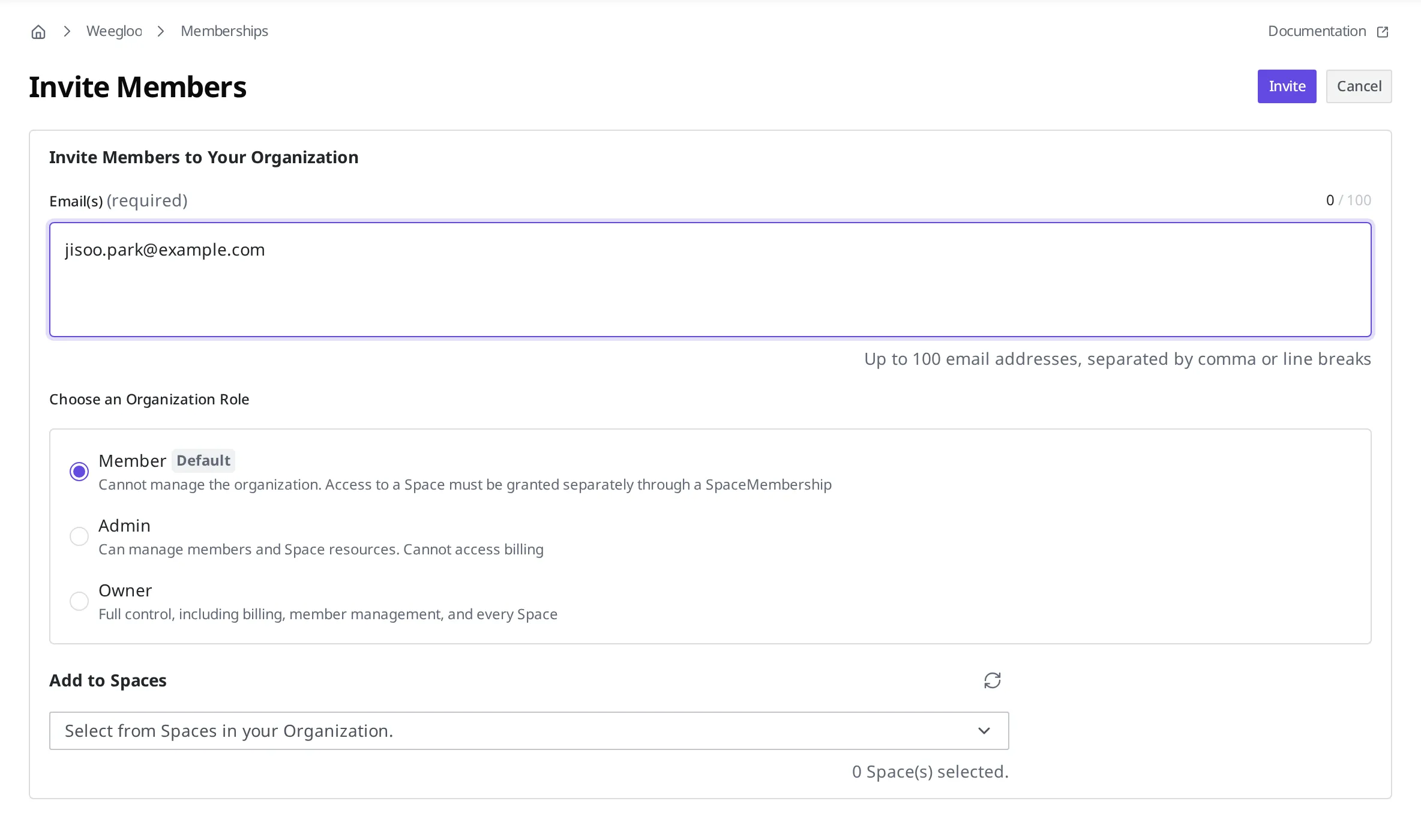
- Enter the email address of the person to invite and choose an Organization Role (for example, Member).
- In Add to Spaces, you can also choose the Space the person will have access to (for example, Tech Blog).
- Click Invite to send the invitation.
Which SpaceRole (for example, Article Author) a collaborator works under in each Space is set in that Space's member settings. The detailed flow for invitations and managing Space members and roles is covered in Access and permissions.
Inviting several collaborators this way sets up an environment where everyone can write and manage content together within a single Space.
Communicating between collaborators: Tag and Comment
In collaboration, communication between collaborators matters as much as writing content itself. Sometimes a post needs revisions, or you need to leave review feedback. WEEGLOO provides Tag and Comment features for this.
A Tag is a label used to categorize content or find it quickly. For example, you can attach a status or meaning such as draft, review, or important so that everyone can see at a glance what state the content is currently in.
A Comment is used to leave a note on a specific piece of content or to record the work history. Use it to leave revision requests or to explain what has changed.
A Comment is an internal record that only collaborators see, so it is not delivered to visitors. A Tag is also mainly used as a label for organizing and finding work. You can think of both features as supporting aids for collaboration rather than as the content itself.
Using WEEGLOO this way gives you not only content management but also a collaboration environment where multiple users take part together. In the next step, you will look at how to connect with external systems to extend your capabilities further.
- Extending: Connect with external systems to extend your Tech Blog's capabilities.