

Installing an App
Last updated: July 3, 2026
Imagine you run a clothing store. You have registered all of your products in the content studio, and you start to wish you had a screen that displays those products attractively, or a tool that summarizes your sales. The good news is that you do not have to build these yourself. You can bring an app that someone else has already made into your own workspace and use it. Picking an app someone has built and bringing it into your Space (the workspace that holds your content, members, and settings) to use it is what installing an app means.
The apps you bring in this way are called Market Apps. When someone puts their app up for sale (publishes it) and it passes review, that app goes on display in the storefront. You then pick an app you like from that storefront and install it into your Space. The flow is the same as opening an app store on your phone, choosing the app you need, and installing it. In the content studio, this storefront is called the marketplace.
Installs Land in Your Space
Installing an app is something that happens within a single Space. If your clothing store has several Spaces, the app is brought only into the Space where you installed it. If you want to use the same app in another Space, you install it separately in that Space.
This is where it differs from publishing an app. Publishing puts an app up in the storefront for the whole company (organization), while installing brings that app into a single Space. Putting an app out and bringing one in to use happen in different places (see Publishing an App).
What an installed app does for you varies from app to app. For example, one app might provide a screen that pulls in and displays the content its maker has registered in their own Space, exactly as it is. Another app does something else. To find out exactly what an app does, check the app's description in the marketplace.
Picking and Installing an App from the Marketplace
You install apps from the marketplace. The marketplace is a separate site from the content studio. When you click Visit Marketplace in the content studio, it opens in a new tab.
On the marketplace home, you can browse the apps on display by type (Blog, Document, Business, and so on), and you pick an app to install into your Space through Install Apps to Your Space.
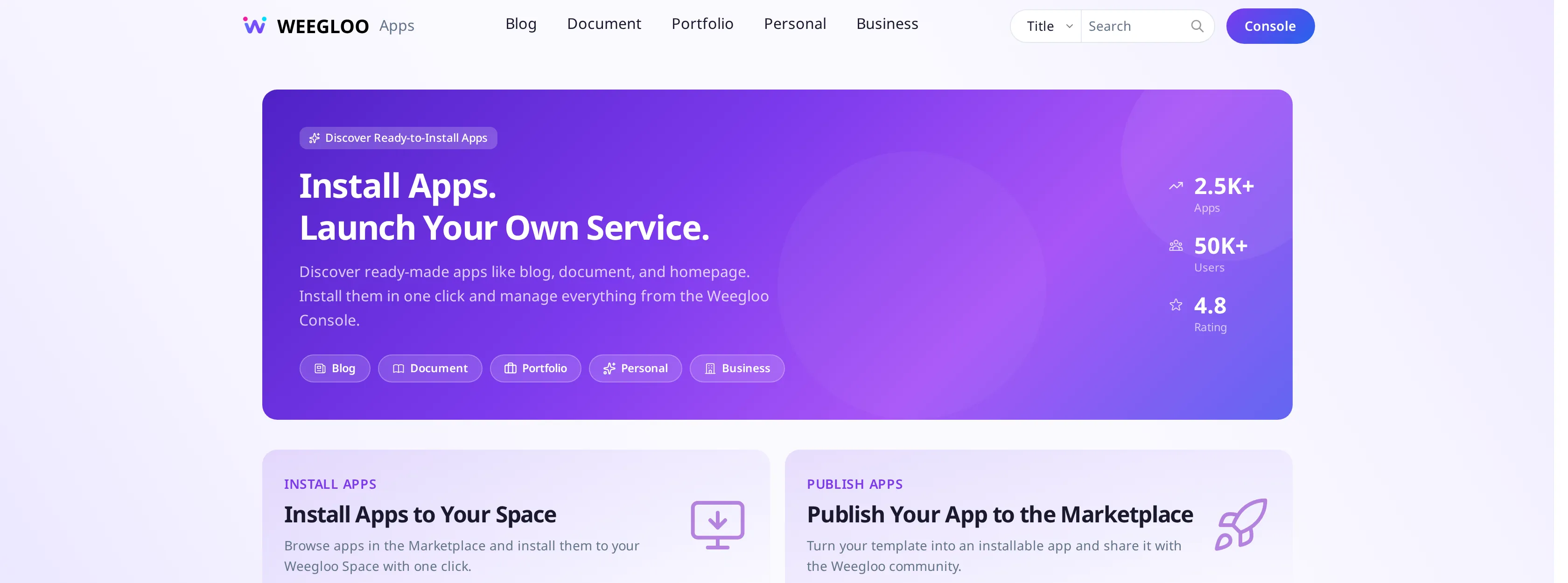
- In the content studio, click Visit Marketplace. The marketplace opens in a new tab.
- Browse the apps on display by type, find an app that suits your clothing store, and open it.
- Install that app into your Space. When you install, you choose which Space to bring it into. If you choose your clothing store Space, the app is brought into that Space.
The per-app detail screen for picking and installing an app follows the guidance on the marketplace (a separate site outside the content studio).
Viewing Installed Apps and Their History
You can see the apps you have installed and your full install history gathered in one place under your Space's Installed Apps. Which app, which version, who installed it, and when are stacked up one row at a time.
The list has the following columns for each app.
- App name: The name of the installed app.
- Version: The version number of the installed app.
- My review: Your rating left on the installed app. See "Leaving a Review on an Installed App" below.
- Installed by: The member who installed the app.
- Install date: The date the app was installed.
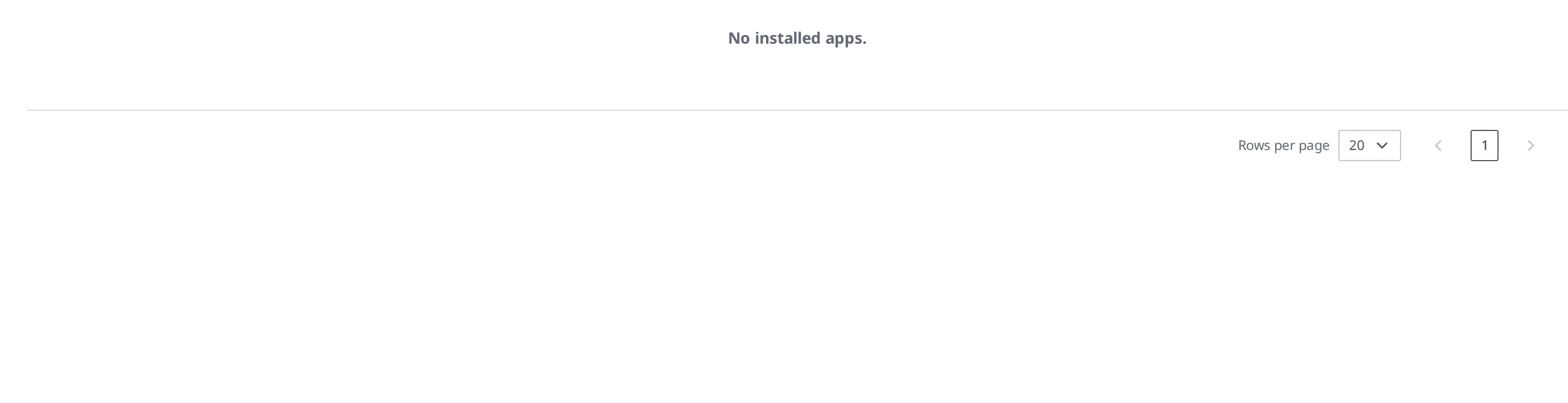
If you have not installed any apps yet, the list is empty and only the column headers above are shown. Once you install an app, that row appears in the list.
Leaving a Review on an Installed App
You can leave a rating of whether an installed app was worthwhile. In the My review column of the Installed Apps, you leave and check your own review of that app. It becomes helpful information for others who are looking at the same app.
What to Do Next
- Publishing an App: Covers how to put an app you made up on the marketplace (at the organization level).
- Building an App: Covers how to build and bundle an app for installation.
- API Reference: Covers technical specifications such as the request formats you need when handling Market App installation directly from a program.